park assist DODGE DURANGO 2015 3.G Owners Manual
[x] Cancel search | Manufacturer: DODGE, Model Year: 2015, Model line: DURANGO, Model: DODGE DURANGO 2015 3.GPages: 689, PDF Size: 20.05 MB
Page 117 of 689
▫Parking Lights And Panel Lights...........175
▫Fog Lights — If Equipped...............175
▫Interior Lights........................176
▫Lights-On Reminder...................177
▫Battery Saver.........................177
▫Front Map/Reading Lights — If Equipped . . .178
▫Courtesy Lights.......................179
▫Ambient Light — If Equipped............179
▫Multifunction Lever....................180
▫Turn Signals.........................180
▫Lane Change Assist...................181
▫Flash-To-Pass........................181
▫High/Low Beam Switch.................181
!WINDSHIELD WIPERS AND WASHERS......182
▫Windshield Wiper Operation.............183
▫Intermittent Wiper System...............183
▫Windshield Washer Operation.............184
▫Mist...............................185
▫Rain Sensing Wipers — If Equipped........186
!TILT/TELESCOPING STEERING COLUMN . . .187
!POWER TILT/TELESCOPING STEERING
COLUMN — IF EQUIPPED...............188
!HEATED STEERING WHEEL — IF EQUIPPED . .190
!ELECTRONIC SPEED CONTROL —
IF EQUIPPED.........................191
▫To Activate..........................192
▫To Set A Desired Speed.................193
3
UNDERSTANDING THE FEATURES OF YOUR VEHICLE 115
Page 119 of 689
▫Turning FCW ON Or OFF...............225
▫Changing FCW And Active Braking Status. . . .226
▫FCW Limited Warning..................227
▫Service FCW Warning..................227
!PARKSENSE® REAR PARK ASSIST — IF
EQUIPPED...........................228
▫ParkSense® Sensors....................228
▫ParkSense® Warning Display.............229
▫ParkSense® Display....................229
▫Enabling And Disabling ParkSense®........234
▫Service The ParkSense® Rear Park Assist
System.............................234
▫Cleaning The ParkSense® System..........235
▫ParkSense® System Usage Precautions.......235
!PARKVIEW® REAR BACK UP CAMERA — IF
EQUIPPED...........................237
!OVERHEAD CONSOLE..................239
▫Front Map/Reading Lights — If Equipped . . .240
▫Courtesy Lights.......................241
▫Sunglasses Bin Door...................241
!GARAGE DOOR OPENER — IF EQUIPPED . . .242
▫Before You Begin Programming HomeLink® . .243
▫Programming A Rolling Code.............244
▫Programming A Non-Rolling Code.........246
▫Canadian/Gate Operator Programming......247
▫Using HomeLink®.....................249
▫Security............................249
3
UNDERSTANDING THE FEATURES OF YOUR VEHICLE 117
Page 230 of 689
PARKSENSE® REAR PARK ASSIST — IF
EQUIPPED
The ParkSense® Rear Park Assist system provides visual
and audible indications of the distance between the rear
fascia and a detected obstacle when backing up, e.g.
during a parking maneuver. Refer to ParkSense® System
Usage Precautions for limitations of this system and
recommendations.
ParkSense® will retain the last system state (enabled or
disabled) from the last ignition cycle when the ignition is
changed to the ON/RUN position.
ParkSense® can be active only when the shift lever/gear
selector is in REVERSE. If ParkSense® is enabled at this
shift lever/gear selector position, the system will remain
active until the vehicle speed is increased to approxi-
mately 7 mph (11 km/h) or above. When in REVERSE
and above the system’s operating speed, a warning will
appear within the Driver Information Display (DID)
indicating the vehicle speed is too fast. The system will
become active again if the vehicle speed is decreased to
speeds less than approximately 6 mph (9 km/h).
ParkSense® Sensors
The four ParkSense® sensors, located in the rear fascia/
bumper, monitor the area behind the vehicle that is
within the sensors’ field of view. The sensors can detect
obstacles from approximately 12 in (30 cm) up to 79 in
(200 cm) from the rear fascia/bumper in the horizontal
direction, depending on the location, type and orienta-
tion of the obstacle.
228 UNDERSTANDING THE FEATURES OF YOUR VEHICLE
Page 231 of 689
ParkSense® Warning Display
The ParkSense® Warning screen will only be displayed if
Sound and Display is selected from the Customer -
Programmable Features section of the Uconnect® Sys-
tem. Refer to#Uconnect® Settings” in “Understanding
Your Instrument Panel” for further information.
The ParkSense® Warning screen is located within the
DID. It provides visual warnings to indicate the distance
between the rear fascia/bumper and the detected ob-
stacle. Refer to “Driver Information Display (DID)” for
further information.
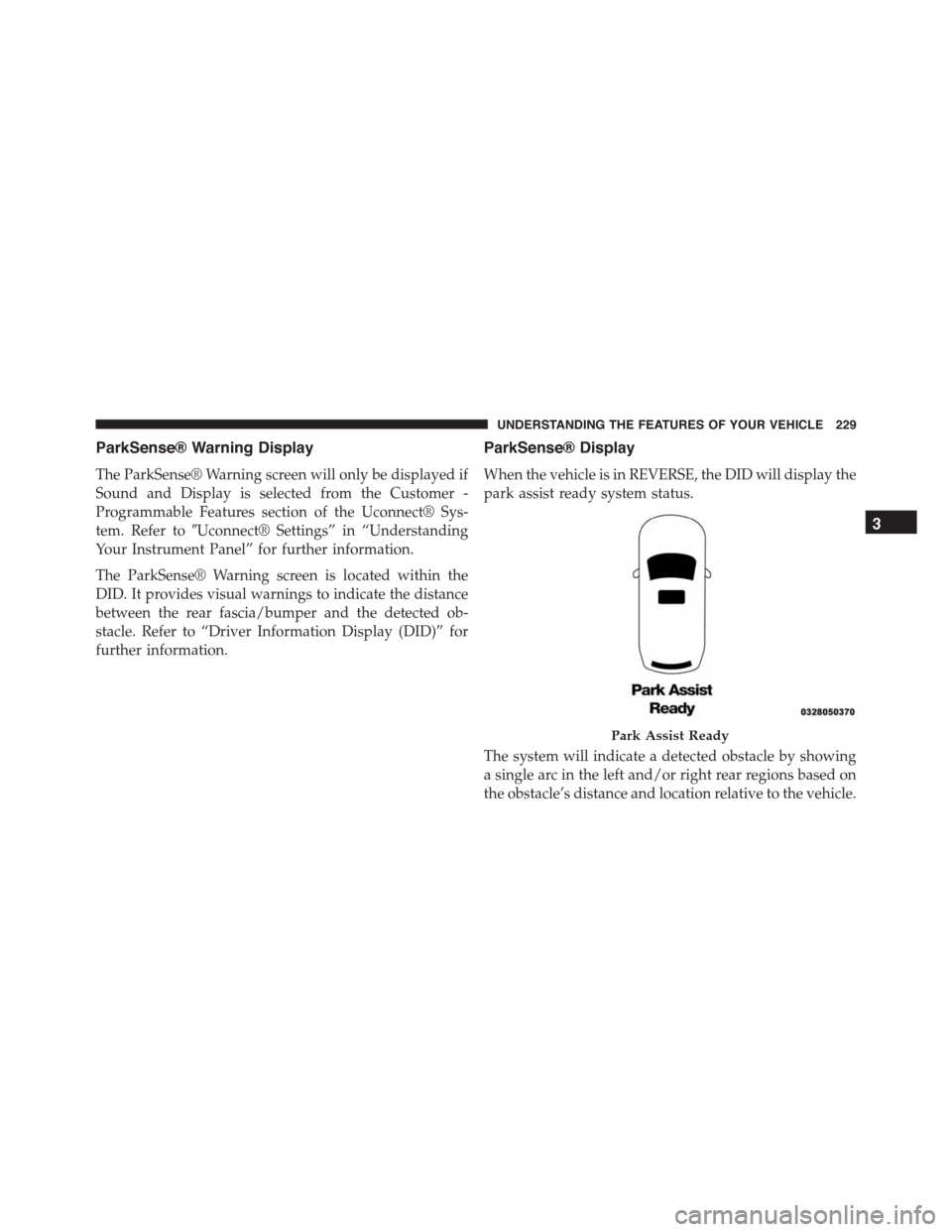
ParkSense® Display
When the vehicle is in REVERSE, the DID will display the
park assist ready system status.
The system will indicate a detected obstacle by showing
a single arc in the left and/or right rear regions based on
the obstacle’s distance and location relative to the vehicle.
Park Assist Ready
3
UNDERSTANDING THE FEATURES OF YOUR VEHICLE 229
Page 236 of 689
Enabling And Disabling ParkSense®
ParkSense® can be enabled and disabled with the
ParkSense® switch.
When the ParkSense® switch is pushed to dis-
able the system, the instrument cluster will dis-
play the “PARKSENSE OFF” message for ap-
proximately five seconds. Refer to “Driver
Information Display (DID)” in “Understanding Your In-
strument Panel” for further information. When the shift
lever/gear selector is moved to REVERSE and the system is
disabled, the DID will display the “PARKSENSE OFF”
message for as long as the vehicle is in REVERSE.
The ParkSense® switch LED will be ON when
ParkSense® is disabled or requires service. The
ParkSense® switch LED will be OFF when the system is
enabled. If the ParkSense® switch is pushed, and the
system requires service, the ParkSense® switch LED will
blink momentarily, and then the LED will be ON.
Service The ParkSense® Rear Park Assist System
During vehicle start up, when the ParkSense® Rear Park
Assist System has detected a faulted condition, the
instrument cluster will actuate a single chime, once per
ignition cycle, and it will display the “PARKSENSE
UNAVAILABLE WIPE REAR SENSORS” or the
“PARKSENSE UNAVAILABLE SERVICE REQUIRED”
message. Refer to “Driver Information Display (DID)” for
further information. When the shift lever/gear selector is
moved to REVERSE and the system has detected a
faulted condition, the DID will display the#PARKSENSE
UNAVAILABLE WIPE REAR SENSORS#or
#PARKSENSE UNAVAILABLE SERVICE REQUIRED#
message for as long as the vehicle is in REVERSE. Under
this condition, ParkSense® will not operate.
If “PARKSENSE UNAVAILABLE WIPE REAR SEN-
SORS” appears in the Driver Information Display (DID)
make sure the outer surface and the underside of the rear
fascia/bumper is clean and clear of snow, ice, mud, dirt
234 UNDERSTANDING THE FEATURES OF YOUR VEHICLE
Page 240 of 689
NOTE:The ParkView® Rear Back Up Camera has pro-
grammable modes of operation that may be selected
through the Uconnect® System. Refer to “Uconnect®
Settings” in “Understanding Your Instrument Panel” for
further information.
When enabled, active guide lines are overlaid on the
image to illustrate the width of the vehicle and its
projected backup path based on the steering wheel
position. A dashed center line overlay indicates the center
of the vehicle to assist with parking or aligning to a
hitch/receiver.#Different colored zones indicate the dis-
tance to the rear of the vehicle.#The following table
shows the approximate distances for each zone:
ZoneDistance to the rear of the vehicle
Red0 - 1 ft (0 - 30 cm)
Yellow1 ft - 6.5 ft (30 cm - 2 m)
Green6.5 ft or greater (2 m or greater)
WARNING!
Drivers must be careful when backing up even when
using the ParkView® Rear Back Up Camera. Always
check carefully behind your vehicle, and be sure to
(Continued)
WARNING!(Continued)
check for pedestrians, animals, other vehicles, ob-
structions, or blind spots before backing up. You are
responsible for the safety of your surroundings and
must continue to pay attention while backing up.
Failure to do so can result in serious injury or death.
238 UNDERSTANDING THE FEATURES OF YOUR VEHICLE
Page 245 of 689
NOTE:HomeLink® is disabled when the Vehicle Secu-
rity Alarm is active.
Before You Begin Programming HomeLink®
Be sure that your vehicle is parked outside of the garage
before you begin programming.
For more efficient programming and accurate transmis-
sion of the radio-frequency signal it is recommended that
a new battery be placed in the hand-held transmitter of
the device that is being programmed to the HomeLink®
system.
To erase the channels place the ignition in the ON/RUN
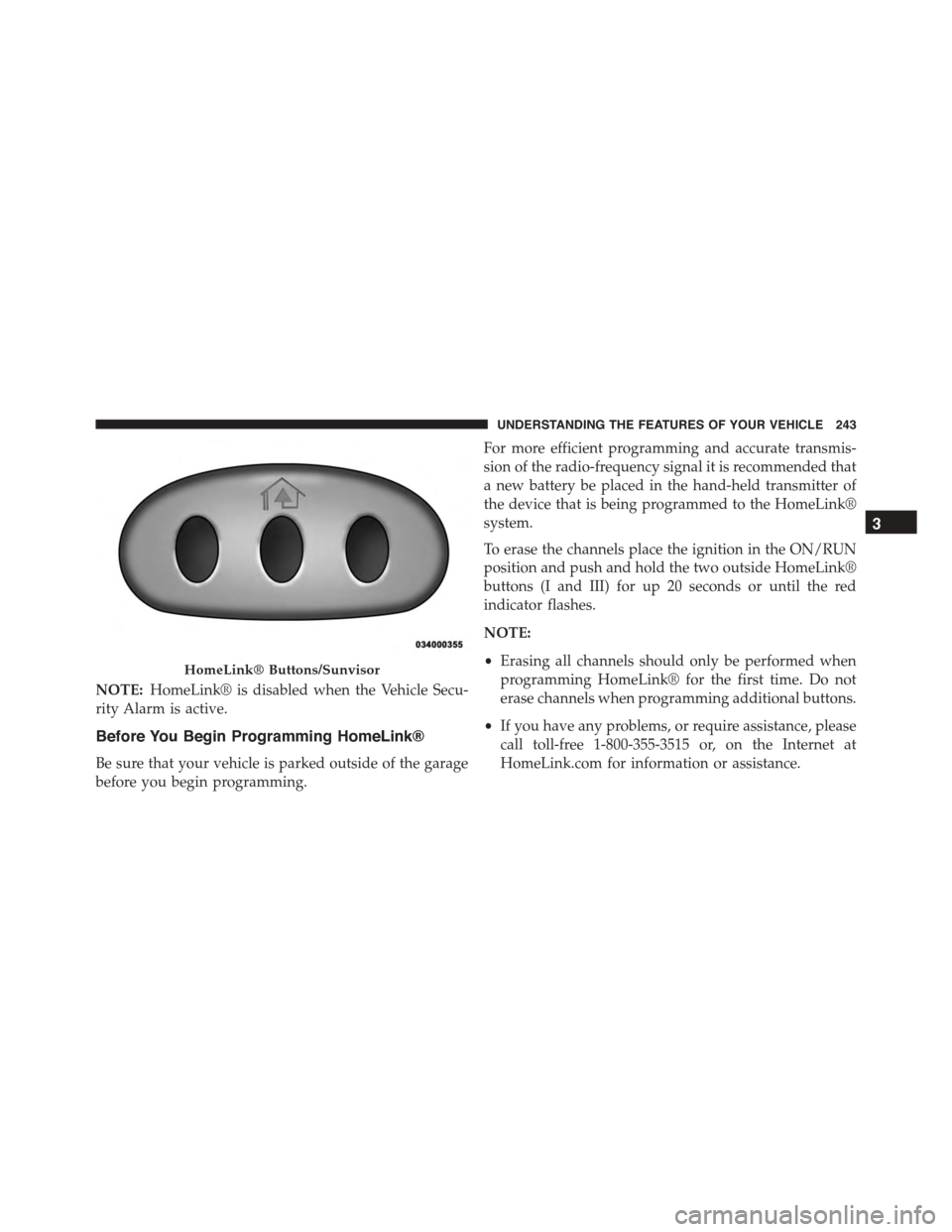
position and push and hold the two outside HomeLink®
buttons (I and III) for up 20 seconds or until the red
indicator flashes.
NOTE:
•Erasing all channels should only be performed when
programming HomeLink® for the first time. Do not
erase channels when programming additional buttons.
•If you have any problems, or require assistance, please
call toll-free 1-800-355-3515 or, on the Internet at
HomeLink.com for information or assistance.
HomeLink® Buttons/Sunvisor
3
UNDERSTANDING THE FEATURES OF YOUR VEHICLE 243
Page 303 of 689
•The ESC system will make buzzing or clicking
sounds when it is active. This is normal; the sounds
will stop when ESC becomes inactive following the
maneuver that caused the ESC activation.
21. Park/Headlight ON Indicator — If Equipped
This indicator will illuminate when the park
lights or headlights are turned on.
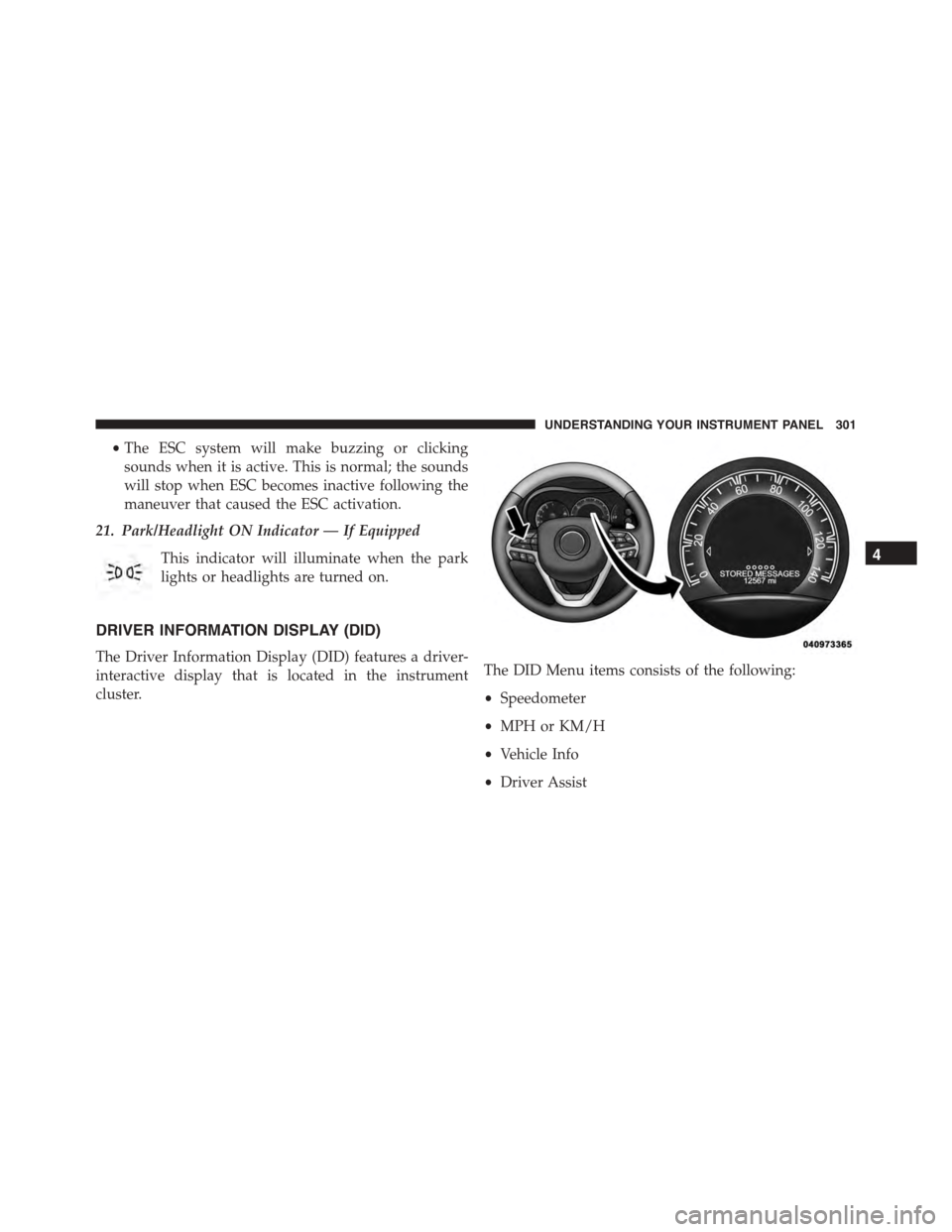
DRIVER INFORMATION DISPLAY (DID)
The Driver Information Display (DID) features a driver-
interactive display that is located in the instrument
cluster.
The DID Menu items consists of the following:
•Speedometer
•MPH or KM/H
•Vehicle Info
•Driver Assist
4
UNDERSTANDING YOUR INSTRUMENT PANEL 301
Page 324 of 689
•Show Command List
When in this display, you may change the Show Com-
mand List settings. To change the Show Command List
settings, press the “Show Command List” button on the
touchscreen and select from “Always,” “With Help” or
“Never.” Press the back arrow button on the touchscreen
to return to the previous menu.
Clock & Date
After pressing the “Clock & Date” button on the touch-
screen the following settings will be available:
•Set Time
When in this display, you may set the time and format
manually. Press the “Set Time” button then choose from
a “12 hour” or “24 hour format.” Press the corresponding
arrow above and below the current time to adjust, then
select “AM” or “PM.” Press the back arrow button on the
touchscreen to return to the previous menu.
•Set Date
When in this display, you may set the date manually.
Press the “Set Date” button then press the corresponding
arrows above and below the current date to adjust. Press
the back arrow button on the touchscreen to return to the
previous menu.
Safety/Assistance
After pressing the “Safety/Assistance” button on the
touchscreen the following settings will be available:
•ParkSense®
The ParkSense® system will scan for objects behind the
vehicle when the transmission shift lever/gear selector is
in REVERSE and the vehicle speed is less than 11 mph (18
km/h). It will provide an alert (audible and/or visual) to
indicate the proximity to other objects. The system can be
enabled with Sound Only, or Sound and Display. To
change the ParkSense® status, press and release the
322 UNDERSTANDING YOUR INSTRUMENT PANEL
Page 326 of 689
8 mph (12 km/h), the transmission is shifted into PARK
or the ignition is switched to the OFF position. To set the
ParkView® Backup Camera Delay push the MORE but-
ton on the faceplate, the “settings” button on the touch-
screen, then the “Safety & Driving Assistance” button on
the touchscreen. Press the “Parkview Backup camera
Delay” button on the touchscreen to turn the ParkView®
Delay ON or OFF.
•Rain Sensing Auto Wipers
When this feature is selected, the system will automati-
cally activate the windshield wipers if it senses moisture
on the windshield. To make your selection, press the
“Rain Sensing” button on the touchscreen and make your
selection. Press the back arrow button on the touchscreen
to return to the previous menu.
•Hill Start Assist — If Equipped
When this feature is selected, the Hill Start Assist (HSA)
system is active. Refer to “Electronic Brake Control
System” in “Starting And Operating” for system function
and operating information. To make your selection, press
the “Hill Start Assist” button on the touchscreen and
make your selection. Press the back arrow button on the
touchscreen to return to the previous menu.
Lights
After pressing the “Lights” button on the touchscreen the
following settings will be available.
•Headlights Off Delay
When this feature is selected, it allows the adjustment of
the amount of time the headlights remain on after the
engine is shut off. To change the Headlights Off Delay
setting, press the “Headlight Off Delay” button on the
touchscreen, and choose either 0 sec, 30 sec, 60 sec or 90
seconds. Press the back arrow button on the touchscreen
to return to the previous menu.
324 UNDERSTANDING YOUR INSTRUMENT PANEL