instrument panel DODGE DURANGO 2017 3.G Owners Manual
[x] Cancel search | Manufacturer: DODGE, Model Year: 2017, Model line: DURANGO, Model: DODGE DURANGO 2017 3.GPages: 584, PDF Size: 5.14 MB
Page 286 of 584
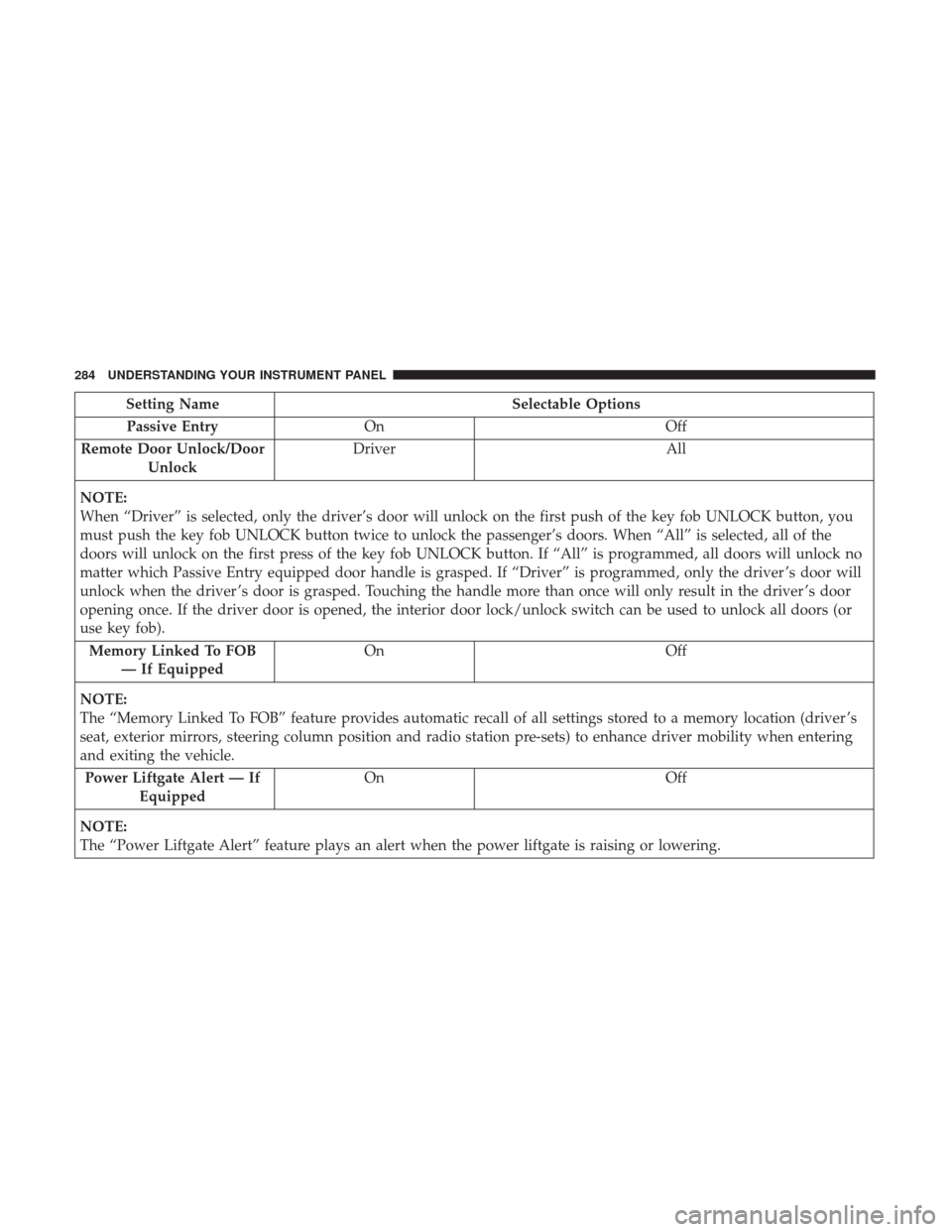
Setting NameSelectable Options
Passive Entry On Off
Remote Door Unlock/Door Unlock Driver
All
NOTE:
When “Driver” is selected, only the driver’s door will unlock on the first push of the key fob UNLOCK button, you
must push the key fob UNLOCK button twice to unlock the passenger’s doors. When “All” is selected, all of the
doors will unlock on the first press of the key fob UNLOCK button. If “All” is programmed, all doors will unlock no
matter which Passive Entry equipped door handle is grasped. If “Driver” is programmed, only the driver ’s door will
unlock when the driver ’s door is grasped. Touching the handle more than once will only result in the driver ’s door
opening once. If the driver door is opened, the interior door lock/unlock switch can be used to unlock all doors (or
use key fob). Memory Linked To FOB — If Equipped On
Off
NOTE:
The “Memory Linked To FOB” feature provides automatic recall of all settings stored to a memory location (driver ’s
seat, exterior mirrors, steering column position and radio station pre-sets) to enhance driver mobility when entering
and exiting the vehicle. Power Liftgate Alert — If Equipped On
Off
NOTE:
The “Power Liftgate Alert” feature plays an alert when the power liftgate is raising or lowering.
284 UNDERSTANDING YOUR INSTRUMENT PANEL
Page 287 of 584
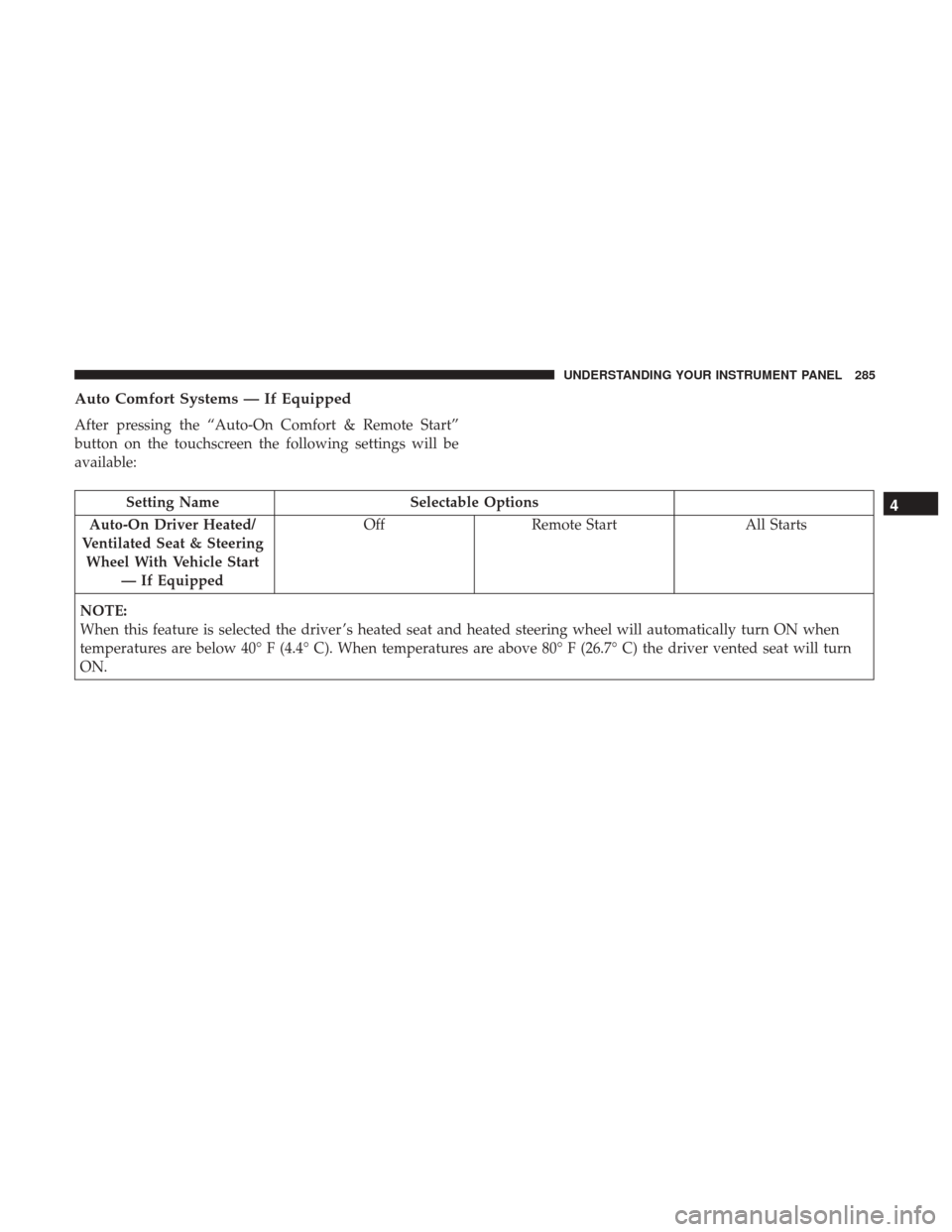
Auto Comfort Systems — If Equipped
After pressing the “Auto-On Comfort & Remote Start”
button on the touchscreen the following settings will be
available:
Setting NameSelectable Options
Auto-On Driver Heated/
Ventilated Seat & Steering Wheel With Vehicle Start — If Equipped Off
Remote Start All Starts
NOTE:
When this feature is selected the driver ’s heated seat and heated steering wheel will automatically turn ON when
temperatures are below 40° F (4.4° C). When temperatures are above 80° F (26.7° C) the driver vented seat will turn
ON.4
UNDERSTANDING YOUR INSTRUMENT PANEL 285
Page 288 of 584
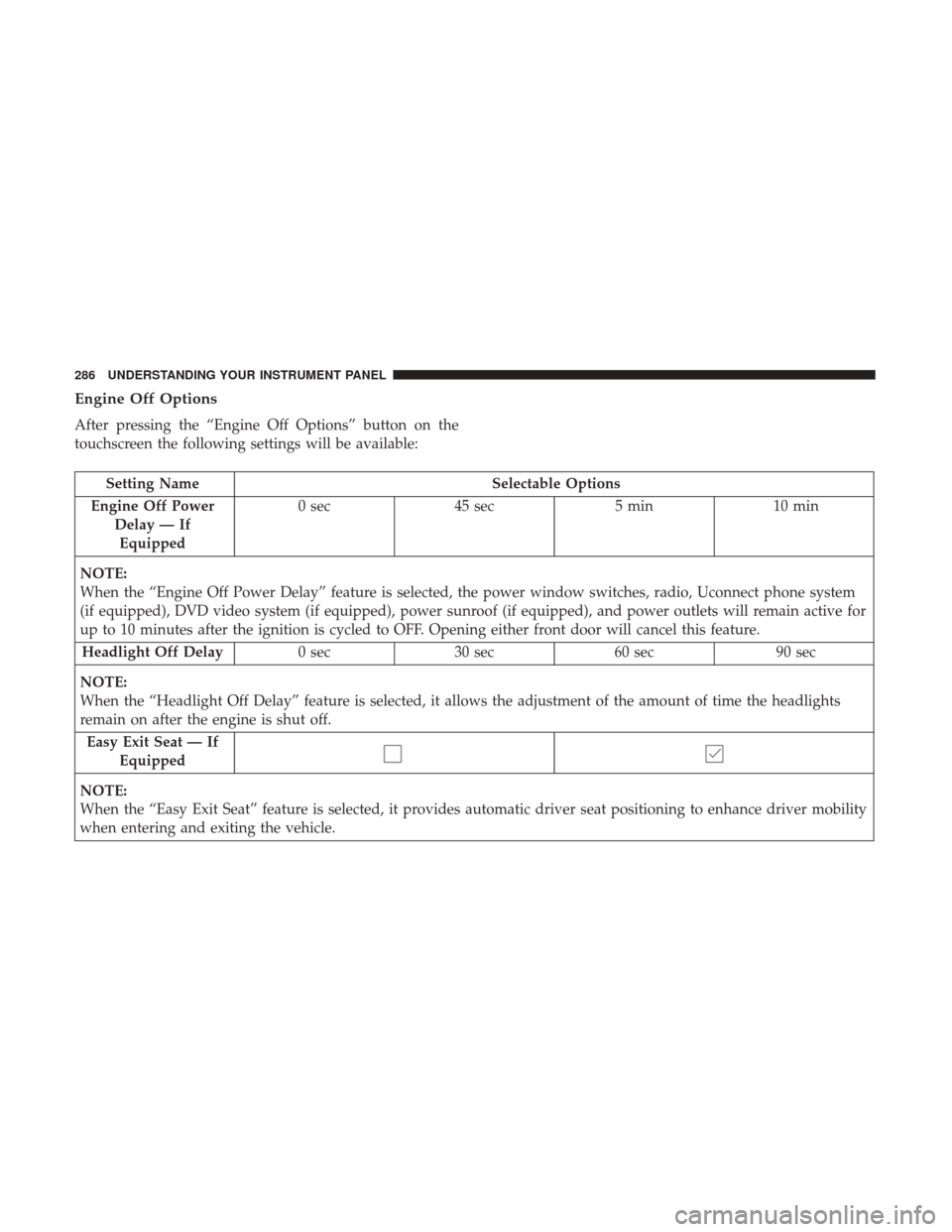
Engine Off Options
After pressing the “Engine Off Options” button on the
touchscreen the following settings will be available:
Setting NameSelectable Options
Engine Off Power Delay — IfEquipped 0 sec
45 sec 5 min10 min
NOTE:
When the “Engine Off Power Delay” feature is selected, the power window switches, radio, Uconnect phone system
(if equipped), DVD video system (if equipped), power sunroof (if equipped), and power outlets will remain active for
up to 10 minutes after the ignition is cycled to OFF. Opening either front door will cancel this feature. Headlight Off Delay 0 sec30 sec 60 sec 90 sec
NOTE:
When the “Headlight Off Delay” feature is selected, it allows the adjustment of the amount of time the headlights
remain on after the engine is shut off. Easy Exit Seat — If Equipped
NOTE:
When the “Easy Exit Seat” feature is selected, it provides automatic driver seat positioning to enhance driver mobility
when entering and exiting the vehicle.
286 UNDERSTANDING YOUR INSTRUMENT PANEL
Page 289 of 584
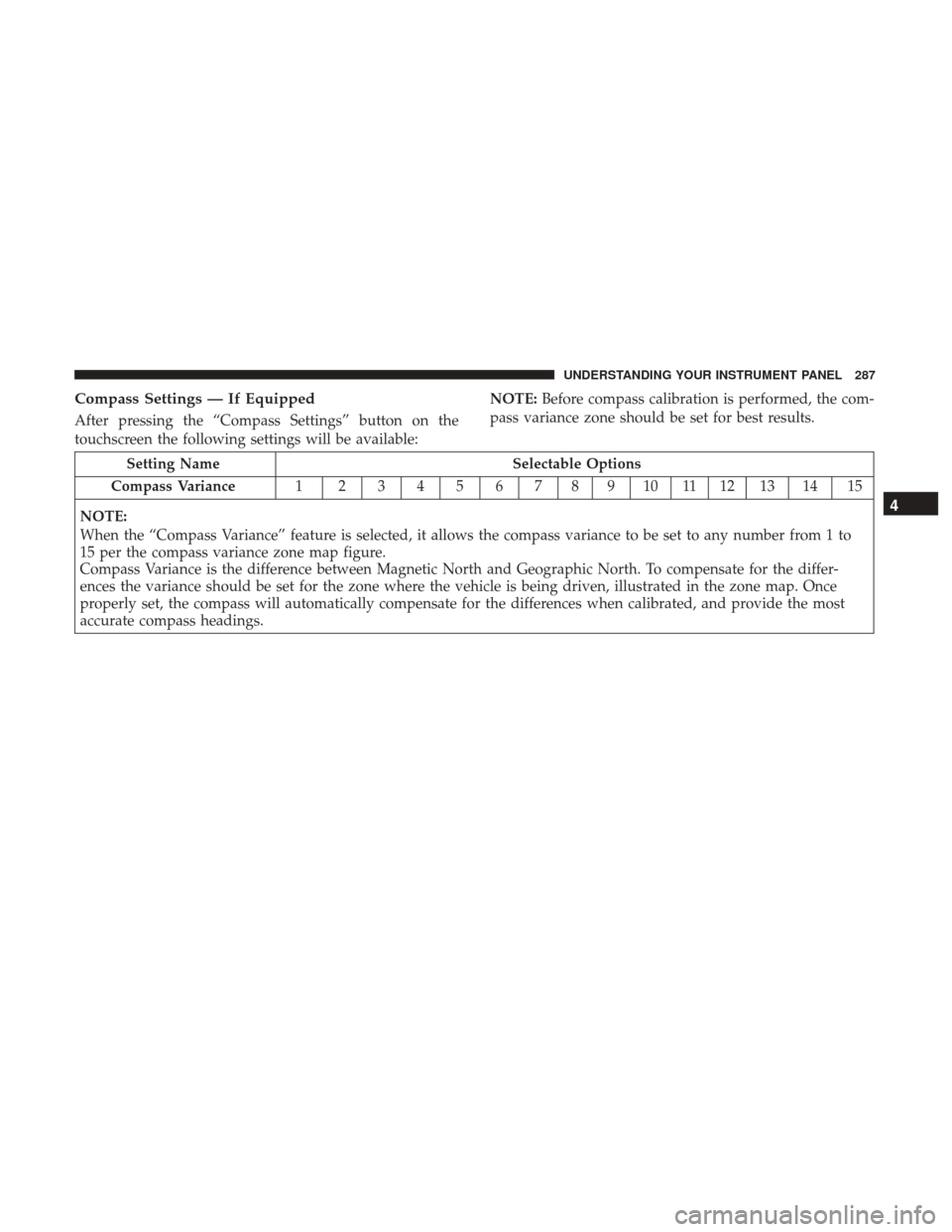
Compass Settings — If Equipped
After pressing the “Compass Settings” button on the
touchscreen the following settings will be available:NOTE:
Before compass calibration is performed, the com-
pass variance zone should be set for best results.
Setting Name Selectable Options
Compass Variance 1 23456789101112131415
NOTE:
When the “Compass Variance” feature is selected, it allows the compass variance to be set to any number from 1 to
15 per the compass variance zone map figure.
Compass Variance is the difference between Magnetic North and Geographic North. To compensate for the differ-
ences the variance should be set for the zone where the vehicle is being driven, illustrated in the zone map. Once
properly set, the compass will automatically compensate for the differences when calibrated, and provide the most
accurate compass headings.
4
UNDERSTANDING YOUR INSTRUMENT PANEL 287
Page 290 of 584
Compass CalibrationYe s
NOTE:
Press “Compass Calibration” on the touchscreen to enter calibration. To start calibration of the compass, press the
“Yes” button on the touchscreen and complete one or more 360-degree turns (in an area free from large metal or me-
tallic objects). A message will appear on the touchscreen when the compass has been successfully calibrated.
Keep magnetic materials away from the rear view mirror, such as Mobile Phones, Laptops and Radar Detectors. This
is where the compass module is located, and it can cause interference with the compass sensor, and it may give false
readings.
Compass Variance Zone Map
288 UNDERSTANDING YOUR INSTRUMENT PANEL
Page 291 of 584
Audio
After pressing the “Audio” button on the touchscreen the
following settings will be available:
Setting NameAdjustable Options
Equalizer BassMidTreble
NOTE:
When in this display you may adjust the “Bass”, “Mid” and “Treble” settings. Adjust the settings with the “+” and
“–” setting buttons on the touchscreen or by selecting any point on the scale between the “+” and “–” buttons on the
touchscreen. Bass/Mid/Treble also allow you to simply slide your finger up or down to change the setting as well as
press directly on the desired setting. Balance/Fade Up Arrow
Button Down
Arrow
Button Left Arrow
Button Right
Arrow
Button Center “C”
Button
NOTE:
When in this display you may adjust the “Balance/Fade” of the audio by using the “Arrow” button on the touch-
screen to adjust the sound level from the front and rear or right and left side speakers. Press the “Center ‘C’ Button”
on the touchscreen to reset the balance and fade to the factory setting.
4
UNDERSTANDING YOUR INSTRUMENT PANEL 289
Page 292 of 584
Setting NameAdjustable Options
Speed Adjusted Volume Off123
Surround Sound — If Equipped OnOff
Loudness — If Equipped Ye sN o
NOTE:
This feature improves sound quality at lower volumes when enabled. AUX Volume Offset — If Equipped OnOff
NOTE:
This feature provides the ability to tune the audio level for portable devices connected through the AUX input
Phone/Bluetooth
After pressing the “Phone/Bluetooth” button on the touch-
screen the following settings will be available:
Setting Name Selectable Options
Paired Phones List of Paired Phones
NOTE:
The “Paired Phones” feature shows which phones are paired to the Phone/Bluetooth system. For further information,
refer to the Uconnect Owner ’s Manual Supplement.
290 UNDERSTANDING YOUR INSTRUMENT PANEL
Page 293 of 584
SiriusXM Setup — If Equipped
After pressing the “SiriusXM Setup” button on the touch-
screen the following settings will be available:
Setting NameSelectable Options
Channel Skip List of Channels
NOTE:
SiriusXM can be programmed to designate a group of channels that are the most desirable to listen to or to exclude
undesirable channels while scanning. This feature allows you to select the channels you would like to skip. Subscription Info Sirius ID
NOTE:
New vehicle purchasers or lessees will receive a free limited time subscription to SiriusXM Satellite Radio with your
radio. Following the expiration of the free services, it will be necessary to access the information on the Subscription
Information screen to re-subscribe.
1. Press the “Subscription Info” button on the touchscreen to access the Subscription Information screen.
2. Write down the Sirius ID numbers for your receiver. To reactivate your service, either call the number listed on the screen or visit the provider online.
SiriusXM Travel Link is a separate subscription and is available for U.S. residents only.
4
UNDERSTANDING YOUR INSTRUMENT PANEL 291
Page 294 of 584
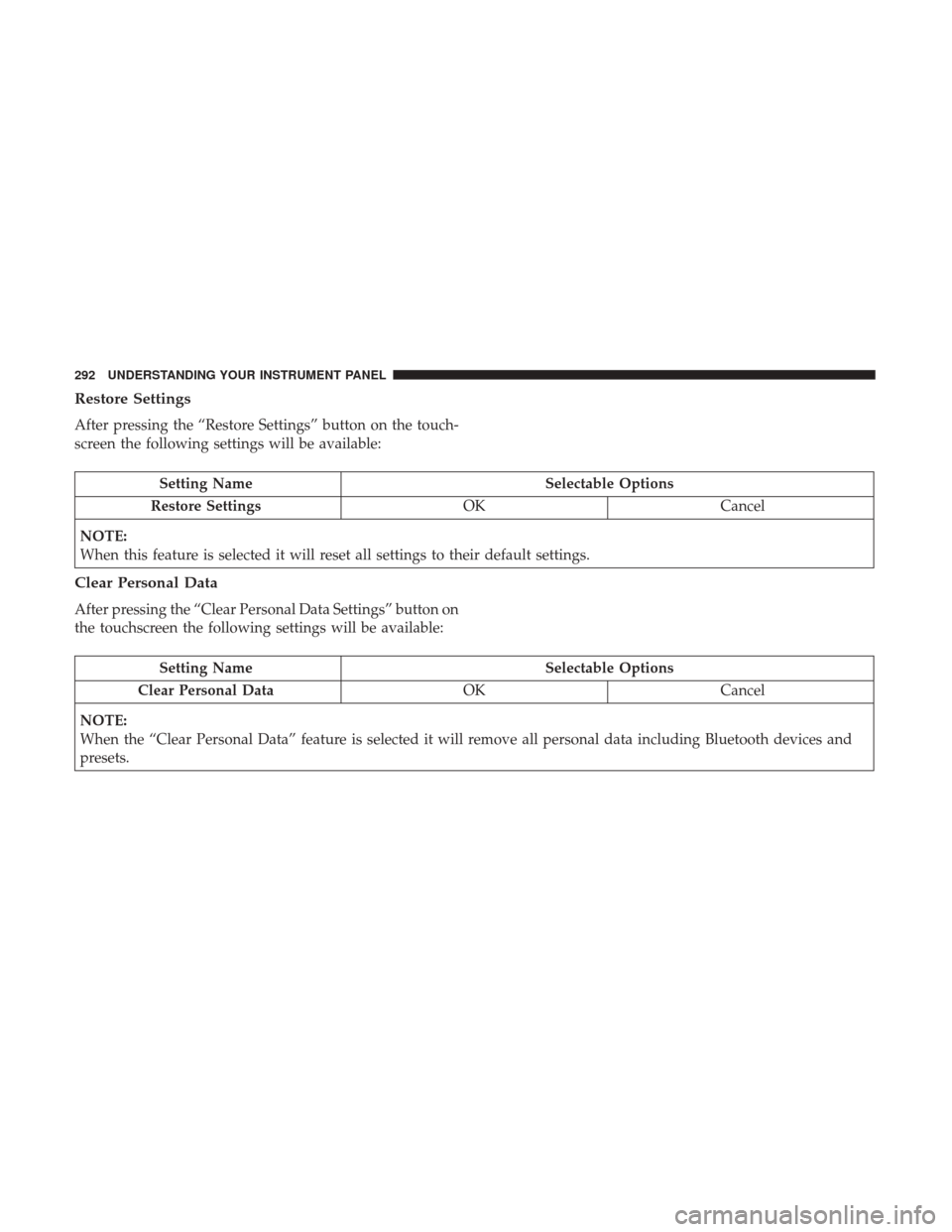
Restore Settings
After pressing the “Restore Settings” button on the touch-
screen the following settings will be available:
Setting NameSelectable Options
Restore Settings OKCancel
NOTE:
When this feature is selected it will reset all settings to their default settings.
Clear Personal Data
After pressing the “Clear Personal Data Settings” button on
the touchscreen the following settings will be available:
Setting Name Selectable Options
Clear Personal Data OKCancel
NOTE:
When the “Clear Personal Data” feature is selected it will remove all personal data including Bluetooth devices and
presets.
292 UNDERSTANDING YOUR INSTRUMENT PANEL
Page 295 of 584
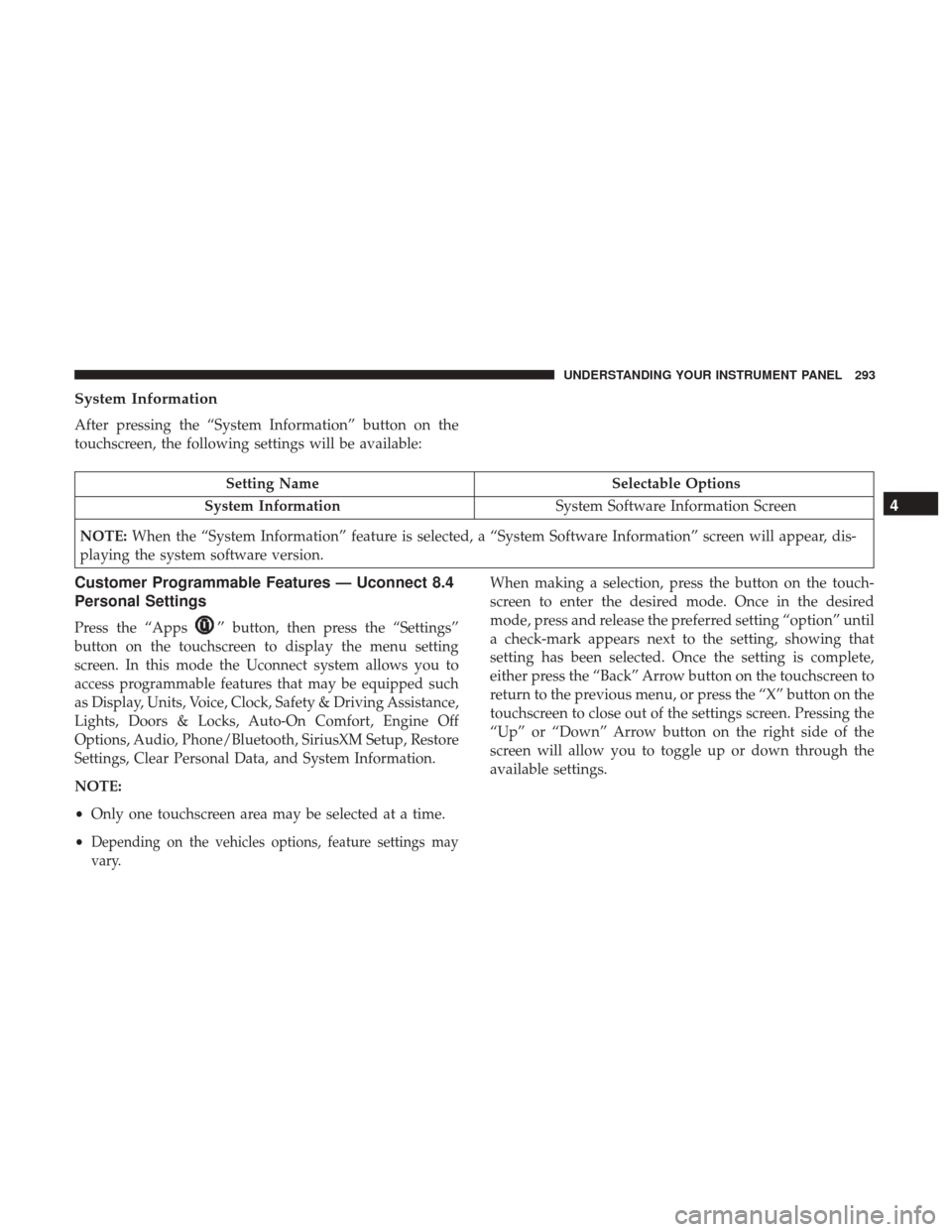
System Information
After pressing the “System Information” button on the
touchscreen, the following settings will be available:
Setting NameSelectable Options
System Information System Software Information Screen
NOTE: When the “System Information” feature is selected, a “System Software Information” screen will appear, dis-
playing the system software version.
Customer Programmable Features — Uconnect 8.4
Personal Settings
Press the “Apps”button, then press the “Settings”
button on the touchscreen to display the menu setting
screen. In this mode the Uconnect system allows you to
access programmable features that may be equipped such
as Display, Units, Voice, Clock, Safety & Driving Assistance,
Lights, Doors & Locks, Auto-On Comfort, Engine Off
Options, Audio, Phone/Bluetooth, SiriusXM Setup, Restore
Settings, Clear Personal Data, and System Information.
NOTE:
• Only one touchscreen area may be selected at a time.
•
Depending on the vehicles options, feature settings may
vary.
When making a selection, press the button on the touch-
screen to enter the desired mode. Once in the desired
mode, press and release the preferred setting “option” until
a check-mark appears next to the setting, showing that
setting has been selected. Once the setting is complete,
either press the “Back” Arrow button on the touchscreen to
return to the previous menu, or press the “X” button on the
touchscreen to close out of the settings screen. Pressing the
“Up” or “Down” Arrow button on the right side of the
screen will allow you to toggle up or down through the
available settings.
4
UNDERSTANDING YOUR INSTRUMENT PANEL 293