buttons DODGE GRAND CARAVAN 2009 5.G User Guide
[x] Cancel search | Manufacturer: DODGE, Model Year: 2009, Model line: GRAND CARAVAN, Model: DODGE GRAND CARAVAN 2009 5.GPages: 535, PDF Size: 18.61 MB
Page 201 of 535
NOTE:Premium sunroof console models include all of
above except sunglass storage.Courtesy/Interior Lighting
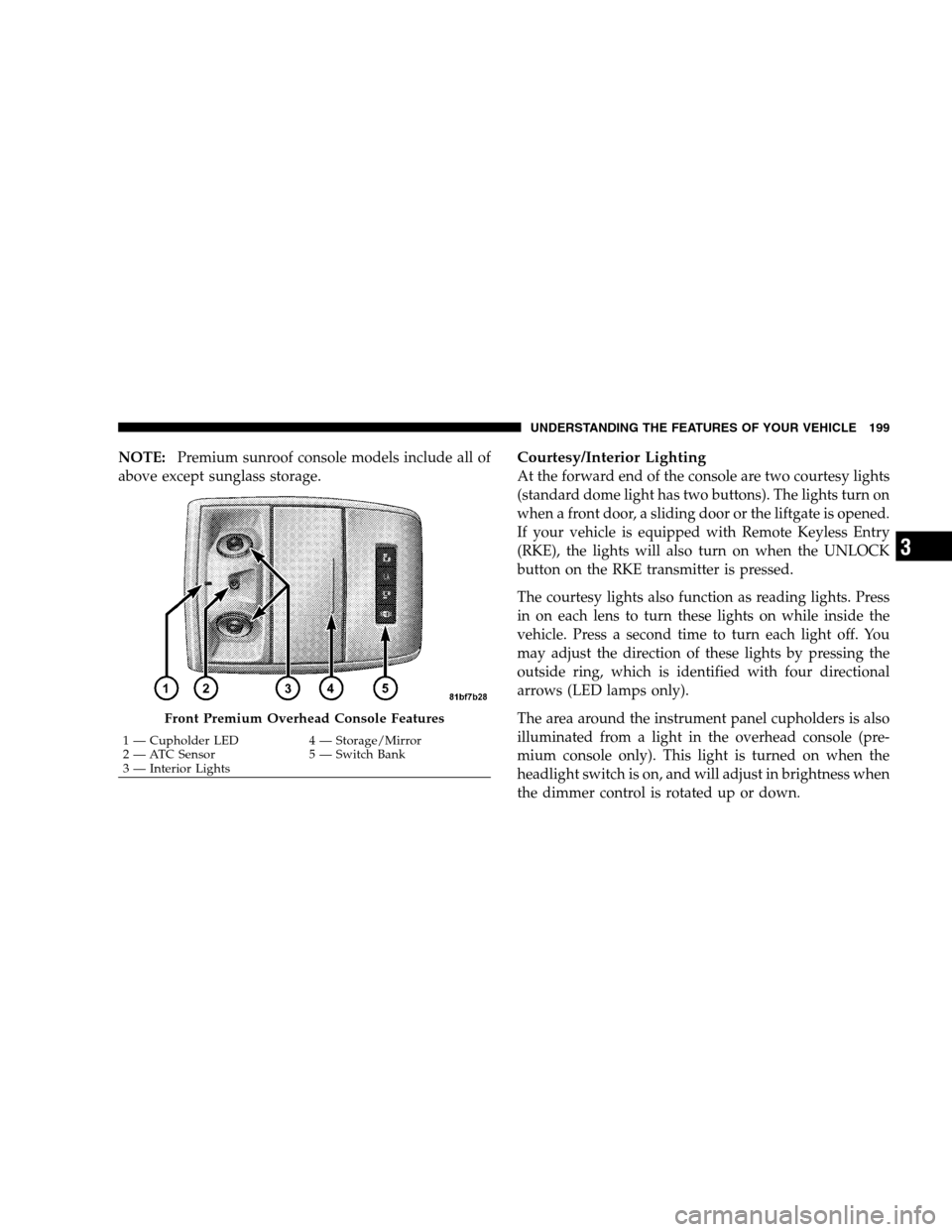
At the forward end of the console are two courtesy lights
(standard dome light has two buttons). The lights turn on
when a front door, a sliding door or the liftgate is opened.
If your vehicle is equipped with Remote Keyless Entry
(RKE), the lights will also turn on when the UNLOCK
button on the RKE transmitter is pressed.
The courtesy lights also function as reading lights. Press
in on each lens to turn these lights on while inside the
vehicle. Press a second time to turn each light off. You
may adjust the direction of these lights by pressing the
outside ring, which is identified with four directional
arrows (LED lamps only).
The area around the instrument panel cupholders is also
illuminated from a light in the overhead console (pre-
mium console only). This light is turned on when the
headlight switch is on, and will adjust in brightness when
the dimmer control is rotated up or down. Front Premium Overhead Console Features
1 — Cupholder LED
4 — Storage/Mirror
2 —
ATC Sensor 5 — Switch Bank
3 — Interior Lights UNDERSTANDING THE FEATURES OF YOUR VEHICLE 199 3
Page 204 of 535
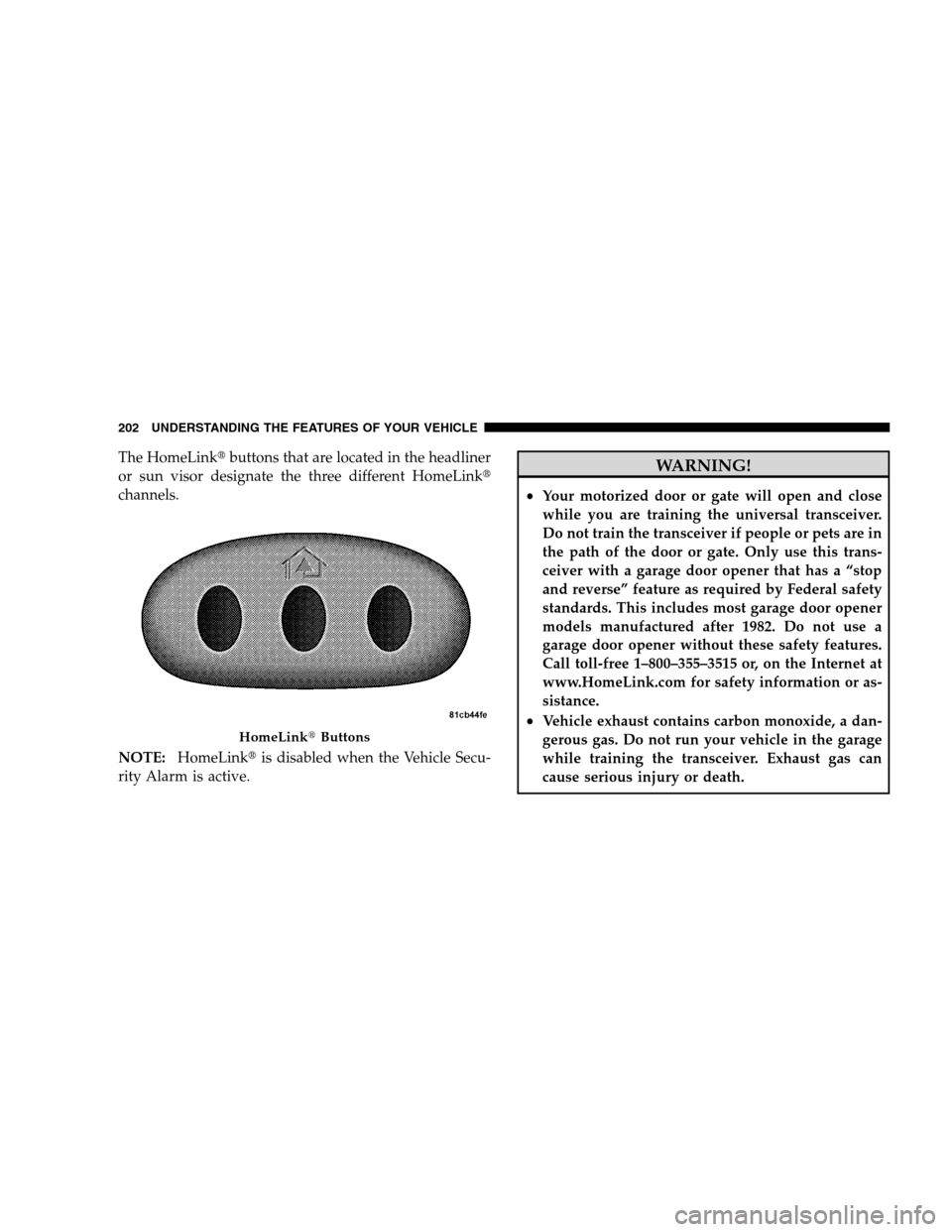
The HomeLinktbuttons that are located in the headliner
or sun visor designate the three different HomeLinkt
channels.
NOTE: HomeLinkt is disabled when the Vehicle Secu-
rity Alarm is active. WARNING!
Your motorized door or gate will open and close
while you are training the universal transceiver.
Do not train the transceiver if people or pets are in
the path of the door or gate. Only use this trans-
ceiver with a garage door opener that has a “stop
and reverse” feature as required by Federal safety
standards. This includes most garage door opener
models manufactured after 1982. Do not use a
garage door opener without these safety features.
Call toll-free 1–800–355–3515 or, on the Internet at
www.HomeLink.com for safety information or as-
sistance.
Vehicle exhaust contains carbon monoxide, a dan-
gerous gas. Do not run your vehicle in the garage
while training the transceiver. Exhaust gas can
cause serious injury or death. HomeLinkt
Buttons
202 UNDERST
ANDING THE FEATURES OF YOUR VEHICLE
Page 205 of 535
Programming HomelinkT
Before Y
ou Begin
If you have not trained any of the HomeLinkt buttons,
erase all channels before you begin training.
To do this, press and hold the two outside buttons for up
to 20 seconds until the red indicator flashes.
It is recommended that a new battery be placed in the
hand-held transmitter of the device being programmed
to HomeLinkt for more efficient training and accurate
transmission of the radio-frequency signal.
Your vehicle should be parked outside of the garage
when programming.
Begin Programming
1. Turn the ignition switch to the ON/RUN position.
2. Hold the battery side of the hand-held transmitter
away from the HomeLinkt button you wish to program. Place the hand-held transmitter 1 to 3 in (3 to 8 cm) away
from the HomeLinkt
button you wish to program while
keeping the indicator light in view.
3. Simultaneously press and hold both the chosen
HomeLinkt button and the hand-held transmitter button
until the HomeLinkt indicator changes from a slow to a
rapidly blinking light, then release both the HomeLinkt
and hand-held transmitter buttons.
Watch for the HomeLinkt indicator to change flash rates.
When it changes, it is programmed. It may take up to
30 seconds, or longer in rare cases. The garage door may
open and close while you train.
NOTE:
Some gate operators and garage door openers may
require you to replace Step 3 with procedures noted in
the “Gate Operator/Canadian Programming” section.
UNDERSTANDING THE FEATURES OF YOUR VEHICLE 203 3
Page 207 of 535
6. Firmly press and release the “Learn” or “Training”
button. The name and color of the button may vary by
manufacturer.
NOTE:There are 30 seconds in which to initiate the next
step after the “Learn” button has been pressed.
7. Return to the vehicle and press the programmed
HomeLinkt button twice (holding the button for two
seconds each time). If the device is plugged in and
activates, programming is complete.
If the device does not activate, press the button a third
time (for two seconds) to complete the training.
If you have any problems, or require assistance, please
call toll-free 1–800–355–3515 or, on the Internet at
www.HomeLink.com for information or assistance.
To program the remaining two HomeLinkt buttons,
repeat each step for each remaining button. DO NOT
erase the channels.Using HomeLinkt
To operate, simply press and release the programmed
HomeLinkt button. Activation will now occur for the
trained device (i.e., garage door opener, gate operator,
security system, entry door lock, home/office lighting,
etc. The hand-held transmitter of the device may also be
used at any time.
Reprogramming a Single Homelinkt Button
To reprogram a channel that has been previously trained,
follow these steps:
1. Turn the ignition switch to the ON/RUN position.
2. Press and hold the desired HomeLinkt button until
the indicator light begins to flash after 20 seconds. Do not
release the button.
3. Without releasing the button, proceed with Program-
ming Homelinkt Step 2 and follow all remaining steps.
UNDERSTANDING THE FEATURES OF YOUR VEHICLE 205 3
Page 208 of 535
Gate Operator/Canadian ProgrammingCanadian radio frequency laws require transmitter sig-
nals to time-out (or quit) after several seconds of trans-
mission – which may not be long enough for HomeLinkt
to pick up the signal during programming. Similar to this
Canadian law, some U.S. gate operators are designed to
time-out in the same manner.
It may be helpful to unplug the device during the cycling
process to prevent possible overheating of the garage
door or gate motor.
If you are having difficulties programming a garage door
opener or a gate operator, replace “Programming
HomeLinkt” Step 3, with the following:
3. Continue to press and hold the HomeLinkt
button
while you press and release - every two seconds
(“cycle”) your hand-held transmitter until HomeLinkt has successfully accepted the frequency signal. The
indicator light will flash slowly and then rapidly when
fully trained.
If you unplugged the device for training, plug it back in
at this time.
Then proceed with Step 4 under “Programming
HomeLinkt,” earlier in this section.
Security
It is advised to erase all channels before you sell or turn
in your vehicle.
To do this, press and hold the two outside buttons for
20 seconds until the red indicator flashes. Note that all
channels will be erased. Individual channels cannot be
erased.
The HomeLinkt
Universal Transceiver is disabled when
the Vehicle Security Alarm is active.
206 UNDERSTANDING THE FEATURES OF YOUR VEHICLE
Page 235 of 535
UNDERSTANDING YOUR INSTRUMENT PANELCONTENTS
m
Instrument Panel Features . . . . . . . . . . . . . . . 237
m Instrument Cluster – Base . . . . . . . . . . . . . . . 238
m Instrument Cluster – Premium . . . . . . . . . . . . 239
m Instrument Cluster Descriptions . . . . . . . . . . . 240
m Compass Mini-Trip Computer (CMTC) —
If Equipped . . . . . . . . . . . . . . . . . . . . . . . . . . 252
▫ CMTC Reset Buttons . . . . . . . . . . . . . . . . . . 253
▫ Compass/Temperature Display . . . . . . . . . . 254 m
Electronic Vehicle Information Center (EVIC) —
If Equipped . . . . . . . . . . . . . . . . . . . . . . . . . . 256
▫ Electronic Vehicle Information Center (EVIC)
Displays . . . . . . . . . . . . . . . . . . . . . . . . . . . 258
▫ Trip Functions . . . . . . . . . . . . . . . . . . . . . . 260
▫ Compass Display . . . . . . . . . . . . . . . . . . . . 261
▫ Personal Settings
(Customer-Programmable Features) . . . . . . . 263 4
Page 236 of 535
mAM/FM/CD/DVD Radio (RER/REN) – If
Equipped . . . . . . . . . . . . . . . . . . . . . . . . . . . . 268
▫ Operating Instructions — Voice Recognition
System (VR) — If Equipped . . . . . . . . . . . . . 268
▫ Operating Instructions — uconnectt phone
— If Equipped . . . . . . . . . . . . . . . . . . . . . . 268
▫ Clock Setting Procedure . . . . . . . . . . . . . . 268
m Sales Code RES — AM/FM Stereo Radio With
CD Player (MP3 AUX Jack) . . . . . . . . . . . . . . . 270
▫ Operating Instructions — Radio Mode . . . . 270
▫ Operation Instructions — CD Mode For CD
And MP3 Audio Play . . . . . . . . . . . . . . . . . 273
▫ Notes On Playing MP3 Files . . . . . . . . . . . 275
▫ Operation Instructions - Auxiliary Mode . . . 278 m
Sales Code RES/RSC — AM/FM Stereo Radio
With CD Player (MP3 AUX Jack) And Sirius
Radio. . . . . . . . . . . . . . . . . . . . . . . . . . . . . . . 279
▫ Operating Instructions — Radio Mode . . . . 279
▫ Operation Instructions — CD Mode For CD
And MP3 Audio Play . . . . . . . . . . . . . . . . . 284
▫ Notes On Playing MP3 Files . . . . . . . . . . . 286
▫ List Button (CD Mode For MP3 Play) . . . . . 289
▫ Info Button (CD Mode For MP3 Play) . . . . 289
m Universal Consumer Interface (UCI) — If
Equipped . . . . . . . . . . . . . . . . . . . . . . . . . . . . 290
▫ Connecting The iPodt . . . . . . . . . . . . . . . . 291
▫ Using This Feature . . . . . . . . . . . . . . . . . . 292
▫ Controlling The iPodt Using Radio
Buttons . . . . . . . . . . . . . . . . . . . . . . . . . . . 292
234 UNDERSTANDING YOUR INSTRUMENT PANEL
Page 255 of 535
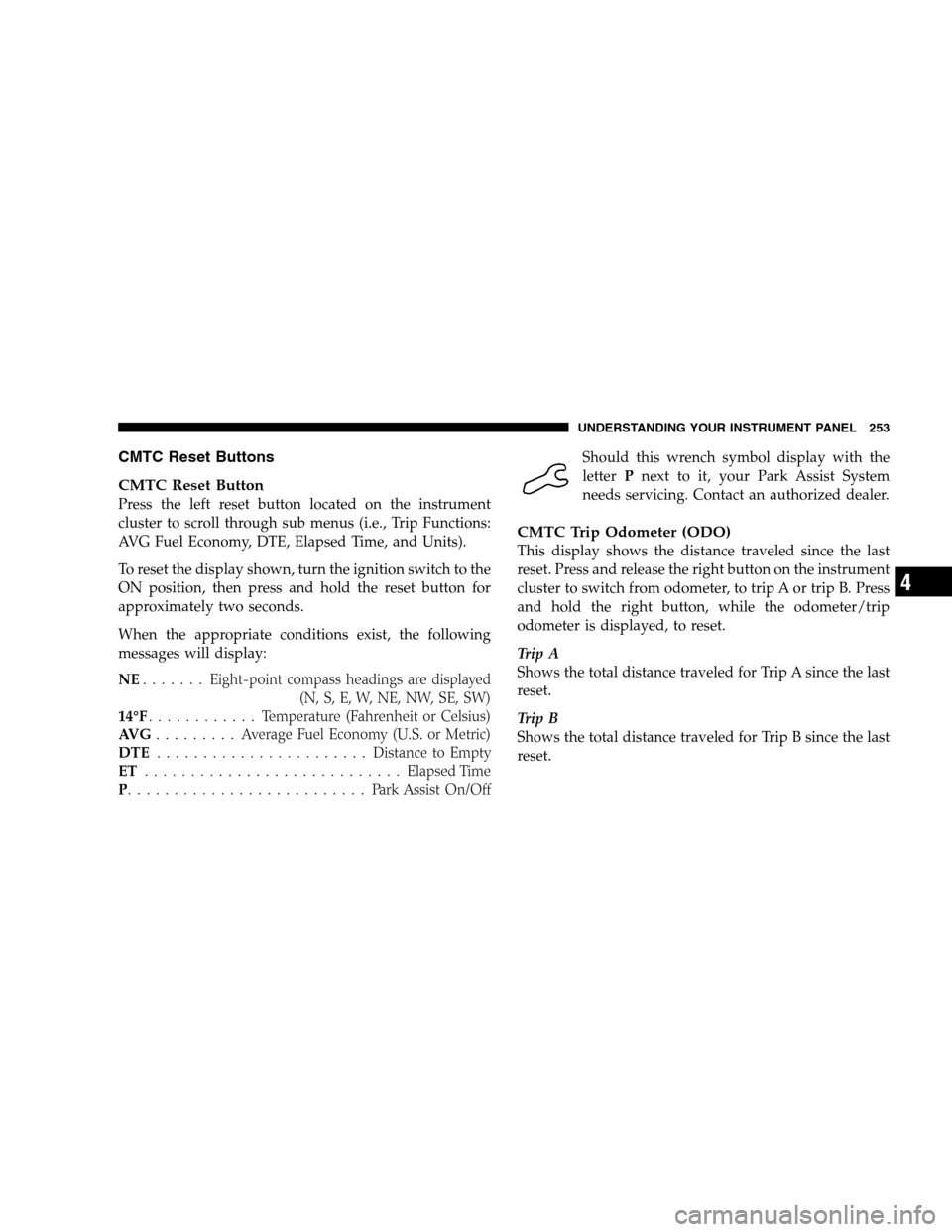
CMTC Reset Buttons
CMTC Reset
Button
Press the left reset button located on the instrument
cluster to scroll through sub menus (i.e., Trip Functions:
AVG Fuel Economy, DTE, Elapsed Time, and Units).
To reset the display shown, turn the ignition switch to the
ON position, then press and hold the reset button for
approximately two seconds.
When the appropriate conditions exist, the following
messages will display:
NE. . . . . . . Eight-point compass headings are displayed
(N, S, E, W, NE, NW, SE, SW)
14°F . . . . . . . . . . . . Temperature (Fahrenheit or Celsius)
AVG . . . . . . . . . Average Fuel Economy (U.S. or Metric)
DTE . . . . . . . . . . . . . . . . . . . . . . . Distance to Empty
ET . . . . . . . . . . . . . . . . . . . . . . . . . . . . Elapsed Time
P . . . . . . . . . . . . . . . . . . . . . . . . . . Park Assist On/Off Should this wrench symbol display with the
letter
Pnext to it, your Park Assist System
needs servicing. Contact an authorized dealer.
CMTC Trip Odometer (ODO)
This display shows the distance traveled since the last
reset. Press and release the right button on the instrument
cluster to switch from odometer, to trip A or trip B. Press
and hold the right button, while the odometer/trip
odometer is displayed, to reset.
Trip A
Shows the total distance traveled for Trip A since the last
reset.
Trip B
Shows the total distance traveled for Trip B since the last
reset. UNDERSTANDING YOUR INSTRUMENT PANEL 253
4
Page 273 of 535
Power Switch/Volume Control (Rotary)Push the ON/VOLUME control knob to turn on the
radio. Push the ON/VOLUME control knob a second
time to turn off the radio.
Electronic Volume Control
The electronic volume control turns continuously (360
degrees) in either direction, without stopping. Turning
the ON/VOLUME control knob to the right increases the
volume, and to the left decreases it.
When the audio system is turned on, the sound will be
set at the same volume level as last played.
SEEK Buttons
Press and release the SEEK buttons to search for the next
listenable station in AM/FM mode. Press the right switch
to seek up and the left switch to seek down. The radio
will remain tuned to the new station until you make
another selection. Holding either button will bypass
stations without stopping, until you release it.
TIME Button
Press the TIME button to alternate locations of the time
and frequency display.
Clock Setting Procedure
1. Press and hold the TIME button until the hours blink.
2. Adjust the hours by turning the right side TUNE/
SCROLL control knob.
3. After adjusting the hours, press the right side TUNE/
SCROLL control knob to set the minutes. The minutes
will begin to blink.
4. Adjust the minutes using the right side TUNE/
SCROLL control knob. Press the TUNE/SCROLL control
knob to save time change.
5. To exit, press any button/knob, or wait five seconds.
UNDERSTANDING YOUR INSTRUMENT PANEL 271
4
Page 274 of 535
RW/FFPressing the RW (Rewind) or FF (Fast Forward) buttons
causes the tuner to search for the next frequency in the
direction of the arrows. This feature operates in either
AM or FM frequencies.
TUNE Control
Turn the rotary TUNE/SCROLL control knob clockwise
to increase or counterclockwise to decrease the frequency.
Setting the Tone, Balance, and Fade
Push the rotary TUNE/SCROLL control knob and BASS
will display. Turn the TUNE/SCROLL control knob to
the right or left to increase or decrease the bass tones.
Push the rotary TUNE/SCROLL control knob a second
time and MID will display. Turn the TUNE/SCROLL
control knob to the right or left to increase or decrease the
mid-range tones.
Push the rotary TUNE/SCROLL control knob a third
time and TREBLE will display. Turn the TUNE/SCROLL
control knob to the right or left to increase or decrease the
treble tones.
Push the rotary TUNE/SCROLL control knob a fourth
time and BALANCE will display. Turn the TUNE/
SCROLL control knob to the right or left to adjust the
sound level from the right or left side speakers.
Push the rotary TUNE/SCROLL control knob a fifth time
and FADE will display. Turn the TUNE/SCROLL control
knob to the left or right to adjust the sound level between
the front and rear speakers.
Push the rotary TUNE/SCROLL control knob again to
exit setting tone, balance, and fade.
AM/FM Button
Press the buttons to select either AM or FM mode.
272 UNDERSTANDING YOUR INSTRUMENT PANEL