phone DODGE GRAND CARAVAN 2009 5.G Owner's Guide
[x] Cancel search | Manufacturer: DODGE, Model Year: 2009, Model line: GRAND CARAVAN, Model: DODGE GRAND CARAVAN 2009 5.GPages: 535, PDF Size: 18.61 MB
Page 214 of 535
WARNING! (Continued)
Close the lid when not in use and while driving
the vehicle.
If this outlet is mishandled, it may cause an
electric shock and failure. CAUTION!
Many accessories that can be plugged in draw
power from the vehicle’s battery, even when not in
use (i.e., cellular phones, etc.). Eventually, if
plugged in long enough, the vehicle’s battery will
discharge sufficiently to degrade battery life
and/or prevent the engine from starting.
(Continued) CAUTION! (Continued)
Accessories that draw higher power (i.e., coolers,
vacuum cleaners, lights, etc.), will degrade the
battery even more quickly. Only use these inter-
mittently and with greater caution.
After the use of high power draw accessories, or
long periods of the vehicle not being started (with
accessories still plugged in), the vehicle must be
driven a sufficient length of time to allow the
alternator to recharge the vehicle’s battery.
Power outlets are designed for accessory plugs
only. Do not hang any type of accessory or acces-
sory bracket from the plug. Improper use of the
power outlet can cause damage.
212 UNDERSTANDING THE FEATURES OF YOUR VEHICLE
Page 215 of 535
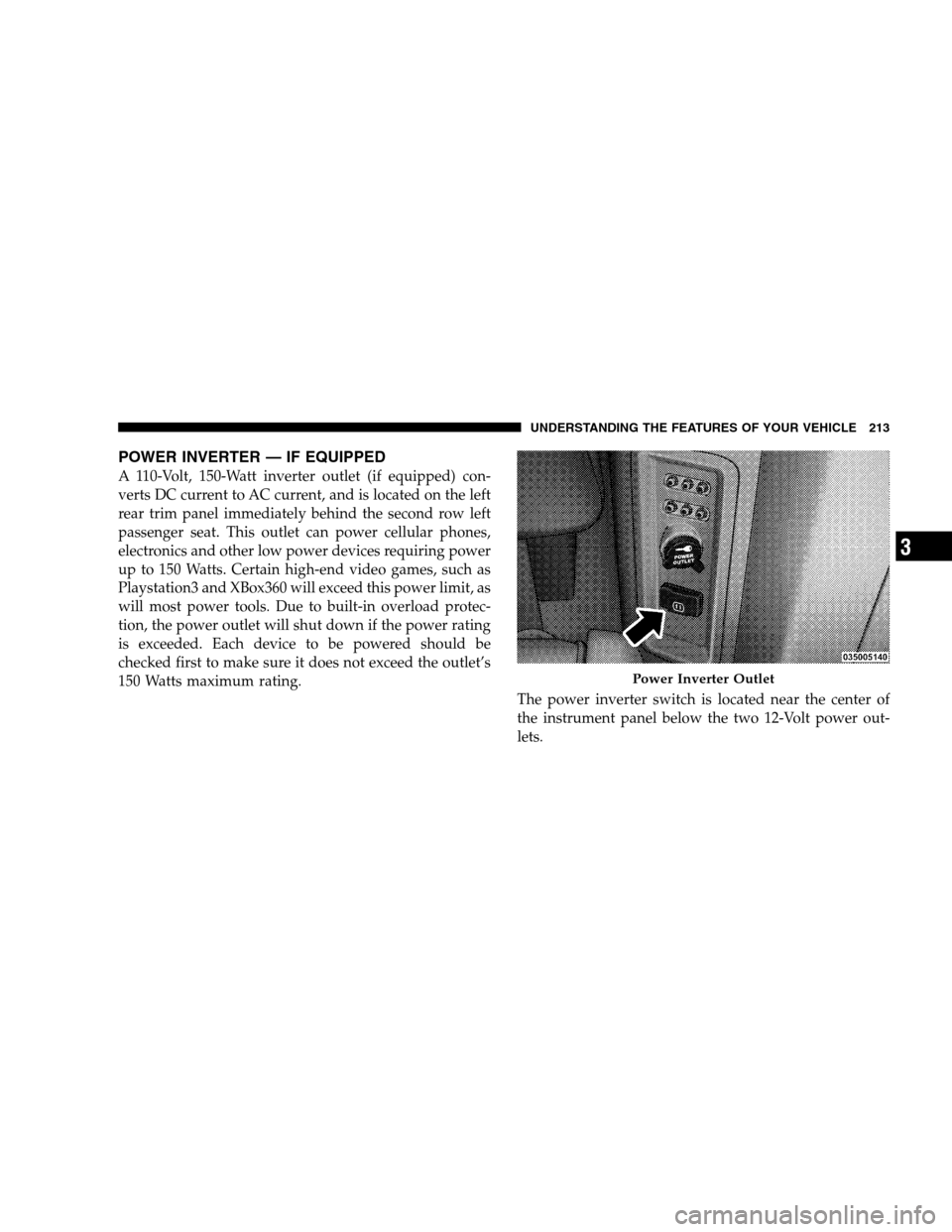
POWER INVERTER — IF EQUIPPEDA 110-Volt, 150-Watt inverter outlet (if equipped) con-
verts DC current to AC current, and is located on the left
rear trim panel immediately behind the second row left
passenger seat. This outlet can power cellular phones,
electronics and other low power devices requiring power
up to 150 Watts. Certain high-end video games, such as
Playstation3 and XBox360 will exceed this power limit, as
will most power tools. Due to built-in overload protec-
tion, the power outlet will shut down if the power rating
is exceeded. Each device to be powered should be
checked first to make sure it does not exceed the outlet’s
150 Watts maximum rating.
The power inverter switch is located near the center of
the instrument panel below the two 12-Volt power out-
lets. Power Inverter Outlet
UNDERSTANDING
THE FEATURES OF YOUR VEHICLE 213 3
Page 225 of 535
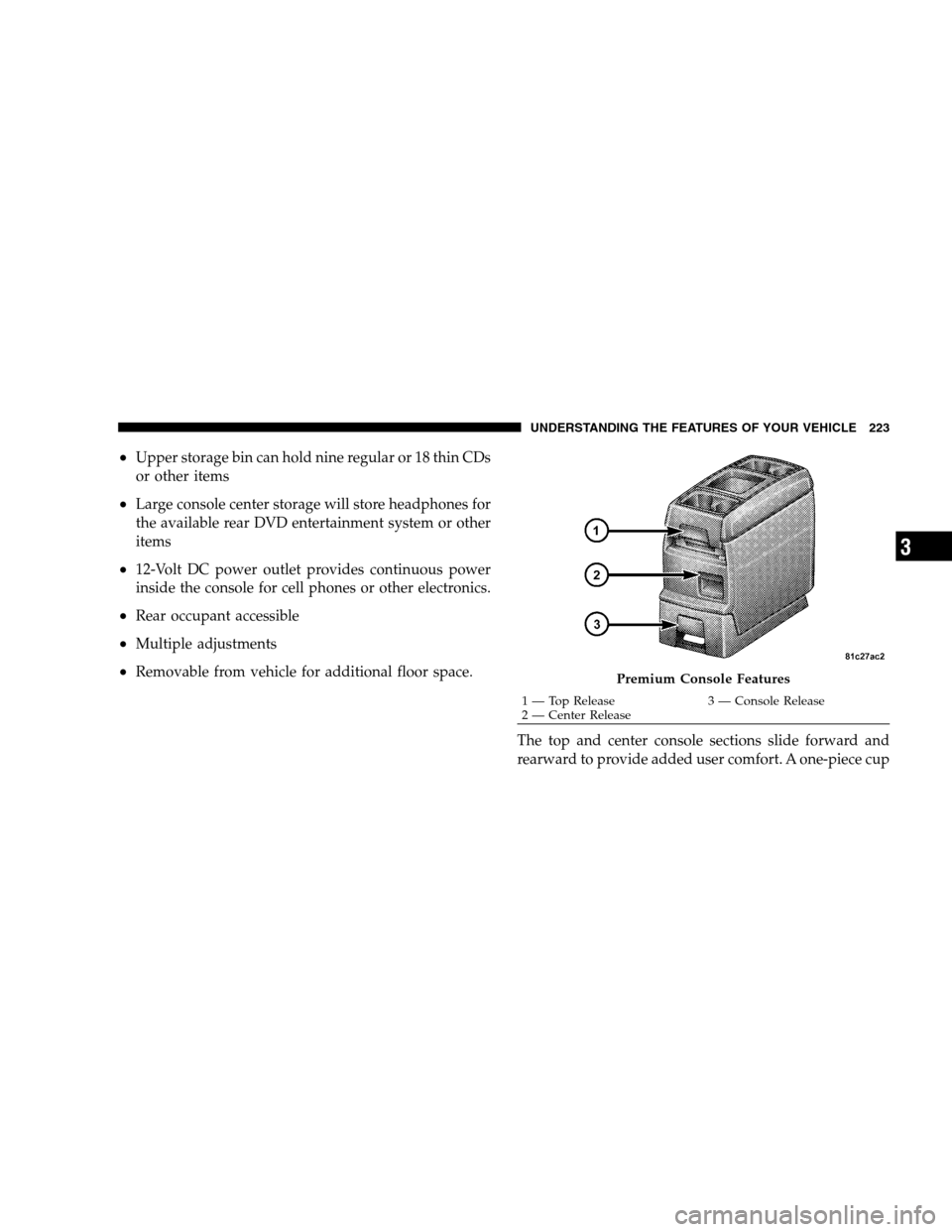
Upper storage bin can hold nine regular or 18 thin CDs
or other items
Large console center storage will store headphones for
the available rear DVD entertainment system or other
items
12-Volt DC power outlet provides continuous power
inside the console for cell phones or other electronics.
Rear occupant accessible
Multiple adjustments
Removable from vehicle for additional floor space.
The top and center console sections slide forward and
rearward to provide added user comfort. A one-piece cup Premium Console Features
1 — Top Release
3 — Console Release
2 —
Center Release
UNDERSTANDING THE FEATURES OF YOUR VEHICLE 223 3
Page 236 of 535
mAM/FM/CD/DVD Radio (RER/REN) – If
Equipped . . . . . . . . . . . . . . . . . . . . . . . . . . . . 268
▫ Operating Instructions — Voice Recognition
System (VR) — If Equipped . . . . . . . . . . . . . 268
▫ Operating Instructions — uconnectt phone
— If Equipped . . . . . . . . . . . . . . . . . . . . . . 268
▫ Clock Setting Procedure . . . . . . . . . . . . . . 268
m Sales Code RES — AM/FM Stereo Radio With
CD Player (MP3 AUX Jack) . . . . . . . . . . . . . . . 270
▫ Operating Instructions — Radio Mode . . . . 270
▫ Operation Instructions — CD Mode For CD
And MP3 Audio Play . . . . . . . . . . . . . . . . . 273
▫ Notes On Playing MP3 Files . . . . . . . . . . . 275
▫ Operation Instructions - Auxiliary Mode . . . 278 m
Sales Code RES/RSC — AM/FM Stereo Radio
With CD Player (MP3 AUX Jack) And Sirius
Radio. . . . . . . . . . . . . . . . . . . . . . . . . . . . . . . 279
▫ Operating Instructions — Radio Mode . . . . 279
▫ Operation Instructions — CD Mode For CD
And MP3 Audio Play . . . . . . . . . . . . . . . . . 284
▫ Notes On Playing MP3 Files . . . . . . . . . . . 286
▫ List Button (CD Mode For MP3 Play) . . . . . 289
▫ Info Button (CD Mode For MP3 Play) . . . . 289
m Universal Consumer Interface (UCI) — If
Equipped . . . . . . . . . . . . . . . . . . . . . . . . . . . . 290
▫ Connecting The iPodt . . . . . . . . . . . . . . . . 291
▫ Using This Feature . . . . . . . . . . . . . . . . . . 292
▫ Controlling The iPodt Using Radio
Buttons . . . . . . . . . . . . . . . . . . . . . . . . . . . 292
234 UNDERSTANDING YOUR INSTRUMENT PANEL
Page 237 of 535
▫Play Mode . . . . . . . . . . . . . . . . . . . . . . . . 292
▫ List Or Browse Mode . . . . . . . . . . . . . . . . 294
m uconnectt studios (Satellite Radio) — If
Equipped (REN/REQ/RER/RES/REU Radios
Only) . . . . . . . . . . . . . . . . . . . . . . . . . . . . . . . 296
▫ System Activation . . . . . . . . . . . . . . . . . . . 296
▫ Electronic Serial Number/Sirius
Identification Number (ESN/SID) . . . . . . . . . 296
▫ Selecting uconnectt studios (Satellite)
Mode . . . . . . . . . . . . . . . . . . . . . . . . . . . . . 297
▫ Satellite Antenna . . . . . . . . . . . . . . . . . . . 297
▫ Reception Quality . . . . . . . . . . . . . . . . . . . 297
▫ Operating Instructions — uconnectt studios
(Satellite) Mode . . . . . . . . . . . . . . . . . . . . . 298 ▫
Operating Instructions — uconnectt phone
(If Equipped) . . . . . . . . . . . . . . . . . . . . . . . 300
▫ Operating Instructions — Video
Entertainment System (VES)™
(If Equipped) . . . . . . . . . . . . . . . . . . . . . . . 301
m uconnectt studios (Sirius Backseat TV™) — If
Equipped . . . . . . . . . . . . . . . . . . . . . . . . . . . . 301
m Video Entertainment System (VES)™ — If
Equipped . . . . . . . . . . . . . . . . . . . . . . . . . . . . 301
m Remote Sound System Controls — If
Equipped . . . . . . . . . . . . . . . . . . . . . . . . . . . . 303
▫ Radio Operation . . . . . . . . . . . . . . . . . . . . 303
▫ CD Player . . . . . . . . . . . . . . . . . . . . . . . . 304
m CD/DVD Maintenance . . . . . . . . . . . . . . . . 304
m Radio Operation And Cellular Phones . . . . . . 305
UNDERSTANDING YOUR INSTRUMENT PANEL 235 4
Page 256 of 535
Compass/Temperature Display
Compass V
ariance
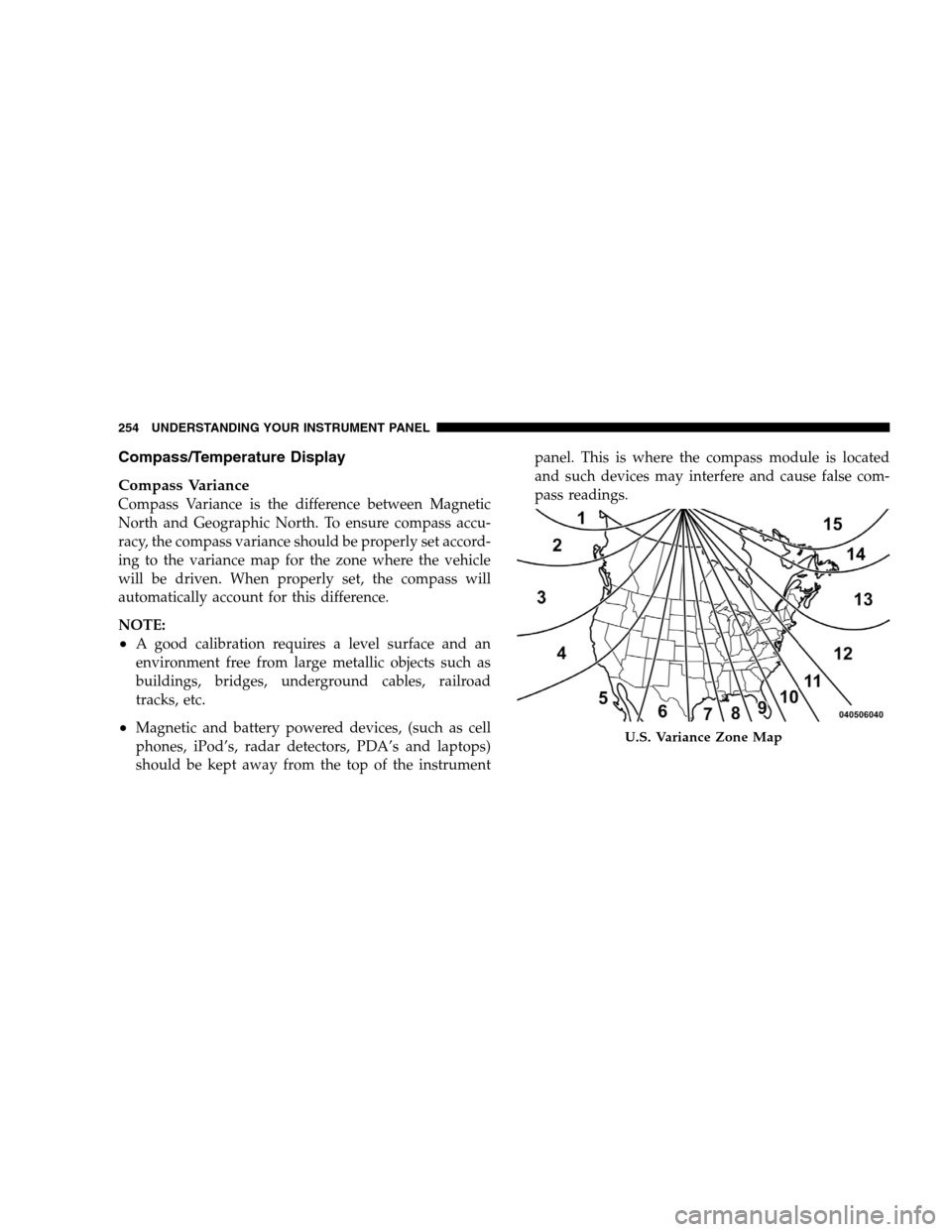
Compass Variance is the difference between Magnetic
North and Geographic North. To ensure compass accu-
racy, the compass variance should be properly set accord-
ing to the variance map for the zone where the vehicle
will be driven. When properly set, the compass will
automatically account for this difference.
NOTE:
A good calibration requires a level surface and an
environment free from large metallic objects such as
buildings, bridges, underground cables, railroad
tracks, etc.
Magnetic and battery powered devices, (such as cell
phones, iPod’s, radar detectors, PDA’s and laptops)
should be kept away from the top of the instrument panel. This is where the compass module is located
and such devices may interfere and cause false com-
pass readings. U.S. Variance Zone Map
254 UNDERST
ANDING YOUR INSTRUMENT PANEL
Page 264 of 535
3. Press the STEP button until “Calibrate Compass” is
displayed in the EVIC.
4. Press and release the RESET button to start the cali-
bration. The “CAL” indicator will be displayed in the
EVIC.
5. Complete one or more 360–degree turns (in an area
free from large metal or metallic objects) until the “CAL”
indicator turns off. The compass will now function
normally.
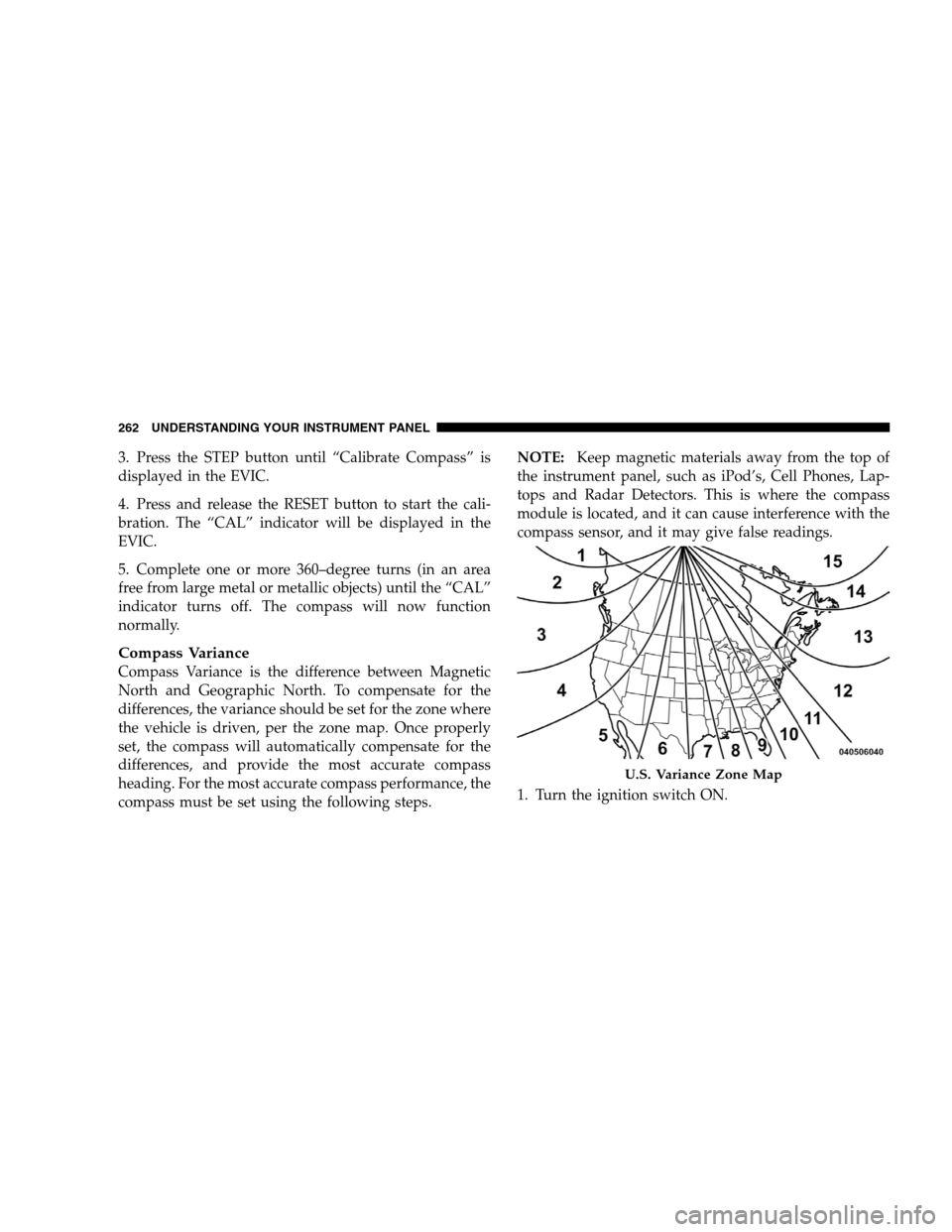
Compass Variance
Compass Variance is the difference between Magnetic
North and Geographic North. To compensate for the
differences, the variance should be set for the zone where
the vehicle is driven, per the zone map. Once properly
set, the compass will automatically compensate for the
differences, and provide the most accurate compass
heading. For the most accurate compass performance, the
compass must be set using the following steps.NOTE:
Keep magnetic materials away from the top of
the instrument panel, such as iPod’s, Cell Phones, Lap-
tops and Radar Detectors. This is where the compass
module is located, and it can cause interference with the
compass sensor, and it may give false readings.
1. Turn the ignition switch ON. U.S. Variance Zone Map
262 UNDERST
ANDING YOUR INSTRUMENT PANEL
Page 270 of 535
AM/FM/CD/DVD RADIO (RER/REN) – IF
EQUIPPEDNOTE:
The sales code is located on the lower right side
of the unit’s faceplate.
The REN and RER radios contain a CD/DVD player, USB
port, and a 30-gigabyte hard drive (HDD). Sirius Satellite
Radio is optional. The 6.5 in (16.5 cm) touch screen allows
for easy menu selection.
The RER radio also contains a Global Positioning System
(GPS)-based Navigation system.
Refer to your uconnectt tunes (REN) or (RER) user’s
manual for detailed operating instructions.
Operating Instructions — Voice Recognition
System (VR) — If Equipped
For the radio, refer to “Voice Recognition System (VR)” in
Section 3.
Operating Instructions — uconnectT phone — If
Equipped
Refer to “uconnectt phone” in Section 3.
Clock Setting Procedure
uconnecttgps — RER only
The GPS receiver used in this system is synchronized to
the time data being transmitted by the GPS satellite. The
satellite clock is Greenwich Mean Time (GMT). This is the
worldwide standard for time. This makes the system’s
clock very accurate once the appropriate time zone and
daylight savings information is set.
To Manually Set the Clock — RER/REN
1. Turn on the radio.
2. Touch the screen where the time is displayed.
3. Touch the screen where “User Clock” is displayed. The
clock setting menu will appear on the screen.
268 UNDERSTANDING YOUR INSTRUMENT PANEL
Page 282 of 535
to seek up and the left switch to seek down. The radio
will remain tuned to the new station until you make
another selection. Holding either button will bypass
stations without stopping until you release it.
Voice Recognition System (Radio) — If Equipped
Refer to “Voice Recognition System (VR)” in Section 3.
Voice Recognition Button uconnecttphone — If
Equipped
Press this button to operate the uconnectt phone feature
(if equipped). Refer to “uconnectt phone” in Section 3.
If your vehicle is not equipped with or this feature is not
available on your vehicle, a “Not Equipped With
uconnect” message will display on the radio screen.
Phone Button uconnectt phone — If Equipped
Press this button to operate the uconnectt phone feature
(if equipped). Refer to “uconnectt phone” in Section 3.If your vehicle is not equipped with or this feature is not
available on your vehicle, a “Not Equipped With
uconnect” message will display on the radio screen.
TIME Button
Press the TIME button to alternate locations of the time
and frequency display.
Clock Setting Procedure
1. Press and hold the TIME button until the hours blink.
2. Adjust the hours by turning the right side TUNE/
SCROLL control knob.
3. After adjusting the hours, press the right side TUNE/
SCROLL control knob to set the minutes. The minutes
will begin to blink.
4. Adjust the minutes using the right side TUNE/
SCROLL control knob. Press the TUNE/SCROLL control
knob to save time change.
280 UNDERSTANDING YOUR INSTRUMENT PANEL
Page 292 of 535
Press and hold the INFO button again for three seconds
to return to9elapsed time9 display.
Operation Instructions - Auxiliary Mode
The auxiliary (AUX) jack is an audio input jack which
allows the user to plug in a portable device such as an
MP3 player or cassette player and utilize the vehicle’s
audio system to amplify the source and play through the
vehicle speakers.
Pressing the AUX button will change the mode to auxil-
iary device if the AUX jack is connected.
NOTE:The AUX device must be turned on and the
device’s volume set to the proper level. If the AUX audio
is not loud enough, turn the device’s volume up. If the
AUX audio sounds distorted, turn the device’s volume
down.
TIME Button (Auxiliary Mode)
Press this button to change the display to time of day. The
time of day will display for five seconds (when the
ignition is OFF).
Operating Instructions - uconnectt phone (If
Equipped)
Refer to “uconnectt phone” in Section 3.
Operating Instructions - uconnectt studios
(Satellite Radio) (If Equipped)
Refer to “uconnectt studios (Satellite Radio)” in this
section.
UNIVERSAL CONSUMER INTERFACE (UCI) — IF
EQUIPPED
NOTE: This section is for sales code RES and REQ/
REL/RET radios only with uconnectt. For sales code
RER, REN, REP, REW or REZ touch-screen radio UCI
290 UNDERSTANDING YOUR INSTRUMENT PANEL