bluetooth DODGE GRAND CARAVAN 2015 5.G User Guide
[x] Cancel search | Manufacturer: DODGE, Model Year: 2015, Model line: GRAND CARAVAN, Model: DODGE GRAND CARAVAN 2015 5.GPages: 703, PDF Size: 19.83 MB
Page 184 of 703
Disc Mode
To switch to the disc mode, say “Disc.” In this mode, you
may say the following commands:
•“Track” (#) (to change the track)
•“Next Track” (to play the next track)
•“Previous Track” (to play the previous track)
•“Main Menu” (to switch to the main menu)
USB Mode
To switch to USB mode, say “USB.” In this mode, you
may say the following commands:
•“Next Track” (to play the next track)
•“Previous Track” (to play the previous track)
•“Play” (to play an Artist Name, Playlist Name, Album
Name, Track Name, etc.)
Bluetooth® Streaming (BT) Mode
To switch to Bluetooth® Streaming (BT) mode, say
“Bluetooth Streaming.” In this mode, you may say the
following commands:
•“Play” (to play the current track)
•“Pause” (to pause the current track)
•“Next Track” (to play the next track)
•“Previous Track” (to play the previous track)
Memo Mode
To switch to the voice recorder mode, say “Memo.” In
this mode, you may say the following commands:
•“New Memo” (to record a new memo) — During the
recording, you may push the Voice Command
button to stop recording. You proceed by say-
ing one of the following commands:
– “Save” (to save the memo)
182 UNDERSTANDING THE FEATURES OF YOUR VEHICLE
Page 307 of 703
▫INFO Button — CD Mode For MP3 Play.....371
▫Uconnect® (Satellite Radio) — If Equipped . . .372
▫Operating Instructions (Uconnect® Phone) — If
Equipped...........................377
!iPod®/USB/MP3 CONTROL — IF EQUIPPED . . .377
▫Connecting The iPod® Or External USB
Device.............................378
▫Using This Feature.....................379
▫Controlling The iPod® Or External USB Device
Using Radio Buttons...................379
▫Play Mode..........................379
▫List Or Browse Mode...................381
▫Bluetooth® Streaming Audio (BTSA).......383
!Uconnect® MULTIMEDIA — VIDEO
ENTERTAINMENT SYSTEM (VES™) — IF
EQUIPPED...........................384
▫Getting Started.......................384
▫Blu-ray™ Disc Player...................385
▫Play Video Games.....................386
▫Listen To An Audio Source On Channel 2 While A
Video Is Playing On Channel 1............389
▫Dual Video Screen.....................390
▫Play A DVD Using The Touchscreen Radio . . .390
▫Play A DVD Using The VES™ Player — If
Equipped...........................393
▫Play A Blu-ray™ Disc Using The Blu-ray™ Player
— If Equipped.......................396
4
UNDERSTANDING YOUR INSTRUMENT PANEL 305
Page 385 of 703
Bluetooth® Streaming Audio (BTSA)
Music can be streamed from your cellular phone to the
Uconnect® phone system.
Refer to the Uconnect® Radio Supplement for further
information on Bluetooth® connectivity.
Controlling BTSA Using Radio Buttons
To enter BTSA mode, push either “AUX” button on the
radio or push the VR button and say “Bluetooth Stream-
ing Audio.”
Play Mode
When switched to BTSA mode, some audio devices can
start playing music over the vehicle’s audio system, but
some devices require the music to be initiated on the
device first, then it will get streamed to the Uconnect®
phone system. Seven devices can be paired to the
Uconnect® phone system, but just one can be selected
and played.
Selecting A Different Audio Device
1. Push the PHONE button to begin.
2. After the#Ready#prompt and following the beep, say
#Setup#, then say#Select Audio Devices.#
3. Say the name of the audio device or ask the
Uconnect® phone system to list the audio devices.
Next Track
Use the SEEK UP button, or push the VR button on the
radio and say “Next Track,” to jump to the next music
track on your cellular phone.
Previous Track
Use the SEEK DOWN button, or push the VR button on
the radio and say “Previous Track,” to jump to the
previous music track on your cellular phone.
4
UNDERSTANDING YOUR INSTRUMENT PANEL 383
Page 386 of 703
Browse
Browsing is not available on a Bluetooth® Streaming
Audio (BTSA) device. Only the current song that is
playing will display info.
Uconnect® MULTIMEDIA — VIDEO
ENTERTAINMENT SYSTEM (VES™) — IF
EQUIPPED
Your rear seat Video Entertainment System (VES™) is
designed to give your family years of enjoyment. You can
play your favorite CDs or DVDs, listen to audio over the
wireless headphones, or plug and play a variety of
standard video games or audio devices. Please review
this Owner’s Manual to become familiar with its features
and operation.
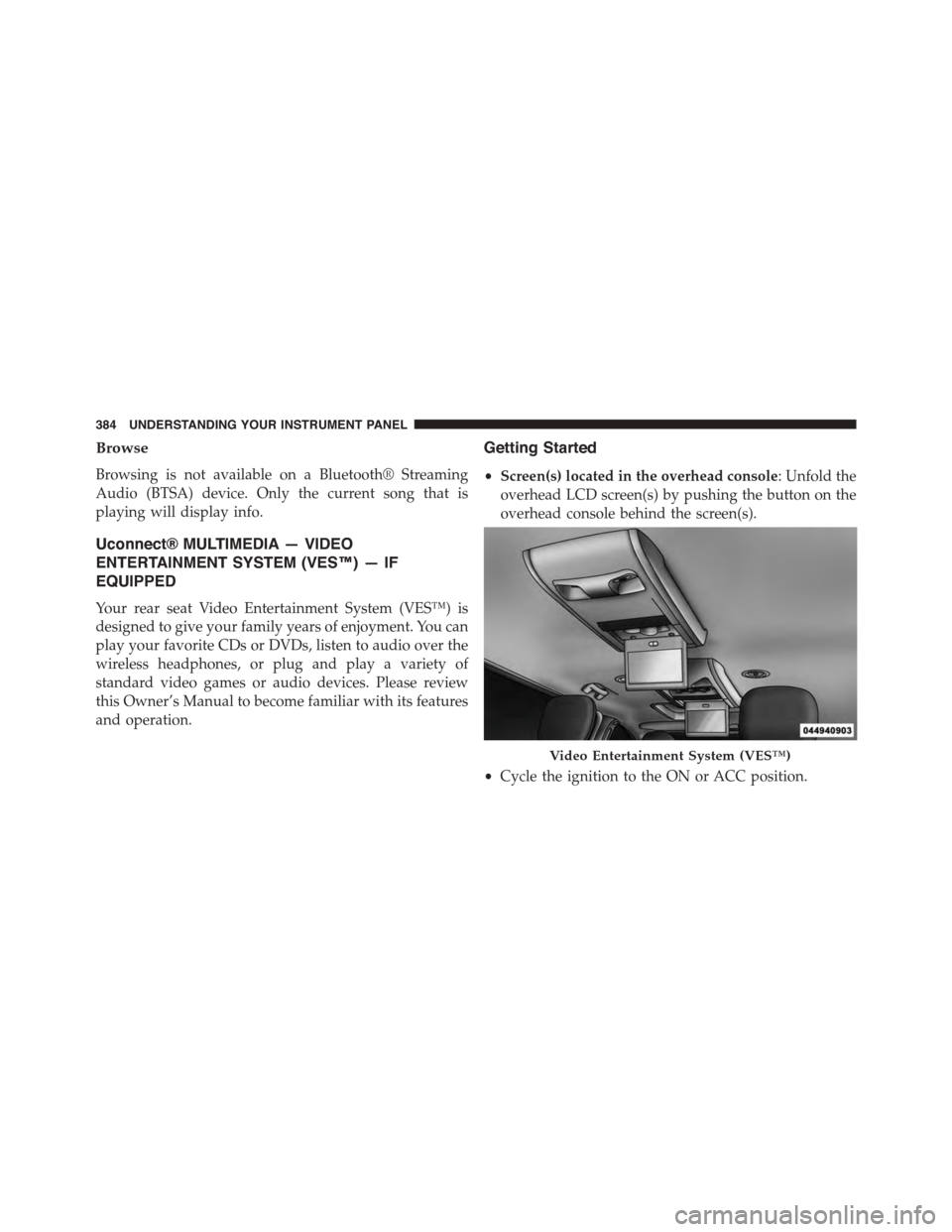
Getting Started
•Screen(s) located in the overhead console: Unfold the
overhead LCD screen(s) by pushing the button on the
overhead console behind the screen(s).
•Cycle the ignition to the ON or ACC position.
Video Entertainment System (VES™)
384 UNDERSTANDING YOUR INSTRUMENT PANEL
Page 690 of 703
Passing..............................229
Replacing.............................652
Time Delay............................223
Washers..............................223
Head Restraints..........................193
Heated Mirrors...........................137
Heater.................................433
Heater, Engine Block.......................462
High Beam/Low Beam Select (Dimmer) Switch . . . .228
Hill Start Assist...........................492
Hitches
Trailer Towing.........................548
HomeLink® (Garage Door Opener)............256
Hood Release............................220
Hook, Coat..............................285
Ignition.................................14
Key . . . . . . . . . . . . . . . . . . . . . . . . . . . . . . . . . .12
Ignition Key Removal.......................14
Illuminated Entry..........................20
Immobilizer (Sentry Key)....................15
Information Center, Vehicle..................325
Inside Rearview Mirror.....................133
Instrument Cluster........................309
Instrument Panel and Controls................308
Instrument Panel Cover.....................638
Instrument Panel Lens Cleaning...............640
Integrated Power Module (Fuses)..............642
Interior Appearance Care....................638
Interior Lights...........................225
Intermittent Wipers (Delay Wipers).............230
Introduction..............................4
iPod®/USB/MP3 Control
Bluetooth® Streaming Audio...............182
Jack Location............................576
Jack Operation...........................575
688 INDEX