audio DODGE GRAND CARAVAN 2015 5.G Owner's Manual
[x] Cancel search | Manufacturer: DODGE, Model Year: 2015, Model line: GRAND CARAVAN, Model: DODGE GRAND CARAVAN 2015 5.GPages: 703, PDF Size: 19.83 MB
Page 371 of 703
Supported Media (Disc Types)
The MP3 file recording media supported by the radio are
CDDA, CD-R, CD-RW, MP3, and CDDA+MP3.
Supported Medium Formats (File Systems)
The medium formats supported by the radio are ISO 9660
Level 1 and Level 2 and includes the Joliet extension.
When reading discs recorded using formats other than
ISO 9660 Level 1 and Level 2, the radio may fail to read
files properly and may be unable to play the file nor-
mally. UDF and Apple HFS formats are not supported.
The radio uses the following limits for file systems:
•Maximum number of folder levels: 8
•Maximum number of files: 255
•Maximum number of folders. (The radio display of file
names and folder names is limited. For large numbers
of files and/or folders, the radio may be unable to
display the file name and folder name, and will assign
a number instead. With a maximum number of files,
exceeding 20 folders will result in this display. With
200 files, exceeding 50 folders will result in this dis-
play.)
Maximum number of characters in file/folder names:
•Level 1: 12 (including a separator#.#and a three-
character extension)
•Level 2: 31 (including a separator#.#and a three-
character extension)
Multi-session disc formats are supported by the radio.
Multi-session discs may contain combinations of normal
CD audio tracks and computer files (including MP3 files).
Discs created with an option such as#keep disc open after
writing#are most likely multi-session discs. The use of
multi-session for CD audio or MP3 playback may result
in longer disc loading times.
4
UNDERSTANDING YOUR INSTRUMENT PANEL 369
Page 372 of 703
Supported MP3 File Formats
The radio will recognize only files with the *.MP3 exten-
sion as MP3 files. Non-MP3 files named with the *.MP3
extension may cause playback problems. The radio is
designed to recognize the file as an invalid MP3 and will
not play the file.
When using the MP3 encoder to compress audio data to
an MP3 file, the bit rate and sampling frequencies in the
following table are supported. In addition, variable bit
rates (VBR) are also supported. The majority of MP3 files
use a 44.1 kHz sampling rate and a 192, 160, 128, 96 or
VBR bit rates.
MPEG Specifi-
cation
Sampling Fre-
quency (kHz)Bit Rate (kbps)
MPEG-1 Audio
Layer 3
48, 44.1, 32 320, 256, 224,
192, 160, 128,
112, 96, 80, 64,
56, 48, 40, 32
MPEG-2 Audio
Layer 3
24, 22.05, 16 160, 128, 144,
112, 96, 80, 64,
56, 48, 40, 32,
24, 16, 8
ID3 Tag information for artist, song title, and album title
are supported for version 1 ID3 tags. ID3 version 2 is not
supported by the radios.
Playlist files are not supported. MP3 Pro files are not
supported.
370 UNDERSTANDING YOUR INSTRUMENT PANEL
Page 374 of 703
Push the INFO button once more to return to#elapsed
time#priority mode.
Push and hold the INFO button for three seconds or more
and the radio will display song titles for each file.
Push and hold the INFO button again for three seconds
to return to#elapsed time#display.
Operation Instructions — Auxiliary Mode
The auxiliary (AUX) jack is an audio input jack which
allows the user to plug in a portable device such as an
MP3 player or iPod® and utilize the vehicle’s audio
system to amplify the source and play through the
vehicle speakers.
Pushing the AUX button will change the mode to auxil-
iary device if the AUX jack is connected.
NOTE:The AUX device must be turned on and the
device’s volume set to the proper level. If the AUX audio
is not loud enough, turn the device’s volume up. If the
AUX audio sounds distorted, turn the device’s volume
down.
TIME Button (Auxiliary Mode)
Push this button to change the display to time of day. The
time of day will display for five seconds (when the
ignition is OFF).
Uconnect® (Satellite Radio) — If Equipped
Satellite radio uses direct satellite-to-receiver broadcast-
ing technology to provide clear digital sound, coast to
coast. The subscription service provider is Sirius Satellite
Radio. This service offers over 130 channels of music,
sports, news, entertainment, and programming for chil-
dren, directly from its satellites and broadcasting studios.
372 UNDERSTANDING YOUR INSTRUMENT PANEL
Page 375 of 703
NOTE:Sirius service is not available in Hawaii and has
limited coverage in Alaska.
System Activation
Sirius Satellite Radio service is pre-activated, and you
may begin listening immediately to the one year of audio
service that is included with the factory-installed satellite
radio system in your vehicle. Sirius will supply a wel-
come kit that contains general information, including
how to setup your on-line listening account. For further
information, call the toll-free number 888-539-7474, or
visit the Sirius web site atwww.siriusxm.com, or at
www.siriusxm.ca for Canadian residents.
Electronic Serial Number/Sirius Identification
Number (ESN/SID)
Please have the following information available when
calling:
1. The Electronic Serial Number/Sirius Identification
Number (ESN/SID).
2. Your Vehicle Identification Number.
To access the ESN/SID, refer to the following steps:
ESN/SID Access
With the ignition switch in the ON/RUN or ACC posi-
tion and the radio on, push the SETUP button and scroll
using the TUNE/SCROLL control knob until Sirius ID is
selected. Push the TUNE/SCROLL control knob and the
Sirius ID number will display. The Sirius ID number
display will time out in two minutes. Push any button on
the radio to exit this screen.
Selecting Uconnect® (Satellite) Mode
Push the SAT button until#SAT#appears in the display. A
CD may remain in the radio while in the Satellite radio
mode.
4
UNDERSTANDING YOUR INSTRUMENT PANEL 373
Page 376 of 703
Satellite Antenna
To ensure optimum reception, do not place items on the
roof around the rooftop antenna location. Metal objects
placed within the line of sight of the antenna will cause
decreased performance. Larger luggage items such as
bikes should be placed as far rearward as possible, within
the loading design of the rack. Do not place items directly
on or above the antenna.
Reception Quality
Satellite reception may be interrupted due to one of the
following reasons:
•The vehicle is parked in an underground parking
structure or under a physical obstacle.
•Dense tree coverage may interrupt reception in the
form of short audio mutes.
•Driving under wide bridges or along tall buildings can
cause intermittent reception.
•Placing objects over or too close to the antenna can
cause signal blockage.
Operating Instructions — Uconnect® (Satellite)
Mode
NOTE:The ignition switch must be in the ON/RUN or
ACC position to operate the radio.
SEEK Buttons
Push and release the SEEK buttons to search for the next
listenable station in AM/FM mode. Push the right switch
to seek up and the left switch to seek down. The radio
will remain tuned to the new station until you make
another selection. Holding either button will bypass
stations without stopping, until you release it.
374 UNDERSTANDING YOUR INSTRUMENT PANEL
Page 378 of 703
SETUP Button
Pushing the SETUP button allows you to select the
following items:
•Display Sirius ID number — Push the AUDIO/
SELECT button to display the Sirius ID number. This
number is used to activate, deactivate, or change the
Sirius subscription.
SET Button — To Set The Pushbutton Memory
When you are receiving a channel that you wish to
commit to pushbutton memory, push the SET button. The
symbol SET 1 will now show in the display window.
Select the button (1-6) you wish to lock onto this channel
and push and release that button. If a button is not
selected within five seconds after pushing the SET but-
ton, the channel will continue to play but will not be
stored into pushbutton memory.
You may add a second channel to each pushbutton by
repeating the above procedure with this exception: Push
the SET button twice and SET 2 will show in the display
window. Each button can be set for SET 1 and SET 2. This
allows a total of 12 Satellite channels to be stored into
pushbutton memory. The channels stored in SET 2
memory can be selected by pushing the pushbutton
twice.
Every time a preset button is used, a corresponding
button number will display.
Buttons1-6
These buttons tune the radio to the channels that you
commit to pushbutton memory (12 Satellite stations).
376 UNDERSTANDING YOUR INSTRUMENT PANEL
Page 379 of 703
Operating Instructions (Uconnect® Phone) — If
Equipped
Refer to “Uconnect® Phone” for further details.
iPod®/USB/MP3 CONTROL — IF EQUIPPED
NOTE:This section is for Uconnect® 130/230 radios
only. For Uconnect® 430/430N, 730N, 731N, 735N or 431
touchscreen radio iPod®/USB/MP3 control feature, refer
to the separate Supplement Manual. iPod®/USB/MP3
control is available only if equipped as an option with
these radios.
This feature allows an iPod® or external USB device to be
plugged into the USB port, located in the glove compart-
ment.
iPod® control supports Mini, 4G, Photo, Nano, 5G iPod®
and iPhone® devices. Some iPod® software versions
may not fully support the iPod® control features. Please
visit Apple’s website for software updates.
NOTE:
•If the radio has a USB port, refer to the appropriate
Uconnect® Multimedia radio User ’s Manual for
iPod® or external USB device support capability.
•Connecting an iPod® or consumer electronic audio
device to the AUX port located in the radio faceplate,
plays media, but does not use the iPod® / MP3 control
feature to control the connected device.
4
UNDERSTANDING YOUR INSTRUMENT PANEL 377
Page 380 of 703
Connecting The iPod® Or External USB Device
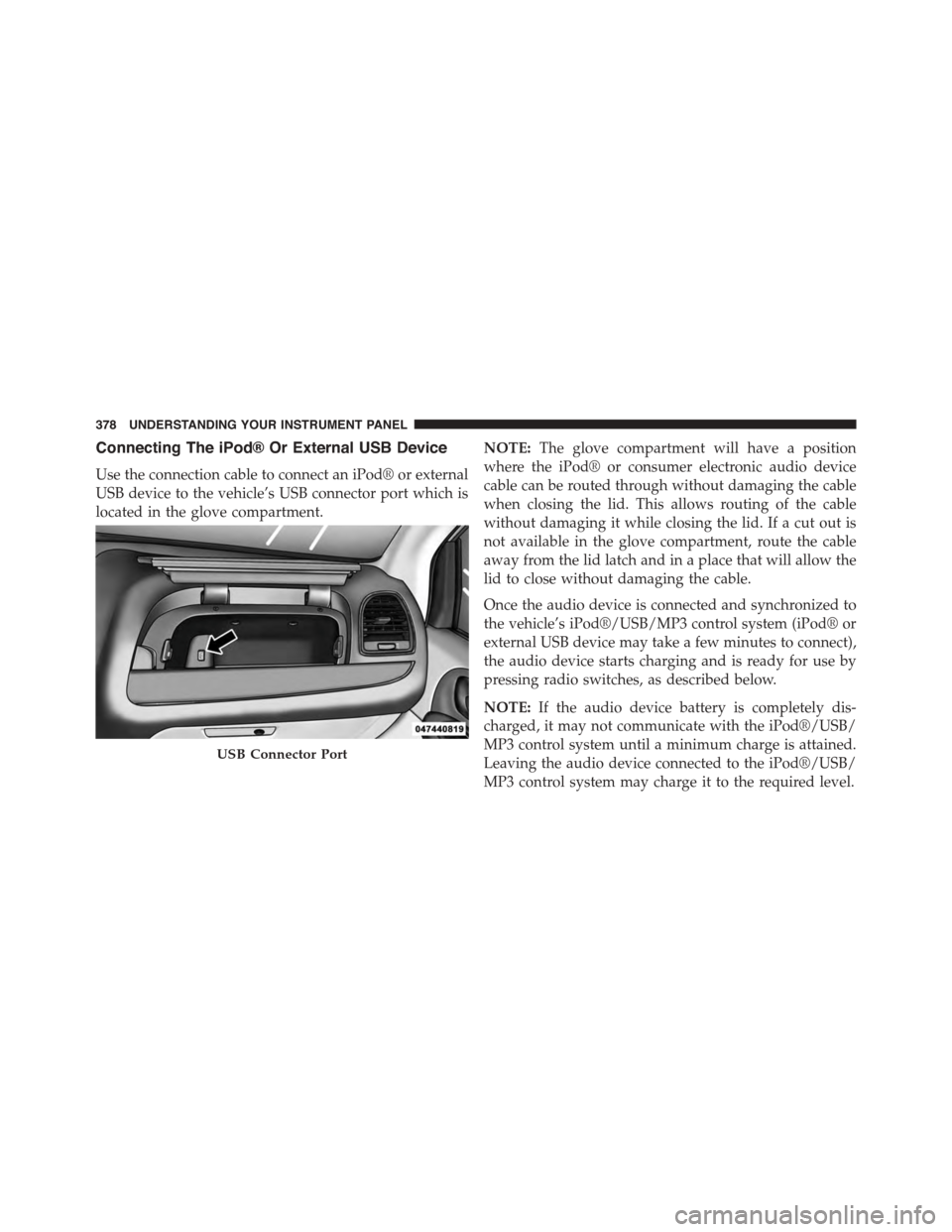
Use the connection cable to connect an iPod® or external
USB device to the vehicle’s USB connector port which is
located in the glove compartment.
NOTE:The glove compartment will have a position
where the iPod® or consumer electronic audio device
cable can be routed through without damaging the cable
when closing the lid. This allows routing of the cable
without damaging it while closing the lid. If a cut out is
not available in the glove compartment, route the cable
away from the lid latch and in a place that will allow the
lid to close without damaging the cable.
Once the audio device is connected and synchronized to
the vehicle’s iPod®/USB/MP3 control system (iPod® or
external USB device may take a few minutes to connect),
the audio device starts charging and is ready for use by
pressing radio switches, as described below.
NOTE:If the audio device battery is completely dis-
charged, it may not communicate with the iPod®/USB/
MP3 control system until a minimum charge is attained.
Leaving the audio device connected to the iPod®/USB/
MP3 control system may charge it to the required level.
USB Connector Port
378 UNDERSTANDING YOUR INSTRUMENT PANEL
Page 381 of 703
Using This Feature
By using an iPod® cable, or an external USB device to
connect to the USB port:
•The audio device can be played on the vehicle’s sound
system, providing metadata (artist, track title, album,
etc.) information on the radio display.
•The audio device can be controlled using the radio
buttons to Play, Browse, and List the iPod® contents.
•The audio device battery charges when plugged into
the USB/AUX connector (if supported by the specific
audio device).
Controlling The iPod® Or External USB Device
Using Radio Buttons
To get into the iPod®/USB/MP3 control mode and
access a connected audio device, either push the “AUX”
button on the radio faceplate or push the VR button and
say#USB#or#Switch to USB.#Once in the iPod®/USB/
MP3 control mode, audio tracks (if available from audio
device) start playing over the vehicle’s audio system.
Play Mode
When switched to iPod®/USB/MP3 control mode, the
iPod® or external USB device automatically starts Play
mode. In Play mode, the following buttons on the radio
faceplate may be used to control the iPod® or external
USB device and display data:
•Use theTUNEcontrol knob to select the next or
previous track.
•Turning it clockwise (forward) by one click, while
playing a track, skips to the next track or push the VR
button and say#Next Track.#
•Turning it counterclockwise (backward) by one click,
will jump to the previous track in the list or push the
VR button and say#Previous Track.#
4
UNDERSTANDING YOUR INSTRUMENT PANEL 379
Page 382 of 703
•Jump backward in the current track by pushing and
holding the <
track.
•Jump forward in the current track by pushing and
holding theFF>> button.
•A single push backward <
jump backward or forward respectively, for five sec-
onds.
•Use the <
previous or next track. Pushing theSEEK>> button
during play mode will jump to the next track in the
list, or push the VR button and say#Next or Previous
Track.#
•While a track is playing, push theINFObutton to see
the associated metadata (artist, track title, album, etc.)
for that track. Pushing theINFObutton again jumps to
the next screen of data for that track. Once all screens
have been viewed, the lastINFObutton push will go
back to the play mode screen on the radio.
•Pushing theREPEATbutton will change the audio
device mode to repeat the current playing track or
push the VR button and say#Repeat ON#or#Repeat
Off.#
•Push theSCANbutton to use iPod®/USB/MP3 de-
vice scan mode, which will play the first ten seconds of
each track in the current list and then forward to the
next song. To stop SCAN mode and start playing the
desired track, when it is playing the track, push the
SCANbutton again. During Scan mode, pushing the
<
and next tracks.
•RNDbutton (available on sales code RES radio only):
Pushing this button toggles between Shuffle ON and
Shuffle OFF modes for the iPod® or external USB
380 UNDERSTANDING YOUR INSTRUMENT PANEL