buttons DODGE GRAND CARAVAN 2015 5.G Service Manual
[x] Cancel search | Manufacturer: DODGE, Model Year: 2015, Model line: GRAND CARAVAN, Model: DODGE GRAND CARAVAN 2015 5.GPages: 703, PDF Size: 19.83 MB
Page 406 of 703
(if equipped) and the VES™ mode is selected and the
disc is stopped, press the SETUP button to access the
Blu-ray™ Setup menu.
7.!!!– Press and release to jump to the next available
audio track or video chapter. Press and hold to fast
forward through the current audio track or video
chapter.
8.!/%(Play/Pause) – Begin/resume or pause disc play.
9. Four Colored Buttons – Press to access Blu-ray™ Disc
features.
10. POPUP/MENU – Press to access the Blu-ray™ main
menu when in Blu-ray™ or DVD mode. Press to start
Scan or start Random track functions in CD or HDD
modes.
11. KEYPAD – Press to navigate chapters or titles.
12.▪(Stop) – Stops disc play.
13.!""– Press and release to jump to the previous
audio track or video chapter. Press and hold to fast
rewind through the current audio track or video
chapter.
14. MUTE – Mutes headphone audio.
15. BACK – Press to exit out of menus or return to source
selection screen.
16.#– Press to navigate menus.
17. OK – Press to select the highlighted option in a menu.
18."– Press to navigate menus.
19.$– Press to navigate menus.
404 UNDERSTANDING YOUR INSTRUMENT PANEL
Page 412 of 703
4. When the Mode Selection menu appears on screen,
use the cursor buttons on the remote control to navi-
gate to the available modes and press the OK button to
select the new mode.
5. To cancel out of the Mode Selection menu, press the
BACK button on the remote control.
Replacing The Headphone Batteries
Each set of headphones requires two AAA batteries for
operation. To replace the batteries:
•Locate the battery compartment on the left ear cup of
the headphones, and then slide the battery cover
downward.
•Replace the batteries, making sure to orient them
according to the polarity diagram shown.
•Replace the battery compartment cover.
Unwired® Stereo Headphone Lifetime Limited
Warranty
Who Does This Warranty Cover?This warranty covers
the initial user or purchaser (#you#or#your#) of this
particular Unwired Technology LLC (#Unwired#) wire-
less headphone (#Product#). The warranty is not transfer-
able.
How Long Does The Coverage Last?This warranty lasts
as long as you own the Product.
What Does This Warranty Cover?Except as specified
below, this warranty covers any Product that in normal
use is defective in workmanship or materials.
What Does This Warranty Not Cover?This warranty
does not cover any damage or defect that results from
misuse, abuse or modification of the Product other than
by Unwired. Foam earpieces, which will wear over time
through normal use, are specifically not covered (replace-
ment foam is available for a nominal charge). UNWIRED
410 UNDERSTANDING YOUR INSTRUMENT PANEL
Page 416 of 703
makes it easy to enter a specific tuner frequency, satellite
channel, or track number. To enter the desired digit:
1. Press the remote control’s navigation buttons ($,#,
!,") to navigate to the desired digit.
2. When the digit is highlighted, press the remote con-
trol’s ENTER/OK button to select the digit. Repeat
these steps until all digits are entered.
3. To delete the last digit, navigate to the Del button and
press the remote control’s ENTER/OK button.
4. After all of the digits are entered, navigate to the Go
button and press the remote control’s ENTER/OK
button.
Station List Menu
When listening to Satellite audio, pressing the remote
control’s POP UP/MENU button displays a list of all
available channels. Navigate this list using the remote
control’s navigation buttons ($,#) to find the desired
station, press the remote control’s ENTER/OK button to
tune to that station. To jump through the list more
quickly, navigate to the Page Up and Page Down icons on
the screen.
414 UNDERSTANDING YOUR INSTRUMENT PANEL
Page 417 of 703
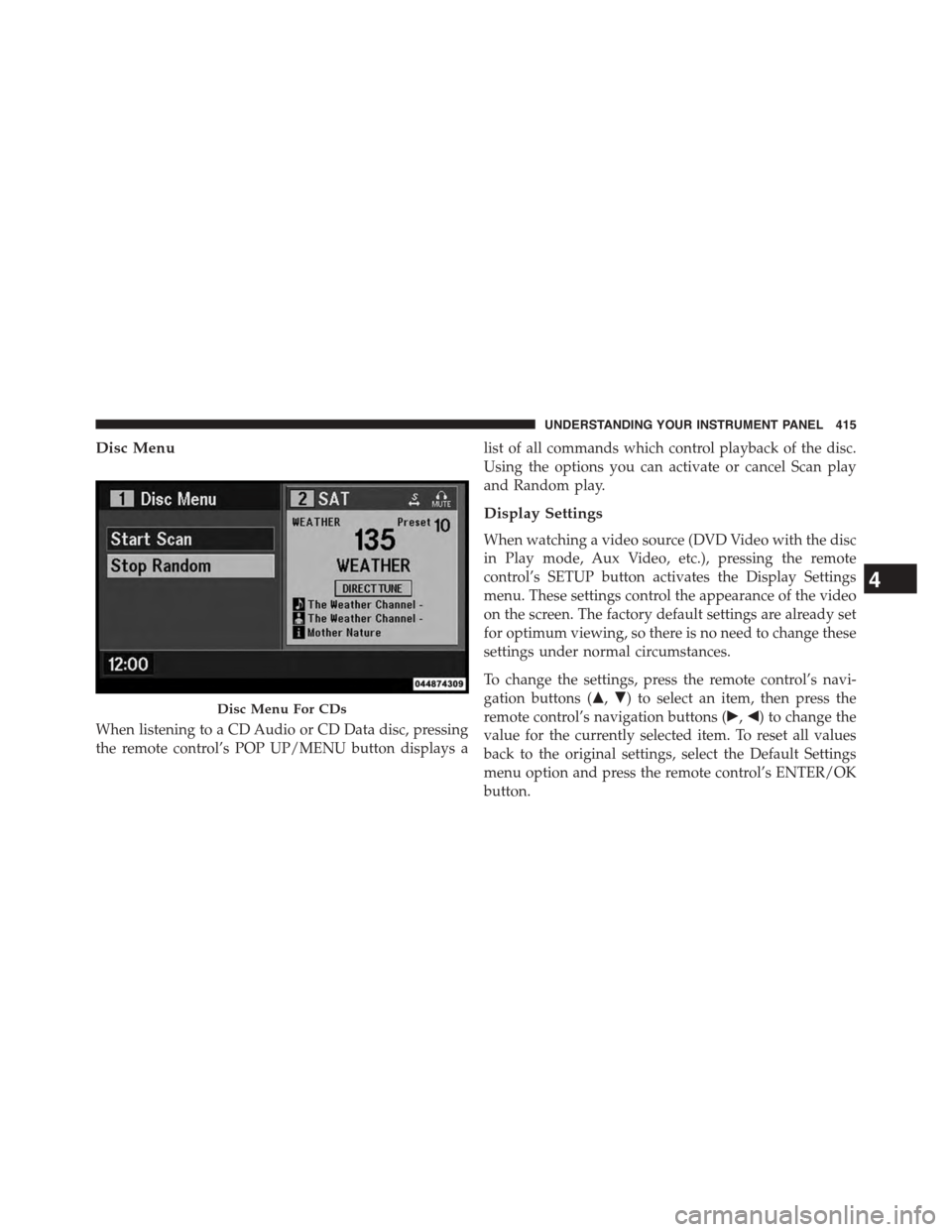
Disc Menu
When listening to a CD Audio or CD Data disc, pressing
the remote control’s POP UP/MENU button displays a
list of all commands which control playback of the disc.
Using the options you can activate or cancel Scan play
and Random play.
Display Settings
When watching a video source (DVD Video with the disc
in Play mode, Aux Video, etc.), pressing the remote
control’s SETUP button activates the Display Settings
menu. These settings control the appearance of the video
on the screen. The factory default settings are already set
for optimum viewing, so there is no need to change these
settings under normal circumstances.
To change the settings, press the remote control’s navi-
gation buttons ($,#) to select an item, then press the
remote control’s navigation buttons (!,") to change the
value for the currently selected item. To reset all values
back to the original settings, select the Default Settings
menu option and press the remote control’s ENTER/OK
button.
Disc Menu For CDs
4
UNDERSTANDING YOUR INSTRUMENT PANEL 415
Page 423 of 703
supported. For both formats, the recommended
sample rate is either 44.1 kHz or 48 kHz.
•To change the current file, use the DVD player ’s$
button to advance to the next file, or the#button to
return to the start of the current or previous file.
•To change the current directory, use the remote con-
trol’s PROG UP and Down buttons or Rewind/skip
back and fast fwd/skip forward.
Disc Errors
If the DVD player is unable to read the disc, a#Disc Error#
message is displayed on the Radio display and the disc is
automatically ejected. A dirty, damaged, or incompatible
disc format are all potential causes for a#Disc Error#
message.
If a disc has a damaged track which results in audible or
visible errors that persists for 2.0 seconds, the DVD
player will attempt to continue playing the disc by
skipping forward 1.0 to 3.0 seconds at a time. If the end
of the disc is reached, the DVD player will return to the
beginning of the disc and attempt to play the start of the
first track.
The DVD player may shut down during extremely hot
conditions, such as when the vehicle’s interior tempera-
ture is above 120° F (49° C). The Blu-ray™ Player may
shut down when the vehicle’s interior temperature ex-
ceeds 140° F (60° C). When this occurs, the DVD/Blu-
ray™ Player will display#High Temp#and will shut off
the display until a safe temperature is reached. This
shutdown is necessary to protect the optics of the DVD/
Blu-ray™ Player.
The Blu-ray™ player may require additional reading
time during extremely cold weather conditions. When
this occurs, allow the vehicles interior temperature to
warm, then insert disc into player.
4
UNDERSTANDING YOUR INSTRUMENT PANEL 421
Page 426 of 703
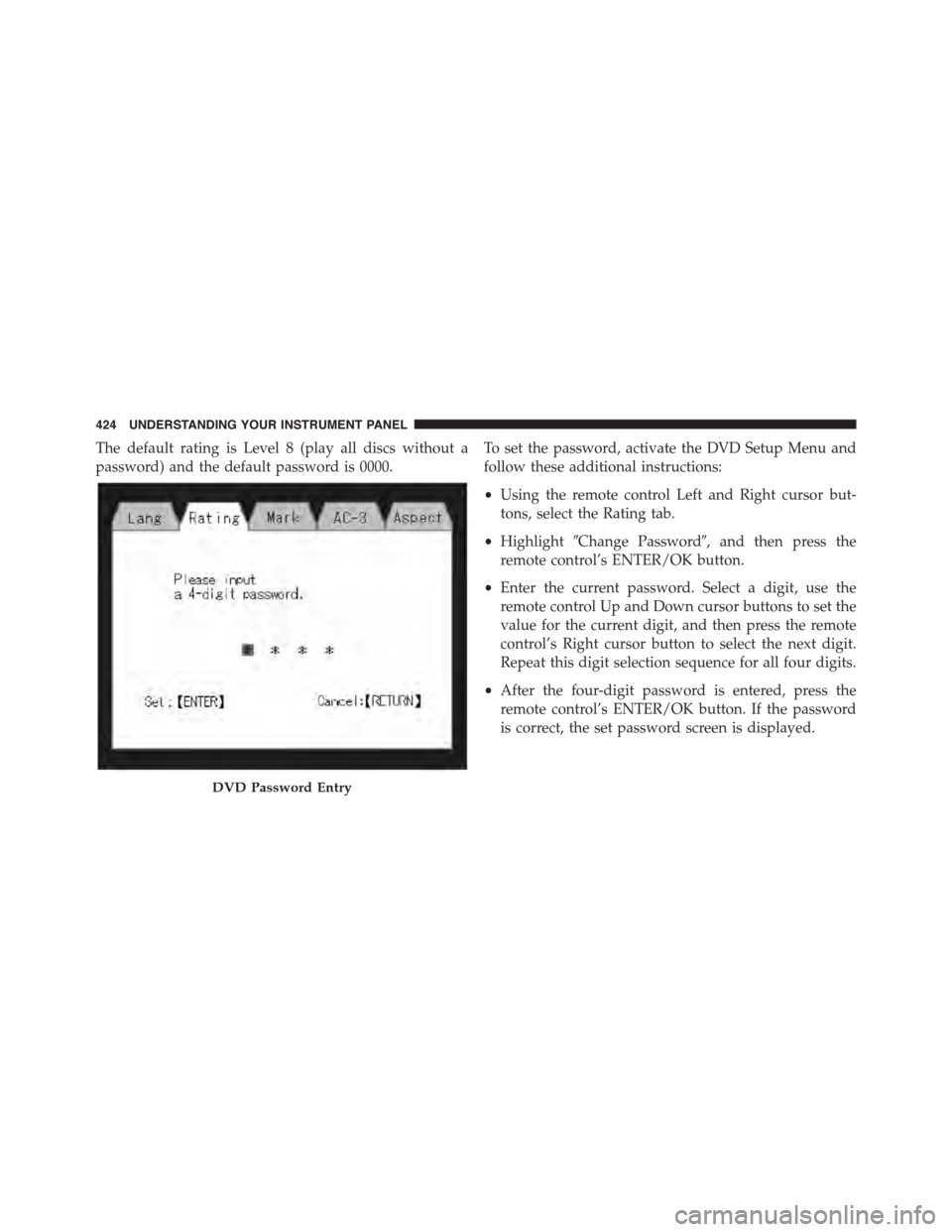
The default rating is Level 8 (play all discs without a
password) and the default password is 0000.
To set the password, activate the DVD Setup Menu and
follow these additional instructions:
•Using the remote control Left and Right cursor but-
tons, select the Rating tab.
•Highlight#Change Password#, and then press the
remote control’s ENTER/OK button.
•Enter the current password. Select a digit, use the
remote control Up and Down cursor buttons to set the
value for the current digit, and then press the remote
control’s Right cursor button to select the next digit.
Repeat this digit selection sequence for all four digits.
•After the four-digit password is entered, press the
remote control’s ENTER/OK button. If the password
is correct, the set password screen is displayed.
DVD Password Entry
424 UNDERSTANDING YOUR INSTRUMENT PANEL
Page 427 of 703
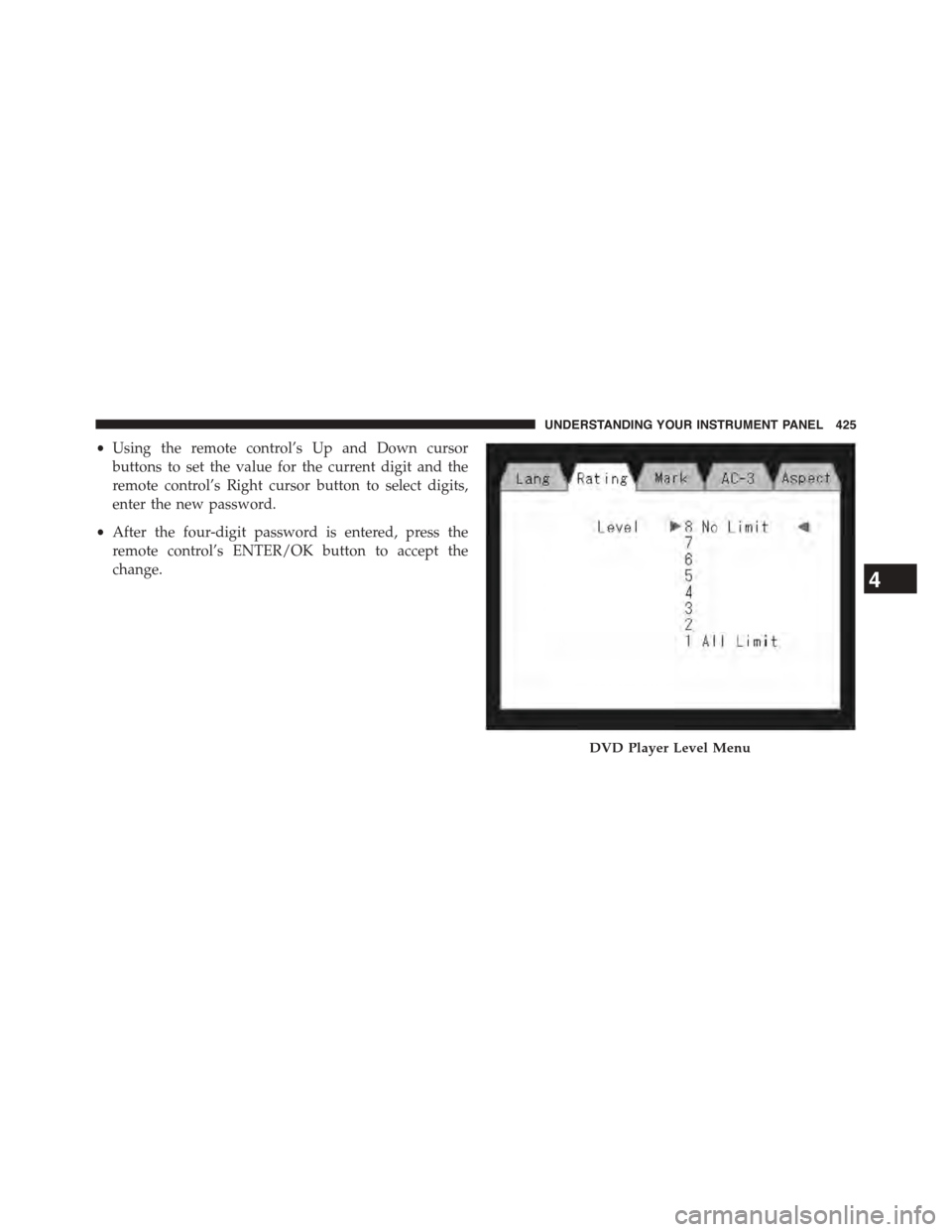
•Using the remote control’s Up and Down cursor
buttons to set the value for the current digit and the
remote control’s Right cursor button to select digits,
enter the new password.
•After the four-digit password is entered, press the
remote control’s ENTER/OK button to accept the
change.
DVD Player Level Menu
4
UNDERSTANDING YOUR INSTRUMENT PANEL 425
Page 428 of 703
To set the rating, activate the DVD Setup Menu and
follow these additional instructions:
•Using the remote control’s Left and Right cursor
buttons, select the Rating tab.
•Highlight#Change Rating#, and then press the remote
control’s ENTER/OK button.
•Enter the current password. Select a digit, use the
remote control’s Up and Down cursor buttons to set
the value for the current digit, and then press the
remote control’s Right cursor button to select the next
digit. Repeat this digit selection sequence for all four
digits.
•After the four-digit password is entered, press the
remote control’s ENTER/OK button. If the password
is correct, the Rating Level menu is displayed.
•Using the remote control’s Up and Down cursor
buttons, select the new rating level, and then press the
remote control’s ENTER/OK button to accept the
change.
Product Agreement
Software
This product contains software licensed under GNU
General Public License (GPL) or GNU Lesser General
Public License (LGPL), etc. You have the right of acqui-
sition, modification, and distribution of the source code
of the GPL/LGPL software. You may download Source
Code from the following website at no charge.
http://www.embedded-carmultimedia.jp/linux/
oss/download/MP_632_34W821
The website provides the Source Code#As Is#and
without warranty of any kind. By downloading Source
426 UNDERSTANDING YOUR INSTRUMENT PANEL
Page 440 of 703
Economy Mode
If ECONOMY mode is desired, press the A/C button to
turn off the indicator light and the A/C compressor.
Rotate the temperature control knob to the desired tem-
perature. Also, make sure to select only Panel, Bi-Level or
Floor modes.
Max A/C
For maximum cooling use the A/C and Recirculation
mode buttons at the same time.
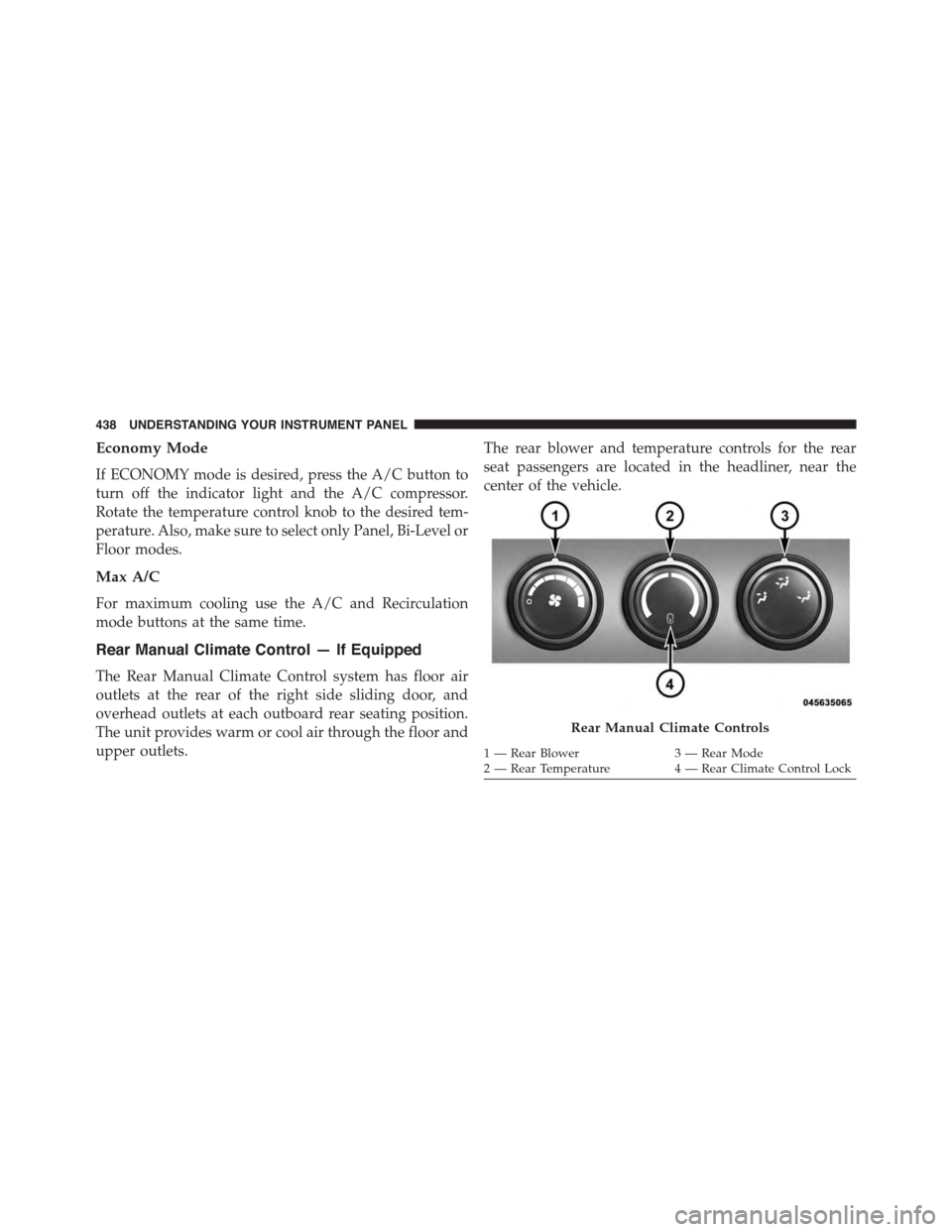
Rear Manual Climate Control — If Equipped
The Rear Manual Climate Control system has floor air
outlets at the rear of the right side sliding door, and
overhead outlets at each outboard rear seating position.
The unit provides warm or cool air through the floor and
upper outlets.
The rear blower and temperature controls for the rear
seat passengers are located in the headliner, near the
center of the vehicle.
Rear Manual Climate Controls
1—RearBlower3—RearMode2 — Rear Temperature4 — Rear Climate Control Lock
438 UNDERSTANDING YOUR INSTRUMENT PANEL
Page 442 of 703
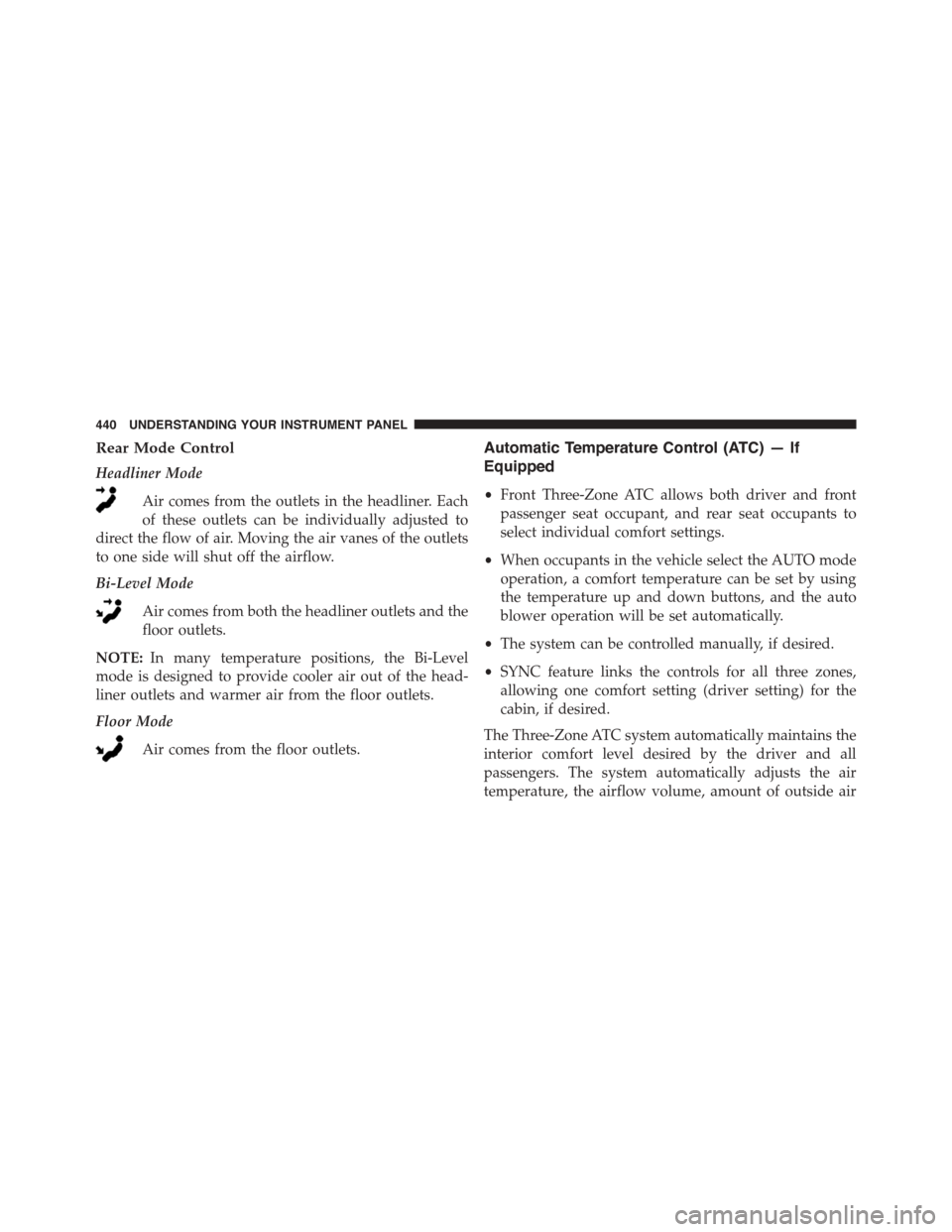
Rear Mode Control
Headliner Mode
Air comes from the outlets in the headliner. Each
of these outlets can be individually adjusted to
direct the flow of air. Moving the air vanes of the outlets
to one side will shut off the airflow.
Bi-Level Mode
Air comes from both the headliner outlets and the
floor outlets.
NOTE:In many temperature positions, the Bi-Level
mode is designed to provide cooler air out of the head-
liner outlets and warmer air from the floor outlets.
Floor Mode
Air comes from the floor outlets.
Automatic Temperature Control (ATC) — If
Equipped
•Front Three-Zone ATC allows both driver and front
passenger seat occupant, and rear seat occupants to
select individual comfort settings.
•When occupants in the vehicle select the AUTO mode
operation, a comfort temperature can be set by using
the temperature up and down buttons, and the auto
blower operation will be set automatically.
•The system can be controlled manually, if desired.
•SYNC feature links the controls for all three zones,
allowing one comfort setting (driver setting) for the
cabin, if desired.
The Three-Zone ATC system automatically maintains the
interior comfort level desired by the driver and all
passengers. The system automatically adjusts the air
temperature, the airflow volume, amount of outside air
440 UNDERSTANDING YOUR INSTRUMENT PANEL