ignition DODGE GRAND CARAVAN 2017 5.G Repair Manual
[x] Cancel search | Manufacturer: DODGE, Model Year: 2017, Model line: GRAND CARAVAN, Model: DODGE GRAND CARAVAN 2017 5.GPages: 530, PDF Size: 5.01 MB
Page 265 of 530
permanently unavailable. The driver will receive an
Instrument Cluster Display message and the BSM dis-
play warning in both mirrors will be permanently
illuminated. If this message is present, see an authorized
dealer.
Oil Change Required
Your vehicle is equipped with an engine oil change indi-
cator system. The Oil Change Required message will
display in the Instrument Cluster Display for approxi-
mately 10 seconds, after a single chime has sounded, to
indicate the next scheduled oil change interval. The engine
oil change indicator system is duty-cycle based, which
means the engine oil change interval may fluctuate depen-
dent upon your personal driving style.
Unless reset, this message will continue to display each
time you turn the ignition to the ON/RUN position or
cycle the ignition to the ON/RUN position if equipped
with Keyless Enter-N-Go. To turn off the message tempo-
rarily, push and release the BACK button. To reset the oil
change indicator system (after performing the scheduled
maintenance) refer to the following procedure.Vehicles Equipped With Keyless Enter-N-Go
1. Without pressing the brake pedal, push the ENGINE
START/STOP button and cycle the ignition to the ON/
RUN position (do not start the engine).
2. Fully press the accelerator pedal, slowly, three times within 10 seconds.
3. Without pressing the brake pedal, push the ENGINE START/STOP button once to return the ignition to the
OFF/LOCK position.
Vehicles Not Equipped With Keyless Enter-N-Go
1. Turn the ignition to the ON/RUN position (do not start the engine).
2. Fully press the accelerator pedal, slowly, three times within 10 seconds.
3. Turn the ignition to the OFF/LOCK position.
NOTE: If the indicator message illuminates when you start
the engine, the oil change indicator system did not reset. If
necessary, repeat these steps.
4
UNDERSTANDING YOUR INSTRUMENT PANEL 263
Page 267 of 530
When the DTE value is less than 30 miles (48 km) estimated
driving distance, the DTE display will change to a “LOW
FUEL” message. This display will continue until the ve-
hicle runs out of fuel. Adding a significant amount of fuel
to the vehicle will turn off the “LOW FUEL” message and
a new DTE value will display.
Current Fuel Economy (MPG or L/100 km)
This display shows the instantaneous MPG or L/100 km in
bar graph form while driving. This will monitor the gas
mileage in real-time as you drive and can be used to
modify driving habits in order to increase fuel economy.
Vehicle Speed
Push and release theUPorDOWNarrow button
until “Vehicle Speed” displays highlighted in the Instru-
ment Cluster Display and push the RIGHT
arrow
button. Push and release the RIGHT
arrow button to
display the current speed in mph or km/h. Pushing the
RIGHT
arrow button a second time will toggle the
unit of measure between mph or km/h.
NOTE: Changing the unit of measure in the Vehicle Speed
menu will not change the unit of measure in the Instrument
Cluster Display.
Trip Info
Push and release the UPorDOWNarrow button
until “Trip Info” is highlighted in the Instrument Cluster
Display and push the RIGHT
button. Push and
release the UP
orDOWNarrow button to high-
light one of the following functions.
Trip A
• Shows the total distance traveled for Trip A since the last
reset.
• Shows the elapsed time traveled for Trip A since the last
reset.
Trip B
•Shows the total distance traveled for Trip B since the last
reset.
• Shows the elapsed time traveled for Trip B since the last
reset.
Elapsed Time
Shows the total elapsed time of travel since the last reset
when the ignition switch is in the ACC position. Elapsed
time will increment when the ignition switch is in the ON
or START position.
4
UNDERSTANDING YOUR INSTRUMENT PANEL 265
Page 269 of 530
what the stored messages are. Push and release theUP
orDOWNarrow button if there is more than one
message to step through the remaining stored messages.
Pushing the BACKbutton takes you back to the Main
Menu.
Compass / Temperature Display
The compass readings indicate the direction the vehicle is
facing. The Instrument Cluster Display will display eight
or fifteen compass readings and the outside temperature.
NOTE: The system will display the last known outside
temperature when starting the vehicle and may need to be
driven several minutes before the updated temperature is
displayed. Engine temperature can also affect the dis-
played temperature; therefore, temperature readings are
not updated when the vehicle is not moving.
Automatic Compass Calibration
This compass is self-calibrating, which eliminates the need
to manually reset the compass. When the vehicle is new,
the compass may appear erratic until it is calibrated. You
may also calibrate the compass by completing one or more
360–degree turns (in an area free from large metal or
metallic objects). The compass will now function normally. NOTE:
A good calibration requires a level surface and an
environment free from large metallic objects such as build-
ings, bridges, underground cables, railroad tracks, etc.
Manual Compass Calibration
If the compass appears erratic and the CAL indicator does
not appear in the Instrument Cluster Display, you must put
the compass into the Calibration Mode manually, as fol-
lows:
1. Turn ON the ignition switch.
2. Push and release the UP or DOWN button until the System Setup (Customer-Programmable Features) menu
is reached, then push and release the RIGHT button.
3. Push and release the DOWN button until “Calibrate Compass” is displayed in the Instrument Cluster Dis-
play then push and release the RIGHT button.
4. Push and release the RIGHT button to start the calibra- tion. The “CAL” indicator will be displayed in the
Instrument Cluster Display.
5. Complete one or more 360–degree turns (in an area free from large metal or metallic objects) until the “CAL”
indicator turns off. The compass will now function
normally.4
UNDERSTANDING YOUR INSTRUMENT PANEL 267
Page 270 of 530
Compass Variance
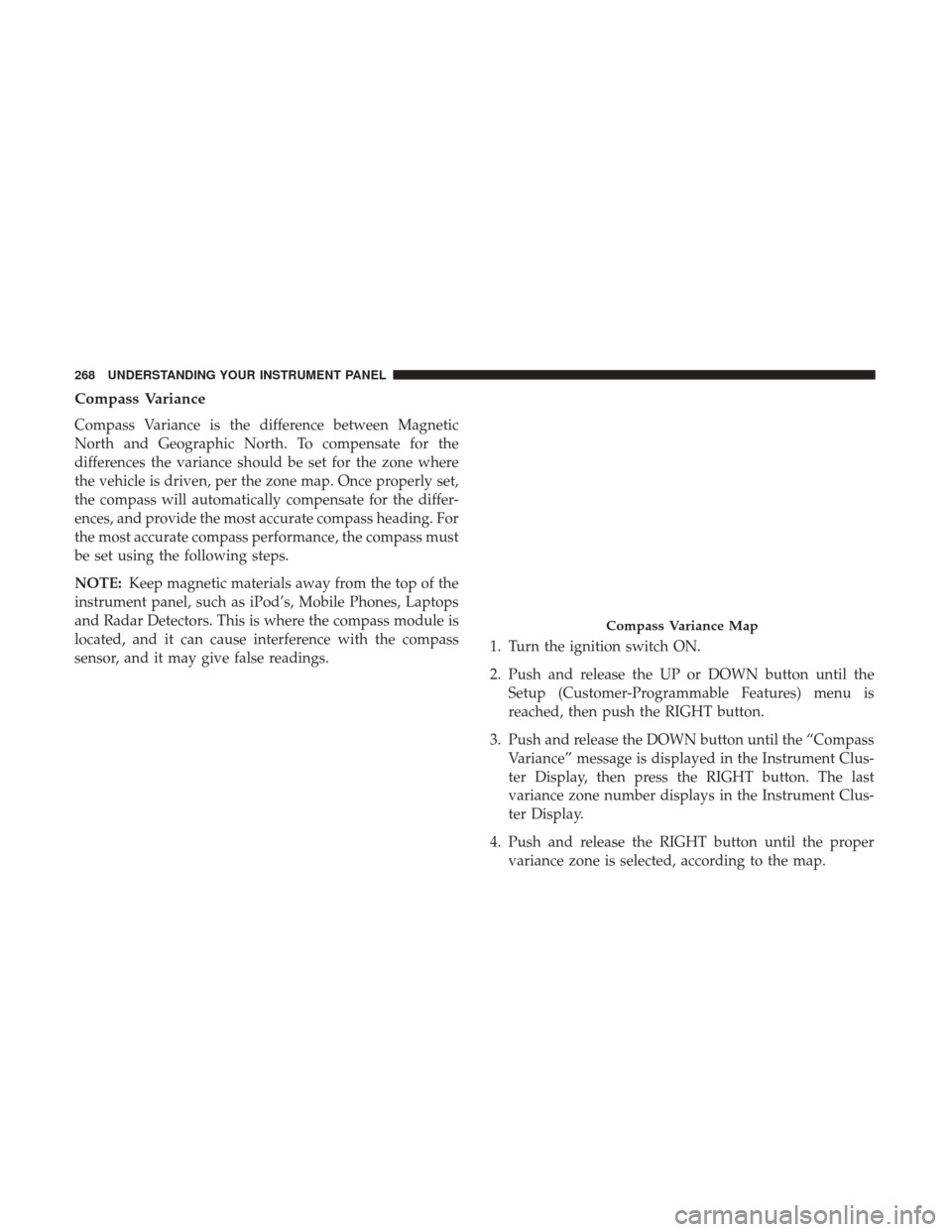
Compass Variance is the difference between Magnetic
North and Geographic North. To compensate for the
differences the variance should be set for the zone where
the vehicle is driven, per the zone map. Once properly set,
the compass will automatically compensate for the differ-
ences, and provide the most accurate compass heading. For
the most accurate compass performance, the compass must
be set using the following steps.
NOTE:Keep magnetic materials away from the top of the
instrument panel, such as iPod’s, Mobile Phones, Laptops
and Radar Detectors. This is where the compass module is
located, and it can cause interference with the compass
sensor, and it may give false readings. 1. Turn the ignition switch ON.
2. Push and release the UP or DOWN button until the
Setup (Customer-Programmable Features) menu is
reached, then push the RIGHT button.
3. Push and release the DOWN button until the “Compass Variance” message is displayed in the Instrument Clus-
ter Display, then press the RIGHT button. The last
variance zone number displays in the Instrument Clus-
ter Display.
4. Push and release the RIGHT button until the proper variance zone is selected, according to the map.
Compass Variance Map
268 UNDERSTANDING YOUR INSTRUMENT PANEL
Page 274 of 530
NOTE:Turning the headlights on during the daytime
causes the instrument panel lights to dim. To increase the
brightness, refer to “Lights” in “Understanding The Fea-
tures Of Your Vehicle.”
Intermittent Wiper Options — If Equipped
When ON is selected, the system will automatically acti-
vate the windshield wipers if it senses moisture on the
windshield. To make your selection, push and release the
RIGHT
arrow button until a check-mark appears
next to the feature showing the system has been acti-
vated or the check-mark is removed showing the system
has been deactivated. When the system is deactivated,
the system reverts to the standard intermittent wiper
operation.
Key-Off Power Delay
When this feature is selected, the power window switches,
radio, Uconnect phone (if equipped), DVD video system (if
equipped), power sunroof (if equipped), and power outlets
will remain active for up to 10 minutes after the ignition
switch is turned OFF. Opening either front vehicle door
will cancel this feature. To make your selection, scroll up or
down until the preferred setting is highlighted, then push and release the
RIGHT
arrow button until a check-
mark appears next to the setting, showing that the
setting has been selected.
Illuminated Approach
When this feature is selected, the headlights will activate
and remain on for up to 90 seconds when the doors are
unlocked with the key fob. To make your selection, scroll
up or down until the preferred setting is highlighted, then
push and release the RIGHT
arrow button until a
check-mark appears next to the setting, showing that
the setting has been selected.
Hill Start Assist (HSA) — If Equipped
When on is selected, the HSA system is active. Refer to
“Electronic Brake Control System” in “Starting And Oper-
ating” for system function and operating information. To
make your selection, push and release the RIGHT
ar-
row button until “ON” or “OFF” appears.
Flashers With Sliding Door
When this feature is selected, the signal lamps activate
when power or manual sliding doors are in operation,
signaling other drivers that someone may be exiting or
entering the vehicle. To make your selection, push and
release the RIGHT
arrow button until a check-mark
272 UNDERSTANDING YOUR INSTRUMENT PANEL
Page 278 of 530
RADIO 130
Operating Instructions — Radio Mode
NOTE:The ignition switch must be in the ON or ACC
position to operate the radio.
Power Switch/Volume Control (Rotary)
Push the ON/VOLUME control knob to turn on the radio.
Push the ON/VOLUME control knob a second time to turn
off the radio.
Electronic Volume Control
The electronic volume control turns continuously (360
degrees) in either direction, without stopping. Turning the
ON/VOLUME control knob to the right increases the
volume, and to the left decreases it.
When the audio system is turned on, the sound will be set
at the same volume level as last played.
SEEK Buttons
Push and release the SEEK buttons to search for the next
listenable station in AM/FM mode. Push the right switch
to seek up and the left switch to seek down. The radio will
remain tuned to the new station until you make another
selection. Holding either button will bypass stations with-
out stopping, until you release it.
TIME Button
Push the TIME button to alternate display of the time and
radio frequency.
Clock Setting Procedure
1. Push and hold the TIME button until the hours blink.
2. Adjust the hours by turning the right side TUNE/ SCROLL control knob.
Radio 130
276 UNDERSTANDING YOUR INSTRUMENT PANEL
Page 280 of 530
SET/RND Button — To Set The Pushbutton Memory
When you are receiving a station that you wish to commit
to pushbutton memory, push the SET/RND button. The
symbol SET 1 will now show in the display window. Select
the button (1 to 6) you wish to lock onto this station and
push and release that button. If a button is not selected
within five seconds after pushing the SET/RND button,
the station will continue to play but will not be stored into
pushbutton memory.
You may add a second station to each pushbutton by
repeating the above procedure with this exception: Push
the SET/RND button twice and SET 2 will show in the
display window. Each button can be set for SET 1 and SET
2 in both AM and FM. This allows a total of 12 AM and 12
FM stations to be stored into pushbutton memory. The
stations stored in SET 2 memory can be selected by
pushing the pushbutton twice.
Every time a preset button is used, a corresponding button
number will display.
Buttons1-6
These buttons tune the radio to the stations that you
commit to pushbutton memory (12 AM and 12 FM sta-
tions).
DISC Button
Pushing the DISC button will allow you to switch from
AM/FM modes to Disc modes.
Operation Instructions — CD MODE For CD And
MP3 Audio Play
NOTE:
•The ignition switch must be in the ON or ACC position
to operate the radio.
• This radio is capable of playing compact discs (CD),
recordable compact discs (CD-R), rewritable compact
discs (CD-RW), compact discs with MP3 tracks and
multisession compact discs with CD and MP3 tracks.
Inserting Compact Disc(s)
Gently insert one CD into the CD player with the CD label
facing up. The CD will automatically be pulled into the CD
player and the CD icon will illuminate on the radio display.
If a CD does not go into the slot more than 1 inch (2.5 cm),
a disc may already be loaded and must be ejected before a
new disc can be loaded.
If you insert a disc with the ignition ON and the radio ON,
the unit will switch from radio to CD mode and begin to
play when you insert the disc. The display will show the
278 UNDERSTANDING YOUR INSTRUMENT PANEL
Page 281 of 530
track number, and index time in minutes and seconds. Play
will begin at the start of track 1.
CAUTION!
•This CD player will accept 4–3/4 inch (12 cm) discs
only. The use of other sized discs may damage the
CD player mechanism.
• Do not use adhesive labels. These labels can peel
away and jam the player mechanism.
• The Radio 130 is a single CD player. Do not attempt
to insert a second CD if one is already loaded.
• Dual-media disc types (one side is a DVD, the other
side is a CD) should not be used, and they can cause
damage to the player.
EJECT Button — Ejecting A CD
Push the EJECT button to eject the CD.
If you have ejected a disc and have not removed it within
10 seconds, it will be reloaded. If the CD is not removed,
the radio will reinsert the CD but will not play it.
A disc can be ejected with the radio and ignition OFF. NOTE:
Ejecting with the ignition OFF is not allowed on
convertible or soft-top models (if equipped.)
SEEK Button
Push the right SEEK button for the next selection on the
CD. Push the left SEEK button to return to the beginning of
the current selection, or return to the beginning of the
previous selection if the CD is within the first second of the
current selection. Pushing and holding the SEEK button
will allow faster scrolling through the tracks in CD and
MP3 modes.
TIME Button
Push this button to change the display from a large CD
playing time display to a small CD playing time display.
RW/FF
Push and hold the FF (Fast Forward) button and the CD
player will begin to fast forward until FF is released, or RW
or another CD button is pushed. The RW (Reverse) button
operates in a similar manner.
AM/FM Button
Push the button to select either AM or FM mode.
4
UNDERSTANDING YOUR INSTRUMENT PANEL 279
Page 284 of 530
Playback Of MP3 Files
When a medium containing MP3 data is loaded, the radio
checks all files on the medium. If the medium contains a lot
of folders or files, the radio will take more time to start
playing the MP3 files.
Loading times for playback of MP3 files may be affected by
the following:
•Media - CD-RW media may take longer to load than
CD-R media
• Medium formats - Multisession discs may take longer to
load than non-multisession discs
• Number of files and folders - Loading times will increase
with more files and folders
To increase the speed of disc loading, it is recommended to
use CD-R media and single-session discs. To create a
single-session disc, enable the “Disc at Once” option before
writing to the disc.
Operation Instructions — Auxiliary Mode
The auxiliary (AUX) jack is an audio input jack, which
allows the user to plug in a portable device, such as an MP3
player, or iPod, and utilize the vehicle’s audio system to
amplify the source and play through the vehicle speakers.
Pushing the DISC/AUX button will change the mode to
auxiliary device if the AUX jack is connected.
NOTE: The AUX device must be turned on and the
device’s volume set to proper level. If the AUX audio is not
loud enough, turn the device’s volume up. If the AUX
audio sounds distorted, turn the device’s volume down.
TIME Button (Auxiliary Mode)
Push this button to change the display to time of day. The
time of day will display for five seconds (when ignition is
OFF).
282 UNDERSTANDING YOUR INSTRUMENT PANEL
Page 285 of 530
RADIO 130 WITH SATELLITE RADIO
Operating Instructions — Radio Mode
NOTE:The ignition switch must be in the ON/RUN or
ACC position to operate the radio.
Power Switch/Volume Control (Rotary)
Push the ON/VOLUME control knob to turn on the radio.
Push the ON/VOLUME control knob a second time to turn
off the radio.
Electronic Volume Control
The electronic volume control turns continuously (360
degrees) in either direction, without stopping. Turning the
ON/VOLUME control knob to the right increases the
volume, and to the left decreases it.
When the audio system is turned on, the sound will be set
at the same volume level as last played.
SEEK Buttons
Push and release the SEEK buttons to search for the next
listenable station in AM/FM mode. Push the right switch
to seek up and the left switch to seek down. The radio will
remain tuned to the new station until you make another
selection. Holding either button will bypass stations with-
out stopping, until you release it.
Voice Command System (Radio) — If Equipped
Refer to “Voice Command” in “Understanding The Fea-
tures Of Your Vehicle.”
Voice Command Button Uconnect Phone — If
Equipped
Push this button to operate the Uconnect Phone feature (if
equipped). Refer to “Voice Command” for further details.
Radio 130
4
UNDERSTANDING YOUR INSTRUMENT PANEL 283