steering DODGE JOURNEY 2015 1.G Owner's Manual
[x] Cancel search | Manufacturer: DODGE, Model Year: 2015, Model line: JOURNEY, Model: DODGE JOURNEY 2015 1.GPages: 648
Page 166 of 648
Answer Or Ignore An Incoming Call — Call
Currently In Progress
If a call is currently in progress and you have another
incoming call, you will hear the same network tones for
call waiting that you normally hear when using your
mobile phone. Push the “Phone”button on the
steering wheel, or press the “answer” button on the
touchscreen or caller ID box to place the current call on
hold and answer the incoming call.
NOTE:The Uconnect® Phone compatible phones in the
market today do not support rejecting an incoming call
when another call is in progress. Therefore, the user can
only answer an incoming call or ignore it.
Making A Second Call While Current Call Is In
Progress
You can place a call on hold by pressing the “Hold”
button on the Phone main screen, then dial a number
from the dialpad, recent calls, SMS Inbox or from the
phonebooks. To go back to the first call, refer to “Toggling
Between Calls” in this section. To combine two calls, refer
to “Join Calls” in this section.
Place/Retrieve A Call From Hold
During an active call, press the “Hold” button on the
Phone main screen.
Toggling Between Calls
If two calls are in progress (one active and one on hold),
press the “Swap” button on the Phone main screen. Only
one call can be placed on hold at a time.
You can also press the “Phone”button to toggle
between the active and held phone call.
Join Calls
When two calls are in progress (one active and one on
hold), press the “Join Calls” button on the Phone main
screen to combine all calls into a Conference Call.
164 UNDERSTANDING THE FEATURES OF YOUR VEHICLE
Page 171 of 648
1. Press the “More” button on the touchscreen (where
available), then press the “Settings” button on the
touchscreen.
2. Press the “Display” button on the touchscreen, then
scroll down to Voice Response Length.
3. Select either “Brief” or “Detailed” by pressing the box
next to the selection. A check-mark will appear to
indicate your selection.
Phone And Network Status Indicators
Uconnect® Phone will provide notification to inform you
of your phone and network status when you are attempt-
ing to make a phone call using Uconnect® Phone. The
status is given for network signal strength and phone
battery strength.
Dialing Using The Mobile Phone Keypad
WARNING!
Driving while distracted can result in loss of vehicle
control, accident and injury. It is strongly recom-
mended that you use extreme caution when using
any device or feature that may take your focus off the
road or your hands off the steering wheel. Your
primary responsibility is the safe operation of your
vehicle. We recommend against the use of any hand-
held device while driving, encourage the use of
voice-operated systems when possible and that you
become aware of applicable laws that may affect the
use of electronic devices while driving.
You can dial a phone number with your mobile phone
keypad and still use the Uconnect® Phone (while dialing
via the mobile phone keypad, the user must exercise
caution and take precautionary safety measures). By
3
UNDERSTANDING THE FEATURES OF YOUR VEHICLE 169
Page 180 of 648
NOTE:
1. You can replace “John Smith” with any name in your
mobile or favorite phone book. You can also say “Send
a message to John Smith” and the system will ask you
which phone number you want to send a message to
for John Smith.
2. You can replace “Mobile” with “Home,” “Work” or
“Other.”
3. You can replace “Incoming Calls” with “Outgoing
Calls” or “Missed Calls.”
4. You can replace “248 555 1212” with any phone
number supported by your Mobile phone.
5. These commands can be used during a phone call after
pushing the Uconnect® Voice Command button on
the steering wheel. Please note the call will be muted
while the VR session is active.
6. Send dial tones for automated systems is available
while a call is active. This is an example that uses a
Phonebook Record named “Voicemail Password.”
7. Storing Dial tones in contact names is possible but
only the first number encountered in a contact name
will be sent. For example if there is a number stored in
the Home and Work numbers for the contact “Voice-
mail password” only the Home number will be sent.
8. If your phone does not support phonebook download
or call log download over Bluetooth® then these
commands will return a response that the contact does
not exist in the phonebook.
178 UNDERSTANDING THE FEATURES OF YOUR VEHICLE
Page 228 of 648
An indicator light in the instrument cluster illuminates
when the fog lights are turned on.
NOTE:The fog lights will operate when the low beam
headlights or parking lights are on. However, selecting
the high beam headlights will turn off the fog lights.
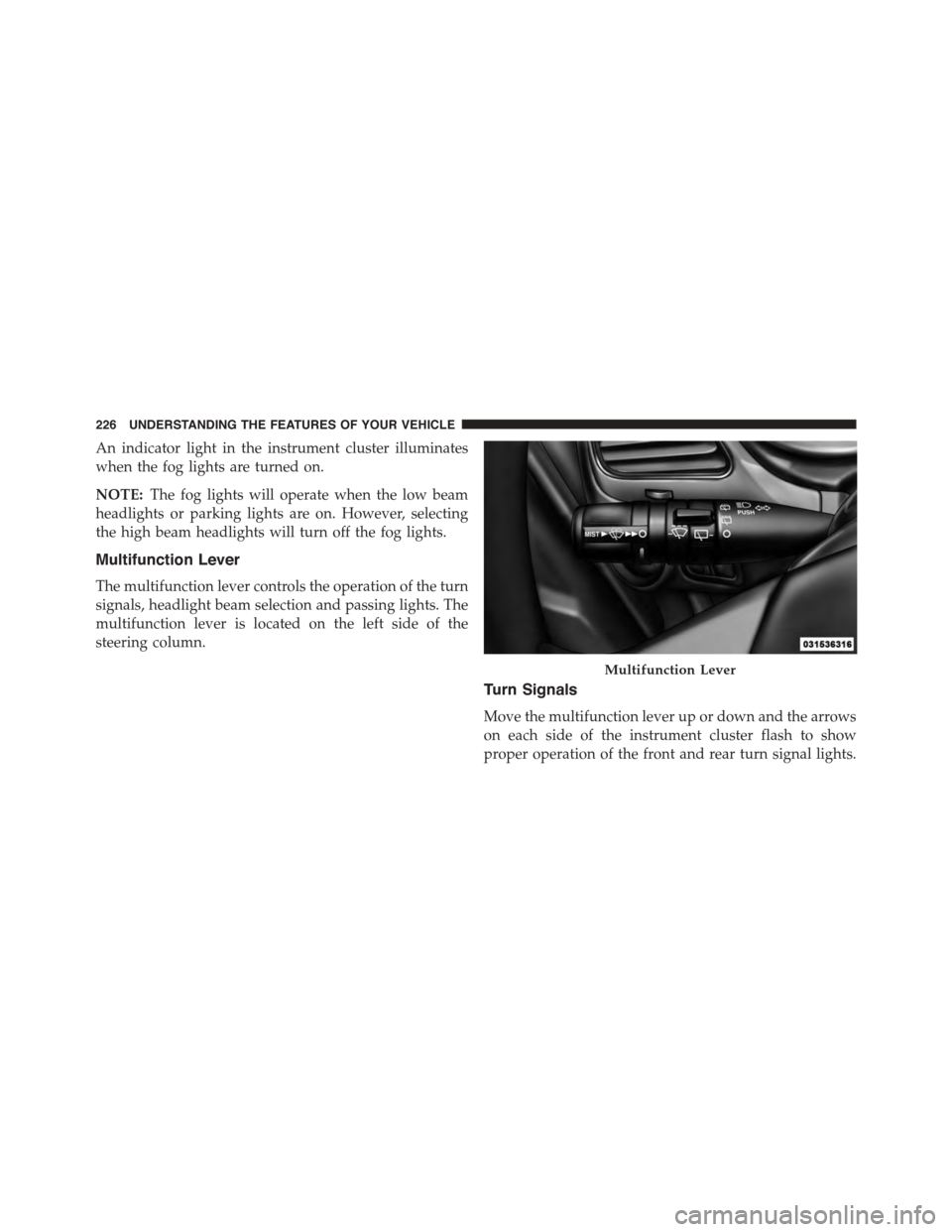
Multifunction Lever
The multifunction lever controls the operation of the turn
signals, headlight beam selection and passing lights. The
multifunction lever is located on the left side of the
steering column.
Turn Signals
Move the multifunction lever up or down and the arrows
on each side of the instrument cluster flash to show
proper operation of the front and rear turn signal lights.
Multifunction Lever
226 UNDERSTANDING THE FEATURES OF YOUR VEHICLE
Page 231 of 648
Interior Light Defeat (OFF)
Rotate the dimmer control to the extreme bottom off
position. The interior lights will remain off when the
doors are open.
Parade Mode (Daytime Brightness Feature)
Rotate the dimmer control upward to the first detent.
This feature brightens all text displays such as the
odometer, Electronic Vehicle Information Center (EVIC),
and radio when the parking lights or headlights are on.
Map/Reading Lights
These lights are mounted between the sun visors on the
overhead console. Refer to “Overhead Console” in “Un-
derstanding The Features Of Your Vehicle” for further
information.
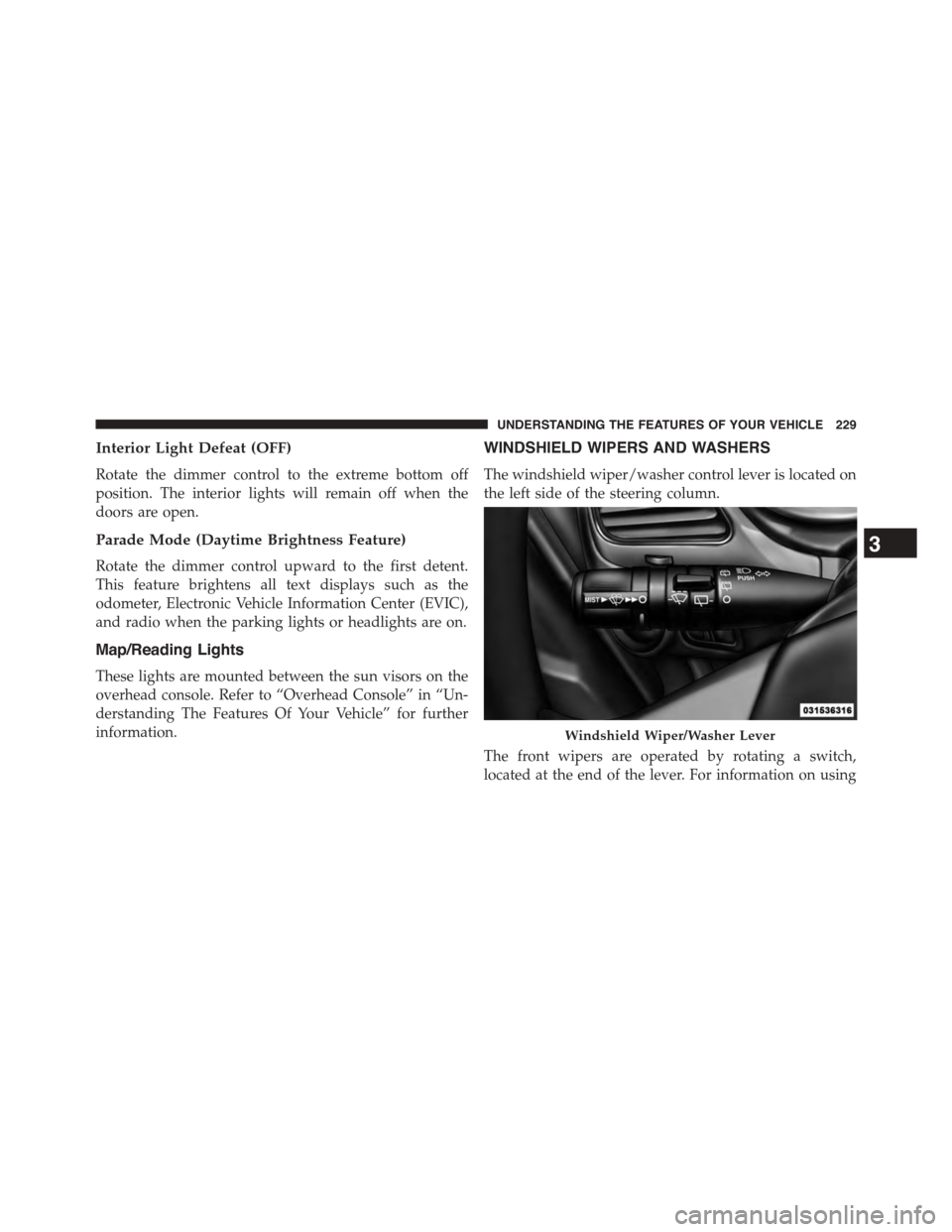
WINDSHIELD WIPERS AND WASHERS
The windshield wiper/washer control lever is located on
the left side of the steering column.
The front wipers are operated by rotating a switch,
located at the end of the lever. For information on using
Windshield Wiper/Washer Lever
3
UNDERSTANDING THE FEATURES OF YOUR VEHICLE 229
Page 236 of 648
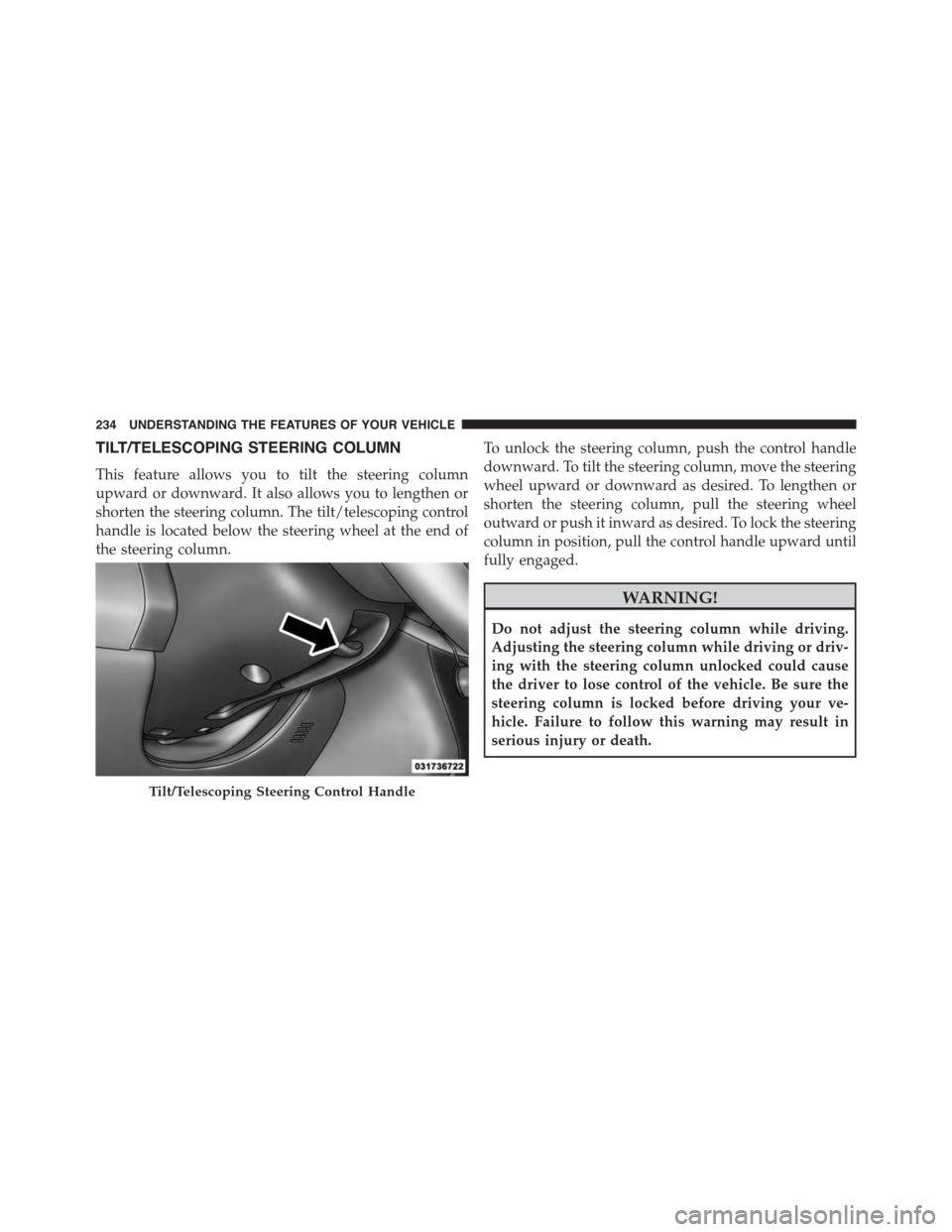
TILT/TELESCOPING STEERING COLUMN
This feature allows you to tilt the steering column
upward or downward. It also allows you to lengthen or
shorten the steering column. The tilt/telescoping control
handle is located below the steering wheel at the end of
the steering column.
To unlock the steering column, push the control handle
downward. To tilt the steering column, move the steering
wheel upward or downward as desired. To lengthen or
shorten the steering column, pull the steering wheel
outward or push it inward as desired. To lock the steering
column in position, pull the control handle upward until
fully engaged.
WARNING!
Do not adjust the steering column while driving.
Adjusting the steering column while driving or driv-
ing with the steering column unlocked could cause
the driver to lose control of the vehicle. Be sure the
steering column is locked before driving your ve-
hicle. Failure to follow this warning may result in
serious injury or death.
Tilt/Telescoping Steering Control Handle
234 UNDERSTANDING THE FEATURES OF YOUR VEHICLE
Page 237 of 648
HEATED STEERING WHEEL — IF EQUIPPED
The steering wheel contains a heating element that helps
warm your hands in cold weather. The heated steering
wheel has only one temperature setting. Once the heated
steering wheel has been turned on it will operate for up
to 80 minutes before automatically shutting off. The
heated steering wheel can shut off early or may not turn
on when the steering wheel is already warm.
The heated steering wheel control button is located
within the Uconnect® system. You can gain access to the
control button through the climate screen or the controls
screen.
•Press the heated steering wheel buttononce to
turn the heating element ON.
•Press the heated steering wheel buttona second
time to turn the heating element OFF.
NOTE:The engine must be running for the heated
steering wheel to operate.
Vehicles Equipped With Remote Start
On models that are equipped with remote start, the
heated steering wheel can be programmed to come on
during a remote start through the Uconnect® system.
Refer to “Uconnect® Settings” in “Understanding Your
Instrument Panel” for further information.
3
UNDERSTANDING THE FEATURES OF YOUR VEHICLE 235
Page 238 of 648
WARNING!
•Persons who are unable to feel pain to the skin
because of advanced age, chronic illness, diabetes,
spinal cord injury, medication, alcohol use, exhaus-
tion, or other physical conditions must exercise
care when using the steering wheel heater. It may
cause burns even at low temperatures, especially if
used for long periods.
•Do not place anything on the steering wheel that
insulates against heat, such as a blanket or steering
wheel covers of any type and material. This may
cause the steering wheel heater to overheat.
ELECTRONIC SPEED CONTROL — IF EQUIPPED
When engaged, the Electronic Speed Control takes over
accelerator operations at speeds greater than 25 mph
(40 km/h).
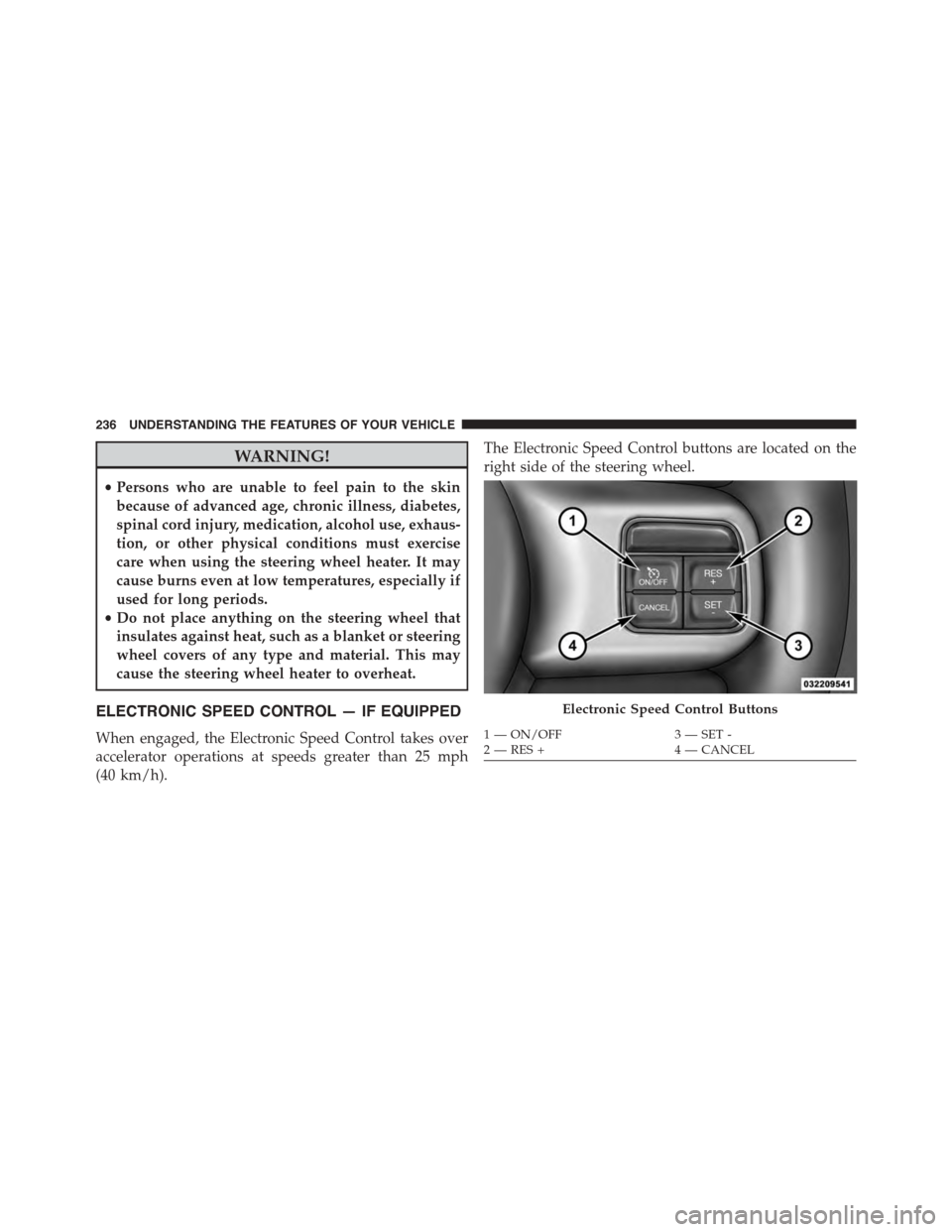
The Electronic Speed Control buttons are located on the
right side of the steering wheel.
Electronic Speed Control Buttons
1—ON/OFF3—SET-2—RES+4—CANCEL
236 UNDERSTANDING THE FEATURES OF YOUR VEHICLE
Page 288 of 648
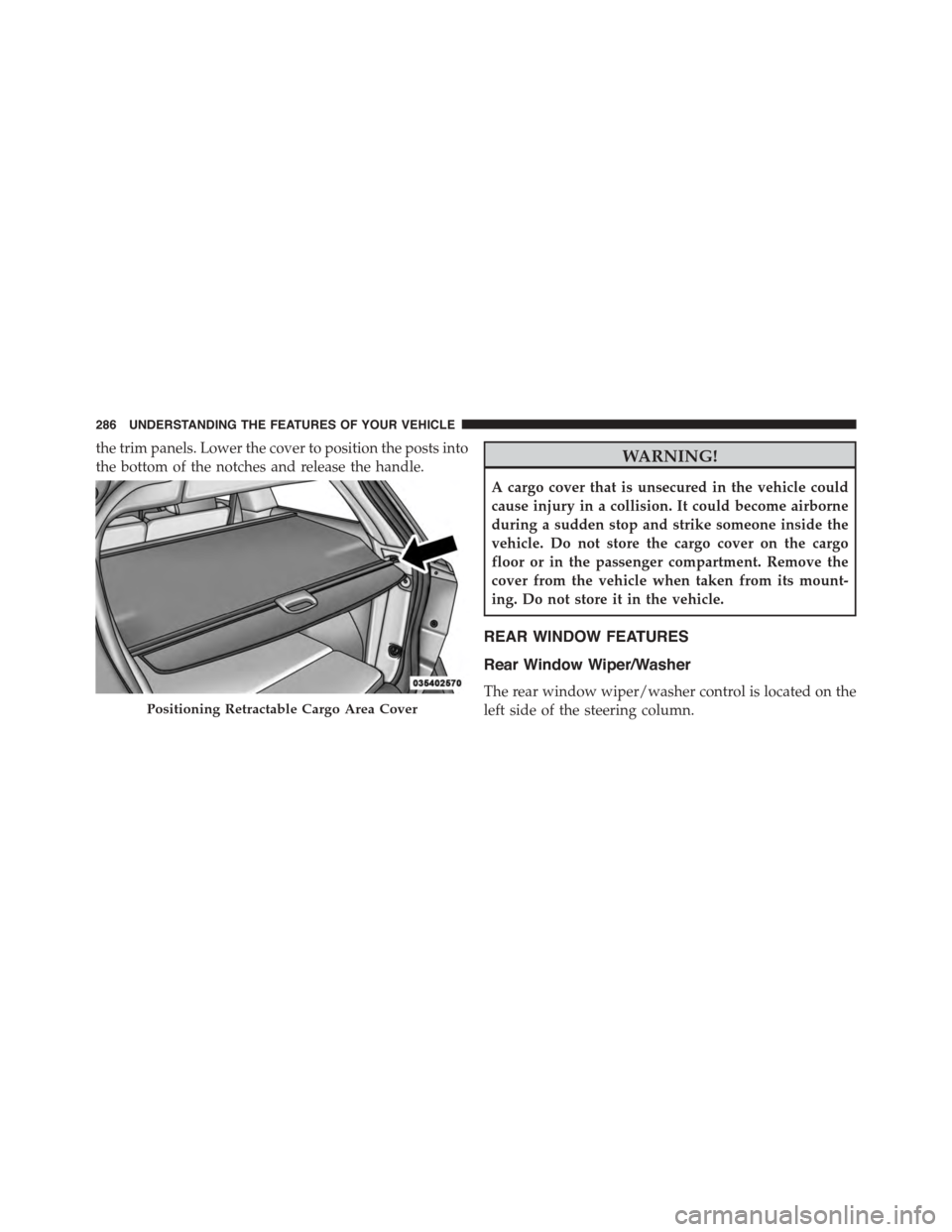
the trim panels. Lower the cover to position the posts into
the bottom of the notches and release the handle.WARNING!
A cargo cover that is unsecured in the vehicle could
cause injury in a collision. It could become airborne
during a sudden stop and strike someone inside the
vehicle. Do not store the cargo cover on the cargo
floor or in the passenger compartment. Remove the
cover from the vehicle when taken from its mount-
ing. Do not store it in the vehicle.
REAR WINDOW FEATURES
Rear Window Wiper/Washer
The rear window wiper/washer control is located on the
left side of the steering column.Positioning Retractable Cargo Area Cover
286 UNDERSTANDING THE FEATURES OF YOUR VEHICLE
Page 297 of 648
!iPod®/USB/MP3 CONTROL..............370
!STEERING WHEEL AUDIO CONTROLS......370
▫Right-Hand Switch Functions.............371
▫Left-Hand Switch Functions For Radio
Operation...........................371
▫Left-Hand Switch Functions For Media (i.e., CD)
Operation..........................371
!CD/DVD DISC MAINTENANCE...........372
!RADIO OPERATION AND MOBILE PHONES . .372
!CLIMATE CONTROLS...................373
▫Manual Climate Controls With Touchscreen — If
Equipped...........................373
▫Rear Manual Temperature Control (MTC) — If
Equipped...........................381
▫Automatic Temperature Control (ATC) With
Touchscreen — If Equipped..............386
▫Rear Automatic Temperature Control (ATC) — If
Equipped...........................395
4
UNDERSTANDING YOUR INSTRUMENT PANEL 295