steering DODGE JOURNEY 2017 1.G User Guide
[x] Cancel search | Manufacturer: DODGE, Model Year: 2017, Model line: JOURNEY, Model: DODGE JOURNEY 2017 1.GPages: 510
Page 103 of 510
Call By Saying A Phonebook Name
1. Push the Phonebutton on your steering wheel to
begin.
2. After the “Listening” prompt and the following beep, say “Call John Doe Mobile.”
3. The Uconnect Phone will dial the number associated with John Doe, or if there are multiple numbers it will
ask which number you want to call for John Doe.
Call Controls
The touchscreen allows you to control the following call
features:
•Answer
• End
• Ignore
• Hold/unhold
• Mute/unmute
• Transfer the call to/from the phone
• Swap two active calls
• Join two active calls together
Touch-Tone Number Entry
1. Press the “Phone” button on the touchscreen.
2. Press the “Dial” button on the touchscreen.
3. The Touch-Tone screen will be displayed.
4. Use the numbered buttons on the touchscreen to enter
the number and press “Call.”
To send a touch tone using Voice Recognition (VR), push
the Voice Command
button while in a call and say
“1234#” or you can say “Send Voicemail Password” if
Voicemail password is stored in your mobile phone-
book.
Recent Calls
You may browse up to 34 of the most recent of each of the
following call types:
• Incoming Calls
• Outgoing Calls
• Missed Calls
• All Calls
These can be accessed by touching the recent calls button
on the touchscreen on the Phone main screen.
3
UNDERSTANDING THE FEATURES OF YOUR VEHICLE 101
Page 104 of 510
You can also push the Phonebutton and say “Show
my incoming calls” from any screen and the Incoming
calls will be displayed.
NOTE: Incoming can also be replaced with “Outgoing”,
“Recent” or “Missed.”
Answer Or Reject An Incoming Call — No Call
Currently In Progress
When you receive a call on your mobile phone, the
Uconnect Phone will interrupt the vehicle audio system, if
on, and will display a pop-up showing Answer or Ignore.
Press the Answer button on the touchscreen or push the
Phone
button on the steering wheel to accept the call.
Answer Or Reject An Incoming Call — Call
Currently In Progress
If a call is currently in progress and you have another
incoming call, you will hear the same network tones for
call waiting that you normally hear when using your
mobile phone. Uconnect Phone will then interrupt the
vehicle audio system, if on, and will display a pop-up
showing Answer, Ignore or Transfer. Push the Phone
button to place the current call on hold and answer
the incoming call.
NOTE: The Uconnect Phone compatible phones in the
market today do not support rejecting an incoming call
when another call is in progress. Therefore, the user can
only answer an incoming call or ignore it.
Making A Second Call While Current Call Is In
Progress
To make a second call while you are currently on a call,
push the Voice Command
button and say “Dial” or
“Call” followed by the phone number or phonebook
entry you wish to call. The first call will be on hold
while the second call is in progress. Or you can place a
call on hold by pressing the “Hold” button on the
touchscreen, then dial a number from the dialpad,
recent calls or from the phonebooks. To go back to the
first call, refer to “Toggling Between Calls” in this
section. To combine two calls, refer to “Join Calls” in this
section.
Toggling Between Calls
If two calls are in progress (one active and one on hold),
push the Phone
button until you hear a single beep,
indicating that the active and hold status of the two calls
have switched. Only one call can be placed on hold at a
time. Also you can press the “Swap” button on the
touchscreen, on the Phone main screen.
102 UNDERSTANDING THE FEATURES OF YOUR VEHICLE
Page 115 of 510
vehicle and enables you to mute the system’s microphone
for private conversation.
WARNING!
Any voice commanded system should be used only in
safe driving conditions following all applicable laws,
including laws regarding phone use. Your attention
should be focused on safely operating the vehicle.
Failure to do so may result in an accident causing
serious injury or death.
The Uconnect Phone is driven through your Bluetooth
“Hands-Free Profile” mobile phone. Uconnect features
Bluetooth technology - the global standard that enables
different electronic devices to connect to each other with-
out wires or a docking station, so Uconnect Phone works
no matter where you stow your mobile phone (be it your
purse, pocket, or briefcase), as long as your phone is turned
on and has been paired to the vehicle’s Uconnect Phone.
The Uconnect Phone allows up to ten mobile phones or
audio devices to be linked to the system. Only one linked
(or paired) mobile phone and one audio device can be used
with the system at a time. The system is available in
English, Spanish, or French languages. Uconnect Phone Button
The Uconnect Phone
button is used to enter
the phone mode and make calls, show recent
incoming and outgoing calls, view phonebook
along with other features. When you push the
button you will hear a BEEP. The beep is your signal to
give a command.
Uconnect Voice Command Button
The Uconnect Voice Command
button is
only used for “barge in” and when you are
already in a call and you want to send Tones or
make another call.
The Voice Commandbutton is also used to access the
Voice Commands for the Uconnect Voice Command
features if your vehicle is equipped. Please see the
Uconnect Voice Command section for direction on how
to use the Voice Command
button.
The Uconnect Phone is fully integrated with the vehicles
audio system. The volume of the Uconnect Phone can be
adjusted either from the radio volume control knob or from
the steering wheel radio control (right switch), if so
equipped.
3
UNDERSTANDING THE FEATURES OF YOUR VEHICLE 113
Page 117 of 510
The system utilizes continuous dialog; when the system
requires more information from the user it will ask a
question to which the user can respond without pushing
the “Voice Command”
button on your steering wheel.
Voice Command Tree
Refer to “Voice Tree” in this section.
Help Command
If you need assistance at any prompt, or if you want to
know your options at any prompt, say “Help” following
the beep.
To activate the Uconnect Phone from idle, simply push the
Phone
button on your steering wheel and say a
command or say “help.” All Uconnect Phone sessions
begin with a push of the Phone
button on the radio
control head.
Cancel Command
At any prompt, after the beep, you can say “Cancel” and
you will be returned to the main menu.
You can also push the Phone
or Voice Command
button on your steering wheel when the system is
listening for a command and be returned to the main or
previous menu. Pair (Link) Uconnect Phone To A Mobile Phone
To begin using your Uconnect Phone, you must pair your
compatible Bluetooth enabled mobile phone.
NOTE:
•
You must have Bluetooth enabled on your mobile phone
to complete this procedure.
• The vehicle must be in PARK.
To complete the pairing process, you will need to reference
your mobile phone Owner’s Manual. The Uconnect web-
site may also provide detailed instructions for pairing.
1. Press the “Phone” button on the touchscreen to begin.
2. If there is no phone currently connected with the system, a pop-up will appear.
3
UNDERSTANDING THE FEATURES OF YOUR VEHICLE 115
Page 125 of 510
Call By Saying A Phonebook Name
1. Push the Phonebutton on your steering wheel to
begin.
2. After the “Listening” prompt and the following beep, say “Call John Doe Mobile.”
3. The Uconnect Phone will dial the number associated with John Doe, or if there are multiple numbers it will
ask which number you want to call for John Doe.
Call Controls
The touchscreen allows you to control the following call
features:
•Answer
• End
• Ignore
• Hold/unhold •
Mute/unmute
• Transfer the call to/from the phone
• Swap two active calls
• Join two active calls together
Touch-Tone Number Entry
1. Press the “Phone” button on the touchscreen.
2. Press the “Dial” button on the touchscreen.
3. The Touch-Tone screen will be displayed.
4. Use the numbered buttons on the touchscreens to enter
the number and press “Call.”
To send a touch-tone using Voice Recognition (VR), push
the Voice Command
button on your steering wheel
while in a call and say “Send 1234#” or you can say
“Send Voicemail Password” if Voicemail password is
stored in your mobile phonebook. 3
UNDERSTANDING THE FEATURES OF YOUR VEHICLE 123
Page 126 of 510
Recent Calls
You may browse up to 34 of the most recent of each of the
following call types:
•Incoming Calls
• Outgoing Calls
• Missed Calls
• All Calls
These can be accessed by pressing the “recent calls” button
on the touchscreen on the Phone main screen. You can also push the Phone
button and say “Show
my incoming calls” from any screen and the Incoming
calls will be displayed.
You can also push the Phonebutton and say “Show
my recent calls” from any screen and the All calls screen
will be displayed.
NOTE: Incoming can also be replaced with “Outgoing,”
“Recent” or “Missed.”
Answer Or Ignore An Incoming Call — No Call
Currently In Progress
When you receive a call on your mobile phone, the
Uconnect Phone will interrupt the vehicle audio system.
Push the Phone
button on the steering wheel to accept
the call. You can also press the “answer” button on the
touchscreen or press the caller ID box.
Answer Or Ignore An Incoming Call — Call
Currently In Progress
If a call is currently in progress and you have another
incoming call, you will hear the same network tones for
call waiting that you normally hear when using your
mobile phone. Push the Phone
button on the steering
Recent Calls
124 UNDERSTANDING THE FEATURES OF YOUR VEHICLE
Page 139 of 510
NOTE:
1. You can replace “John Smith” with any name in yourmobile or favorite phone book. You can also say “Send
a message to John Smith” and the system will ask you
which phone number you want to send a message to for
John Smith.
2. You can replace “Mobile” with “Home,” “Work” or “Other.”
3. You can replace “Incoming Calls” with “Outgoing Calls” or “Missed Calls.”
4. You can replace “248 555 1212” with any phone number supported by your Mobile phone.
5. These commands can be used during a phone call after pushing the Uconnect Voice Command button on the
steering wheel. Please note the call will be muted while
the VR session is active.
6. Send dial tones for automated systems is available while a call is active. This is an example that uses a Phonebook
Record named “Voicemail Password.” 7. Storing Dial tones in contact names is possible but only
the first number encountered in a contact name will be
sent. For example if there is a number stored in the
Home and Work numbers for the contact “Voicemail
password” only the Home number will be sent.
8. If your phone does not support phonebook download or call log download over Bluetooth then these commands
will return a response that the contact does not exist in
the phonebook.
9. Emergency and Towing assistance are contacts that have been pre-loaded in the phonebook. Commands such as
“Call Emergency” and “Call Towing Assistance” will
call the corresponding number stored with those con-
tacts.
NOTE: Available Voice Commands are shown in bold face
and underlined in the gray shaded boxes.
3
UNDERSTANDING THE FEATURES OF YOUR VEHICLE 137
Page 173 of 510
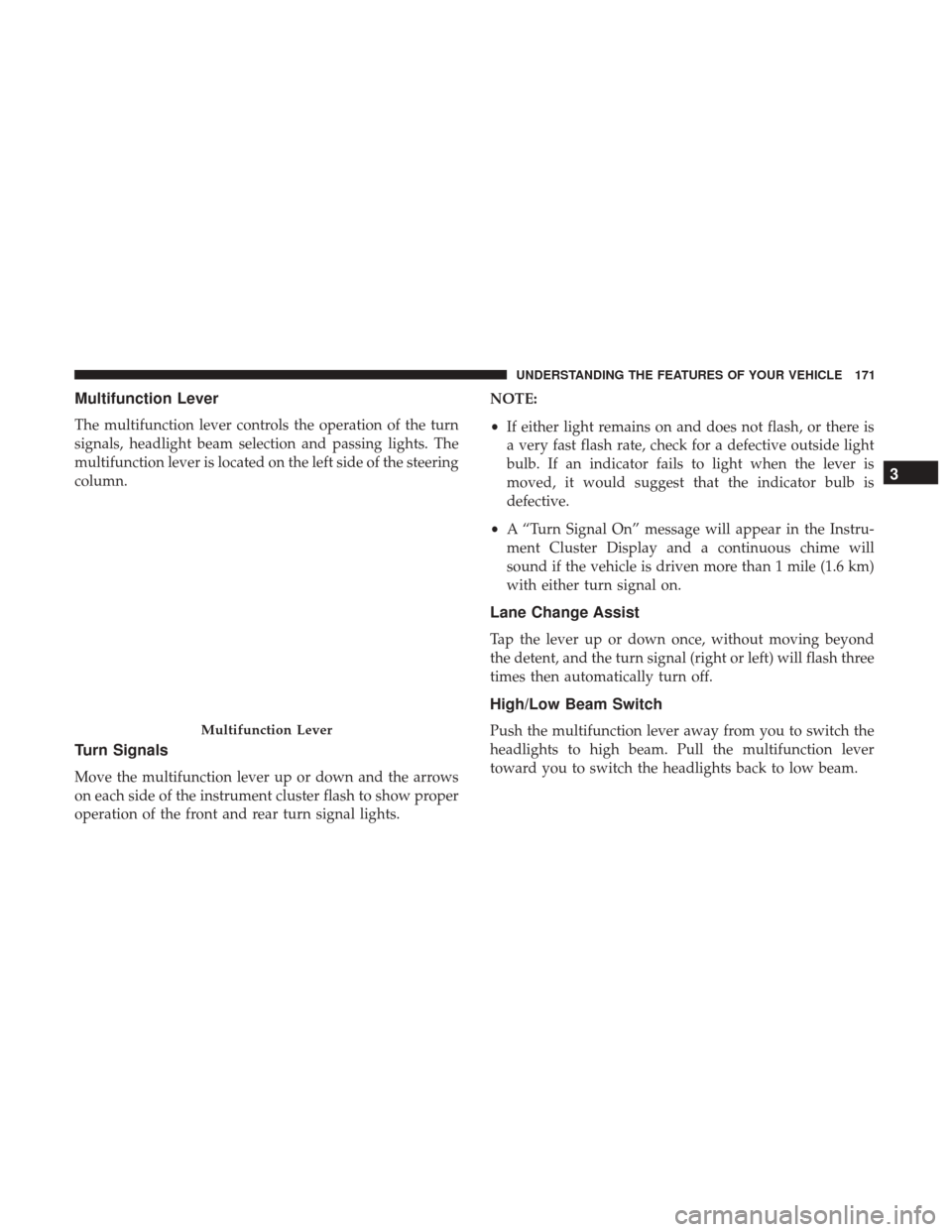
Multifunction Lever
The multifunction lever controls the operation of the turn
signals, headlight beam selection and passing lights. The
multifunction lever is located on the left side of the steering
column.
Turn Signals
Move the multifunction lever up or down and the arrows
on each side of the instrument cluster flash to show proper
operation of the front and rear turn signal lights.NOTE:
•
If either light remains on and does not flash, or there is
a very fast flash rate, check for a defective outside light
bulb. If an indicator fails to light when the lever is
moved, it would suggest that the indicator bulb is
defective.
• A “Turn Signal On” message will appear in the Instru-
ment Cluster Display and a continuous chime will
sound if the vehicle is driven more than 1 mile (1.6 km)
with either turn signal on.
Lane Change Assist
Tap the lever up or down once, without moving beyond
the detent, and the turn signal (right or left) will flash three
times then automatically turn off.
High/Low Beam Switch
Push the multifunction lever away from you to switch the
headlights to high beam. Pull the multifunction lever
toward you to switch the headlights back to low beam.Multifunction Lever
3
UNDERSTANDING THE FEATURES OF YOUR VEHICLE 171
Page 174 of 510
Flash-To-Pass
You can signal another vehicle with your headlights by
lightly pulling the multifunction lever toward you. This
will turn on the high beams headlights until the lever is
released.
Interior Lights
The interior lights come on when a door is opened.
To protect the battery, the interior lights will turn off
automatically 10 minutes after the ignition is moved to the
LOCK position. This will occur if the interior lights were
switched on manually or are on because a door is open.
The Battery Protection also includes the glove compart-
ment light. To restore interior light operation after auto-
matic battery protection is enabled (Lights OFF), either
place the ignition in the ON/RUN position or cycle the
light switch.
Map/Reading Lights
These lights are mounted between the sun visors on the
overhead console. Refer to “Overhead Console” in “Under-
standing The Features Of Your Vehicle” for further infor-
mation.
WINDSHIELD WIPERS AND WASHERS
The windshield wiper/washer control lever is located on
the left side of the steering column.
The front wipers are operated by rotating a switch, located
at the end of the lever. For information on using the rear
window wiper/washer, refer to “Rear Window Features”
in “Understanding The Features Of Your Vehicle”.
Intermittent Wiper System
Use the intermittent wiper system when weather condi-
tions make a single wiping cycle, with a variable pause
Windshield Wiper/Washer Lever
172 UNDERSTANDING THE FEATURES OF YOUR VEHICLE
Page 177 of 510
Mist Feature
Push the washer knob, located on the end of the multifunc-
tion lever, inward to the first detent to activate a single
wipe cycle to clear the windshield of road mist or spray
from a passing vehicle. The wipers will continue to operate
until you release the lever.
NOTE:The mist feature does not activate the washer
pump; therefore, no washer fluid will be sprayed on the
windshield. The wash function must be used in order to
spray the windshield with washer fluid.
Headlights On With Wipers
When this feature is active, the headlights will turn on after
the wipers are turned on if the headlight switch is placed in
the AUTO position and programmable feature is set to ON.
In addition, the headlights will turn off when the wipers
are turned off if they were turned on by this feature.
NOTE: The Headlights On with Wipers feature can be
turned on or off using the Uconnect System. Refer to
“Uconnect Settings/Customer Programmable Features” in
“Understanding Your Instrument Panel” for further infor-
mation.
TILT/TELESCOPING STEERING COLUMN
This feature allows you to tilt the steering column upward
or downward. It also allows you to lengthen or shorten the
steering column. The tilt/telescoping control handle is
located below the steering wheel at the end of the steering
column.
To unlock the steering column, push the control handle
downward. To tilt the steering column, move the steering
wheel upward or downward as desired. To lengthen or
shorten the steering column, pull the steering wheel out-
ward or push it inward as desired. To lock the steering
Tilt/Telescoping Steering Control Handle
3
UNDERSTANDING THE FEATURES OF YOUR VEHICLE 175