change time DODGE JOURNEY 2019 Service Manual
[x] Cancel search | Manufacturer: DODGE, Model Year: 2019, Model line: JOURNEY, Model: DODGE JOURNEY 2019Pages: 524, PDF Size: 5.29 MB
Page 451 of 524
NOTE:
•You can replace “John Smith” with any name in your
mobile or favorite phone book. You can also say “Send a
message to John Smith” and the system will ask you
which phone number you want to send a message to for
John Smith.
• You can replace “Mobile” with “Home,” “Work” or
“Other.”
• You can replace “Incoming Calls” with “Outgoing Calls”
or “Missed Calls.”
• Messaging commands only work if the Uconnect system
is equipped with this feature and the mobile phone
supports messaging over Bluetooth.
• You can replace “248 555 1212” with any phone number
supported by your Mobile phone.
• You can replace “4” with any message number shown on
the screen.
• If your phone does not support phonebook download or
call log download over Bluetooth than these commands
will return a response that the contact does not exist in
the phonebook. •
Available Voice Commands are shown in bold face and
underlined in the gray shaded boxes.
General Information
The following regulatory statement applies to all Radio
Frequency (RF) devices equipped in this vehicle:
This device complies with Part 15 of the FCC Rules and
with Industry Canada license-exempt RSS standard(s).
Operation is subject to the following two conditions:
1. This device may not cause harmful interference, and
2. This device must accept any interference received, in- cluding interference that may cause undesired opera-
tion.
Changes or modifications not expressly approved by the
party responsible for compliance could void the user ’s
authority to operate the equipment.
UCONNECT PHONE (UCONNECT 3/3 NAV)
Uconnect Phone is a voice-activated, hands-free, in-vehicle
communications system. Uconnect Phone allows you to
dial a phone number with your mobile phone.
10
MULTIMEDIA 449
Page 457 of 524
5. When the pairing process has successfully completed,the system prompts you to choose whether or not this is
your favorite phone. Selecting “Yes” makes this phone
the highest priority. This phone takes precedence over
other paired phones within range.
NOTE: Software updates on your phone or the Uconnect
system may interfere with the Bluetooth connection. If this
happens, simply repeat the pairing process. However, first,
make sure to delete the device from the list of phones on
your Uconnect system. Next, be sure to remove Uconnect
from the list of devices in your phone’s Bluetooth settings.
Pair Additional Mobile Phones
1. Press the “Settings” button from the Phone main screen.
2. Press the “Add Device” button on the touchscreen.
3. Search for available devices on your Bluetooth enabled mobile phone. When prompted on the phone, enter the
name and PIN shown on the Uconnect screen.
4. Uconnect Phone will display an in process screen while the system is connecting. 5. When the pairing process has successfully been com-
pleted, the system will prompt you to choose whether or
not this is your favorite phone. Selecting “Yes” will
make this phone the highest priority. This phone will
take precedence over other paired phones within range.
NOTE: For phones which are not made a favorite, the
phone priority is determined by the order in which it was
paired. The latest phone paired will have the higher
priority.
You can also use the following VR commands to bring up
the Paired Phone screen from any screen on the radio:
• “Show Paired Phones”
• “Connect My Phone”
Pair A Bluetooth Streaming Audio Device
1. Press the “Player” button on the touchscreen to begin.
2. Change the Source to Bluetooth.
3. Press the “Bluetooth” button on the touchscreen to
display the Paired Audio Devices screen.
4. Press the “Add Device” button on the touchscreen.
10
MULTIMEDIA 455
Page 460 of 524
•Depending on the maximum number of entries down-
loaded, there may be a short delay before the latest
downloaded names can be used. Until then, if available,
the previously downloaded phonebook is available for
use.
• Only the phonebook of the currently connected mobile
phone is accessible.
• This downloaded phonebook cannot be edited or de-
leted on the Uconnect Phone. These can only be edited
on the mobile phone. The changes are transferred and
updated to Uconnect Phone on the next phone connec-
tion.
Managing Your Favorite Phonebook
There are three ways you can add an entry to your Favorite
Phonebook.
1. During an active call of a number to make a favorite, press and hold a favorite button on the top of the phone
main screen.
2. After loading the mobile phonebook, select Phonebook from the Phone main screen, then select the appropriate
number. Press the “+” next to the selected number to
display the options pop-up. In the pop-up select “Add
to Favorites.” NOTE:
If the Favorites list is full, you will be asked to
remove an existing favorite.
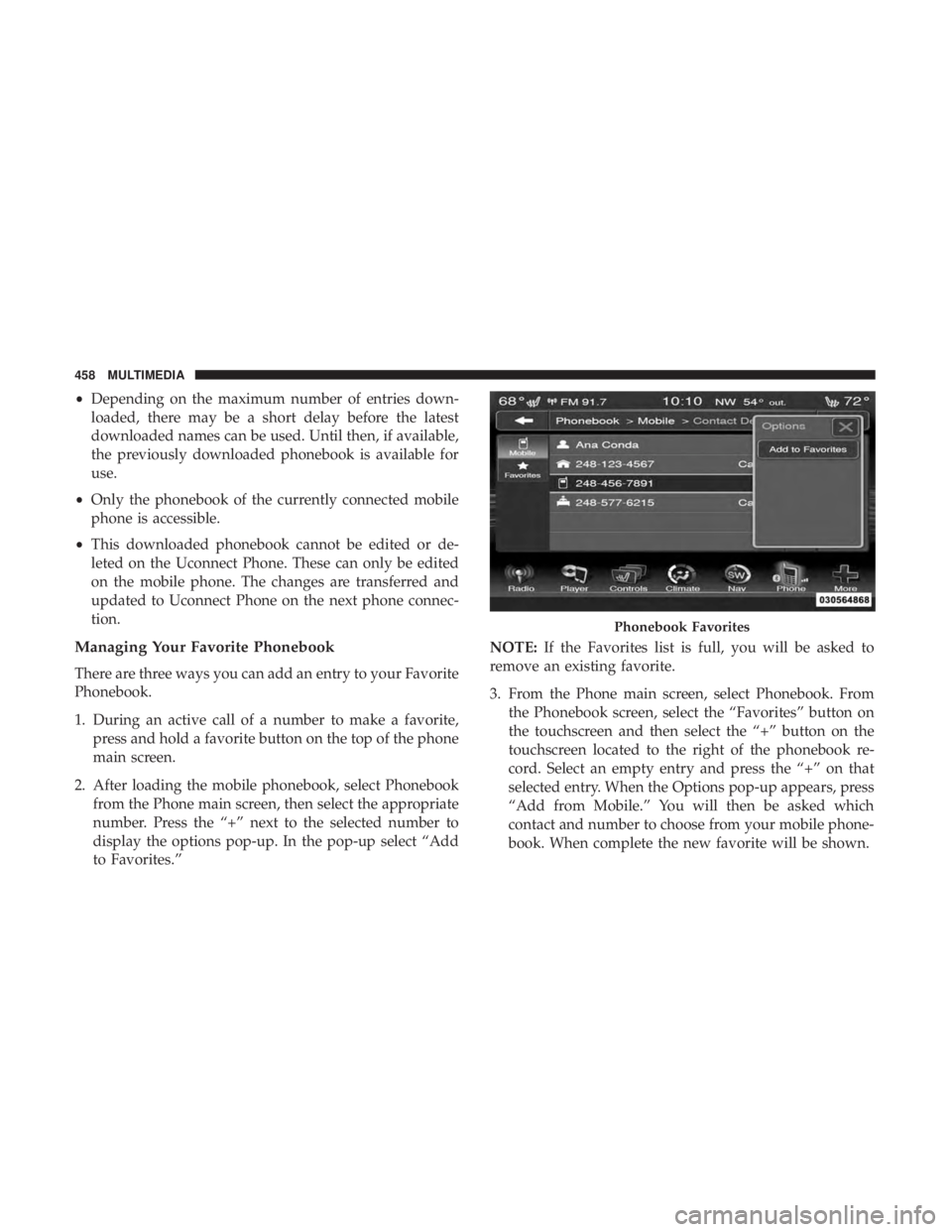
3. From the Phone main screen, select Phonebook. From the Phonebook screen, select the “Favorites” button on
the touchscreen and then select the “+” button on the
touchscreen located to the right of the phonebook re-
cord. Select an empty entry and press the “+” on that
selected entry. When the Options pop-up appears, press
“Add from Mobile.” You will then be asked which
contact and number to choose from your mobile phone-
book. When complete the new favorite will be shown.
Phonebook Favorites
458 MULTIMEDIA
Page 461 of 524

To Remove A Favorite
1. To remove a Favorite, select phonebook from the Phonemain screen.
2. Next select Favorites on the left side of the screen and then press the “+” Options button on the touchscreen.
3. Press the “+” next to the Favorite you would like to remove. 4. The Options pop-up will display, press “Remove from
Favs.”
Emergency And Towing Assistance
The Emergency and Towing Assistance Favorite numbers
can only be altered. These cannot be deleted and the names
cannot be changed.
Add From Mobile
Remove From Favorites10
MULTIMEDIA 459
Page 462 of 524
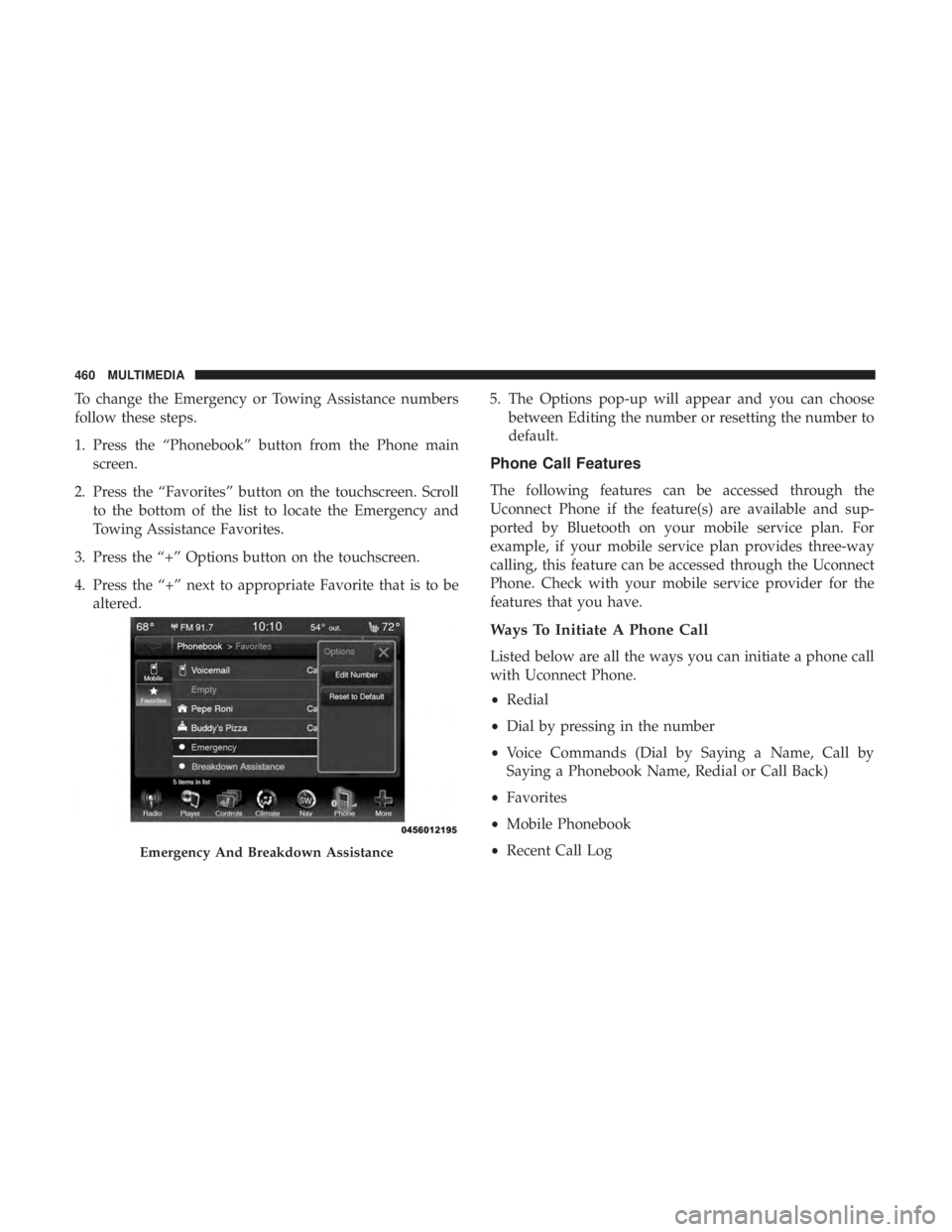
To change the Emergency or Towing Assistance numbers
follow these steps.
1. Press the “Phonebook” button from the Phone mainscreen.
2. Press the “Favorites” button on the touchscreen. Scroll to the bottom of the list to locate the Emergency and
Towing Assistance Favorites.
3. Press the “+” Options button on the touchscreen.
4. Press the “+” next to appropriate Favorite that is to be altered. 5. The Options pop-up will appear and you can choose
between Editing the number or resetting the number to
default.
Phone Call Features
The following features can be accessed through the
Uconnect Phone if the feature(s) are available and sup-
ported by Bluetooth on your mobile service plan. For
example, if your mobile service plan provides three-way
calling, this feature can be accessed through the Uconnect
Phone. Check with your mobile service provider for the
features that you have.
Ways To Initiate A Phone Call
Listed below are all the ways you can initiate a phone call
with Uconnect Phone.
•Redial
• Dial by pressing in the number
• Voice Commands (Dial by Saying a Name, Call by
Saying a Phonebook Name, Redial or Call Back)
• Favorites
• Mobile Phonebook
• Recent Call Log
Emergency And Breakdown Assistance
460 MULTIMEDIA
Page 475 of 524
List of Preset Messages:
1. Yes.
2. No.
3. Okay.
4. I can’t talk right now.
5. Call me.
6. I’ll call you later.
7. I’m on my way.
8. Thanks.
9. I’ll be late.
10. I will be
11. See you in
12. Stuck in traffic.
13. Start without me.14. Where are you?
15. Are you there yet?
16. I need directions.
17. I’m lost.
18. See you later.
Bluetooth Communication Link
Mobile phones have been found to lose connection to the
Uconnect Phone. When this happens, the connection can
generally be re-established by switching the mobile phone
OFF/ON. Your mobile phone is recommended to remain in
Bluetooth ON mode.
Power-Up
After switching the ignition key from OFF to either the ON
or ACC position, or after a language change, you must wait
at least 15 seconds prior to using the system.10
MULTIMEDIA 473
Page 481 of 524
General Information
The following regulatory statement applies to all Radio
Frequency (RF) devices equipped in this vehicle:
This device complies with Part 15 of the FCC Rules and
with Industry Canada license-exempt RSS standard(s).
Operation is subject to the following two conditions:
1. This device may not cause harmful interference, and
2.
This device must accept any interference received, includ-
ing interference that may cause undesired operation.
Changes or modifications not expressly approved by the
party responsible for compliance could void the user ’s
authority to operate the equipment.
RADIO OPERATION AND MOBILE PHONES
Under certain conditions, the mobile phone being on in
your vehicle can cause erratic or noisy performance from
your radio. This condition may be lessened or eliminated
by relocating the mobile phone antenna. This condition is
not harmful to the radio. If your radio performance does
not satisfactorily “clear” by the repositioning of the an-
tenna, it is recommended that the radio volume be turned
down or off during mobile phone operation when not
using Uconnect (if equipped).
10
MULTIMEDIA 479
Page 482 of 524
Regulatory And Safety Information
USA/CANADA
Exposure to Radio Frequency Radiation
The radiated output power of the internal wireless radio is
far below the FCC and IC radio frequency exposure limits.
Nevertheless, the wireless radio will be used in such a
manner that the radio is 8 in (20 cm) or further from the
human body.
The internal wireless radio operates within guidelines
found in radio frequency safety standards and recommen-
dations, which reflect the consensus of the scientific com-
munity.
The radio manufacturer believes the internal wireless radio
is safe for use by consumers. The level of energy emitted is
far less than the electromagnetic energy emitted by wire-
less devices such as mobile phones. However, the use of
wireless radios may be restricted in some situations or
environments, such as aboard airplanes. If you are unsure
of restrictions, you are encouraged to ask for authorization
before turning on the wireless radio.The following regulatory statement applies to all Radio
Frequency (RF) devices equipped in this vehicle:
This device complies with Part 15 of the FCC Rules and
with Industry Canada license-exempt RSS standard(s).
Operation is subject to the following two conditions:
1. This device may not cause harmful interference, and
2. This device must accept any interference received, in-
cluding interference that may cause undesired opera-
tion.
NOTE: Changes or modifications not expressly approved
by the party responsible for compliance could void the
user ’s authority to operate the equipment.
480 MULTIMEDIA
Page 485 of 524
associated follow-up prompt such as “Who do you want to
call?” in the case where a phone call was requested but the
specific name was not recognized.
The system utilizes continuous dialog; when the system
requires more information from the user it will ask a
question to which the user can respond without pressing
the Uconnect Voice Command
button.
Uconnect Voice Commands
The Uconnect Voice Command system understands two
types of commands. Universal commands are available at
all times. Local commands are available if the supported
radio mode is active.
Start a dialogue by pushing the Uconnect Voice Command
button.
Changing The Volume
1. Start a dialogue by pushing the Voice Commandbut-
ton.
2. Say a command (e.g., “Help”). 3. Use the ON/OFF VOLUME rotary knob to adjust the
volume to a comfortable level while the Voice Com-
mand system is speaking. Please note the volume set-
ting for Voice Command is different than the audio
system.
Starting Voice Recognition (VR) Session In
Radio/Player Modes
In this mode, you can say the following commands:
NOTE: The commands can be said on any screen when a
call is not active after pushing the Uconnect Voice Com-
mand
button.
Source
To switch to the audio source, say “Change source to Disc”
for example. This command can be given in any mode or
screen:
• “Track” (#) (to change the track)
10
MULTIMEDIA 483
Page 511 of 524
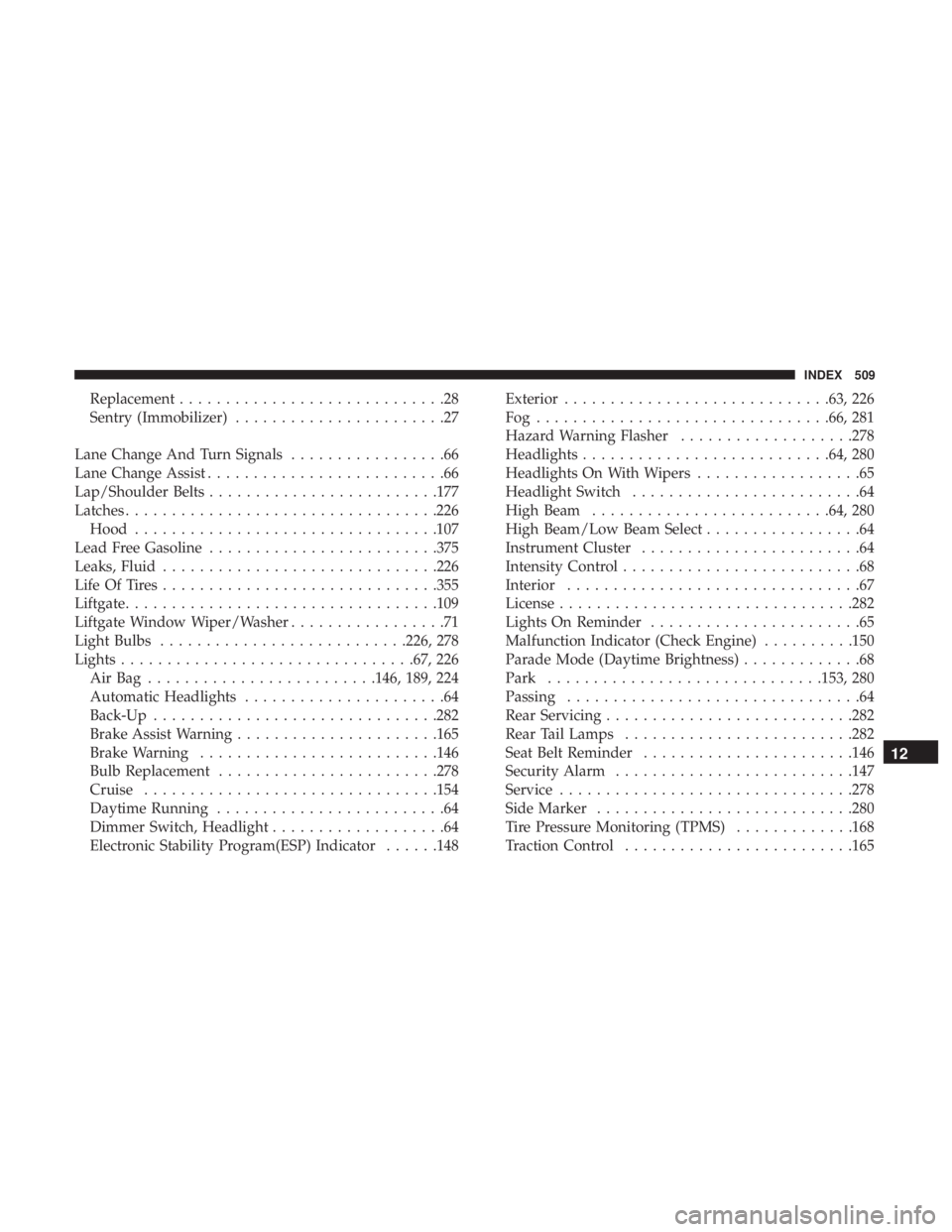
Replacement.............................28
Sentry (Immobilizer) .......................27
Lane Change And Turn Signals .................66
Lane Change Assist ..........................66
Lap/Shoulder Belts ........................ .177
Latches ................................. .226
Hood ................................ .107
Lead Free Gasoline ........................ .375
Leaks, Fluid ............................. .226
Life Of Tires ............................. .355
Liftgate ................................. .109
Liftgate Window Wiper/Washer .................71
Light Bulbs .......................... .226, 278
Lights ............................... .67, 226
AirBag .........................146, 189, 224
Automatic Headlights ......................64
Back-Up .............................. .282
Brake Assist Warning ..................... .165
Brake Warning ......................... .146
Bulb Replacement ....................... .278
Cruise ............................... .154
Daytime Running .........................64
Dimmer Switch, Headlight ...................64
Electronic Stability Program(ESP) Indicator ......148Exterior
............................ .63, 226
Fog............................... .66, 281
Hazard Warning Flasher ...................278
Headlights .......................... .64, 280
Headlights On With Wipers ..................65
Headlight Switch .........................64
High Beam ......................... .64, 280
High Beam/Low Beam Select .................64
Instrument Cluster ........................64
Intensity Control ..........................68
Interior ................................67
License ............................... .282
Lights On Reminder .......................65
Malfunction Indicator (Check Engine) ..........150
Parade Mode (Daytime Brightness) .............68
Park ............................. .153, 280
Passing ................................
64
Rear Servicing .......................... .282
Rear Tail Lamps ........................ .282
Seat Belt Reminder ...................... .146
Security Alarm ......................... .147
Service ............................... .278
Side Marker ........................... .280
Tire Pressure Monitoring (TPMS) .............168
Traction Control ........................ .165
12
INDEX 509