warning DODGE JOURNEY 2020 Owners Manual
[x] Cancel search | Manufacturer: DODGE, Model Year: 2020, Model line: JOURNEY, Model: DODGE JOURNEY 2020Pages: 396, PDF Size: 25.53 MB
Page 259 of 396
TECHNICAL SPECIFICATIONS 257
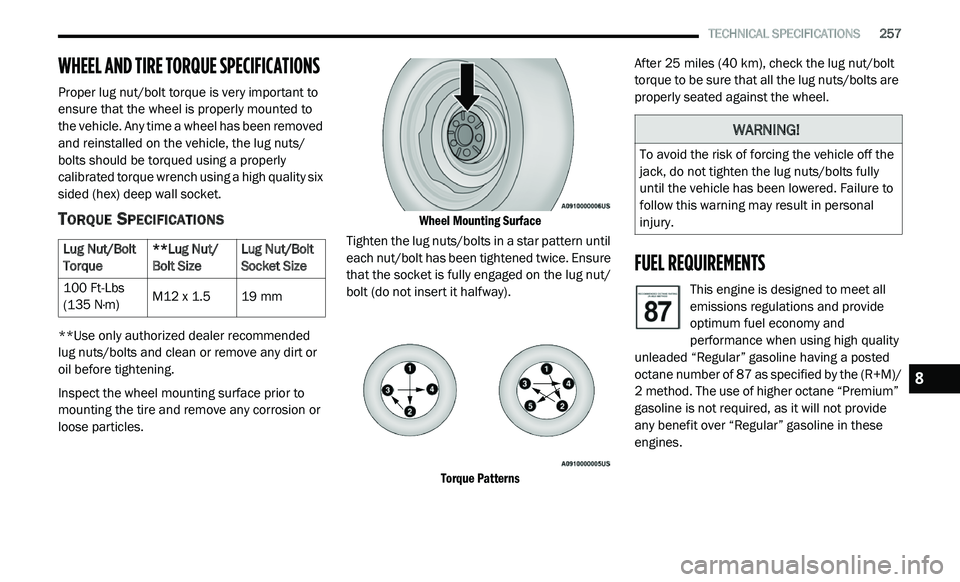
WHEEL AND TIRE TORQUE SPECIFICATIONS
Proper lug nut/bolt torque is very important to
ensure that the wheel is properly mounted to
the vehicle. Any time a wheel has been removed
and reinstalled on the vehicle, the lug nuts/
bolts should be torqued using a properly
calibrated torque wrench using a high quality six
sided (hex) deep wall socket.
TORQUE SPECIFICATIONS
**Use only authorized dealer recommended
lug nuts/bolts and clean or remove any dirt or
oil before tightening.
Inspect the wheel mounting surface prior to
mo
unting the tire and remove any corrosion or
loose particles.
Wheel Mounting Surface
Tighten the lug nuts/bolts in a star pattern until
ea
ch nut/bolt has been tightened twice. Ensure
that the socket is fully engaged on the lug nut/
bolt (do not insert it halfway).
Torque Patterns
After 25
miles (40 km), check the lug nut/bolt
t o
rque to be sure that all the lug nuts/bolts are
properly seated against the wheel.
FUEL REQUIREMENTS
This engine is designed to meet all
emissions regulations and provide
o p
timum fuel economy and
performance when using high quality
unleaded “Regular” gasoline having a posted
octane number of 87 as specified by the (R+M)/
2 method. The use of higher octane “Premium”
g a
soline is not required, as it will not provide
any benefit over “Regular” gasoline in these
engines.
Lug Nut/Bolt
T
o
rque **Lug Nut/
Bo
lt Size Lug Nut/Bolt
So
cket Size
100 Ft-Lbs
( 1
35 N·m) M12 x 1.5
19 mm
WARNING!
To avoid the risk of forcing the vehicle off the
jack, do not tighten the lug nuts/bolts fully
until the vehicle has been lowered. Failure to
follow this warning may result in personal
injury.
8
Page 262 of 396
260 TECHNICAL SPECIFICATIONS
(Continued)
NOTE:
Intentional tampering with the emissions
c o
ntrol system can result in civil penalties being
assessed against you.
CARBON MONOXIDE WARNINGS
The use of fuel additives, which are now
being sold as octane enhancers, is not
recommended. Most of these products
contain high concentrations of methanol.
Fuel system damage or vehicle perfor -
mance problems resulting from the use of
s u
ch fuels or additives is not the responsi -
bility of the manufacturer and may void or
n o
t be covered under the New Vehicle
Limited Warranty.
CAUTION! (Continued)
WARNING!
Carbon monoxide (CO) in exhaust gases is
deadly. Follow the precautions below to
prevent carbon monoxide poisoning:
Do not inhale exhaust gases. They contain
carbon monoxide, a colorless and odorless
gas, which can kill. Never run the engine in
a closed area, such as a garage, and never
sit in a parked vehicle with the engine
running for an extended period. If the
vehicle is stopped in an open area with the
engine running for more than a short
period, adjust the ventilation system to
force fresh, outside air into the vehicle.
Guard against carbon monoxide with
proper maintenance. Have the exhaust
system inspected every time the vehicle is
raised. Have any abnormal conditions
repaired promptly. Until repaired, drive with
all side windows fully open.
WARNING! (Continued)
Page 267 of 396
265
MULTIMEDIA
CYBERSECURITY
Your vehicle may be a connected vehicle and
may be equipped with both wired and wireless
networks. These networks allow your vehicle to
send and receive information. This information
allows systems and features in your vehicle to
function properly.
Your vehicle may be equipped with certain
se
curity features to reduce the risk of
unauthorized and unlawful access to vehicle
systems and wireless communications. Vehicle
software technology continues to evolve over
time and FCA US LLC, working with its suppliers,
evaluates and takes appropriate steps as
needed. Similar to a computer or other devices,
your vehicle may require software updates to
improve the usability and performance of your
systems or to reduce the potential risk of
unauthorized and unlawful access to your
vehicle systems.
The risk of unauthorized and unlawful access to
y o
ur vehicle systems may still exist, even if the
most recent version of vehicle software (such as
Uconnect software) is installed. NOTE:
FCA US LLC or your dealer may contact you
directly regarding software updates.
To help further improve vehicle security and
minimize the potential risk of a security
breach, vehicle owners should:
Routinely check
www.driveuconnect.com/
support/software-update.html
(US Resi-
dents) or
www.driveuconnect.ca
(Canadian
Residents) to learn about available Uconnect
s o
ftware updates.
Only connect and use trusted media
devices (e.g. personal mobile phones,
USBs, CDs).
Privacy of any wireless and wired
c o
mmunications cannot be assured.
Third parties may unlawfully intercept
i n
formation and private communications
without your consent. For further information,
refer to “Onboard Diagnostic System (OBD II)
Cybersecurity” in “Getting To Know Your
Instrument Panel”.
WARNING!
It is not possible to know or to predict all of
the possible outcomes if your vehicle’s
systems are breached. It may be possible
that vehicle systems, including safety
related systems, could be impaired or a
loss of vehicle control could occur that may
result in an accident involving serious injury
or death.
ONLY insert media (e.g., USB, SD card, or
CD) into your vehicle if it came from a
trusted source. Media of unknown origin
could possibly contain malicious software,
and if installed in your vehicle, it may
increase the possibility for vehicle systems
to be breached.
As always, if you experience unusual
vehicle behavior, take your vehicle to your
nearest authorized dealer immediately.9
Page 287 of 396
MULTIMEDIA 285
SAFETY AND GENERAL INFORMATION
SAFETY GUIDELINES
Ensure that all persons read this manual
carefully before using the system. It contains
instructions on how to use the system in a safe
and effective manner.
Do NOT attach any object to the touchscreen.
Do
ing so can result in damage to the
touchscreen.
Please read and follow these safety
p r
ecautions. Failure to do so may result in injury
or property damage.
Glance at the screen only when safe to do so. If
prolonged viewing of the screen is required, park
in a safe location and set the parking brake.
Stop use immediately if a problem occurs.
Failure to do so may cause injury or damage
to the product. Return it to an authorized
dealer for repair.
Ensure the volume level of the system is set
to a level that still allows you to hear outside
traffic and emergency vehicles.
Safe Usage Of The Uconnect System
Read all instructions in this manual carefully
before using your system to ensure proper
usage.
The Uconnect system is a sophisticated elec -
tronic device. Do not let young children use
t h
e system.
Permanent hearing loss may occur if you play
your music or the system at loud volumes.
Exercise caution when setting the volume on
the system.
Keep drinks, rain and other sources of mois -
ture away from the system. Besides damage
t o
the system, moisture can cause electric
shocks as with any electronic device. NOTE:
Many features of this system are speed depen -
dent. For your own safety, it is not possible to
u s
e some of the touchscreen features while the
vehicle is in motion.
Exposure To Radio Frequency Radiation
The internal wireless radio operates within
g u
idelines found in radio frequency safety
standards and recommendations, which reflect
the consensus of the scientific community.
The radio manufacturer believes the internal
w i
reless radio is safe for use by consumers.
The level of energy emitted is far less than the
e l
ectromagnetic energy emitted by wireless
devices such as mobile phones. However, the
use of wireless radios may be restricted in some
situations or environments, such as aboard
airplanes. If you are unsure of restrictions, you
are encouraged to ask for authorization before
turning on the wireless radio.
WARNING!
ALWAYS drive safely with your hands on the
steering wheel. You have full responsibility
and assume all risks related to the use of the
Uconnect features and applications in this
vehicle. Only use Uconnect when it is safe to
do so. Failure to do so may result in an
accident involving serious injury or death.
9
Page 288 of 396
286 MULTIMEDIA
Care And Maintenance
Touchscreen
Do not press the touchscreen with any hard
or sharp objects (pen, USB stick, jewelry,
etc.), which could scratch the touchscreen
surface!
Do not spray any liquid or caustic chemicals
directly on the screen! Use a clean and dry
microfiber lens cleaning cloth in order to
clean the touchscreen.
If necessary, use a lint-free cloth dampened
with a cleaning solution, such as isopropyl
alcohol or an isopropyl alcohol and water
solution ratio of 50:50. Be sure to follow the
solvent manufacturer's precautions and
directions.
RADIO 4.3
INTRODUCTION
Radio 4.3 System
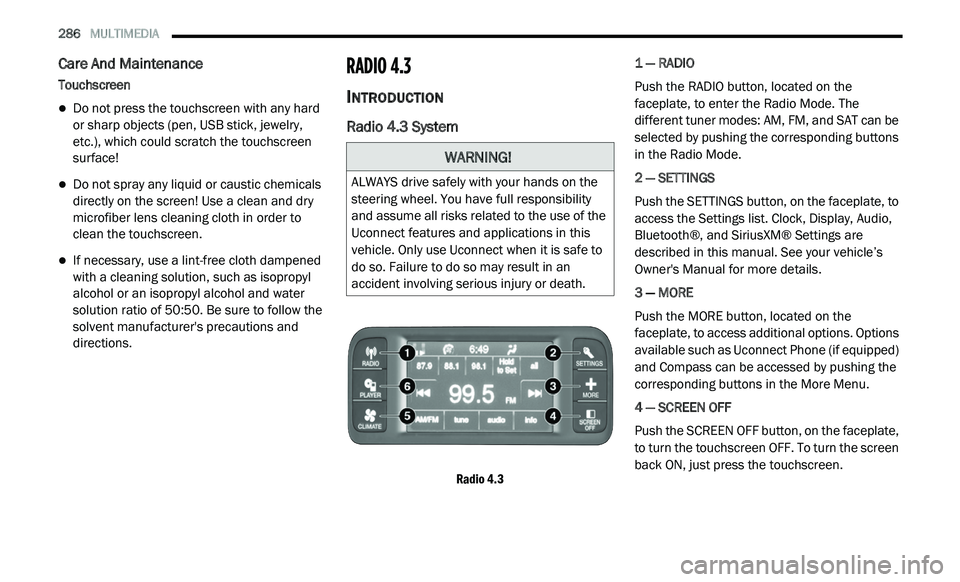
Radio 4.3
1 — RADIO
Push the RADIO button, located on the
f
a
ceplate, to enter the Radio Mode. The
different tuner modes: AM, FM, and SAT can be
selected by pushing the corresponding buttons
in the Radio Mode.
2 — SETTINGS
Push the SETTINGS button, on the faceplate, to
a c
cess the Settings list. Clock, Display, Audio,
Bluetooth®, and SiriusXM® Settings are
described in this manual. See your vehicle’s
Owner's Manual for more details.
3 — MORE
Push the MORE button, located on the
f a
ceplate, to access additional options. Options
available such as Uconnect Phone (if equipped)
and Compass can be accessed by pushing the
corresponding buttons in the More Menu.
4 — SCREEN OFF
Push the SCREEN OFF button, on the faceplate,
t o
turn the touchscreen OFF. To turn the screen
back ON, just press the touchscreen.
WARNING!
ALWAYS drive safely with your hands on the
steering wheel. You have full responsibility
and assume all risks related to the use of the
Uconnect features and applications in this
vehicle. Only use Uconnect when it is safe to
do so. Failure to do so may result in an
accident involving serious injury or death.
Page 297 of 396
MULTIMEDIA 295
The Uconnect Phone is driven through your
Bluetooth® “Hands-Free Profile” mobile phone.
Uconnect features Bluetooth® technology — the
global standard that enables different
electronic devices to connect to each other
without wires or a docking station, so Uconnect
Phone works no matter where you stow your
mobile phone (be it your purse, pocket, or
briefcase), as long as your phone is turned on
and has been paired to the vehicle's Uconnect
Phone. The Uconnect Phone allows up to
10
mobile phones or audio devices to be linked
t o
the system. Only one linked (or paired) mobile
phone and one audio device can be used with
the system at a time. The system is available in
English, Spanish, or French languages. Uconnect Phone Button
The Uconnect Phone Button is
used to enter the phone mode and
ma
ke calls, show recent, incoming,
outgoing calls, view phonebook etc.,
When you press the button you will hear a BEEP.
The beep is your signal to give a command.
Uconnect Voice Command Button
The Uconnect Voice Command Button
is only used for “barge in” and when you
a r
e already in a call and you want to send
Tones or make another call.
The Uconnect Phone is fully integrated with the
v e
hicle's audio system. The volume of the
Uconnect Phone can be adjusted either from
the radio volume control knob or from the
steering wheel radio control (right switch), if so
equipped.
Operation
Voice commands can be used to operate the
Uconnect Phone and to navigate through the
Uconnect Phone menu structure. Voice
commands are required after most Uconnect
Phone prompts. There are two general methods
for how Voice Command works:
1. S ay compound commands like “Call John
S
mith mobile.”
2. S ay the individual commands and allow the
s
ystem to guide you to complete the task.
You will be prompted for a specific command
a n
d then guided through the available options.
Prior to giving a voice command, one must
wait for the beep, which follows the “Listen”
prompt or another prompt.
For certain operations, compound
commands can be used. For example,
instead of saying “Call” and then “John
Smith” and then “mobile,” the following
compound command can be said: “Call John
Smith mobile.”
WARNING!
Any voice commanded system should be
used only in safe driving conditions following
all applicable laws, including laws regarding
phone use. Your attention should be focused
on safely operating the vehicle. Failure to do
so may result in a collision causing serious
injury or death.
9
Page 304 of 396
302 MULTIMEDIA
Uconnect Phone Features
Emergency Assistance
If you are in an emergency and the mobile
ph
one is reachable:
Pick up the phone and manually dial the
emergency number for your area.
If the phone is not reachable and the Uconnect
P h
one is operational, you may reach the
emergency number as follows:
Push the Phone button to begin.
After the “Listening” prompt and the
following beep, say “Emergency” and the
Uconnect Phone will instruct the paired
mobile phone to call the emergency number.
This feature is supported in the US, Canada,
and Mexico.
NOTE:
The emergency number dialed is based on
the country where the vehicle is purchased
(911 for the US and Canada and 060 for
Mexico). The number dialed may not be appli -
cable with the available mobile service and
a r
ea.
The Uconnect Phone slightly lowers your
chances of successfully making a phone call
to the mobile phone directly.
Roadside Assistance/Towing Assistance
If you need roadside/towing assistance:
Push the Phone button to begin.
After the “Listening” prompt and the
following beep, say “Roadside Assistance” or
say “Towing Assistance.”
NOTE:
The roadside/towing assistance number dialed
i s
based on the country where the vehicle is
purchased (1-800-521-2779 for U.S.,
1-800-363-4869 for Canada, 55-14-3454 for
Mexico City and 1-800-712-3040 for outside
Mexico City in Mexico). Please refer to the FCA
US LLC 24-Hour “Roadside Assistance” coverage details in the Warranty Information
Booklet and on the 24-Hour Roadside Assis
-
tance Card.
Voice Mail Calling
To learn how to access your voice mail, refer to
“ W
orking with Automated Systems.”
Working With Automated Systems
This method is used in instances where one
g e
nerally has to push numbers on the mobile
phone keypad while navigating through an
automated telephone system.
You can use your Uconnect Phone to access a
v o
ice mail system or an automated service, such
as a paging service or automated customer
service line. Some services require immediate
response selection. In some instances, that may
be too quick for use of the Uconnect Phone.
When calling a number with your Uconnect
P h
one that normally requires you to enter in a
touch-tone sequence on your mobile phone
keypad, you can utilize the touchscreen or push
the Voice Command button and say the word
“Send” then the sequence you wish to enter.
F o
r example, if required to enter your PIN
followed with a pound, (3 7 4 6 #), you can push
WARNING!
Your phone must be turned on and connected
to the Uconnect Phone to allow use of this
vehicle feature in emergency situations, when
the mobile phone has network coverage and
stays connected
to the Uconnect Phone.
Page 308 of 396
306 MULTIMEDIA
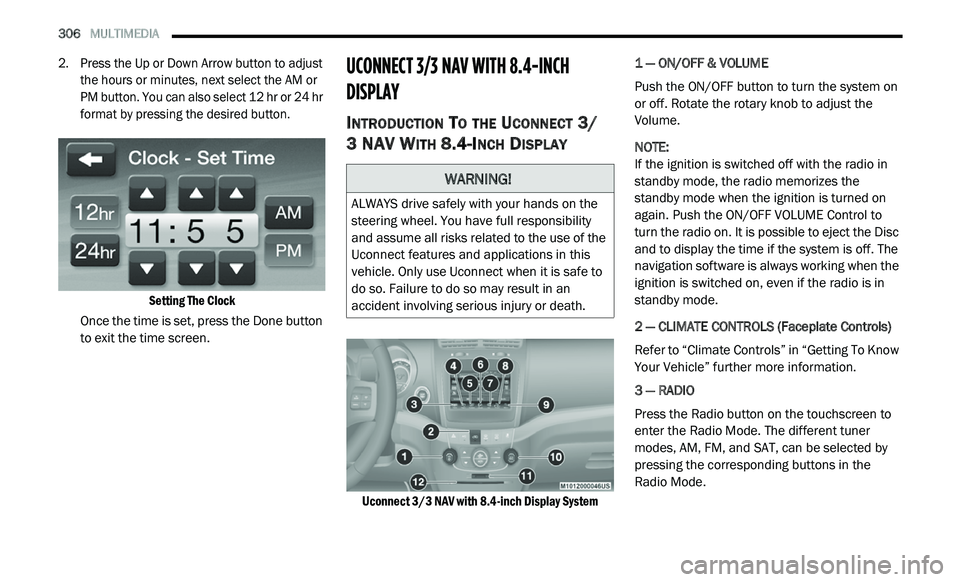
2. Press the Up or Down Arrow button to adjust
the hours or minutes, next select the AM or
PM button. You can also select 12 hr or 24 hr
format by pressing the desired button.
Setting The Clock
Once the time is set, press the Done button
t o
exit the time screen.
UCONNECT 3/3 NAV WITH 8.4-INCH
DI
SPLAY
INTRODUCTION TO THE UCONNECT 3/
3 NAV W
ITH 8.4-INCH DISPLAY
Uconnect 3/3 NAV with 8.4-inch Display System
1 — ON/OFF & VOLUME
Push the ON/OFF button to turn the system on
o
r
off. Rotate the rotary knob to adjust the
Volume.
NOTE:
If the ignition is switched off with the radio in
st
andby mode, the radio memorizes the
standby mode when the ignition is turned on
again. Push the ON/OFF VOLUME Control to
turn the radio on. It is possible to eject the Disc
and to display the time if the system is off. The
navigation software is always working when the
ignition is switched on, even if the radio is in
standby mode.
2 — CLIMATE CONTROLS (Faceplate Controls)
Refer to “Climate Controls” in “Getting To Know
Y o
ur Vehicle” further more information.
3 — RADIO
Press the Radio button on the touchscreen to
en
ter the Radio Mode. The different tuner
modes, AM, FM, and SAT, can be selected by
pressing the corresponding buttons in the
Radio Mode.
WARNING!
ALWAYS drive safely with your hands on the
steering wheel. You have full responsibility
and assume all risks related to the use of the
Uconnect features and applications in this
vehicle. Only use Uconnect when it is safe to
do so. Failure to do so may result in an
accident involving serious injury or death.
Page 327 of 396
MULTIMEDIA 325
Listening to Music on your Bluetooth®
Device via the touchscreen.
Pairing up to 10 phones/audio devices for
easy access to connect to them quickly.
NOTE:
Your phone must be capable of SMS messaging
v i
a Bluetooth® for messaging features to work
properly. Your mobile phone’s audio is trans -
mitted through your vehicles audio system; the
s y
stem will automatically mute your radio when
using the Uconnect Phone. For Uconnect
customer support, visit the following website:
US residents — visit UconnectPhone.com or
call 1-877-855-8400.
Canadian residents — visit Uconnect-
Phone.com or call 1-800-465-2001 (English)
or 1-800-387-9983 (French).
Uconnect Phone allows you to transfer calls
b e
tween the system and your mobile phone as
you enter or exit your vehicle and enables you to
mute the system's microphone for private
conversation. The Uconnect Phone is driven through your
B
l
uetooth® “Hands-Free Profile” mobile phone.
Uconnect features Bluetooth® technology — the
global standard that enables different
electronic devices to connect to each other
without wires or a docking station, so Uconnect
Phone works no matter where you stow your
mobile phone (be it your purse, pocket, or
briefcase), as long as your phone is turned on
and has been paired to the vehicle's Uconnect
Phone.
The Uconnect Phone allows up to 10 mobile
p h
ones or audio devices to be linked to the
system. Only one linked (or paired) mobile
phone and one audio device can be used with
the system at a time. The system is available in
English, Spanish, or French languages. Uconnect Phone Button
The Uconnect Phone button
is used to enter
the phone mode and make calls, show recent
i n
coming and outgoing calls, view phonebook
along with other features. When you push the
button you will hear a BEEP. The beep is your
signal to give a command.
Uconnect Voice Command Button
The Voice Recognition button is only used for
“barge in” and when you are already in a call and
y o
u want to send Tones or make another call.
The Voice Recognition button is also used to
access the Voice Commands for the Uconnect
V o
ice Command features if your vehicle is
equipped. Please see the Uconnect Voice
Command section for direction on how to use
the Voice Command button.
The Uconnect Phone is fully integrated with the
ve
hicle’s audio system. The volume of the
Uconnect Phone can be adjusted either from the
radio volume control knob or from the steering
wheel radio control (right switch), if so equipped.
WARNING!
Any voice commanded system should be
used only in safe driving conditions following
all applicable laws, including laws regarding
phone use. Your attention should be focused
on safely operating the vehicle. Failure to do
so may result in an accident causing serious
injury or death.
9
Page 337 of 396
MULTIMEDIA 335
Roadside Assistance/Towing Assistance
If you need roadside/towing assistance:
1. Push the Phone
button to begin.
2. A fter the “Listening” prompt and the
f
ollowing beep, say “Roadside Assistance”
or say “Towing Assistance.”
NOTE:
The roadside/towing assistance number dialed
i s
based on the country where the vehicle is
purchased (1-800-521-2779 for the U.S.,
1-800-363-4869 for Canada, 55-14-3454 for
Mexico City, and 1-800-712-3040 for outside
Mexico City in Mexico). Please refer to the FCA
US LLC 24-Hour “Roadside Assistance”
coverage details in the Warranty Information
Booklet. Working With Automated Systems
This method is used in instances where one
g
e
nerally has to push numbers on the mobile
phone keypad while navigating through an
automated telephone system.
You can use your Uconnect Phone to access a
v o
ice mail system or an automated service,
such as a paging service or automated
customer service line. Some services require
immediate response selection. In some
instances, that may be too quick for use of the
Uconnect Phone.
When calling a number with your Uconnect
P h
one that normally requires you to enter in a
touch-tone sequence on your mobile phone
keypad, you can utilize the touchscreen or push
the Voice Command button and say the word
“Send” then the sequence you wish to enter.
F o
r example, if required to enter your PIN
followed with a pound, (3 7 4 6 #), you can push
the Voice Command button and say, “Send
3 7 4 6 #.” Saying “Send” followed by a number,
o r
sequence of numbers, is also to be used for
navigating through an automated customer
service center menu structure, and to leave a
number on a pager.
You can also send stored mobile phonebook
e
n
tries as tones for fast and easy access to voice
mail and pager entries. For example, if you
previously created a Phonebook entry with First
and/or Last Name as “Voicemail Password”, then
if you push the Voice Command button and
say “Send Voicemail Password” the Uconnect
P h
one will then send the corresponding phone
number associated with the phonebook entry, as
tones over the phone.
NOTE:
The first number encountered for that
contact will be sent. All other numbers
entered for that contact will be ignored.
You may not hear all of the tones due to
mobile phone network configurations.
This is normal.
Some paging and voice mail systems have
system time-out settings that are too short
and may not allow the use of this feature.
Pauses, wait or other characters that are
supported by some phones are not
supported over Bluetooth®. These additional
symbols will be ignored in the dialing a
numbered sequence.
WARNING!
Your phone must be turned on and connected
to the Uconnect Phone to allow use of this
vehicle feature in emergency situations, when
the mobile phone has network coverage and
stays connected to the Uconnect Phone.
9