manual radio set DODGE JOURNEY 2020 Owners Manual
[x] Cancel search | Manufacturer: DODGE, Model Year: 2020, Model line: JOURNEY, Model: DODGE JOURNEY 2020Pages: 396, PDF Size: 25.53 MB
Page 51 of 396
GETTING TO KNOW YOUR VEHICLE 49
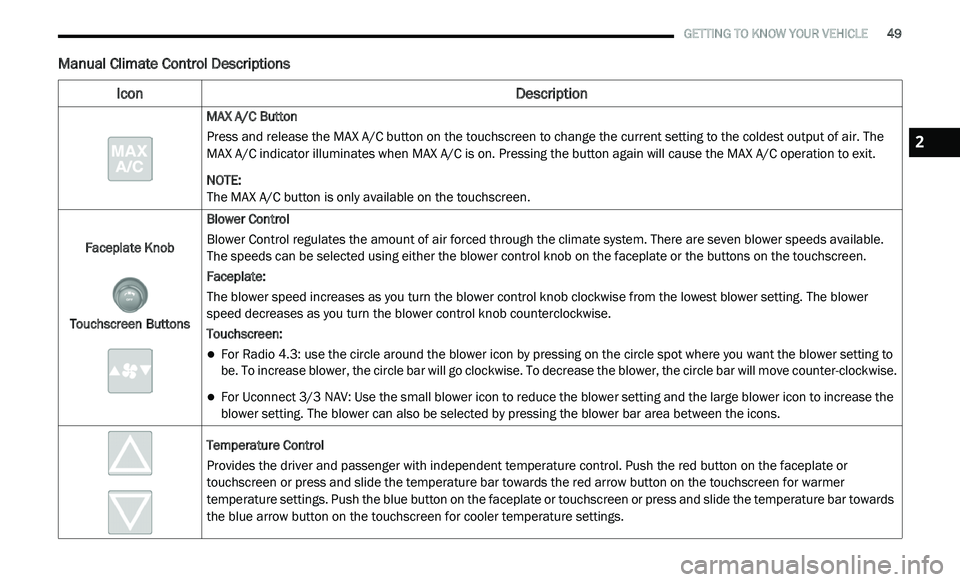
Manual Climate Control Descriptions
Icon Description
MAX A/C Button
Press and release the MAX A/C button on the touchscreen to change the current setting to the coldest output of air. The
MA
X A/C indicator illuminates when MAX A/C is on. Pressing the button again will cause the MAX A/C operation to exit.
NOTE:
The MAX A/C button is only available on the touchscreen.
Faceplate Knob
Touchscreen Buttons Blower Control
Blower Control regulates the amount of air forced through the climate system. There are seven blower speeds available.
T
h
e speeds can be selected using either the blower control knob on the faceplate or the buttons on the touchscreen.
Faceplate:
The blower speed increases as you turn the blower control knob clockwise from the lowest blower setting. The blower
s p
eed decreases as you turn the blower control knob counterclockwise.
Touchscreen:
For Radio 4.3: use the circle around the blower icon by pressing on the circle spot where you want the blower setting to
be. To increase blower, the circle bar will go clockwise. To decrease the blower, the circle bar will move counter-clockwise.
For Uconnect 3/3 NAV: Use the small blower icon to reduce the blower setting and the large blower icon to increase the
blo
wer setting. The blower can also be selected by pressing the blower bar area between the icons.
Temperature Control
Provides the driver and passenger with independent temperature control. Push the red button on the faceplate or
t o
uchscreen or press and slide the temperature bar towards the red arrow button on the touchscreen for warmer
temperature settings. Push the blue button on the faceplate or touchscreen or press and slide the temperature bar towards
the blue arrow button on the touchscreen for cooler temperature settings.
2
Page 55 of 396
GETTING TO KNOW YOUR VEHICLE 53
Controlling The Rear Climate Controls
From The Front Manual Temperature
Control (MTC) Panel
The rear MTC system has floor air outlets at
the rear right side of the third row seats and
o v
erhead outlets at each outboard rear seating
position. The system provides heated air
through the floor outlets or cool, dehumidified
air through the headliner outlets.
The rear system climate controls on the
to
uchscreen are located in the Uconnect touch
system, located on the instrument panel.
The Three-Zone climate control system allows
f o
r adjustment of the rear climate controls from
the front climate panel.
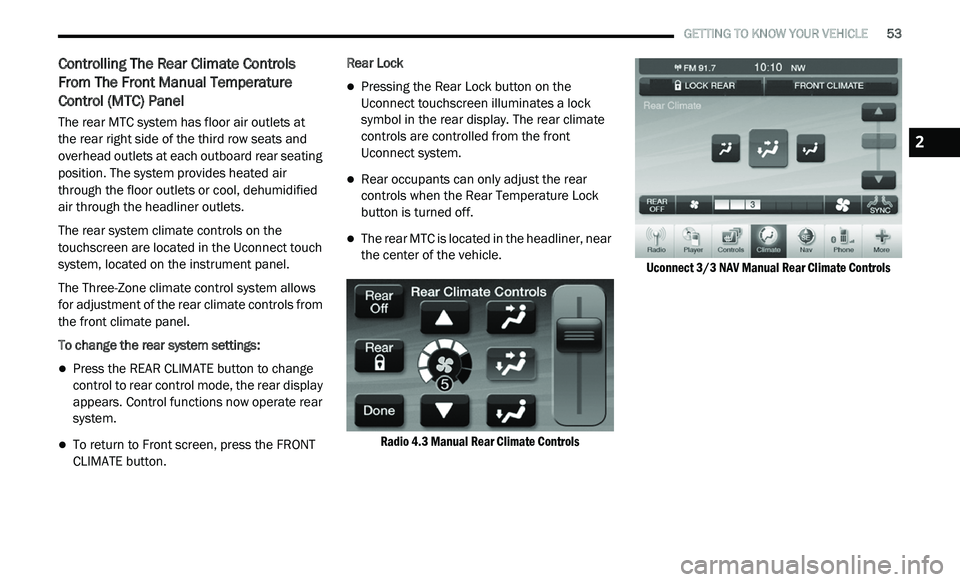
To change the rear system settings:
Press the REAR CLIMATE button to change
control to rear control mode, the rear display
appears. Control functions now operate rear
system.
To return to Front screen, press the FRONT
CLIMATE button. Rear Lock
Pressing the Rear Lock button on the
Uconnect touchscreen illuminates a lock
symbol in the rear display. The rear climate
controls are controlled from the front
Uconnect system.
Rear occupants can only adjust the rear
controls when the Rear Temperature Lock
button is turned off.
The rear MTC is located in the headliner, near
the center of the vehicle.
Radio 4.3 Manual Rear Climate Controls Uconnect 3/3
NAV Manual Rear Climate Controls
2
Page 56 of 396
54 GETTING TO KNOW YOUR VEHICLE
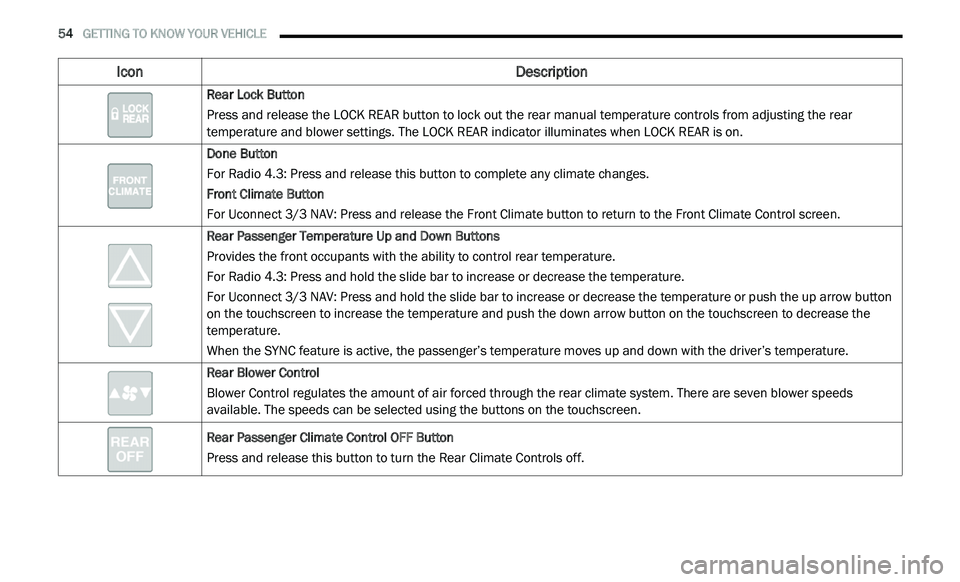
Icon Description
Rear Lock Button
Press and release the LOCK REAR button to lock out the rear manual temperature controls from adjusting the rear
te
mperature and blower settings. The LOCK REAR indicator illuminates when LOCK REAR is on.
Done Button
For Radio 4.3: Press and release this button to complete any climate changes.
Front Climate Button
For Uconnect 3/3 NAV: Press and release the Front Climate button to return to the Front Climate Control screen.
Rear Passenger Temperature Up and Down Buttons
Provides the front occupants with the ability to control rear temperature.
For Radio 4.3: Press and hold the slide bar to increase or decrease the temperature.
For Uconnect 3/3 NAV: Press and hold the slide bar to increase or decrease the temperature or push the up arrow button
o n
the touchscreen to increase the temperature and push the down arrow button on the touchscreen to decrease the
temperature.
When the SYNC feature is active, the passenger’s temperature moves up and down with the driver’s temperature.
Rear Blower Control
Blower Control regulates the amount of air forced through the rear climate system. There are seven blower speeds
av
ailable. The speeds can be selected using the buttons on the touchscreen.
Rear Passenger Climate Control OFF Button
Press and release this button to turn the Rear Climate Controls off.
Page 67 of 396
GETTING TO KNOW YOUR VEHICLE 65
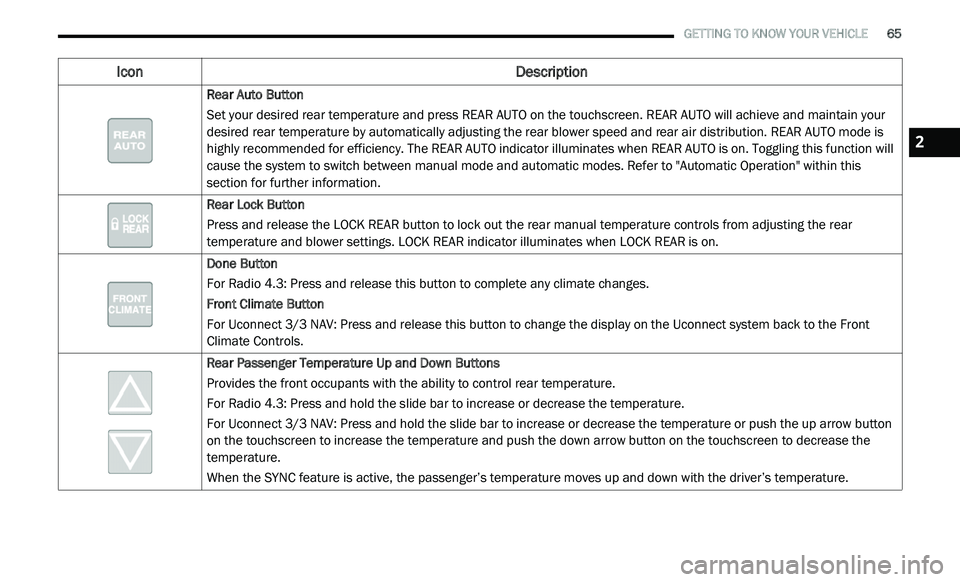
Icon Description
Rear Auto Button
Set your desired rear temperature and press REAR AUTO on the touchscreen. REAR AUTO will achieve and maintain your
de
sired rear temperature by automatically adjusting the rear blower speed and rear air distribution. REAR AUTO mode is
highly recommended for efficiency. The REAR AUTO indicator illuminates when REAR AUTO is on. Toggling this function will
cause the system to switch between manual mode and automatic modes. Refer to "Automatic Operation" within this
section for further information.
Rear Lock Button
Press and release the LOCK REAR button to lock out the rear manual temperature controls from adjusting the rear
te
mperature and blower settings. LOCK REAR indicator illuminates when LOCK REAR is on.
Done Button
For Radio 4.3: Press and release this button to complete any climate changes.
Front Climate Button
For Uconnect 3/3 NAV: Press and release this button to change the display on the Uconnect system back to the Front
C li
mate Controls.
Rear Passenger Temperature Up and Down Buttons
Provides the front occupants with the ability to control rear temperature.
For Radio 4.3: Press and hold the slide bar to increase or decrease the temperature.
For Uconnect 3/3 NAV: Press and hold the slide bar to increase or decrease the temperature or push the up arrow button
o n
the touchscreen to increase the temperature and push the down arrow button on the touchscreen to decrease the
temperature.
When the SYNC feature is active, the passenger’s temperature moves up and down with the driver’s temperature.
2
Page 92 of 396
90 GETTING TO KNOW YOUR VEHICLE
To reset the inverter manually press the power
inverter button off and on within the Uconnect
Settings. To avoid overloading the circuit, check
the power ratings on electrical devices prior to
using the inverter.
NOTE:
Due to built-in overload protection, the power
o u
tlet will shut down if the 115 Volt AC
(150 Watt maximum) power rating is exceeded.
Power Inverter Operation
The power inverter is turned on and off using
the Uconnect System.
Vehicles Equipped With Radio 4.3
To turn the power inverter on or off perform the
f o
llowing:
1. P ress the “More” button on the faceplate
(
located next to the Uconnect display).
2. P ress the “Outlet” button on the
t
ouchscreen (located on the Uconnect
display) to turn the power inverter on or off.
Vehicles Equipped With Uconnect 3/3 NAV
To turn the power inverter on or off perform the
f o
llowing:
1. P ress the “Controls” button on the
t
ouchscreen.
2. P ress the “Outlet” button on the touchscreen
t
o turn the power inverter on or off.
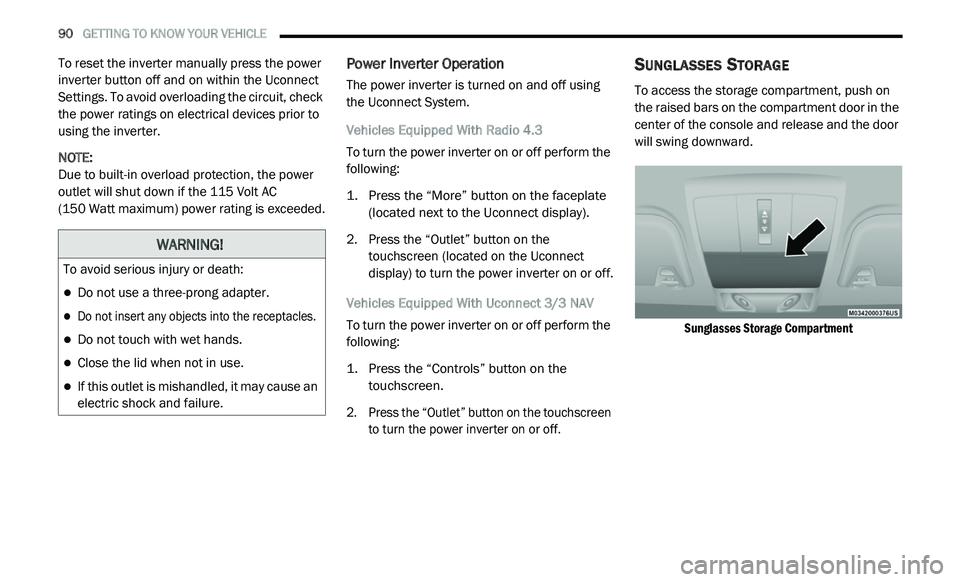
SUNGLASSES STORAGE
To access the storage compartment, push on
the raised bars on the compartment door in the
center of the console and release and the door
will swing downward.
Sunglasses Storage Compartment
WARNING!
To avoid serious injury or death:
Do not use a three-prong adapter.
Do not insert any objects into the receptacles.
Do not touch with wet hands.
Close the lid when not in use.
If this outlet is mishandled, it may cause an
electric shock and failure.
Page 275 of 396
MULTIMEDIA 273
Phone/Bluetooth®
After pressing the Phone/Bluetooth® button on the touchscreen, the following settings will be available:
SiriusXM® Setup
After pressing the SiriusXM® Setup button on the touchscreen, the following settings will be available:
Setting Name Selectable Options
Paired Phones List of Paired Phones
NOTE:
This feature shows which phones are paired to the Phone/Bluetooth® system. For further information, refer to the Uconnect Owner’s Manual Supplement.
Setting NameSelectable Options
Channel Skip List of Channels
NOTE:
SiriusXM® can be programmed to designate a group of channels that are the most desirable to listen to or to exclude undesirable channels while
s c
anning. This feature allows you to select the channels you would like to skip.
Subscription Info Sirius ID
NOTE:
New vehicle purchasers or lessees will receive a free limited time subscription to SiriusXM® Satellite Radio with your radio. Following the expiration
of
the free services, it will be necessary to access the information on the Subscription Information screen to re-subscribe.
1. P ress the Subscription Info button on the touchscreen to access the Subscription Information screen.
2
. W rite down the Sirius ID numbers for your receiver. To reactivate your service, either call the number listed on the screen or visit the provider online.
9
Page 287 of 396
MULTIMEDIA 285
SAFETY AND GENERAL INFORMATION
SAFETY GUIDELINES
Ensure that all persons read this manual
carefully before using the system. It contains
instructions on how to use the system in a safe
and effective manner.
Do NOT attach any object to the touchscreen.
Do
ing so can result in damage to the
touchscreen.
Please read and follow these safety
p r
ecautions. Failure to do so may result in injury
or property damage.
Glance at the screen only when safe to do so. If
prolonged viewing of the screen is required, park
in a safe location and set the parking brake.
Stop use immediately if a problem occurs.
Failure to do so may cause injury or damage
to the product. Return it to an authorized
dealer for repair.
Ensure the volume level of the system is set
to a level that still allows you to hear outside
traffic and emergency vehicles.
Safe Usage Of The Uconnect System
Read all instructions in this manual carefully
before using your system to ensure proper
usage.
The Uconnect system is a sophisticated elec -
tronic device. Do not let young children use
t h
e system.
Permanent hearing loss may occur if you play
your music or the system at loud volumes.
Exercise caution when setting the volume on
the system.
Keep drinks, rain and other sources of mois -
ture away from the system. Besides damage
t o
the system, moisture can cause electric
shocks as with any electronic device. NOTE:
Many features of this system are speed depen -
dent. For your own safety, it is not possible to
u s
e some of the touchscreen features while the
vehicle is in motion.
Exposure To Radio Frequency Radiation
The internal wireless radio operates within
g u
idelines found in radio frequency safety
standards and recommendations, which reflect
the consensus of the scientific community.
The radio manufacturer believes the internal
w i
reless radio is safe for use by consumers.
The level of energy emitted is far less than the
e l
ectromagnetic energy emitted by wireless
devices such as mobile phones. However, the
use of wireless radios may be restricted in some
situations or environments, such as aboard
airplanes. If you are unsure of restrictions, you
are encouraged to ask for authorization before
turning on the wireless radio.
WARNING!
ALWAYS drive safely with your hands on the
steering wheel. You have full responsibility
and assume all risks related to the use of the
Uconnect features and applications in this
vehicle. Only use Uconnect when it is safe to
do so. Failure to do so may result in an
accident involving serious injury or death.
9
Page 288 of 396
286 MULTIMEDIA
Care And Maintenance
Touchscreen
Do not press the touchscreen with any hard
or sharp objects (pen, USB stick, jewelry,
etc.), which could scratch the touchscreen
surface!
Do not spray any liquid or caustic chemicals
directly on the screen! Use a clean and dry
microfiber lens cleaning cloth in order to
clean the touchscreen.
If necessary, use a lint-free cloth dampened
with a cleaning solution, such as isopropyl
alcohol or an isopropyl alcohol and water
solution ratio of 50:50. Be sure to follow the
solvent manufacturer's precautions and
directions.
RADIO 4.3
INTRODUCTION
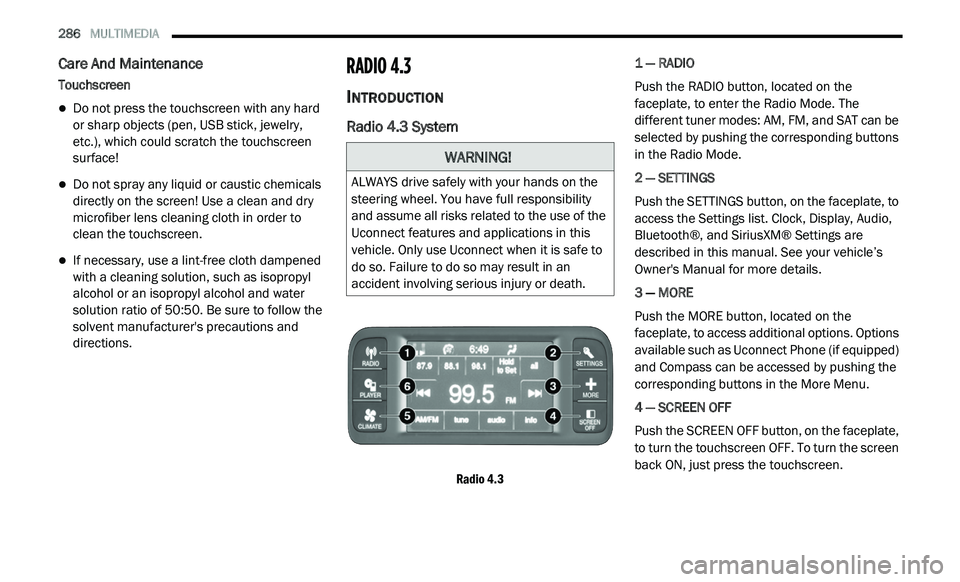
Radio 4.3 System
Radio 4.3
1 — RADIO
Push the RADIO button, located on the
f
a
ceplate, to enter the Radio Mode. The
different tuner modes: AM, FM, and SAT can be
selected by pushing the corresponding buttons
in the Radio Mode.
2 — SETTINGS
Push the SETTINGS button, on the faceplate, to
a c
cess the Settings list. Clock, Display, Audio,
Bluetooth®, and SiriusXM® Settings are
described in this manual. See your vehicle’s
Owner's Manual for more details.
3 — MORE
Push the MORE button, located on the
f a
ceplate, to access additional options. Options
available such as Uconnect Phone (if equipped)
and Compass can be accessed by pushing the
corresponding buttons in the More Menu.
4 — SCREEN OFF
Push the SCREEN OFF button, on the faceplate,
t o
turn the touchscreen OFF. To turn the screen
back ON, just press the touchscreen.
WARNING!
ALWAYS drive safely with your hands on the
steering wheel. You have full responsibility
and assume all risks related to the use of the
Uconnect features and applications in this
vehicle. Only use Uconnect when it is safe to
do so. Failure to do so may result in an
accident involving serious injury or death.
Page 366 of 396
364 MULTIMEDIA
The left-hand control is a rocker-type switch with
a push button in the center. The function of the
left-hand control is different depending on
which mode you are in.
The following describes the left-hand control
op
eration in each mode:
RADIO OPERATION
Pushing the top of the switch will “Seek” up for
the next listenable station and pushing the
bottom of the switch will “Seek” down for the
next listenable station.
The button located in the center of the left-hand
co
ntrol will tune to the next preset station that
you have programmed in the radio preset
button.
MEDIA MODE
Pushing the top of the switch once goes to the
next track on the selected media (AUX/USB/
Bluetooth®). Pushing the bottom of the switch
once goes to the beginning of the current track,
or to the beginning of the previous track if it is
within eight seconds after the current track
begins to play.
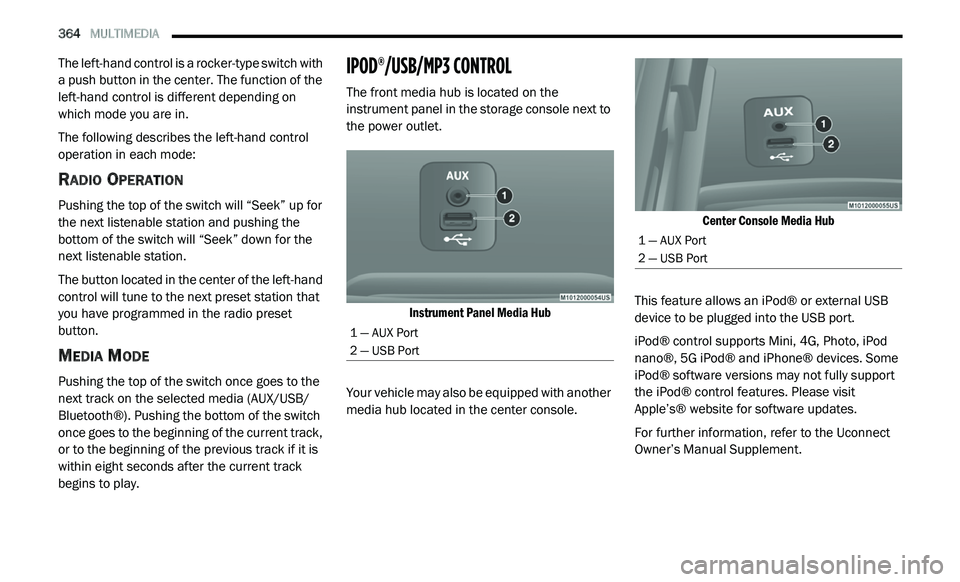
IPOD®/USB/MP3 CONTROL
The front media hub is located on the
instrument panel in the storage console next to
the power outlet.
Instrument Panel Media Hub
Your vehicle may also be equipped with another
me
dia hub located in the center console.
Center Console Media Hub
This feature allows an iPod® or external USB
d e
vice to be plugged into the USB port.
iPod® control supports Mini, 4G, Photo, iPod
n a
no®, 5G iPod® and iPhone® devices. Some
iPod® software versions may not fully support
the iPod® control features. Please visit
Apple’s® website for software updates.
For further information, refer to the Uconnect
Ow
ner’s Manual Supplement.
1 — AUX Port
2 — USB Port
1 — AUX Port
2 — USB Port
Page 370 of 396
368 MULTIMEDIA
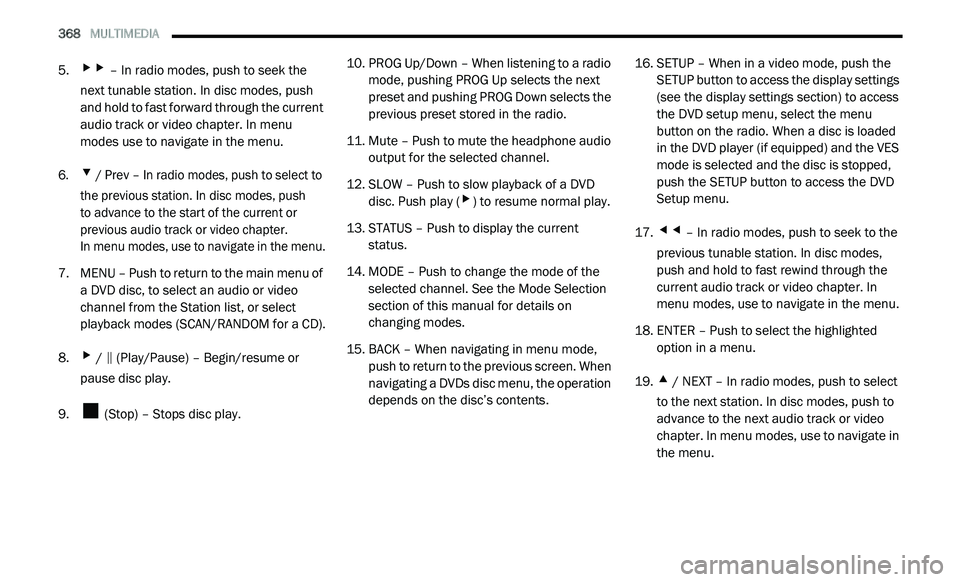
5.▸▸ – In radio modes, push to seek the
next tunable station. In disc modes, push
and hold to fast forward through the current
audio track or video chapter. In menu
modes use to navigate in the menu.
6.
▾ / Prev – In radio modes, push to select to
the previous station. In disc modes, push
to advance to the start of the current or
p r
evious audio track or video chapter.
In menu modes, use to navigate in the menu.
7. M ENU – Push to return to the main menu of
a
DVD disc, to select an audio or video
channel from the Station list, or select
playback modes (SCAN/RANDOM for a CD).
8.
▸ / ‖ (Play/Pause) – Begin/resume or
pause disc play.
9. (Stop) – Stops disc play. 10. P
ROG Up/Down – When listening to a radio
m
ode, pushing PROG Up selects the next
preset and pushing PROG Down selects the
previous preset stored in the radio.
11. Mute – Push to mute the headphone audio o
utput for the selected channel.
12. S LOW – Push to slow playback of a DVD
d
isc. Push play (
▸) to resume normal play.
13. S TATUS – Push to display the current
s
tatus.
14. M ODE – Push to change the mode of the
s
elected channel. See the Mode Selection
section of this manual for details on
changing modes.
15. BACK – When navigating in menu mode, p
ush to return to the previous screen. When
navigating a DVDs disc menu, the operation
depends on the disc’s contents. 16. S
ETUP – When in a video mode, push the
S
ETUP button to access the display settings
(see the display settings section) to access
the DVD setup menu, select the menu
button on the radio. When a disc is loaded
in the DVD player (if equipped) and the VES
mode is selected and the disc is stopped,
push the SETUP button to access the DVD
Setup menu.
17.
◂◂ – In radio modes, push to seek to the
previous tunable station. In disc modes,
push and hold to fast rewind through the
current audio track or video chapter. In
menu modes, use to navigate in the menu.
18. E NTER – Push to select the highlighted
o
ption in a menu.
19.
▴ / NEXT – In radio modes, push to select
to the next station. In disc modes, push to
advance to the next audio track or video
chapter. In menu modes, use to navigate in
the menu.