change time DODGE RAM 5500 CHASSIS CAB 2008 3.G User Guide
[x] Cancel search | Manufacturer: DODGE, Model Year: 2008, Model line: RAM 5500 CHASSIS CAB, Model: DODGE RAM 5500 CHASSIS CAB 2008 3.GPages: 528, PDF Size: 7.84 MB
Page 193 of 528
TIME Button (Auxiliary Mode)
Press this button to change the display from elapsed
playing time to time of day. The time of day will display
for 5 seconds.
RW/FF (Auxiliary Mode)
No function.
RND/SET Button (Auxiliary Mode)
No function.
Mode Button (Auxiliary Mode)
Press the mode button repeatedly to select between the
CD player and Satellite Radio (if equipped).
Operating Instructions - Hands Free Phone Ð If
Equipped
Refer to the ªHANDS FREE PHONE (UConnectŸ)º
section of the Owner's Manual.
Operating Instructions - Satellite Radio Ð If
Equipped
Refer to the ªSatellite Radioº section of the Owner's
Manual.
UNDERSTANDING YOUR INSTRUMENT PANEL 193
4
Page 202 of 528

TIME Button (CD MODE for CD Audio Play)
Press this button to change the display from a large CD
playing time display to a small CD playing time display.
RW/FF (CD MODE for CD Audio Play)
Press and hold FF (Fast Forward) and the CD player will
begin to fast forward until FF is released or RW or
another CD button is pressed. The RW (Reverse) button
works in a similar manner.
TUNE Control (CD MODE for CD Audio Play)
Pressing the TUNE control allows the setting of the Tone,
Fade, and Balance. See Radio Mode.
AM/FM Button (CD MODE for CD Audio Play)
Switches the Radio to the Radio mode.
RND/PTY Button (Random Play Button) (CD
MODE for CD Audio Play)
Press this button while the CD is playing to activate
Random Play. This feature plays the selections on the
compact disc in random order to provide an interesting
change of pace.
Press the SEEK button to move to the next randomly
selected track.
Press and hold the FF button to fast forward through the
tracks. Release the FF button to stop the fast forward
feature.
Press the RND button a second time to stop Random
Play.
Buttons1-6(CDMODE for CD Audio Play)
Selects disc positions1-6forPlay/Load/Eject.
202 UNDERSTANDING YOUR INSTRUMENT PANEL
Page 213 of 528
Fast Forward (FF)
Press the FF button up momentarily to advance the tape
in the direction that it is playing. The tape will advance
until the button is pressed again or the end of the tape is
reached. At the end of the tape, the tape will play in the
opposite direction.
Rewind (RW)
Press the RW button momentarily to reverse the tape
direction. The tape will reverse until the button is pressed
again or until the end of the tape is reached. At the end of
the tape, the tape will play in the opposite direction.
Tape Eject
Press this button and the cassette will disen-
gage and eject from the radio.
Scan Button
Press this button to play 10 seconds of each selection.
Press the scan button a second time to cancel the feature.
Changing Tape Direction
If you wish to change the direction of tape travel (side
being played), press Preset 6. The lighted arrow in the
display window will show the new direction.
Metal Tape Selection
If a standard metal tape is inserted into the player, the
player will automatically select the correct equalization.
Pinch Roller Release
If ignition power or the radio ON/OFF switch is turned
off, the pinch roller will automatically retract to protect
the tape from any damage. When power is restored to the
tape player, the pinch roller will automatically reengage
and the tape will resume play.
UNDERSTANDING YOUR INSTRUMENT PANEL 213
4
Page 216 of 528

radio, the radio will remain in CD mode and display
9INSERT DISCº for 2 minutes. After 2 minutes, the radio
will go to the previous tuner mode.
The disc can be ejected with the radio and ignition OFF.
TIME Button (CD MODE for CD Audio Play)
Press this button to change the display from a large CD
playing time display to a small CD playing time display.
RW/FF (CD MODE for CD Audio Play)
Press and hold FF (Fast Forward) and the CD player will
begin to fast forward until FF is released or RW or
another CD button is pressed. The RW (Reverse) button
works in a similar manner.
TUNE Control (CD MODE for CD Audio Play)
Pressing the TUNE control allows the setting of the Tone,
Fade, and Balance. See Radio Mode.
AM/FM Button (CD MODE for CD Audio Play)
Switches the Radio to the Radio mode.
RND/PTY Button (Random Play Button) (CD
MODE for CD Audio Play)
Press this button while the CD is playing to activate
Random Play. This feature plays the selections on the
compact disc in random order to provide an interesting
change of pace.
NOTE:MP3 and WMA Random Play are for file folders
only.
Press the SEEK button to move to the next randomly
selected track.
Press and hold the FF button to fast forward through the
tracks. Release the FF button to stop the fast forward
feature. If the RW button is pressed, the current track will
reverse to the beginning of the track and begin playing.
Press the RND button a second time to stop Random
Play.
216 UNDERSTANDING YOUR INSTRUMENT PANEL
Page 222 of 528

SALES CODE REC Ð AM/FM/CD (6±DISC) RADIO
WITH NAVIGATION SYSTEM
Satellite Navigation Radio with CD Player with MP3
Capability (REC) - combines a Global-Positioning
System-based navigation system with an integrated color
screen to provide maps, turn identification, selectionmenus and instructions for selecting a variety of destina-
tions and routes, AM/FM stereo radio and six-disc CD
changer with MP3 capability.
Mapping information for navigation is supplied on a
DVD that is loaded into the unit. One map DVD covers
all of North America. Refer to your ªNavigation User's
Manualº for detailed operating instructions.
Operating Instructions Ð Satellite Radio (If
Equipped)
Refer to your ªNavigation User's Manualº for detailed
operating instructions.
REC Setting the Clock
GPS Clock
The GPS receiver used in this system is synchronized to
the time data being transmitted by the GPS satellites. The
satellites' clock is Greenwich Mean Time (GMT). This is
REC Radio
222 UNDERSTANDING YOUR INSTRUMENT PANEL
Page 223 of 528
the worldwide standard for time. This makes the sys-
tem's clock very accurate once the appropriate time zone
and daylight savings information is set.
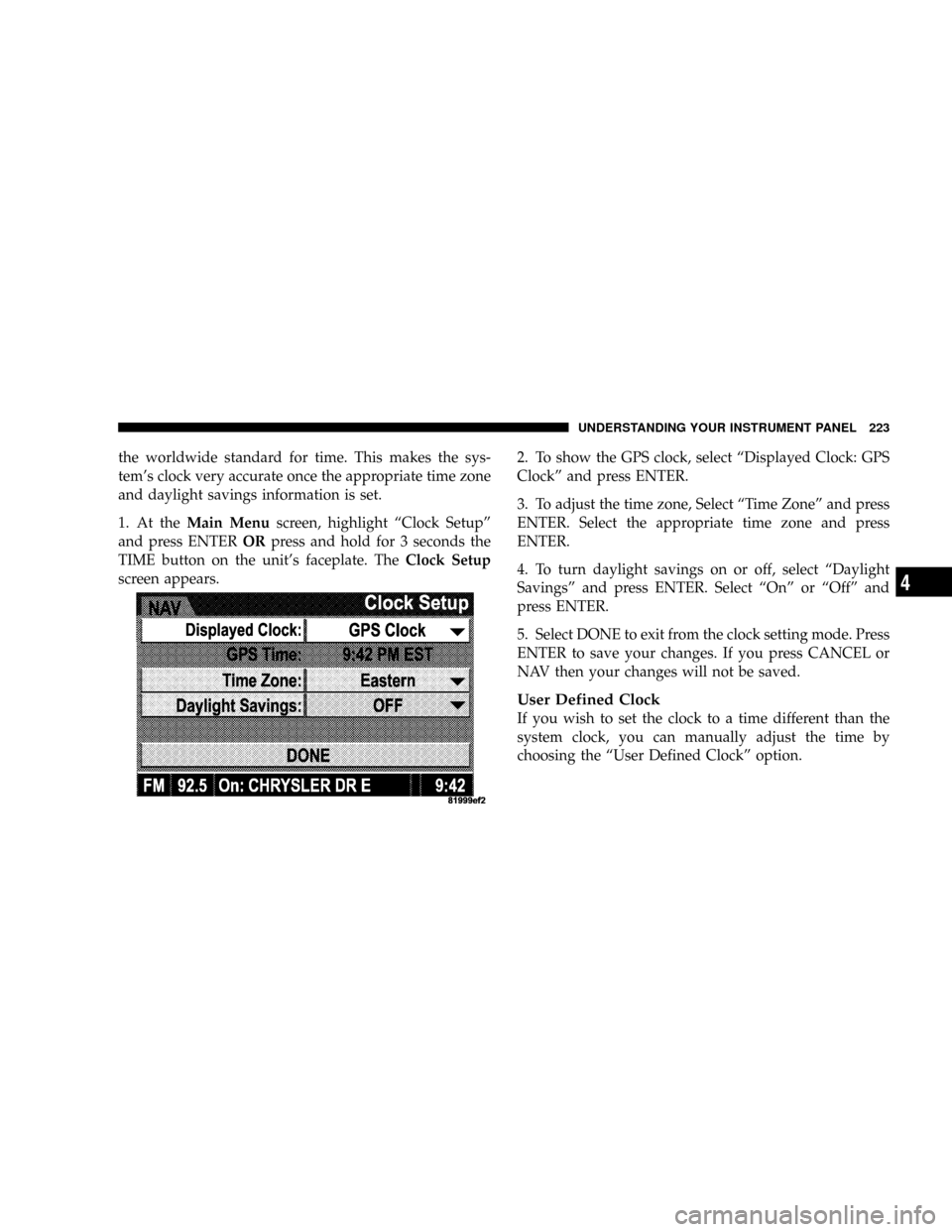
1. At theMain Menuscreen, highlight ªClock Setupº
and press ENTERORpress and hold for 3 seconds the
TIME button on the unit's faceplate. TheClock Setup
screen appears.2. To show the GPS clock, select ªDisplayed Clock: GPS
Clockº and press ENTER.
3. To adjust the time zone, Select ªTime Zoneº and press
ENTER. Select the appropriate time zone and press
ENTER.
4. To turn daylight savings on or off, select ªDaylight
Savingsº and press ENTER. Select ªOnº or ªOffº and
press ENTER.
5. Select DONE to exit from the clock setting mode. Press
ENTER to save your changes. If you press CANCEL or
NAV then your changes will not be saved.
User Defined Clock
If you wish to set the clock to a time different than the
system clock, you can manually adjust the time by
choosing the ªUser Defined Clockº option.
UNDERSTANDING YOUR INSTRUMENT PANEL 223
4
Page 224 of 528

1. At theClock Setupscreen highlight ªDisplayed
Clock: User Defined Clockº.
2. To increase the clock by hours, make sure ªHR +º is
highlighted and press ENTER. Press ENTER again to
increase the clock by another hour. You will see on the
ªUser Defined Timeº display the number of hours you
have increased the clock by.3. To decrease the clock by one hour, use the Select
Encoder to highlight the ª-º sign. Press ENTER. Press
ENTER again to decrease the clock by another hour.
4. To increase the clock by minutes, make sure ªMIN +º
is highlighted and press ENTER. Press ENTER again to
increase the clock by another minute.
5. To decrease the clock by minutes, use the Select
Encoder to highlight the ª-ª sign. Press ENTER. Press
ENTER again to decrease the clock by another minute.
6. Select ªDONEº to exit from the clock setting mode.
Press ENTER to save your changes. If you press CAN-
CEL or NAV then your changes will not be saved.
224 UNDERSTANDING YOUR INSTRUMENT PANEL
Page 225 of 528
Audio Clock Display
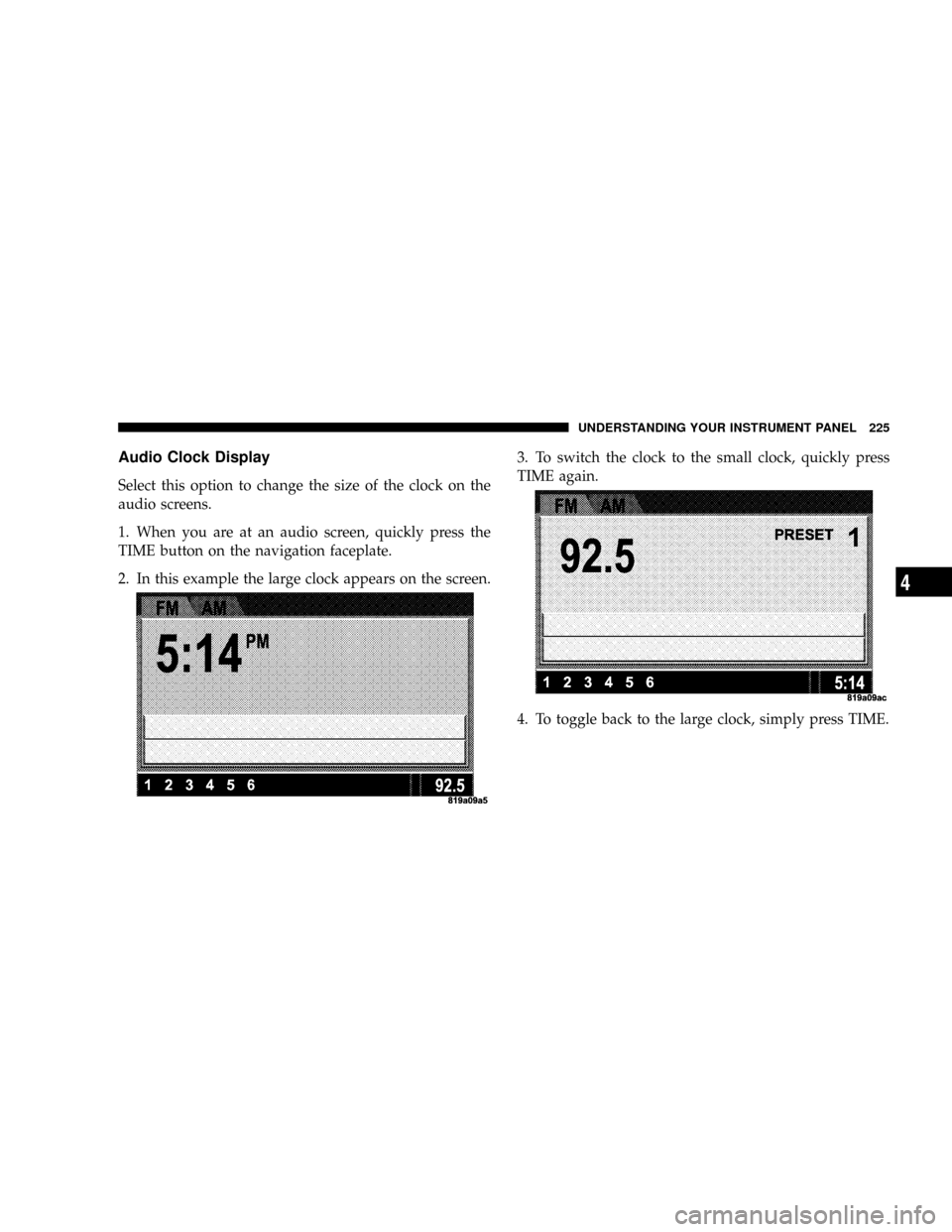
Select this option to change the size of the clock on the
audio screens.
1. When you are at an audio screen, quickly press the
TIME button on the navigation faceplate.
2. In this example the large clock appears on the screen.3. To switch the clock to the small clock, quickly press
TIME again.
4. To toggle back to the large clock, simply press TIME.
UNDERSTANDING YOUR INSTRUMENT PANEL 225
4
Page 228 of 528

Selecting Satellite Mode in REF, RAQ, and RAK
Radios
Selecting Satellite Mode Ð REF Radio
Press the MODE button repeatedly until the word9SAT9
appears in the display.
A CD may remain in the radio while in the Satellite radio
mode.
Selecting Satellite Mode Ð RAQ and RAK Radio
Press the MODE button repeatedly until the word9SAT9
appears in the display.
These radios will also display the current station name
and program type. For more information, such as song
title and artist, press the MSG or INFO button.
A CD or tape may remain in the radio while in the
Satellite radio mode.
Selecting a Channel
Press and release the SEEK or TUNE knob to search for
the next channel. Press the top of the button to search up
and the bottom of the button to search down. Holding the
TUNE button causes the radio to bypass channels until
the button is released.
Press and release the SCAN button (if equipped) to
automatically change channels every 7 seconds. The
radio will pause on each channel for 7 seconds before
moving on to the next channel. The word9SCAN9will
appear in the display between each channel change. Press
the SCAN button a second time to stop the search.
NOTE:Channels that may contain objectionable content
can be blocked. Contact Sirius Customer Care at 888-539-
7474 to discuss options for channel blocking or unblock-
ing. Please have your ESN/SID information available.
228 UNDERSTANDING YOUR INSTRUMENT PANEL
Page 229 of 528
Storing and Selecting Pre-Set Channels
In addition to the 12 AM and 12 FM pre-set stations, you
may also commit 12 satellite stations to push button
memory. These satellite channel pre-set stations will not
erase any AM or FM pre-set memory stations. Follow the
memory pre-set procedures that apply to your radio.
Using the PTY (Program Type) Button Ð If
Equipped
Follow the PTY button instructions that apply to your
radio.
PTY Button(SCAN(
When the desired program type is obtained, press the
9SCAN9button within five seconds. The radio will play 7
seconds of the selected channel before moving to the next
channel of the selected program type. Press the9SCAN9
button a second time to stop the search.NOTE:Pressing the9SEEK9or9SCAN9button, while
performing a music type scan, will change the channel by
one and stop the search. Pressing a pre-set memory
button during a music type scan, will call up the memory
channel and stop the search.
PTY Button(SEEK(
When the desired program is obtained, press the9SEEK9
button within five seconds. The channel will change to
the next channel that matches the program type selected.
Satellite Antenna
To ensure optimum reception on vehicles available with
a luggage rack, do not place items on the roof around the
rooftop antenna location. Metal objects placed within the
line of sight of the antenna will cause decreased perfor-
mance. Larger luggage items should be placed as far
forward as possible. Do not place items directly on or
above the antenna.
UNDERSTANDING YOUR INSTRUMENT PANEL 229
4