wheel DODGE VIPER 2015 VX / 3.G User Guide
[x] Cancel search | Manufacturer: DODGE, Model Year: 2015, Model line: VIPER, Model: DODGE VIPER 2015 VX / 3.GPages: 400, PDF Size: 9.59 MB
Page 121 of 400
displayed for up to 10 seconds when the vehicle is shifted
out of REVERSE unless the forward vehicle speed ex-
ceeds 8 mph (13 km/h), the transmission is shifted into
#PARK#or the vehicle’s ignition is placed to the OFF
position.
When the Vehicle is shifted out of Reverse (with camera
delay turned OFF) the rear camera mode is exited and the
last touchscreen appears again.
When enabled, active guide lines are overlaid on the
image to illustrate the width of the vehicle and its
projected backup path based on the steering wheel
position.
When enabled, fixed guide lines are overlaid on the
image to illustrate the width of the vehicle.
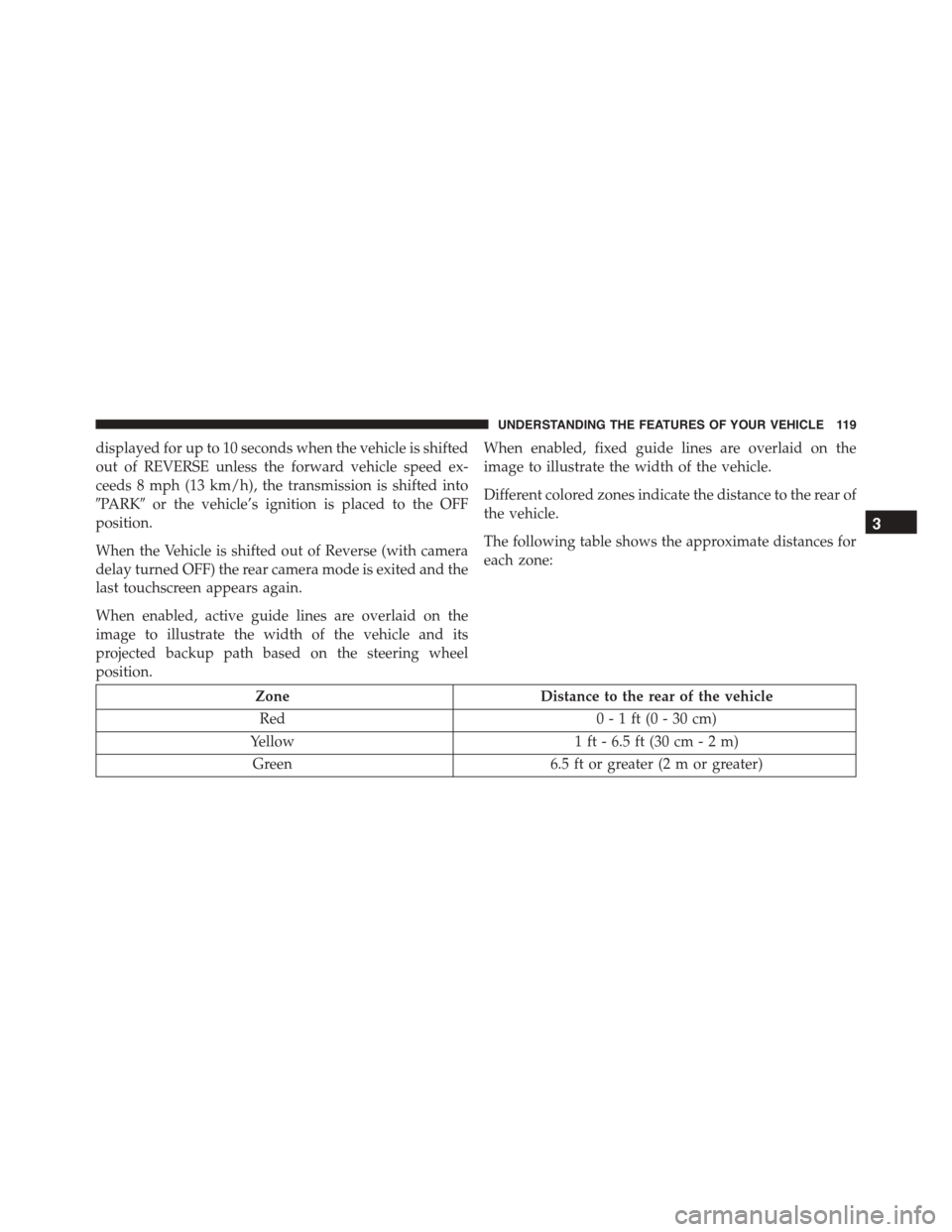
Different colored zones indicate the distance to the rear of
the vehicle.
The following table shows the approximate distances for
each zone:
ZoneDistance to the rear of the vehicle
Red0 - 1 ft (0 - 30 cm)
Yellow1 ft - 6.5 ft (30 cm - 2 m)
Green6.5 ft or greater (2 m or greater)
3
UNDERSTANDING THE FEATURES OF YOUR VEHICLE 119
Page 142 of 400
!STEERING WHEEL AUDIO CONTROLS......194
▫Radio Operation......................195
!RADIO ANTENNA.....................195
!RADIO OPERATION AND MOBILE PHONES . .196
▫General Information...................196
!CLIMATE CONTROLS...................196
▫Automatic Temperature Control (ATC).......197
▫Summer Operation....................202
▫Winter Operation......................202
▫Vacation/Storage.....................203
▫Window Fogging and Frosting............203
▫Outside Air Intake.....................203
▫Control Setting Suggestions for Various Weather
Conditions..........................204
!Uconnect® VOICE RECOGNITION QUICK
TIPS................................205
▫Introducing Uconnect®.................205
▫Get Started..........................206
▫Basic Voice Commands..................206
▫Radio..............................207
▫Media..............................208
▫Phone..............................209
▫Voice Text Reply......................210
▫Climate (8.4AN)......................210
▫Navigation (8.4AN)....................211
▫Uconnect® Access* (8.4AN)..............212
140 UNDERSTANDING YOUR INSTRUMENT PANEL
Page 152 of 400
maintain correct tire pressure, even if under-inflation has
not reached the level to trigger illumination of the TPMS
low tire pressure telltale.
Your vehicle has also been equipped with a TPMS
malfunction indicator to indicate when the system is not
operating properly. The TPMS malfunction indicator is
combined with the low tire pressure telltale. When the
system detects a malfunction, the telltale will flash for
approximately one minute and then remain continuously
illuminated. This sequence will continue upon subse-
quent vehicle start-ups as long as the malfunction exists.
When the malfunction indicator is illuminated, the sys-
tem may not be able to detect or signal low tire pressure
as intended. TPMS malfunctions may occur for a variety
of reasons, including the installation of replacement or
alternate tires or wheels on the vehicle that prevent the
TPMS from functioning properly. Always check the
TPMS malfunction telltale after replacing one or more
tires or wheels on your vehicle to ensure that the replace-
ment or alternate tires and wheels allow the TPMS to
continue to function properly.
CAUTION!
The TPMS has been optimized for the original
equipment tires and wheels. TPMS pressures and
warning have been established for the tire size
equipped on your vehicle. Undesirable system opera-
tion or sensor damage may result when using re-
placement equipment that is not of the same size,
type, and/or style. Aftermarket wheels can cause
sensor damage. Using aftermarket tire sealants may
cause the Tire Pressure Monitoring System (TPMS)
sensor to become inoperable. After using an after-
market tire sealant it is recommended that you take
your vehicle to an authorized dealership to have your
sensor function checked.
150 UNDERSTANDING YOUR INSTRUMENT PANEL
Page 158 of 400
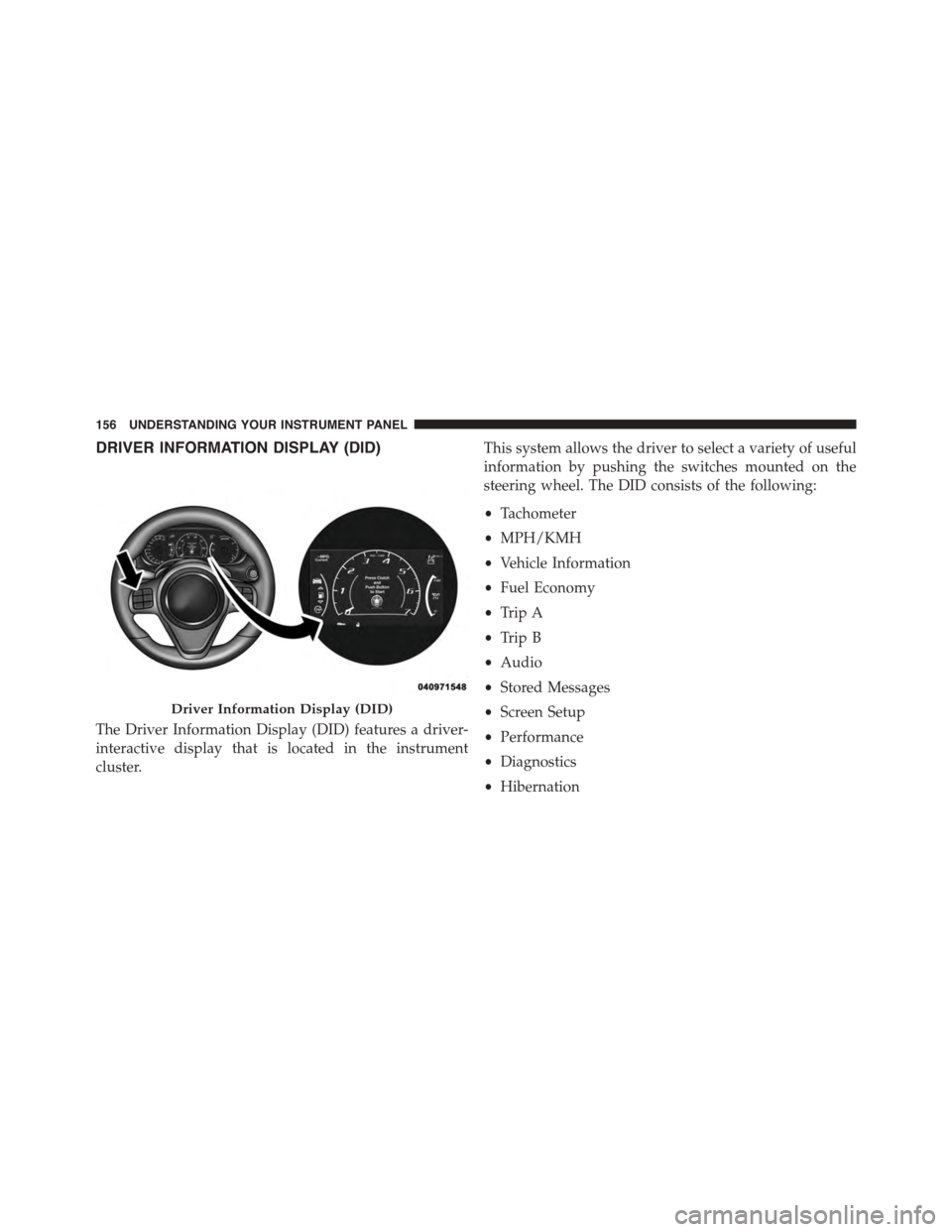
DRIVER INFORMATION DISPLAY (DID)
The Driver Information Display (DID) features a driver-
interactive display that is located in the instrument
cluster.
This system allows the driver to select a variety of useful
information by pushing the switches mounted on the
steering wheel. The DID consists of the following:
•Tachometer
•MPH/KMH
•Vehicle Information
•Fuel Economy
•Trip A
•Trip B
•Audio
•Stored Messages
•Screen Setup
•Performance
•Diagnostics
•Hibernation
Driver Information Display (DID)
156 UNDERSTANDING YOUR INSTRUMENT PANEL
Page 159 of 400
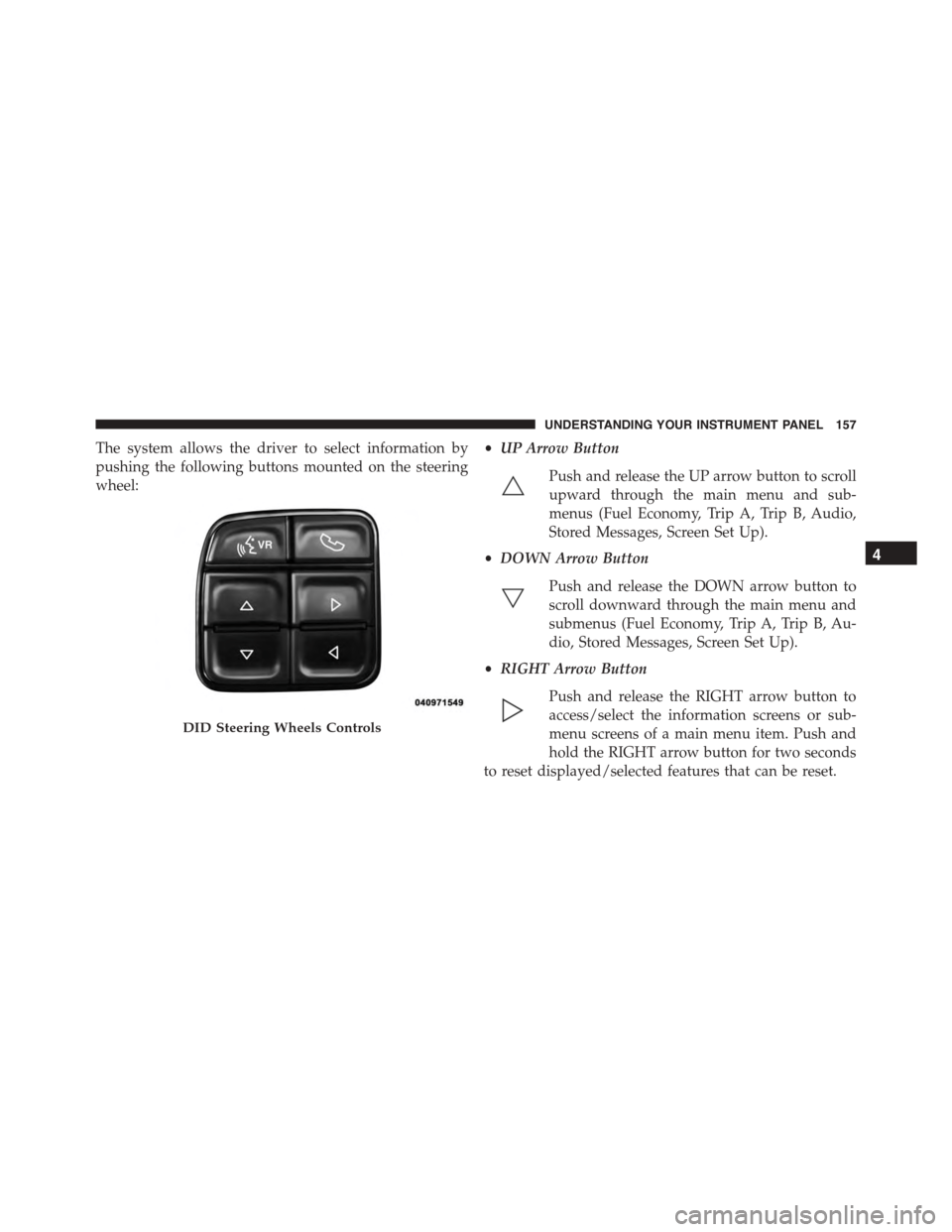
The system allows the driver to select information by
pushing the following buttons mounted on the steering
wheel:
•UP Arrow Button
Push and release the UP arrow button to scroll
upward through the main menu and sub-
menus (Fuel Economy, Trip A, Trip B, Audio,
Stored Messages, Screen Set Up).
•DOWN Arrow Button
Push and release the DOWN arrow button to
scroll downward through the main menu and
submenus (Fuel Economy, Trip A, Trip B, Au-
dio, Stored Messages, Screen Set Up).
•RIGHT Arrow Button
Push and release the RIGHT arrow button to
access/select the information screens or sub-
menu screens of a main menu item. Push and
hold the RIGHT arrow button for two seconds
to reset displayed/selected features that can be reset.
DID Steering Wheels Controls
4
UNDERSTANDING YOUR INSTRUMENT PANEL 157
Page 174 of 400
•Oil Temperature
•Battery
•Coolant Temperature
•RIGHT Arrow Button
Restore To Defaults (Restores All Settings To Default
Settings)
Push and release the RIGHT arrow button to
confirm.
Digital Speed
•On
•Off
Tach. Peak Hold
When enabled, the Tach. Peak Hold function marks the
peak Revolutions Per Minute (RPM) on the tachometer
gauge for 3 seconds when the RPM is above 4000. Using
the UP and DOWN arrow switches on the left side of the
steering wheel, select the gauges icon from the menu on
the left side of the cluster (highlighted red is the active
menu item). Use the right arrow to enter the gauges setup
screen and the up down arrows to select Tach Peak from
the menu of gauge options.
172 UNDERSTANDING YOUR INSTRUMENT PANEL
Page 196 of 400
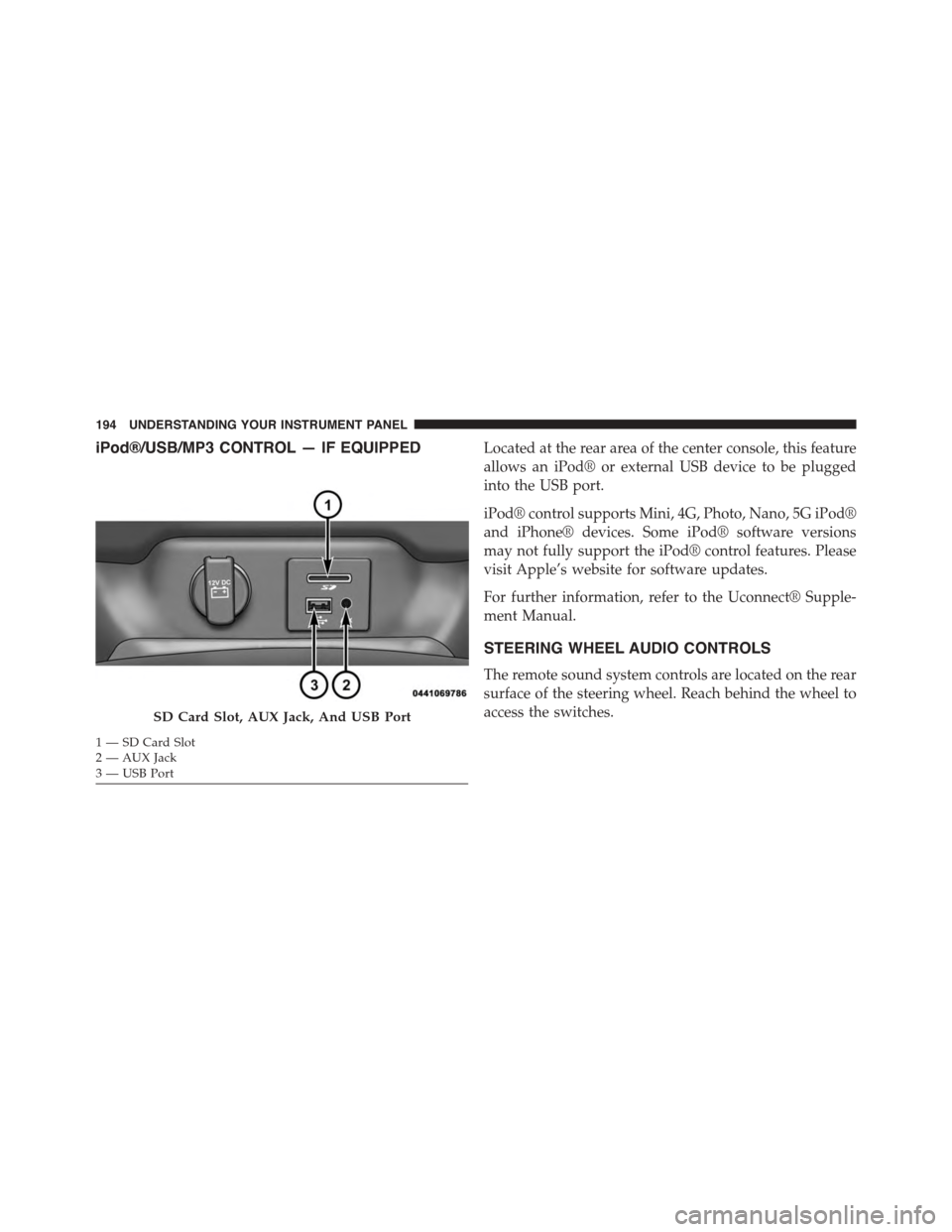
iPod®/USB/MP3 CONTROL — IF EQUIPPEDLocated at the rear area of the center console, this feature
allows an iPod® or external USB device to be plugged
into the USB port.
iPod® control supports Mini, 4G, Photo, Nano, 5G iPod®
and iPhone® devices. Some iPod® software versions
may not fully support the iPod® control features. Please
visit Apple’s website for software updates.
For further information, refer to the Uconnect® Supple-
ment Manual.
STEERING WHEEL AUDIO CONTROLS
The remote sound system controls are located on the rear
surface of the steering wheel. Reach behind the wheel to
access the switches.SD Card Slot, AUX Jack, And USB Port
1—SDCardSlot2 — AUX Jack3—USBPort
194 UNDERSTANDING YOUR INSTRUMENT PANEL
Page 197 of 400
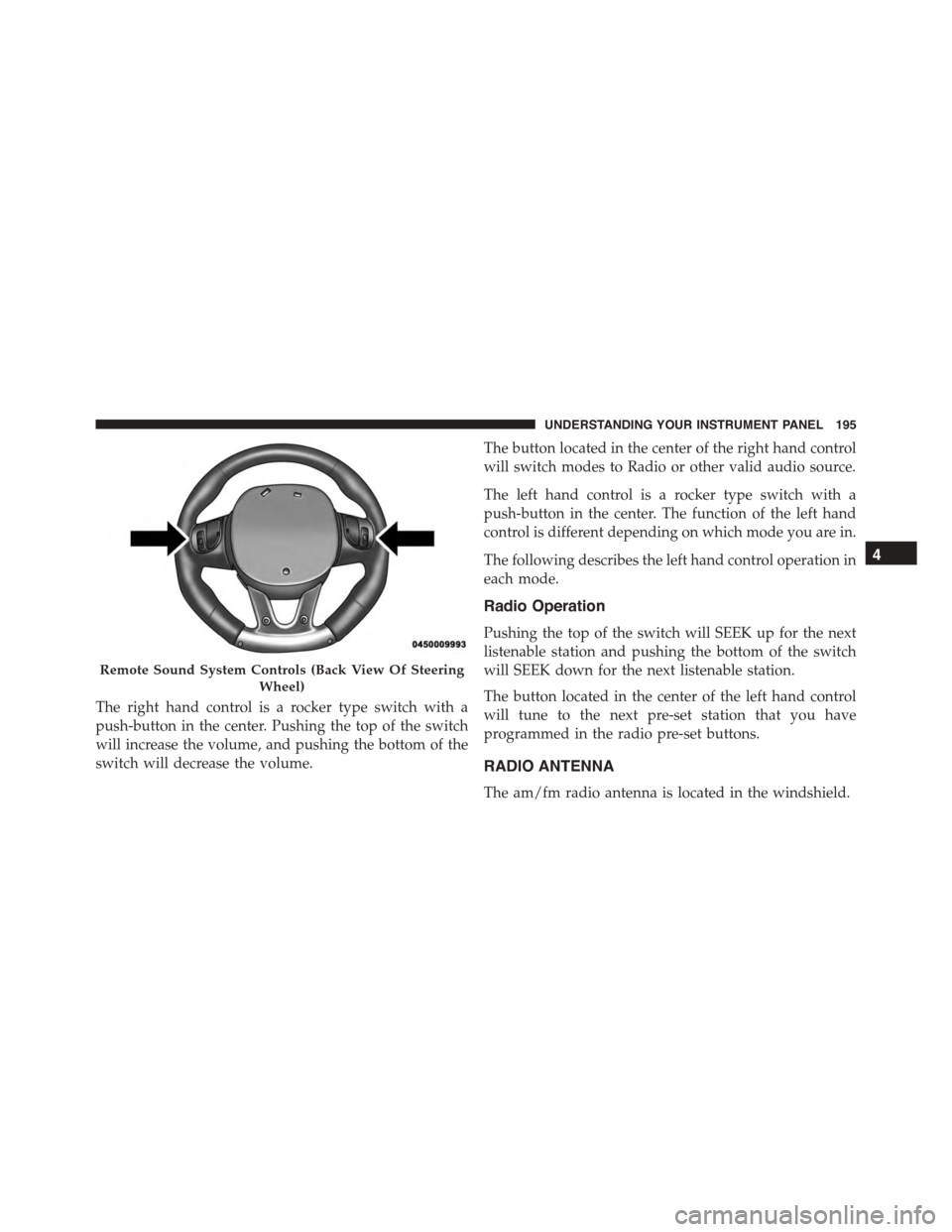
The right hand control is a rocker type switch with a
push-button in the center. Pushing the top of the switch
will increase the volume, and pushing the bottom of the
switch will decrease the volume.
The button located in the center of the right hand control
will switch modes to Radio or other valid audio source.
The left hand control is a rocker type switch with a
push-button in the center. The function of the left hand
control is different depending on which mode you are in.
The following describes the left hand control operation in
each mode.
Radio Operation
Pushing the top of the switch will SEEK up for the next
listenable station and pushing the bottom of the switch
will SEEK down for the next listenable station.
The button located in the center of the left hand control
will tune to the next pre-set station that you have
programmed in the radio pre-set buttons.
RADIO ANTENNA
The am/fm radio antenna is located in the windshield.
Remote Sound System Controls (Back View Of Steering
Wheel)
4
UNDERSTANDING YOUR INSTRUMENT PANEL 195
Page 202 of 400
Button On The Touchscreen
Use the small blower icon to reduce the blower setting
and the large blower icon to increase the blower setting.
Blower can also be selected by pressing the blower bar
area between the icons.
8. Modes
The airflow distribution mode can be adjusted so air
comes from the instrument panel outlets, floor outlets,
demist outlets and defrost outlets. The Mode settings are
as follows:
•Panel Mode
Air comes from the outlets in the instrument
panel. Each of these outlets can be individu-
ally adjusted to direct the flow of air. The air
vanes of the center outlets and outboard outlets can
be moved up and down or side to side to regulate
airflow direction. There is a shut off wheel located
below the air vanes to shut off or adjust the amount
of airflow from these outlets.
•Bi-Level Mode
Air comes from the instrument panel outlets
and floor outlets. A slight amount of air is
directed through the defrost and side window
demister outlets.
NOTE:BI-LEVEL mode is designed under comfort con-
ditions to provide cooler air out of the panel outlets and
warmer air from the floor outlets.
•Floor Mode
Air comes from the floor outlets. A slight
amount of air is directed through the defrost
and side window demister outlets.
200 UNDERSTANDING YOUR INSTRUMENT PANEL
Page 223 of 400
!FUEL REQUIREMENTS..................277
▫8.4L Engine..........................277
▫Reformulated Gasoline.................278
▫Gasoline/Oxygenate Blends..............278
▫E-85 Usage In Non-Flex Fuel Vehicles.......279
▫MMT In Gasoline.....................279
▫Materials Added To Fuel................280
▫Fuel System Cautions...................280
▫Carbon Monoxide Warnings.............281
!ADDING FUEL........................282
▫Emergency Fuel Filler Door Release.........284
!TRAILER TOWING.....................286
!RECREATIONAL TOWING (BEHIND
MOTORHOME, ETC.)...................287
▫Towing This Vehicle Behind Another Vehicle
(Flat Towing With All Four Wheels On The
Ground)...........................287
!GROUND CLEARANCE.................288
5
STARTING AND OPERATING 221