change time FIAT 124 SPIDER 2016 2.G User Guide
[x] Cancel search | Manufacturer: FIAT, Model Year: 2016, Model line: 124 SPIDER, Model: FIAT 124 SPIDER 2016 2.GPages: 216, PDF Size: 3.1 MB
Page 116 of 216
DRIVING TIPS
142) 143)
Passing
For extra power when passing another
vehicle or climbing steep grades,
depress the accelerator fully. The
transmission will shift to a lower gear,
depending on vehicle speed.
Climbing steep grades from a stop
To climb a steep grade from a stopped
position depress the brake pedal, shift
to D or M1, depending on the load
weight and grade steepness, release
the brake pedal while gradually
accelerating.
Descending steep grades
When descending a steep grade, shift
to lower gears, depending on load
weight and grade steepness.
Descend slowly, using the brakes only
occasionally to prevent them from
overheating.
WARNING
139)Always set the selector lever to P and
set the parking brake. Only setting the
selector lever to the P position without
using the parking brake to hold the vehicle
is dangerous. If P fails to hold, the vehicle
could move and cause an accident.140)If the engine is running faster than
idle, do not shift from N or P into a driving
gear. It's dangerous to shift from N or P
into a driving gear when the engine is
running faster than idle. If this is done, the
vehicle could move suddenly, causing an
accident or serious injury.
141)Do not shift into N when driving the
vehicle. Shifting into N while driving is
dangerous. Engine braking cannot be
applied when decelerating which could
lead to an accident or serious injury.
142)Do not use engine braking on slippery
road surfaces or at high speeds. Shifting
down while driving on wet, snowy, or
frozen roads, or while driving at high
speeds causes sudden engine braking,
which is dangerous. The sudden change in
tire speed could cause the tires to skid.
This could lead to loss of vehicle control
and an accident.
143)Do not let the vehicle move in a
direction opposite to the direction selected
by the selector lever. Do not let the vehicle
move backward with the selector lever in a
forward position, or do not let the vehicle
move forward with the selector lever in the
reverse position. Otherwise, the engine
may stop, causing the loss of the power
brake and power steering functions, and
make it difficult to control the vehicle which
could result in an accident.
CRUISE CONTROL
This is an electronically controlled
driving assistance device that allows the
desired vehicle speed to be maintained,
without having to press the accelerator
pedal.
This device can be used at a speed
above 25 km/h on long stretches of dry,
straight roads with few variations (e.g.
motorways).
It is therefore not recommended to use
this device on extra-urban roads with
traffic. Do not use it in town.
ACTIVATION /
DEACTIVATION
144) 145) 146) 147)
IMPORTANT When the ignition is
switched off, the system status before it
was turned off is maintained. For
example, if the ignition is switched off
while the cruise control is operating, the
system will be operable when the
ignition is switched ON the next time.
Activating the device
With Speed limiter: press the MODE
switch. The
warning light (amber)
turns on.
114
STARTING AND OPERATING
Page 118 of 216
INCREASING /
DECREASING SPEED
To increase speed
With cruise control switch: press the
RESUME/+ switch and hold it your
vehicle will accelerate. Release the
switch at the desired speed. Press the
RESUME/+ switch and release it
immediately to adjust the preset speed.
Multiple operations will increase the
preset speed according to the number
of times it is operated.
Using accelerator pedal: depress the
accelerator pedal to accelerate to the
desired speed. Press the SET/- switch
and release it immediately.
IMPORTANT Accelerate if you want to
speed up temporarily when the cruise
control is on. Greater speed will not
interfere with or change the set speed.
Take your foot off the accelerator to
return to the set speed.
RESUME SPEED
If some other method besides the
OFF/CANCEL switch was used to
cancel cruising speed (such as applying
the brake pedal) and the system is still
activated, the most recent set speed
will automatically resume when the
RESUME/+ switch is pressed.
If vehicle speed is below 25 km/h,
increase the vehicle speed up to25 km/h or more and press the
RESUME/+ switch.
TEMPORARILY
CANCELLING THE
SYSTEM
To temporarily cancel the system, use
one of these methods: slightly depress
the brake pedal/depress the clutch
pedal (versions with manual
transmission)/press the OFF/CANCEL
switch.
If the RESUME/+ switch is pressed
when the vehicle speed is 25 km/h or
higher, the system reverts to the
previously set speed.
Note
If any of the following conditions occur,
the cruise control system is temporarily
canceled:
the parking brake is applied;
Versions with Speed limiter: the
MODE switch for the adjustable speed
limiter is pressed;
Automatic transmission: the
selector lever is in the P or N position or
on versions withmanual
transmission: the shift lever is in the
neutral position;
Automatic transmission: the cruise
control cannot be cancelled while
driving in manual mode (selector lever
shifted from D to M position). Therefore,
engine braking will not be applied evenif the transaxle is shifted down to a
lower gear. If deceleration is required,
lower the set speed or depress the
brake pedal;
When the cruise control system is
temporarily canceled by even one of the
applicable cancel conditions, the speed
cannot be reset.
WARNING
144)Always turn off the cruise control
system when it is not in use: leaving the
cruise control system in an activation-ready
state while the cruise control is not in use is
dangerous as the cruise control could
unexpectedly activate if the activation
button is accidentally pressed, and result in
loss of vehicle control and an accident.
145)While travelling with the device
activated, do not move the gear lever to
neutral.
146)In the event of device faults or failures,
go to a Fiat Dealership.
147)The cruise control can be dangerous
if the system cannot keep a constant
speed. In specific conditions speed may be
excessive, resulting in the risk of losing
control of the vehicle and causing
accidents. Do not use the device in heavy
traffic or on winding, icy, snowy or slippery
roads.
116
STARTING AND OPERATING
Page 166 of 216
45)Do not mix alcohol or methanol with the
coolant. This could damage the cooling
system.
46)Do not use a solution that contains
more than 60% antifreeze. This would
reduce effectiveness.
47)Avoid allowing brake fluid, which is
extremely corrosive, to come into contact
with painted areas. Should it happen, wash
immediately with water.
48)Incorrect assembly of electrical and
electronic accessories may cause severe
damage to your vehicle. Go to a Fiat
Dealership if you want to install accessories
(e.g. anti-theft, radio phone, etc.): they will
suggest the most suitable devices and
advise you whether a higher capacity
battery needs to be installed.
IMPORTANT
4)Used engine oil and oil filters contain
substances which are harmful to the
environment. You are advised to contact a
Fiat Dealership to have the oil and filters
changed.
5)Used transmission fluid contains
substances that are harmful to the
environment. It is advisable to contact a
Fiat Dealership to have the fluid changed.
6)Batteries contain substances which are
very dangerous for the environment. For
battery replacement, contact a Fiat
Dealership.
BATTERY
RECHARGING
204) 205)
BATTERY RECHARGING
PROCEDURE
Charge battery as follows:
remove the caps before recharging
the battery;
connect the charger cables to the
battery terminals, observing the polarity;
turn on the charger;
when finished, turn the charger off
before disconnecting the battery;
reconnect the negative battery
terminal.
IMPORTANT Before recharging the
battery, turn off all accessories and stop
the engine.
IMPORTANT Make sure that the cables
of the electrical system are correctly
reconnected to the battery, i.e. the
positive cable (+) to the positive
terminal and the negative cable (-) to
the negative terminal. The battery
terminals are marked with the positive
(+) and negative (-) symbols, and are
shown on the battery cover. The battery
terminals must also be corrosion-free
and firmly secured to the terminals. If a
“quick-type” battery charger is usedwith the battery fitted on the vehicle,
before connecting it disconnect both
cables of the battery itself. Do not use a
“quick-type” battery charger to provide
the starting voltage.
IMPORTANT The battery recharging
procedure is given as information only.
You are advised to contact a Fiat
Dealership to have this operation
carried out.
IMPORTANT Charging should be slow
at a low ampere rating for
approximately 24 hours. Charging for a
longer time may damage the battery.
WARNING
204)Battery fluid is poisonous and
corrosive: avoid contact with skin and
eyes. The battery recharging operation
must be performed in a ventilated place,
away from naked flames or possible
sources of sparks to avoid the risk of
explosion and fire.
205)Do not try to recharge a frozen
battery: it must be thawed first, otherwise it
may explode. If the battery was frozen,
have it inspected by specialized personnel
before recharging to check that the internal
elements are not damaged and that the
casing is not cracked, which causes the
risk of leakage of poisonous, corrosive
acid.
164
MAINTENANCE AND CARE
Page 189 of 216
TIPS, CONTROLS
AND GENERAL
INFORMATION
ROAD SAFETY
220) 221)
Learn how to use the various system
functions before setting off.
Read the instructions for the system
carefully before setting off.
RECEPTION CONDITIONS
Reception conditions change
constantly while driving.
Reception may be interfered with by the
presence of mountains, buildings or
bridges, especially when you are far
away from the broadcaster.
IMPORTANT The volume may be
increased when receiving traffic alerts
and news.
CARE AND
MAINTENANCE
57) 58)
Observe the following precautions to
ensure the system is fully operational:
the display lens should not come into
contact with pointed or rigid objects
which could damage its surface; use a
soft, dry anti-static cloth to clean and
do not press;
never use alcohol, petrols and
derivatives to clean the display lens;
prevent any liquid from entering the
system: this could damage it beyond
repair.
IMPORTANT
INFORMATION
Look at the screen only when it is
necessary and safe. If you need to look
at the screen for a long time, pull over
to a safe place so as not to be
distracted while driving.
Immediately stop using the system in
the event of a fault. Otherwise the
system might be damaged.
Contact a Fiat Dealership as soon as
possible to have the system repaired.
WARNING
220)Follow the safety rules below:
otherwise serious injuries may occur to the
occupants or the system may be
damaged.
221)If the volume is too loud this can be
dangerous. Adjust the volume so that you
can still hear background noises (e.g.
horns, ambulances, police vehicles, etc.).
IMPORTANT
57)Only clean the front panel and the
display lens with a soft, clean, dry,
anti-static cloth. Cleaning and polishing
products may damage the surface. Never
use alcohol, petrols and derivatives.
58)Do not use the display as a base for
supports with suction pads or adhesives for
external navigators or smartphones or
similar devices.
187
Page 192 of 216
AF (Alternative Frequency);
REG (Regional Programme);
ALC (Automatic volume adjustment);
BASS (Low pitch sound);
TREB (Treble sound);
FADE (Front/back volume balance);
BAL (Left/right volume balance);
BEEP (Audio operation sound);
12Hr < > 24Hr (12 Hr/24 Hr time
adjustment).
CLOCK
Setting the time
The clock can be set at any time when
the ignition is switched to ACC or ON.
To adjust the time, press the clock
buttonFM/AMfor about 2 seconds
until a beep is heard. The clock's
current time will flash.
Time adjustment
To adjust the time, press the
hour/minute set button
/
while the clock's current time is
flashing.
The hours advance while the hour set
button
is pressed. The minutes
advance while the minute
set
button is pressed.
Press the clock buttonFM/AMagain
to start the clock.
OPERATING THE RADIO
Radio ON: press a band selector
button FM/AM to turn the radio on.
Band selection: press the band
selector buttonFM/AMto switch the
bands as follows: M1–FM2–MW/LW
Manual tuning: select the station by
pressing the tuning button
/
lightly.
Seek tuning: press tuning button
/. The search stops when a
station is found.
Scan tuning: press and hold the scan
buttonMEDIAto automatically sample
strong stations. Scanning stops at each
station for about 5 seconds. To hold a
station, press and hold the scan button
MEDIA again during this interval.
Preset channel tuning
The 6 preset channels can be used to
store 6 MW/LW and 12 FM stations.
To set a channel first select MW/LW,
FM1, or FM2. Tune to the desired
station.
Press a channel preset button for
about 2 seconds until a beep is heard.
The preset channel number or station
frequency will be displayed. The station
is now held in the memory.
Repeat this operation for the other
stations and bands you want to store.
To tune one in the memory, selectMW/LW, FM1, or FM2 and then press
its channel preset button. The station
frequency or the channel number will be
displayed.
AUX / USB / iPod MODE
Auxiliary jack / USB port
Audio can be heard from the vehicle's
speakers by connecting a commercially
available portable audio unit to the
auxiliary jack. A commercially-available,
non-impedance (3.5 Ø) stereo mini plug
lead is required. In addition, audio can
be played from the vehicle audio device
by connecting a USB device or an iPod
to the USB port.
How to use AUX mode
Switch the ignition to ACC or ON, press
the power/volume dial to turn the audio
system on and press theMEDIA
button of the audio unit to change to
the AUX mode.
How to use USB mode
This unit does not support a USB
3.0 device. In addition, other devices
may not be supported depending on
the model or OS version.
Playback
Switch the ignition to ACC or ON, press
the power/volume dial to turn the audio
system on and press theMEDIA
190
MULTIMEDIA
Page 196 of 216
displays the Entertainment
screen.
NAVdisplays the Navigation screen
(only navigation-equipped
vehicles). If the SD card for the
navigation system is not inserted,
the compass indicating the
direction in which the vehicle is
moving is displayed.
displays the Favourites screen.
Long-press to store particular
items in “Favourites” (radio,
phonebook and destination of
the navigation system can be
programmed).
returns to previous screen.
Volume dial operation
Press theVOLdial to switch the audio
MUTE on and off.
Turn the volume dial to adjust the
volume. The volume increases by
turning the dial clockwise, and
decreases by turning it anticlockwise.
Selection of icons on screen
Tilt or turn the commander knob and
move the cursor to the desired icon.
Press the commander knob and select
the icon.
NOTE Long-press operation of the
commander knob is also possible for
some functions.Touch panel operation
Touch & Tap: touch or tap on the item
indicated on the screen. The operation
is launched and the next item is
displayed.
Slide: touch the setting item displaying
a slider bar. Touch the slider with your
finger and move to the desired level.
Swipe: touch the screen with your
finger and move up or down. Items
which were not displayed can be
displayed.
IMPORTANT Do not press the screen
strongly or press it with a sharp-pointed
object. Otherwise, the screen could be
damaged.
NOTE For safety reasons, touch panel
operation is disabled while the vehicle is
moving.
AUDIO SOUND
ADJUSTMENT
Select theicon on the home screen
to display the Settings screen.
Select theSoundto select the item you
would like to change:
Bass(Low pitch sound): + Side low
pitch enhancement/– Side: low pitch
reduction;
Treble(Treble sound): + Side: treble
enhancement/– Side: treble reduction;
Fade(Front/rear volume balance):
Front (front speaker volumeenhancement)/Rear (rear speaker
volume enhancement);
Balance(Left/right volume balance):
Left (left speaker volume
enhancement)/Right (right speaker
volume enhancement);
ALC(Automatic volume adjustment)
(standard audio): Off-Adjustment at
seven levels;
Bose®AudioPilot(Automatic
volume adjustment) (Bose®Sound
System, where provided): On/Off;
Beep(Audio operation sound):
On/Off.
HOME SCREEN
Icons visualized on home screen are:
Applications: information such
as average fuel economy,
maintenance, and warnings can
be verified. Depending on the
grade and specification, the
screen display may differ.
Entertainment: operates audio
such as the radio. The audio
source most recently used is
displayed. An audio source
which cannot be used at that
time is skipped and the previous
audio source is displayed. To
change the audio source, select
the icon displayed at the bottom
of the screen.
194
MULTIMEDIA
Page 197 of 216
Communication:Bluetooth®
related functions are available.
Navigation: Navigation screen
(where provided) is displayed. If
the SD card for the navigation
system is not inserted, the
compass indicating the direction
in which the vehicle is moving is
displayed. The compass may
not indicate the correct bearing
when the vehicle is stopped or
travelling at a slow speed.
Settings: overall setting menu
(such as display, sound,
Bluetooth®and Language).
Depending on the grade and
specification, the screen display
may differ.
OPERATING THE RADIO
Select the iconon the home screen
to display the “Entertainment” screen.
When selecting the desired radio, the
following icons are indicated in the
lower part of the display:
displays the “Entertainment”
menu. Use to switch to a
different audio source;
displays the list of receivable RDS
radio stations (FM only);
displays the station list (AM
only). Select“Update Station
List”to display the frequencies
of up to ten radio stations on the
auto memory preset list Select
the desired frequency.
displays the Favourites list.
Long-press to store radio station
currently being aired.
you can search for receivable
radio stations. Scanning stops at
each station for about five
seconds. Select again to
continue receiving the radio
station.
you can change the radio
frequency manually. Rotate the
commander knob, slide the
screen, or touch the radio
frequency. Press
orto
change the radio frequency one
step at a time. When
oris
long-pressed, the radio frequency
changes continually. It stops when
you remove your hand from the
icon or the commander knob.
switches the TA mode on and
off.
/Automatic radio station
selection. When
long-pressed, the radio
frequency changes
continually. It stops when
you remove your hand from
the icon or the commander
knob.
Displays the FM settings screen
(FM only). On/Off of Alternative
frequency and Region lock can be
set.
Displays sound settings to adjust
audio quality level.
NOTE When theoricon is
selected while FM is selected, each
programme is selected.
Digital Audio Broadcasting (DAB)
Radio
(where provided)
Select the icon
on the home screen
to display the “Entertainment” screen.
SelectDABthe following icons are
displayed at the bottom of the screen:
Displays the “Entertainment”
menu. Use to switch to a
different audio source.
Displays the station list (ensemble
and station). Select “Update List”
to update the station list. Select
“Select Ensemble” to select the
ensemble you want to display.
195
Page 198 of 216
Displays the favorites list. Press
and hold to store the currently
tuned station to the favorites list.
Searches your desired station
from the station list. Tunes to
each station in the station list for
10 seconds. Select again when
your desired station is tuned. If
the station list is not available, it
switches to the station list update
screen. Perform the station list
updating.
Switches the TA mode on and
off.
/Returns to the
previous/goes to the next
station. Touch and hold to
return to the top station in
the previous/next ensemble.
Displays the DAB radio setting
screen.
Displays sound settings to adjust
audio quality level.
SETTINGS
NOTE Depending on the grade and
specification, the screen display may
differ.
Select the
icon on the home screen
to display the Settings screen. Switch
the tab and select the setting item you
want to change.You can customize settings in the setup
display as follows:
“Display”: refer to “Volume/Display/
Sound controls” paragraph in Radio 7
supplement;
“Sound”: refer to “Volume/Display/
Sound controls” paragraph in Radio 7
supplement;
“Clock”: “Adjust Time”, “GPS Sync”,
“Time Format”, “Time Zone Select”,
“Daylight Savings Time”;
“Vehicle”: rain sensing Wiper/Door
Lock/Other;
“Devices”: selectBluetooth®or
“Network Management”;
“System”: “Tool Tips”, “Language”,
“Temperature”, “Distance”, “Music
Database Update”, “Factory Reset”,
“About (agreements and disclaimers)”,
“About (version Information)”
AUX / USB / iPod MODE
Audio can be heard from the vehicle's
speakers by connecting a commercially
available portable audio unit to the
auxiliary jack. A commercially-available,
non-impedance (3.5 Ø) stereo mini plug
lead is required.
In addition, audio can be played from
the vehicle audio device by connecting
a USB device or an iPod to the USB
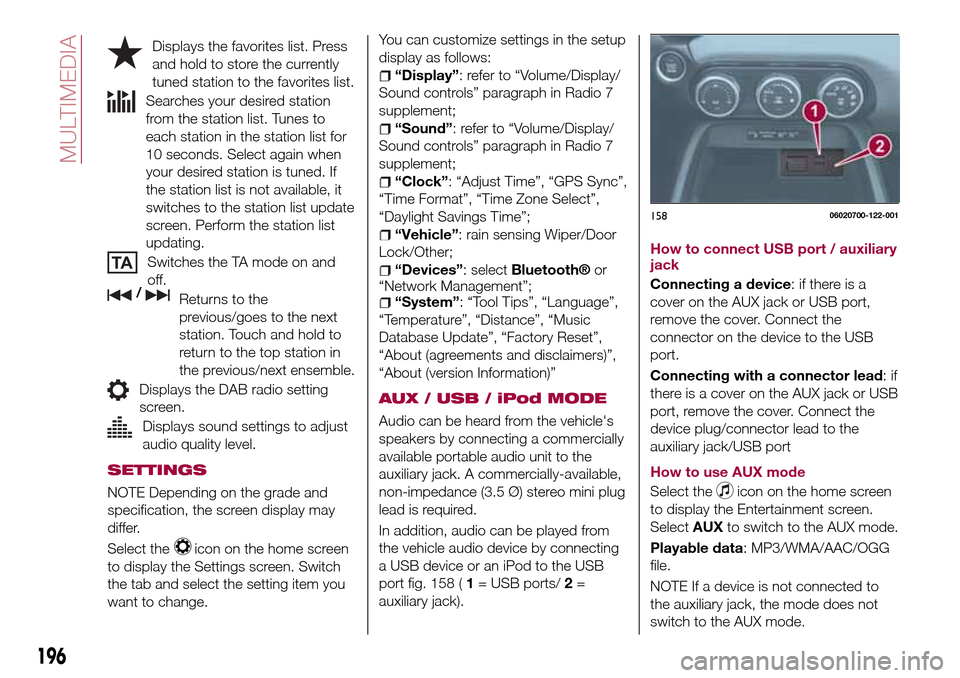
port fig. 158 (1= USB ports/2=
auxiliary jack).How to connect USB port / auxiliary
jack
Connecting a device: if there is a
cover on the AUX jack or USB port,
remove the cover. Connect the
connector on the device to the USB
port.
Connecting with a connector lead:if
there is a cover on the AUX jack or USB
port, remove the cover. Connect the
device plug/connector lead to the
auxiliary jack/USB port
How to use AUX mode
Select the
icon on the home screen
to display the Entertainment screen.
SelectAUXto switch to the AUX mode.
Playable data: MP3/WMA/AAC/OGG
file.
NOTE If a device is not connected to
the auxiliary jack, the mode does not
switch to the AUX mode.
15806020700-122-001
196
MULTIMEDIA
Page 201 of 216
iDisplays the screen where traffic
information and the GPS reception
conditions can be set and verified.
Cancels waypoint/route.
Finds Places nearby. You can
search for Points Of Interest (POI) near
the vehicle position.
Displays the route parameters
and the route in its full length on the
map. You can also perform
route-related actions such as editing or
cancelling your route, picking route
alternatives, avoiding parts of the route,
simulating navigation or adding the
destination to your Favourites.
2D/3DChanges View mode. The
map view mode can be changed (2D
north up/2D heading up/3D).
Switches to the Settings screen
where you change navigation settings.
NOTE Some functions are not available
depending on some countries and
regions.
NAVIGATING ON THE MAP
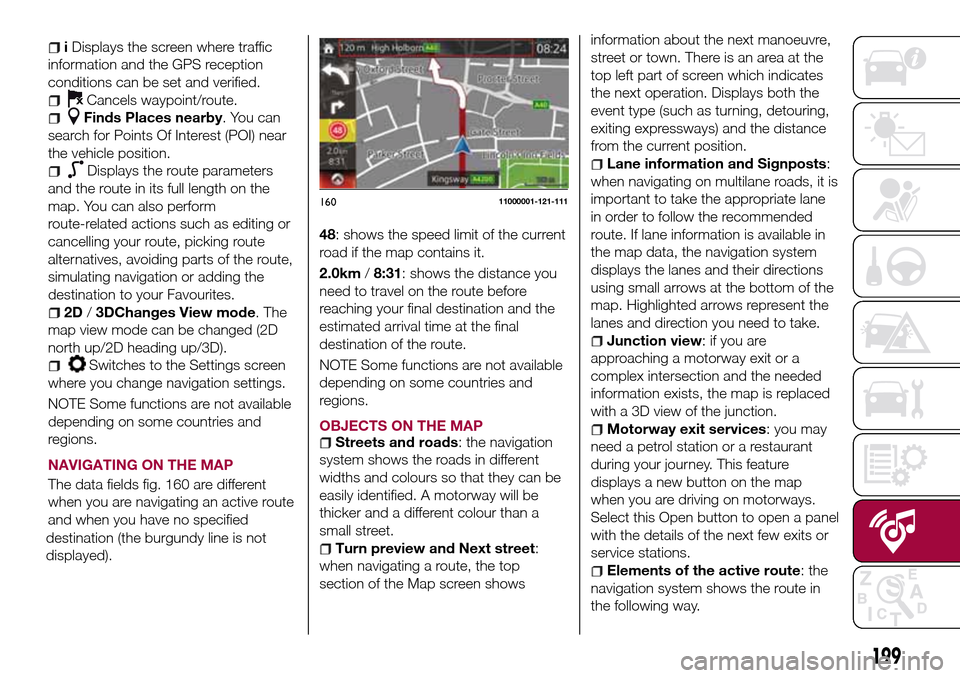
The data fields fig. 160 are different
when you are navigating an active route
and when you have no specified
destination (the burgundy line is not
displayed).48: shows the speed limit of the current
road if the map contains it.
2.0km/8:31: shows the distance you
need to travel on the route before
reaching your final destination and the
estimated arrival time at the final
destination of the route.
NOTE Some functions are not available
depending on some countries and
regions.
OBJECTS ON THE MAP
Streets and roads: the navigation
system shows the roads in different
widths and colours so that they can be
easily identified. A motorway will be
thicker and a different colour than a
small street.
Turn preview and Next street:
when navigating a route, the top
section of the Map screen showsinformation about the next manoeuvre,
street or town. There is an area at the
top left part of screen which indicates
the next operation. Displays both the
event type (such as turning, detouring,
exiting expressways) and the distance
from the current position.
Lane information and Signposts:
when navigating on multilane roads, it is
important to take the appropriate lane
in order to follow the recommended
route. If lane information is available in
the map data, the navigation system
displays the lanes and their directions
using small arrows at the bottom of the
map. Highlighted arrows represent the
lanes and direction you need to take.
Junction view: if you are
approaching a motorway exit or a
complex intersection and the needed
information exists, the map is replaced
with a 3D view of the junction.
Motorway exit services: you may
need a petrol station or a restaurant
during your journey. This feature
displays a new button on the map
when you are driving on motorways.
Select this Open button to open a panel
with the details of the next few exits or
service stations.
Elements of the active route: the
navigation system shows the route in
the following way.
16011000001-121-111
199
Page 202 of 216
SELECTING THE DESTINATION OF
A ROUTE
Entering an address
To enter an address as the destination,
do as follows:
Selectafter selectingon the
MAP screen.
SelectFind Address. By default, the
navigation system proposes the country
and town where you are. If needed,
selectCountry, enter the first few
letters of the country name on the
keyboard, and select one country from
the list of results.
If needed, select a new town: select
Townand Start entering the name of
the town on the keyboard. Find the
town you need: the most likely town
name is always shown in the input field.
To accept it, select . If the desired
name does not show up, the names
that match the string appear in a list
after entering a couple of characters (to
open the list of results before it appears
automatically, select
and select
the town from the list).
Enter the street name: select
name of the town on the keyboard.
Find the street you need: the most likely
street name is always shown in the
input field. To accept it, select . If the
desired name does not show up, thenames that match the string appear in a
list after entering a couple of characters
(to open the list of results before it
appears automatically, select
and
select the street from the list).
Enter the house number: select
House Numberthen enter the house
number on the keyboard (to enter
letters, selectQWE). Select to finish
entering the address. (If the entered
house number cannot be found, the
midpoint of the street is selected as the
destination.
The selected location is shown on
the map. NavigationStartif is selected,
or after 10 seconds of no user
interaction. By touching the location
displayed on the screen, you can verify
the route. Additionally, the route can be
revised by selecting other options.
Selecting the destination from the
POI
(Point Of Interest)
If the name for a POI (Point Of Interest)
is input, a search candidate list is
displayed.
Proceed as follows:
Selectafter selectingon the
MAP screen.
SelectFind Places.
SelectFilter by Name.
Using the keyboard, enter the name
of the POI (Point Of Interest). Afterentering a few letters, select to open
the list of POI with names containing
the entered character sequence.
The selected location is shown on
the map. The system transitions to the
next screen by selectingNavigate To,
or it returns to the previous screen by
selecting the
can change the destination to anywhere
on the map.
Selecting the destination from your
Favourites
Proceed as follows:
Selectafter selectingon the
MAP screen.
In the Navigation menu, select
Favourites. WhenFavouritesis
selected, the screen transfers to the
Favourites screen. Select your
registered favourite.
The selected location is shown on
the map. The system transitions to the
next screen by selectingNavigate To,
or it returns to the previous screen by
selecting the
can change the destination to anywhere
on the map.
Navigation starts ifStartis selected,
or after 10 seconds of no user
interaction. By touching the location
displayed on the screen, you can verify
200
MULTIMEDIA