phone FIAT 500 ABARTH 2014 2.G User Guide
[x] Cancel search | Manufacturer: FIAT, Model Year: 2014, Model line: 500 ABARTH, Model: FIAT 500 ABARTH 2014 2.GPages: 88, PDF Size: 5.56 MB
Page 2 of 88
The driver’s primary responsibility is the safe operation of the vehicle. Driving while distracted can result in loss of vehicle control, resulting in an accident and personal injury. Chrysler Group LLC strongly recommends that the driver use extreme caution when using any device or feature that may take their attention off the road. Use of any electrical devices such as cell phones, computers, portable radios, vehicle navigation or other devices by the driver while the vehicle is moving is dangerous and could lead to a serious accident. Texting while driving is also DANGEROUS
Page 5 of 88
VEHICLES SOLD IN CANADA
With respect to any vehicles sold in Canada, the name Chrysler Group LLC shall be
deemed to be deleted and the name Chrysler Canada Inc. used in substitution.
WARNING!
• Pedals that cannot move freely can cause loss of vehicle control and in-
crease the risk of serious personal injury.
• Always make sure that objects cannot fall into the driver foot well while the
vehicle is moving. Objects can become trapped under the brake pedal and
accelerator pedal causing a loss of vehicle control.
• Failure to properly follow floor mat installation or mounting can cause inter-
ference with the brake pedal and accelerator pedal operation causing loss of
control of the vehicle.
• Never leave children alone in a vehicle, or with access to an unlocked ve-
hicle. Allowing children to be in a vehicle unattended is dangerous for a num-
ber of reasons. A child or others could be seriously or fatally injured. Children
should be warned not to touch the parking brake, brake pedal or the shift
lever.
• Never use the ‘PARK’ position as a substitute for the parking brake. Always
apply the parking brake fully when parked to guard against vehicle move-
ment and possible injury or damage.
• Refer to your Owner's Manual on the DVD for further details.
Use Of Aftermarket Products (Electronics)
The use of aftermarket devices including cell phones, MP3 players, GPS systems,
or chargers may affect the performance of on-board wireless features including Re-
mote Start range. If you are experiencing difficulties with any of your wireless fea-
tures, try disconnecting your aftermarket devices to see if the situation improves. If
your symptoms persist, please see an authorized dealer.
FIAT is a registered trademark of FIAT Group Marketing & Corporate Communica-
tion SpA, used under license by Chrysler Group LLC.
COPYRIGHT ©2013 Chrysler Group LLC
INTRODUCTION/WELCOME
3
Page 39 of 88
Tuner
• Press the TUNER button to select between AM, FM, SAT (SiriusXM Satellite Ra-
dio) modes.
Info
• Press the Info button to view Song, Artist, Album, Genre, Playlist, Folder informa-
tion (if available) in CD, Media Player and SiriusXM Satellite Radio (if so equipped).
Also, the Info button toggles RDS information in FM mode.
Menu
• Press the MENU button and one of the following options will appear on the Radio
display. Use the up and down arrows to scroll through the options; use the left
and right arrows to change a selection setting.
• Speech Volume • SiriusXM Telephone Number
• Aux Audio Offset • System Reset
• Radio Off • On Volume Limit
• Sat ID • Speed Volume
Station Presets
• To store a tuned station, find the station to store by either pressing the right and
left arrow (Seek) buttons or by pressing up or down arrow (Manual Tune) buttons.
• Once the station is found, press and hold one of the PRESET buttons, until you
hear a confirmation beep (Preset Saved will be shown in the radio display). A total
of 15 FM, 10 AM and 15 SiriusXM Satellite Radio stations can be preset by
pressing the A-B-C button.
A-B-C Button
• Press the A-B-C button to choose between the presets stored in the AM, FM or
SAT modes. The mode (AM, FM, SAT), station preset (A, B, C) and preset button
number (P 1-5) will be displayed in the middle of the radio display.
ELECTRONICS
37
Page 40 of 88
STEERING WHEEL AUDIO CONTROLS
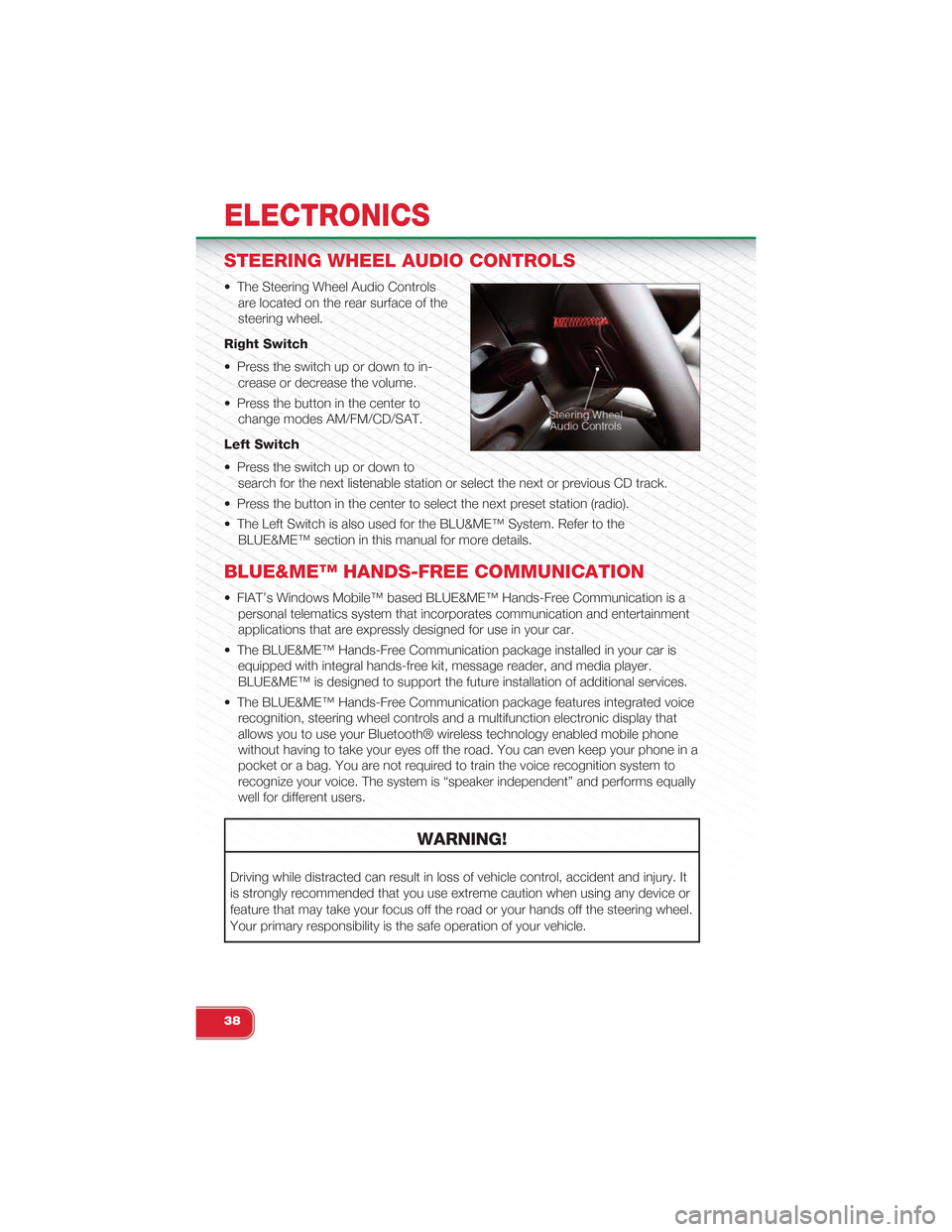
• The Steering Wheel Audio Controls
are located on the rear surface of the
steering wheel.
Right Switch
• Press the switch up or down to in-
crease or decrease the volume.
• Press the button in the center to
change modes AM/FM/CD/SAT.
Left Switch
• Press the switch up or down to
search for the next listenable station or select the next or previous CD track.
• Press the button in the center to select the next preset station (radio).
• The Left Switch is also used for the BLU&ME™ System. Refer to the
BLUE&ME™ section in this manual for more details.
BLUE&ME™ HANDS-FREE COMMUNICATION
• FIAT’s Windows Mobile™ based BLUE&ME™ Hands-Free Communication is a
personal telematics system that incorporates communication and entertainment
applications that are expressly designed for use in your car.
• The BLUE&ME™ Hands-Free Communication package installed in your car is
equipped with integral hands-free kit, message reader, and media player.
BLUE&ME™ is designed to support the future installation of additional services.
• The BLUE&ME™ Hands-Free Communication package features integrated voice
recognition, steering wheel controls and a multifunction electronic display that
allows you to use your Bluetooth® wireless technology enabled mobile phone
without having to take your eyes off the road. You can even keep your phone in a
pocket or a bag. You are not required to train the voice recognition system to
recognize your voice. The system is “speaker independent” and performs equally
well for different users.
WARNING!
Driving while distracted can result in loss of vehicle control, accident and injury. It
is strongly recommended that you use extreme caution when using any device or
feature that may take your focus off the road or your hands off the steering wheel.
Your primary responsibility is the safe operation of your vehicle.
ELECTRONICS
38
Page 41 of 88
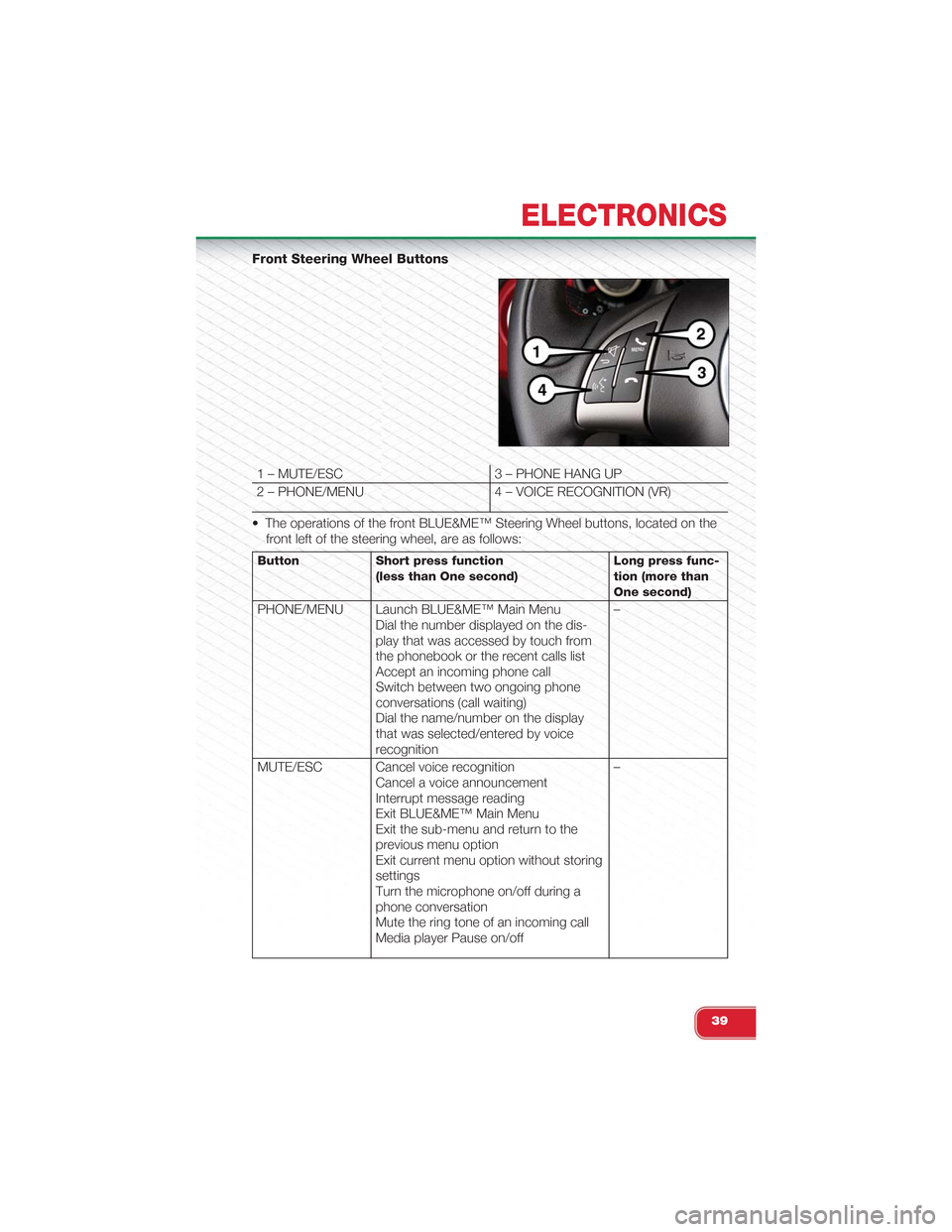
Front Steering Wheel Buttons
1 – MUTE/ESC 3 – PHONE HANG UP
2 – PHONE/MENU 4 – VOICE RECOGNITION (VR)
• The operations of the front BLUE&ME™ Steering Wheel buttons, located on the
front left of the steering wheel, are as follows:
Button Short press function(less than One second)Long press func-tion (more thanOne second)
PHONE/MENU Launch BLUE&ME™ Main MenuDial the number displayed on the dis-play that was accessed by touch fromthe phonebook or the recent calls listAccept an incoming phone callSwitch between two ongoing phoneconversations (call waiting)Dial the name/number on the displaythat was selected/entered by voicerecognition
–
MUTE/ESC Cancel voice recognitionCancel a voice announcementInterrupt message readingExit BLUE&ME™ Main MenuExit the sub-menu and return to theprevious menu optionExit current menu option without storingsettingsTurn the microphone on/off during aphone conversationMute the ring tone of an incoming callMedia player Pause on/off
–
ELECTRONICS
39
Page 42 of 88
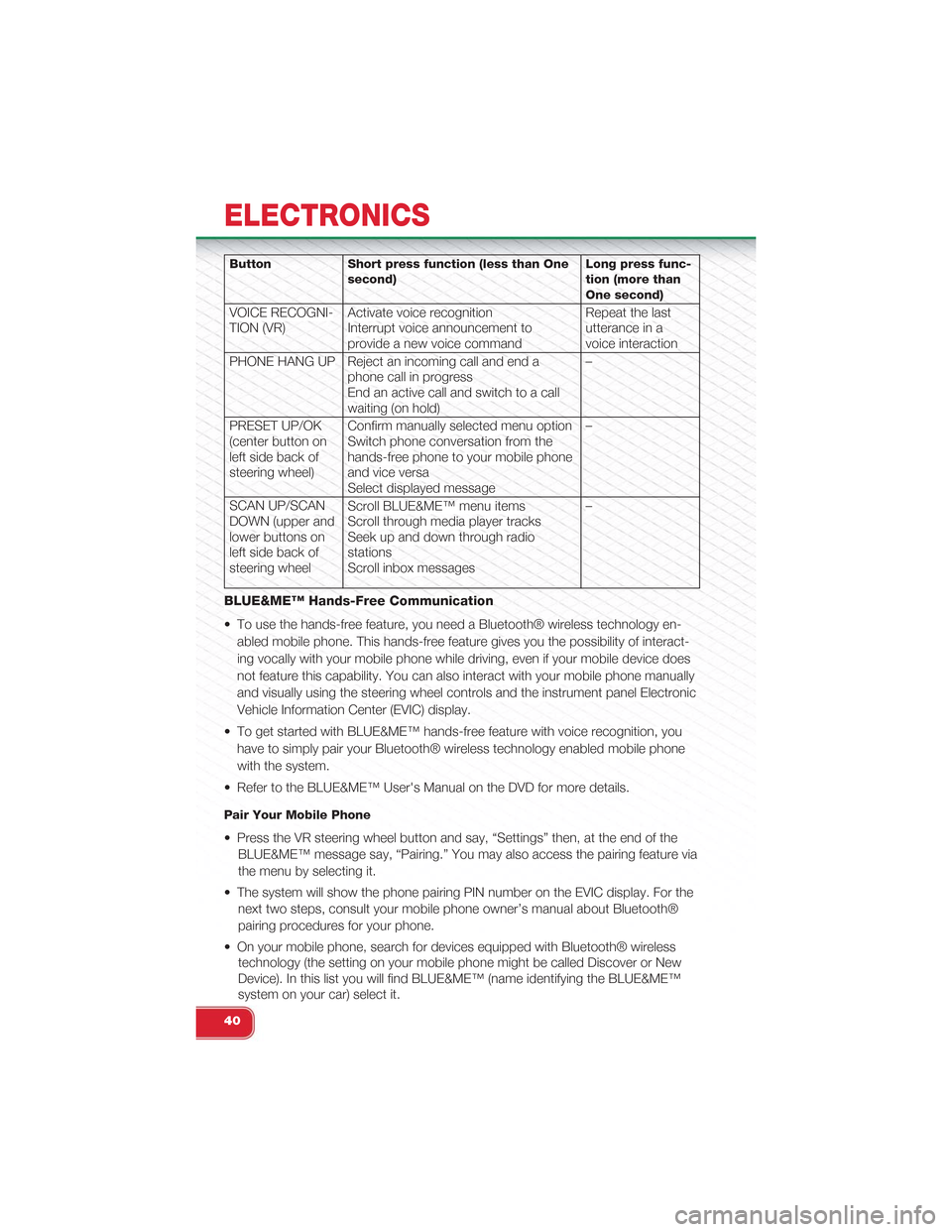
Button Short press function (less than Onesecond)Long press func-tion (more thanOne second)
VOICE RECOGNI-TION (VR)Activate voice recognitionInterrupt voice announcement toprovide a new voice command
Repeat the lastutterance in avoice interaction
PHONE HANG UP Reject an incoming call and end aphone call in progressEnd an active call and switch to a callwaiting (on hold)
–
PRESET UP/OK(center button onleft side back ofsteering wheel)
Confirm manually selected menu optionSwitch phone conversation from thehands-free phone to your mobile phoneand vice versaSelect displayed message
–
SCAN UP/SCANDOWN (upper andlower buttons onleft side back ofsteering wheel
Scroll BLUE&ME™ menu itemsScroll through media player tracksSeek up and down through radiostationsScroll inbox messages
–
BLUE&ME™ Hands-Free Communication
• To use the hands-free feature, you need a Bluetooth® wireless technology en-
abled mobile phone. This hands-free feature gives you the possibility of interact-
ing vocally with your mobile phone while driving, even if your mobile device does
not feature this capability. You can also interact with your mobile phone manually
and visually using the steering wheel controls and the instrument panel Electronic
Vehicle Information Center (EVIC) display.
• To get started with BLUE&ME™ hands-free feature with voice recognition, you
have to simply pair your Bluetooth® wireless technology enabled mobile phone
with the system.
• Refer to the BLUE&ME™ User's Manual on the DVD for more details.
Pair Your Mobile Phone
• Press the VR steering wheel button and say, “Settings” then, at the end of the
BLUE&ME™ message say, “Pairing.” You may also access the pairing feature via
the menu by selecting it.
• The system will show the phone pairing PIN number on the EVIC display. For the
next two steps, consult your mobile phone owner’s manual about Bluetooth®
pairing procedures for your phone.
• On your mobile phone, search for devices equipped with Bluetooth® wireless
technology (the setting on your mobile phone might be called Discover or New
Device). In this list you will find BLUE&ME™ (name identifying the BLUE&ME™
system on your car) select it.
ELECTRONICS
40
Page 43 of 88
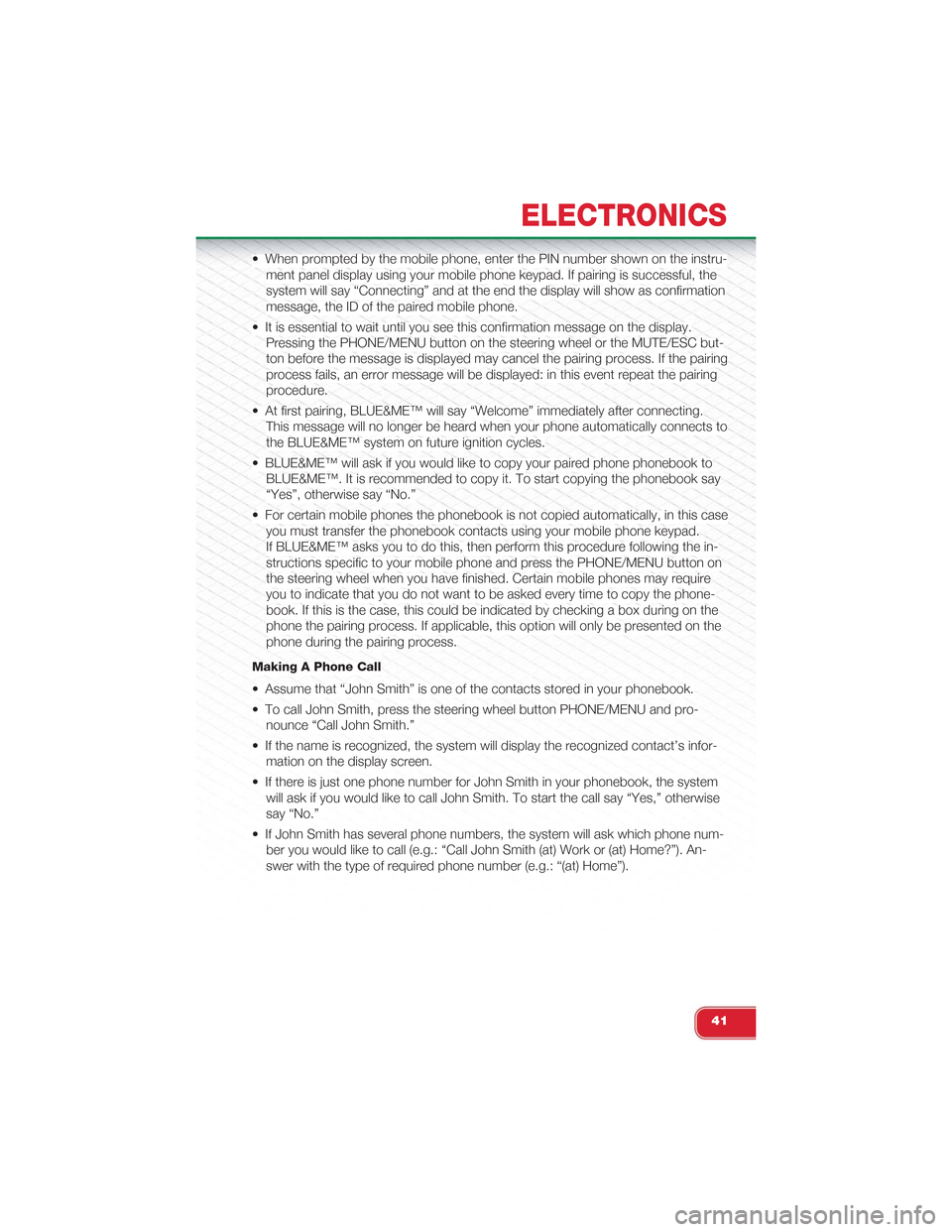
• When prompted by the mobile phone, enter the PIN number shown on the instru-
ment panel display using your mobile phone keypad. If pairing is successful, the
system will say “Connecting” and at the end the display will show as confirmation
message, the ID of the paired mobile phone.
• It is essential to wait until you see this confirmation message on the display.
Pressing the PHONE/MENU button on the steering wheel or the MUTE/ESC but-
ton before the message is displayed may cancel the pairing process. If the pairing
process fails, an error message will be displayed: in this event repeat the pairing
procedure.
• At first pairing, BLUE&ME™ will say “Welcome” immediately after connecting.
This message will no longer be heard when your phone automatically connects to
the BLUE&ME™ system on future ignition cycles.
• BLUE&ME™ will ask if you would like to copy your paired phone phonebook to
BLUE&ME™. It is recommended to copy it. To start copying the phonebook say
“Yes”, otherwise say “No.”
• For certain mobile phones the phonebook is not copied automatically, in this case
you must transfer the phonebook contacts using your mobile phone keypad.
If BLUE&ME™ asks you to do this, then perform this procedure following the in-
structions specific to your mobile phone and press the PHONE/MENU button on
the steering wheel when you have finished. Certain mobile phones may require
you to indicate that you do not want to be asked every time to copy the phone-
book. If this is the case, this could be indicated by checking a box during on the
phone the pairing process. If applicable, this option will only be presented on the
phone during the pairing process.
Making A Phone Call
• Assume that “John Smith” is one of the contacts stored in your phonebook.
• To call John Smith, press the steering wheel button PHONE/MENU and pro-
nounce “Call John Smith.”
• If the name is recognized, the system will display the recognized contact’s infor-
mation on the display screen.
• If there is just one phone number for John Smith in your phonebook, the system
will ask if you would like to call John Smith. To start the call say “Yes,” otherwise
say “No.”
• If John Smith has several phone numbers, the system will ask which phone num-
ber you would like to call (e.g.: “Call John Smith (at) Work or (at) Home?”). An-
swer with the type of required phone number (e.g.: “(at) Home”).
ELECTRONICS
41
Page 44 of 88
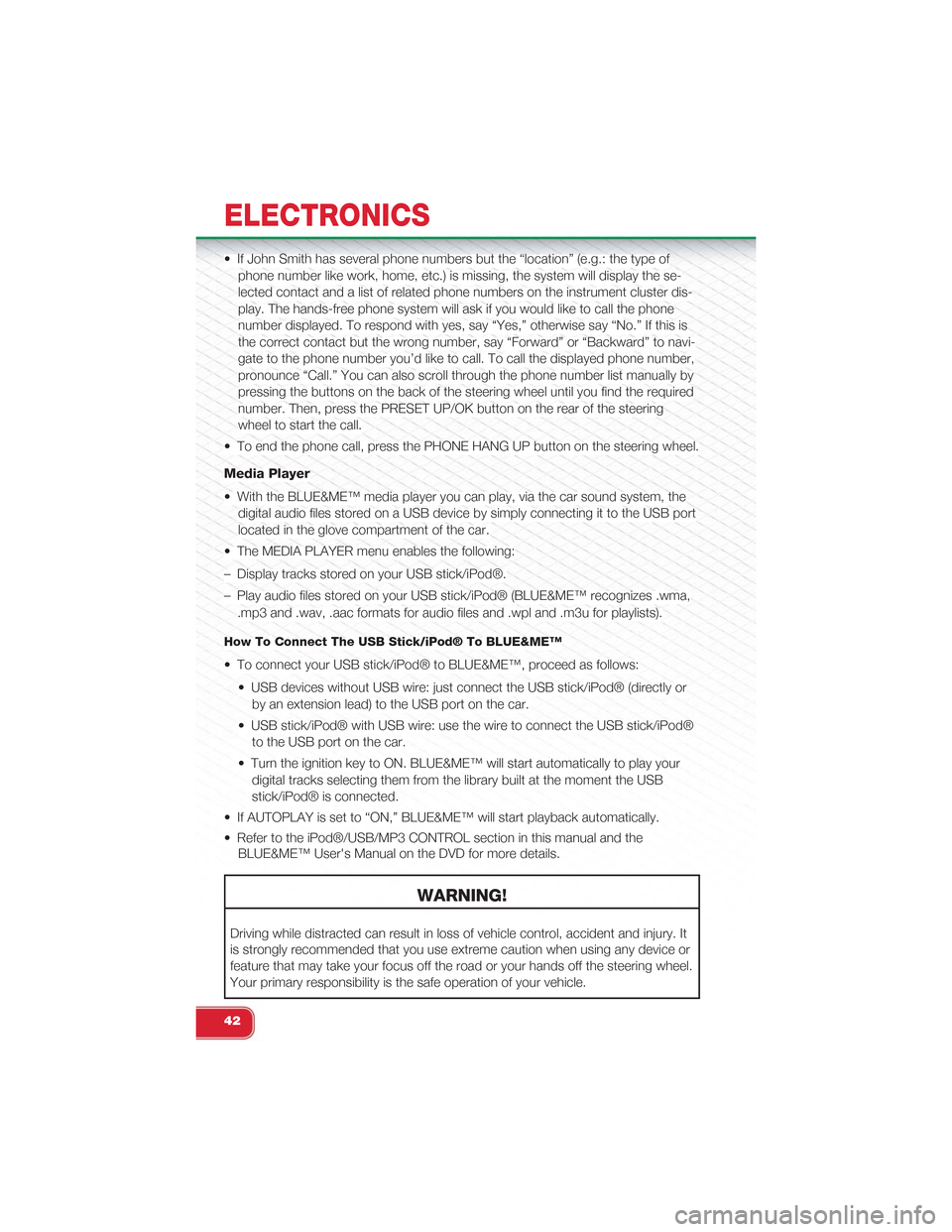
• If John Smith has several phone numbers but the “location” (e.g.: the type of
phone number like work, home, etc.) is missing, the system will display the se-
lected contact and a list of related phone numbers on the instrument cluster dis-
play. The hands-free phone system will ask if you would like to call the phone
number displayed. To respond with yes, say “Yes,” otherwise say “No.” If this is
the correct contact but the wrong number, say “Forward” or “Backward” to navi-
gate to the phone number you’d like to call. To call the displayed phone number,
pronounce “Call.” You can also scroll through the phone number list manually by
pressing the buttons on the back of the steering wheel until you find the required
number. Then, press the PRESET UP/OK button on the rear of the steering
wheel to start the call.
• To end the phone call, press the PHONE HANG UP button on the steering wheel.
Media Player
• With the BLUE&ME™ media player you can play, via the car sound system, the
digital audio files stored on a USB device by simply connecting it to the USB port
located in the glove compartment of the car.
• The MEDIA PLAYER menu enables the following:
– Display tracks stored on your USB stick/iPod®.
– Play audio files stored on your USB stick/iPod® (BLUE&ME™ recognizes .wma,
.mp3 and .wav, .aac formats for audio files and .wpl and .m3u for playlists).
How To Connect The USB Stick/iPod® To BLUE&ME™
• To connect your USB stick/iPod® to BLUE&ME™, proceed as follows:
• USB devices without USB wire: just connect the USB stick/iPod® (directly or
by an extension lead) to the USB port on the car.
• USB stick/iPod® with USB wire: use the wire to connect the USB stick/iPod®
to the USB port on the car.
• Turn the ignition key to ON. BLUE&ME™ will start automatically to play your
digital tracks selecting them from the library built at the moment the USB
stick/iPod® is connected.
• If AUTOPLAY is set to “ON,” BLUE&ME™ will start playback automatically.
• Refer to the iPod®/USB/MP3 CONTROL section in this manual and the
BLUE&ME™ User's Manual on the DVD for more details.
WARNING!
Driving while distracted can result in loss of vehicle control, accident and injury. It
is strongly recommended that you use extreme caution when using any device or
feature that may take your focus off the road or your hands off the steering wheel.
Your primary responsibility is the safe operation of your vehicle.
ELECTRONICS
42
Page 45 of 88
iPod®/USB/MP3 CONTROL
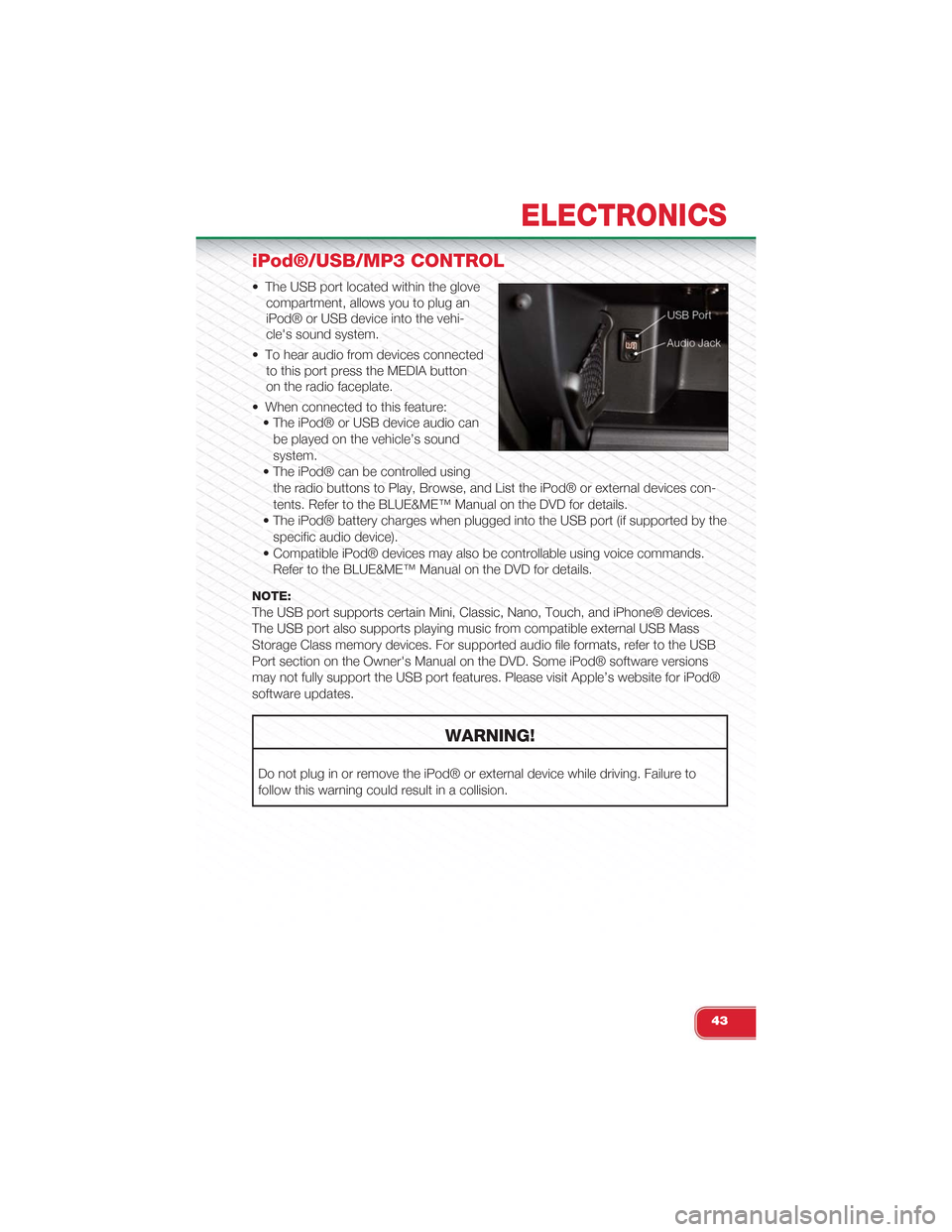
• The USB port located within the glove
compartment, allows you to plug an
iPod® or USB device into the vehi-
cle's sound system.
• To hear audio from devices connected
to this port press the MEDIA button
on the radio faceplate.
• When connected to this feature:
• The iPod® or USB device audio can
be played on the vehicle’s sound
system.
• The iPod® can be controlled using
the radio buttons to Play, Browse, and List the iPod® or external devices con-
tents. Refer to the BLUE&ME™ Manual on the DVD for details.
• The iPod® battery charges when plugged into the USB port (if supported by the
specific audio device).
• Compatible iPod® devices may also be controllable using voice commands.
Refer to the BLUE&ME™ Manual on the DVD for details.
NOTE:
The USB port supports certain Mini, Classic, Nano, Touch, and iPhone® devices.
The USB port also supports playing music from compatible external USB Mass
Storage Class memory devices. For supported audio file formats, refer to the USB
Port section on the Owner's Manual on the DVD. Some iPod® software versions
may not fully support the USB port features. Please visit Apple’s website for iPod®
software updates.
WARNING!
Do not plug in or remove the iPod® or external device while driving. Failure to
follow this warning could result in a collision.
ELECTRONICS
43
Page 50 of 88
24-HOUR ROADSIDE ASSISTANCE
• If your Abarth requires jump start assistance, out of gas/fuel delivery, tire service,
lockout service or towing due to a defect covered under the Basic Limited War-
ranty, dial toll-free 1-888-242-6342. See your Warranty booklet for further details.
• Provide your name, vehicle identification number and license plate number.
• Provide your location, including telephone number, from which you are calling.
• Briefly describe the nature of the problem and answer a few simple questions.
• You will be given the name of the service provider and an estimated time of ar-
rival. If you feel you are in an “unsafe situation,” please let us know. With your
consent, we will contact local police or safety authorities.
INSTRUMENT CLUSTER WARNING LIGHTS
- Generic Warning Light
• The Generic Warning Light will illuminate if any of the following conditions occur:
Oil Change Request, Engine Oil Pressure Sensor Failure, External Light Failure,
Fuel Cut-Off Intervention, Fuel Cut-Off Not Available, Parking Sensor Failure.
- Power Steering System Warning
•This light is used to manage the electrical warning of the EPS (Electric Power SteeringSystem). When the ignition is turned to the ON/RUN position, the warning light will illu-minate momentarily. If the warning light stays on, cycle the ignition to the OFF positionand back to ON/RUN. If the warning light stays on, contact your authorized Fiat Dealer.
If the warning light switches on while driving you may not have steering assistance.
Although it will still be possible to steer the car, the effort needed to operate the steer-
ing wheel could be increased: contact an authorized Fiat Dealer as soon as possible.
Refer to “Power Steering” in “Starting and Operating” for further information.
- Engine Temperature Warning Light
• This light warns of an overheated engine condition.
• If the light turns on or flashes continuously while driving, safely pull over and stop
the vehicle. If the A/C system is on, turn it off. Also, shift the transmission into
NEUTRAL and idle the vehicle. If the temperature reading does not return to nor-
mal, turn the engine off immediately.
• We recommend that you do not operate the vehicle or engine damage will occur.
Have the vehicle serviced immediately.
WARNING!
A hot engine cooling system is dangerous. You or others could be badly burned
by steam or boiling coolant.
WHAT TO DO IN EMERGENCIES
48