buttons FIAT 500 ABARTH 2015 2.G User Guide
[x] Cancel search | Manufacturer: FIAT, Model Year: 2015, Model line: 500 ABARTH, Model: FIAT 500 ABARTH 2015 2.GPages: 426, PDF Size: 9.89 MB
Page 143 of 426
UNDERSTANDING YOUR INSTRUMENT PANEL
CONTENTS
!INSTRUMENT PANEL FEATURES..........143
!TURBO BOOST GAUGE..................144
!INSTRUMENT CLUSTER — ECO...........145
!INSTRUMENT CLUSTER — POP, LOUNGE,
500C................................146
!INSTRUMENT CLUSTER.................147
!INSTRUMENT CLUSTER DESCRIPTIONS.....148
!ELECTRONIC VEHICLE INFORMATION CENTER
(EVIC)..............................161
▫EVIC Displays.......................162
▫EVIC Control Buttons..................163
▫Electronic Vehicle Information Center (EVIC)
Setup Menu.........................164
▫Change Engine Oil Indicator System........165
▫Trip Computer.......................166
▫Trip Button..........................166
▫Trip Functions.......................167
▫Values Displayed......................168
▫Personal Settings (Customer-Programmable
Features)............................169
4
Page 165 of 426
5. Red Telltales (Right Bank)
•Trunk Ajar
•Transmission Failure
•Battery Charge Indicator
6. Exceeded Speed Limiter
7. Shift Up or Down Indicators
8. Gear Indicator
EVIC Control Buttons
Push and release theMENUbutton briefly to access the
EVIC. Push and hold theMENUbutton (approximately
one second) to return to the main screen.
Push and release the UPbutton to scroll upward
through the displayed menu and the related options
or to increase the displayed value.
Push and release the DOWNbutton to scroll down-
ward through the displayed menu and the related
options or to decrease the value displayed.
NOTE:UPand DOWNbuttons activate differ-
ent functions according to the following situations:
•To scroll the menu options upwards or downwards.
•To increase or decrease values during settings.
NOTE:When opening one of the front doors, the EVIC
display will turn on the clock and the miles or kilometers
covered (for versions/markets, where provided) for a
few seconds.
4
UNDERSTANDING YOUR INSTRUMENT PANEL 163
Page 172 of 426
2. Briefly push and release theMENUbutton to go back
to the menu screen or push and hold theMENU
(approximately one second) to go back to the main
screen without storing settings.
Speed Beep (Speed Limit)
With this function, it is possible to set the car speed limit
(mph or km/h) to immediately alert the driver when the
set limit is exceeded.
To set the speed limit, proceed as follows:
1. Briefly push and release theMENUbutton to enter the
MainMENU.
2. Push and release the UPor DOWNbutton to
select Speed Beep. Push and release the MENU
button, push and release the UPor DOWN
buttons to select Speed Limit activation (On) or
deactivation (Off).
3. When the function is activated (On), briefly push and
release theMENUbutton to display the presently set
activation speed. Pushing the UPor DOWN
buttons selects the speed limit. Push and release
theMENUbutton to confirm selection.
NOTE:The setting can be increased or decreased by
5 mph or km/h each time the UP/DOWN button is
pushed for speed settings above 20 mph (32 km/h). To
increase or decrease the set speed rapidly, push and hold
the UP/DOWN button. Save the setting by briefly push-
ing the button when you approach the required setting.
•Briefly push and release theMENUbutton to go back
to the menu screen, or push and hold theMENU
button (approximately one second) to go back to the
main screen without storing the settings.
170 UNDERSTANDING YOUR INSTRUMENT PANEL
Page 173 of 426
To cancel the setting, proceed as follows:
1. Briefly push and release theMENUbutton. “On” will
flash on the display.
2. Push and release the DOWNbutton. “Off” will
flash on the display.
3. Briefly push and release theMENUbutton to go back
to the menu screen, or push and hold theMENU
button (approximately one second) to go back to the
main screen without storing the settings.
Trip B Data (Trip B On)
Through this option, it is possible to activate (On) or
deactivate (Off) the Trip B (partial trip) display.
For further information, see “Trip Computer.”
For activation / deactivation, proceed as follows:
1. Briefly push and release theMENUbutton.
2. Push and release the UPor DOWNbutton to
select Trip B data. Push and release the UPor
DOWNbuttons to turn ON or OFF
3. Briefly push and release theMENUbutton to go back
to the menu screen, or push and hold theMENU
button (approximately one second) to go back to the
main screen without storing the settings.
Set Time (Clock)
This function may be used to set the clock through two
submenu items: “Time” and “Mode.”
Proceed as follows:
1. Briefly push and release theMENUbutton. Push and
release the UPor DOWNbuttons to highlight
Set Time — Push and release the MENU button.
2. Push and release the UPor DOWNbutton to
navigate the two sub-menu items.
4
UNDERSTANDING YOUR INSTRUMENT PANEL 171
Page 180 of 426
Button Volume (Button Volume Adjustment)
This function may be used to adjust the volume of the
beep accompanying the buttons.MENU,UPor
DOWNbuttons can be adjusted according to 8
levels.
To adjust the volume, proceed as follows:
1. Briefly push and release theMENUbutton. Push and
release the UPor DOWNbutton to highlight
the Buzzer Volume, push and release theMENU
button.
2. Push and release the UPor DOWNbutton for
setting.
3. Briefly push and release theMENUbutton to go back
to the menu screen, or push and hold theMENU
button (approximately one second) to go back to the
main screen without storing the settings.
Belt Buzzer (Buzzer Activation For S.B.R.
Indication)
This function will only be displayed after a FIAT Group
Automobiles dealership has deactivated the S.B.R. sys-
tem.
Daytime Running Lamps (DRL)
This function may be used to activate / deactivate the
Daytime Running Lamps.
Proceed as follows to switch this function on or off:
1. Briefly push and release theMENUbutton. Push and
release the Upor DOWNbutton to highlight
Daytime Running Lamps (DRL). Push and release
the MENU button to enter the DRLMENU.
2. Briefly push and release theMENUbutton. “On” or
“Off” will flash on the display (according to previous
setting).
178 UNDERSTANDING YOUR INSTRUMENT PANEL
Page 190 of 426
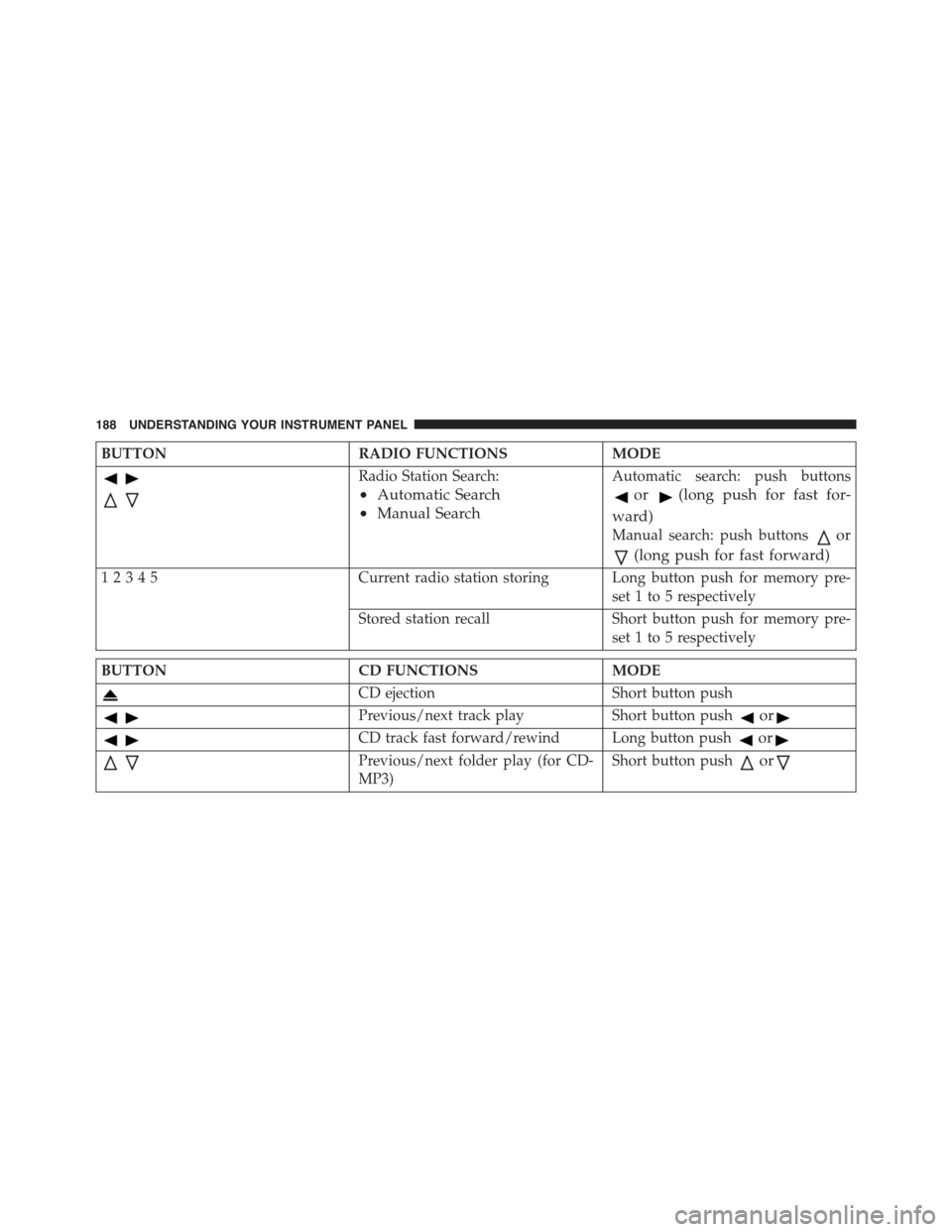
BUTTONRADIO FUNCTIONSMODE
Radio Station Search:
•Automatic Search
•Manual Search
Automatic search: push buttons
or(long push for fast for-
ward)
Manual search: push buttonsor
(long push for fast forward)
12345Current radio station storing Long button push for memory pre-
set 1 to 5 respectively
Stored station recall Short button push for memory pre-
set 1 to 5 respectively
BUTTONCD FUNCTIONSMODE
CD ejectionShort button push
Previous/next track playShort button pushor
CD track fast forward/rewind Long button pushor
Previous/next folder play (for CD-
MP3)
Short button pushor
188 UNDERSTANDING YOUR INSTRUMENT PANEL
Page 193 of 426
Selecting The CD Function
By briefly pushing the MEDIA button, the CD audio
source can be selected (only if a CD is loaded).
Volume Adjustment
To adjust the volume, push the buttons +Vol or –Vol to
increase/decrease the volume.
Mute/Pause Function
Push thebutton briefly to activate the MUTE func-
tion. The volume will gradually decrease and the
wording “TUNER Mute” will be shown on the display
(in radio mode) or “CD Pause” (in CD mode).
Push thebutton again to deactivate the MUTE
function. The volume will gradually increase until it
reaches the previously set level.
When the volume level is changed using the dedicated
controls, the Mute function is deactivated and the vol-
ume is adjusted to the new level selected.
Audio Adjustment
The functions that can be selected from the audio menu
change depending on the context: AM/FM/MEDIA/
SATELLITE.
Push the AUDIO button briefly to change the Audio
functions. After the AUDIO button is first pushed, the
display will show the Bass level value for the source
activated at that time (e.g. in FM mode the display will
show the wording “FM Bass +2”).
Use the buttonsorto scroll through the Menu
functions. To change the setting of the selected func-
tion, use theorbuttons.
The current status of the selected function appears on the
display.
The functions managed by the Audio Menu are:
•BASS (Bass adjustment)
4
UNDERSTANDING YOUR INSTRUMENT PANEL 191
Page 194 of 426
•MIDRANGE (Midrange adjustment)
•TREBLE (Treble adjustment)
•BALANCE (right/left Balance adjustment)
•FADER (front/rear Balance adjustment)
•LOUDNESS — if equipped (Loudness function
activation/deactivation)
•EQUALIZER — if equipped (activation and selection
of factory equalization adjustments)
•USER EQUALIZER — if equipped (customized equal-
ization adjustment)
Tone Adjustment
Proceed as follows:
1. Push the AUDIO button.
2. Push theorbutton to select “Bass,” “Mid-
range” or “Treble” in the AUDIO menu.
3. Push theorbutton to increase/decrease the
bass or treble adjustments.
By pushing theorbuttons briefly, the levels will
change progressively. By pushing them down longer,
the levels will change quickly.
Balance Adjustment
Proceed as follows:
1. Push the AUDIO button.
2. Push theorbutton to set “Balance” in the
AUDIO menu.
3. Push thebutton to increase the sound from the
left speakers or thebutton to increase the sound
from the right speakers.
192 UNDERSTANDING YOUR INSTRUMENT PANEL
Page 195 of 426
By pushing theorbuttons briefly, the levels will
change progressively. By pushing them down longer,
the levels will change quickly.
Select the value “0” to set the right and left audio outputs
at the same level.
Fader Adjustment
Proceed as follows:
1. Push the AUDIO button.
2. Push theorbutton to set “Fader” in the
AUDIO menu.
3. Push thebutton to increase the sound coming
from the rear speakers or thebutton to increase
the sound coming from the front speakers.
By pushing theorbuttons briefly, the levels will
change progressively. By pushing them down longer,
the levels will change quickly.
Select the value “0” to set the right and left audio outputs
at the same level.
Loudness Function — If Equipped
The Loudness function improves the volume of the
sound while listening at low volumes, increasing the bass
and treble.
To activate/deactivate this function, select the “Loud-
ness” setting in the AUDIO menu. The condition of the
function (on or off) is shown on the display for a few
seconds by the wording “Loudness On” or “Loudness
Off”.
Preset/User/Classic/Rock/Jazz Functions — If
Equipped
The built-in equalizer can be activated/deactivated.
When the equalizer function is off, the audio settings can
only be changed by adjusting the “Bass” and “Treble”
settings, whereas when the function is on, the acoustic
4
UNDERSTANDING YOUR INSTRUMENT PANEL 193
Page 196 of 426
curves can be adjusted. To deactivate the equalizer, select
the “EQ Preset” function in the audio menu.
To activate the equalizer, use the AUDIO button to select
one of the adjustments:
•“EQ User” (adjustment of 7 equalizer bands that can
be changed by the user)
•“Classic” (equalizer preset for optimal classic music
sound)
•“Rock” (equalizer preset for optimal rock and pop
music sound)
•“Jazz” (equalizer preset for optimal jazz music sound)
When one of the equalizer adjustments is activated the
wording “EQ” lights up.
User EQ Settings Function — If Equipped
To set a personalized equalizer adjustment:
1. Push the AUDIO button.
2. Use theorbuttons to set EQ function.
3. Useorbuttons to select#EQ User.#
4. Push the MENU button to start adjusting equalizer.
5. On the display a seven bar graph will appear, in which
each bar represents a frequency. Select the bar to be
adjusted by using theorbuttons. The selected
bar will start to flash and it can be adjusted using
orbuttons.
6. To store the setting, push the MENU or AUDIO
buttons.
194 UNDERSTANDING YOUR INSTRUMENT PANEL