radio FIAT 500C 2013 2.G Owner's Manual
[x] Cancel search | Manufacturer: FIAT, Model Year: 2013, Model line: 500C, Model: FIAT 500C 2013 2.GPages: 423, PDF Size: 9.86 MB
Page 197 of 423
Manual Tuning
This is used to manually search for stations in the
preselected band.
Select the desired frequency band and then press briefly
and repeatedly theorbutton to start the search in
the desired direction. If theorbutton is pressed
longer, the fast search starts and then stops when the
button is released.
Stereophonic Broadcasters
If the incoming signal is weak, the reproduction is
automatically switched from Stereo to Mono.
SiriusXM Satellite Radio — If Equipped
Satellite Radio Antenna — If Equipped
The antenna for the satellite radio is mounted on the roof
of the vehicle. Do not place items on the roof around the
roof top antenna location. Objects placed within the line
of sight of the antenna will cause decreased performance.
Larger luggage items should be placed as far from the
antenna as possible. Do not place items directly on or
above the antenna.
SiriusXM Satellite Radio
With over 130 channels, SiriusXM Satellite Radio brings
you more of what you love. Get 69 channels of 100%
commercial-free music, plus all of your favorite sports,
news, talk and entertainment. Hear every NFL game,
every NASCAR race, college sports and more. The big-
gest and most compelling names in talk with Howard
Stern and Martha Stewart, laugh-out-loud comedy with
Jamie Foxx’s The Foxxhole and Blue Collar Comedy, plus
kids’ programming, world-class news, local traffic and
weather. All of this with crystal clear, coast-to-coast
coverage. Everything worth listening to is now on
SiriusXM. A one-year SiriusXM Satellite Radio subscrip-
tion is included. SiriusXM and all related marks and
4
UNDERSTANDING YOUR INSTRUMENT PANEL 195
Page 198 of 423
logos are trademarks of SiriusXM Radio Inc. and its
subsidiaries. SiriusXM Radio requires a subscription,
sold separately after trial subscription included with
vehicle purchase. Prices and programming are provided
by SiriusXM and are subject to change. Subscriptions
governed by Terms & Conditions available at
sirius.com/service terms. SiriusXM Radio U.S. service
only available to those at least 18 years of age in the
48 contiguous United States, D.C., and PR. Service avail-
able in Canada; see www.siriuscanada.ca.
SiriusXM Satellite Radio Program Types
Program Types can be selected by pressing theor
buttons. The Program Type will change to the next
category and the radio will then tune to first station in
that program type. Pressingorbuttons will tune
to only the stations in that program type.
Pressing theorbuttons until#All#is displayed
will allow normal tuning to all stations.
The Program Types available are: All, Pop, Rock,
Electronic/Dance, Hip-Hop/R&B, Country, Christian,
Jazz/Standards, Classical, Latin/World, Sports, Enter-
tainment, Talk, News, NPR, Comedy, Family & Health,
Religion, Traffic/Weather.
You can find the SiriusXM current terms and conditions
at http://www.sirius.com.
Re-Subscribe To SiriusXM Satellite Radio
New vehicle purchasers or lessees will receive a free
limited time subscription to SiriusXM Satellite Radio
with their radio. Following expiration of the free services,
it will be necessary to access the information on the
Subscription Information screen in order to re-subscribe.
Press the UP/DOWN button to scroll through the Menu
Functions, and the Left/Right button to change the
selected Set-up Menu function.
196 UNDERSTANDING YOUR INSTRUMENT PANEL
Page 199 of 423
Write down the Electronic Serial Number (ESN) for your
receiver. To retrieve the Electronic Serial Number of
SiriusXM Satellite Receiver Module tune to Channel 0.
Make sure that when the order is placed, the ESN are
correct. If any of the ESN numbers are not entered
correctly, then the SiriusXM subscription will not be able
to be transferred to the new radio and will not be active
when installed in the customer ’s vehicle. To reactivate
your service, either call the number listed on the display
or visit the provider online.
CAUTION!
Neither SIRIUS nor FIAT is responsible for any
errors in accuracies in the SIRIUS data services or its
use in vehicles.
SiriusXM and all related marks and logos are trademarks
of SiriusXM Radio Inc. and its subsidiaries. SiriusXM
Radio requires a subscription, sold separately after trial
subscription included with vehicle purchase. Prices and
programming are provided by SiriusXM and are subject
to change. Subscriptions governed by Terms & Condi-
tions available at sirius.com/service terms. SiriusXM
Radio U.S. service only available to those at least 18 years
of age in the 48 contiguous United States, D.C., & PR.
Visit www.sirius.com
Sirius Subscription Issues When Replacing A
Sirius Radio
When a radio needs to be replaced, the studio will need
the SIRIUS information to order a new radio (even if the
SIRIUS subscription has lapsed). The ESN number con-
tains 12 digits.
4
UNDERSTANDING YOUR INSTRUMENT PANEL 197
Page 200 of 423
The following are instructions for retrieving the Elec-
tronic Serial Number (ESN) from FIAT 500 NAFTA model
radios:
To retrieve the ESN of SIRIUS Satellite Receiver Module
tune to Channel 0. Make sure that when the order is
placed, the ESN are correct. If any of the ESN numbers
are not entered correctly, then the SIRIUS subscription
will not be able to be transferred to the new radio and
will not be active when installed in the customer ’s
vehicle.
CD Player
Introduction
This chapter describes the operation of the CD player
only. To operate the radio, refer to the description in the
“Functions and Adjustments” chapter.
CD Player Selection
To activate the CD player built into the equipment,
proceed as follows:
•Load a CD with the equipment switched on. The first
track will start to play.
or
•If a CD has already been loaded, turn on the radio and
then briefly press the MEDIA button to select the “CD”
function mode. The last track listened to will start to
play.
It is advisable to use original CDs to ensure optimal
playing. If CD-R/RWs are used, we recommend using
good quality media that are burned at the slowest speed
possible.
198 UNDERSTANDING YOUR INSTRUMENT PANEL
Page 201 of 423
CD Loading/Ejecting
To load the CD, insert it gently into the slot to activate the
motorized loading system, which will position it cor-
rectly.
The CD can be loaded with the radio off and the ignition
key turned to ON/RUN. In this case, the radio will
remain off. When the radio is turned on, the last source
listened to before being switched off, will be activated.
When a CD is inserted, the display will show the symbol
“CD” and the wording “CD Reading.” They will remain
displayed for the whole time required for the radio to
read the CD. When this time has elapsed the radio
automatically starts playing the first track.
Press thebutton with the radio turned on, to
activate the motorized CD ejection system. After ejec-
tion, the last audio source listened to before playing
the CD will be heard.
If the CD is not removed from the radio, it will automati-
cally be reloaded about 20 seconds later but will not
resume playing until the#MEDIA#button is pressed to
select the CD mode. The radio will switch to the last
source prior to CD mode.
The CD cannot be ejected if the radio is off.
Possible Error Messages
If the loaded CD cannot be read (e.g. a CD ROM has been
inserted or the CD is inserted the wrong way or there is
a reading error) the display shows the wording “CD Disc
error.”
The CD will then be ejected and the audio source
activated before the CD mode selection will be heard.
A CD which cannot be read will not be ejected until these
functions are over. At the end, with the CD mode
activated, the display will show the wording “CD Disc
error” for a few seconds and then the CD will be ejected.
4
UNDERSTANDING YOUR INSTRUMENT PANEL 199
Page 203 of 423

NOTE:Layer-3 audio decoding technology is licensed
from Fraunhofer IIS and Thomson multimedia.
MP3 Mode
In addition to playing regular audio CDs, the radio is also
enabled to play CDROMs on which compressed audio
files have been recorded in an MP3 format.
To guarantee optimal reproduction, it is advisable to use
good quality CDs burned at the lowest speed possible.
The files on an MP3 CD are structured in folders that
create lists of all the folders containing MP3 tracks
(folders or subfolders are all on the same level). The
folders that do not contain MP3 tracks cannot be selected.
The specifications and operating conditions for playing
MP3 files are the following:
•The CD-ROMs used should be burned in accordance
with ISO standard 9660.
•The music files should have the extension “.mp3” or
“.wma” files with a different extension will not be
reproduced.
•The sampling frequencies that can be reproduced are:
44.1 kHz, stereo (from 96 to 320 kbit/s) – 22.05 kHz,
mono or stereo (from 32 to 80 kbit/s).
•Tracks with a variable bit-rate can be reproduced.
NOTE:The track names must not include the following
characters: spaces, ‘ (apostrophes), ( and ) (open and close
brackets). During the burning of a MP3 CD, make sure
that the names of the files do not contain these characters;
if not, the radio will not be able to play the tracks
involved.
Selecting MP3 Sessions With Hybrid Discs
If a hybrid disc is inserted (Mixed Mode, Enhanced,
CD-Extra) also containing MP3 files, the radio automati-
cally starts playing the audio session. It is possible to
4
UNDERSTANDING YOUR INSTRUMENT PANEL 201
Page 204 of 423
move to the MP3 session while playing by keeping the
CD button pressed for more than two seconds.
NOTE:When the function is activated the radio may take
a few seconds to start playing. While checking the disc
the display will show “CD Reading.” If no MP3 files are
detected, the radio will resume playing the audio session
from the point where it was interrupted.
Display Information
ID3–Tag Information Display
In addition to the information relating to the time
elapsed, folder name and file name, the radio is also
capable of displaying ID3–TAG information relating to
Title Track, Artist and Author.
When one of the ID3-TAG pieces of information is chosen
to be displayed (Title, Artist, Album) and this informa-
tion has not been recorded for the track played, the text
#UNKNOWN#will be displayed for that field.
Selection Of Next/Previous Folder
Press thebutton to select a next folder or the
button to select the previous folder. The display
will show the number of the folder.
The folders are selected cyclically. The first folder is
selected after the last folder and vice versa.
If no other folder/track is selected in the next 2 seconds,
the first track on the new folder will be played.
At that moment selected the last track in the folder is
playing, the next folder will be played.
Structure Of The Folders
The radio with MP3 player:
•Recognizes only the folders that effectively contain
MP3 format files
202 UNDERSTANDING YOUR INSTRUMENT PANEL
Page 205 of 423

•If the MP3 files on a CD-ROM are structured in
sub-folders their structure is compressed to a single
level structure, where the sub-folders are taken to the
level of the main folders.
Troubleshooting
General
Sound Volume Low
The Fader function should be adjusted to the values “F”
(front) only to prevent the reduction in radio output
power and the cancelling of the volume if the Fader level
adjustment is equal to R+9.
Source Can Not Be Selected
Nothing has been loaded. Load the CD or the MP3 CD to
be listened to.
CD Player
The CD Does Not Play
The CD is dirty. Clean the CD.
The CD is scratched. Try using another CD.
The CD Can Not Be Loaded
A CD is already loaded. Press thebutton and remove
the CD.
MP3 File Reading
Track Skips While Playing Mp3 Files
The CD is scratched or dirty.
The Duration Of The Mp3 Tracks Is Not Correctly
Displayed.
In some cases (due to the recording mode) the duration of
the MP3 tracks can be displayed incorrectly.
4
UNDERSTANDING YOUR INSTRUMENT PANEL 203
Page 206 of 423
Operating Instructions — Hands-Free Phone
(If Equipped)
Refer to the appropriate “BLUE&ME™ User ’s Manual”
for further information.
Personal/Portable Navigation Device (PND) —
If Equipped
A Personal/Portable Navigation Device (PND) is avail-
able as optional equipment for this vehicle, refer to the
Navigation User Guide for further information.
iPod®/USB/MEDIA PLAYER CONTROL —
IF EQUIPPED
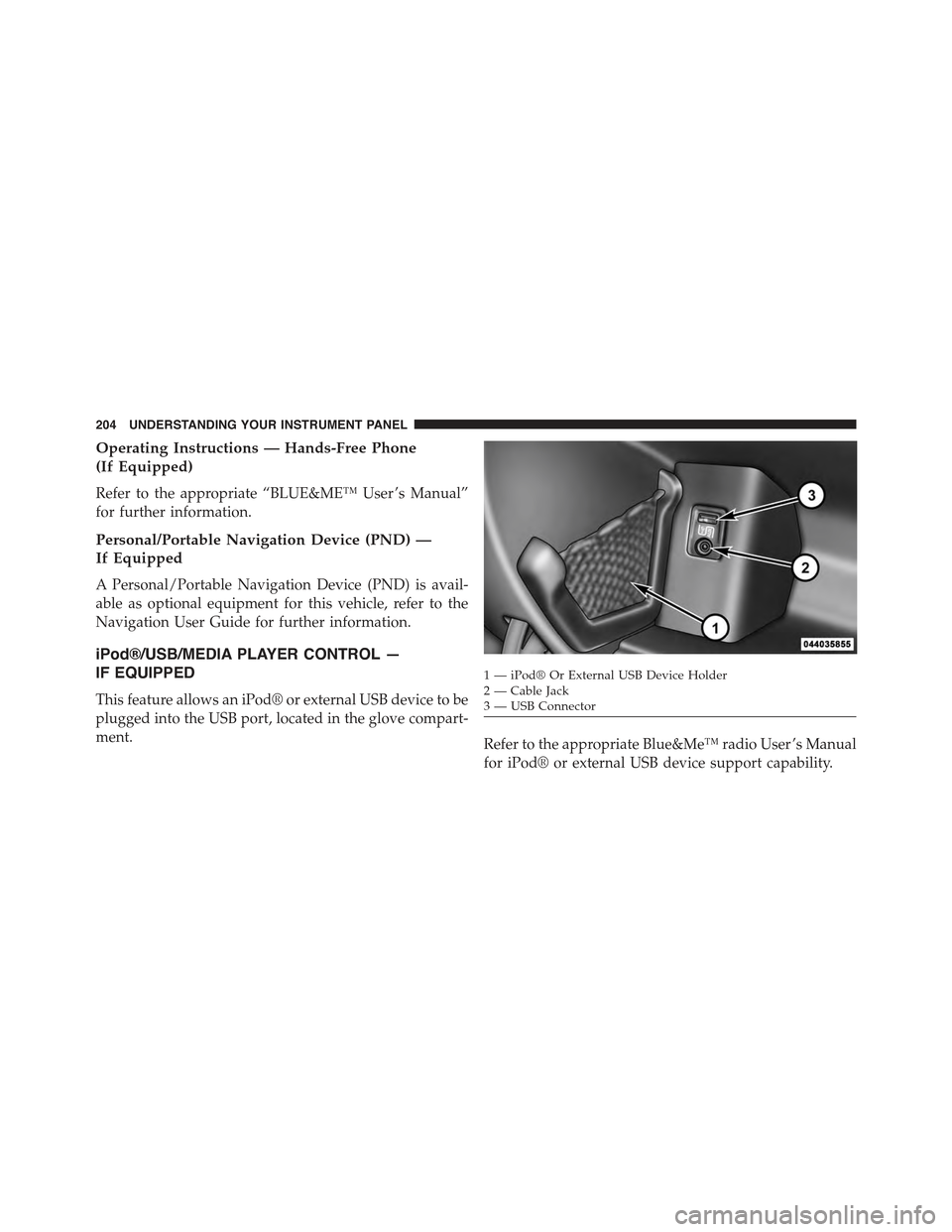
This feature allows an iPod® or external USB device to be
plugged into the USB port, located in the glove compart-
ment.Refer to the appropriate Blue&Me™ radio User ’s Manual
for iPod® or external USB device support capability.
1 — iPod® Or External USB Device Holder2 — Cable Jack3—USBConnector
204 UNDERSTANDING YOUR INSTRUMENT PANEL
Page 207 of 423
STEERING WHEEL AUDIO CONTROLS
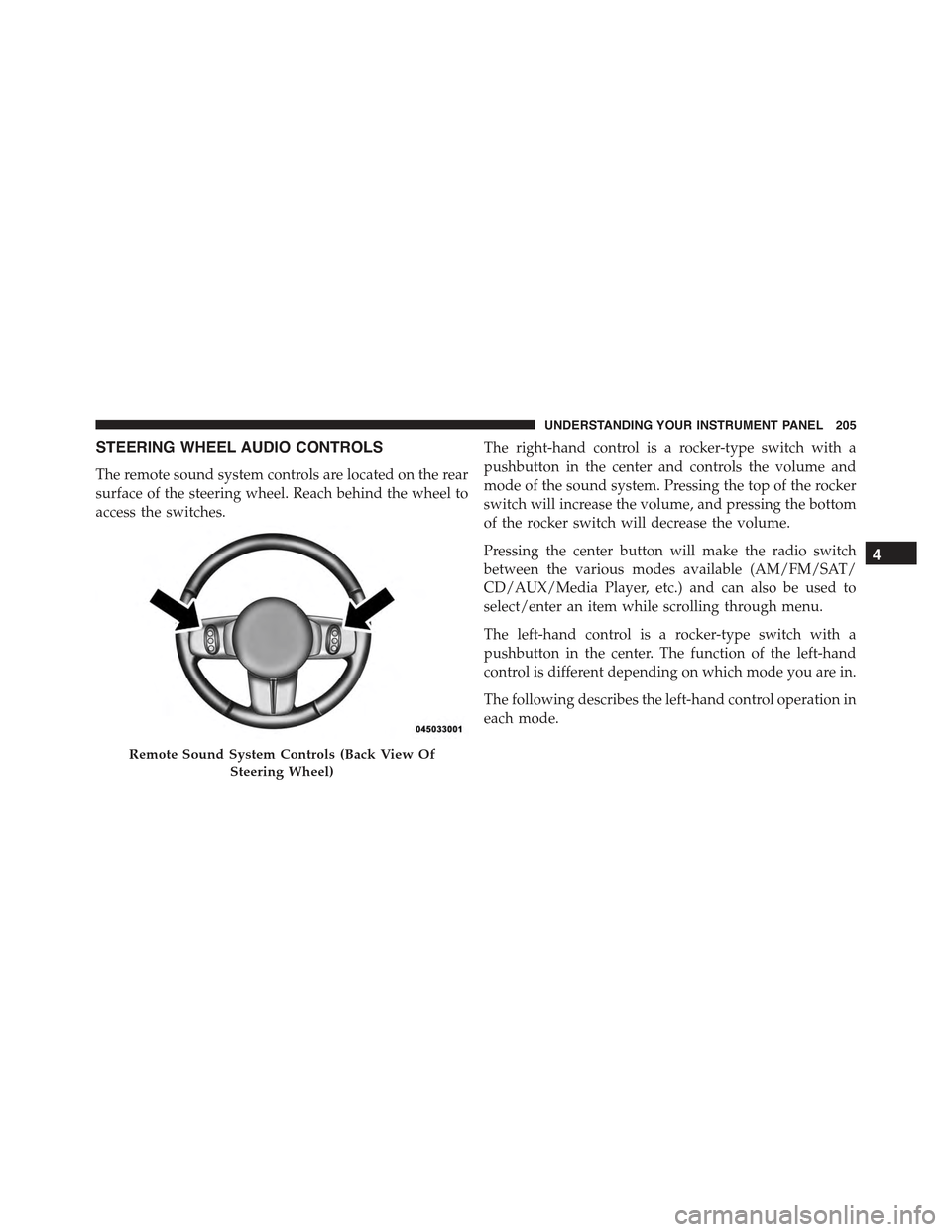
The remote sound system controls are located on the rear
surface of the steering wheel. Reach behind the wheel to
access the switches.
The right-hand control is a rocker-type switch with a
pushbutton in the center and controls the volume and
mode of the sound system. Pressing the top of the rocker
switch will increase the volume, and pressing the bottom
of the rocker switch will decrease the volume.
Pressing the center button will make the radio switch
between the various modes available (AM/FM/SAT/
CD/AUX/Media Player, etc.) and can also be used to
select/enter an item while scrolling through menu.
The left-hand control is a rocker-type switch with a
pushbutton in the center. The function of the left-hand
control is different depending on which mode you are in.
The following describes the left-hand control operation in
each mode.
Remote Sound System Controls (Back View Of
Steering Wheel)
4
UNDERSTANDING YOUR INSTRUMENT PANEL 205