ESP FIAT 500L 2017 2.G User Guide
[x] Cancel search | Manufacturer: FIAT, Model Year: 2017, Model line: 500L, Model: FIAT 500L 2017 2.GPages: 370, PDF Size: 3.56 MB
Page 149 of 370
CAUTION!
Prolonged driving with the Malfunction Indicator
Light (MIL) on could cause damage to the engine
control system. It also could affect fuel economy
(Continued)
CAUTION!(Continued)
and driveability. If the MIL is flashing, severe
catalytic converter damage and power loss will soon
occur. Immediate service is required.
Tire Pressure Monitoring Indicator Light
Yellow Telltale
Light What It Means
Tire Pressure Monitoring Indicator Light
The warning light switches on and a message is displayed to indicate that the tire pressure
is lower than the recommended value and/or that slow pressure loss is occurring. In these
cases, optimal tire duration and fuel consumption may not be guaranteed.
Should one or more tires be in the condition mentioned above, the display will show the
indications corresponding to each tire in sequence.
CAUTION!
Do not continue driving with one or more flat tires
as handling may be compromised. Stop the vehicle,
avoiding sharp braking and steering. Repair imme-
diately using the dedicated tire repair kit and con-
tact your authorized dealership as soon as possible. Each tire, including the spare (if provided), should be
checked monthly when cold and inflated to the inflation
pressure recommended by the vehicle manufacturer on
the vehicle placard or tire inflation pressure label. If
your vehicle has tires of a different size than the size
indicated on the vehicle placard or tire inflation pres-
sure label, you should determine the proper tire infla-
tion pressure for those tires.
4
UNDERSTANDING YOUR INSTRUMENT PANEL 147
Page 150 of 370
As an added safety feature, your vehicle has been
equipped with a Tire Pressure Monitoring System
(TPMS) that illuminates a low tire pressure telltale
when one or more of your tires is significantly under-
inflated. Accordingly, when the low tire pressure telltale
illuminates, you should stop and check your tires as
soon as possible and inflate them to the proper pres-
sure. Driving on a significantly under-inflated tire
causes the tire to overheat and can lead to tire failure.
Under-inflation also reduces fuel efficiency and tire
tread life, and may affect the vehicle’s handling and
stopping ability.
Please note that the TPMS is not a substitute for proper
tire maintenance, and it is the driver ’s responsibility to
maintain correct tire pressure, even if under-inflation
has not reached the level to trigger illumination of the
TPMS low tire pressure telltale.
Your vehicle has also been equipped with a TPMS
malfunction indicator to indicate when the system is
not operating properly. The TPMS malfunction indica-
tor is combined with the low tire pressure telltale. When
the system detects a malfunction, the telltale will flash
for approximately one minute and then remain continu-
ously illuminated. This sequence will continue uponsubsequent vehicle start-ups as long as the malfunction
exists. When the malfunction indicator is illuminated,
the system may not be able to detect or signal low tire
pressure as intended. TPMS malfunctions may occur for
a variety of reasons, including the installation of re-
placement or alternate tires or wheels on the vehicle
that prevent the TPMS from functioning properly. Al-
ways check the TPMS malfunction telltale after replac-
ing one or more tires or wheels on your vehicle, to
ensure that the replacement or alternate tires and
wheels allow the TPMS to continue to function prop-
erly.
CAUTION!
The TPMS has been optimized for the original
equipment tires and wheels. TPMS pressures and
warning have been established for the tire size
equipped on your vehicle. Undesirable system op-
eration or sensor damage may result when using
replacement equipment that is not of the same size,
type, and/or style. Aftermarket wheels can cause
sensor damage. Using aftermarket tire sealants may
cause the Tire Pressure Monitoring System (TPMS)
(Continued)
148 UNDERSTANDING YOUR INSTRUMENT PANEL
Page 172 of 370
Buttons On The Faceplate
Buttons on the faceplate are located below, and beside
the Uconnect system in the center of the instrument
panel. In addition, there is a Scroll/Enter control knob
located on the right side. Turn the control knob to scroll
through menus and change settings (i.e., 30, 60, 90),
push the center of the control knob one or more times to
select or change a setting (i.e., ON, OFF).
Your Uconnect system may also have Display Off and
back arrow buttons on the faceplate.
Push the Display Off button on the faceplate to turn off
the Uconnect screen. Push the Display Off button on the
faceplate a second time to turn the screen on.
Push the Back Arrow button on the faceplate to exit out
of a Menu or certain option on the Uconnect system.
Buttons On The Touchscreen
Buttons on the touchscreen are accessible on the
Uconnect touchscreen.
Customer Programmable Features — Uconnect
5.0 Settings
WARNING!
ALWAYS drive safely with your hands on the
wheel. You have full responsibility and assume all
risks related to the use of the Uconnect features and
applications in this vehicle. Only use Uconnect
when it is safe to do so. Failure to do so may result
in an accident involving serious injury or death.
Push the SETTINGS button on the faceplate to display
the settings menu screen. In this mode the Uconnect
system allows you to access programmable features
that may be equipped such as Display, Clock, Safety &
Driving Assistance, Lights, Doors & Locks, Auto-On
Comfort & Remote Start, Engine Off Options, Compass
Settings, Audio, Phone/Bluetooth, SiriusXM Setup and
System Information.
NOTE: Only one category may be selected at a time.
When making a selection, press the button on the
touchscreen to enter the desired mode. Once in the
desired mode, press and release the preferred setting
until the button is highlighted. Once the setting is
170 UNDERSTANDING YOUR INSTRUMENT PANEL
Page 173 of 370
complete, either press the back arrow or Done button on
the touchscreen or the Back button on the faceplate to
return to the previous menu. Pressing the Up or Down
Arrow buttons on the touchscreen on the right side of
the screen will allow you to toggle up or down through
the list of available settings.
NOTE:All settings should be changed with the ignition
in the “Run” position.Display
After pressing the “Display” button on the touchscreen
the following settings will be available:
Setting Name Selectable Options
Display Mode Auto Manual
NOTE: When the “Display Mode” feature is set to “Auto” the radio touchscreen’s brightness will be adjusted
with all other Instrument Panel displays and lights when they are adjusted using the instrument cluster display
buttons on the right-hand side of the instrument cluster display. When the “Display Mode” feature is set to
“Manual” the radio screen brightness can be adjusted independently using the “Brightness” feature below.
Language EnglishEspañolFrançais
Touchscreen Beep On Off
US Changes the instrument cluster display to US units of measure.
Metric Changes the instrument cluster display to Metric units of measure.
Display Trip B On/Off ON OFF
4
UNDERSTANDING YOUR INSTRUMENT PANEL 171
Page 174 of 370
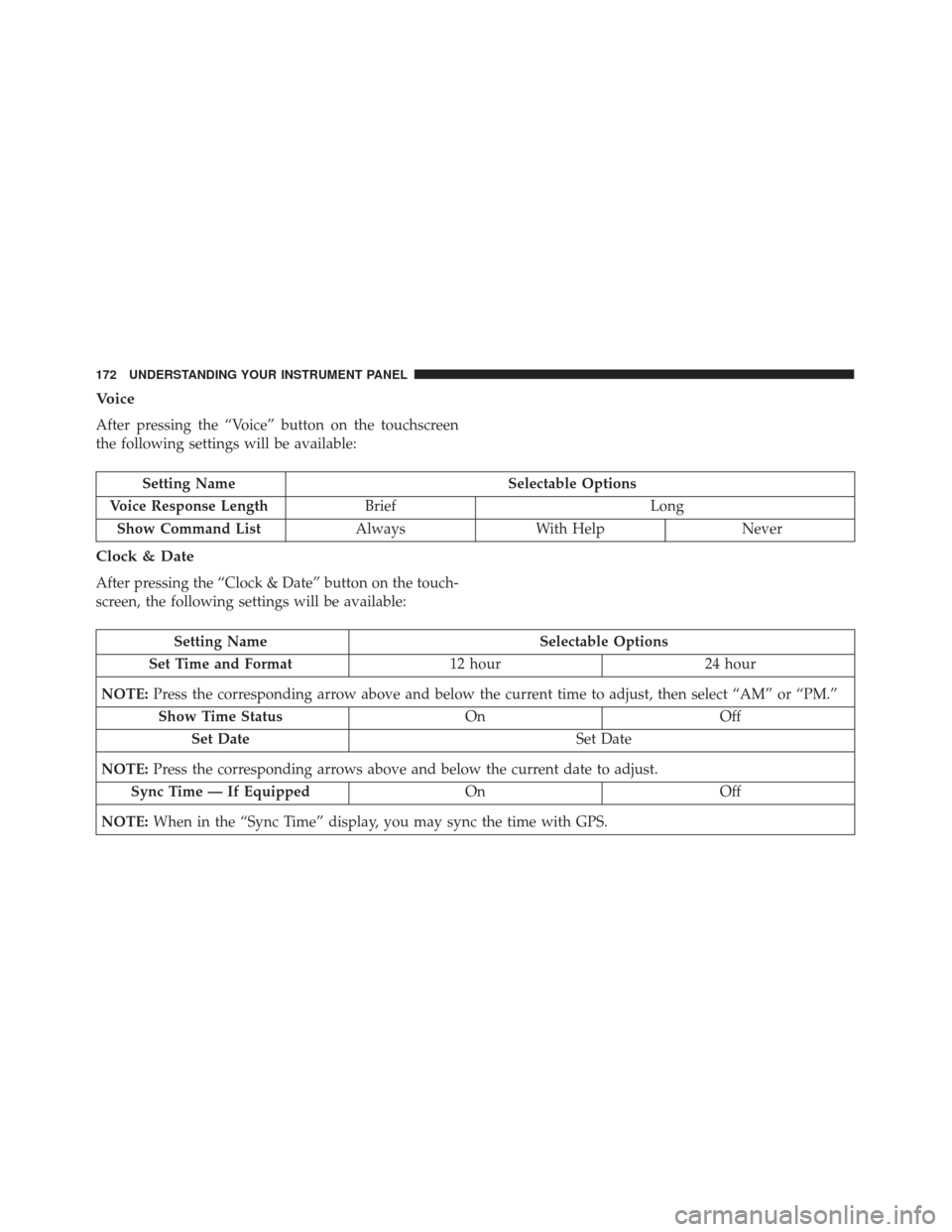
Voice
After pressing the “Voice” button on the touchscreen
the following settings will be available:
Setting NameSelectable Options
Voice Response Length Brief Long
Show Command List AlwaysWith Help Never
Clock & Date
After pressing the “Clock & Date” button on the touch-
screen, the following settings will be available:
Setting Name Selectable Options
Set Time and Format 12 hour24 hour
NOTE: Press the corresponding arrow above and below the current time to adjust, then select “AM” or “PM.”
Show Time Status OnOff
Set Date Set Date
NOTE: Press the corresponding arrows above and below the current date to adjust.
Sync Time — If Equipped OnOff
NOTE: When in the “Sync Time” display, you may sync the time with GPS.
172 UNDERSTANDING YOUR INSTRUMENT PANEL
Page 180 of 370
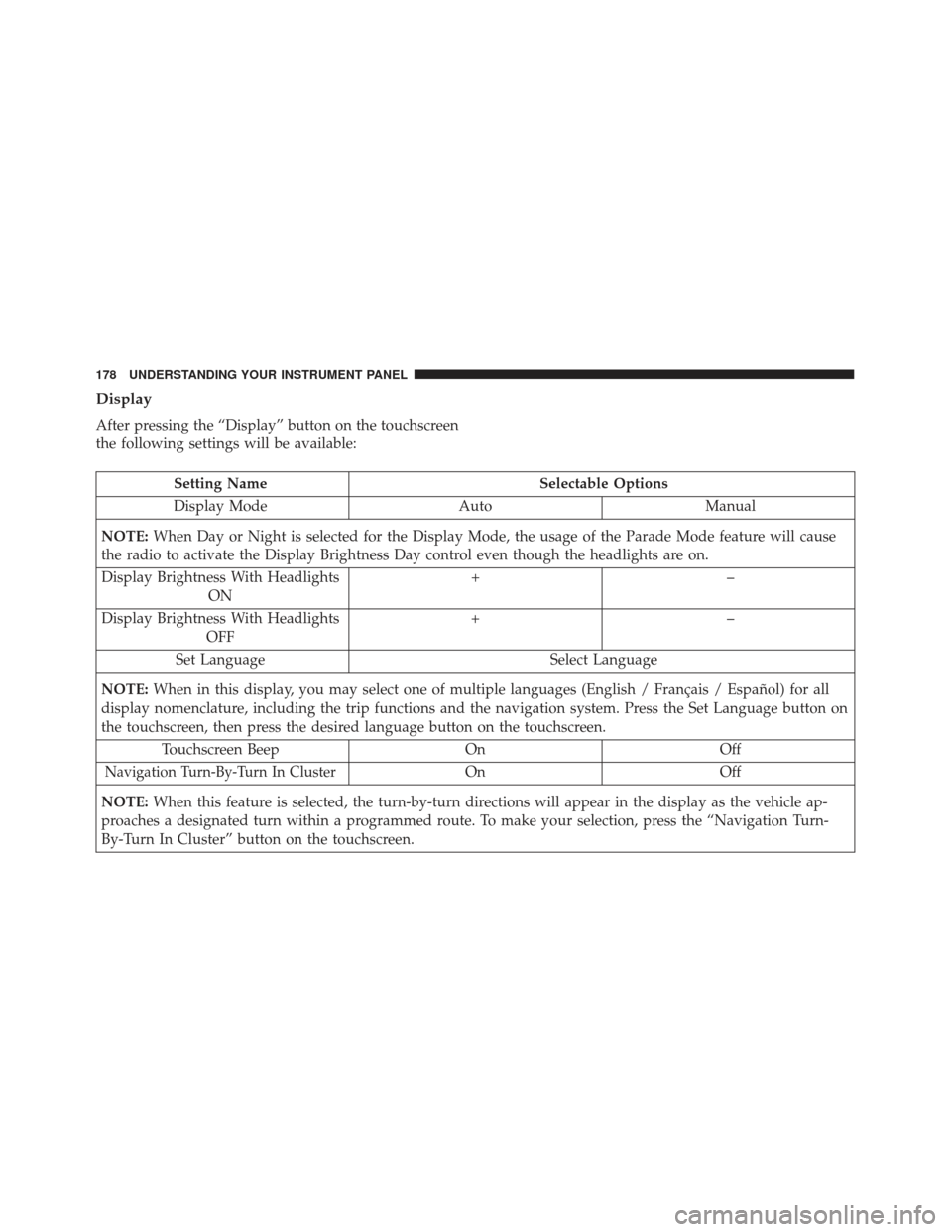
Display
After pressing the “Display” button on the touchscreen
the following settings will be available:
Setting NameSelectable Options
Display Mode AutoManual
NOTE: When Day or Night is selected for the Display Mode, the usage of the Parade Mode feature will cause
the radio to activate the Display Brightness Day control even though the headlights are on.
Display Brightness With Headlights ON +–
Display Brightness With Headlights OFF +–
Set Language Select Language
NOTE: When in this display, you may select one of multiple languages (English / Français / Español) for all
display nomenclature, including the trip functions and the navigation system. Press the Set Language button on
the touchscreen, then press the desired language button on the touchscreen.
Touchscreen Beep OnOff
Navigation Turn-By-Turn In ClusterOnOff
NOTE: When this feature is selected, the turn-by-turn directions will appear in the display as the vehicle ap-
proaches a designated turn within a programmed route. To make your selection, press the “Navigation Turn-
By-Turn In Cluster” button on the touchscreen.
178 UNDERSTANDING YOUR INSTRUMENT PANEL
Page 181 of 370
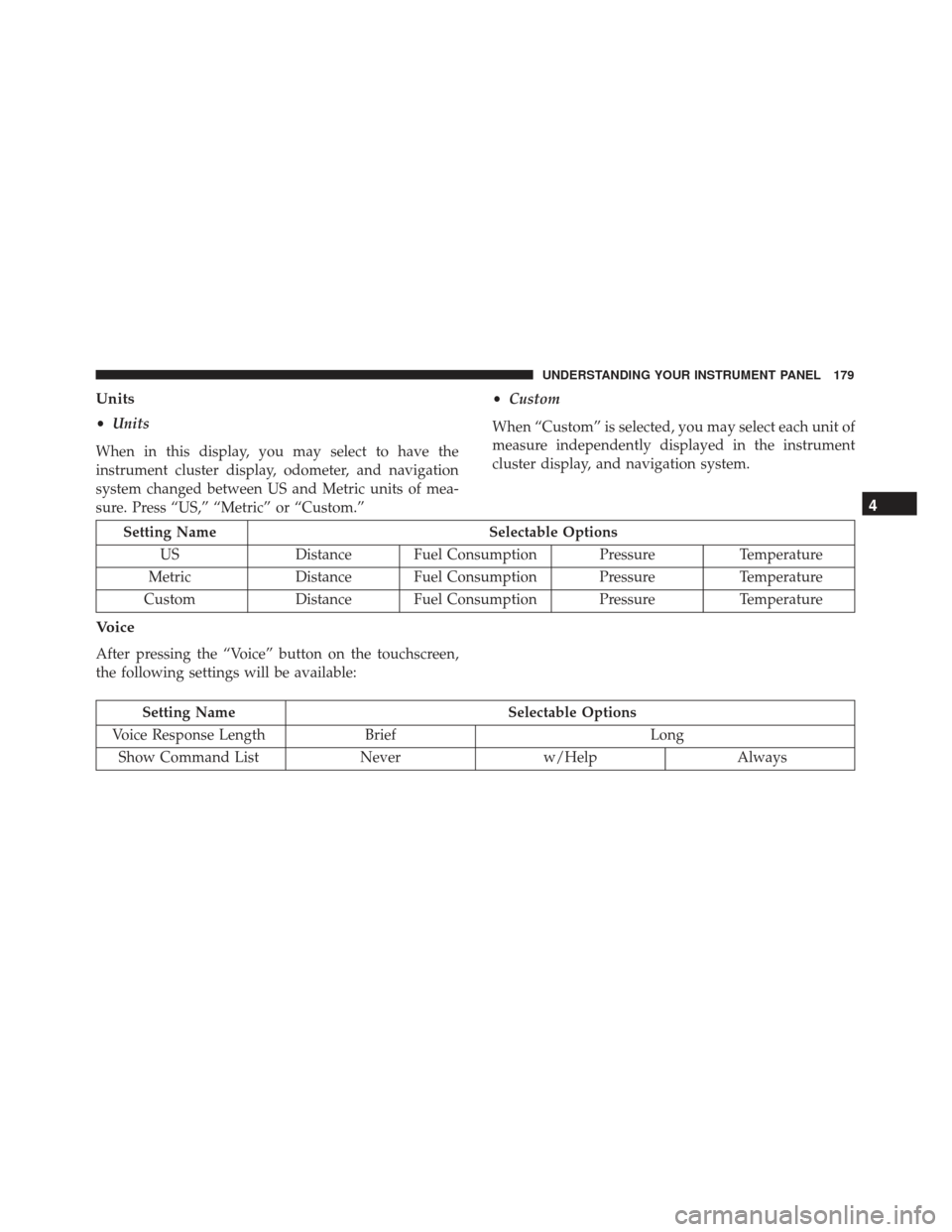
Units
•Units
When in this display, you may select to have the
instrument cluster display, odometer, and navigation
system changed between US and Metric units of mea-
sure. Press “US,” “Metric” or “Custom.” •
Custom
When “Custom” is selected, you may select each unit of
measure independently displayed in the instrument
cluster display, and navigation system.
Setting Name Selectable Options
US Distance Fuel Consumption Pressure Temperature
Metric Distance Fuel Consumption Pressure Temperature
Custom Distance Fuel Consumption Pressure Temperature
Voice
After pressing the “Voice” button on the touchscreen,
the following settings will be available:
Setting NameSelectable Options
Voice Response Length Brief Long
Show Command List Neverw/Help Always
4
UNDERSTANDING YOUR INSTRUMENT PANEL 179
Page 215 of 370
TIP:To start a POI search, push the VR button.
After the beep, say: “ Find nearestcoffee shop.”
Voice Text Reply
Uconnect will announce incomingtext messages. Push
the Phone button
and say “Listen.” (Must have
compatible mobile phone paired to Uconnect sys-
tem.)
1. Once an incoming text message is read to you, push the Phone button
. After the beep, say: “Reply.”
2. Listen to the Uconnect prompts. After the beep,
repeat one of the pre-defined messages and follow
the system prompts.
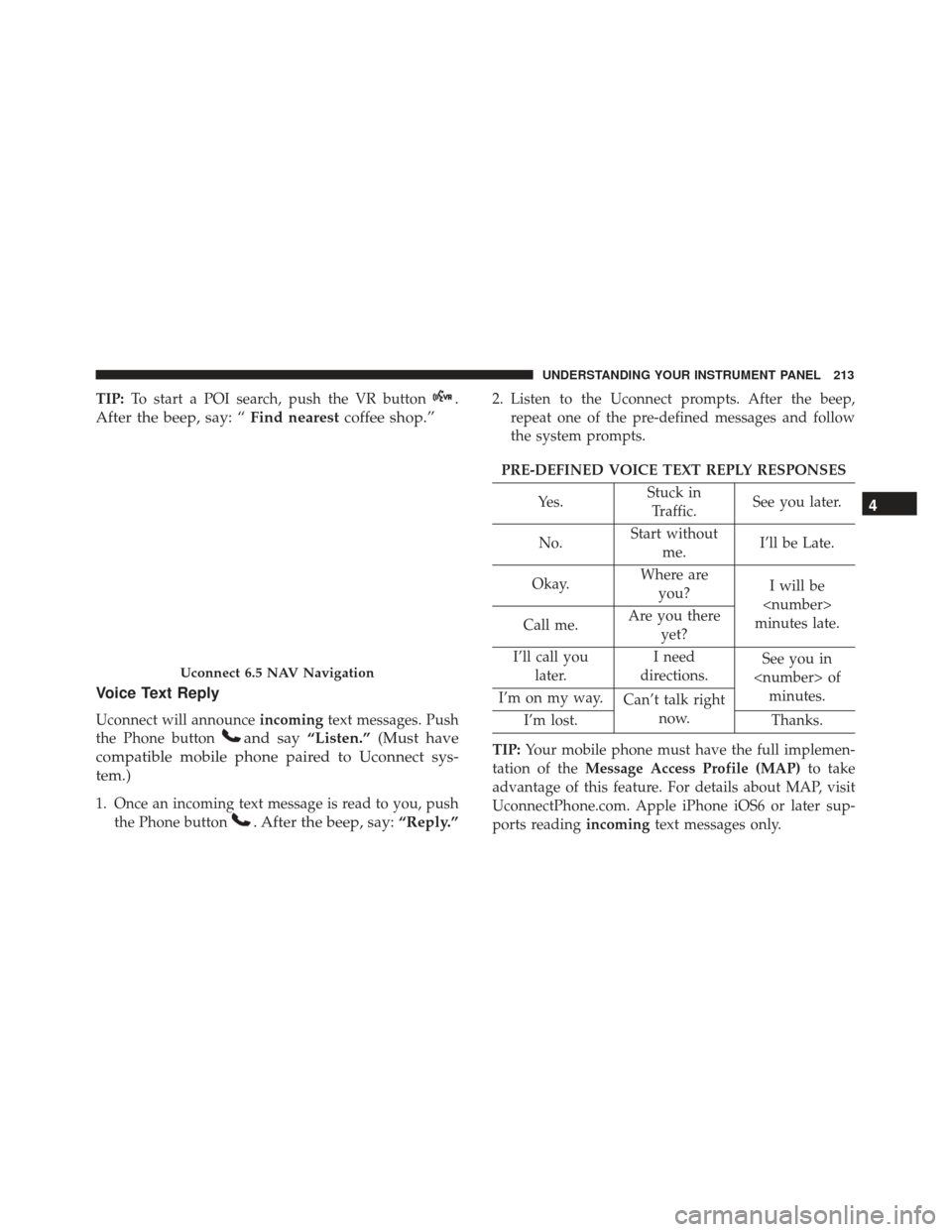
PRE-DEFINED VOICE TEXT REPLY RESPONSES
Yes. Stuck in
Traffic. See you later.
No. Start without
me. I’ll be Late.
Okay. Where are
you? I will be
minutes late.
Call me. Are you there
yet?
I’ll call you later. I need
directions. See you in
I’m on my way. Can’t talk right
now.
I’m lost. Thanks.
TIP: Your mobile phone must have the full implemen-
tation of the Message Access Profile (MAP) to take
advantage of this feature. For details about MAP, visit
UconnectPhone.com. Apple iPhone iOS6 or later sup-
ports reading incomingtext messages only.
Uconnect 6.5 NAV Navigation
4
UNDERSTANDING YOUR INSTRUMENT PANEL 213
Page 216 of 370
General Information
This device complies with FCC rules Part 15 and
Industry Canada RSS-210. Operation is subject to the
following two conditions:
1. This device may not cause harmful interference.
2. This device must accept any interference that may bereceived including interference that may cause un-
desired operation.
NOTE:
• The transmitter has been tested and it complies with
FCC and IC rules. Changes or modifications not
expressly approved by the party responsible for
compliance could void the user ’s authority to oper-
ate the device.
• The term IC before the certification/registration
number only signifies that Industry Canada technical
specifications were met.
Additional Information
© 2016 FCA US LLC. All rights reserved. Mopar and
Uconnect are registered trademarks and Mopar Owner
Connect is a trademark of FCA US LLC. Android is a
trademark of Google Inc. SiriusXM and all related
marks and logos are trademarks of SiriusXM Radio Inc.
Uconnect System Support:
•U.S. residents call 1-877-855-8400 (24 hours a day 7
days a week) or visit DriveUconnect.com
• Canadian residents call 1-800-465-2001 (English) or
1-800-387-9983 (French) or visit DriveUconnect.ca
• Mon. – Fri., 8:00 am – 8:00 pm, ET
• Sat., 9:00 am – 5:00 pm, ET
• Sun., Closed
214 UNDERSTANDING YOUR INSTRUMENT PANEL
Page 224 of 370
self-calibrating; therefore, the first few shifts on a new
vehicle may be somewhat abrupt. This is a normal
condition, and precision shifts will develop within a
few hundred miles (kilometers).
Only shift from DRIVE to PARK or REVERSE when the
accelerator pedal is released and the vehicle is stopped.
Be sure to keep your foot on the brake pedal when
shifting between these gears.
The transmission gear selector has PARK, REVERSE,
NEUTRAL, DRIVE, and AutoStick (+/-) shift positions.
Manual shifts can be made using the AutoStick shift
control (refer to “AutoStick” in this section for furtherinformation). Moving the gear selector into the
AutoStick (+/-) position (beside the DRIVE position)
activates AutoStick mode, providing manual shift con-
trol and displaying the current gear in the instrument
cluster (as 1, 2, 3, etc). Toggling the gear selector
forward (-) or rearward (+) while in the Autostick
position will manually select the transmission gear.
NOTE:
If the gear selector cannot be moved to the
PARK, REVERSE, or NEUTRAL position (when pushed
forward) it is probably in the AutoStick (+/-) position
(beside the DRIVE position). In AutoStick mode, the
transmission gear (1, 2, 3, etc.) is displayed in the
instrument cluster. Move the gear selector to the right
(into the DRIVE [D] position) for access to PARK,
REVERSE, and NEUTRAL.
Gear Ranges
DO NOT race the engine when shifting from PARK or
NEUTRAL into another gear range.
NOTE: After selecting any gear range, wait a moment
to allow the selected gear to engage before accelerating.
This is especially important when the engine is cold.
Transmission Gear Selector
222 STARTING AND OPERATING