radio FIAT 500X 2015 2.G Owner's Manual
[x] Cancel search | Manufacturer: FIAT, Model Year: 2015, Model line: 500X, Model: FIAT 500X 2015 2.GPages: 240, PDF Size: 10.72 MB
Page 211 of 240
my:Carmy:Car allows you to keep the
condition of your vehicle always under
control.
my:Car can detect malfunction in real
time and inform the user about the
expiry of the servicing interval. Press
the "my:Car" button to interact with the
application.
The display will show a screen with the
"care:Index" section, which provides
all the detailed information about the
status of the vehicle. Press the "Active
warnings" button to show (if present)
the details of the vehicle's faults which
caused a warning light to switch on.
The vehicle status can be seen both on
www.DriveUconnect.eu or through
theApp Uconnect™LIVE.SETTINGSPress the
button on the front panel
to display the main "Settings" menu.
Note: The menu items displayed vary
according to the versions.
The menu includes the following items:
❒Display;
❒Units;
❒Voice commands;
❒Clock & Date;
❒Safety/Assistance (where provided);
❒Lights (where provided);
❒Doors & Locks;❒Vehicle Off Options;
❒Audio;
❒Phone/Bluetooth;
❒SiriusXM Setup (where provided);
❒Radio Setup;
❒Restore Settings
Safety/Assistance(where provided)
This function can be used to carry out
the following adjustments:
❒"Rear View camera"(where
provided): this function can be used to
carry out the following adjustments:
- "Active Guidelines" (where provided):
permits the activation of dynamic grids
that indicate the route of the vehicle
on the display.
- "Rear View cam.delay" (where
provided): permits a delay in the
disappearance of images from the
camera when reverse is disengaged.
❒"Frnt Coll. Warning"(where provided):
this function can be used to select the
Full Brake Control system intervention
mode.
The options available are:
- "Off": the system is deactivated;
- "Only warning": the system intervenes
only by providing the driver with an
acoustic warning (where provided);- "Only active braking": the system
intervenes by activating automatic
braking (where provided);
- "Warning + active braking": the
system intervenes by providing the
driver with an acoustic warning and
activating automatic braking.
❒"Fwd Coll. Sensitivity"(where
provided): this function can be used to
select the "readiness" of the system
to intervene, on the basis of distance
from the obstacle.
The options available are "Near",
"Med", "Far".
❒"Park Assist"(where provided): this
function can be used to select the type
of warning provided by the Park Assist
system.
The options available are:
- "Sound Only": the system warns the
driver that an obstacle is present
through acoustic warnings only, via the
speakers in the vehicle.
- "Sound & Display": the system warns
the driver that an obstacle is present
through acoustic (via the speakers
in the vehicle) and visual (on the
instrument panel) warnings.
❒"Front Park Assist vol."(where
provided): this function can be used to
select the volume of the acoustic
warnings provided by the front Park
Assist system.
209
15-12-2014 8:23 Pagina 209
Page 212 of 240
❒"Rear Park Assist vol."(where
provided): this function can be used to
select the volume of the acoustic
warnings provided by the rear Park
Assist system.
❒"Park Assist vol."(where provided):
this function can be used to select
the volume of the acoustic warnings
provided by the Park Assist system.
❒"Lane Assist Warning"(where
provided): this function can be used to
select the LaneAssist system
intervention "readiness".
❒"Lane Assist Strength"(where
provided): this function can be used to
select the force to apply to the steering
wheel to put the vehicle back in the
lane through the electric steering
system, in the event of Lane Assist
system intervention.
❒"Blind Spot Alert"(where provided):
this function can be used to select
the type of warning ("Sound Only" or
"Sound & Display") to indicate the
presence of objects in the blind spot of
the door mirror.
❒"Rain sensor"(where provided): this
function can be used to activate/
deactivate the automatic operation of
the wipers in the event of rain.
❒"Brakes"(where provided): this
function can be used to select the
following submenus:- "Brake Service" (where provided):
allows you to activate the procedure for
carrying out braking system servicing;
- "Auto Park Brake" (where provided):
allows you to activate/deactivate the
automatic park brake engagement.
NAVIGATION(5" Uconnect Radio Nav LIVE only)Programming a routeIMPORTANT In the interest of safety
and to reduce distractions while you are
driving, you should always plan a route
before you start driving.
To plan a route, do the following:
❒tap the screen to open the Main
menu;
❒Tap "Navigate to" or "Drive to".
❒Tap "Address". You can change the
country or state setting by tapping
the flag before you select a city.
❒Enter the town or city name, or the
zip code. Towns with similar names are
shown in the list while you type. When
the desired city or town appears in
the list, tap the name to select the
destination.
❒Enter the street name. Streets with
similar names are shown in the list while
you type. When the correct street
name appears in the list, tap the name
to select the destination.❒Enter the house number, then tap
"Done".
❒The location will be shown on the
map. Tap "Select" to continue or tap
"Back" to enter another address.
❒When the new route is shown, tap
"Done". For more information about the
route, tap "Details". To change your
route, for example, to travel via a
particular location or to select a new
destination, tap "Change route".
You are guided to your destination,
using spoken instructions and
on-screen directions.
Map updatingTwo modes for downloading a map
update are available:
❒Most recent maps guarantee: if a
new map is available for your system
within 90 days of initial use, you can
download it once free of charge.
❒Map update: you can purchase a
new version of the map installed on
your system.USB device setupTo update the map, use an USB device
that meets the following requirements:
❒Ideally, the USB device should be
empty.
❒The USB device must have at least
8 GB of memory free.
210
MULTIMEDIA
15-12-2014 8:23 Pagina 210
Page 214 of 240
The map can now be installed on the
system.Installing a mapThe map update MUST be made
with the vehicle engine running and
may require more than 30 minutes.
Do not disconnect the USB device
during the map installation process,
otherwise installation will be
interrupted.
After downloading a map to your USB
device, it can be installed on your
system.
❒Insert the USB device containing the
new map in theUconnect™system.
The system detects a new map on
the USB device.
❒Select "Start".
Keep the device inserted. Before
updating the map, the system indicates
that this process may take several
minutes. Select "OK".
Note: do not remove the USB device
and do not disconnect the system's
power supply before the update is
complete. The system cannot be used
until the update is completed correctly.
If the update is interrupted, the system
update is started again.
Once the map has been updated, a
dedicated message is displayed.
❒Click on "Close".The new map is now available on the
system.
TroubleshootingThe following problems may occur
during the update:
❒The map on the USB device is not
valid. In this case, download the map to
the USB device again, using TomTom
HOME. It may be necessary to prepare
the USB device again.
❒The version of the map on the USB
device is the same as or is a previous
version of the one already on the
system. In this case, download the map
to the USB device again, using
TomTom HOME. It may be necessary to
prepare the USB device again.VOICE COMMANDSNote: for languages not supported by
the system, voice commands are
not available.
To use the voice commands, press the
button ("Voice" button)on the steering
wheel and give the command you want
to activate, out loud.
GlobalThe following voice commands can be
given after pressing the
button
on the steering wheel:
❒Help❒Cancel
❒Redial
❒Repeat
❒Voice Prompts
PhoneThe following voice commands can be
given after pressing the button on
the steering wheel:
❒Call
❒Dial
❒Redial
❒Call back
❒Last calls
❒Outgoing calls
❒Missed calls
❒Incoming calls
❒Phonebook
❒Search
❒Show SMSRadioThe following voice commands can be
given after pressing the
button on
the steering wheel:
❒Tune to XXX FM
❒Tune to XXX AM
❒Tune to Radio XXX
❒Tune to DAB channel
212
MULTIMEDIA
15-12-2014 8:23 Pagina 212
Page 215 of 240
MediaThe following voice commands can be
given after pressing the
button on
the steering wheel:
❒Play song...
❒Play album…
❒Play artist…
❒Play genre…
❒Play playlist…
❒Play podcast…
❒Play audiobook…
❒Play track number…
❒Select the source
❒Display
Navigation(5" Uconnect Radio Nav LIVE only)
The following voice commands can
be given after pressing the
button on
the steering wheel:
❒Drive Home
❒2D view
❒3D view
❒Clear route
❒Add Favourite
❒Repeat instruction
213
15-12-2014 8:23 Pagina 213
Page 216 of 240
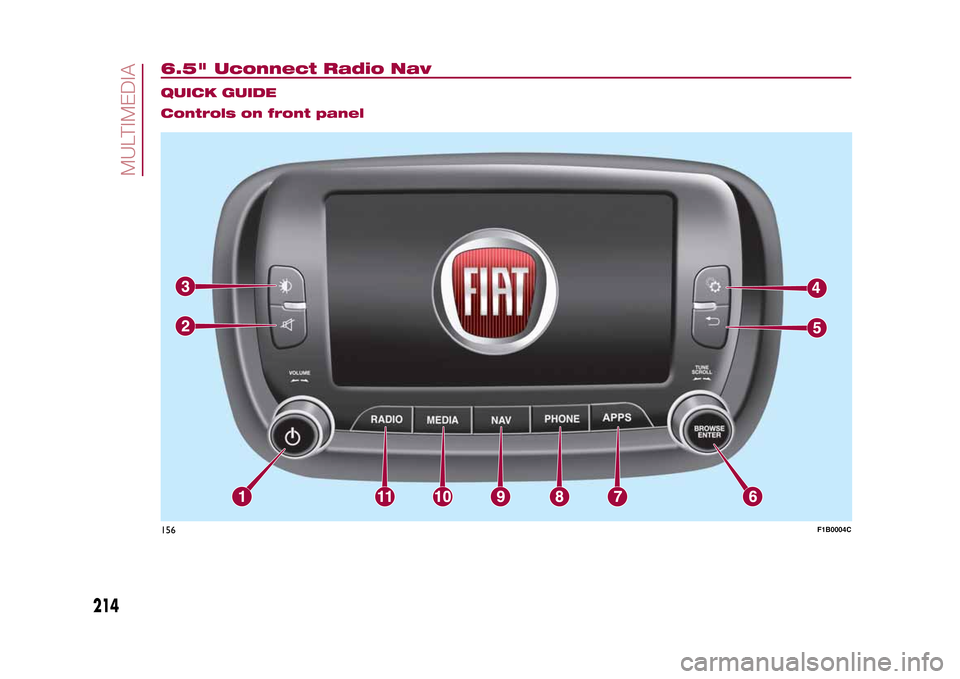
6.5" Uconnect Radio Nav
.
QUICK GUIDE
Controls on front panel156
F1B0004C
214
MULTIMEDIA
15-12-2014 8:23 Pagina 214
Page 217 of 240
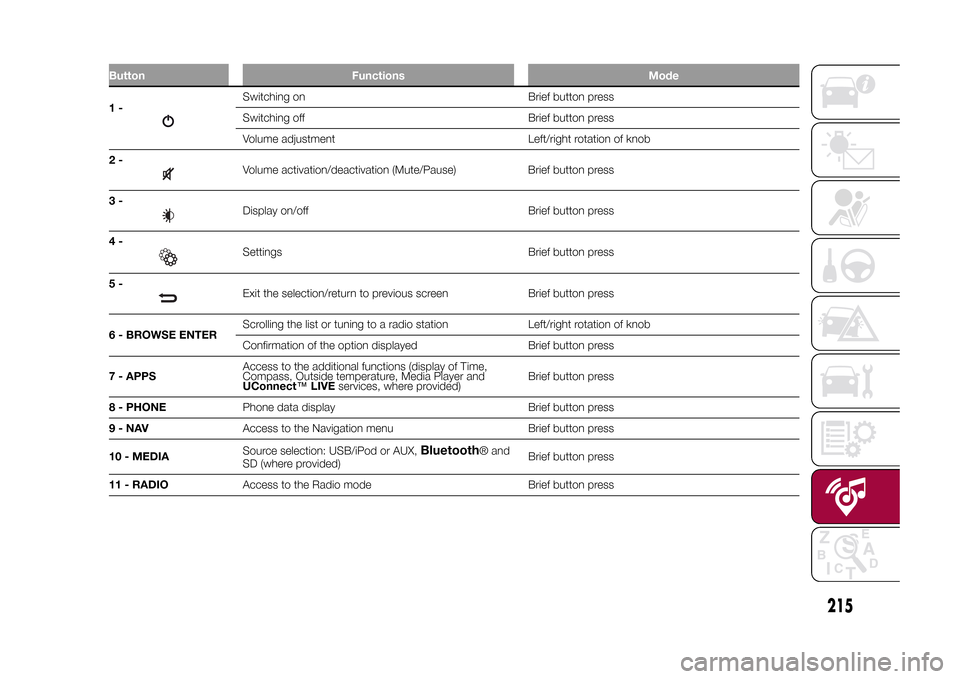
Button Functions Mode1-
Switching on Brief button press
Switching off Brief button press
Volume adjustment Left/right rotation of knob
2-Volume activation/deactivation (Mute/Pause) Brief button press
3-Display on/off Brief button press
4-Settings Brief button press
5-Exit the selection/return to previous screen Brief button press
6 - BROWSE ENTERScrolling the list or tuning to a radio station Left/right rotation of knob
Confirmation of the option displayed Brief button press
7 - APPSAccess to the additional functions (display of Time,
Compass, Outside temperature, Media Player and
UConnect™LIVEservices, where provided)Brief button press
8 - PHONEPhone data display Brief button press
9-NAVAccess to the Navigation menu Brief button press
10 - MEDIASource selection: USB/iPod or AUX,
Bluetooth
® and
SD (where provided)Brief button press
11 - RADIOAccess to the Radio mode Brief button press
.
215
15-12-2014 8:23 Pagina 215
Page 218 of 240
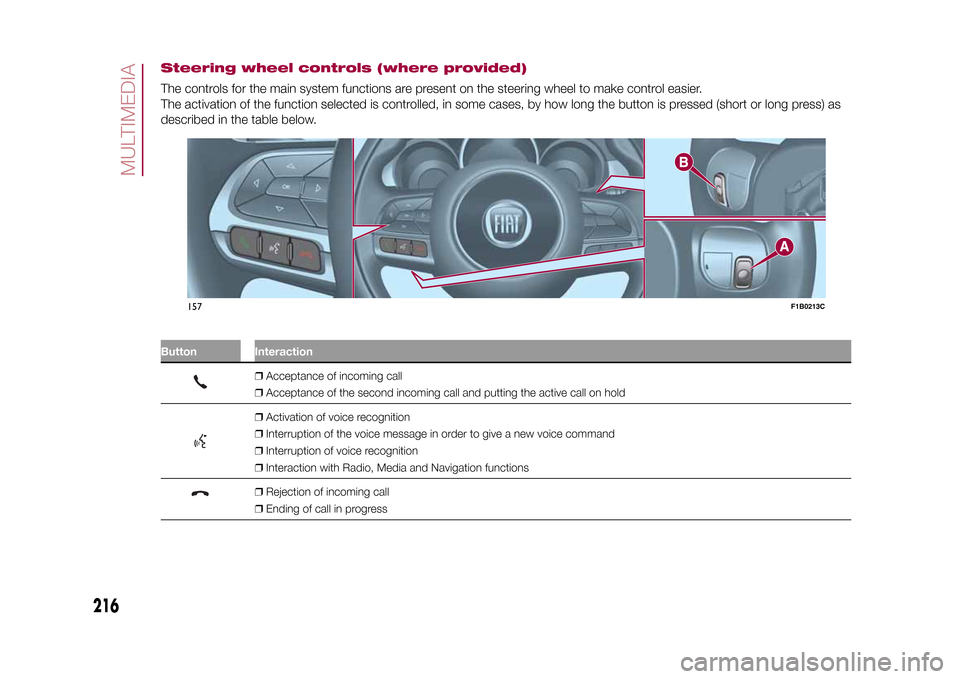
Steering wheel controls (where provided)The controls for the main system functions are present on the steering wheel to make control easier.
The activation of the function selected is controlled, in some cases, by how long the button is pressed (short or long press) as
described in the table below.
.
Button Interaction
❒Acceptance of incoming call
❒Acceptance of the second incoming call and putting the active call on hold❒Activation of voice recognition
❒Interruption of the voice message in order to give a new voice command
❒Interruption of voice recognition
❒Interaction with Radio, Media and Navigation functions❒Rejection of incoming call
❒Ending of call in progress
.
157
F1B0213C
216
MULTIMEDIA
15-12-2014 8:23 Pagina 216
Page 219 of 240
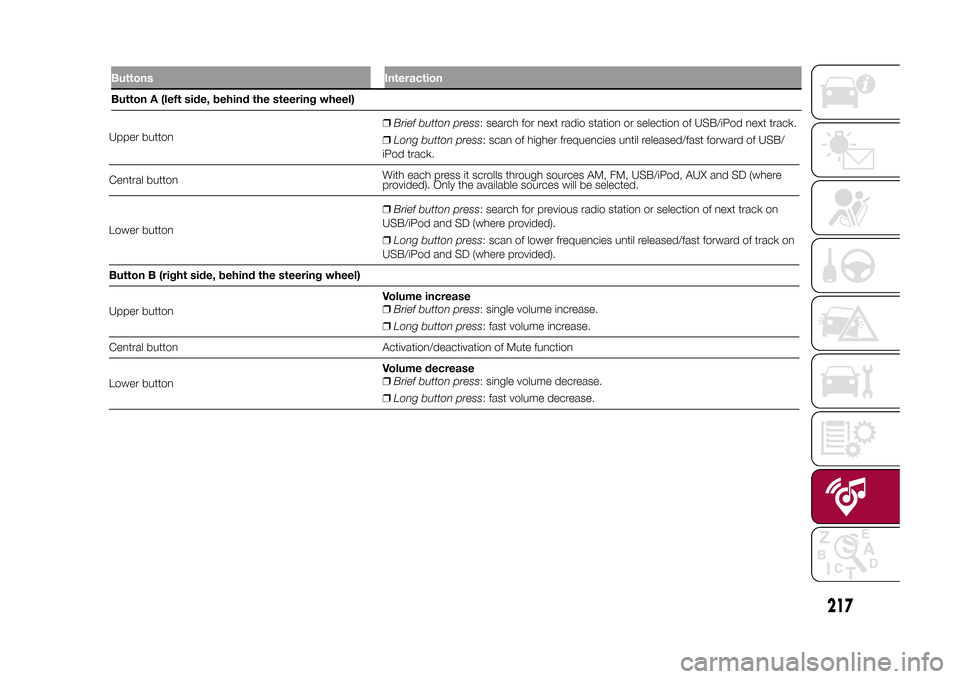
Upper button❒Brief button press: search for next radio station or selection of USB/iPod next track.
❒Long button press: scan of higher frequencies until released/fast forward of USB/
iPod track.
Central buttonWith each press it scrolls through sources AM, FM, USB/iPod, AUX and SD (where
provided). Only the available sources will be selected.
Lower button❒Brief button press: search for previous radio station or selection of next track on
USB/iPod and SD (where provided).
❒Long button press: scan of lower frequencies until released/fast forward of track on
USB/iPod and SD (where provided).
Button B (right side, behind the steering wheel)
Upper buttonVolume increase
❒Brief button press: single volume increase.
❒Long button press: fast volume increase.
Central button Activation/deactivation of Mute function
Lower buttonVolume decrease
❒Brief button press: single volume decrease.
❒Long button press: fast volume decrease.
217
15-12-2014 8:23 Pagina 217
Buttons InteractionButton A (left side, behind the steering wheel)
Page 220 of 240
SWITCHING THE SYSTEM
ON/OFFThe system is switched on/off by
pressing the
(ON/OFF) button/knob.
Turn the button/knob clockwise to
increase the radio volume or
anticlockwise to decrease it.
RADIO (TUNER) MODEThe system has the following tuners:
AM, FM and DAB (where provided).Radio mode selectionPress the RADIO button on the front
panel to activate radio mode.
The different tuning modes can be
selected with the corresponding button
on the display.
Up to 12 favourite radio stations can be
stored in each mode.Selecting a frequency
bandPress one of the buttons at the left of
the display to select the frequency
band: AM, FM and DAB (where
provided).Indications on displayAfter the desired radio station is
selected, the following information is
shown on the display:At the top: display of the stored radio
station (preset) list. If the current station
is in the list of presets, it will be
highlighted on the display.
In the middle: the name of the radio
station being listened to and the
buttons to select the previous or the
next radio station are displayed.
At the bottom: display of the following
buttons:
❒"browse": search available radio
stations
❒"tune" : manual radio station tuning
(not available for DAB radios);
❒"audio": access to the "Audio
settings" screen
❒
and
: permit searching for
the desired radio station.
Select previous/next
radio stationThe previous/next radio station can be
selected using the following methods:
turning the BROWSE ENTER
button/knob, briefly pressing the
or
button on the display, pressing of
the buttons behind the steering wheel.
Holding down the
or
buttons
on the display activates rapid scrolling
through the active frequency band.
Previous/next radio
station fast searchTo start the fast search press the
or
button on the display, or use the
corresponding steering wheel controls.
AM/FM radio station
tuningPress the "tune" button, then select the
first digit of the desired radio station.
Press the
button to delete a wrong
number (and enter the correct station
number).
After entering the last digit of the station
the system will tune to the selected
one.
The screen disappears automatically
after 5 seconds or manually by pressing
the OK button.
DAB radio (where
provided)Once DAB radio mode is selected, the
information on the current station is
displayed and the following functions.
The "browse" button is used to display:
❒the list of all DAB stations;
❒the list of all the favourites;
❒the list of stations filtered by
"Ensembles" (broadcast group).
Within each list, the "ABC" button
allows the user to skip to the desired
letter in the list.
218
MULTIMEDIA
15-12-2014 8:23 Pagina 218
Page 221 of 240
The "Refresh" button requests an
update of the DAB radio station list: the
update may last from a few seconds
to about two minutes.Pre-selection settingsPresets are available in all system
modes and are activated by touching
one of the preset buttons located in the
upper area of the display.
The system can store up to 12 radio
stations in each mode: 4 of these
are displayed in the upper area.
Press the "browse" button on the
display to show all the radio stations
stored in the selected frequency band.Audio SettingsThe Audio Settings menu, which can be
accessed by pressing the "audio"
button at the bottom of the display, can
be used to change the following
settings:
❒"Balance/Fader" (left/right and
front/rear sound balance adjustment);
❒"Equaliser" (where provided);
❒"Speed/Volume" (speed-dependent
automatic volume control);
❒"Surround Sound" (where provided);
❒"AUX Volume comp.";
❒"Loudness" (where provided);❒"Auto-On radio" (allows you to set
the automatic switching on of the radio
when the engine is started).
To exit the "audio" menu, press the
/Done button.
MEDIA MODE
Audio source selectionPress the "choose source" button to
select the desired audio source among
those available: AUX, USB / iPod, SD
(where provided) orBluetooth®.
Note: Applications used on portable
devices may be not compatible with the
Uconnect™system.Track change
(next/previous)Briefly press the
button or turn the
BROWSE ENTER button/knob
clockwise to play the next track.
Briefly press thebutton or turn the
BROWSE ENTER button/knob
anticlockwise to return to the beginning
of the selected track or to the beginning
of the previous track (if this has been
played for less than 8 seconds).
Fast forward/rewind
through tracksHold down the
button to fast
forward the selected track.
Hold down thebutton to fast
rewind the track.
Track selection
(browse)Use this function to scroll through and
select the tracks on the active device.
Within each list, the "ABC" button
allows the user to skip to the desired
letter in the list.
Press the "Browse" button to activate
this function on the source being
played.
Turn the BROWSE ENTER button/knob
to select the desired category and
then press the button/knob to confirm
the selection.
Press the "X" button to cancel the
function.
NOTE The "Browse" button may be
disabled for someApple® devices.
NOTE The "Browse" button does not
allow any operation on an AUX device.
NOTE Not allBluetooth® devices
enable you to scroll the information on
the tracks.
219
15-12-2014 8:23 Pagina 219