headlights FIAT 500X 2016 2.G User Guide
[x] Cancel search | Manufacturer: FIAT, Model Year: 2016, Model line: 500X, Model: FIAT 500X 2016 2.GPages: 587, PDF Size: 5.18 MB
Page 187 of 587
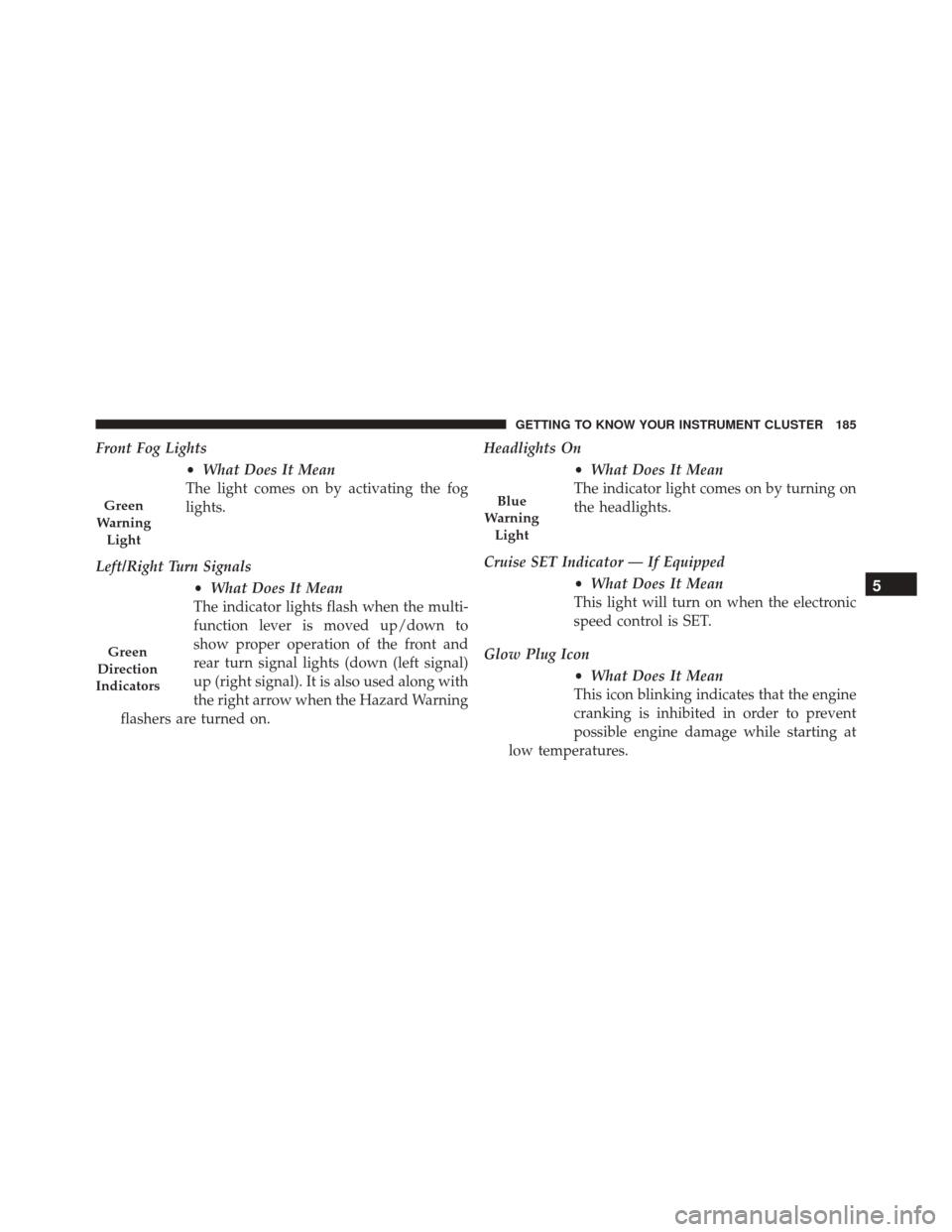
Front Fog Lights•What Does It Mean
The light comes on by activating the fog
lights.
Left/Right Turn Signals •What Does It Mean
The indicator lights flash when the multi-
function lever is moved up/down to
show proper operation of the front and
rear turn signal lights (down (left signal)
up (right signal). It is also used along with
the right arrow when the Hazard Warning
flashers are turned on. Headlights On
•What Does It Mean
The indicator light comes on by turning on
the headlights.
Cruise SET Indicator — If Equipped •What Does It Mean
This light will turn on when the electronic
speed control is SET.
Glow Plug Icon •What Does It Mean
This icon blinking indicates that the engine
cranking is inhibited in order to prevent
possible engine damage while starting at
low temperatures.
Green
Warning Light
Green
Direction
Indicators
Blue
Warning Light
5
GETTING TO KNOW YOUR INSTRUMENT CLUSTER 185
Page 194 of 587
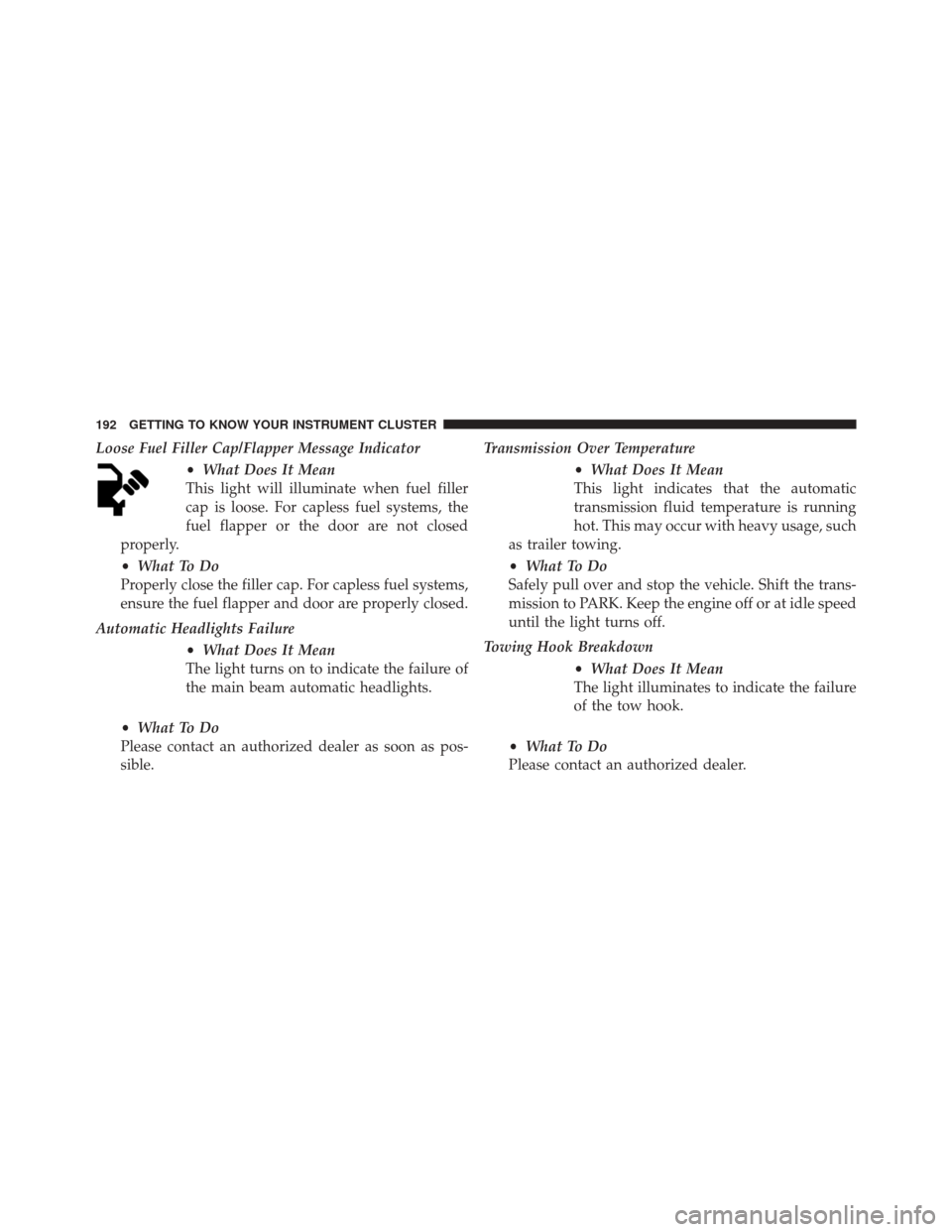
Loose Fuel Filler Cap/Flapper Message Indicator•What Does It Mean
This light will illuminate when fuel filler
cap is loose. For capless fuel systems, the
fuel flapper or the door are not closed
properly.
• What To Do
Properly close the filler cap. For capless fuel systems,
ensure the fuel flapper and door are properly closed.
Automatic Headlights Failure •What Does It Mean
The light turns on to indicate the failure of
the main beam automatic headlights.
• What To Do
Please contact an authorized dealer as soon as pos-
sible. Transmission Over Temperature
•What Does It Mean
This light indicates that the automatic
transmission fluid temperature is running
hot. This may occur with heavy usage, such
as trailer towing.
• What To Do
Safely pull over and stop the vehicle. Shift the trans-
mission to PARK. Keep the engine off or at idle speed
until the light turns off.
Towing Hook Breakdown •What Does It Mean
The light illuminates to indicate the failure
of the tow hook.
• What To Do
Please contact an authorized dealer.
192 GETTING TO KNOW YOUR INSTRUMENT CLUSTER
Page 476 of 587
CAUTION!
Do not use Alcohol and Alcohol-based and/or Keton
based cleaning products to clean leather seats, as
damage to the seat may result.
Cleaning Headlights
Your vehicle has plastic headlights that are lighter and
less susceptible to stone breakage than glass headlights.
Plastic is not as scratch resistant as glass and therefore
different lens cleaning procedures must be followed.
To minimize the possibility of scratching the lenses and
reducing light output, avoid wiping with a dry cloth. To
remove road dirt, wash with a mild soap solution fol-
lowed by rinsing.
Do not use abrasive cleaning components, solvents, steel
wool or other aggressive material to clean the lenses.
Glass Surfaces
All glass surfaces should be cleaned on a regular basis
with MOPAR Glass Cleaner, or any commercial
household-type glass cleaner. Never use an abrasive type
cleaner. Use caution when cleaning the inside rear win-
dow equipped with electric defrosters or windows
equipped with radio antennas. Do not use scrapers or
other sharp instrument that may scratch the elements.
When cleaning the rear view mirror, spray cleaner on the
towel or cloth that you are using. Do not spray cleaner
directly on the mirror.
Instrument Panel Cover
The instrument panel cover has a low glare surface which
minimizes reflections on the windshield. Do not use
protectants or other products which may cause undesir-
able reflections. Use soap and warm water to restore the
low glare surface.
474 MAINTAINING AND CARING FOR YOUR VEHICLE
Page 520 of 587
•Brightness
When in this display, you may select the overall screen
brightness with the headlights on or off. Adjust the
brightness with the “+” and “–” setting buttons on the
touchscreen or by selecting any point on the scale be-
tween the “+” and “–” buttons on the touchscreen.
• Language
When in this display, you may select one of multiple
languages (Deutsche/English/Español/Français/
Italiano/Nederlands/Polski/Português/Türkçe) for all
display nomenclature, including the trip functions and
the navigation system (if equipped). Press the “Lan-
guage” button on the touchscreen, then press the desired
language button on the touchscreen.
• Touchscreen Beep
When in this display, you may turn on or shut off the
sound heard when a touchscreen button is pressed. Press the “Touchscreen Beep” button on the touchscreen until a
check-mark appears next to the setting, showing that
setting has been selected.
Units
After pressing the “Units” button on the touchscreen you
may select each unit of measure independently displayed
in the Electronic Vehicle Information System (EVIC) or
Driver Information Display (DID). The following select-
able units of measure are listed below:
•
US
Changes the EVIC/DID to US units of measure.
• Metric
Changes the EVIC/DID to Metric units of measure.
• Custom
• Fuel Consumption
Select from: “MPG” (US), “MPG” (UK), “L/100 km”
or “km/L.”
518 MULTIMEDIA
Page 526 of 587
Lights
After pressing the “Lights” button on the touchscreen the
following settings will be available.
•Headlight Sensitivity
When this feature is selected, it allows the Headlight
Sensitivity to be adjusted according to three levels:
Level 1 = minimum sensitivity
Level 2 = medium sensitivity
Level 3 = maximum sensitivity
NOTE: The greater the sensitivity set, the less the exter-
nal light variation required to turn on the lights (e.g. with
a setting on level 3 at sunset the headlights turn on earlier
than in levels 1 and 2). To change the Headlight Sensi-
tivity setting, press the “1,” “2” or “3” button on the
touchscreen to select your desired Headlight Sensitivity
level. •
Headlight Off Delay
When this feature is selected, it allows the adjustment of
the amount of time the headlights remain on after the
engine is shut off. To change the Headlights Off Delay
setting, press the Headlights Off Delay button on the
touchscreen, and choose either 0 sec, 30 sec, 60 sec or 90
seconds. The selected button will highlight indicating
that the setting has been selected.
• Greeting Lights
When this feature is selected, it allows the greeting lights
to be turned On or Off. To change the Greeting Lights
setting, press the “On” or “Off” button on the touch-
screen to select your desired Greeting Light setting.
524 MULTIMEDIA
Page 527 of 587
•Auto High Beams — If Equipped
When this feature is selected, the high beam headlights
will activate/deactivate automatically under certain con-
ditions. To make your selection, press the “Auto High
Beams” button on the touchscreen, then select from “On”
or “Off.”
• Daytime Running Lights
When this feature is selected, the headlights will turn on
while the engine is running. To make your selection,
press the “Daytime Running Lights” button on the touch-
screen, then choose “Yes” or “No.” The button will
highlight indicating that the setting has been selected.
• Cornering Lights
When this feature is selected, if the steering wheel
rotation angle is large or the turn signal indicators are on,
a light (incorporated in the fog light) will turn on, on the
relevant side to improve visibility at night. To change the Cornering Lights setting, press the “On” or “Off” button
on the touchscreen to select your desired Cornering
Lights setting.
•
Flash Lights With Lock — If Equipped
When this feature is selected, the exterior lights will flash
when the doors are locked or unlocked with the Remote
Keyless Entry (RKE) transmitter. This feature may be
selected with or without the Sound Horn on Lock feature
selected. To make your selection, press the “Flash Lights
w/Lock” button on the touchscreen, then choose “On” or
“Off.”
Doors & Locks
After pressing the “Doors & Locks” button on the touch-
screen the following settings will be available.
• Auto Door Locks
When this feature is selected, all doors will lock auto-
matically when the vehicle reaches a speed of 12 mph
11
MULTIMEDIA 525
Page 529 of 587
touchscreen and select from “On” or “Off. Refer to
“Keyless Enter-N-Go” in “Getting To Know Your Ve-
hicle” for further information.
•Remote Door Unlock/Door Unlock
When “Driver” is selected, only the driver’s door will
unlock on the first push of the Remote Keyless Entry
(RKE) transmitter UNLOCK button, you must push the
RKE transmitter UNLOCK button twice to unlock the
passenger’s doors. When “All” is selected, all of the doors
will unlock on the first press of the RKE transmitter
UNLOCK button. NOTE:
If “All” is programmed, all doors will unlock no
matter which Passive Entry equipped door handle is
grasped. If “Driver” is programmed, only the driver ’s
door will unlock when the driver ’s door is grasped.
Touching the handle more than once will only result in
the driver ’s door opening once. If the driver door is
opened, the interior door lock/unlock switch can be used
to unlock all doors (or use RKE transmitter).
Engine Off Options
After pressing the “Engine Off Options” button on the
touchscreen the following settings will be available.
• Headlight Off Delay
When this feature is selected, the driver can choose to
have the headlights remain on for 0, 30, 60, or 90 seconds
when exiting the vehicle. To change the Headlight Off
Delay status press the “+” or “–” button on the touch-
screen to select your desired time interval.
11
MULTIMEDIA 527
Page 534 of 587
or Down Arrow button on the right side of the screen will
allow you to toggle up or down through the available
settings.
Display
After pressing the “Display” button on the touchscreen
the following settings will be available:
•Display Mode
This feature will allow you to select one of the auto
display settings. To change Mode status, press and re-
lease the “Auto” or “Manual” button on the touchscreen.
NOTE: When Day or Night is selected for the Display
Mode, the usage of the Parade Mode feature will cause
the radio to activate the Display Brightness Day control
even though the headlights are on. •
Display Brightness With Headlights ON
This feature will allow you to select the brightness with
the headlights on. Adjust the brightness with the “+” and
“–” setting buttons on the touchscreen or by selecting any
point on the scale between the “+” and “–” buttons on the
touchscreen.
• Display Brightness With Headlights OFF
When in this display, you may select the brightness with
the headlights off. Adjust the brightness with the “+” and
“–” setting buttons on the touchscreen or by selecting any
point on the scale between the “+” and “–” buttons on the
touchscreen.
532 MULTIMEDIA
Page 542 of 587
•Brakes
This feature provides a means for a technician or vehicle
owner to utilize a vehicle integrated, menu driven sys-
tem, to command the electric park brake retraction, to
service the rear foundation brakes (brake pads, calipers,
rotors, etc.). For further information, refer to “Service
Mode (Unlocking rear brake pads)” in “Maintaining And
Caring For Your Vehicle.”
• Auto Park Brake
This feature provides a means for a technician or vehicle
owner to enable/disable auto insertion of the Electric
Park Brake. For further information, refer to “Auto Park
Brake” in “Starting And Operating.”Lights
After pressing the “Lights” button on the touchscreen the
following settings will be available:
• Headlight Sensitivity
When this feature is selected, it allows the Headlight
Sensitivity to be adjusted according to three levels:
Level 1 = minimum sensitivity
Level 2 = medium sensitivity
Level 3 = maximum sensitivity
NOTE: The greater the sensitivity set, the less the exter-
nal light variation required to turn on the lights (e.g. with
a setting on level 3 at sunset the headlights turn on earlier
than in levels 1 and 2). To change the Headlight Sensi-
tivity setting, press the “1,” “2” or “3” button on the
touchscreen to select your desired Headlight Sensitivity
level.
540 MULTIMEDIA
Page 543 of 587
•Headlight Off Delay
When this feature is selected, it allows the adjustment of
the amount of time the headlights remain on after the
engine is shut off. To change the Headlights Off Delay
setting, press the Headlights Off Delay button on the
touchscreen, and choose either 0 sec, 30 sec, 60 sec or 90
seconds. The selected button will highlight indicating
that the setting has been selected.
• Greeting Lights
When this feature is selected, it allows the greeting lights
to be turned On or Off. To change the Greeting Lights
setting, press the “On” or “Off” button on the touch-
screen to select your desired Greeting Light setting.
• Auto Dim High Beams — If Equipped
When this feature is selected, the high beam headlights
will deactivate automatically under certain conditions. To make your selection, press the “Auto High Beams”
button on the touchscreen, then choose “Yes” or “No.”
•
Daytime Running Lights
When this feature is selected, the headlights will turn on
while the engine is running. To make your selection,
press the “Daytime Running Lights” button on the touch-
screen, then choose “Yes” or “No.” The button will
highlight indicating that the setting has been selected.
• Cornering Lights
When this feature is selected, if the steering wheel
rotation angle is large or the turn signal indicators are on,
a light (incorporated in the fog light) will turn on, on the
relevant side to improve visibility at night. To change the
Cornering Lights setting, press the “On” or “Off” button
on the touchscreen to select your desired Cornering
Lights setting.
11
MULTIMEDIA 541