AUX FIAT DUCATO 2018 Owner handbook (in English)
[x] Cancel search | Manufacturer: FIAT, Model Year: 2018, Model line: DUCATO, Model: FIAT DUCATO 2018Pages: 304, PDF Size: 14.93 MB
Page 279 of 304
when prompted by the mobile
phone, use its keypad to enter the PIN
code shown on the system display
or confirm on the mobile phone the PIN
displayed;
from the "Settings" menu you can
always pair a mobile phone by selecting
"Phone menu/Add phone", then
proceed as described above;
during the pairing stage a screen is
displayed showing the progress of
the operation;
NOTE The priority for the automatic
reconnection is determined according
to the order of connection. The last
phone connected will have the highest
priority.
Making a phone call
The operations described below can
only be accessed if supported by
the mobile phone in use.
For all functions available, refer to the
mobile phone owner's handbook.
A call can be made by:
selecting "Contacts" (Phonebook
......);
selecting "Recent Calls list";
selecting "Keypad".Dialling the phone number using
the "keypad" on the display
Enter the phone number using the
graphic keypad displayed. Proceed as
follows:
press the PHONE button on the
front panel;
select "Keypad" on the display and
use the right "BROWSE/ENTER" knob
to enter the number
select the icon to make the call.
Dialling the phone number using
the mobile phone
It is possible to dial a phone number
with the mobile phone and continue
using the system (never allow yourself
to be distracted while driving).
When a phone number is dialled with
the keypad of the mobile phone, the
audio of the call is played over your
vehicle's sound system.
WARNING
277
209)When connecting a device (USB or
iPod) to the USB port, make sure that
it does not obstruct the operation of the
handbrake lever.
210)When connecting a device to the AUX
socket (for versions/markets where
provided), make sure that it does not
obstruct the operation of the handbrake
lever.
Page 282 of 304
Button Functions Mode
280
MULTIMEDIA
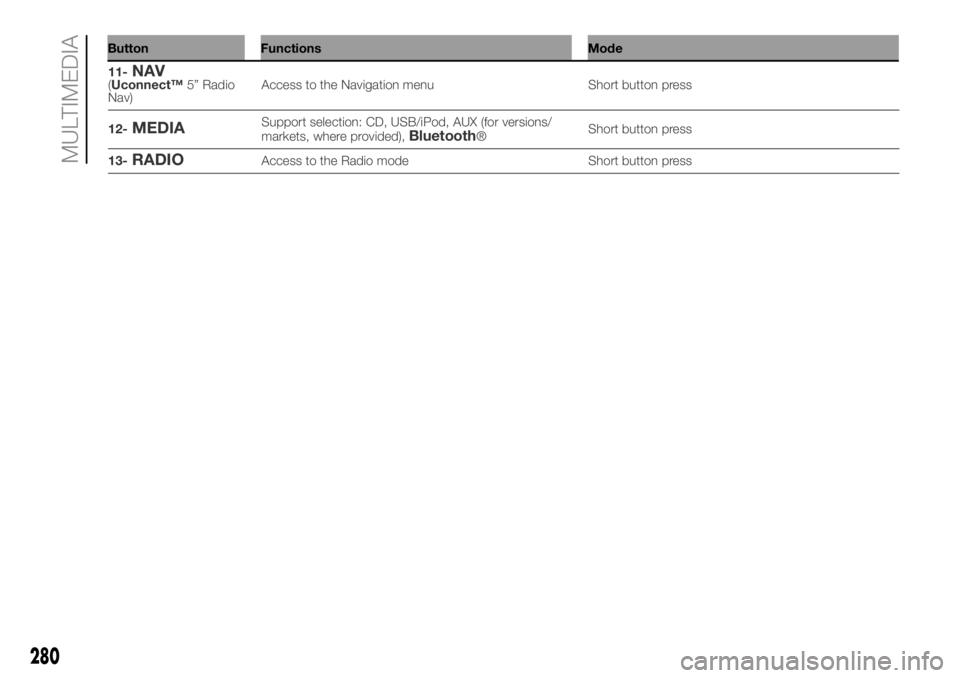
11-NAV(Uconnect™5” Radio
Nav)Access to the Navigation menu Short button press
12-
MEDIASupport selection: CD, USB/iPod, AUX (for versions/
markets, where provided),Bluetooth®Short button press
13-
RADIOAccess to the Radio mode Short button press
Page 285 of 304
OPERATION
SWITCHING THE SYSTEM
ON/OFF
The system is switched on/off by
pressing the button/knob.
Turn the button/knob clockwise to
increase the radio volume or
anticlockwise to decrease it.
Radio (Tuner) mode
After the desired radio station is
selected, the following information is
shown on the display:
At the top: the list of radio stations
stored (preset) is displayed; the station
currently playing is highlighted.
In the middle: display of the name of
the current radio station and the
buttons for selecting the previous or
next radio station. At the bottom:
display of the following buttons:
In the middle: display of the name of
the current radio station and the
buttons for selecting the previous or
next radio station. At the bottom:
display of the following buttons:
"Browse": list of the radio stations
available;
"AM/FM", "AM/DAB", "FM/DAB":
selection of the desired frequency band
(button reconfigurable according to
the band selected: AM,FM or DAB);
"Tune" : manual radio station tuning
(not available for DAB radios);
"Info": additional information on the
source being listened to;
"Audio": access to the "Audio
settings" screen.
Audio menu
To access the "Audio" menu, press the
button on the front panel, scroll
through the menu, then select and
press the "Audio" option on the display.
The following adjustments can be
carried out using the "Audio" menu:
"Equaliser" (for versions/markets,
where provided);
"Balance/Fader" (left/right and
front/rear audio balance adjustment);
"Volume/Speed" (excluding versions
with Hi-Fi system) speed-dependent
automatic volume adjustment;
"Loudness" (for versions/markets,
where provided);
"Auto-On Radio";
"Radio Off Delay".
To exit the "Audio" menu, press the
/Done button.Track selection (browse)
Use this function to scroll through and
select the tracks on the active device.
The selection options depend on the
device connected or the CD type
inserted.
For example, on an audio CD you can
select the track to be played, while on a
CD-ROM, a USB/iPod orBluetooth®
device you can also scroll through the
list of artists, genres and albums avail-
able depending on the information
present on the tracks.
NOTE A fewBluetooth® devices do
not offer the possibility of scrolling
tracks through all categories.
Within each list, the "ABC" button
allows the user to skip to the desired
letter in the list.
NOTE This button might be disabled for
someApple®devices.
283
MEDIA MODE
Press the "Source" button to select the
desired audio source among those
available: CD, AUX (for versions/
markets, where provided), USB/iPod or
Bluetooth®.NOTE The "Browse" button does not
allow any operation on an AUX device
(for versions/markets, where provided).
Press the "Browse" button to activate
this function on the source being
played.
Turn the BROWSE ENTER button/knob
to select the desired category and
then press the button/knob to confirm
the selection.
Press the "X" button to cancel the
function.
Page 286 of 304

CD PLAYER
To activate CD mode, insert an audio or
MP3 CD in the relevant slot or press
the MEDIA button on the front panel.
If the CD has already been inserted,
press the "Source" button and then
select "CD".
Loading/ejecting a CD
To load the CD, insert it gently into the
slot to activate the motorised loading
system, which will position it correctly
(the "CD" symbol on the display comes
on).
Enter a CD when the system is on, the
CD mode is automatically selected
and the system starts playing the
tracks.
The display shows the number of the
track and the time (minutes and
seconds).
Press the button
(EJECT) on the
front panel, with the system on, to eject
the CD.
After the ejection, the Radio audio
source will be automatically selected.
If the CD is not removed from the
slot, the system will re-enter it
automatically after about 10 seconds
without playing it.Bluetooth® SOURCE
This mode is activated by pairing aBlu-
etooth® device containing music
tracks with the system.
PAIRING A Bluetooth® AUDIO
DEVICE
To pair aBluetooth® audio device,
proceed as follows:
activate theBluetooth® function on
the device;
press the MEDIA button on the front
panel;
if the "Media" source is active, press
the "Source" button;
select theBluetooth® Media
source;
press the "Add Device" button;
search forUconnect™on theBlu-
etooth® audio device (during the pair-
ing stage a screen is displayed showing
the progress of the operation);
when requested by the audio
device, enter the PIN code shown on
the system display or confirm on the
device the PIN displayed;
if the pairing procedure is completed
successfully, a screen is displayed.
Answer "Yes" to the question to pair the
Bluetooth® audio device as favourite
(the device will have priority over all
other devices to be paired subse-
quently). If "No" is selected, the priority
is determined according to the order of
connection. The last device connected
will have the highest priority;
an audio device can also be paired
by pressing the
button on the
front panel and selecting "Phone/
Bluetooth®”.
IMPORTANT If theBluetooth® con-
nection between mobile phone and
system is lost, consult the mobile
phone handbook.
USB/iPod SOURCE
To enable the USB/iPod mode, insert
the corresponding device (USB or iPod)
into the vehicle's USB port.
If a USB/iPod device is inserted with
the system on, this starts playing the
tracks present on the device.
AUX SOURCE
To enable AUX mode, insert an
appropriate device into the vehicle's
AUX socket.
When a device is inserted using the
AUX output socket the system starts
reproducing the AUX source
connected, if it is already being played.
284
MULTIMEDIA
(AUX system only)
Page 287 of 304
Adjust the volume using thebutton/
knob on the front panel or using the
volume adjustment control on the
connected device.
For the "Audio source selection"
function, see the "Media mode"
chapter.
IMPORTANT The functions of the
device connected to the AUX socket
are managed directly by the device
itself: it is not possible to change
track/folder/playlist or control play
start/end/pause with the front panel or
steering wheel controls.
PHONE MODE
PHONE MODE ACTIVATION
Press the PHONE button on the front
panel to activate the Phone mode.
Use the buttons on the display to:
dial the phone number (using the
graphic keypad on the display);
display and call the contacts in the
mobile phone phonebook;
display and call contacts from the
registers of previous calls;
pair up to 10 phones/audio devices
to make access and connection easier
and quicker;
transfer calls from the system to the
mobile phone and vice versa and
deactivate the microphone audio for
private conversations.The mobile phone audio is transmitted
through the vehicle’s audio system;
the system automatically mutes the
radio when the Phone function is used.
PAIRING A MOBILE PHONE
IMPORTANT Only do this with vehicle
stationary and in safe conditions; this
function is disabled when the vehicle is
moving.
The pairing procedure for a mobile
phone is described below: always
consult the handbook for the mobile
phone in any case.
To pair the mobile phone, proceed as
follows:
activate theBluetooth® function on
the mobile phone;
press the PHONE button on the
front panel;
if no phone is paired with the system
yet, the display shows a dedicated
screen;
select "Yes" to start the pairing
procedure, then search for the
Uconnect™device on the mobile
phone (if "No" is selected, the Phone
main screen is displayed);
when prompted by the mobile
phone, use its keypad to enter the PIN
code shown on the system display
or confirm on the mobile phone the PIN
displayed;
from the "Phone" screen you can
always pair a mobile phone by pressing
the "Settings" button: press the "Add
Device" button and proceed as
described above;
during the pairing stage a screen is
displayed showing the progress of
the operation;
when the pairing procedure is
completed successfully, a screen is
displayed: answer "Yes" to the question
to pair the mobile phone as favourite
(the mobile phone will have priority over
all other mobile phones to be paired
subsequently). If no other devices are
paired, the system will consider the first
associated device as favourite.
NOTE The priority is determined
according to the order of connection for
mobile phones which are not set as
favourites. The last phone connected
will have the highest priority.
NOTE On some mobile phones, to
make the SMS voice reading function
available, the SMS notification option
on the phone must be enabled; this
option is usually available on the phone,
in theBluetooth® connections menu
for a device registered asUconnect™.
After enabling this function on your
phone, you need to disconnect and
reconnect the phone using the
Uconnect™system to effect enabling.
285