phone FIAT FREEMONT 2013 Owner handbook (in English)
[x] Cancel search | Manufacturer: FIAT, Model Year: 2013, Model line: FREEMONT, Model: FIAT FREEMONT 2013Pages: 352, PDF Size: 5.22 MB
Page 156 of 352
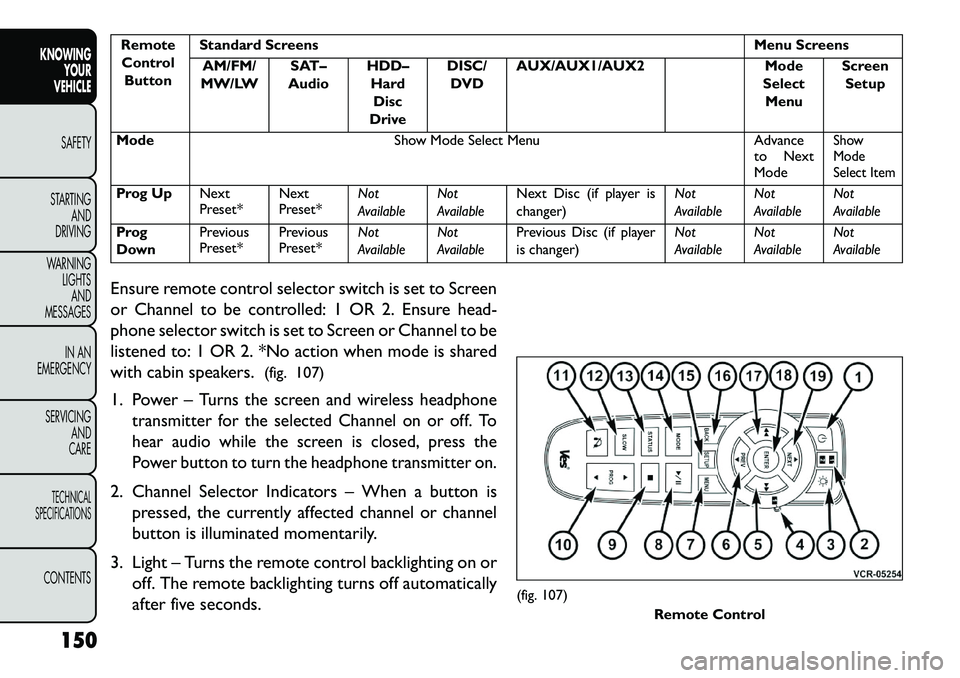
RemoteControl Button Standard Screens
Menu Screens
AM/FM/
MW/LW SAT–
Audio HDD–
HardDisc
Drive DISC/
DVD AUX/AUX1/AUX2
Mode
Select Menu Screen
Setup
Mode Show Mode Select Menu Advance
to Next
Mode
Show
Mode
Select Item
Prog Up Next
Preset*Next
Preset*Not
AvailableNot
AvailableNext Disc (if player is
changer) Not
AvailableNot
AvailableNot
Available
Prog
Down Previous
Preset*
Previous
Preset*Not
AvailableNot
AvailablePrevious Disc (if player
is changer) Not
AvailableNot
AvailableNot
Available
Ensure remote control selector switch is set to Screen
or Channel to be controlled: 1 OR 2. Ensure head-
phone selector switch is set to Screen or Channel to be
listened to: 1 OR 2. *No action when mode is shared
with cabin speakers. (fig. 107)
1. Power –
Turns the screen and wireless headphone
transmitter for the selected Channel on or off. To
hear audio while the screen is closed, press the
Power button to turn the headphone transmitter on.
2. Channel Selector Indicators – When a button is
pressed, the currently affected channel or channel
button is illuminated momentarily.
3. Light – Turns the remote control backlighting on or off. The remote backlighting turns off automatically
after five seconds.
(fig. 107) Remote Control
150
KNOWING YOUR
VEHICLE
SAFETY
S
TARTING AND
DRIVING
WARNING LIGHTSAND
MESSAGES
IN AN
EMERGENCY
SERVICING AND
CARETECHNICAL
SPECIFICATIONSCONTENTS
Page 157 of 352
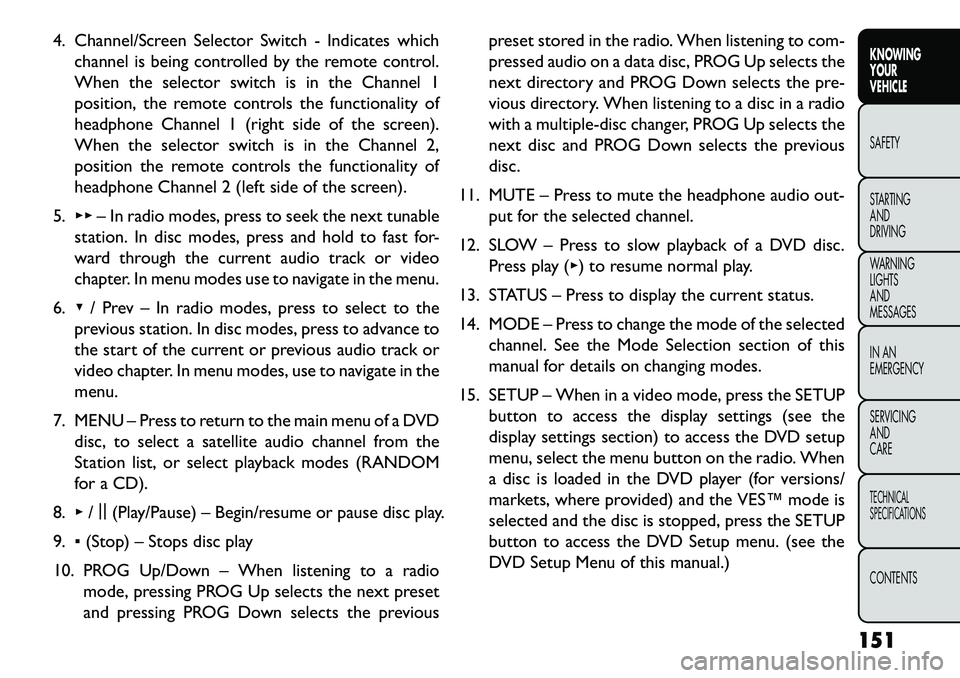
4. Channel/Screen Selector Switch - Indicates whichchannel is being controlled by the remote control.
When the selector switch is in the Channel 1
position, the remote controls the functionality of
headphone Channel 1 (right side of the screen).
When the selector switch is in the Channel 2,
position the remote controls the functionality of
headphone Channel 2 (left side of the screen).
5. ▸▸ – In radio modes, press to seek the next tunable
station. In disc modes, press and hold to fast for-
ward through the current audio track or video
chapter. In menu modes use to navigate in the menu.
6. ▾/ Prev – In radio modes, press to select to the
previous station. In disc modes, press to advance to
the start of the current or previous audio track or
video chapter. In menu modes, use to navigate in the
menu.
7. MENU – Press to return to the main menu of a DVD disc, to select a satellite audio channel from the
Station list, or select playback modes (RANDOM
for a CD).
8. ▸/||
(Play/Pause) – Begin/resume or pause disc play.
9. ▪(Stop) – Stops disc play
10. PROG Up/Down – When listening to a radio mode, pressing PROG Up selects the next preset
and pressing PROG Down selects the previous preset stored in the radio. When listening to com-
pressed audio on a data disc, PROG Up selects the
next directory and PROG Down selects the pre-
vious directory. When listening to a disc in a radio
with a multiple-disc changer, PROG Up selects the
next disc and PROG Down selects the previous
disc.
11. MUTE – Press to mute the headphone audio out- put for the selected channel.
12. SLOW – Press to slow playback of a DVD disc. Press play (▸) to resume normal play.
13. STATUS – Press to display the current status.
14. MODE – Press to change the mode of the selected channel. See the Mode Selection section of this
manual for details on changing modes.
15. SETUP – When in a video mode, press the SETUP button to access the display settings (see the
display settings section) to access the DVD setup
menu, select the menu button on the radio. When
a disc is loaded in the DVD player (for versions/
markets, where provided) and the VES™ mode is
selected and the disc is stopped, press the SETUP
button to access the DVD Setup menu. (see the
DVD Setup Menu of this manual.)
151
KNOWING
YOUR
VEHICLE
SAFETY
STARTING
AND
DRIVING
WARNING
LIGHTS
AND
MESSAGES
IN AN
EMERGENCY
SERVICING
AND
CARETECHNICAL
SPECIFICATIONSCONTENTS
Page 159 of 352
Pressing the Video Lock again or turning the ignitionOFF turns Video Lock OFF and allows remote con-
trol operation of the VES™.
Replacing The Remote Control Batteries
The remote control requires two AAA batteries for
operation. To replace the batteries:
Locate the battery compartment on the back of the remote, then slide the battery cover downward.
Replace the batteries, making sure to orient them according to the polarity diagram shown.
Replace the battery compartment cover.
Headphones Operation
The headphones receive two separate channels of
audio using an infrared transmitter from the video
screen.
If no audio is heard after increasing the volume control,
verify that the screen is turned on and in the down
position and that the channel is not muted and the
headphone channel selector switch is on the desired
channel. If audio is still not heard, check that fully
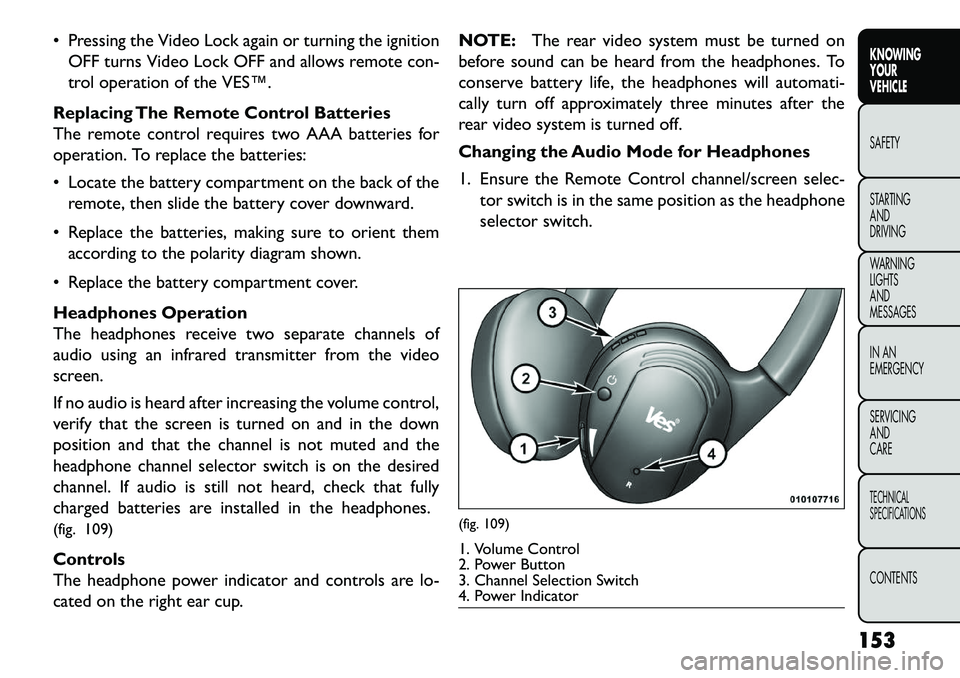
charged batteries are installed in the headphones.
(fig. 109)
Controls
The headphone power indicator and controls are lo-
cated on the right ear cup. NOTE:
The rear video system must be turned on
before sound can be heard from the headphones. To
conserve battery life, the headphones will automati-
cally turn off approximately three minutes after the
rear video system is turned off.
Changing the Audio Mode for Headphones
1. Ensure the Remote Control channel/screen selec- tor switch is in the same position as the headphone
selector switch.
(fig. 109)1. Volume Control
2. Power Button
3. Channel Selection Switch
4. Power Indicator
153
KNOWING
YOUR
VEHICLE
SAFETY
S
TARTING
AND
DRIVING
WARNING
LIGHTS
AND
MESSAGES
IN AN
EMERGENCY
SERVICING
AND
CARETECHNICAL
SPECIFICATIONSCONTENTS
Page 160 of 352
NOTE:
When both switches are on Channel 1, the Remoteis controlling Channel 1 and the headphones are
tuned to the audio of the VES™ Channel 1.
When both switches are on Channel 2, the Remote is controlling Channel 2 and the headphones are
tuned to the audio of the VES™ Channel 2.
2. Press the MODE button on the remote control.
3. If the video screen is displaying a video source (such as a DVD Video), pressing STATUS shows the status
on a popup banner at the bottom of the screen.
Pressing the MODE button will advance to the next
mode. When the mode is in an audio only source
(such as FM), the Mode Selection menu appears on
screen.
4. When the Mode Selection menu appears on screen, use the cursor buttons on the remote control to
navigate to the available modes and press the EN-
TER button to select the new mode.
5. To cancel out of the Mode Selection menu, press the BACK button on the remote control. Replacing The Headphone Batteries
Each set of headphones requires two AAA batteries for
operation. To replace the batteries:
Locate the battery compartment on the left ear cup
of the headphones, and then slide the battery cover
downward.
Replace the batteries, making sure to orient them according to the polarity diagram shown.
Replace the battery compartment cover.
Unwired
®Stereo Headphone Lifetime
Limited Warranty
Who Does This Warranty Cover? This warranty
covers the initial user or purchaser ("you" or "your") of
this particular Unwired Technology LLC ("Unwired")
wireless headphone ("Product"). The warranty is not
transferable.
How Long Does The Coverage Last? This war-
ranty lasts as long as you own the Product.
What DoesThis Warranty Cover? Except as speci-
fied below, this warranty covers any Product that in
normal use is defective in workmanship or materials.
What Does This Warranty Not Cover? This war-
ranty does not cover any damage or defect that results
from misuse, abuse or modification of the Product
other than by Unwired. Foam earpieces, which will
154
KNOWING YOUR
VEHICLE
SAFETY
S
TARTING AND
DRIVING
WARNING LIGHTSAND
MESSAGES
IN AN
EMERGENCY
SERVICING AND
CARETECHNICAL
SPECIFICATIONSCONTENTS
Page 162 of 352
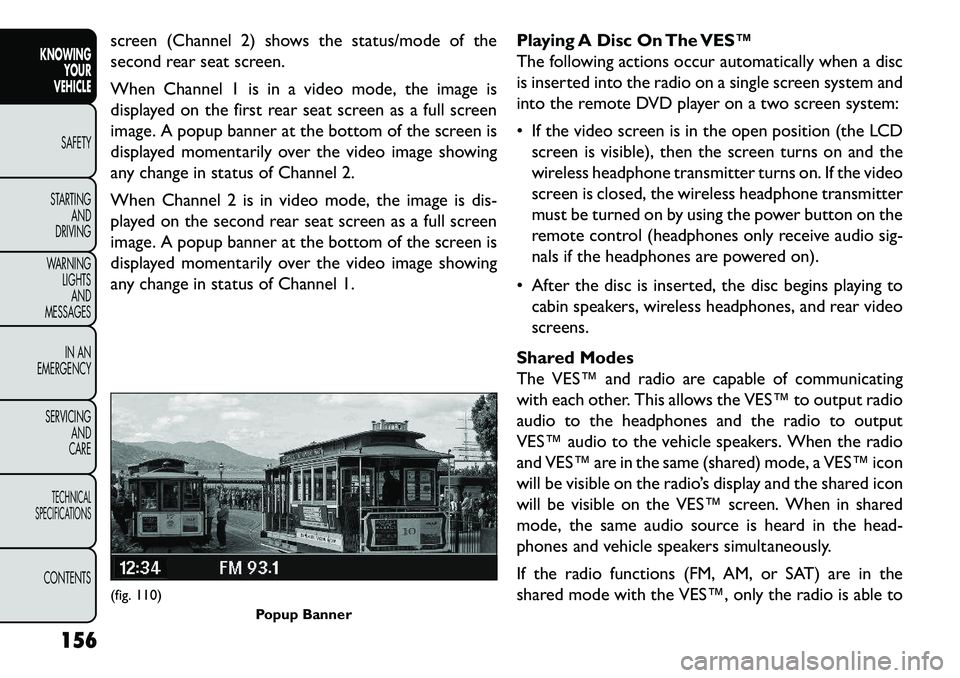
screen (Channel 2) shows the status/mode of the
second rear seat screen.
When Channel 1 is in a video mode, the image is
displayed on the first rear seat screen as a full screen
image. A popup banner at the bottom of the screen is
displayed momentarily over the video image showing
any change in status of Channel 2.
When Channel 2 is in video mode, the image is dis-
played on the second rear seat screen as a full screen
image. A popup banner at the bottom of the screen is
displayed momentarily over the video image showing
any change in status of Channel 1.Playing A Disc On The VES™
The following actions occur automatically when a disc
is inserted into the radio on a single screen system and
into the remote DVD player on a two screen system:
If the video screen is in the open position (the LCD
screen is visible), then the screen turns on and the
wireless headphone transmitter turns on. If the video
screen is closed, the wireless headphone transmitter
must be turned on by using the power button on the
remote control (headphones only receive audio sig-
nals if the headphones are powered on).
After the disc is inserted, the disc begins playing to cabin speakers, wireless headphones, and rear video
screens.
Shared Modes
The VES™ and radio are capable of communicating
with each other. This allows the VES™ to output radio
audio to the headphones and the radio to output
VES™ audio to the vehicle speakers. When the radio
and VES™ are in the same (shared) mode, a VES™ icon
will be visible on the radio’s display and the shared icon
will be visible on the VES™ screen. When in shared
mode, the same audio source is heard in the head-
phones and vehicle speakers simultaneously.
If the radio functions (FM, AM, or SAT) are in the
shared mode with the VES™, only the radio is able to(fig. 110) Popup Banner
156
KNOWING YOUR
VEHICLE
SAFETY
S
TARTING AND
DRIVING
WARNING LIGHTSAND
MESSAGES
IN AN
EMERGENCY
SERVICING AND
CARETECHNICAL
SPECIFICATIONSCONTENTS
Page 166 of 352
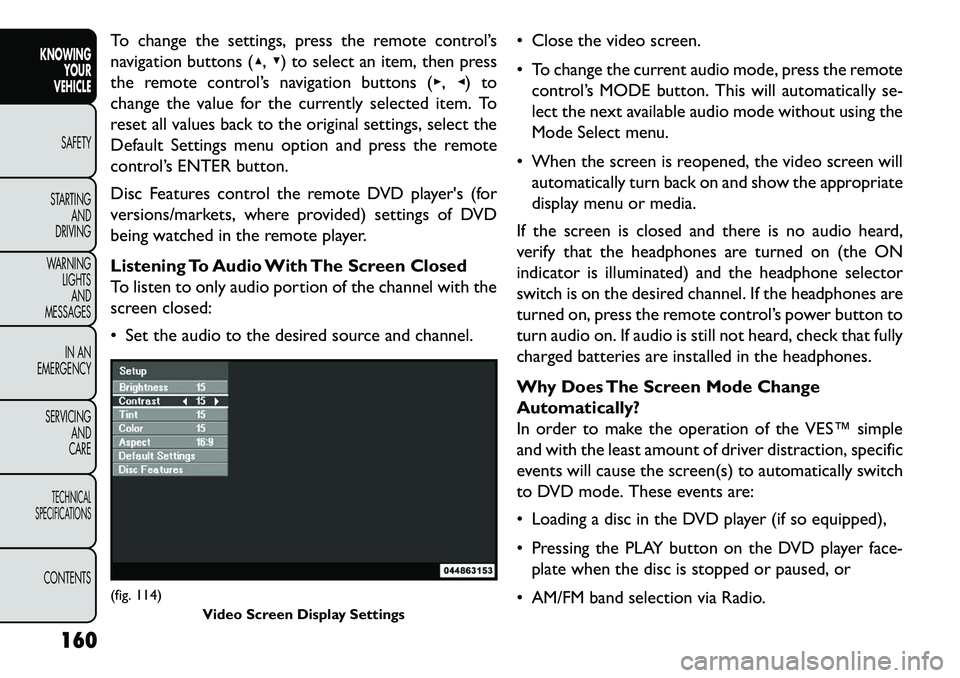
To change the settings, press the remote control’s
navigation buttons (▴,▾) to select an item, then press
the remote control’s navigation buttons (▸, ◂) to
change the value for the currently selected item. To
reset all values back to the original settings, select the
Default Settings menu option and press the remote
control’s ENTER button.
Disc Features control the remote DVD player's (for
versions/markets, where provided) settings of DVD
being watched in the remote player.
Listening To Audio With The Screen Closed
To listen to only audio portion of the channel with the
screen closed:
Set the audio to the desired source and channel. Close the video screen.
To change the current audio mode, press the remote
control’s MODE button. This will automatically se-
lect the next available audio mode without using the
Mode Select menu.
When the screen is reopened, the video screen will automatically turn back on and show the appropriate
display menu or media.
If the screen is closed and there is no audio heard,
verify that the headphones are turned on (the ON
indicator is illuminated) and the headphone selector
switch is on the desired channel. If the headphones are
turned on, press the remote control’s power button to
turn audio on. If audio is still not heard, check that fully
charged batteries are installed in the headphones.
Why Does The Screen Mode Change
Automatically?
In order to make the operation of the VES™ simple
and with the least amount of driver distraction, specific
events will cause the screen(s) to automatically switch
to DVD mode. These events are:
Loading a disc in the DVD player (if so equipped),
Pressing the PLAY button on the DVD player face- plate when the disc is stopped or paused, or
AM/FM band selection via Radio.(fig. 114) Video Screen Display Settings
160
KNOWING YOUR
VEHICLE
SAFETY
S
TARTING AND
DRIVING
WARNING LIGHTSAND
MESSAGES
IN AN
EMERGENCY
SERVICING AND
CARETECHNICAL
SPECIFICATIONSCONTENTS
Page 168 of 352
iPod®/USB/MP3 CONTROL (for
version/markets where provided)
This feature allows an iPod
®or external USB device to
be plugged into the USB port.
iPod
®
control supports Mini, 4G, Photo, Nano, 5G
iPod
®
and iPhone
®
devices. Some iPod
®
software
versions may not fully support the iPod®
control
features. Please visit Apple’s website for software up-
dates.
For further information, refer to the Uconnect
Touch™ User’s Manual. CD/DVD DISC MAINTENANCE
To keep a CD/DVD in good condition, take the follow-
ing precautions:
1. Handle the disc by its edge; avoid touching the
surface.
2. If the disc is stained, clean the surface with a soft cloth, wiping from center to edge.
3. Do not apply paper or tape to the disc; avoid scratching the disc.
4. Do not use solvents such as benzene, thinner, clean- ers, or anti-static sprays.
5. Store the disc in its case after playing.
6. Do not expose the disc to direct sunlight.
7. Do not store the disc where temperatures may become too high.
NOTE: If you experience difficulty in playing a par-
ticular disc, it may be damaged (i.e., scratched, reflec-
tive coating removed, a hair, moisture or dew on the
disc) oversized, or have protection encoding. Try a
known good disc before considering disc player ser-
vice.
162
KNOWING YOUR
VEHICLE
SAFETY
S
TARTING AND
DRIVING
WARNING LIGHTSAND
MESSAGES
IN AN
EMERGENCY
SERVICING AND
CARETECHNICAL
SPECIFICATIONSCONTENTS
Page 169 of 352
RADIO OPERATION AND MOBILE
PHONES
Under certain conditions, the mobile phone being on in
your vehicle can cause erratic or noisy performance
from your radio. This condition may be lessened or
eliminated by relocating the mobile phone antenna.
This condition is not harmful to the radio. If your radio
performance does not satisfactorily “clear” by the
repositioning of the antenna, it is recommended that
the radio volume be turned down or off during mobile
phone operation.ADDING FUEL
FUEL FILLER CAP (GAS CAP) (for
versions/markets, where provided)
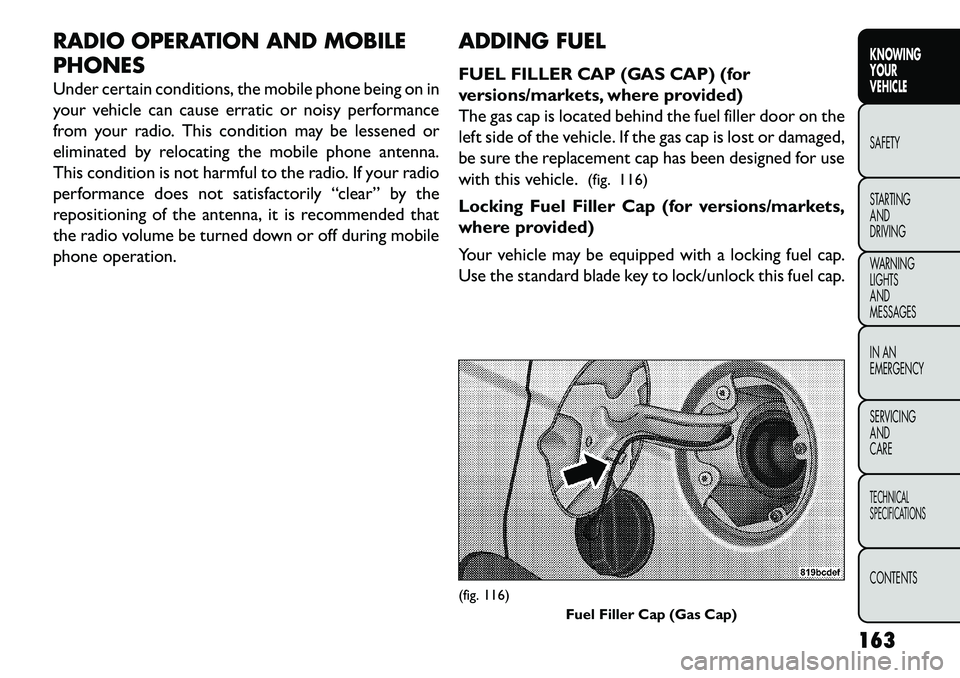
The gas cap is located behind the fuel filler door on the
left side of the vehicle. If the gas cap is lost or damaged,
be sure the replacement cap has been designed for use
with this vehicle.
(fig. 116)
Locking Fuel Filler Cap (for versions/markets,
where provided)
Your vehicle may be equipped with a locking fuel cap.
Use the standard blade key to lock/unlock this fuel cap.
(fig. 116) Fuel Filler Cap (Gas Cap)
163
KNOWING
YOUR
VEHICLE
SAFETY
S
TARTING
AND
DRIVING
WARNING
LIGHTS
AND
MESSAGES
IN AN
EMERGENCY
SERVICING
AND
CARETECHNICAL
SPECIFICATIONSCONTENTS
Page 198 of 352
If the air bag system in this vehicle needs to be modified
to accommodate a disabled person, contact the Cus-
tomer Center. Phone numbers are provided under "If
You Need Assistance".
WARNING!
R
elying on the air bags alone could
lead to more severe injuries in a collision.
The air bags work with your seat belt to restrain
you properly. In some collisions, the air bags
won't deploy at all. Always wear your seat belts
even though you have air bags.
Being too close to the steering wheel or instru-
ment panel during Advanced Front Air Bag de-
ployment could cause serious injury, including
death. Air Bags need room to inflate. Sit back,
comfortably extending your arms to reach the
steering wheel or instrument panel.
Side air bags also need room to inflate. Do not
lean against the door or window. Sit upright in
the center of the seat .
Air Bag Deployment Sensors And Controls
Occupant Restraint Controller (ORC)
The ORC is part of a regulated safety system required
for this vehicle. The ORC determines if deployment of the front and/or
side air bags in a frontal or side collision is required.
Based on the impact sensor's signals, a central elec-
tronic ORC deploys the Advanced Front Air Bags,
SABIC air bags, Supplemental Seat-Mounted Side Air
Bags, Supplemental Driver Side Knee Air Bag, and front
seat belt pretensioners, as required, depending on
several factors, including the severity and type of im-
pact.
The Advanced Front Air Bags and Supplemental Driver
Side Knee Air Bag are designed to provide additional
protection by supplementing the seat belts in certain
frontal collisions depending on several factors, includ-
ing the severity and type of collision. Advanced Front
Air Bags are not expected to reduce the risk of injury in
rear, side, or rollover collisions.
The Advanced Front Air Bags and Supplemental Driver
Side Knee Air Bag will not deploy in all frontal colli-
sions, including some that may produce substantial
vehicle damage — for example, some pole collisions,
truck underrides, and angle offset collisions. On the
other hand, depending on the type and location of
impact, Advanced Front Air Bags may deploy in crashes
with little vehicle front-end damage but that produce a
severe initial deceleration.
192
KNOWING YOUR
VEHICLE
SAFETY
STARTING AND
DRIVING
W
ARNING LIGHTS AND
MESSAGES
IN AN
EMERGENCY
SERVICING AND
CARETECHNICAL
SPECIFICATIONSCONTENTS
Page 253 of 352
4. Connect the opposite end of the negative(-)
jumper cable to the remote negative (-)post of the
vehicle with the discharged battery.
WARNING!
Do not connect the cable to the negative
pos
t(-) of the discharged battery. The
resulting electrical spark could cause the battery
to explode and could result in personal injury.
5. Start the engine in the vehicle that has the booster battery, let the engine idle a few minutes, and then
start the engine in the vehicle with the discharged
battery.
Once the engine is started, remove the jumper
cables in the reverse sequence:
6. Disconnect the negative (-)jumper cable from the
remote negative (-)post of the vehicle with the
discharged battery.
7. Disconnect the negative end (-)of the jumper cable
from the negative (-)post of the booster battery.
8. Disconnect the opposite end of the positive (+)
jumper cable from the positive (+)post of the
booster battery. 9. Disconnect the positive
(+)end of the jumper cable
from the remote positive (+)post of the discharged
vehicle.
10. Reinstall the protective cover over the remote positive (+)battery post of the discharged vehicle.
If frequent jump-starting is required to start your
vehicle, you should have the battery and charging
system inspected at your authorized dealer.
Accessories that can be plugged into the
vehicle power outlets draw power from
the vehicle’s battery, even when not in
use (i.e., cellular phones, etc .). Eventually, if
plugged in long enough, the vehicle’s battery will
discharge sufficiently to degrade battery life
and/or prevent the engine from starting.
247
KNOWING
YOUR
VEHICLE
SAFETY
STARTING
AND
DRIVING
WARNING
LIGHTS
AND
MESSAGES
IN AN
EMERGENCY
SERVICING
AND
C ARETECHNICAL
SPECIFICATIONSCONTENTS