radio FORD B MAX 2012 1.G Owner's Manual
[x] Cancel search | Manufacturer: FORD, Model Year: 2012, Model line: B MAX, Model: FORD B MAX 2012 1.GPages: 256, PDF Size: 19.67 MB
Page 187 of 256
Downloaded from www.Manualslib.com manuals search engine 3.Press and hold one of the presetbuttons. A progress bar and messagewill appear. When the progress barcompletes the station has been stored.The audio unit will also mutemomentarily as confirmation.
You can repeat this on each waveband andfor each preset button.
Note:When you drive to another part of thecountry, stations that broadcast onalternative frequencies, and are stored onpreset buttons, may be updated with thecorrect frequency and station name for thatarea.
Autostore Control
Note:This will store up to a maximum ofthe 10 strongest signals available, eitherfrom the AM or the FM waveband, andoverwrite the previously stored stations. Youcan also store stations manually in the sameway as other wavebands.
Note:You must select either FM AST orAM AST to use this function.
•Press the MENU button, select audiomode then press and hold the RADIObutton.
•When the search is complete, sound isrestored and the strongest signals arestored on the autostore presets.
Traffic Information Control
Many stations that broadcast on the FMwaveband have a TP code to signify thatthey carry traffic program information.
Turning Traffic Announcements On andOff
Before you can receive trafficannouncements, you must press either theTA or TRAFFIC button. A TA display willappear to show the feature is switched on.
If you are already tuned to a station thatbroadcasts traffic information,TP will alsobe displayed. Otherwise the unit will searchfor a traffic program.
When traffic information is broadcast, itwill automatically interrupt normal radioor CD playback and Traffic announcementwill appear in the display.
If a non-traffic station is selected orrecalled using a preset button, the audiounit will remain on that station unless TAor TRAFFIC is turned off, then on again.
Note:If traffic announcement is on and youselect a preset or manual tune to a nontraffic announcement station no trafficannouncement will be heard.
Note:When you are listening to a nontraffic announcement station and turntraffic announcement off and on again a TPseek will occur.
Traffic Announcement Volume
Traffic announcements interrupt normalbroadcasts at a preset minimum level thatis usually louder than normal listeningvolumes.
To adjust the preset volume:
•Use the volume control to make thenecessary adjustment during anincoming traffic announcementbroadcast. The display will show thelevel selected.
Ending Traffic Announcements
The audio unit will return to normaloperation at the end of each trafficannouncement. To end the announcementprematurely, press TA or TRAFFIC duringthe announcement.
Note:If you press TA or TRAFFIC at anyother time it will switch all announcementsoff.
185Audio System
Page 188 of 256
Downloaded from www.Manualslib.com manuals search engine Automatic Volume Control
When available, automatic volume controladjusts the volume level to compensatefor engine noise and road speed noise.
1.Press the MENU button and selectAUDIO.
2.Select AVC LEVEL or ADAPTIVEVOL.
3.Use the left or right arrow button toadjust the setting.
4.Press the OK button to confirm yourselection.
5.Press the MENU button to return.
Digital Signal Processing
Digital Signal Processing Occupancy
This feature takes into account thedifferences in distance from the variousspeakers in your vehicle to each seat. Youmust select the correct sitting position forthe audio to be correctly set.
Digital Signal Processing Equaliser
Select the music category that most suitsyour listening preference. The audio outputwill change to enhance the particular styleof music chosen.
Changing the Digital Signal ProcessingSettings
1.Press the MENU button.
2.Select AUDIO or AUDIO SETTINGS.
3.Scroll to the required digital signalprocessing function.
4.Use the up and down arrow buttons toselect the required setting.
5.Press the OK button to confirm yourselection.
6.Press the MENU button to return.
News Broadcasts
Your audio unit may interrupt normalreception to broadcast news bulletins fromstations on the FM waveband, radio datasystem or other enhanced network linkedstations.
The display will indicate there is anincoming announcement, during newsbroadcasts. When the audio unit interruptsfor a news broadcast the preset volumelevel will be the same as trafficannouncements.
1.Press the MENU button.
2.Select AUDIO or AUDIO SETTINGS.
3.Scroll to NEWS and turn on or off withthe OK button.
4.Press the MENU button to return.
Alternative Frequencies
The majority of programs that broadcaston the FM waveband have a programidentification code, it can be recognised byaudio units.
When your vehicle moves from onetransmission area to another with thealternative frequencies tuning switchedon, this function will search for thestrongest station signal.
Under certain conditions, however,alternative frequencies tuning maytemporarily disrupt normal reception.
When selected, the unit continuallyevaluates signal strength and, if a bettersignal becomes available, the unit willswitch to that alternative. It mutes whileit checks a list of alternative frequenciesand if necessary, it will search once acrossthe selected waveband for a genuinealternative frequency.
It will restore radio reception when it findsone or if one is not found, the unit willreturn to the original stored frequency.
186Audio System
Page 189 of 256
Downloaded from www.Manualslib.com manuals search engine When selected, AF will be shown in thedisplay.
1.Press the MENU button.
2.Select AUDIO or AUDIO SETTINGS.
3.Scroll to ALTERNAT FREQ. orALTERNATIVE FREQ. and turn on oroff with the OK button.
4.Press the MENU button to return.
Regional Mode
Regional mode controls the behaviour ofalternative frequencies switching betweenregionally related networks of a parentbroadcaster. A broadcaster may run a fairlylarge network across a large part of thecountry. At various times of the day thislarge network may be broken down into anumber of smaller regional networks,typically centred on major towns or cities.When the network is not split into regionalvariants, the whole network caries thesame programming.
Regional mode ON: This prevents randomalternative frequency switches whenneighbouring regional networks are notcarrying the same programming.
Regional mode OFF: This allows a largercoverage area if neighbouring regionalnetworks are carrying the sameprogramming, but can cause 'random'alternative frequency switches if they arenot.
1.Press the MENU button.
2.Select AUDIO or AUDIO SETTINGS.
3.Scroll to RDS REGIONAL and turn onor off with the OK button.
4.Press the MENU button to return.
AUDIO SYSTEM SECURITY
Each unit incorporates a unique code thatis linked to the vehicle identificationnumber. The system will automaticallycheck that the audio unit and vehiclematch before allowing operation.
If a security code message appears, see anauthorised dealer.
COMPACT DISC PLAYER -
VEHICLES WITH: AM/FM/CD
Compact Disc Playback
Note:During playback, the display indicatesthe disc, track and time that has elapsedsince the start of the track.
During radio reception, press the CD buttononce to start CD playback.
After a disc is loaded, playback will startimmediately.
Track Selection
•Press the seek down button once toreplay the current track. If pressedwithin two seconds of the start of atrack, the previous track will beselected.
•Press the up or down arrow buttons toselect the required track, then pressthe OK button.
Fast Forward and Reverse
Press and hold the seek down or upbuttons to search backward or forwardwithin the tracks on the disc.
Shuffle and Random
Random track playback, also known asshuffle, plays all tracks on the CD inrandom order.
187Audio System
Page 192 of 256
Downloaded from www.Manualslib.com manuals search engine MP3 or WMA Navigation
MP3 tracks may be recorded on the CD inseveral ways. They can all be placed in theroot directory like a conventional audio CD,or they can be placed in folders that mayrepresent, for example, an album, artist, orgenre.
The normal playing sequence on CDs withmultiple folders is:
•Play the tracks within the root (toplevel) first
•Then the tracks in any folder(s) withinthe root
•Then move onto the second folder, andso forth.
To navigate to a track.
1.Press the up or down arrow buttons toenter the track list.
2.Navigate the hierarchy using the arrowbuttons to select another folder ortrack (file).
3.Press OK to select a highlighted track.
MP3 and WMA Display Options
When an MP3 or WMA disc is playing,certain information encoded in each trackcan be displayed. Such information willnormally include:
•The file name.
•The folder name.
•ID3 information which might be thealbum or artist’s name.
The unit will normally show the file namethat is playing. To select one of the otheritems of information, press the INFObutton repeatedly until the required itemis shown in the display.
Note:If the ID3 information selected isunavailable,NO MP3 or WMA TAG will beshown in the display.
CD Text Display Options
When an audio disc with CD text is playing,limited information encoded in each trackcan be displayed. Such information willnormally include:
•The disc name.
•The artist name.
•The track name.
Note:These display options are selectedin the same way as MP3 displays.NO DISCNAME or NO TRACK NAME will be shownin the display if no information has beenencoded.
Ending Compact Disc Playback
To restore radio reception on all units,press the RADIO button.
Note:The CD will not be ejected. The discwill pause at the point where radio receptionwas restored.
To resume CD playback, press the CDbutton again.
COMPACT DISC PLAYER -
VEHICLES WITH:
AM/FM/CD/BLUETOOTH/SONY
AM/FM/CD
Compact Disc Playback
Note:During playback, the display indicatesthe disc, track and time that has elapsedsince the start of the track.
During radio reception, press the CD buttononce to start CD playback.
After a disc is loaded, playback will startimmediately.
190Audio System
Page 195 of 256
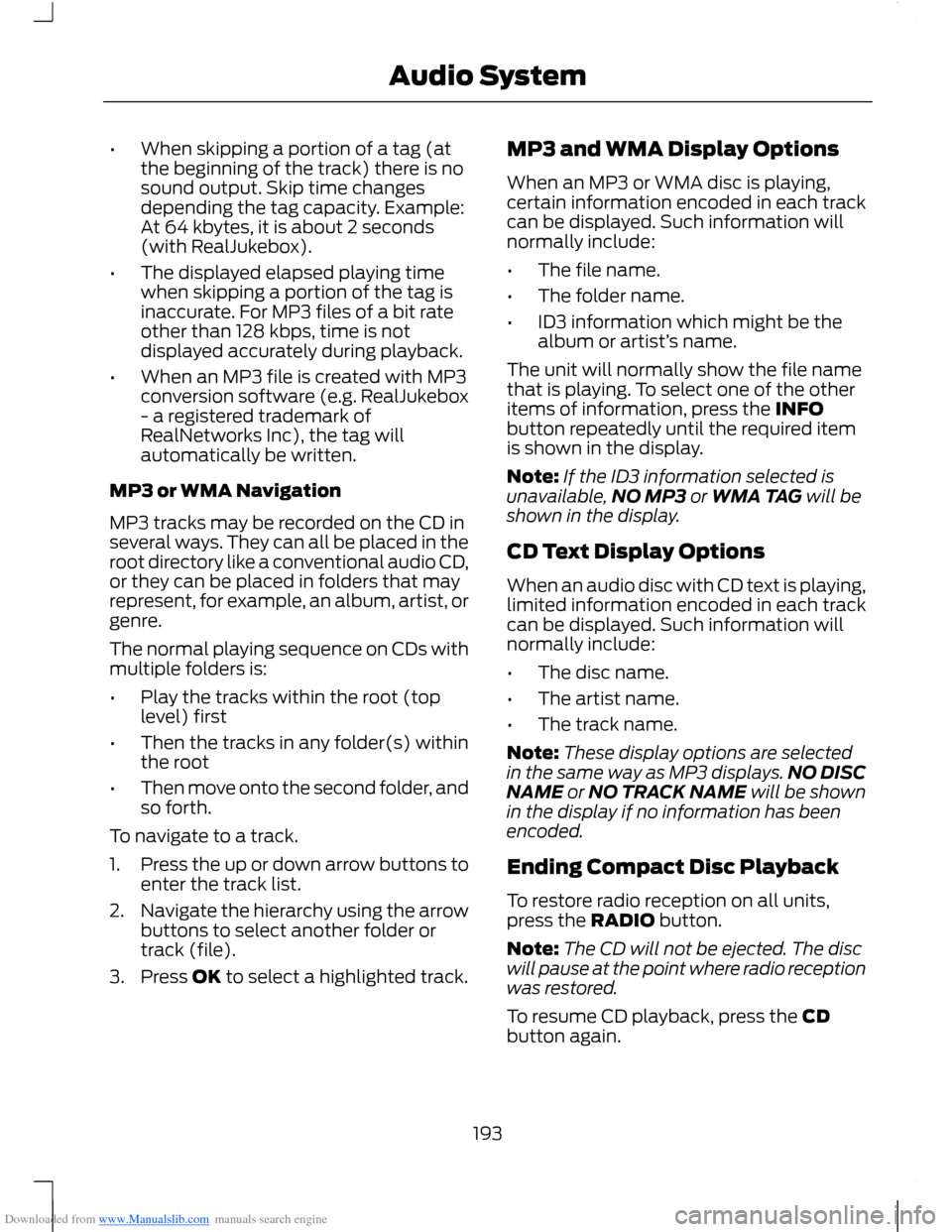
Downloaded from www.Manualslib.com manuals search engine •When skipping a portion of a tag (atthe beginning of the track) there is nosound output. Skip time changesdepending the tag capacity. Example:At 64 kbytes, it is about 2 seconds(with RealJukebox).
•The displayed elapsed playing timewhen skipping a portion of the tag isinaccurate. For MP3 files of a bit rateother than 128 kbps, time is notdisplayed accurately during playback.
•When an MP3 file is created with MP3conversion software (e.g. RealJukebox- a registered trademark ofRealNetworks Inc), the tag willautomatically be written.
MP3 or WMA Navigation
MP3 tracks may be recorded on the CD inseveral ways. They can all be placed in theroot directory like a conventional audio CD,or they can be placed in folders that mayrepresent, for example, an album, artist, orgenre.
The normal playing sequence on CDs withmultiple folders is:
•Play the tracks within the root (toplevel) first
•Then the tracks in any folder(s) withinthe root
•Then move onto the second folder, andso forth.
To navigate to a track.
1.Press the up or down arrow buttons toenter the track list.
2.Navigate the hierarchy using the arrowbuttons to select another folder ortrack (file).
3.Press OK to select a highlighted track.
MP3 and WMA Display Options
When an MP3 or WMA disc is playing,certain information encoded in each trackcan be displayed. Such information willnormally include:
•The file name.
•The folder name.
•ID3 information which might be thealbum or artist’s name.
The unit will normally show the file namethat is playing. To select one of the otheritems of information, press the INFObutton repeatedly until the required itemis shown in the display.
Note:If the ID3 information selected isunavailable,NO MP3 or WMA TAG will beshown in the display.
CD Text Display Options
When an audio disc with CD text is playing,limited information encoded in each trackcan be displayed. Such information willnormally include:
•The disc name.
•The artist name.
•The track name.
Note:These display options are selectedin the same way as MP3 displays.NO DISCNAME or NO TRACK NAME will be shownin the display if no information has beenencoded.
Ending Compact Disc Playback
To restore radio reception on all units,press the RADIO button.
Note:The CD will not be ejected. The discwill pause at the point where radio receptionwas restored.
To resume CD playback, press the CDbutton again.
193Audio System
Page 196 of 256
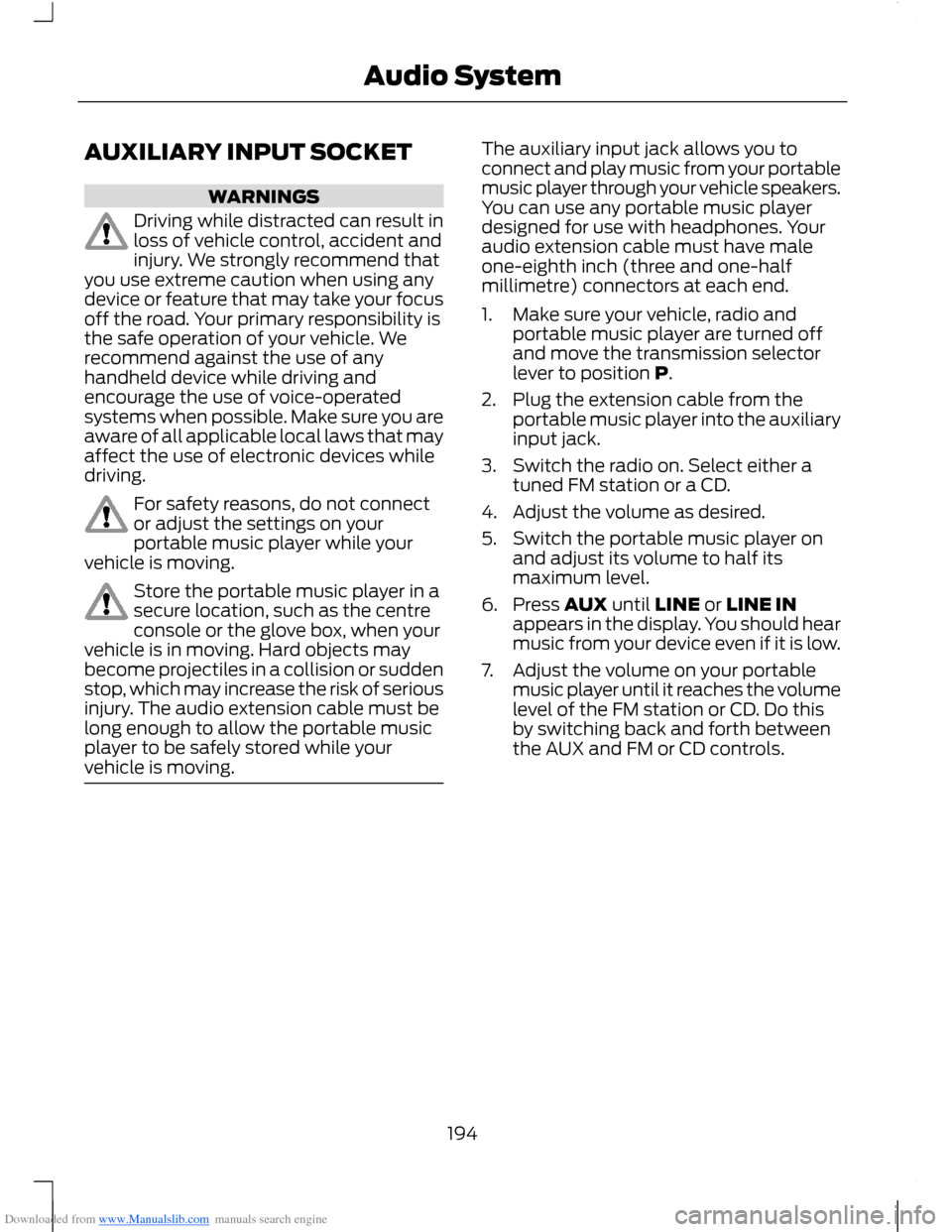
Downloaded from www.Manualslib.com manuals search engine AUXILIARY INPUT SOCKET
WARNINGS
Driving while distracted can result inloss of vehicle control, accident andinjury. We strongly recommend thatyou use extreme caution when using anydevice or feature that may take your focusoff the road. Your primary responsibility isthe safe operation of your vehicle. Werecommend against the use of anyhandheld device while driving andencourage the use of voice-operatedsystems when possible. Make sure you areaware of all applicable local laws that mayaffect the use of electronic devices whiledriving.
For safety reasons, do not connector adjust the settings on yourportable music player while yourvehicle is moving.
Store the portable music player in asecure location, such as the centreconsole or the glove box, when yourvehicle is in moving. Hard objects maybecome projectiles in a collision or suddenstop, which may increase the risk of seriousinjury. The audio extension cable must belong enough to allow the portable musicplayer to be safely stored while yourvehicle is moving.
The auxiliary input jack allows you toconnect and play music from your portablemusic player through your vehicle speakers.You can use any portable music playerdesigned for use with headphones. Youraudio extension cable must have maleone-eighth inch (three and one-halfmillimetre) connectors at each end.
1.Make sure your vehicle, radio andportable music player are turned offand move the transmission selectorlever to position P.
2.Plug the extension cable from theportable music player into the auxiliaryinput jack.
3.Switch the radio on. Select either atuned FM station or a CD.
4.Adjust the volume as desired.
5.Switch the portable music player onand adjust its volume to half itsmaximum level.
6.Press AUX until LINE or LINE INappears in the display. You should hearmusic from your device even if it is low.
7.Adjust the volume on your portablemusic player until it reaches the volumelevel of the FM station or CD. Do thisby switching back and forth betweenthe AUX and FM or CD controls.
194Audio System
Page 202 of 256
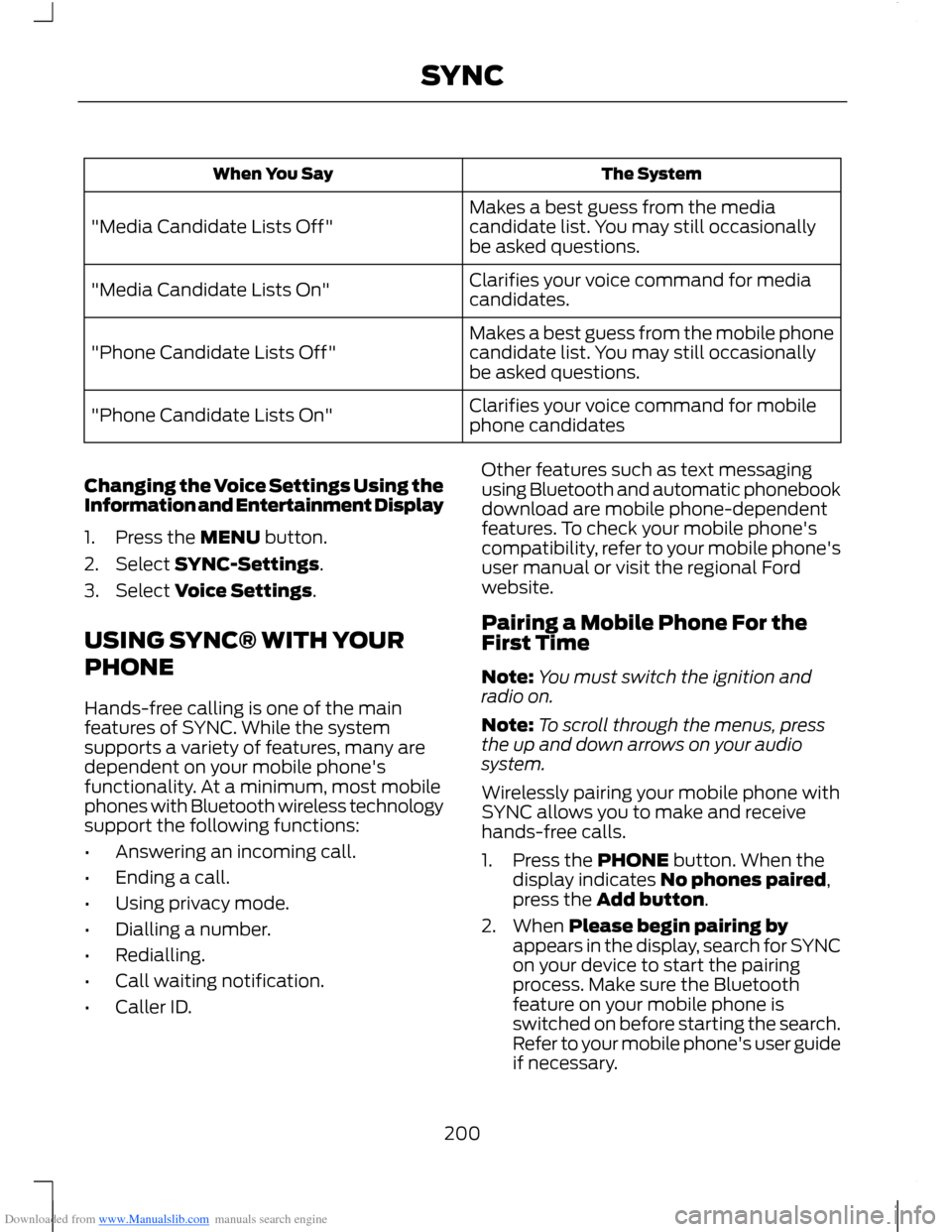
Downloaded from www.Manualslib.com manuals search engine The SystemWhen You Say
Makes a best guess from the mediacandidate list. You may still occasionallybe asked questions."Media Candidate Lists Off"
Clarifies your voice command for mediacandidates."Media Candidate Lists On"
Makes a best guess from the mobile phonecandidate list. You may still occasionallybe asked questions."Phone Candidate Lists Off"
Clarifies your voice command for mobilephone candidates"Phone Candidate Lists On"
Changing the Voice Settings Using theInformation and Entertainment Display
1.Press the MENU button.
2.Select SYNC-Settings.
3.Select Voice Settings.
USING SYNC® WITH YOUR
PHONE
Hands-free calling is one of the mainfeatures of SYNC. While the systemsupports a variety of features, many aredependent on your mobile phone'sfunctionality. At a minimum, most mobilephones with Bluetooth wireless technologysupport the following functions:
•Answering an incoming call.
•Ending a call.
•Using privacy mode.
•Dialling a number.
•Redialling.
•Call waiting notification.
•Caller ID.
Other features such as text messagingusing Bluetooth and automatic phonebookdownload are mobile phone-dependentfeatures. To check your mobile phone'scompatibility, refer to your mobile phone'suser manual or visit the regional Fordwebsite.
Pairing a Mobile Phone For theFirst Time
Note:You must switch the ignition andradio on.
Note:To scroll through the menus, pressthe up and down arrows on your audiosystem.
Wirelessly pairing your mobile phone withSYNC allows you to make and receivehands-free calls.
1.Press the PHONE button. When thedisplay indicates No phones paired,press the Add button.
2.When Please begin pairing byappears in the display, search for SYNCon your device to start the pairingprocess. Make sure the Bluetoothfeature on your mobile phone isswitched on before starting the search.Refer to your mobile phone's user guideif necessary.
200SYNC
Page 203 of 256
Downloaded from www.Manualslib.com manuals search engine 3.When prompted on your mobilephone's display, enter the six-digit PINprovided by SYNC in the display. Thedisplay indicates when the pairing issuccessful
Depending on your mobile phone'scapability and your market, the systemmay prompt you with questions such assetting the current mobile phone as theprimary phone (the mobile phone SYNCautomatically tries to connect with firstupon vehicle start-up), downloading yourmobile phone book, etc.
Pairing Subsequent Mobile Phones
Note:Make sure the radio is switched on.
Note:To scroll through the menus, pressthe up and down arrows on your audiosystem.
1.Press the PHONE button.
2.Scroll to and select BT Devices.
3.Press the OK button.
4.Press the Add button to start thepairing process.
5.When Please begin pairing byappears in the display, search for SYNCon your device to start the pairingprocess. Refer to your mobile phone'suser guide if necessary.
6.When prompted on your mobilephone's display, enter the six-digit PINprovided by SYNC in the audio display.The display indicates when the pairingis successful.
The system then prompts with questionssuch as would you like to set the currentmobile phone as the primary mobile phone(the mobile phone SYNC automaticallytries to connect with first upon vehiclestart-up), download your mobile phonebook, etc.
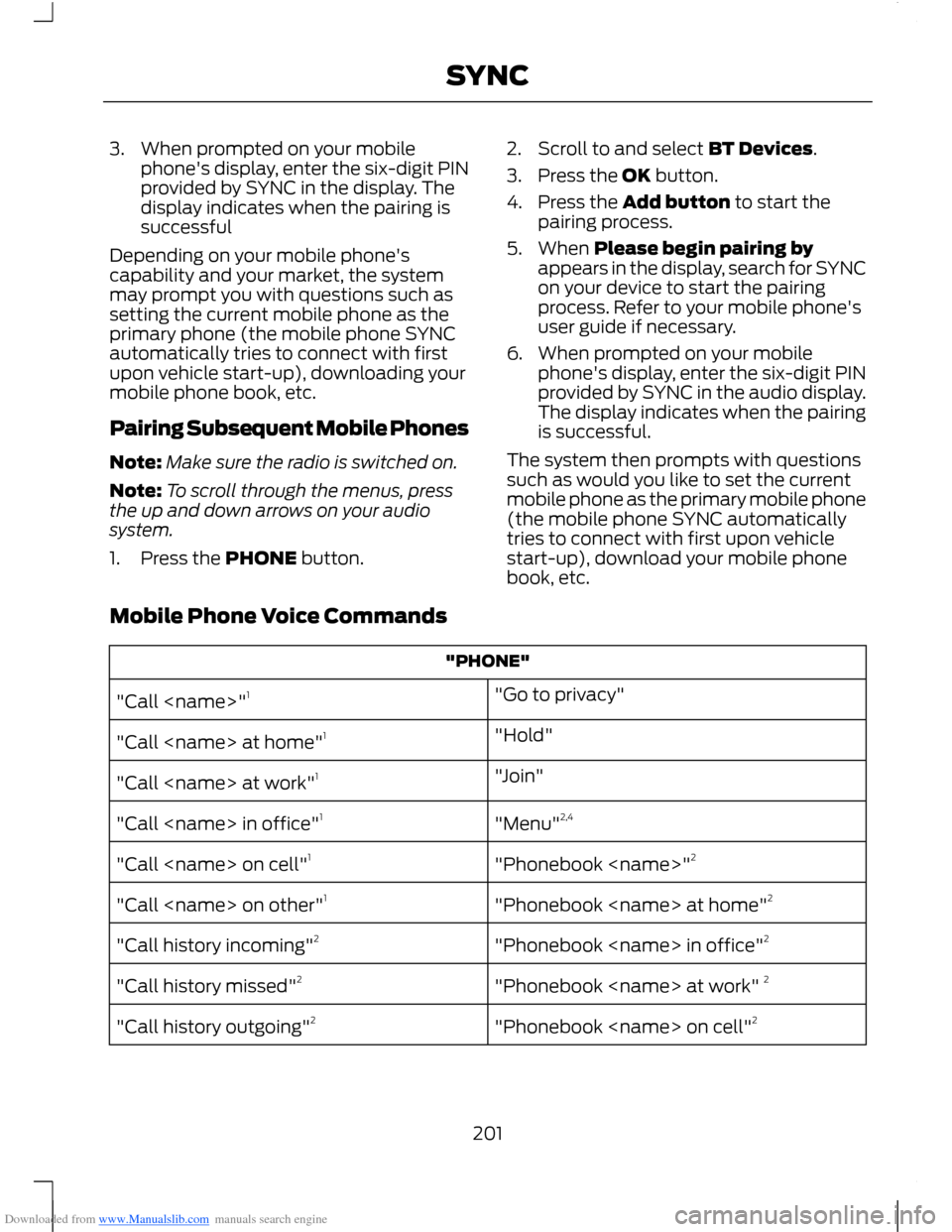
Mobile Phone Voice Commands
"PHONE"
"Go to privacy""Call
"Hold""Call
"Join""Call
"Menu"2,4"Call
"Phonebook
"Phonebook
"Phonebook
"Phonebook
"Phonebook
201SYNC
Page 211 of 256
Downloaded from www.Manualslib.com manuals search engine You CanIf You Select
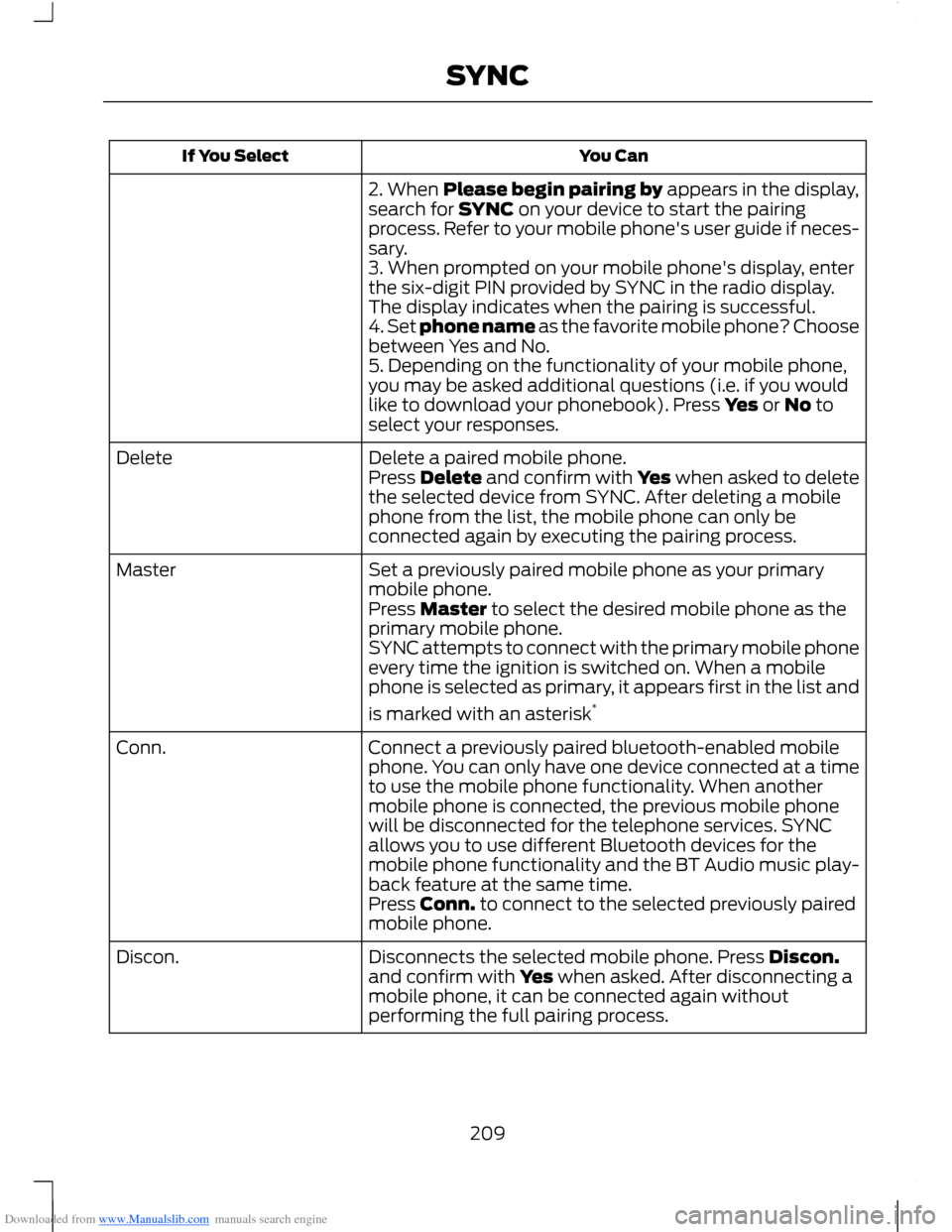
2. When Please begin pairing by appears in the display,search for SYNC on your device to start the pairingprocess. Refer to your mobile phone's user guide if neces-sary.3. When prompted on your mobile phone's display, enterthe six-digit PIN provided by SYNC in the radio display.The display indicates when the pairing is successful.4. Set phone name as the favorite mobile phone? Choosebetween Yes and No.5. Depending on the functionality of your mobile phone,you may be asked additional questions (i.e. if you wouldlike to download your phonebook). Press Yes or No toselect your responses.
Delete a paired mobile phone.DeletePress Delete and confirm with Yes when asked to deletethe selected device from SYNC. After deleting a mobilephone from the list, the mobile phone can only beconnected again by executing the pairing process.
Set a previously paired mobile phone as your primarymobile phone.Master
Press Master to select the desired mobile phone as theprimary mobile phone.SYNC attempts to connect with the primary mobile phoneevery time the ignition is switched on. When a mobilephone is selected as primary, it appears first in the list and
is marked with an asterisk*
Connect a previously paired bluetooth-enabled mobilephone. You can only have one device connected at a timeto use the mobile phone functionality. When anothermobile phone is connected, the previous mobile phonewill be disconnected for the telephone services. SYNCallows you to use different Bluetooth devices for themobile phone functionality and the BT Audio music play-back feature at the same time.
Conn.
Press Conn. to connect to the selected previously pairedmobile phone.
Disconnects the selected mobile phone. Press Discon.and confirm with Yes when asked. After disconnecting amobile phone, it can be connected again withoutperforming the full pairing process.
Discon.
209SYNC
Page 225 of 256
Downloaded from www.Manualslib.com manuals search engine Voice Command Issues
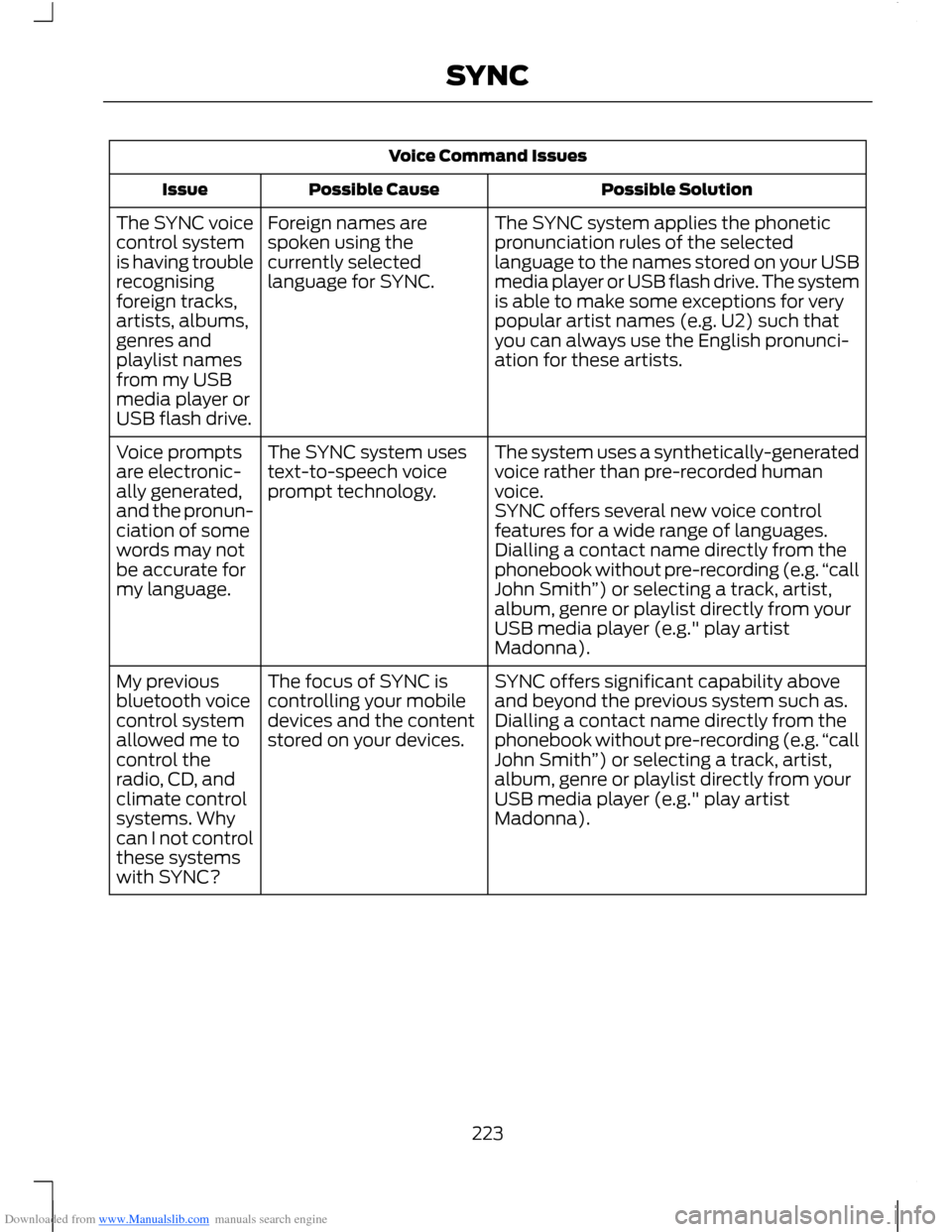
Possible SolutionPossible CauseIssue
The SYNC system applies the phoneticpronunciation rules of the selectedlanguage to the names stored on your USBmedia player or USB flash drive. The systemis able to make some exceptions for verypopular artist names (e.g. U2) such thatyou can always use the English pronunci-ation for these artists.
Foreign names arespoken using thecurrently selectedlanguage for SYNC.
The SYNC voicecontrol systemis having troublerecognisingforeign tracks,artists, albums,genres andplaylist namesfrom my USBmedia player orUSB flash drive.
The system uses a synthetically-generatedvoice rather than pre-recorded humanvoice.
The SYNC system usestext-to-speech voiceprompt technology.
Voice promptsare electronic-ally generated,and the pronun-ciation of somewords may notbe accurate formy language.
SYNC offers several new voice controlfeatures for a wide range of languages.Dialling a contact name directly from thephonebook without pre-recording (e.g.“callJohn Smith”) or selecting a track, artist,album, genre or playlist directly from yourUSB media player (e.g." play artistMadonna).
SYNC offers significant capability aboveand beyond the previous system such as.The focus of SYNC iscontrolling your mobiledevices and the contentstored on your devices.
My previousbluetooth voicecontrol systemallowed me tocontrol theradio, CD, andclimate controlsystems. Whycan I not controlthese systemswith SYNC?
Dialling a contact name directly from thephonebook without pre-recording (e.g.“callJohn Smith”) or selecting a track, artist,album, genre or playlist directly from yourUSB media player (e.g." play artistMadonna).
223SYNC