AUX FORD B MAX 2013 1.G User Guide
[x] Cancel search | Manufacturer: FORD, Model Year: 2013, Model line: B MAX, Model: FORD B MAX 2013 1.GPages: 298, PDF Size: 20.63 MB
Page 206 of 298
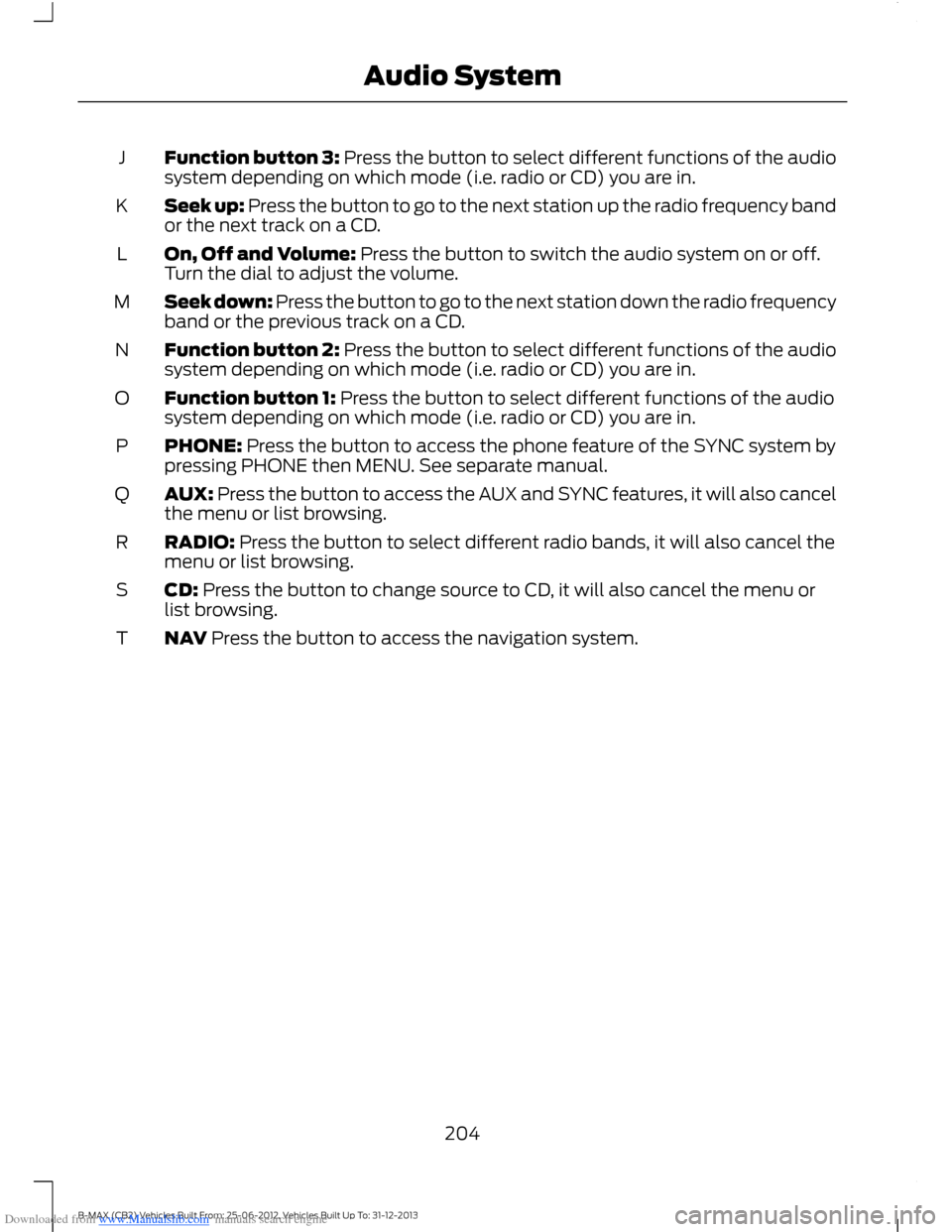
Downloaded from www.Manualslib.com manuals search engine Function button 3: Press the button to select different functions of the audiosystem depending on which mode (i.e. radio or CD) you are in.J
Seek up: Press the button to go to the next station up the radio frequency bandor the next track on a CD.K
On, Off and Volume: Press the button to switch the audio system on or off.Turn the dial to adjust the volume.L
Seek down: Press the button to go to the next station down the radio frequencyband or the previous track on a CD.M
Function button 2: Press the button to select different functions of the audiosystem depending on which mode (i.e. radio or CD) you are in.N
Function button 1: Press the button to select different functions of the audiosystem depending on which mode (i.e. radio or CD) you are in.O
PHONE: Press the button to access the phone feature of the SYNC system bypressing PHONE then MENU. See separate manual.P
AUX: Press the button to access the AUX and SYNC features, it will also cancelthe menu or list browsing.Q
RADIO: Press the button to select different radio bands, it will also cancel themenu or list browsing.R
CD: Press the button to change source to CD, it will also cancel the menu orlist browsing.S
NAV Press the button to access the navigation system.T
204B-MAX (CB2) Vehicles Built From: 25-06-2012, Vehicles Built Up To: 31-12-2013Audio System
Page 210 of 298
Downloaded from www.Manualslib.com manuals search engine AUDIO UNIT - VEHICLES WITH:
SONY AM/FM/CD
WARNING
Driving while distracted can result inloss of vehicle control, crash andinjury. We strongly recommend thatyou use extreme caution when using anydevice that may take your focus off theroad. Your primary responsibility is the safeoperation of your vehicle. We recommendagainst the use of any hand-held devicewhile driving and encourage the use ofvoice-operated systems when possible.Make sure you are aware of all applicablelocal laws that may affect the use ofelectronic devices while driving.
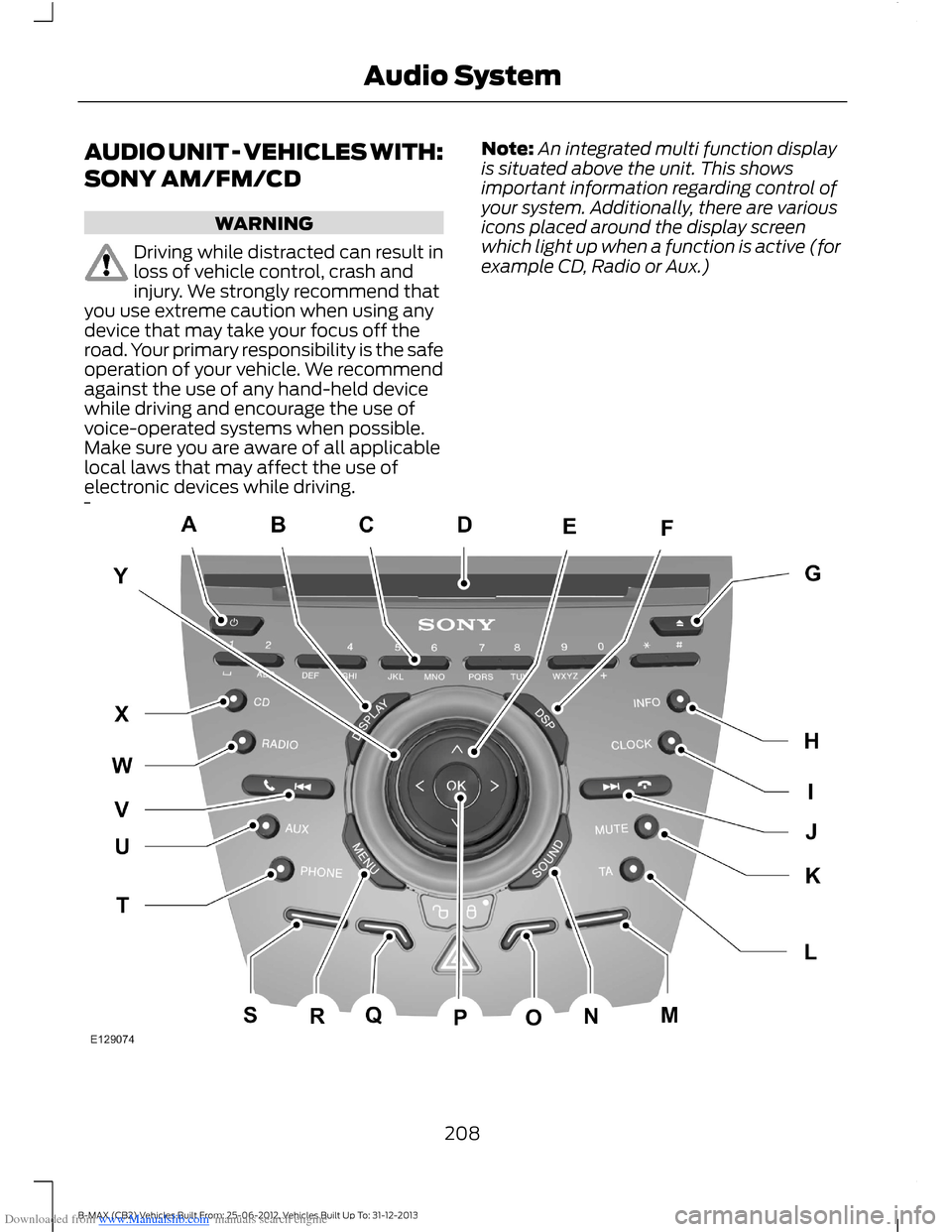
Note:An integrated multi function displayis situated above the unit. This showsimportant information regarding control ofyour system. Additionally, there are variousicons placed around the display screenwhich light up when a function is active (forexample CD, Radio or Aux.)
208B-MAX (CB2) Vehicles Built From: 25-06-2012, Vehicles Built Up To: 31-12-2013Audio System
Page 211 of 298
Downloaded from www.Manualslib.com manuals search engine On, Off: Press the button to switch the audio system on or off.A
DISPLAY: Press the button to turn on the display into idle mode.B
Numeric keypad: Press the button to recall a previously stored station. Tostore a favorite station press and hold until the sound returns. In CD mode, pressa number to select a track. In phone mode, use the buttons to dial a phonenumber.
C
CD slot: Where you insert a CD.D
Cursor arrows: Press the button to scroll through on-screen choices.E
Digital signal processing: Press the button to access the digital signalprocessing functions.F
Eject: Press the button to eject a CD.G
INFO: Press the button to access radio, CD, USB and IPod information.H
CLOCK: Press the button to access the clock functions.I
Seek up: Press the button to go to the next station up the radio frequency bandor the next track on a CD when in CD mode. In phone mode, use the button toend a phone call. An incoming call can be rejected.
J
MUTE: Press the button to turn the sound off, press again to turn the soundon.K
TA: Press the button to turn traffic announcements on or off and cancelsannouncements during an active announcement.L
Function button 4: Press the button to select different functions of the audiosystem depending on which mode (i.e. radio or CD) you are in.M
SOUND: Press the button to adjust the sound settings for bass, treble, middle,balance and fade.N
Function button 3: Press the button to select different functions of the audiosystem depending on which mode (i.e. radio or CD) you are in.O
OK: Press the button to confirm on-screen selections.P
Function button 2: Press the button to select different functions of the audiosystem depending on which mode (i.e. radio or CD) you are in.Q
MENU: Press the button to access different audio system features.R
Function button 1: Press the button to select different functions of the audiosystem depending on which mode (i.e. radio or CD) you are in.S
PHONE: Press the button to access the phone feature of the SYNC system bypressing PHONE then MENU. See separate manual.T
AUX: Press the button to access the AUX and SYNC features, it will also cancelthe menu or list browsing.U
209B-MAX (CB2) Vehicles Built From: 25-06-2012, Vehicles Built Up To: 31-12-2013Audio System
Page 216 of 298
Downloaded from www.Manualslib.com manuals search engine AUDIO UNIT - VEHICLES WITH:
NAVIGATION SYSTEM/SONY
AM/FM/CD
WARNING
Driving while distracted can result inloss of vehicle control, crash andinjury. We strongly recommend thatyou use extreme caution when using anydevice that may take your focus off theroad. Your primary responsibility is the safeoperation of your vehicle. We recommendagainst the use of any handheld devicewhile driving and encourage the use ofvoice-operated systems when possible.Make sure you are aware of all applicablelocal laws that may affect the use ofelectronic devices while driving.
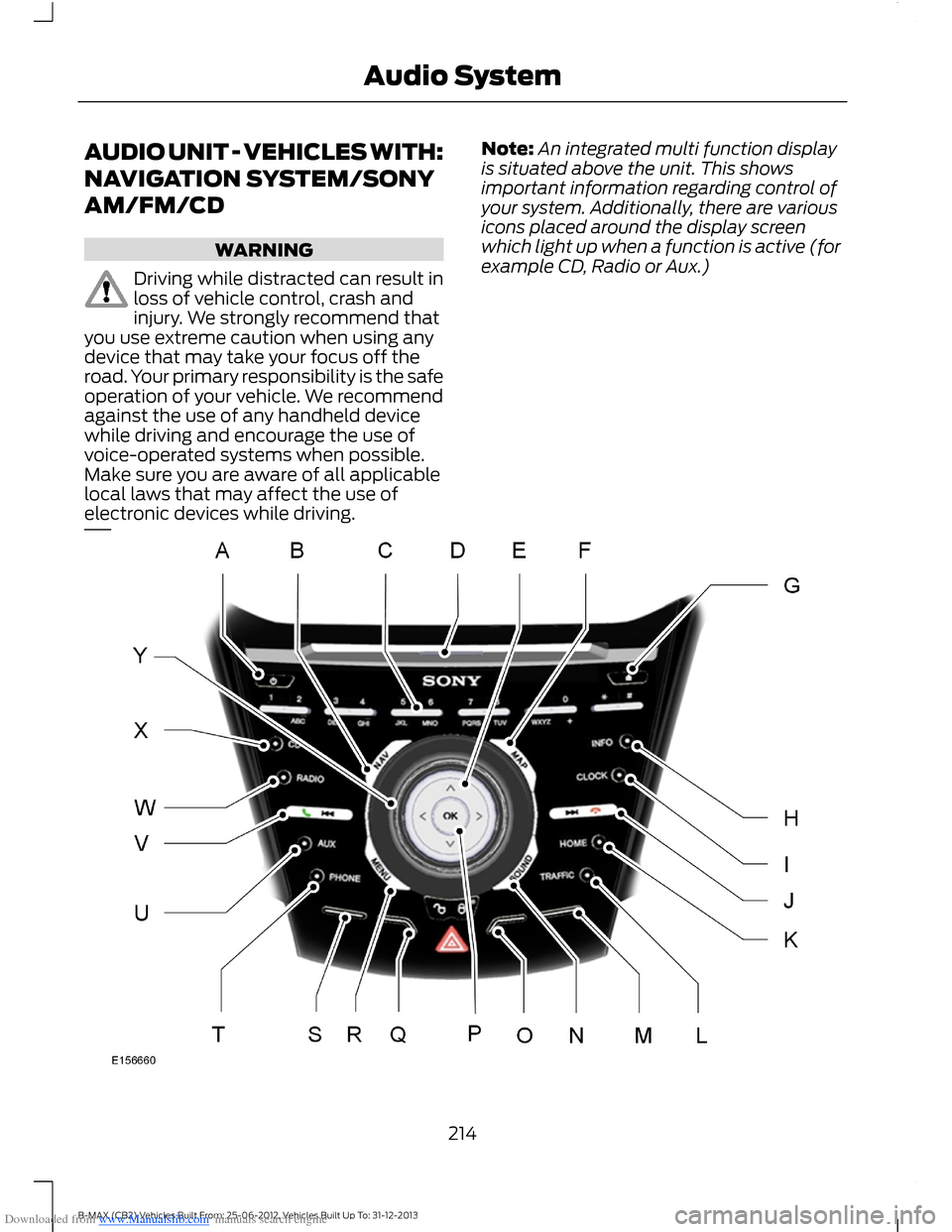
Note:An integrated multi function displayis situated above the unit. This showsimportant information regarding control ofyour system. Additionally, there are variousicons placed around the display screenwhich light up when a function is active (forexample CD, Radio or Aux.)
214B-MAX (CB2) Vehicles Built From: 25-06-2012, Vehicles Built Up To: 31-12-2013Audio System
Page 217 of 298
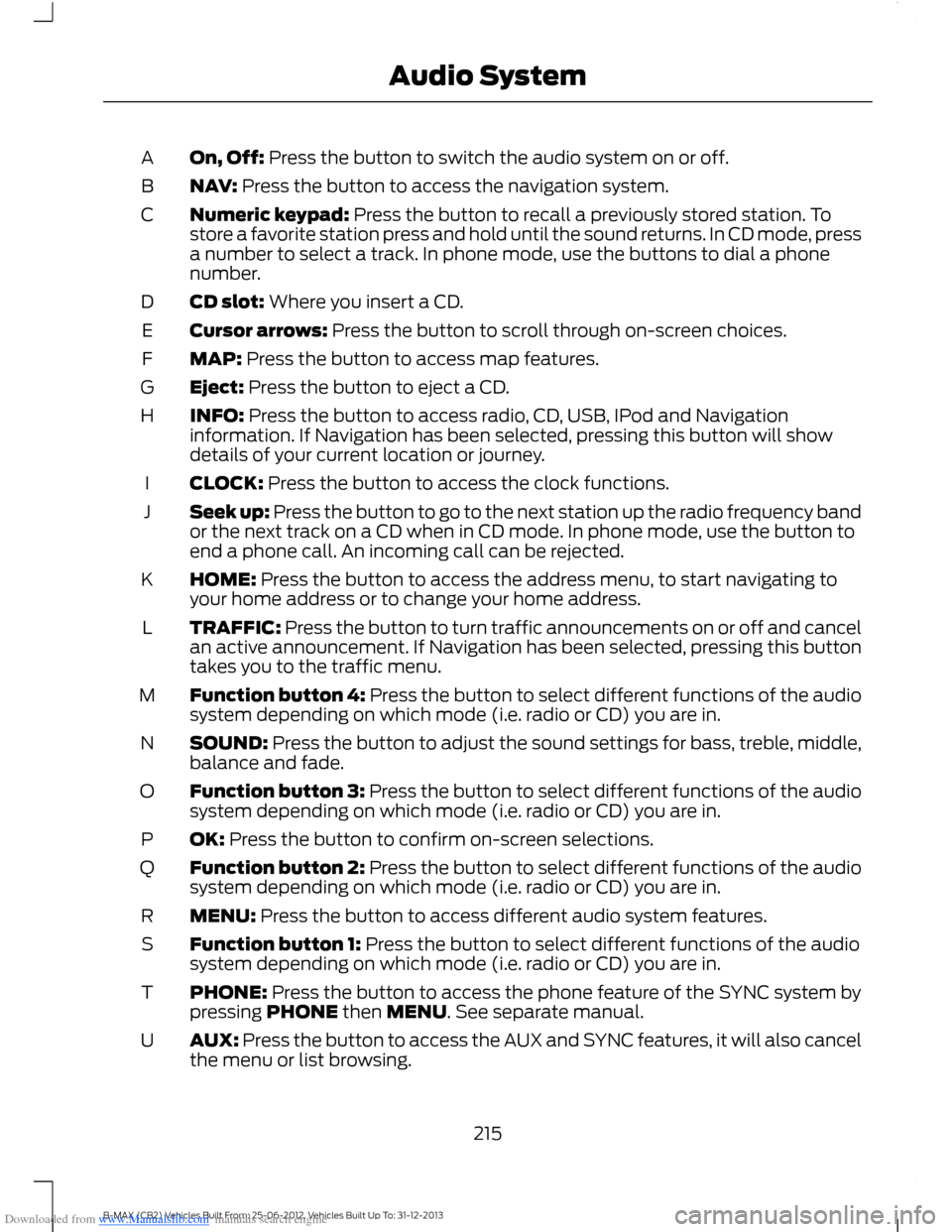
Downloaded from www.Manualslib.com manuals search engine On, Off: Press the button to switch the audio system on or off.A
NAV: Press the button to access the navigation system.B
Numeric keypad: Press the button to recall a previously stored station. Tostore a favorite station press and hold until the sound returns. In CD mode, pressa number to select a track. In phone mode, use the buttons to dial a phonenumber.
C
CD slot: Where you insert a CD.D
Cursor arrows: Press the button to scroll through on-screen choices.E
MAP: Press the button to access map features.F
Eject: Press the button to eject a CD.G
INFO: Press the button to access radio, CD, USB, IPod and Navigationinformation. If Navigation has been selected, pressing this button will showdetails of your current location or journey.
H
CLOCK: Press the button to access the clock functions.I
Seek up: Press the button to go to the next station up the radio frequency bandor the next track on a CD when in CD mode. In phone mode, use the button toend a phone call. An incoming call can be rejected.
J
HOME: Press the button to access the address menu, to start navigating toyour home address or to change your home address.K
TRAFFIC: Press the button to turn traffic announcements on or off and cancelan active announcement. If Navigation has been selected, pressing this buttontakes you to the traffic menu.
L
Function button 4: Press the button to select different functions of the audiosystem depending on which mode (i.e. radio or CD) you are in.M
SOUND: Press the button to adjust the sound settings for bass, treble, middle,balance and fade.N
Function button 3: Press the button to select different functions of the audiosystem depending on which mode (i.e. radio or CD) you are in.O
OK: Press the button to confirm on-screen selections.P
Function button 2: Press the button to select different functions of the audiosystem depending on which mode (i.e. radio or CD) you are in.Q
MENU: Press the button to access different audio system features.R
Function button 1: Press the button to select different functions of the audiosystem depending on which mode (i.e. radio or CD) you are in.S
PHONE: Press the button to access the phone feature of the SYNC system bypressing PHONE then MENU. See separate manual.T
AUX: Press the button to access the AUX and SYNC features, it will also cancelthe menu or list browsing.U
215B-MAX (CB2) Vehicles Built From: 25-06-2012, Vehicles Built Up To: 31-12-2013Audio System
Page 230 of 298
Downloaded from www.Manualslib.com manuals search engine AUXILIARY INPUT JACK
WARNINGS
Driving while distracted can result inloss of vehicle control, accident andinjury. We strongly recommend thatyou use extreme caution when using anydevice or feature that may take your focusoff the road. Your primary responsibility isthe safe operation of your vehicle. Werecommend against the use of anyhandheld device while driving andencourage the use of voice-operatedsystems when possible. Make sure you areaware of all applicable local laws that mayaffect the use of electronic devices whiledriving.
For safety reasons, do not connector adjust the settings on yourportable music player while yourvehicle is moving.
Store the portable music player in asecure location, such as the centerconsole or the glove box, when yourvehicle is in moving. Hard objects maybecome projectiles in a collision or suddenstop, which may increase the risk of seriousinjury. The audio extension cable must belong enough to allow the portable musicplayer to be safely stored while yourvehicle is moving.
The auxiliary input jack allows you toconnect and play music from your portablemusic player through your vehicle speakers.You can use any portable music playerdesigned for use with headphones. Youraudio extension cable must have maleone-eighth inch (three and one-halfmillimeter) connectors at each end.
1.Make sure your vehicle is stationarywith the radio and portable musicplayers turned off.
2.Plug the extension cable from theportable music player into the auxiliaryinput jack.
3.Switch the radio on. Select either atuned FM station or a CD.
4.Adjust the volume as desired.
5.Switch the portable music player onand adjust its volume to half itsmaximum level.
6.Press AUX until LINE or LINE INappears in the display. You should hearmusic from your device even if it is low.
7.Adjust the volume on your portablemusic player until it reaches the volumelevel of the FM station or CD. Do thisby switching back and forth betweenthe AUX and FM or CD controls.
228B-MAX (CB2) Vehicles Built From: 25-06-2012, Vehicles Built Up To: 31-12-2013Audio System
Page 243 of 298
Downloaded from www.Manualslib.com manuals search engine Before giving a voice command, wait forthe system announcement to finishfollowed by a single beep. Any commandspoken before this does not register withthe system.
Speak naturally, without long pausesbetween words.
You can interrupt the system at any timewhile it is speaking by pressing the voicebutton. You can also cancel a voice sessionat any time by pressing and holding thevoice button.
Initiating a Voice Session
Press the voice button. A list ofavailable commands appears inthe display.
If you want toSay
Stream audio from your cell phone."Bluetooth Audio"
Cancel the requested action."Cancel"
Access the device connected to the auxiliary input jack."Line in"
Make calls."Phone"
Return to the main menu."SYNC"
Access the device connected to your USB port."USB"
Adjust the level of voice interaction and feedback."Voice settings"
Hear a list of voice commands available in the currentmode."Help"
System Interaction and Feedback
The system provides feedback throughaudible tones, prompts, questions andspoken confirmations depending on thesituation and your chosen level ofinteraction. You can customize the voicerecognition system to provide more or lessinstruction and feedback.
The default setting is to a higher level ofinteraction in order to help you learn to usethe system. You can change these settingsat any time.
Adjusting the Interaction Level
Press the voice button. Say"Voice settings" when prompted,then any of the following:
The systemWhen you say
Provides less audible interaction and moretone prompts."Interaction mode advanced"
Provides more detailed interaction andguidance."Interaction mode standard"
The system defaults to the standard interaction mode.
241B-MAX (CB2) Vehicles Built From: 25-06-2012, Vehicles Built Up To: 31-12-2013SYNC™
Page 258 of 298
Downloaded from www.Manualslib.com manuals search engine Important Information about theEmergency Assistance Feature
Emergency assistance does not currentlycall emergency services in the followingmarkets: Albania, Belarus, Bosnia andHerzegovina, Macedonia, Netherlands,Ukraine, Moldova and Russia.
Visit the regional Ford website for latestdetails.
Emergency Assistance Privacy Notice
When you switch on EmergencyAssistance, it may disclose to emergencyservices that your vehicle has been in acrash involving the deployment of anairbag or activation of the fuel pump shutoff. This feature has the capability todisclose your location information to theemergency operator or other details aboutyour vehicle or crash to provide the mostappropriate emergency services.
If you do not want to disclose thisinformation, do not switch on the feature.
USING SYNC™ WITH YOUR
MEDIA PLAYER
You can access and play music from yourmedia player through your vehicle'sspeaker system using the system's mediamenu or voice commands. You can alsosort and play your music by specificcategories such as artist or albums.
SYNC is capable of hosting nearly anymedia player including: iPod, Zune, Playsfrom device players, and most USB drives.SYNC also supports audio formats suchas MP3, WMA, WAV and ACC.
Connecting Your Media Player tothe USB Port
Note:If your media player has a powerswitch, make sure you switch on the device.
To Connect Using Voice Commands
1.Plug the device into your vehicle's USBport.
2.Press the voice button and whenprompted, say "USB".
3.You can now play music by saying anyof the appropriate voice commands.Refer to the media voice commands.
To Connect Using the System Menu
1.Plug the device into your vehicle's USBport.
2.Press the AUX button until aninitializing message appears in thedisplay.
3.Depending on how many media filesare on your connected device, anindexing message may appear in thedisplay. When indexing is complete, thescreen returns to the Play menu.
Press Browse. Now you can scroll throughthe list:
•Play all.
•Playlists.
•Songs.
•Artists.
•Albums.
•Genres.
•Browse USB.
•Reset USB.
•Exit.
What's Playing?
At any time during playback, you can pressthe voice button and ask the system whatis playing. The system reads the metadatatags (if populated) of the current track.
256B-MAX (CB2) Vehicles Built From: 25-06-2012, Vehicles Built Up To: 31-12-2013SYNC™
Page 260 of 298
Downloaded from www.Manualslib.com manuals search engine Voice command guide
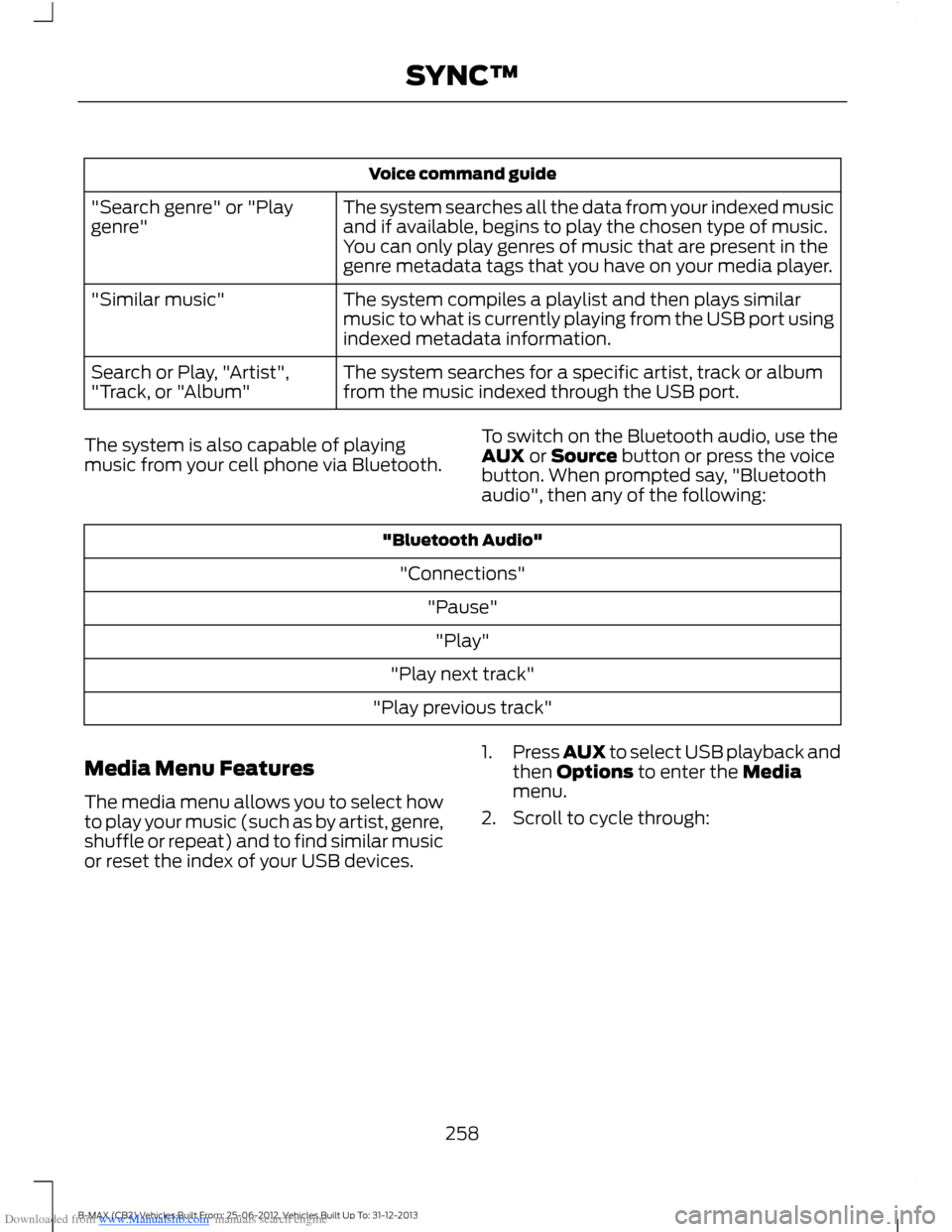
The system searches all the data from your indexed musicand if available, begins to play the chosen type of music.You can only play genres of music that are present in thegenre metadata tags that you have on your media player.
"Search genre" or "Playgenre"
The system compiles a playlist and then plays similarmusic to what is currently playing from the USB port usingindexed metadata information.
"Similar music"
The system searches for a specific artist, track or albumfrom the music indexed through the USB port.Search or Play, "Artist","Track, or "Album"
The system is also capable of playingmusic from your cell phone via Bluetooth.
To switch on the Bluetooth audio, use theAUX or Source button or press the voicebutton. When prompted say, "Bluetoothaudio", then any of the following:
"Bluetooth Audio"
"Connections"
"Pause"
"Play"
"Play next track"
"Play previous track"
Media Menu Features
The media menu allows you to select howto play your music (such as by artist, genre,shuffle or repeat) and to find similar musicor reset the index of your USB devices.
1.Press AUX to select USB playback andthen Options to enter the Mediamenu.
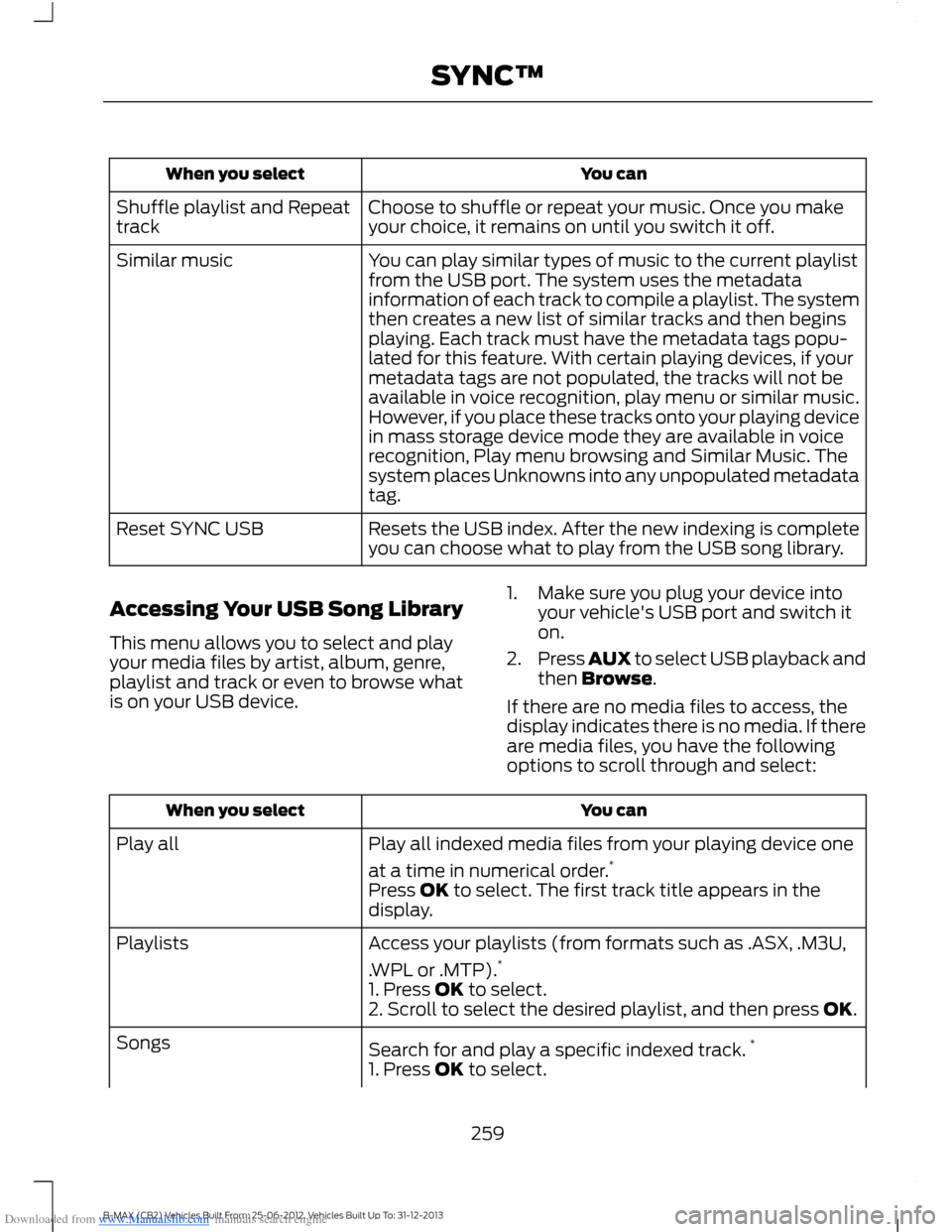
2.Scroll to cycle through:
258B-MAX (CB2) Vehicles Built From: 25-06-2012, Vehicles Built Up To: 31-12-2013SYNC™
Page 261 of 298
Downloaded from www.Manualslib.com manuals search engine You canWhen you select
Choose to shuffle or repeat your music. Once you makeyour choice, it remains on until you switch it off.Shuffle playlist and Repeattrack
You can play similar types of music to the current playlistfrom the USB port. The system uses the metadatainformation of each track to compile a playlist. The systemthen creates a new list of similar tracks and then beginsplaying. Each track must have the metadata tags popu-lated for this feature. With certain playing devices, if your
Similar music
metadata tags are not populated, the tracks will not beavailable in voice recognition, play menu or similar music.However, if you place these tracks onto your playing devicein mass storage device mode they are available in voicerecognition, Play menu browsing and Similar Music. Thesystem places Unknowns into any unpopulated metadatatag.
Resets the USB index. After the new indexing is completeyou can choose what to play from the USB song library.Reset SYNC USB
Accessing Your USB Song Library
This menu allows you to select and playyour media files by artist, album, genre,playlist and track or even to browse whatis on your USB device.
1.Make sure you plug your device intoyour vehicle's USB port and switch iton.
2.Press AUX to select USB playback andthen Browse.
If there are no media files to access, thedisplay indicates there is no media. If thereare media files, you have the followingoptions to scroll through and select:
You canWhen you select
Play all indexed media files from your playing device one
at a time in numerical order.*Play all
Press OK to select. The first track title appears in thedisplay.
Access your playlists (from formats such as .ASX, .M3U,
.WPL or .MTP).*Playlists
1. Press OK to select.2. Scroll to select the desired playlist, and then press OK.
Search for and play a specific indexed track.*Songs
1. Press OK to select.
259B-MAX (CB2) Vehicles Built From: 25-06-2012, Vehicles Built Up To: 31-12-2013SYNC™