light FORD B MAX 2013 1.G Service Manual
[x] Cancel search | Manufacturer: FORD, Model Year: 2013, Model line: B MAX, Model: FORD B MAX 2013 1.GPages: 298, PDF Size: 20.63 MB
Page 192 of 298
Downloaded from www.Manualslib.com manuals search engine GENERAL INFORMATION
Radio Frequencies and Reception Factors
Radio reception factors
The further you travel away from an FM station, the weakerthe signal and the weaker the reception.Distance and Strength
Hills, mountains, tall buildings, bridges, tunnels, freewayoverpasses, parking garages, dense tree foliage andthunderstorms can interfere with the reception.
Terrain
When you pass near a radio transmission tower, a strongersignal can override a weaker signal and can cause interfer-ence in the audio system.
Station overload
CD and CD Player Information
Note:CD units play commercially pressed4.75-inch (12 centimeter) audio compactdiscs only. Due to technical incompatibility,certain recordable and re-recordablecompact discs may not function correctlywhen used in Ford CD players.
Note:Do not insert CDs with homemadepaper (adhesive) labels into the CD playeras the label may peel and cause the CD tobecome jammed. You should use apermanent felt tip marker rather thanadhesive labels on your homemade CDs.Ballpoint pens may damage CDs. Pleasecontact an authorized dealer for furtherinformation.
Note:Do not use any irregularly shapeddiscs or discs with a scratch protection filmattached.
Always handle discs by their edges only.Clean the disc with an approved CDcleaner only. Wipe it from the center of thedisc toward the edge. Do not clean in acircular motion.
Do not expose discs to direct sunlight orheat sources for extended periods.
MP3 and WMA Track and FolderStructure
Audio systems capable of recognizing andplaying MP3 and WMA individual tracksand folder structures work as follows:
•There are two different modes for MP3and WMA disc playback: MP3 andWMA track mode (system default) andMP3 and WMA folder mode.
•MP3 and WMA track mode ignores anyfolder structure on the MP3 and WMAdisc. The player numbers each MP3and WMA track on the disc (noted bythe .mp3 or .WMA file extension) fromT001 to a maximum of T255. Themaximum number of playable MP3 andWMA files may be less depending onthe structure of the CD and exactmodel of radio present.
190B-MAX (CB2) Vehicles Built From: 25-06-2012, Vehicles Built Up To: 31-12-2013Audio System
Page 198 of 298
Downloaded from www.Manualslib.com manuals search engine 2.Select AUDIO or AUDIO SETTINGS.
3.Scroll to RDS REGIONAL and turn onor off with the OK button.
4.Press the MENU button to return.
AUDIO UNIT - VEHICLES WITH:
AM/FM/CD/BLUETOOTH
WARNING
Driving while distracted can result inloss of vehicle control, crash andinjury. We strongly recommend thatyou use extreme caution when using anydevice that may take your focus off theroad. Your primary responsibility is the safeoperation of your vehicle. We recommendagainst the use of any hand-held devicewhile driving and encourage the use ofvoice-operated systems when possible.Make sure you are aware of all applicablelocal laws that may affect the use ofelectronic devices while driving.
Note:An integrated multi function displayis situated above the unit. This showsimportant information regarding control ofyour system. Additionally, there are variousicons placed around the display screenwhich light up when a function is active (forexample CD, Radio or Aux.)
196B-MAX (CB2) Vehicles Built From: 25-06-2012, Vehicles Built Up To: 31-12-2013Audio System
Page 204 of 298
Downloaded from www.Manualslib.com manuals search engine large network may be broken down into anumber of smaller regional networks,typically centered on major towns or cities.When the network is not split into regionalvariants, the whole network caries thesame programming.
Regional mode ON: This prevents randomalternative frequency switches whenneighboring regional networks are notcarrying the same programming.
Regional mode OFF: This allows a largercoverage area if neighboring regionalnetworks are carrying the sameprogramming, but can cause randomalternative frequency switches if they arenot.
1.Press the MENU button.
2.Select AUDIO or AUDIO SETTINGS.
3.Scroll to RDS REGIONAL and turn onor off with the OK button.
4.Press the MENU button to return.
AUDIO UNIT - VEHICLES WITH:
AM/FM/CD/NAVIGATION
SYSTEM
WARNING
Driving while distracted can result inloss of vehicle control, crash andinjury. We strongly recommend thatyou use extreme caution when using anydevice that may take your focus off theroad. Your primary responsibility is the safeoperation of your vehicle. We recommendagainst the use of any hand-held devicewhile driving and encourage the use ofvoice-operated systems when possible.Make sure you are aware of all applicablelocal laws that may affect the use ofelectronic devices while driving.
Note:An integrated multi function displayis situated above the unit. This showsimportant information regarding control ofyour system. Additionally, there are variousicons placed around the display screenwhich light up when a function is active (forexample CD, Radio or Aux.)
202B-MAX (CB2) Vehicles Built From: 25-06-2012, Vehicles Built Up To: 31-12-2013Audio System
Page 210 of 298
Downloaded from www.Manualslib.com manuals search engine AUDIO UNIT - VEHICLES WITH:
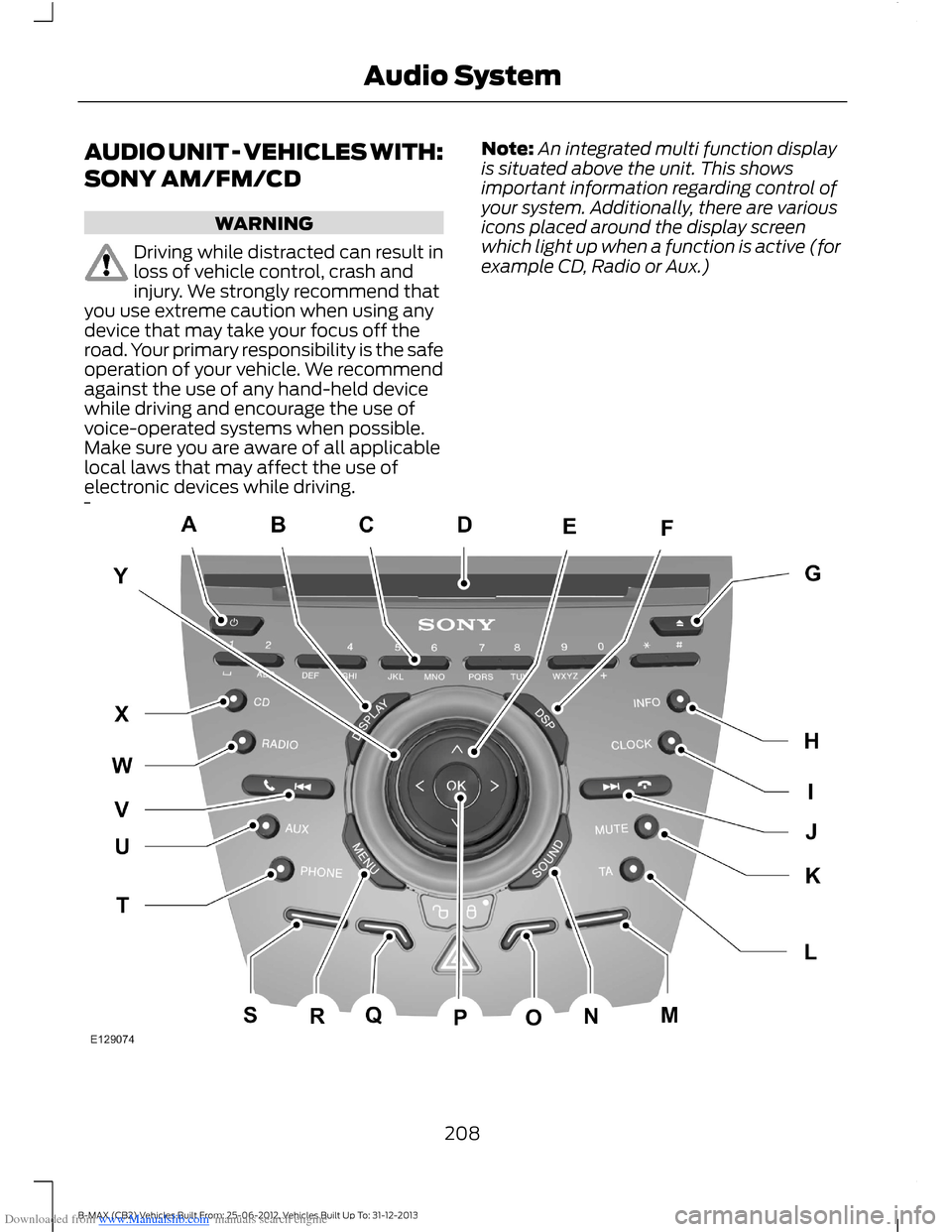
SONY AM/FM/CD
WARNING
Driving while distracted can result inloss of vehicle control, crash andinjury. We strongly recommend thatyou use extreme caution when using anydevice that may take your focus off theroad. Your primary responsibility is the safeoperation of your vehicle. We recommendagainst the use of any hand-held devicewhile driving and encourage the use ofvoice-operated systems when possible.Make sure you are aware of all applicablelocal laws that may affect the use ofelectronic devices while driving.
Note:An integrated multi function displayis situated above the unit. This showsimportant information regarding control ofyour system. Additionally, there are variousicons placed around the display screenwhich light up when a function is active (forexample CD, Radio or Aux.)
208B-MAX (CB2) Vehicles Built From: 25-06-2012, Vehicles Built Up To: 31-12-2013Audio System
Page 216 of 298
Downloaded from www.Manualslib.com manuals search engine AUDIO UNIT - VEHICLES WITH:
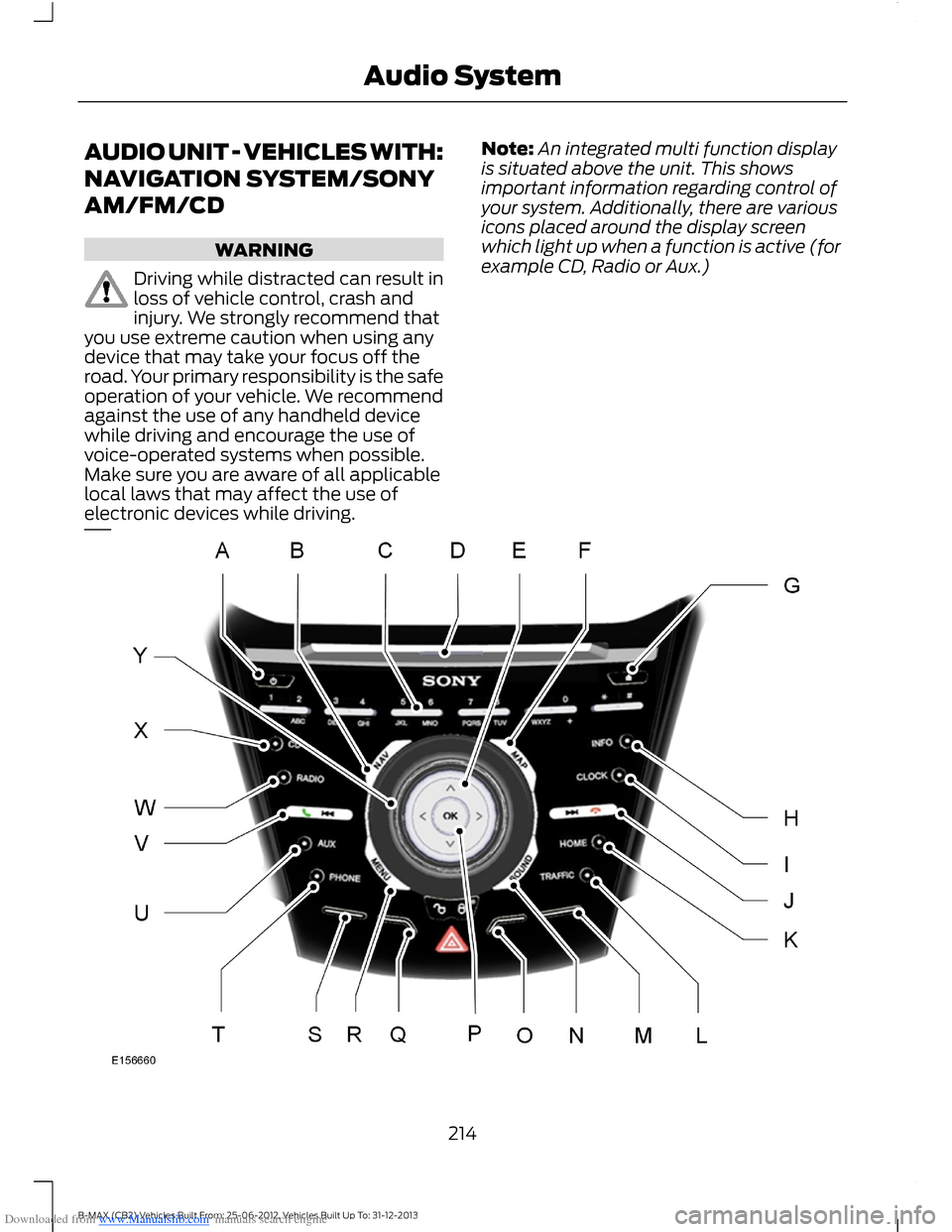
NAVIGATION SYSTEM/SONY
AM/FM/CD
WARNING
Driving while distracted can result inloss of vehicle control, crash andinjury. We strongly recommend thatyou use extreme caution when using anydevice that may take your focus off theroad. Your primary responsibility is the safeoperation of your vehicle. We recommendagainst the use of any handheld devicewhile driving and encourage the use ofvoice-operated systems when possible.Make sure you are aware of all applicablelocal laws that may affect the use ofelectronic devices while driving.
Note:An integrated multi function displayis situated above the unit. This showsimportant information regarding control ofyour system. Additionally, there are variousicons placed around the display screenwhich light up when a function is active (forexample CD, Radio or Aux.)
214B-MAX (CB2) Vehicles Built From: 25-06-2012, Vehicles Built Up To: 31-12-2013Audio System
Page 226 of 298
Downloaded from www.Manualslib.com manuals search engine MP3 or WMA Navigation
MP3 tracks may be recorded on the CD inseveral ways. They can all be placed in theroot directory like a conventional audio CD,or they can be placed in folders that mayrepresent, for example, an album, artist, orgenre.
The normal playing sequence on CDs withmultiple folders is:
•Play the tracks within the root (toplevel) first
•Then the tracks in any folder(s) withinthe root
•Then move onto the second folder, andso forth.
To navigate to a track.
1.Press the up or down arrow buttons toenter the track list.
2.Navigate the hierarchy using the arrowbuttons to select another folder ortrack (file).
3.Press OK to select a highlighted track.
MP3 and WMA Display Options
When an MP3 or WMA disc is playing,certain information encoded in each trackcan be displayed. Such information willnormally include:
•The file name.
•The folder name.
•ID3 information which might be thealbum or artist’s name.
The unit will normally show the file namethat is playing. To select one of the otheritems of information, press the INFObutton repeatedly until the required itemis shown in the display.
Note:If the ID3 information selected isunavailable,NO MP3 or WMA TAG will beshown in the display.
CD Text Display Options
When an audio disc with CD text is playing,limited information encoded in each trackcan be displayed. Such information willnormally include:
•The disc name.
•The artist name.
•The track name.
Note:These display options are selectedin the same way as MP3 displays.NO DISCNAME or NO TRACK NAME will be shownin the display if no information has beenencoded.
Ending Compact Disc Playback
To restore radio reception on all units,press the RADIO button.
Note:The CD will not be ejected. The discwill pause at the point where radio receptionwas restored.
To resume CD playback, press the CDbutton again.
COMPACT DISC PLAYER -
VEHICLES WITH:
AM/FM/CD/BLUETOOTH/SONY
AM/FM/CD
Compact Disc Playback
Note:During playback, the display indicatesthe disc, track and time that have elapsedsince the start of the track.
During radio reception, press CD once tostart CD playback.
After a disc is loaded, playback startsimmediately.
224B-MAX (CB2) Vehicles Built From: 25-06-2012, Vehicles Built Up To: 31-12-2013Audio System
Page 229 of 298
Downloaded from www.Manualslib.com manuals search engine •When skipping a portion of a tag (atthe beginning of the track) there is nosound output. Skip time changesdepending on the tag capacity.Example: At 64 kbytes, it is about 2seconds (with RealJukebox).
•The displayed elapsed playing timewhen skipping a portion of the tag isinaccurate. For MP3 files of a bit rateother than 128 kbps, time does notdisplay accurately during playback.
•When an MP3 file is created with MP3conversion software (such asRealJukebox - a registered trademarkof RealNetworks Inc.), the taggenerates automatically.
MP3 or WMA Navigation
You can record MP3 tracks on the CD inseveral ways. You can place them in theroot directory like a conventional audio CD,or in folders that may represent categories,such as album, artist, or genre.
The normal playing sequence on CDs withmultiple folders is:
•Play the tracks within the root (toplevel) first
•Then the tracks in any folder(s) withinthe root
•Then move onto the second folder, andso forth.
To navigate to a track:
1.Press the up or down arrow buttons toenter the track list.
2.Navigate the hierarchy using the arrowbuttons to select another folder ortrack (file).
3.Press OK to select a highlighted track.
MP3 and WMA Display Options
When an MP3 or WMA disc is playing,certain information encoded in each trackcan display. Such information normallyincludes:
•The file name.
•The folder name.
•ID3 information, which might be thealbum or artist name.
The unit normally shows the file name thatis playing. To select one of the other itemsof information, press INFO repeatedly untilthe required item appears in the display.
Note:If the ID3 information selected isunavailable,NO MP3 or WMA TAG appearsin the display.
CD Text Display Options
When an audio disc with CD text is playing,limited information encoded in each trackcan display. Such information normallyincludes:
•The disc name.
•The artist name.
•The track name.
Note:You can select these display optionsin the same way as MP3 displays.NO DISCNAME or NO TRACK NAME appears in thedisplay if there is no encoded information.
Ending Compact Disc Playback
To restore radio reception on all units,press RADIO.
Note:The CD does not eject. The discpauses at the point where radio receptionreturned.
To resume CD playback, press CD again.
227B-MAX (CB2) Vehicles Built From: 25-06-2012, Vehicles Built Up To: 31-12-2013Audio System
Page 233 of 298
Downloaded from www.Manualslib.com manuals search engine Note:You are ultimately responsible forthe safe operation of your vehicle and mustevaluate whether it is safe to follow routesuggestions. Navigation features areprovided only as an aid. Driving decisionsbased on observations of local conditionsand existing traffic regulations must beobserved. Do not follow route suggestionsif they would result in an unsafe or illegalmaneuver, an unsafe situation, or if youwould be directed into an area that youconsider unsafe. Maps used by this systemmay be inaccurate due to errors, changes inroads, traffic or driving conditions.
Safety Information
If detailed viewing of route instructions isnecessary, pull off the road when it is safeto do so and park your vehicle.
Setting a Route
1.Press the NAV button.
2.Select Destination input.
3.Starting at the top, select the countryfollowed by either the postcode or cityand street name, together with thehouse number or intersection.
4.Use the arrow buttons to enter youraddress details.
5.After entering sufficient information,select Start guidance or pressfunction key one to begin routecalculation.
Note:After first entry, the country selectedwill remain the default option until youmanually change it.
Note:If required you can select differentcharacter screens by using the up and downarrow buttons.
Note:If you only need to navigate to a citycenter, just enter the city name and startguidance.
Note:If you only need to navigate to adistrict, within a city for example, just enterthe district name and start guidance.
The route is calculated and the screenreturns to the main navigation screen. Ifprompted, select the type of route yourequire first. Follow the screen and voiceprompts to reach your destination.
Menu Structure
You can access the menu using theinformation and entertainment displaycontrol. See Information Displays (page63).
Note:Some options may appear slightlydifferent or not at all if the items areoptional.
Navigation
Active guidanceRoute*
Route sections list
Block next section
Unblock rte sctn
CountryDestination input*
City/postcode
Street
231B-MAX (CB2) Vehicles Built From: 25-06-2012, Vehicles Built Up To: 31-12-2013Navigation
Page 239 of 298
Downloaded from www.Manualslib.com manuals search engine 3.Before entering your destination detailsselect Tolerant and then begin toinput your destination.
4.Press the OK button. The system willsearch for destinations with similarspellings.
5.Use the arrow buttons to select adestination from the list and press theOK button to confirm your destination.
Route Displays
Map Display
Press the MAP button to view map mode.This view will show your current locationwith your vehicle in the center shown asan arrow surrounded by a circle. The arrowwill face in the direction of travel.
The information on the top line gives thename of the current road, or the next roadto take if a turn is approaching.
You can change the way the map isdisplayed by altering the zoom andorientation settings. Press function buttonone. The current map scale is shown onthe display.
Map scale settings may be set between0.05 miles to 500 miles or 50 meters to500 kilometers, with an auto setting onthe top. The auto setting continuouslychanges the map scale according tovehicle speed and the road type beingdriven.
You can use the arrow buttons to changethe view to 2D, turn-by-turn, 3D or a cleanview.
Zoom
This feature will automatically increasethe zoom on the map display at timeswhen you are required to make a turn, orperform more complex maneuvers. Shortlyafter the zoom scale will return to theprevious level when in auto mode.
Manual: Press function button one andadjust the setting using the left or rightarrow buttons. Press OK to confirm yoursetting.
Auto: Press function button one and usingthe up or down arrow key select the autooption. Press OK to confirm your setting.
Move
When you are in map mode, press functionbutton two. You can now use the arrowbuttons on the audio unit to move aroundthe map.
Press function button two again to returnto the original view.
Navigation Display
After commencing a navigation route, thedefault screen is the main navigationscreen.
Once an active route is underway, guidancewill be given by on-screen information andvoice prompts. Whichever audio sourceyou wish to leave the unit in, basic turn byturn and distance information will remainon the screen in the form of a graphic inset.You do not need to leave the unit on themain navigation screen when you arenavigating a route. Press the MAP buttonat any time to return to the main navigationscreen. Slightly more detailed informationon your route may be available using themain navigation screen if required.
Hazard Spot Warning
The system supports a hazard spotwarning feature which informs you withvisible and audible feedback abouthazardous traffic areas. You can switchthe system on and off using theinformation and entertainment displaymenu. See Assistance options in thenavigation menu.
Note:This feature is only available incertain countries.
237B-MAX (CB2) Vehicles Built From: 25-06-2012, Vehicles Built Up To: 31-12-2013Navigation
Page 251 of 298
Downloaded from www.Manualslib.com manuals search engine •Press the voice button and say "Readtext message".
•Select the more option and use thearrow buttons to scroll through furtheroptions. Choose from the following:
•Reply to sender: Press the OKbutton to access and then scrollthrough the list of pre-definedmessages to send.
•Call sender: Press the OK buttonto call the sender of the message.
•Forward msg: Press the OKbutton to forward the message toanyone in your phonebook or callhistory. You can also choose toenter a number.
Sending, Downloading and DeletingYour Text Messages
1.Press the PHONE button.
2.Select the text messaging option, thenpress the OK button.
A list of all available text messagesappears.
You can choose from the followingoptions:
•New allows you to send a new textmessage based on a pre-defined setof 15 messages.
•View allows you to read the fullmessage and in addition provides theoption to have the message read outto you by the system. To go to the nextmessage select the more option. Thisallows you to reply to the sender, callthe sender or forward the message.
•Delete allows you to delete currenttext messages from the system (notyour cell phone). The audio displayindicates when all your text messageshave been deleted.
•More allows you to delete allmessages or to manually trigger adownload of all unread messages fromyour cell phone.
When you select the option to send a textmessage, a list of pre-defined messagesappear in the audio display.
Sending a Text Message
1.Select the send option when thedesired selection is highlighted in theaudio display.
2.Select the confirmation option whenthe contact appears and press the OKbutton again to confirm when thesystem asks if you would like to sendthe message. Each text message issent with a pre-defined signature.
Note:You can send text messages eitherby choosing a contact from the phonebookand selecting the text option from the audiodisplay or by replying to a received messagein the inbox.
Accessing Your Cell PhoneSettings
These are cell phone dependent features.Your cell phone settings allow you toaccess and adjust features such as yourringtone, text message notification, modifyyour phonebook and set up automaticdownload.
1.Press the PHONE button.
2.Scroll until the phone settings optionappears, then press the OK button.
3.Scroll to select from the followingoptions:
249B-MAX (CB2) Vehicles Built From: 25-06-2012, Vehicles Built Up To: 31-12-2013SYNC™