Egr FORD C MAX 2011 2.G User Guide
[x] Cancel search | Manufacturer: FORD, Model Year: 2011, Model line: C MAX, Model: FORD C MAX 2011 2.GPages: 296, PDF Size: 7.87 MB
Page 222 of 296
Downloaded from www.Manualslib.com manuals search engine Note:
Units have an integrated multi
function display situated above the CD
aperture. This shows important information
regarding control of your audio unit.
Additionally, there are various icons placed
around the display screen which light up
when a function is active (for example CD,
Radio or Aux.)
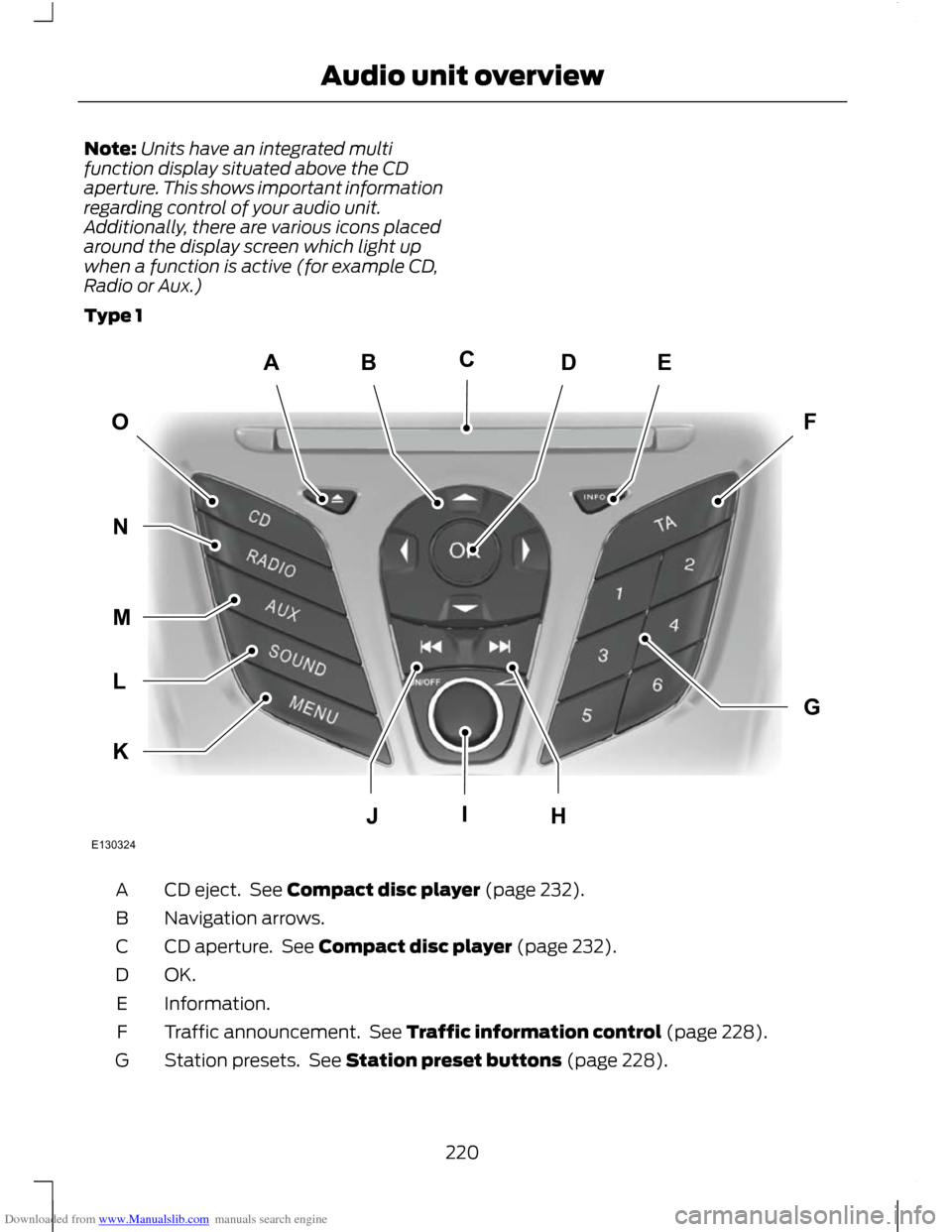
Type 1 CD eject. See Compact disc player (page 232).
A
Navigation arrows.
B
CD aperture. See Compact disc player (page 232).
C
OK.D
Information.
E
Traffic announcement. See Traffic information control (page 228).
F
Station presets. See Station preset buttons (page 228).
G
220
Audio unit overviewABEDFOGKLMNJHICE130324
Page 239 of 296
Downloaded from www.Manualslib.com manuals search engine GENERAL INFORMATION
CAUTION
Using the system with the engine off
will drain the battery.
This section describes the functions and
features of the Bluetooth mobile phone
hands free system.
The Bluetooth mobile phone part of the
system provides interaction with the audio
or navigation system and your mobile
phone. It allows you to use the audio or
navigation system to make and receive
calls without having to hold your mobile
phone.
Compatibility of phones
CAUTION
As no common agreement exists,
mobile phone manufacturers are able
to implement a variety of profiles in
their Bluetooth devices. Because of this,
an incompatibility can occur between the
phone and hands-free system, which in
some cases may significantly degrade the
system performance. To avoid this
situation, only recommended phones
should be used.
Please visit the website www.ford-
mobile-connectivity.com for full details. BLUETOOTH SETUP
Before you can use your telephone with
your vehicle it must be bonded to the
vehicle telephone system.
Handling of phones
Up to six Bluetooth devices can be bonded
to the vehicle system. Note:
If there is an ongoing call when the
phone in use is selected as the new active
phone, the call is transferred to the vehicle
audio system.
Note: Even if connected to the car system,
your phone can still be used in the usual
way.
Requirements for Bluetooth
connection
The following are required before a
Bluetooth phone connection can be made.
1. The Bluetooth feature must be activated on the phone and on the
audio unit. Make sure the Bluetooth
menu option in the audio unit is set to
ON. For information on phone settings,
refer to your phone user guide.
2. In the Bluetooth menu on your phone, search for Ford Audio and select it.
3. Enter the code number shown on the vehicle display using the phone keypad.
If no code number is shown on the
display, enter the Bluetooth PIN
number 0000 using the phone keypad.
Now enter the Bluetooth PIN number
shown on the vehicle display.
4. If your mobile phone asks you to authorize the automatic connection,
select YES.
Note: A phone call will be disconnected if
the audio unit is switched off. If the ignition
key is turned to the off position the phone
call will remain in progress.
TELEPHONE SETUP
Phonebook
Note: It may be necessary to confirm
phonebook access to the Bluetooth system
via the mobile phone.
237
Telephone
Page 259 of 296
Downloaded from www.Manualslib.com manuals search engine GENERAL INFORMATION
CAUTIONS
Take care when handling external
devices with exposed electrical
connectors (such as the USB plug).
Always replace the protective cap/shield
when possible. There may be a risk of
electrostatic discharge causing damage
to the device. Do not touch or handle the USB
socket in the vehicle. Cover the socket
when not in use.
Only use USB Mass-Storage device
compliant devices.
Always switch your audio unit to a
different source (for example the
radio) before unplugging the USB
device. Do not install or connect USB hubs or
splitters.
Note:
The system is only designed to
recognize and read suitable audio files from
a USB device that conforms to the USB
Mass-Storage device class or an iPod. Not
all available USB devices can be guaranteed
to function with the system.
Note: It is possible to connect compatible
devices with a trailing USB lead as well as
those that plug into the vehicle USB socket
directly (for example USB memory sticks
and pen drives).
Note: Some USB devices with a higher
power consumption may not be compatible
(for example some larger hard drives).
Note: Access time to read the files on the
external device will vary depending upon
factors such as the file structure, size and
device content. The system supports a range of external
devices, to fully integrate with your audio
unit via the USB and auxiliary input
sockets. Once connected, control of the
external device is possible via the audio
unit.
A list of typical compatible devices are
shown below:
•
USB memory sticks
• USB portable hard drives
• Some MP3 players with USB
connection
• iPod media players (refer to
www.ford-mobile
-connectivity.com for latest
compatibility list).
The system is USB 2.0 full speed
compatible, USB 1.1 host compliant and
supports FAT 16/32 file systems.
Information on audio file
structures for external devices
USB
Create only a single partition on the USB
device.
If playlists are created, they must contain
correct file paths referenced to the USB
device. It is recommended to create the
playlist after the audio files have been
transferred to the USB device.
Playlists must be created in .m3u format.
Audio files must be in .mp3 format.
Do not exceed the following limits:
• 1000 items per folder (files, folders and
playlists)
• 5000 folders per USB device (including
playlists)
• 8 subfolder levels.
257
Connectivity
Page 266 of 296
Downloaded from www.Manualslib.com manuals search engine Vehicles with mobile navigation
system
CAUTION
Using the system with the engine off
will drain the battery.
Note:
You will be charged when sending
and receiving text messages.
Note: Refer to your phone handbook for all
phone functions and operation.
Note: Keep the activation code (printed on
the installation guide) in a safe place.
Note: Retain the activation text message
in your mobile phone inbox.
Compatibility of phones CAUTION
As no common agreement exists,
mobile phone manufacturers are able
to implement a variety of profiles in
their Bluetooth devices. Because of this,
an incompatibility can occur between the
phone and hands-free system, which in
some cases may significantly degrade the
system performance. To avoid this
situation, only recommended phones
should be used. Please visit the website
www.ford-mobile-connectivity.com for
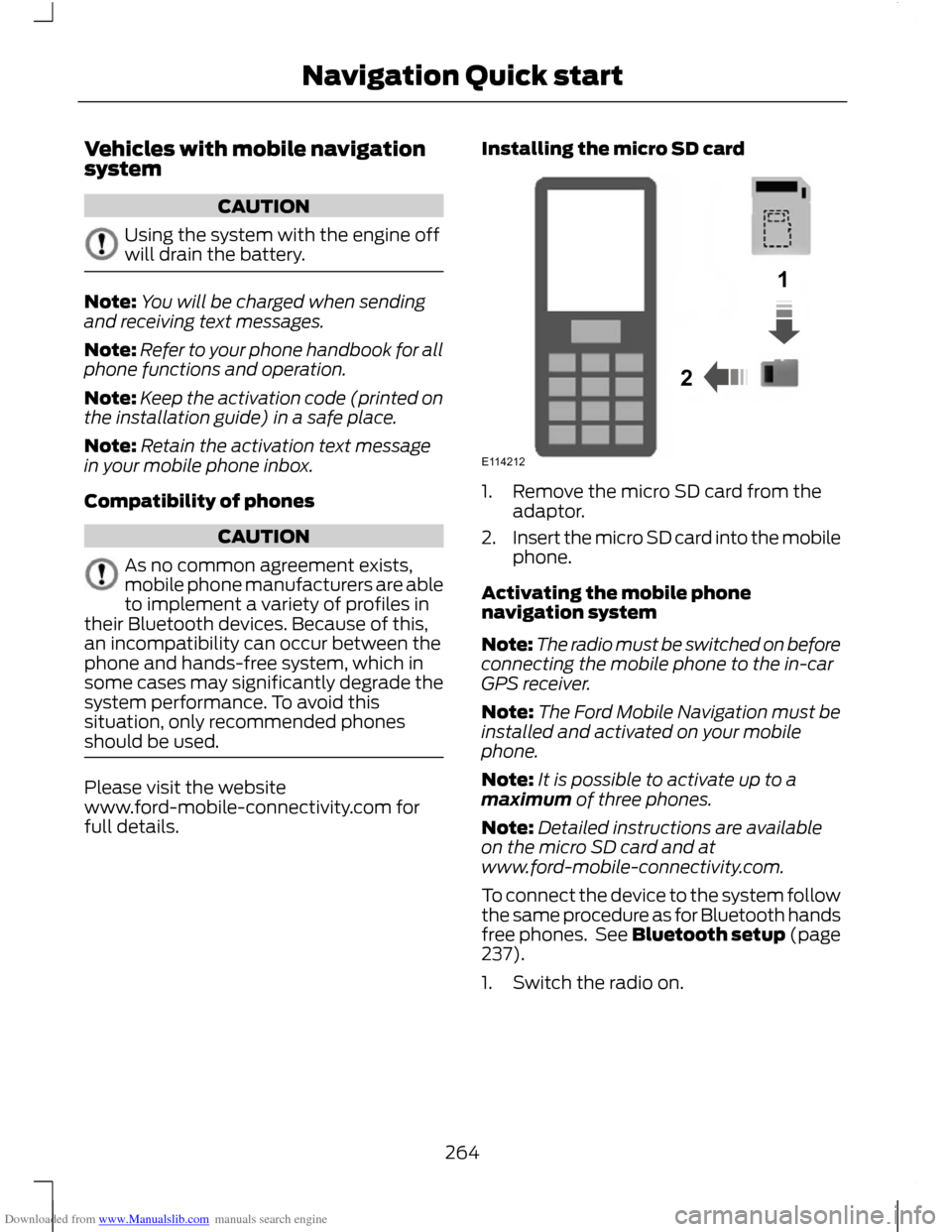
full details. Installing the micro SD card 1. Remove the micro SD card from the
adaptor.
2. Insert the micro SD card into the mobile
phone.
Activating the mobile phone
navigation system
Note: The radio must be switched on before
connecting the mobile phone to the in-car
GPS receiver.
Note: The Ford Mobile Navigation must be
installed and activated on your mobile
phone.
Note: It is possible to activate up to a
maximum of three phones.
Note: Detailed instructions are available
on the micro SD card and at
www.ford-mobile-connectivity.com.
To connect the device to the system follow
the same procedure as for Bluetooth hands
free phones. See Bluetooth setup (page
237).
1. Switch the radio on.
264
Navigation Quick start12E114212
Page 281 of 296
Downloaded from www.Manualslib.com manuals search engine TYPE APPROVALS
FCC/INDUSTRY CANADA NOTICE
This device complies with Part 15 of the
FCC Rules. Operation is subject to the
following two conditions: (1) this device
may not cause harmful interference, and
(2) this device must accept any
interference received, including
interference that may cause undesired
operation.
FCC ID: WJLRX-42
IC: 7847A-RX42
Changes or modifications to your device
not expressly approved by the party
responsible for compliance can void the
user's authority to operate the equipment.
RX-42 - declaration of conformity
We, the party responsible for compliance,
declare under our sole responsibility that
the Handset Integration product RX-42 is
in conformity with the provisions of the
following Council Directive: 1999/5/EC. A
copy of the Declaration of Conformity can
be found at:
www.novero.com/declaration_of_conformity
The Bluetooth word mark and logos are
owned by the Bluetooth SIG, Inc. and any
use of such marks by Ford Motor Company
is under license. Other trademarks and
trade names are those of their respective
owners.
TYPE APPROVALS
iPod is a trademark of Apple Inc.
TYPE APPROVALS © 2008 NAVTEQ B.V. All rights reserved.
279
AppendicesE114214