reset FORD C MAX 2011 2.G User Guide
[x] Cancel search | Manufacturer: FORD, Model Year: 2011, Model line: C MAX, Model: FORD C MAX 2011 2.GPages: 296, PDF Size: 7.87 MB
Page 226 of 296
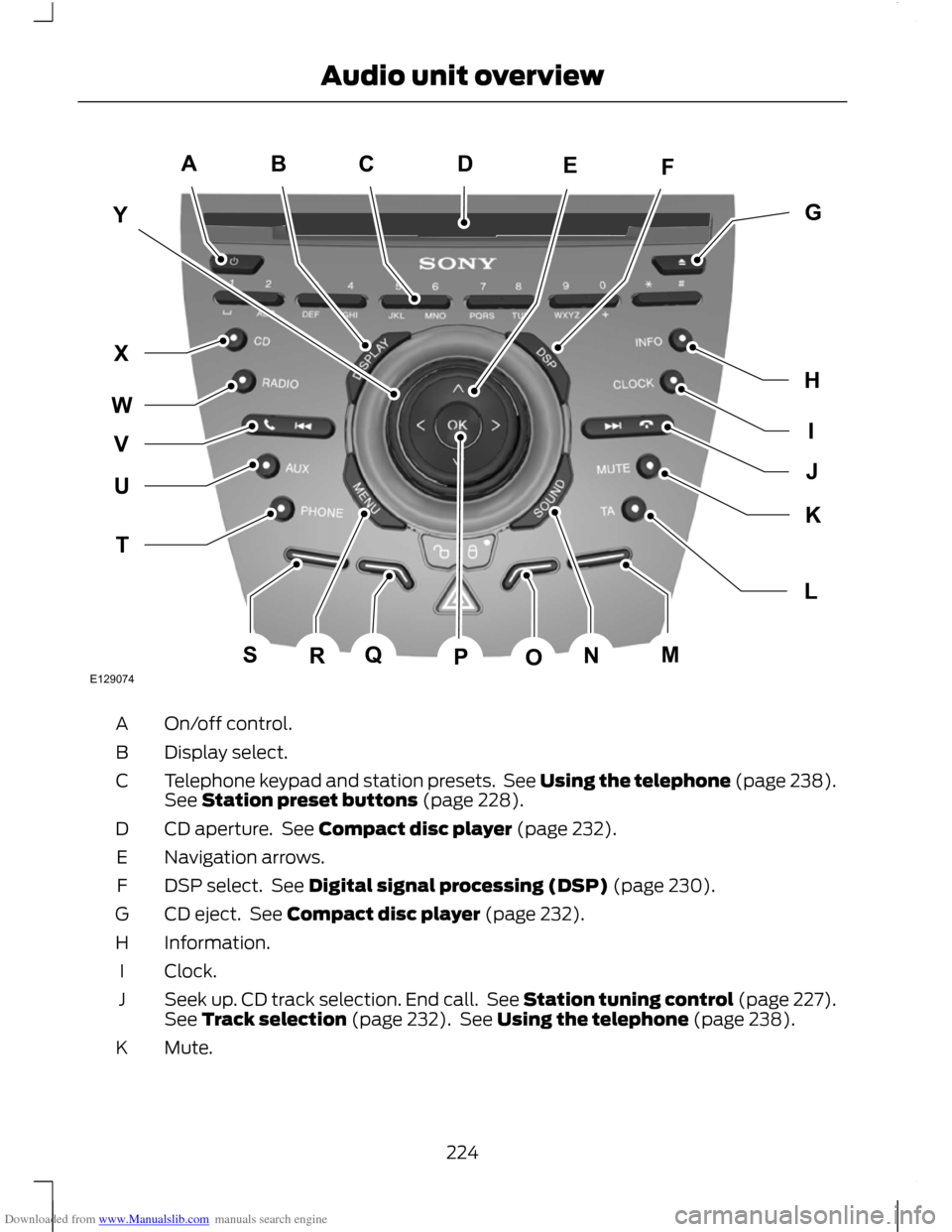
Downloaded from www.Manualslib.com manuals search engine On/off control.
A
Display select.
B
Telephone keypad and station presets. See Using the telephone (page 238).
See Station preset buttons (page 228).
C
CD aperture. See Compact disc player (page 232).
D
Navigation arrows.
E
DSP select. See Digital signal processing (DSP) (page 230).
F
CD eject. See Compact disc player (page 232).
G
Information.
H
Clock.
I
Seek up. CD track selection. End call. See Station tuning control (page 227).
See Track selection (page 232). See Using the telephone (page 238).
J
Mute.
K
224
Audio unit overviewE129074ACBFEYIGHJLKTUWXVQSRNMOPD
Page 230 of 296
Downloaded from www.Manualslib.com manuals search engine 2. Select RADIO mode and then SCAN.
3. Use the seek buttons to scan up or
down the selected waveband.
4. Press OK to continue listening to a station.
Type 2 and 3
1. Press function button 3.
2. Use the seek buttons to scan up or down the selected waveband.
3. Press function button 3 again or OK to
continue listening to a station.
STATION PRESET BUTTONS
This feature allows you to store your
favourite stations so that they can be
recalled by selecting the appropriate
waveband and pressing one of the preset
buttons.
1. Select a waveband.
2. Tune to the station required.
3. Press and hold one of the preset buttons. A progress bar and message
will appear. When the progress bar
completes the station has been stored.
The audio unit will also mute
momentarily as confirmation.
This can be repeated on each waveband
and for each preset button.
Note: When you drive to another part of the
country, FM and DAB stations that
broadcast on alternative frequencies, and
are stored on preset buttons, may be
updated with the correct frequency and
station name for that area. AUTOSTORE CONTROL
Note:
This will store up to a maximum of
the 10 strongest signals available, either
from the AM or the FM waveband, and
overwrite the previously stored stations. It
can also be used to store stations manually
in the same way as other wavebands.
Note: On type 3 you must select either FM
AST or AM AST to use this function.
• Press and hold function button 1 or the
RADIO button.
• When the search is complete, sound is
restored and the strongest signals are
stored on the Autostore presets.
TRAFFIC INFORMATION
CONTROL
Many stations that broadcast on the FM
waveband have a TP code to signify that
they carry traffic programme information.
Activating traffic announcements
Before you can receive traffic
announcements, you must press either the
TA or TRAFFIC button. A ‘TA’ display will
appear to show the feature is switched on.
If you are already tuned to a station that
broadcasts traffic information, ‘TP’ will
also be displayed. Otherwise the unit will
search for a traffic programme.
When traffic information is broadcast, it
will automatically interrupt normal radio
or CD playback and ‘Traffic announcement
(TA)’ will appear in the display.
If a non-traffic station is selected or
recalled using a preset button, the audio
unit will remain on that station unless TA
or TRAFFIC is turned off, then on again.
Note: If TA is on and you select a preset or
manual tune to a non TA station no traffic
announcement will be heard.
228
Audio unit operation
Page 231 of 296
Downloaded from www.Manualslib.com manuals search engine Note:
When you are listening to a non TA
station and turn TA off and on again a TP
seek will occur.
Traffic announcement volume
Traffic announcements interrupt normal
broadcasts at a preset minimum level that
is usually louder than normal listening
volumes.
To adjust the preset volume:
• Use the volume control to make the
necessary adjustment during an
incoming TA broadcast. The display
will show the level selected.
Ending traffic announcements
The audio unit will return to normal
operation at the end of each traffic
announcement. To end the announcement
prematurely, press TA or TRAFFIC during
the announcement.
Note: If you press TA or TRAFFIC at any
other time it will switch all announcements
off.
229
Audio unit operation
Page 232 of 296
Downloaded from www.Manualslib.com manuals search engine AUTOMATIC VOLUME
CONTROL
When available, automatic volume control
(AVC) adjusts the volume level to
compensate for engine noise and road
speed noise.
1. Press the MENU button and select
AUDIO.
2. Select AVC LEVEL or ADAPTIVE VOL.
3. Use the left or right arrow button to adjust the setting.
4. Press the OK button to confirm your selection.
5. Press the MENU button to return.
DIGITAL SIGNAL PROCESSING
(DSP)
DSP occupancy
This feature takes into account the
differences in distance from the various
speakers in the vehicle to each seat. Select
the sitting position for which the audio is
to be correctly enhanced.
DSP equaliser
Select the music category that most suits
your listening preference. The audio output
will change to enhance the particular style
of music chosen.
Changing the DSP settings
1. Press the MENU button.
2. Select AUDIO or AUDIO SETTINGS.
3. Scroll to the required DSP function.
4. Use the up and down arrow buttons to
select the required setting.
5. Press the OK button to confirm your selection.
6. Press the MENU button to return. NEWS BROADCASTS
Some audio units interrupt normal
reception to broadcast news bulletins from
stations on the FM waveband or radio data
system (RDS) and enhanced other
network (EON) linked stations, in the same
way as traffic information is provided.
During news broadcasts, the display will
indicate there is an incoming
announcement. News interrupts are
broadcast at the same preset volume level
as traffic announcements.
1. Press the MENU button.
2. Select AUDIO or AUDIO SETTINGS.
3.
Scroll to NEWS and turn on or off with
the OK button.
4. Press the MENU button to return.
ALTERNATIVE FREQUENCIES
Many programmes that broadcast on the
FM waveband have a programme
identification (PI) code, which can be
recognised by audio units.
If your radio has alternative frequencies
(AF) tuning switched on and you move
from one transmission area to another, this
facility will search for and switch to a
stronger station signal, if one can be found.
Under certain conditions, however, AF
tuning may temporarily disrupt normal
reception.
When selected, the unit continually
evaluates signal strength and, if a better
signal becomes available, the unit will
switch to that alternative. It mutes while
it checks a list of alternative frequencies
and, if necessary, it will search once across
the selected waveband for a genuine
alternative frequency.
230
Audio unit menus
Page 260 of 296
Downloaded from www.Manualslib.com manuals search engine To enable voice control for custom
playlists and folders, follow the procedure
below:
•
Create folders named with the
structure "Ford<*>" where <*> is a
number 1-10. For example "Ford3"
without an extension.
• Create playlists named with the
structure "Ford<*>.m3u" where <*>
is a number 1-10. For example
"Ford5.m3u" without any space
between "Ford" and the number.
Thereafter, custom folders and playlists
will be selectable with voice control. See
Audio unit commands (page 242).
iPod
To enable voice control for custom
playlists, create playlists named with the
structure "Ford<*>" where <*> is a
number 1-10. For example "Ford7" without
any space between "Ford" and the
number.
Thereafter, playlists will be selectable with
voice control. See Audio unit commands
(page 242).
CONNECTING AN EXTERNAL
DEVICE WARNING
Make sure the external device is
securely mounted within the vehicle,
and that trailing connections do not
obstruct any of the driving controls. External devices may be connected using
the auxiliary input socket and the USB port.
See Auxiliary input (AUX IN) socket
(page 125). See USB port (page 125). Connection
Plug in the device, and if necessary secure
it to prevent movement within the vehicle.
Connecting an iPod
For optimum convenience and audio
quality, we recommend that you purchase
a dedicated single connection lead
available from your dealer.
Alternatively, it is possible to connect your
iPod using the standard iPod USB cable
and a separate 3.5mm audio jack lead. If
using this method preset the iPod volume
to maximum and turn off any equalizer
settings before making the connections:
•
Connect the headphone output of the
iPod to the AUX IN socket.
• Connect the USB cable from the iPod
to the vehicle USB socket.
CONNECTING AN EXTERNAL
DEVICE - VEHICLES WITH:
BLUETOOTH
Connecting a Bluetooth audio
device CAUTION
As various standards exist,
manufacturers are able to implement
a variety of profiles in their Bluetooth
devices. Because of this, an incompatibility
can occur between the Bluetooth device
and the system, which in some cases may
limit system functionality. To avoid this
situation, only recommended devices
should be used.
Please visit the website
www.ford-mobile-connectivity.com
for full details. 258
Connectivity
Page 270 of 296
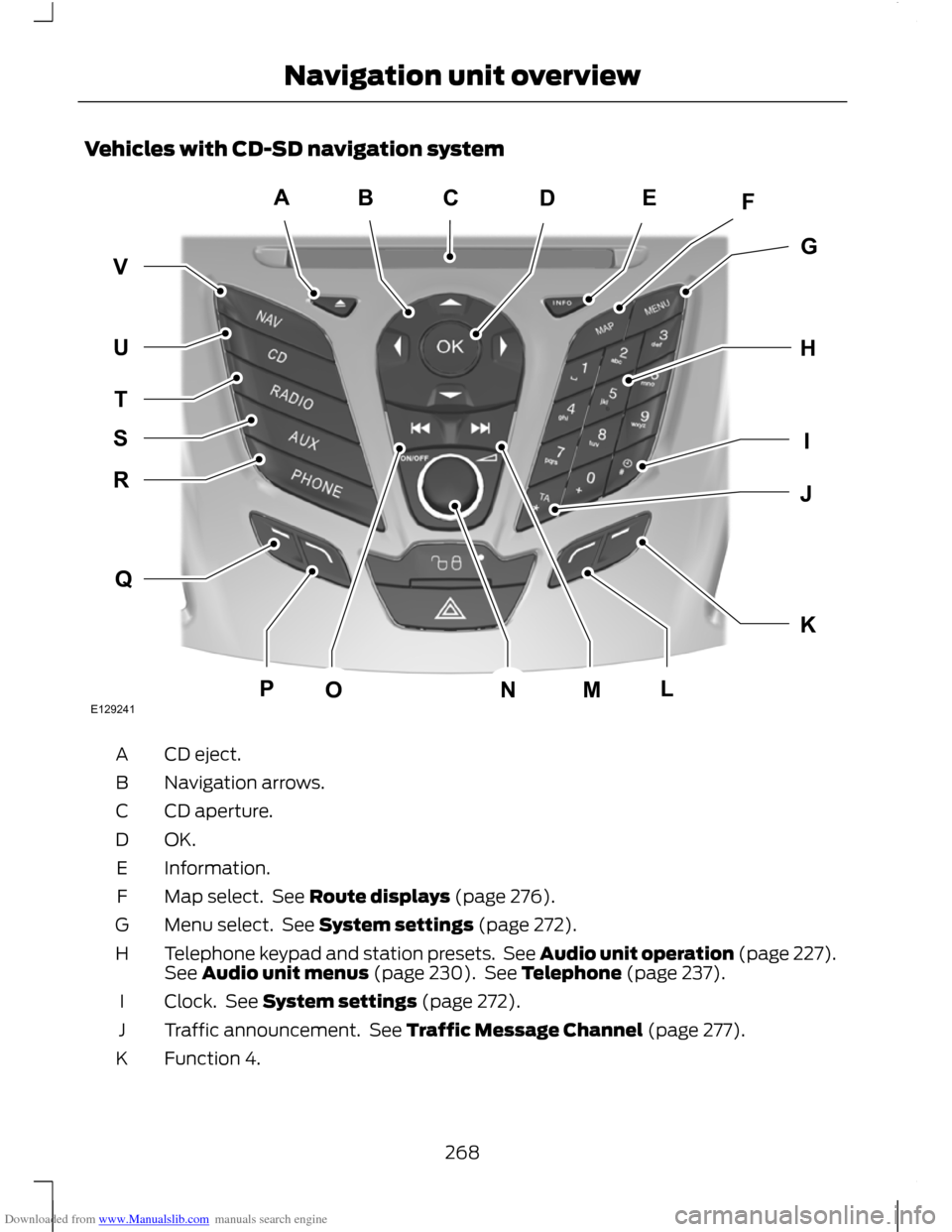
Downloaded from www.Manualslib.com manuals search engine Vehicles with CD-SD navigation system
CD eject.
A
Navigation arrows.
B
CD aperture.
C
OK.D
Information.
E
Map select. See Route displays (page 276).
F
Menu select. See System settings (page 272).
G
Telephone keypad and station presets. See Audio unit operation (page 227).
See Audio unit menus (page 230). See Telephone (page 237).
H
Clock. See System settings (page 272).
I
Traffic announcement. See Traffic Message Channel (page 277).
J
Function 4.
K
268
Navigation unit overviewABEFDGHKIJQRTUVSPOMNLCE129241
Page 272 of 296
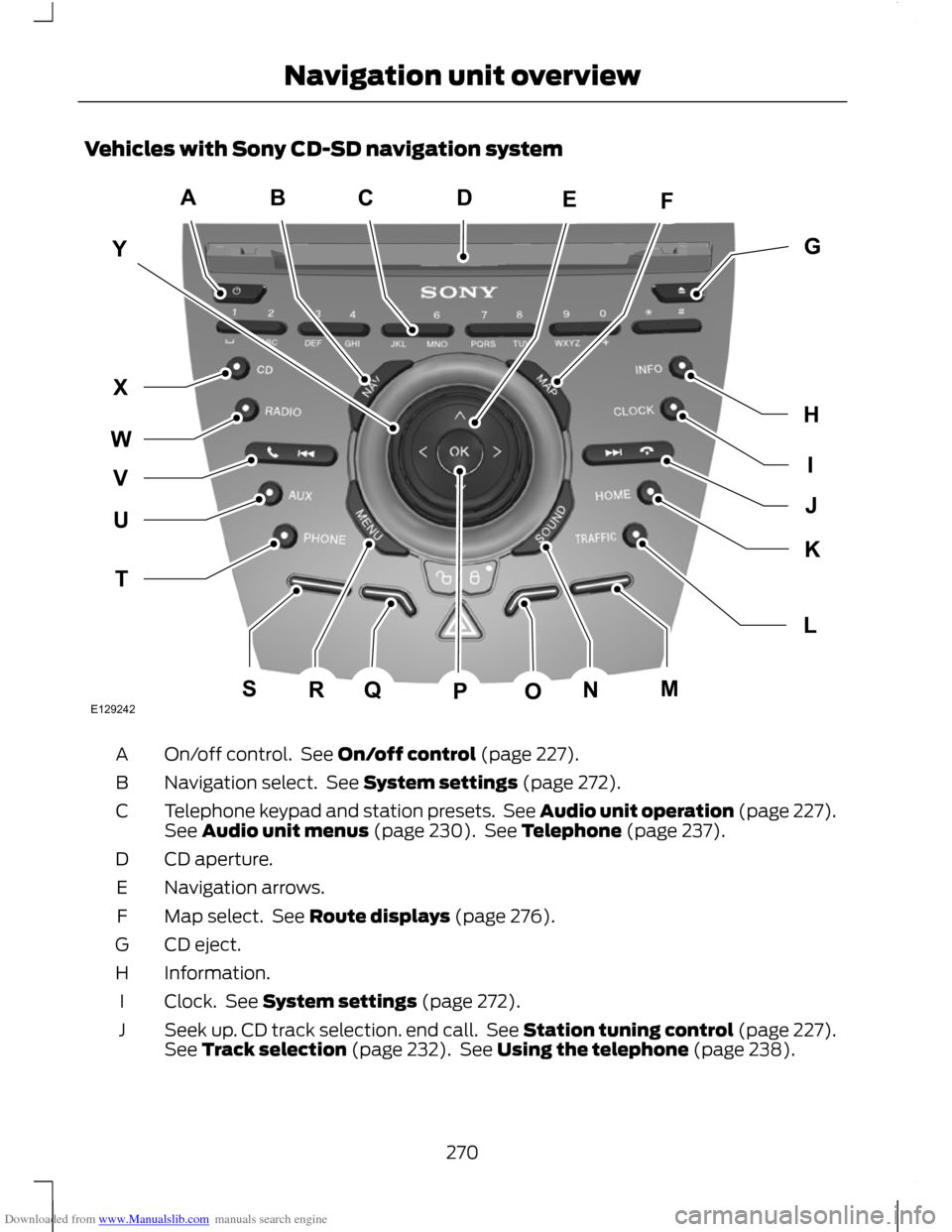
Downloaded from www.Manualslib.com manuals search engine Vehicles with Sony CD-SD navigation system
On/off control. See On/off control (page 227).
A
Navigation select. See System settings (page 272).
B
Telephone keypad and station presets. See Audio unit operation (page 227).
See Audio unit menus (page 230). See Telephone (page 237).
C
CD aperture.
D
Navigation arrows.
E
Map select. See Route displays (page 276).
F
CD eject.
G
Information.
H
Clock. See System settings (page 272).
I
Seek up. CD track selection. end call. See Station tuning control (page 227).
See Track selection (page 232). See Using the telephone (page 238).
J
270
Navigation unit overviewACBFEYIGHJLKTUWXVQSRNMOPDE129242
Page 275 of 296
Downloaded from www.Manualslib.com manuals search engine Special functions
This feature allows you to select GPS and
system information or a demonstration of
the system functionality.
Map display
This feature allows you to change the way
the map screen is displayed (for example
clean 2D and clean 3D view) and to
customise display information for your
journey (for example time to arrival and
lane guidance).
Assistance options
This feature allows you to customise
display information for your journey (for
example signs, lanes and speed limits).
Personal data
This feature allows you to edit and delete
personal data (for example your home
address).
Reset all settings
This feature allows you to reset the
navigation settings.
Menu structure - Information and
entertainment display - All
vehicles
Audio settings
Adaptive volume
This feature allows you to adjust the
volume level to compensate for engine and
road speed noise. You can turn this on and
off.
Sound
This feature allows you to adjust the sound
settings (for example bass and treble.
Nav audio mixing
This feature allows you to adjust the
volume mix between the navigation voice
output and audio source.
DSP settings
This feature allows you to customise
speaker output relevant to seat positions.
DSP equaliser
This feature allows you to select the music
category that most suits your listening
preference. The audio output will change
to enhance the particular style of music
chosen.
News
This feature allows you to receive news
bulletins from stations on the FM
waveband or radio data system (RDS) and
enhanced other network (EON) linked
stations, in the same way as traffic
information is provided. You can turn this
on and off.
Alternative frequencies
This feature will search for and switch to
the strongest station signal when moving
from one transmission area to another.
RDS regional
This feature controls the behaviour of AF
switching between regionally related
networks of a parent broadcaster.
DAB service link
This feature allows you to select stations
that are broadcast on the DAB channels.
Bluetooth
This feature allows you to switch
Bluetooth on or off.
273
System settings
Page 291 of 296
Downloaded from www.Manualslib.com manuals search engine Opening and Closing the Bonnet...........185
Closing the bonnet............................................ 186
Opening the bonnet.......................................... 185
P
Parking Aids....................................................148 Principle of Operation....................................... 148
Parking Brake.................................................144
Parts and Accessories.....................................7 Look for the Ford logo on the following
parts ....................................................................... 8
Now you can be sure that your Ford parts are Ford parts....................................................... 7
Personalised Settings..................................89 Chime deactivation............................................. 90
Language setting................................................. 89
Measure units........................................................ 90
Temperature units............................................... 90
Power Door Locks See: Locking and Unlocking............................. 39
Power Seats......................................................111
Power Windows...............................................71 Anti-trap function.................................................. 71
Driver's door switches.......................................... 71
Global opening and closing............................... 71
Opening and closing the windows automatically..................................................... 71
Resetting the memory of the electric windows.............................................................. 72
Safety switch for rear windows........................ 71
Programming the remote control............36 Programming a new remote control............36
Reprogramming the unlocking
function............................................................... 36
R
Rear Fog Lamps.............................................58
Rear Seats........................................................112 Second row seats - C-MAX.............................. 112
Second row seats - Grand C-MAX.................117
Third row seats - Grand C-MAX..................... 119
Rear Under Floor Storage..........................163
Rear view camera.........................................155 Principle of Operation....................................... 155Rear Window Wiper and Washers...........53
Intermittent wipe.................................................. 53
Rear window washer.......................................... 54
Reverse gear wipe................................................ 54
Refuelling........................................................138
Regional mode (REG).................................231
Remote control battery See: Changing the remote control
battery................................................................. 36
Remote control programming See: Programming the remote control........36
Removing a Headlamp................................62
Repairing Minor Paint Damage...............196
Repeat compact disc tracks....................232 Type 1...................................................................... 232
Type 2 and 3......................................................... 232
Retractable tow ball...................................168 Driving with a trailer............................................ 171
Maintenance.......................................................... 171
Swivelling the tow ball in................................ 169
Swivelling the tow ball out.............................. 170
Road Safety...................................................262 Safety information............................................ 263
Roadside Emergencies...............................173
Roof Racks and Load Carriers.................165 Installing the crossbars.................................... 165
Roof rack................................................................ 165
Route displays...............................................276 Junction zoom..................................................... 276
Map display.......................................................... 276
Navigation display............................................. 276
Route options menu...................................275 Driver....................................................................... 275
Dynamic................................................................. 275
Eco settings.......................................................... 275
Ferry/motorail...................................................... 275
Motorway.............................................................. 275
Route....................................................................... 275
Seasonal roads................................................... 276
Toll........................................................................\
... 275
Toll sticker............................................................. 276
Running-In.......................................................172 Brakes and clutch................................................ 172
Engine...................................................................... 172
Tyres........................................................................\
. 172
289
Index
Page 292 of 296
Downloaded from www.Manualslib.com manuals search engine S
Safety Precautions......................................136
Satellite Navigation Unit Holder.............126
Adjusting the holder.......................................... 126
Seat belt height adjustment......................33
Seat belt reminder.........................................33 Deactivating the seat belt reminder..............33
Grand C-MAX only............................................... 33
Seat belts See: Fastening the seat belts.......................... 29
Seats.................................................................109
Security code.................................................226
Shuffle/random............................................232 Type 1...................................................................... 232
Type 2 and 3......................................................... 232
Sitting in the Correct Position.................109
Snow Chains See: Using Snow Chains................................. 208
Sound button.................................................227
Speed Control See: Cruise Control............................................ 158
Speed Limiter................................................160 Principle of Operation...................................... 160
Stability Control............................................145 Principle of Operation....................................... 145
Starter Switch See: Ignition Switch............................................ 127
Starting a Diesel Engine.............................128 Cold or hot engine.............................................. 128
Starting and Stopping the Engine..........127 General Information........................................... 127
Starting a Petrol Engine.............................128 Cold or hot engine.............................................. 128
Engine idle speed after starting.................... 128
Flooded engine.................................................... 128
Start-Stop.......................................................133 Principle of Operation....................................... 133
Station preset buttons..............................228
Station tuning control.................................227 DAB service linking............................................. 227
Manual tuning...................................................... 227
Scan tuning........................................................... 227
Seek tuning........................................................... 227
Steering Wheel Lock....................................127 Vehicles with keyless starting......................... 127
Vehicles without keyless starting.................. 127
Steering Wheel...............................................50 Storage compartments..............................124
Rear storage compartment............................ 124
Sun Shades......................................................121 Roof........................................................................\
... 121
Side windows........................................................ 121
Switching Off the Engine............................131 Vehicles with a turbocharger........................... 131
Symbols Glossary.............................................7 Symbols in this handbook................................... 7
Symbols on your vehicle....................................... 7
System settings............................................272 Audio settings...................................................... 273
Clock settings...................................................... 274
Menu structure - Information and entertainment display - All
vehicles..............................................................273
Menu structure - Information and entertainment display - Vehicles with
navigation system......................................... 272
T
Technical Specifications See: Capacities and Specifications.............216
Telephone commands..............................249 Create a phonebook......................................... 252
Main settings....................................................... 253
Phone..................................................................... 249
Phone functions................................................ 250
Telephone controls.....................................238 Remote control.................................................. 238
Telephone setup...........................................237 Bond another Bluetooth phone................... 238
Making a phone an active phone................238
Phonebook........................................................... 237
Phonebook categories..................................... 238
Telephone.......................................................237 General Information.......................................... 237
Telephone See: Using the telephone............................... 238
Towing a Trailer.............................................168 Steep gradients................................................... 168
Towing Points................................................183 Installing the towing eye.................................. 183
Towing eye location........................................... 183
290
Index