radio FORD C MAX 2011 2.G Owner's Manual
[x] Cancel search | Manufacturer: FORD, Model Year: 2011, Model line: C MAX, Model: FORD C MAX 2011 2.GPages: 296, PDF Size: 7.87 MB
Page 240 of 296
Downloaded from www.Manualslib.com manuals search engine After start up access to the phonebook list
can be delayed for several minutes,
depending upon the size.
Phonebook categories
The category is indicated as an icon:
Phone
Mobile
Home
Office
Making a phone an active phone
Note: If there is an ongoing call when the
phone in use is selected as the new active
phone, the call is transferred to the vehicle
audio system.
When using the system for the first time,
no phone is connected to the system.
After switching on the ignition and the
audio unit, the Bluetooth phone must be
bonded to the system. See Bluetooth
setup (page 237).
After bonding a Bluetooth phone to the
system, this becomes the active phone.
For further information refer to the phone
menu.
Select the phone from the active phone
menu.
Turning the ignition and radio back on
again, the last active phone is picked up by
the system.
Note: In some cases the Bluetooth
connection must also be confirmed on the
phone. Bond another Bluetooth phone
Bond a new Bluetooth phone as described
in the requirements for a Bluetooth
connection.
Phones stored in the system are accessible
by using the phone list on the audio unit.
Note:
A maximum of six devices may be
bonded. If six Bluetooth devices have
already been bonded, one of these has to
be debonded in order to bond a new device.
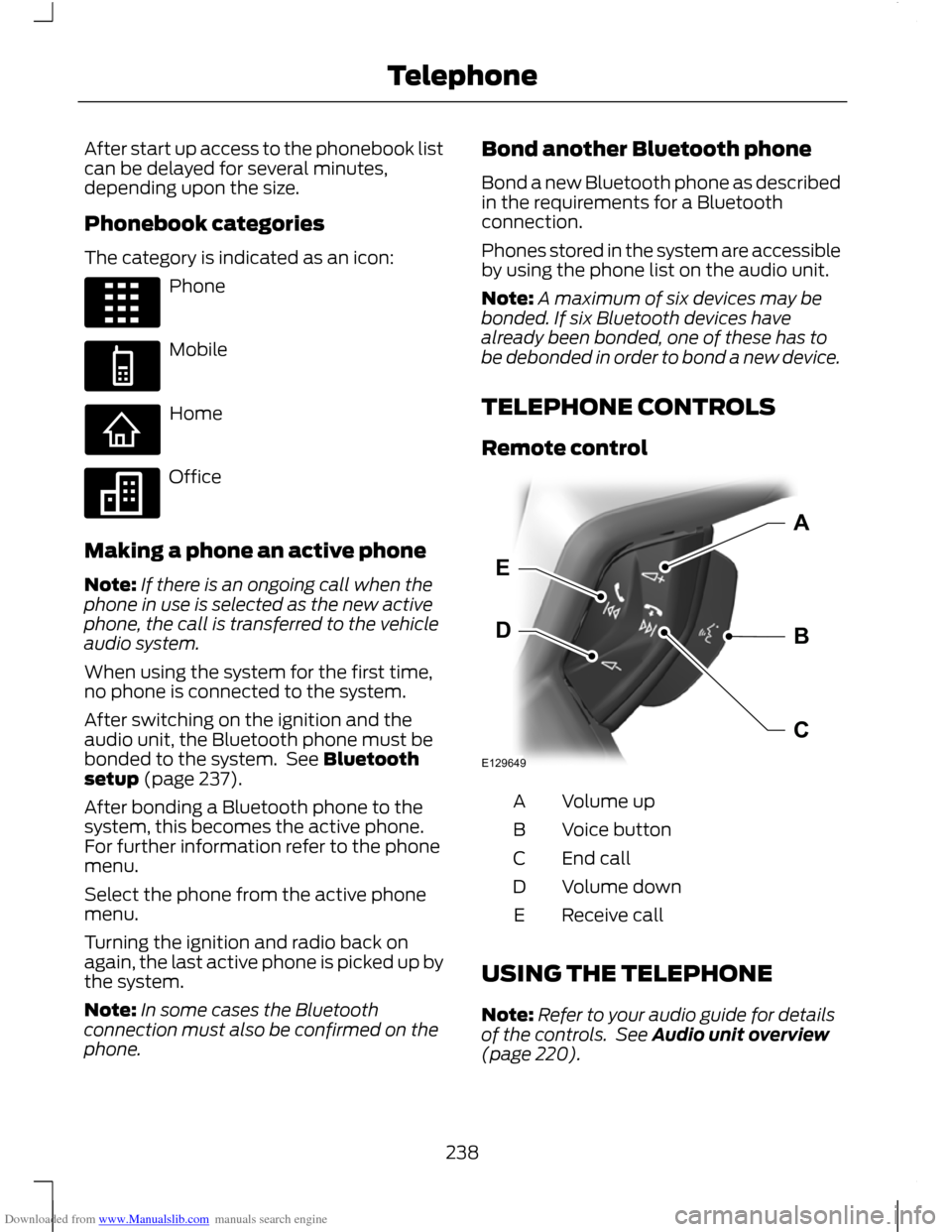
TELEPHONE CONTROLS
Remote control Volume up
A
Voice button
B
End call
C
Volume down
D
Receive call
E
USING THE TELEPHONE
Note: Refer to your audio guide for details
of the controls. See Audio unit overview
(page 220).
238
TelephoneE87990 E87991 E87992 E87993 E129649BDEAC
Page 241 of 296
Downloaded from www.Manualslib.com manuals search engine Note:
You can exit the phone menu by
pressing any source button CD, RADIO or
AUX.
Note: When referred to, the use of the
up/down arrow buttons, seek up and seek
down buttons, and the OK button can be
used on either the steering wheel or the
audio unit.
This chapter describes the phone functions
of the audio unit.
An active phone must be present.
Even if connected to the audio unit, your
phone can still be used in the usual way.
Making a call
Dialling a number using voice control
Phone numbers can be dialled using voice
control. See Telephone commands
(page 249).
Dialling a number using the address
book
1. Press the PHONE button.
2. Press the up/down arrow buttons until
PHONEBOOK is shown.
3. Press the OK button.
Note: You can also use the telephone
keypad to select the first letter of the entry
you are looking for. Press the relevant
number that corresponds to the letter
repeatedly until the required letter is
displayed.
4. Press the up/down arrow buttons to select the desired phone number.
Note: Press and hold the up/down arrow
buttons to search forwards or backwards
within the phonebook.
5. Press the OK button to dial the selected phone number. Dialling a number using the telephone
keypad
1. Press the PHONE button.
2. Dial the number using the telephone
keypad on the audio unit.
3. Press the OK button.
Note: If you enter an incorrect digit whilst
entering a phone number, press function
button 3 to erase the last digit. A long press
will erase the complete string of digits.
Ending a call
Calls can be ended by:
• pressing the seek up button
• pressing the OK button
• pressing function button 4.
Redialling a number
1. Press the PHONE button.
2. Press the up/down arrow buttons until
CALL LISTS is displayed.
3. Press the OK button.
Note: If the active phone does not provide
a call out list, the last outgoing call
number/entry can be redialled.
4. Press the up/down buttons to select the desired call list.
5. Press the OK button.
6. Press the up/down buttons to select the desired phone number.
7. Press the OK button.
Redialling the last dialled number
1. Press the PHONE button.
2. Press the up/down arrow buttons until
REDIAL is displayed.
3. Press the OK button.
239
Telephone
Page 243 of 296
Downloaded from www.Manualslib.com manuals search engine PRINCIPLE OF OPERATION
CAUTION
Using the system with the engine off
will drain the battery.
Voice recognition enables operation of the
system without the need to divert your
attention from the road ahead in order to
change settings, or receive feedback from
the system.
Whenever you issue one of the defined
commands with the system active, the
voice recognition system converts your
command into a control signal for the
system. Your inputs take the form of
dialogues or commands. You are guided
through these dialogues by
announcements or questions.
Please familiarise yourself with the
functions of the system before using voice
recognition.
Supported commands
The voice control system allows you to
control the following vehicle functions:
•
Bluetooth phone
• radio
• CD Player
• external device (USB)
• external device (iPod)
• automatic climate control
System response
As you work through a voice session the
system will prompt you with a beep tone
each time the system is ready to proceed.
Do not try to give any commands until the
beep tone has been heard. The voice
control system will repeat each spoken
command back to you. If you are not sure how to continue say
"HELP" for assistance or "CANCEL" if you
do not wish to continue.
The "HELP" function provides only a
subset of the available voice commands.
Detailed explanations of all possible voice
commands can be found on the following
pages.
Voice commands
All voice commands should be given using
a natural speaking voice, as if speaking to
a passenger or on the phone. Your voice
level should be dependant on the
surrounding noise level inside or outside
the vehicle but do not shout.
USING VOICE CONTROL
System operation
The order and content of the voice controls
are given in the following lists. The tables
show the sequence of user voice
commands and system responses for each
available function.
<> indicates a number or stored name tag
to be inserted by the user.
Short cuts
There are a number of voice command
short cuts available, which allow you to
control some vehicle features without
having to follow the complete command
menu. These are:
•
phone: "MOBILE NAME", "DIAL
NUMBER", "DIAL NAME", and "REDIAL"
• automatic climate control:
"TEMPERATURE", "AUTO MODE",
"DEFROSTING/DEMISTING ON" and
"DEFROSTING/DEMISTING OFF"
• radio: "TUNE NAME"
• external device (USB): "TRACK"
• external device (iPod): "TRACK"
241
Voice control
Page 244 of 296
Downloaded from www.Manualslib.com manuals search engine Start communicating with the system
Before you can start talking to the system
you first have to press the VOICE button
for each operation and wait until the
system answers with a beep. See Voice
Control (page 51).
Press the button again to cancel the voice
session.
Name tag
The name tag functionality can support
the phone, audio and navigation features
by using the "STORE NAME" function. You
can assign name tags to items such as
favourite radio stations and personal
phone contacts. See Audio unit
commands (page 242). See Telephone
commands (page 249).
•
Store up to 20 name tags per function.
• The average recording time for each
name tag is approximately 2-3
seconds.
AUDIO UNIT COMMANDS
CD Player
You can control playback directly by voice
control.
Overview
The overview below shows the available
voice commands. The following lists will
give further information about the
complete command menu in selected
examples. "CD PLAYER"
"HELP""PLAY"
"TRACK" *
"SHUFFLE ALL"
"SHUFFLE FOLDER" **
"SHUFFLE OFF"
"REPEAT FOLDER" **
"REPEAT TRACK" "REPEAT OFF"
* Can be used as a shortcut.
** Only available if the CD contains audio data files like MP3.
Track
You can choose a track on your CD directly.
242
Voice control
Page 245 of 296
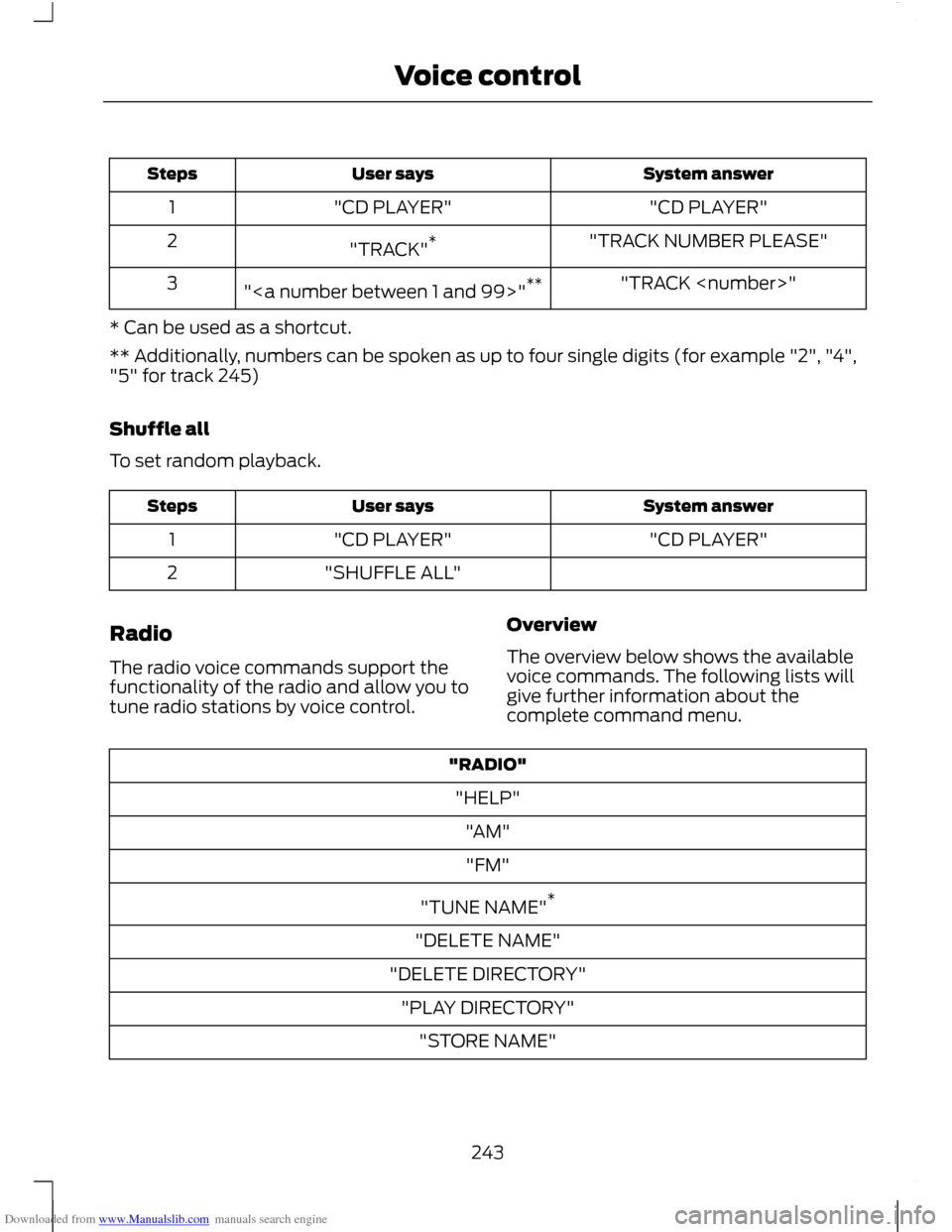
Downloaded from www.Manualslib.com manuals search engine System answer
User says
Steps
"CD PLAYER"
"CD PLAYER"
1
"TRACK NUMBER PLEASE"
"TRACK" *
2
"TRACK
"" **
3
* Can be used as a shortcut.
** Additionally, numbers can be spoken as up to four single digits (for example "2", "4",
"5" for track 245)
Shuffle all
To set random playback. System answer
User says
Steps
"CD PLAYER"
"CD PLAYER"
1
"SHUFFLE ALL"
2
Radio
The radio voice commands support the
functionality of the radio and allow you to
tune radio stations by voice control. Overview
The overview below shows the available
voice commands. The following lists will
give further information about the
complete command menu."RADIO"
"HELP" "AM""FM"
"TUNE NAME" *
"DELETE NAME"
"DELETE DIRECTORY" "PLAY DIRECTORY" "STORE NAME"
243
Voice control
Page 246 of 296
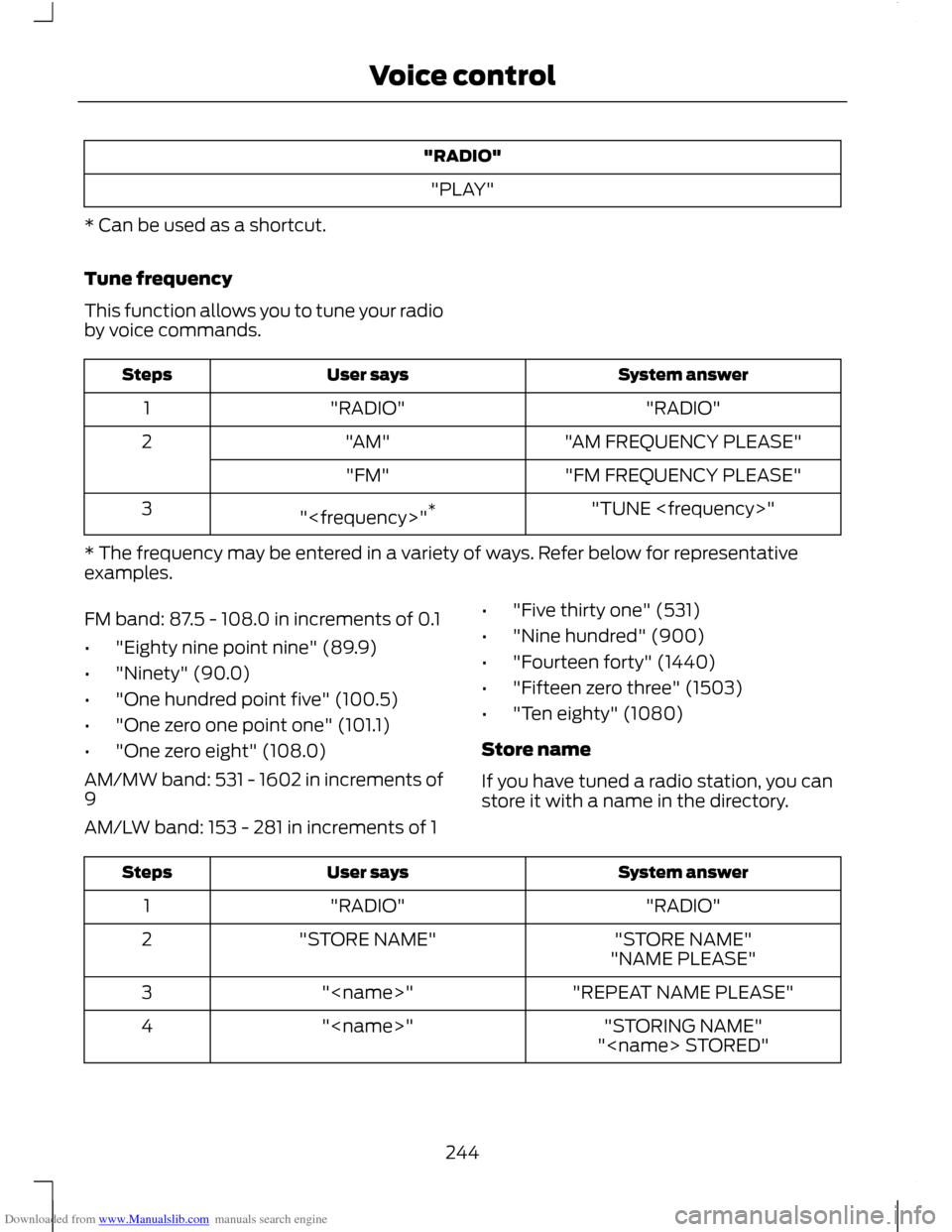
Downloaded from www.Manualslib.com manuals search engine "RADIO"
"PLAY"
* Can be used as a shortcut.
Tune frequency
This function allows you to tune your radio
by voice commands. System answer
User says
Steps
"RADIO"
"RADIO"
1
"AM FREQUENCY PLEASE"
"AM"
2
"FM FREQUENCY PLEASE"
"FM"
"TUNE
"
3
* The frequency may be entered in a variety of ways. Refer below for representative
examples.
FM band: 87.5 - 108.0 in increments of 0.1
• "Eighty nine point nine" (89.9)
• "Ninety" (90.0)
• "One hundred point five" (100.5)
• "One zero one point one" (101.1)
• "One zero eight" (108.0)
AM/MW band: 531 - 1602 in increments of
9
AM/LW band: 153 - 281 in increments of 1 •
"Five thirty one" (531)
• "Nine hundred" (900)
• "Fourteen forty" (1440)
• "Fifteen zero three" (1503)
• "Ten eighty" (1080)
Store name
If you have tuned a radio station, you can
store it with a name in the directory. System answer
User says
Steps
"RADIO"
"RADIO"
1
"STORE NAME"
"STORE NAME"
2
"NAME PLEASE"
"REPEAT NAME PLEASE"
"
3
"STORING NAME"
"
4
"
244
Voice control
Page 247 of 296
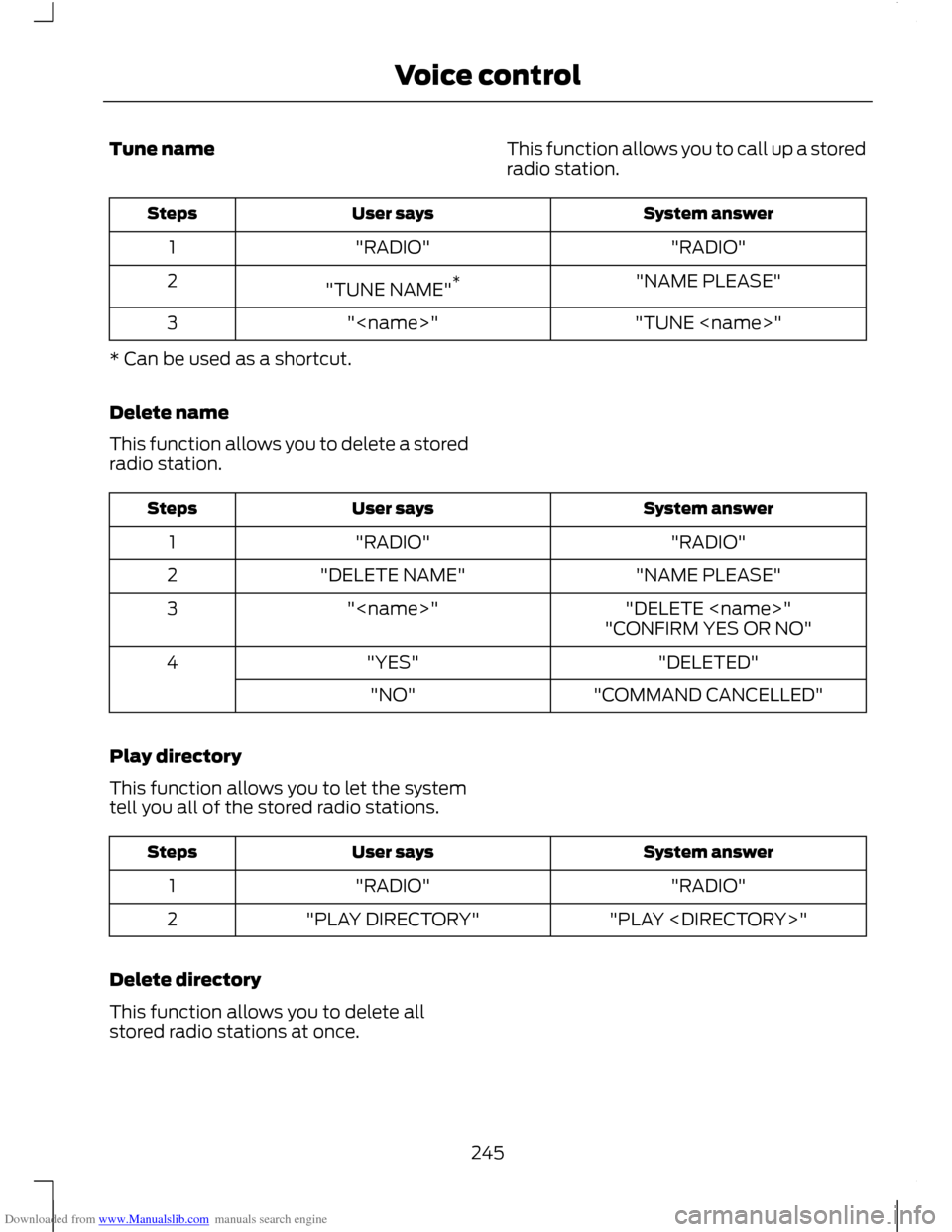
Downloaded from www.Manualslib.com manuals search engine Tune name
This function allows you to call up a stored
radio station. System answer
User says
Steps
"RADIO"
"RADIO"
1
"NAME PLEASE"
"TUNE NAME" *
2
"TUNE
"
3
* Can be used as a shortcut.
Delete name
This function allows you to delete a stored
radio station. System answer
User says
Steps
"RADIO"
"RADIO"
1
"NAME PLEASE"
"DELETE NAME"
2
"DELETE
"
3
"CONFIRM YES OR NO"
"DELETED"
"YES"
4
"COMMAND CANCELLED"
"NO"
Play directory
This function allows you to let the system
tell you all of the stored radio stations. System answer
User says
Steps
"RADIO"
"RADIO"
1
"PLAY
"PLAY DIRECTORY"
2
Delete directory
This function allows you to delete all
stored radio stations at once.
245
Voice control
Page 248 of 296
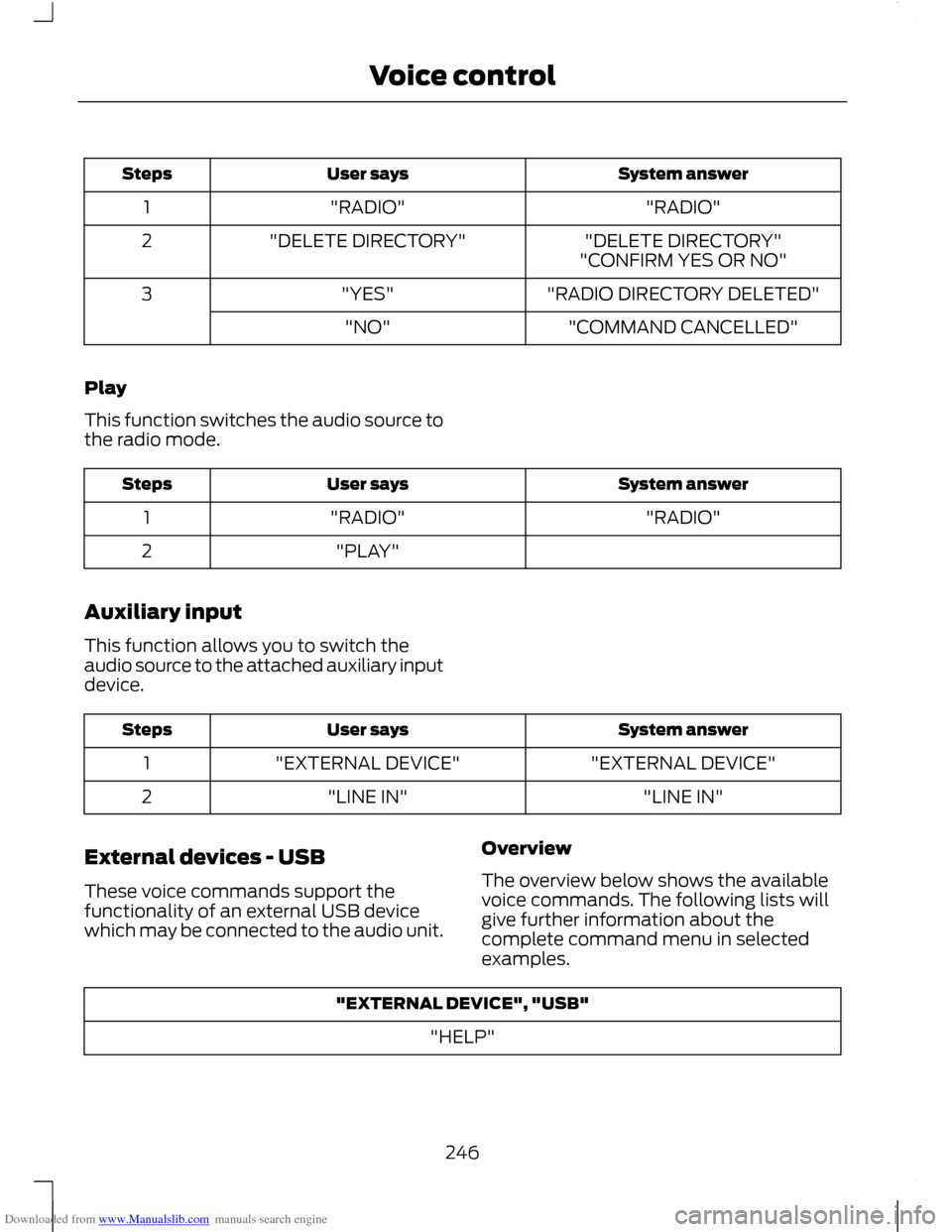
Downloaded from www.Manualslib.com manuals search engine System answer
User says
Steps
"RADIO"
"RADIO"
1
"DELETE DIRECTORY"
"DELETE DIRECTORY"
2
"CONFIRM YES OR NO"
"RADIO DIRECTORY DELETED"
"YES"
3
"COMMAND CANCELLED"
"NO"
Play
This function switches the audio source to
the radio mode. System answer
User says
Steps
"RADIO"
"RADIO"
1
"PLAY"
2
Auxiliary input
This function allows you to switch the
audio source to the attached auxiliary input
device. System answer
User says
Steps
"EXTERNAL DEVICE"
"EXTERNAL DEVICE"
1
"LINE IN"
"LINE IN"
2
External devices - USB
These voice commands support the
functionality of an external USB device
which may be connected to the audio unit. Overview
The overview below shows the available
voice commands. The following lists will
give further information about the
complete command menu in selected
examples."EXTERNAL DEVICE", "USB"
"HELP"
246
Voice control
Page 259 of 296
Downloaded from www.Manualslib.com manuals search engine GENERAL INFORMATION
CAUTIONS
Take care when handling external
devices with exposed electrical
connectors (such as the USB plug).
Always replace the protective cap/shield
when possible. There may be a risk of
electrostatic discharge causing damage
to the device. Do not touch or handle the USB
socket in the vehicle. Cover the socket
when not in use.
Only use USB Mass-Storage device
compliant devices.
Always switch your audio unit to a
different source (for example the
radio) before unplugging the USB
device. Do not install or connect USB hubs or
splitters.
Note:
The system is only designed to
recognize and read suitable audio files from
a USB device that conforms to the USB
Mass-Storage device class or an iPod. Not
all available USB devices can be guaranteed
to function with the system.
Note: It is possible to connect compatible
devices with a trailing USB lead as well as
those that plug into the vehicle USB socket
directly (for example USB memory sticks
and pen drives).
Note: Some USB devices with a higher
power consumption may not be compatible
(for example some larger hard drives).
Note: Access time to read the files on the
external device will vary depending upon
factors such as the file structure, size and
device content. The system supports a range of external
devices, to fully integrate with your audio
unit via the USB and auxiliary input
sockets. Once connected, control of the
external device is possible via the audio
unit.
A list of typical compatible devices are
shown below:
•
USB memory sticks
• USB portable hard drives
• Some MP3 players with USB
connection
• iPod media players (refer to
www.ford-mobile
-connectivity.com for latest
compatibility list).
The system is USB 2.0 full speed
compatible, USB 1.1 host compliant and
supports FAT 16/32 file systems.
Information on audio file
structures for external devices
USB
Create only a single partition on the USB
device.
If playlists are created, they must contain
correct file paths referenced to the USB
device. It is recommended to create the
playlist after the audio files have been
transferred to the USB device.
Playlists must be created in .m3u format.
Audio files must be in .mp3 format.
Do not exceed the following limits:
• 1000 items per folder (files, folders and
playlists)
• 5000 folders per USB device (including
playlists)
• 8 subfolder levels.
257
Connectivity
Page 263 of 296
Downloaded from www.Manualslib.com manuals search engine The iPod menu list for browsing contents
will be available through the radio display.
Navigation of the contents follows the
same principles as for iPod standalone use
(for example search by artist, title, etc.).
To browse the iPod contents, press the
up/down arrow key or the OK button once.
The display will show the track
information, together with other important
information described below:
•
A vertical scroll bar on the right side of
the display shows the current position
of the list view.
• ">" after an entry indicates a further
level down is readable (for example all
albums by a particular artist).
• "<" before the list indicates that a
further level up is readable.
• An icon on the left side indicates the
type of the currently displayed list (for
example list of albums). Refer to the
list for an explanation of these icons.
To navigate the iPod contents, use the
up/down arrow keys to scroll through lists,
and the left/right keys to move up or down
within the hierarchy. Once your desired
track, playlist, album, artist or genre is
highlighted, press the OK button to select
playback.
Note: If you wish to jump to the top level
of the iPod contents, press and hold the left
arrow key.
Audio control
Press the seek up and down keys to skip
backwards and forwards through tracks.
Press and hold the seek keys to enable fast
rewind/fast forward through track content.
Use the function buttons to enable shuffle
and repeat with respect to playlists.
Press function button 3 to scan the whole
device or a playlist if it is in operation. Press the INFO button or function button
4 to display the following:
•
title
• artist
• album.
261
Connectivity