display FORD CROWN VICTORIA 2009 2.G User Guide
[x] Cancel search | Manufacturer: FORD, Model Year: 2009, Model line: CROWN VICTORIA, Model: FORD CROWN VICTORIA 2009 2.GPages: 271, PDF Size: 2.32 MB
Page 31 of 271
WARNING:Driving while distracted can result in loss of vehicle
control, accident and injury. Ford strongly recommends that
drivers use extreme caution when using any device that may take their
focus off the road. The driver’s primary responsibility is the safe
operation of their vehicle. Only use cell phones and other devices not
essential to the driving task when it is safe to do so.
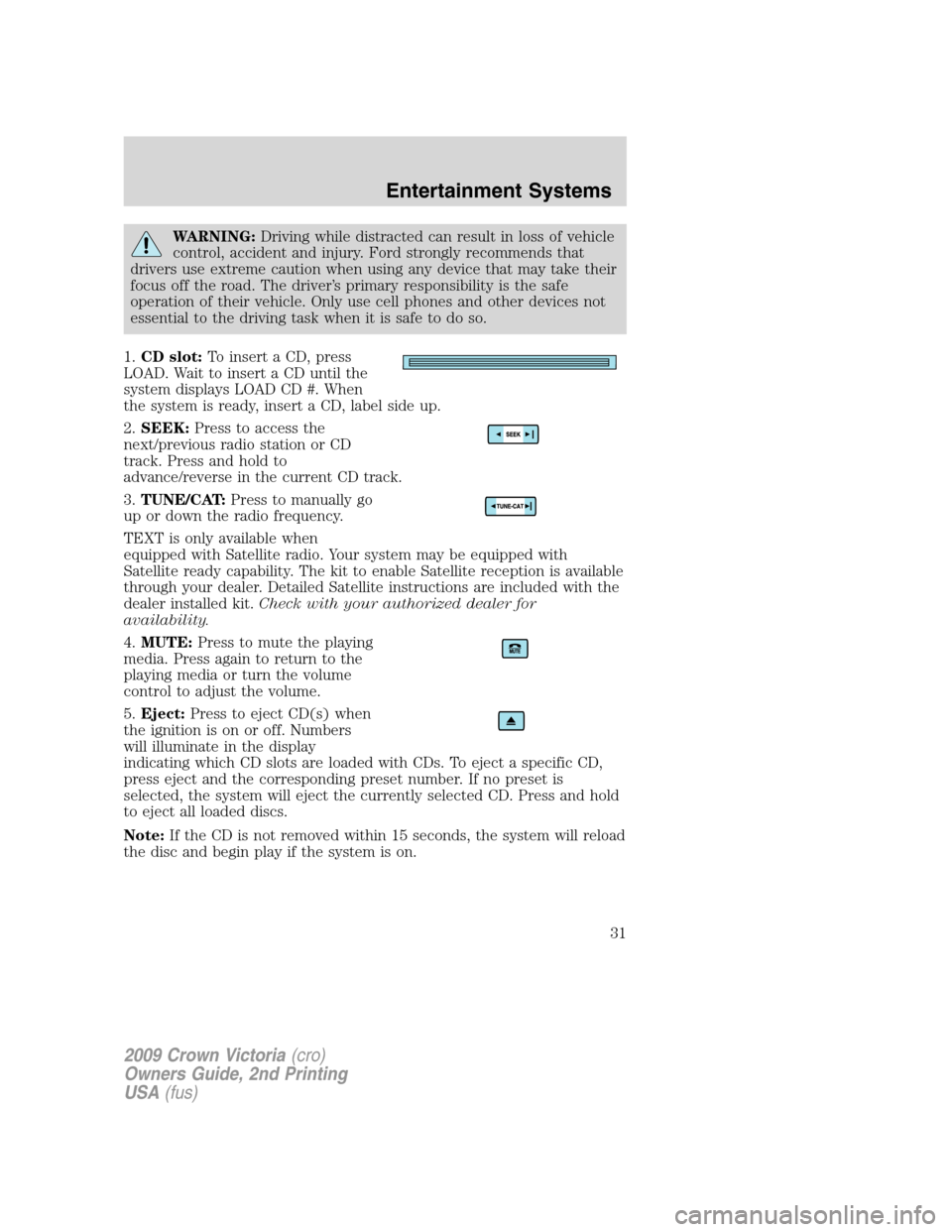
1.CD slot:To insert a CD, press
LOAD. Wait to insert a CD until the
system displays LOAD CD #. When
the system is ready, insert a CD, label side up.
2.SEEK:Press to access the
next/previous radio station or CD
track. Press and hold to
advance/reverse in the current CD track.
3.TUNE/CAT:Press to manually go
up or down the radio frequency.
TEXT is only available when
equipped with Satellite radio. Your system may be equipped with
Satellite ready capability. The kit to enable Satellite reception is available
through your dealer. Detailed Satellite instructions are included with the
dealer installed kit.Check with your authorized dealer for
availability.
4.MUTE:Press to mute the playing
media. Press again to return to the
playing media or turn the volume
control to adjust the volume.
5.Eject:Press to eject CD(s) when
the ignition is on or off. Numbers
will illuminate in the display
indicating which CD slots are loaded with CDs. To eject a specific CD,
press eject and the corresponding preset number. If no preset is
selected, the system will eject the currently selected CD. Press and hold
to eject all loaded discs.
Note:If the CD is not removed within 15 seconds, the system will reload
the disc and begin play if the system is on.
2009 Crown Victoria(cro)
Owners Guide, 2nd Printing
USA(fus)
Entertainment Systems
31
Page 33 of 271
FIND Program type:Allows you to search RDS-equipped stations for a
certain category of music format: Classic, Country, Info, Jazz, Oldies,
R&B, Religious, Rock, Soft, Top 40.
With RDS ON, press MENU until the program type menu is displayed.
One of the various program types will appear. Press
SEL-TEXT
to scroll through music types. Press SEEK or SCAN to search for a
station playing the requested music category.
Show TYPE:Selects between displaying the station’s call letters or
music format when RDS is enabled. Press MENU until SHOW XX appears
in the display. Press to select NAME or TYPE.
Compression:Brings soft and loud CD passages together for a more
consistent listening level when in CD mode. Press MENU until
compression status is displayed. Press
SEL-TEXTto enable the
compression feature when COMPRESS OFF is displayed. Press the SEL
control again to disable the feature when COMPRESS ON is displayed.
When activated, the compression icon will illuminate in the display.
Occupancy mode(Available on Premium Sound audios only): Press
MENU until occupancy mode appears in the display.
Press
SEL-TEXTto select ALL SEATS, DRIVERS SEAT or REAR
SEATS occupancy mode.
Autoset:Allows you to set the strongest local radio stations without
losing your original manually set preset stations for AM/FM1/FM2. Press
MENU until AUTOSET appears in the display. Press
SEL-TEXT
to toggle ON/OFF. When the six strongest stations are filled, the station
stored in preset 1 will begin playing. If there are less than six strong
stations, the system will store the last one in the remaining presets.
When activated, AUTOSET will appear in the display when any of the
preset controls are pressed.
Speed sensitive volume:Radio volume changes automatically and
slightly with vehicle speed to compensate for road and wind noise.
Recommended level is 1–3. Level 0 turns the feature off and level 7 is
the maximum setting.
Press MENU to access and use
SEL-TEXTto adjust the volume
setting. The level will appear in the display.
Setting the clock:Press MENU until SELECT HOUR or SELECT MINS
is displayed. Press
SEL-TEXTto increase/decrease the
hours/minutes. Press MENU again to disengage clock mode.
2009 Crown Victoria(cro)
Owners Guide, 2nd Printing
USA(fus)
Entertainment Systems
33
Page 34 of 271
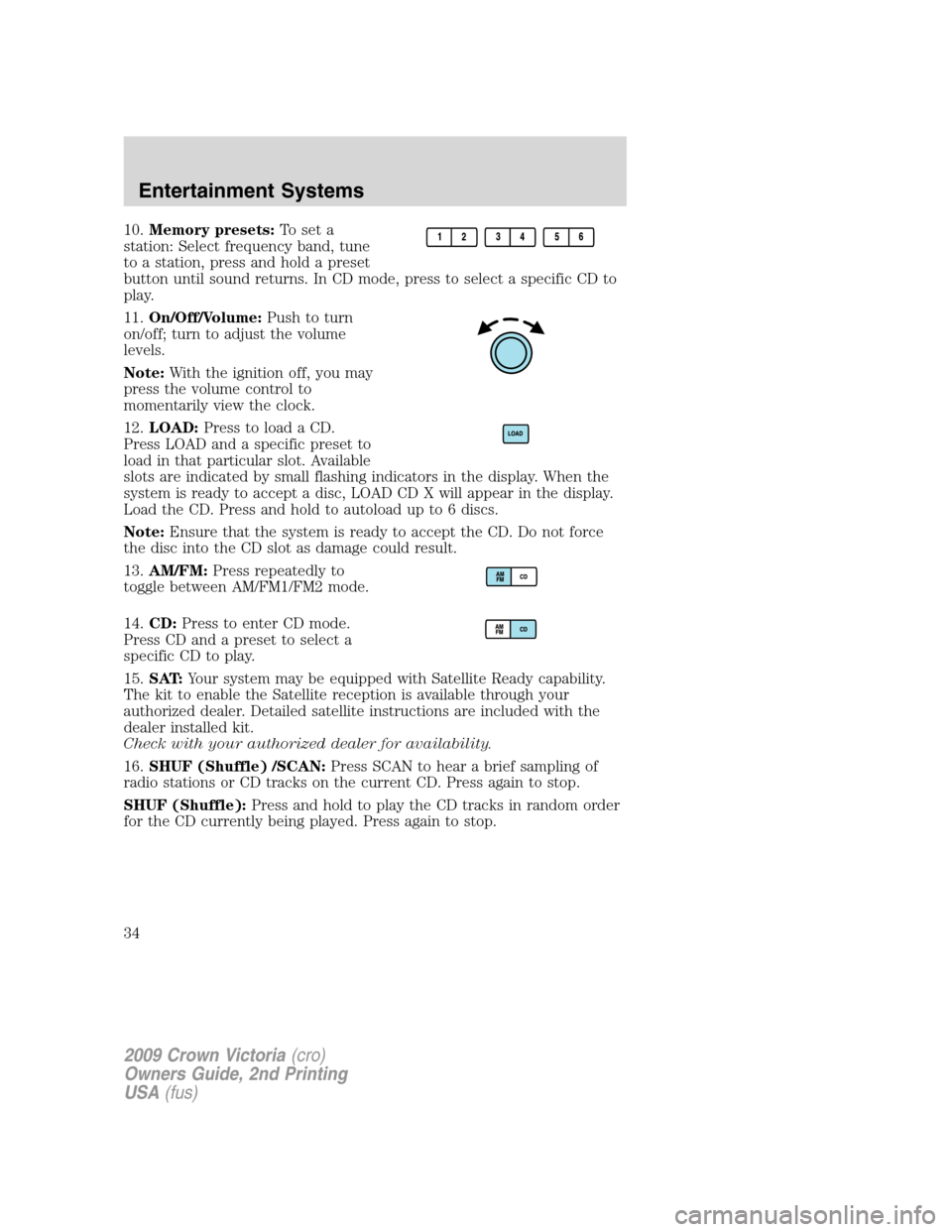
10.Memory presets:To set a
station: Select frequency band, tune
to a station, press and hold a preset
button until sound returns. In CD mode, press to select a specific CD to
play.
11.On/Off/Volume:Push to turn
on/off; turn to adjust the volume
levels.
Note:With the ignition off, you may
press the volume control to
momentarily view the clock.
12.LOAD:Press to load a CD.
Press LOAD and a specific preset to
load in that particular slot. Available
slots are indicated by small flashing indicators in the display. When the
system is ready to accept a disc, LOAD CD X will appear in the display.
Load the CD. Press and hold to autoload up to 6 discs.
Note:Ensure that the system is ready to accept the CD. Do not force
the disc into the CD slot as damage could result.
13.AM/FM:Press repeatedly to
toggle between AM/FM1/FM2 mode.
14.CD:Press to enter CD mode.
Press CD and a preset to select a
specific CD to play.
15.SAT:Your system may be equipped with Satellite Ready capability.
The kit to enable the Satellite reception is available through your
authorized dealer. Detailed satellite instructions are included with the
dealer installed kit.
Check with your authorized dealer for availability.
16.SHUF (Shuffle) /SCAN:Press SCAN to hear a brief sampling of
radio stations or CD tracks on the current CD. Press again to stop.
SHUF (Shuffle):Press and hold to play the CD tracks in random order
for the CD currently being played. Press again to stop.
2009 Crown Victoria(cro)
Owners Guide, 2nd Printing
USA(fus)
Entertainment Systems
34
Page 35 of 271
GENERAL AUDIO INFORMATION
Radio frequencies:AM and FM frequencies are established by the
Federal Communications Commission (FCC) and the Canadian Radio and
Telecommunications Commission (CRTC). Those frequencies are:
AM - 530, 540–1700, 1710 kHz
FM- 87.7, 87.9–107.7, 107.9 MHz
Radio reception factors:There are three factors that can affect radio
reception:
•Distance/strength: The further you travel from a station, the weaker
the signal and the weaker the reception.
•Terrain: Hills, mountains, tall buildings, power lines, electric fences,
traffic lights and thunderstorms can interfere with your reception.
•Station overload: When you pass a broadcast tower, a stronger signal
may overtake a weaker one and play while the weak station frequency
is displayed.
Cassette player care:
•Use only cassettes that are 90 minutes long or less.
•Tighten very loose tapes by inserting a finger or pencil into the hole
and turning the hub.
•Remove loose labels before inserting tapes.
•Allow tapes which have been subjected to extreme heat, humidity or
cold to reach a moderate temperature before playing.
•Clean the cassette player head with a cassette cleaning cartridge after
10–12 hours of play to maintain good sound/operation.
Don’t:
•Expose tapes to direct sunlight, extreme humidity, heat or cold.
•Leave tapes in the cassette player for a long time when not being
played.
2009 Crown Victoria(cro)
Owners Guide, 2nd Printing
USA(fus)
Entertainment Systems
35
Page 39 of 271
3.Fan speed:Turn to manually
increase or decrease fan speed.
4.Defrost:
Distributes outside air through the windshield defroster
vents and the side window demisters.
5.Floor/defrost:Distributes outside air through the windshield
defroster vents, floor vents and the side window demisters.
6.Floor:Distributes outside air through the floor vents.
7.Vent:Distributes outside air through the instrument panel vents.
8.Norm A/C:Uses outside air to cool the vehicle. Air flows from the
instrument panel vents only.
9.Max A/C:Uses recirculated air to cool the vehicle. Air flows from the
instrument panel vents only. This mode will help prevent unpleasant
odors from entering the vehicle.
10.Outside Temp:Press to display
the outside temperature. It will
remain in the display until pressed
again. The temperature will be most accurate when the vehicle is in
motion.
11.Temperature control:Press this control to select the temperature.
The display window indicates the selected temperature.
Fahrenheit/Celsius temperature:Press MAX A/C and DEF
simultaneously to toggle between Fahrenheit and Celsius temperature.
The set point temperatures in Celsius will be displayed in half-degree
increments.
Operating tips
•To reduce fog build up on the windshield during humid weather, place
the air flow selector in the
position.
•To reduce humidity build up inside the vehicle: do not drive with the
air flow selector in OFF or MAX A/C.
•Under normal weather conditions, do not leave the air flow selector in
MAX A/C or OFF when the vehicle is parked. This allows the vehicle
to “breathe” using the outside air inlet vents.
•Do not put objects under the front seats that will interfere with the
airflow to the back seats.
2009 Crown Victoria(cro)
Owners Guide, 2nd Printing
USA(fus)
Climate Controls
39
Page 63 of 271
Climate control features
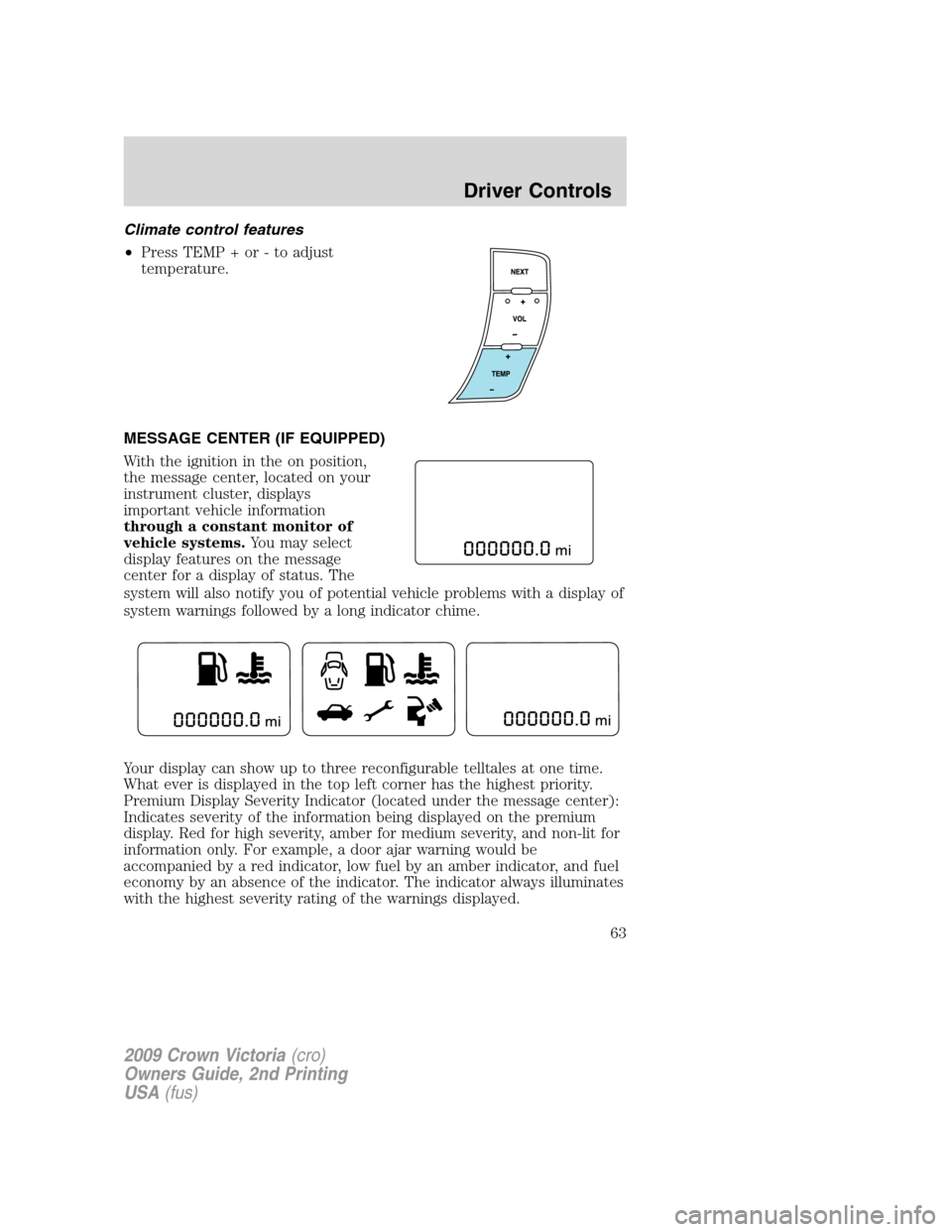
•Press TEMP + or - to adjust
temperature.
MESSAGE CENTER (IF EQUIPPED)
With the ignition in the on position,
the message center, located on your
instrument cluster, displays
important vehicle information
through a constant monitor of
vehicle systems.You may select
display features on the message
center for a display of status. The
system will also notify you of potential vehicle problems with a display of
system warnings followed by a long indicator chime.
Your display can show up to three reconfigurable telltales at one time.
What ever is displayed in the top left corner has the highest priority.
Premium Display Severity Indicator (located under the message center):
Indicates severity of the information being displayed on the premium
display. Red for high severity, amber for medium severity, and non-lit for
information only. For example, a door ajar warning would be
accompanied by a red indicator, low fuel by an amber indicator, and fuel
economy by an absence of the indicator. The indicator always illuminates
with the highest severity rating of the warnings displayed.
2009 Crown Victoria(cro)
Owners Guide, 2nd Printing
USA(fus)
Driver Controls
63
Page 64 of 271
Selectable features
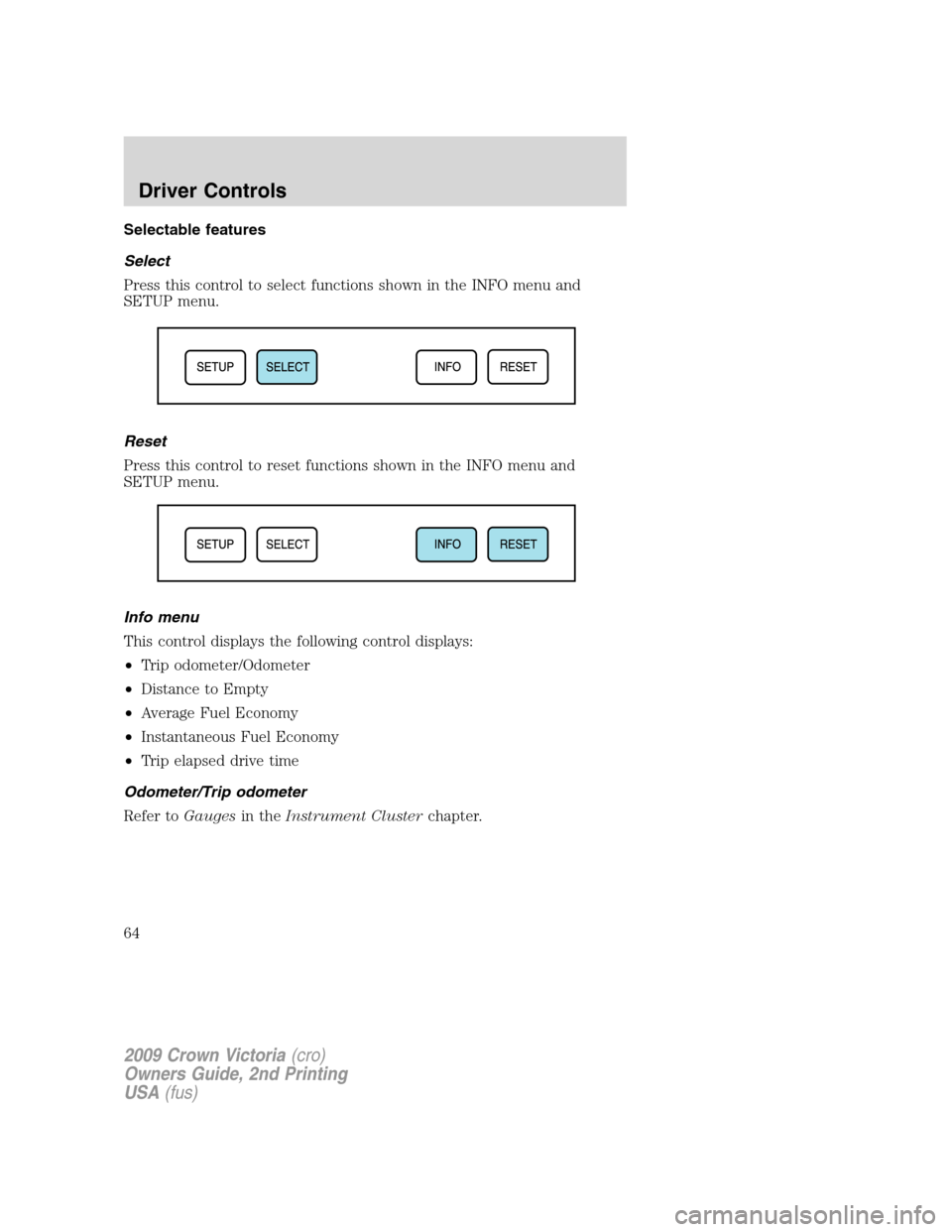
Select
Press this control to select functions shown in the INFO menu and
SETUP menu.
Reset
Press this control to reset functions shown in the INFO menu and
SETUP menu.
Info menu
This control displays the following control displays:
•Trip odometer/Odometer
•Distance to Empty
•Average Fuel Economy
•Instantaneous Fuel Economy
•Trip elapsed drive time
Odometer/Trip odometer
Refer toGaugesin theInstrument Clusterchapter.
2009 Crown Victoria(cro)
Owners Guide, 2nd Printing
USA(fus)
Driver Controls
64
Page 65 of 271
Distance to empty (DTE)
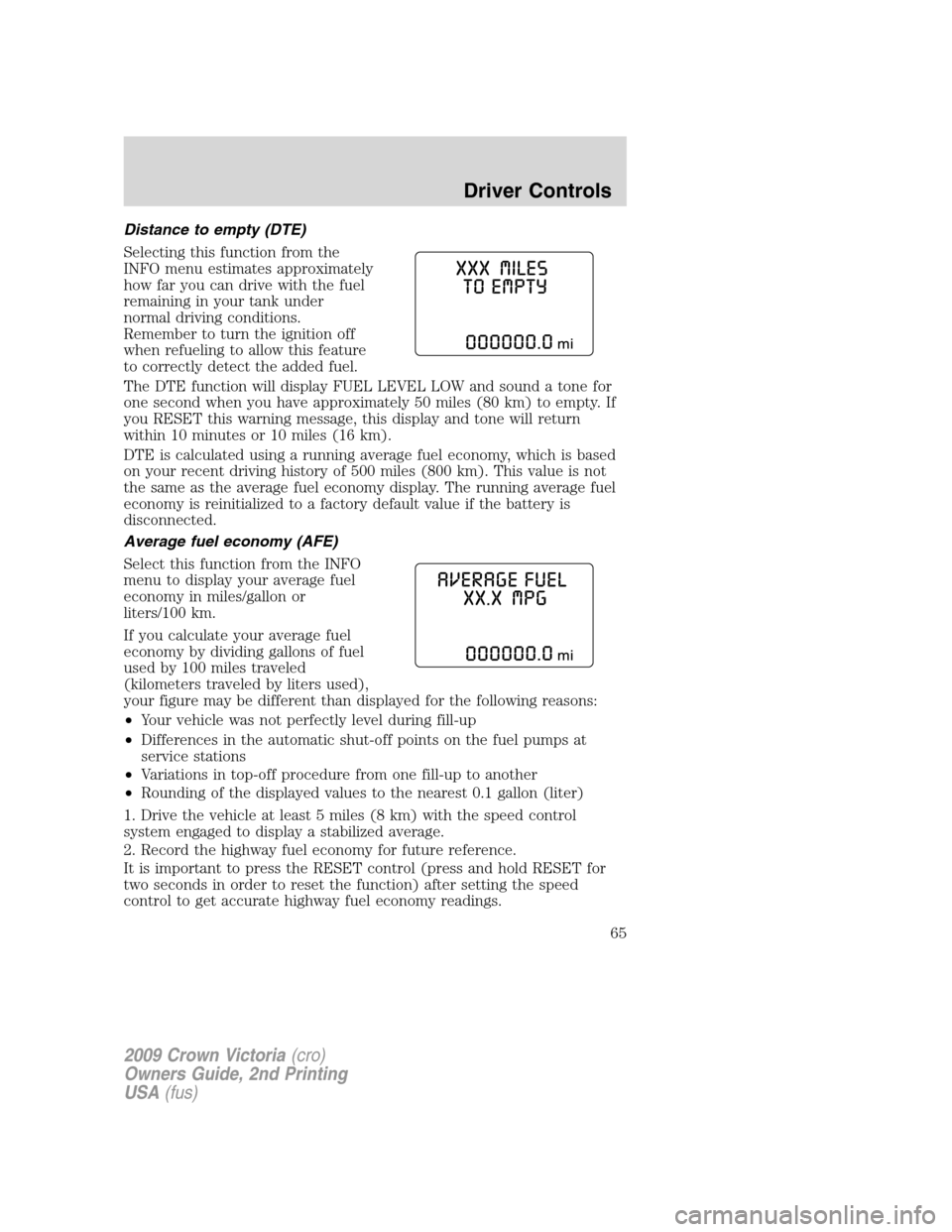
Selecting this function from the
INFO menu estimates approximately
how far you can drive with the fuel
remaining in your tank under
normal driving conditions.
Remember to turn the ignition off
when refueling to allow this feature
to correctly detect the added fuel.
The DTE function will display FUEL LEVEL LOW and sound a tone for
one second when you have approximately 50 miles (80 km) to empty. If
you RESET this warning message, this display and tone will return
within 10 minutes or 10 miles (16 km).
DTE is calculated using a running average fuel economy, which is based
on your recent driving history of 500 miles (800 km). This value is not
the same as the average fuel economy display. The running average fuel
economy is reinitialized to a factory default value if the battery is
disconnected.
Average fuel economy (AFE)
Select this function from the INFO
menu to display your average fuel
economy in miles/gallon or
liters/100 km.
If you calculate your average fuel
economy by dividing gallons of fuel
used by 100 miles traveled
(kilometers traveled by liters used),
your figure may be different than displayed for the following reasons:
•Your vehicle was not perfectly level during fill-up
•Differences in the automatic shut-off points on the fuel pumps at
service stations
•Variations in top-off procedure from one fill-up to another
•Rounding of the displayed values to the nearest 0.1 gallon (liter)
1. Drive the vehicle at least 5 miles (8 km) with the speed control
system engaged to display a stabilized average.
2. Record the highway fuel economy for future reference.
It is important to press the RESET control (press and hold RESET for
two seconds in order to reset the function) after setting the speed
control to get accurate highway fuel economy readings.
2009 Crown Victoria(cro)
Owners Guide, 2nd Printing
USA(fus)
Driver Controls
65
Page 66 of 271
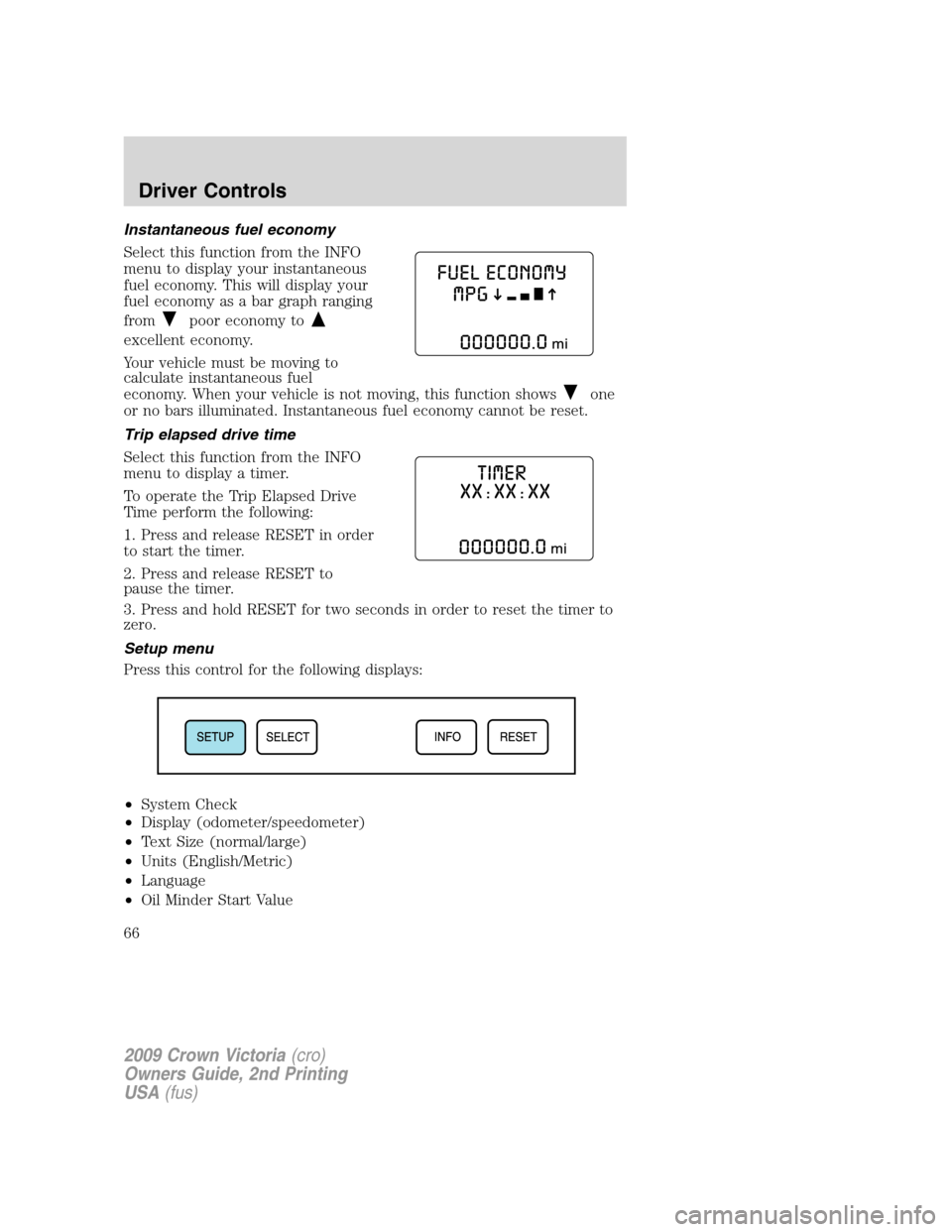
Instantaneous fuel economy
Select this function from the INFO
menu to display your instantaneous
fuel economy. This will display your
fuel economy as a bar graph ranging
from
poor economy to
excellent economy.
Your vehicle must be moving to
calculate instantaneous fuel
economy. When your vehicle is not moving, this function shows
one
or no bars illuminated. Instantaneous fuel economy cannot be reset.
Trip elapsed drive time
Select this function from the INFO
menu to display a timer.
To operate the Trip Elapsed Drive
Time perform the following:
1. Press and release RESET in order
to start the timer.
2. Press and release RESET to
pause the timer.
3. Press and hold RESET for two seconds in order to reset the timer to
zero.
Setup menu
Press this control for the following displays:
•System Check
•Display (odometer/speedometer)
•Text Size (normal/large)
•Units (English/Metric)
•Language
•Oil Minder Start Value
2009 Crown Victoria(cro)
Owners Guide, 2nd Printing
USA(fus)
Driver Controls
66
Page 67 of 271
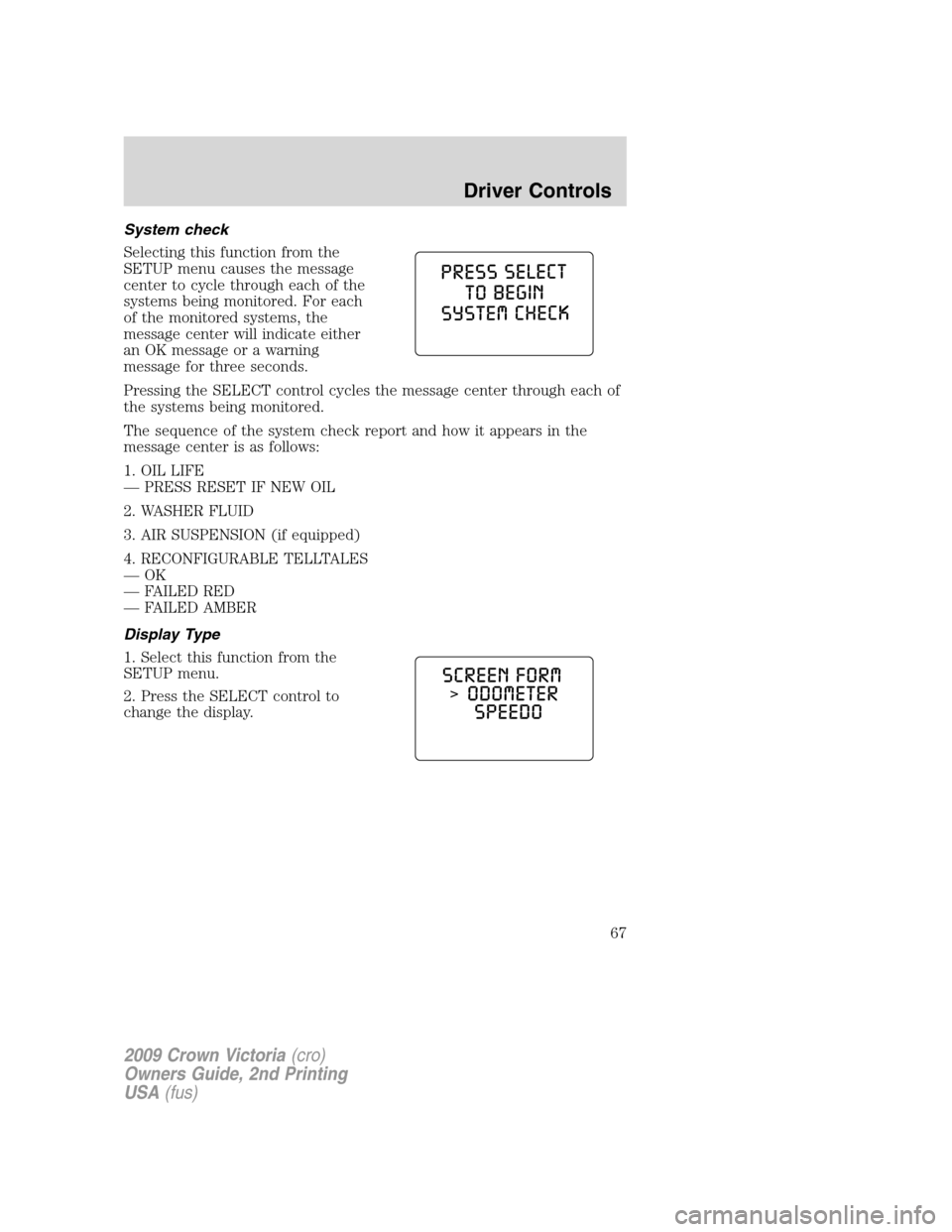
System check
Selecting this function from the
SETUP menu causes the message
center to cycle through each of the
systems being monitored. For each
of the monitored systems, the
message center will indicate either
an OK message or a warning
message for three seconds.
Pressing the SELECT control cycles the message center through each of
the systems being monitored.
The sequence of the system check report and how it appears in the
message center is as follows:
1. OIL LIFE
— PRESS RESET IF NEW OIL
2. WASHER FLUID
3. AIR SUSPENSION (if equipped)
4. RECONFIGURABLE TELLTALES
—OK
— FAILED RED
— FAILED AMBER
Display Type
1. Select this function from the
SETUP menu.
2. Press the SELECT control to
change the display.
2009 Crown Victoria(cro)
Owners Guide, 2nd Printing
USA(fus)
Driver Controls
67