audio FORD E-450 2019 Owners Manual
[x] Cancel search | Manufacturer: FORD, Model Year: 2019, Model line: E-450, Model: FORD E-450 2019Pages: 329, PDF Size: 6.24 MB
Page 7 of 329
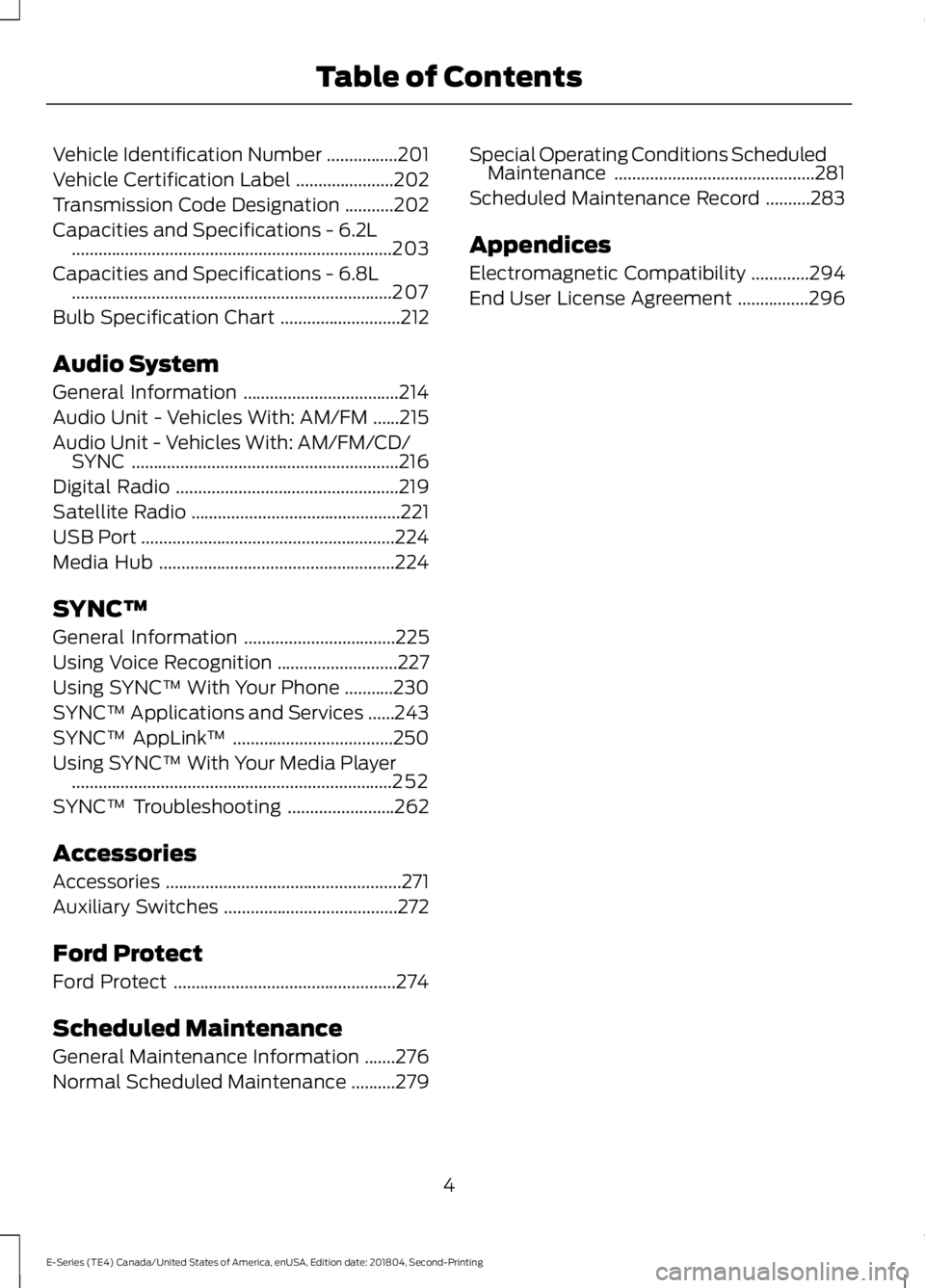
Vehicle Identification Number
................201
Vehicle Certification Label ......................
202
Transmission Code Designation ...........
202
Capacities and Specifications - 6.2L ........................................................................\
203
Capacities and Specifications - 6.8L ........................................................................\
207
Bulb Specification Chart ...........................
212
Audio System
General Information ...................................
214
Audio Unit - Vehicles With: AM/FM ......
215
Audio Unit - Vehicles With: AM/FM/CD/ SYNC ............................................................
216
Digital Radio ..................................................
219
Satellite Radio ...............................................
221
USB Port .........................................................
224
Media Hub .....................................................
224
SYNC™
General Information ..................................
225
Using Voice Recognition ...........................
227
Using SYNC™ With Your Phone ...........
230
SYNC™ Applications and Services ......
243
SYNC™ AppLink ™....................................
250
Using SYNC™ With Your Media Player ........................................................................\
252
SYNC™ Troubleshooting ........................
262
Accessories
Accessories .....................................................
271
Auxiliary Switches .......................................
272
Ford Protect
Ford Protect ..................................................
274
Scheduled Maintenance
General Maintenance Information .......
276
Normal Scheduled Maintenance ..........
279Special Operating Conditions Scheduled
Maintenance .............................................
281
Scheduled Maintenance Record ..........
283
Appendices
Electromagnetic Compatibility .............
294
End User License Agreement ................
296
4
E-Series (TE4) Canada/United States of America, enUSA, Edition date: 201804, Second-Printing Table of Contents
Page 19 of 329
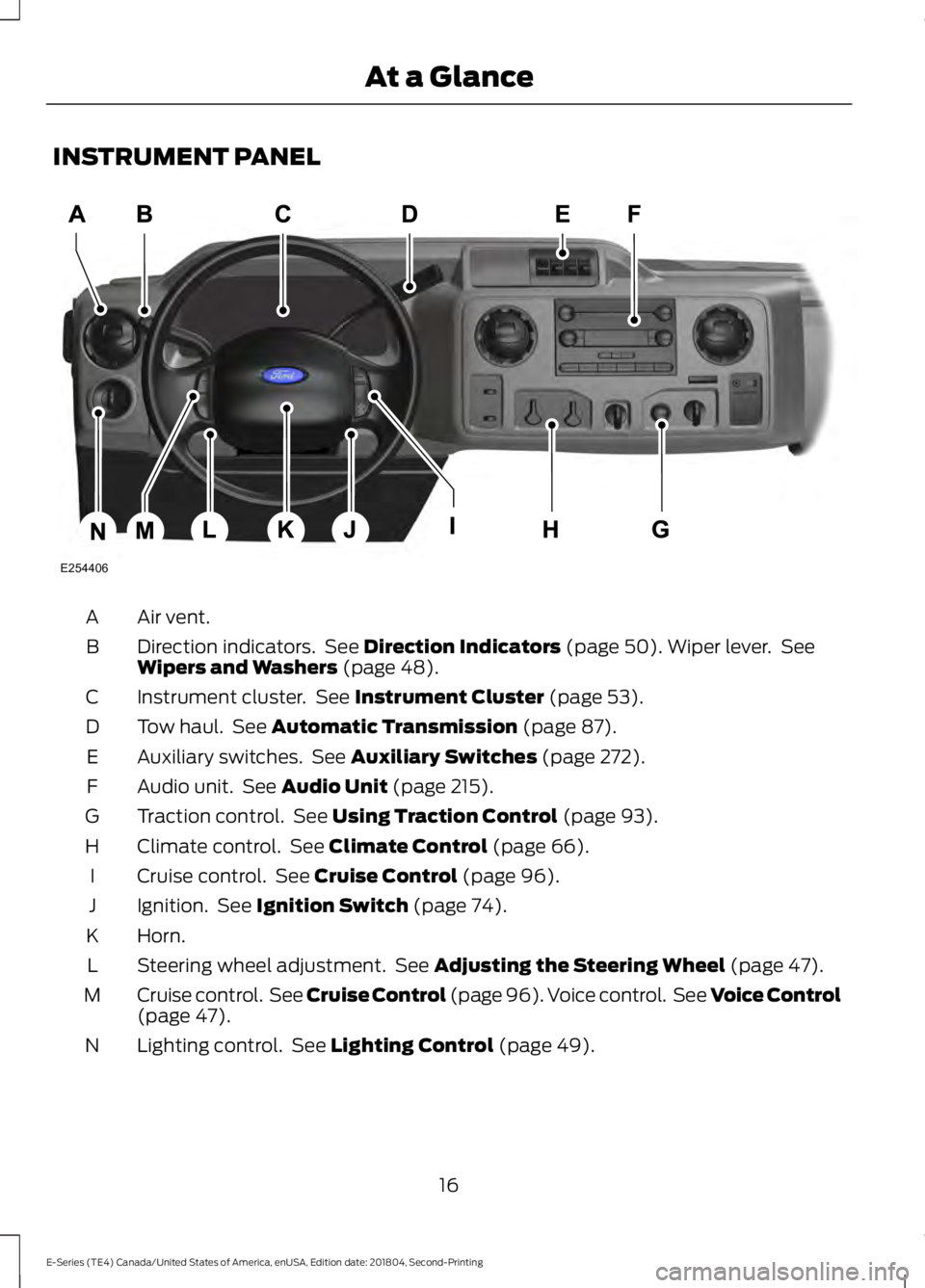
INSTRUMENT PANEL
Air vent.
A
Direction indicators. See Direction Indicators (page 50). Wiper lever. See
Wipers and Washers (page 48).
B
Instrument cluster. See
Instrument Cluster (page 53).
C
Tow haul. See
Automatic Transmission (page 87).
D
Auxiliary switches. See
Auxiliary Switches (page 272).
E
Audio unit. See
Audio Unit (page 215).
F
Traction control. See
Using Traction Control (page 93).
G
Climate control. See
Climate Control (page 66).
H
Cruise control. See
Cruise Control (page 96).
I
Ignition. See
Ignition Switch (page 74).
J
Horn.
K
Steering wheel adjustment. See
Adjusting the Steering Wheel (page 47).
L
Cruise control. See Cruise Control (page 96). Voice control. See Voice Control
(page
47).
M
Lighting control. See
Lighting Control (page 49).
N
16
E-Series (TE4) Canada/United States of America, enUSA, Edition date: 201804, Second-Printing At a GlanceE254406
Page 141 of 329
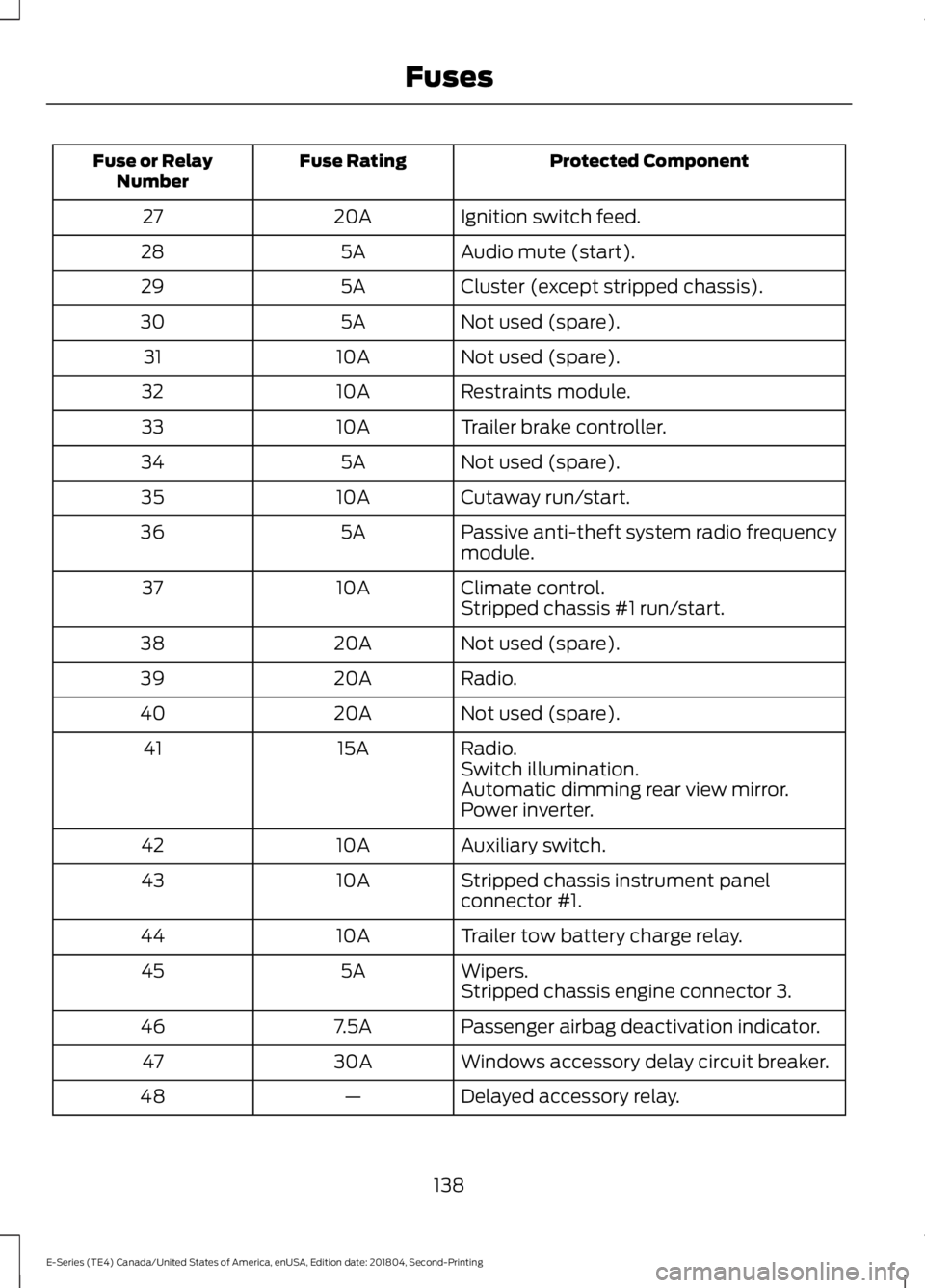
Protected Component
Fuse Rating
Fuse or Relay
Number
Ignition switch feed.
20A
27
Audio mute (start).
5A
28
Cluster (except stripped chassis).
5A
29
Not used (spare).
5A
30
Not used (spare).
10A
31
Restraints module.
10A
32
Trailer brake controller.
10A
33
Not used (spare).
5A
34
Cutaway run/start.
10A
35
Passive anti-theft system radio frequency
module.
5A
36
Climate control.
10A
37
Stripped chassis #1 run/start.
Not used (spare).
20A
38
Radio.
20A
39
Not used (spare).
20A
40
Radio.
15A
41
Switch illumination.
Automatic dimming rear view mirror.
Power inverter.
Auxiliary switch.
10A
42
Stripped chassis instrument panel
connector #1.
10A
43
Trailer tow battery charge relay.
10A
44
Wipers.
5A
45
Stripped chassis engine connector 3.
Passenger airbag deactivation indicator.
7.5A
46
Windows accessory delay circuit breaker.
30A
47
Delayed accessory relay.
—
48
138
E-Series (TE4) Canada/United States of America, enUSA, Edition date: 201804, Second-Printing Fuses
Page 217 of 329
GENERAL INFORMATION
WARNING: Driving while
distracted can result in loss of vehicle
control, crash and injury. We strongly
recommend that you use extreme
caution when using any device that may
take your focus off the road. Your
primary responsibility is the safe
operation of your vehicle. We
recommend against the use of any
hand-held device while driving and
encourage the use of voice-operated
systems when possible. Make sure you
are aware of all applicable local laws
that may affect the use of electronic
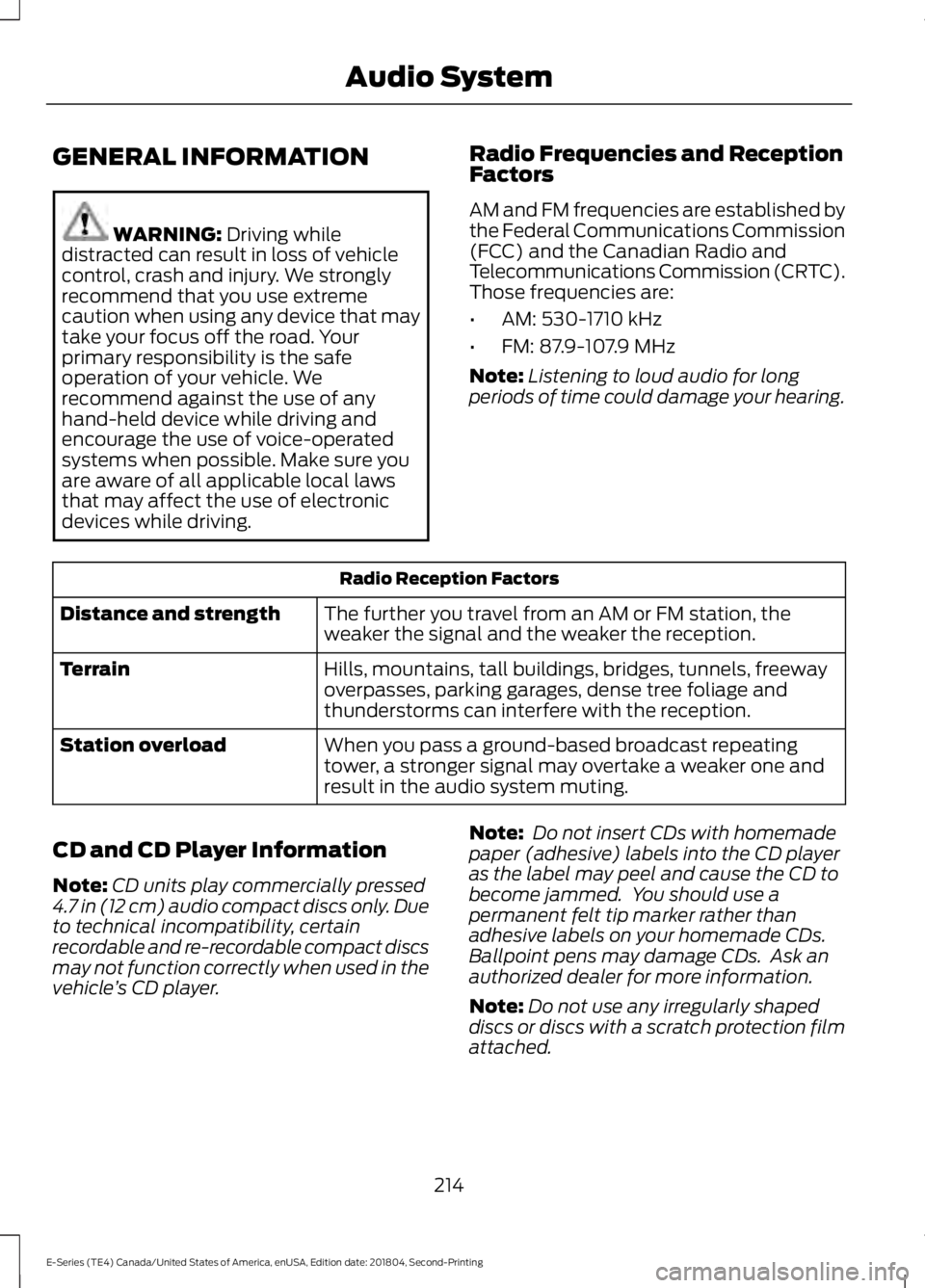
devices while driving. Radio Frequencies and Reception
Factors
AM and FM frequencies are established by
the Federal Communications Commission
(FCC) and the Canadian Radio and
Telecommunications Commission (CRTC).
Those frequencies are:
•
AM: 530-1710 kHz
• FM: 87.9-107.9 MHz
Note: Listening to loud audio for long
periods of time could damage your hearing. Radio Reception Factors
The further you travel from an AM or FM station, the
weaker the signal and the weaker the reception.
Distance and strength
Hills, mountains, tall buildings, bridges, tunnels, freeway
overpasses, parking garages, dense tree foliage and
thunderstorms can interfere with the reception.
Terrain
When you pass a ground-based broadcast repeating
tower, a stronger signal may overtake a weaker one and
result in the audio system muting.
Station overload
CD and CD Player Information
Note: CD units play commercially pressed
4.7 in (12 cm) audio compact discs only. Due
to technical incompatibility, certain
recordable and re-recordable compact discs
may not function correctly when used in the
vehicle ’s CD player. Note:
Do not insert CDs with homemade
paper (adhesive) labels into the CD player
as the label may peel and cause the CD to
become jammed. You should use a
permanent felt tip marker rather than
adhesive labels on your homemade CDs.
Ballpoint pens may damage CDs. Ask an
authorized dealer for more information.
Note: Do not use any irregularly shaped
discs or discs with a scratch protection film
attached.
214
E-Series (TE4) Canada/United States of America, enUSA, Edition date: 201804, Second-Printing Audio System
Page 218 of 329
Always handle discs by their edges only.
Clean the disc with an approved CD
cleaner only. Wipe it from the center of
the disc toward the edge. Do not clean in
a circular motion.
Do not expose discs to direct sunlight or
heat sources for extended periods.
MP3 and WMA Track and Folder
Structure
Audio systems capable of recognizing and
playing MP3 and WMA individual tracks
and folder structures work as follows:
•
There are two different modes for MP3
and WMA disc playback: MP3 and
WMA track mode (system default) and
MP3 and WMA folder mode.
• MP3 and WMA track mode ignores any
folder structure on the MP3 and WMA
disc. The player numbers each MP3
and WMA track on the disc (noted by
the MP3 or WMA file extension) from
T001 to a maximum of T255. The
maximum number of playable MP3 and
WMA files may be less depending on
the structure of the CD and exact
model of radio present.
• MP3 and WMA folder mode represents
a folder structure consisting of one
level of folders. The CD player numbers
all MP3 and WMA tracks on the disc
(noted by the MP3 or WMA file
extension) and all folders containing
MP3 and WMA files, from F001 (folder)
T001 (track) to F253 T255.
• Creating discs with only one level of
folders helps with navigation through
the disc files.
If you are burning your own MP3 and WMA
discs, it is important to understand how
the system reads the structures you create.
While various files may be present (files
with extensions other than MP3 and
WMA), only files with the MP3 and WMA extension are played; other files are
ignored by the system. This enables you to
use the same MP3 and WMA disc for a
variety of tasks on your work computer,
home computer and your in-vehicle
system.
In track mode, the system displays and
plays the structure as if it were only one
level deep (all MP3 and WMA files play,
regardless of being in a specific folder). In
folder mode, the system only plays the
MP3 and WMA files in the current folder.
AUDIO UNIT - VEHICLES WITH:
AM/FM
WARNING: Driving while
distracted can result in loss of vehicle
control, crash and injury. We strongly
recommend that you use extreme
caution when using any device that may
take your focus off the road. Your
primary responsibility is the safe
operation of your vehicle. We
recommend against the use of any
hand-held device while driving and
encourage the use of voice-operated
systems when possible. Make sure you
are aware of all applicable local laws
that may affect the use of electronic
devices while driving.
Accessing the Clock Settings Press and release to display the
clock.
To set the time, press and hold until the
hours start to flash. Use the center arrow
controls to change the hours, then repeat
to set the minutes. Press again to exit clock
mode.
215
E-Series (TE4) Canada/United States of America, enUSA, Edition date: 201804, Second-Printing Audio SystemE265935
Page 219 of 329
Accessing the Sound Settings
Press and release to access
settings for Treble, Midrange,
Bass, Fade and Balance.
Adjusting the Volume Turn to adjust the volume.
Changing Radio Stations In radio mode, press and release either
button to search through the radio
frequency band.
Selecting the Audio Modes
Press and release to access
different audio modes, for
example AM, FM and auxiliary
input jack. Setting the Memory Presets
To store a radio station, tune to the station,
then press and hold a numbered preset
button until sound returns.
Switching the Audio Unit On and
Off
Press and release the volume dial.
Using Seek, Fast Forward and
Reverse
Press and release to select a
frequency band. The system
stops at the first station it finds
in that direction.
AUDIO UNIT - VEHICLES WITH:
AM/FM/CD/SYNC WARNING: Driving while
distracted can result in loss of vehicle
control, crash and injury. We strongly
recommend that you use extreme
caution when using any device that may
take your focus off the road. Your
primary responsibility is the safe
operation of your vehicle. We
recommend against the use of any
hand-held device while driving and
encourage the use of voice-operated
systems when possible. Make sure you
are aware of all applicable local laws
that may affect the use of electronic
devices while driving.
Accessing the Auxiliary Media
Sources Press and release to access or
switch between media devices.
216
E-Series (TE4) Canada/United States of America, enUSA, Edition date: 201804, Second-Printing Audio SystemE266185 E265290 E265304 E266187 E266186 E265934 E265273 E265277
Page 220 of 329
Accessing CD or MP3 Mode
Press and release the button.
Accessing the Folders Press and release the buttons to
access the next and previous
folders on an MP3 disc.
Accessing the Menu Press and release to access
different audio system features.
• To set the clock, press MENU until SET
HOURS or SET MINUTES appears
and use the up and down arrow to
adjust the time.
• To set the strongest stations on the
radio frequency, press
MENU until
AUTOSET appears. This does not
override your original presets.
• RBDS
displays text transmitted by
certain radio stations and searches
for music categories.
• When
RBDS ON/OFF appears, press
SEEK to switch on RBDS to search for
music categories. Press the up and
down arrow to scroll through
categories, then press
SEEK to begin
the search.
• SPEEDVOL
allows you to adjust
radio volume to compensate for
noise levels when vehicle speed
increases. •
Track/Folder is only available on MP3
files when in CD mode. In track mode,
press
SEEK to scroll through all the
tracks on the disc. In folder mode, press
SEEK
to scroll through all the tracks
within the selected folder. Press
FOLDER
to access other folders.
• COMPRESS
is only available in CD
and MP3 modes. Switching on
compression brings the soft and
loud passages together for a more
consistent listening level.
• To switch compression on and off,
press
SEEK and the up and down
arrow.
Accessing the Phone Features Press and release to access the
phone features of the SYNC
system.
Adjusting the Volume Turn to adjust the volume.
217
E-Series (TE4) Canada/United States of America, enUSA, Edition date: 201804, Second-Printing Audio SystemE265039 E265913 E265038 E265290 E265304
Page 221 of 329
Changing Radio Stations
In radio mode, press and release either
button to search through the radio
frequency band.
In satellite radio mode, press and release
to find the previous or next available
satellite radio station.
Ejecting the CD
Press and release to eject a CD.
Fast Forwarding the Media Press and release to fast forward
a CD track or MP3 file.
Rewinding the Media Press and release to rewind a CD
track or MP3 file.
Inserting a CD
Insert a CD into the CD slot.
Muting the Audio Press and release to mute the
playing audio.
Playing or Pausing Media Press and release to either play
or pause the audio. Scanning the Audio In radio, CD and MP3 modes, press and
hold to hear a brief sampling of radio
stations, CD tracks or MP3 files. In CD and
MP3 modes, press and release to display
track title, artist name and disc title. In text
mode, the display may require additional
text to show. When the < / > indicator is
on, press TEXT and then press SEEK to
view the additional display text.
Selecting a Frequency Band Press and release to select a
frequency band.
Setting the Memory Presets
To store a radio station, tune to the station,
then press and hold a numbered preset
button until sound returns.
Switching the Audio Unit On and
Off
Press and release the volume dial.
Switching Shuffle Mode On and
Off Press and release the button to
play music on the selected CD
or MP3 folder in random order.
218
E-Series (TE4) Canada/United States of America, enUSA, Edition date: 201804, Second-Printing Audio SystemE266187 E266186 E265032 E265914 E265915 E265043 E265911 E265910 E265934 E265912
Page 222 of 329
Using Seek, Fast Forward and
Reverse
In radio mode, select a frequency band and
press and release either button. The
system stops at the first station it finds in
that direction.
In CD mode, press and release to select
the next or previous track. Press and hold
to move quickly forward or backward
through the current track.
In satellite radio mode, press and release
to select the next or previous satellite radio
station. If you select a specific category
(such as jazz, rock or news), press to find
the next or previous station in the category
you select.
DIGITAL RADIO (IF EQUIPPED)
Note: HD Radio broadcasts are not
available in all markets.
HD Radio technology is the digital
evolution of analog AM/FM radio. Your
system has a special receiver that allows
it to receive digital broadcasts (where
available) in addition to the analog
broadcasts, it already receives. Digital
broadcasts provide a better sound quality
than analog broadcasts with free,
crystal-clear audio and no static or
distortion. For more information, and a
guide to available stations and
programming, please visit
www.hdradio.com. When HD Radio is on and you tune to a
station broadcasting HD Radio technology,
you may notice the HD Radio logo on your
screen. When this logo is available, you
may also see Title and Artist fields
on-screen.
The multicast indicator appears in FM
mode (only) if the current station is
broadcasting multiple digital broadcasts.
The highlighted numbers signify available
digital channels where new or different
content is available. HD1 signifies the main
programming status and is available in
analog and digital broadcasts. Other
multicast stations (HD2 through HD7) are
only available digitally.
When HD Radio broadcasts are active, you
can access the following functions:
•
Scan
allows you to hear a brief
sampling of all available stations. This
feature still works when HD Radio
reception is on, although it does not
scan for HD2-HD7 channels. You may
see the HD logo appear if the station
has a digital broadcast.
• Memory presets
allow you to save an
active channel as a memory preset.
Touch and hold a memory preset slot
until the sound returns. There is a brief
mute while the radio saves the station.
Sound returns when finished. When
switching to an HD2 or HD3 memory
preset, the sound mutes before the
digital audio plays, because the system
has to reacquire the digital signal.
Note: As with any saved radio station, you
cannot access a station you save if your
vehicle is outside the station ’s reception
area.
219
E-Series (TE4) Canada/United States of America, enUSA, Edition date: 201804, Second-Printing Audio SystemE265273
Page 223 of 329
HD Radio Reception and Station Troubleshooting
Potential Reception Issues
If you are listening to a multicast station and you are on
the fringe of the reception area, the station may mute due
to weak signal strength.
Reception area
If you are listening to HD1, the system switches back to
the analog broadcast until the digital broadcast is available
again. However, if you are listening to any of the possible
HD2-HD7 multicast channels, the station mutes and stays
muted unless it is able to connect to the digital signal
again.
When the system first receives a station (aside from HD2-
HD7 multicast stations), it first plays the station in the
analog version. Once the receiver verifies the station is an
HD Radio station, it shifts to the digital version. Depending
on the station quality, you may hear a slight sound change
when the station changes from analog to digital. Blending
is the shift from analog to digital sound or digital back to
analog sound.
Station blending
In order to provide the best possible
experience, use the contact form to report
any station issues found while listening to
a station broadcasting with HD Radio
technology. Independent entities own and
operate each station. These stations are
responsible for ensuring all audio streams
and data fields are accurate.
220
E-Series (TE4) Canada/United States of America, enUSA, Edition date: 201804, Second-Printing Audio System