Control FORD E SERIES 2014 4.G Owners Manual
[x] Cancel search | Manufacturer: FORD, Model Year: 2014, Model line: E SERIES, Model: FORD E SERIES 2014 4.GPages: 438, PDF Size: 5.12 MB
Page 285 of 438
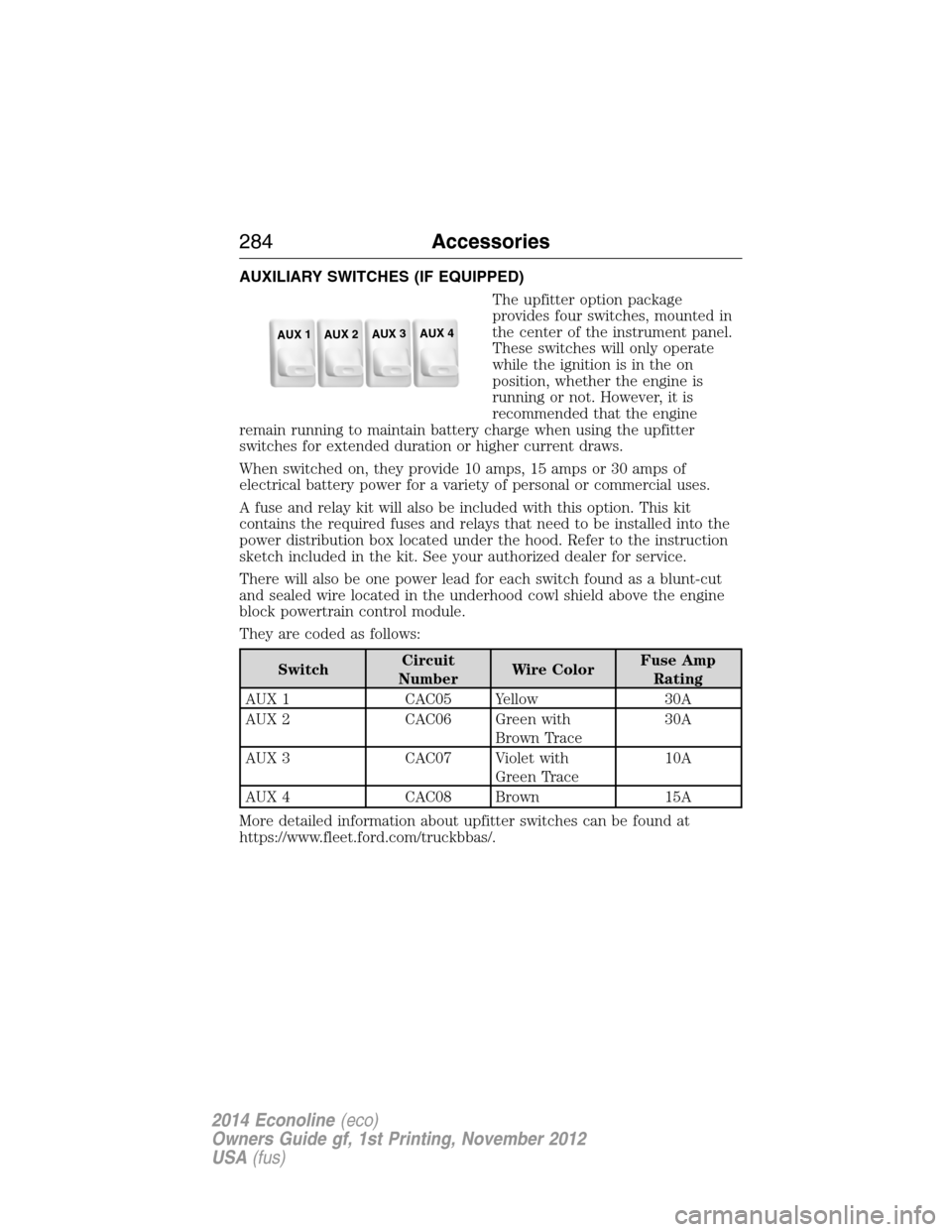
AUXILIARY SWITCHES (IF EQUIPPED)
The upfitter option package
provides four switches, mounted in
the center of the instrument panel.
These switches will only operate
while the ignition is in the on
position, whether the engine is
running or not. However, it is
recommended that the engine
remain running to maintain battery charge when using the upfitter
switches for extended duration or higher current draws.
When switched on, they provide 10 amps, 15 amps or 30 amps of
electrical battery power for a variety of personal or commercial uses.
A fuse and relay kit will also be included with this option. This kit
contains the required fuses and relays that need to be installed into the
power distribution box located under the hood. Refer to the instruction
sketch included in the kit. See your authorized dealer for service.
There will also be one power lead for each switch found as a blunt-cut
and sealed wire located in the underhood cowl shield above the engine
block powertrain control module.
They are coded as follows:
SwitchCircuit
NumberWire ColorFuse Amp
Rating
AUX 1 CAC05 Yellow 30A
AUX 2 CAC06 Green with
Brown Trace30A
AUX 3 CAC07 Violet with
Green Trace10A
AUX 4 CAC08 Brown 15A
More detailed information about upfitter switches can be found at
https://www.fleet.ford.com/truckbbas/.
AUX 1
AUX 2
AUX 3
AUX 4
284Accessories
2014 Econoline(eco)
Owners Guide gf, 1st Printing, November 2012
USA(fus)
Page 291 of 438
AM/FM
WARNING:Driving while distracted can result in loss of vehicle
control, crash and injury. We strongly recommend that you use
extreme caution when using any device that may take your focus off
the road. Your primary responsibility is the safe operation of your
vehicle. We recommend against the use of any hand-held device while
driving and encourage the use of voice-operated systems when possible.
Make sure you are aware of all applicable local laws that may affect the
use of electronic devices while driving.
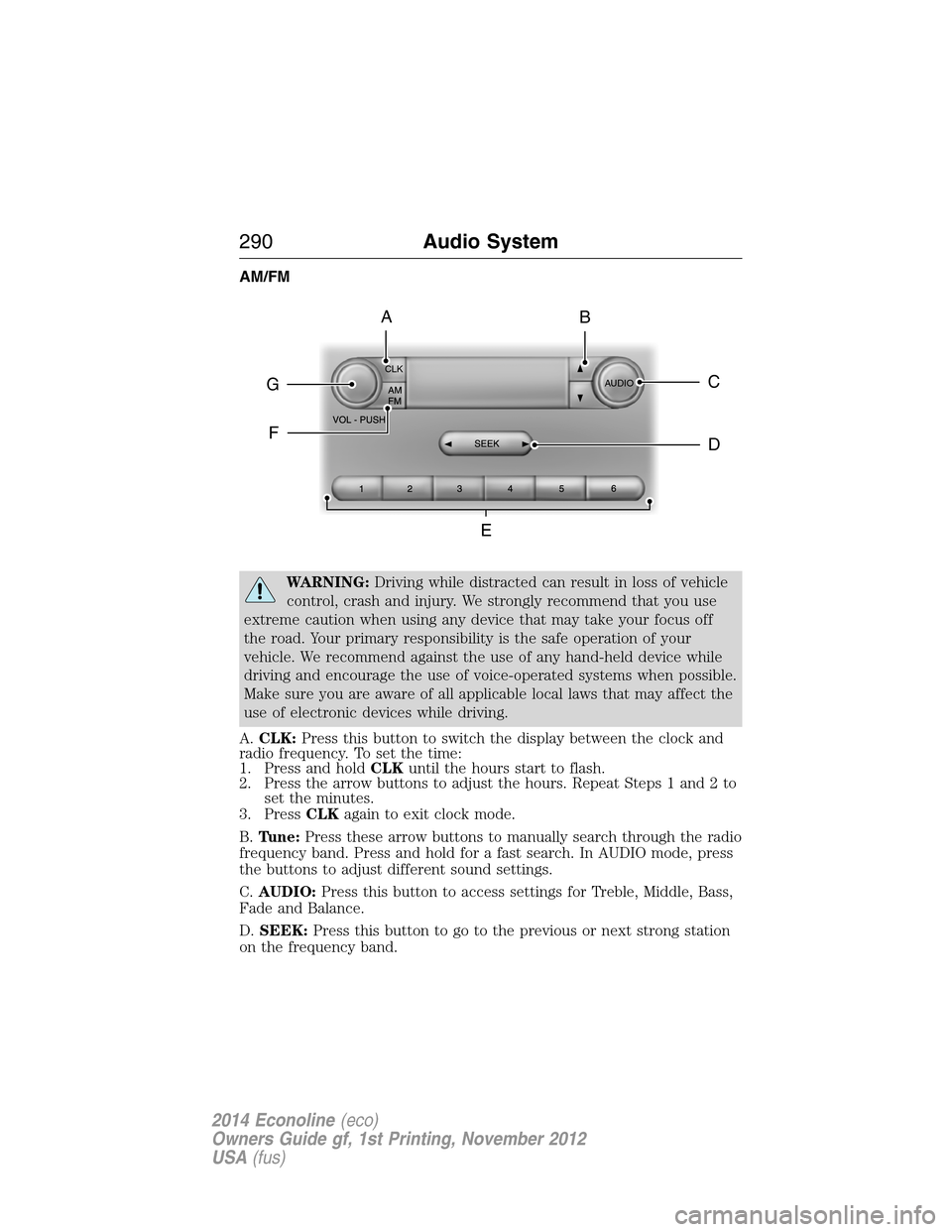
A.CLK:Press this button to switch the display between the clock and
radio frequency. To set the time:
1. Press and holdCLKuntil the hours start to flash.
2. Press the arrow buttons to adjust the hours. Repeat Steps 1 and 2 to
set the minutes.
3. PressCLKagain to exit clock mode.
B.Tune:Press these arrow buttons to manually search through the radio
frequency band. Press and hold for a fast search. In AUDIO mode, press
the buttons to adjust different sound settings.
C.AUDIO:Press this button to access settings for Treble, Middle, Bass,
Fade and Balance.
D.SEEK:Press this button to go to the previous or next strong station
on the frequency band.
CLK
AUDIOC
EG
F
BA
D
290Audio System
2014 Econoline(eco)
Owners Guide gf, 1st Printing, November 2012
USA(fus)
Page 292 of 438
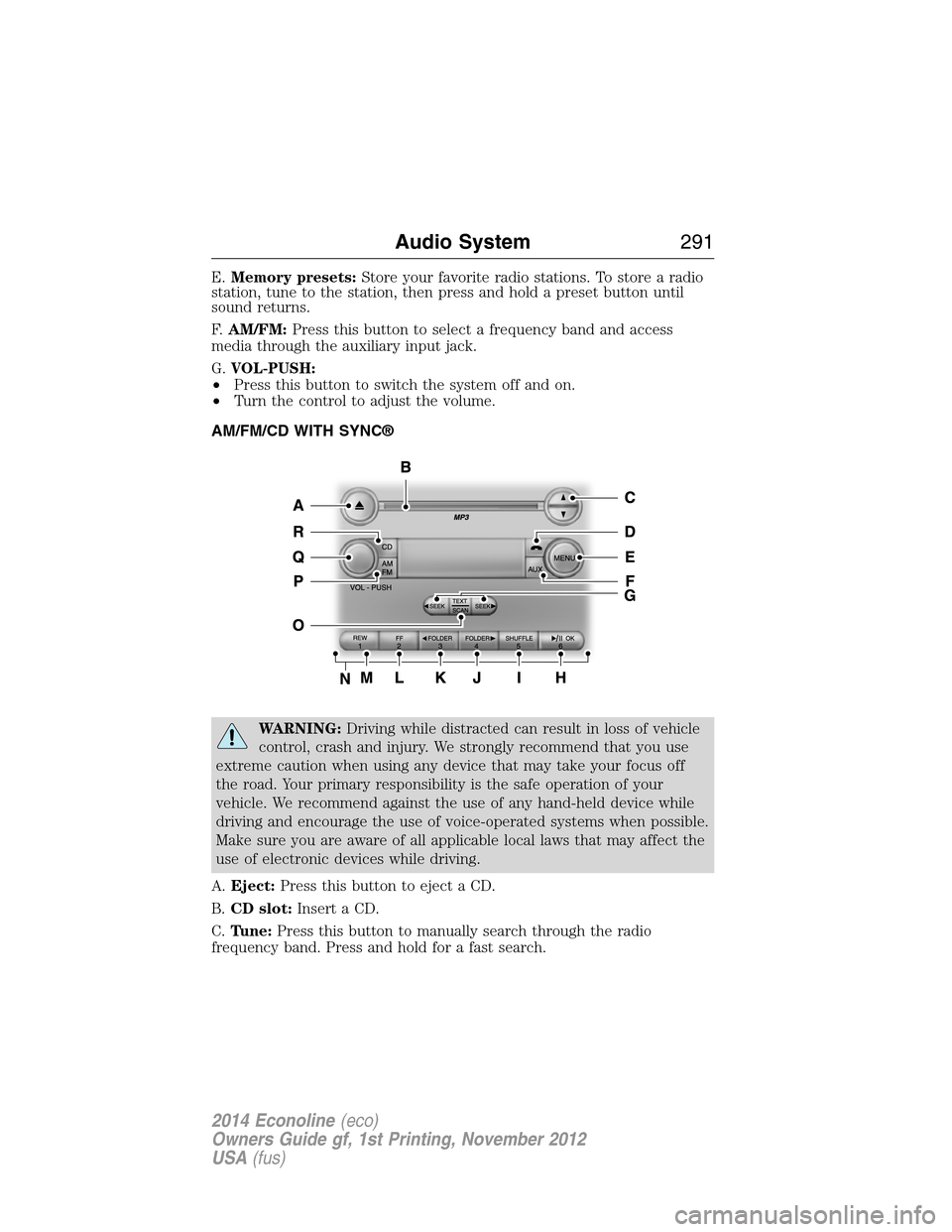
E.Memory presets:Store your favorite radio stations. To store a radio
station, tune to the station, then press and hold a preset button until
sound returns.
F.AM/FM:Press this button to select a frequency band and access
media through the auxiliary input jack.
G.VOL-PUSH:
•Press this button to switch the system off and on.
•Turn the control to adjust the volume.
AM/FM/CD WITH SYNC®
WARNING:Driving while distracted can result in loss of vehicle
control, crash and injury. We strongly recommend that you use
extreme caution when using any device that may take your focus off
the road. Your primary responsibility is the safe operation of your
vehicle. We recommend against the use of any hand-held device while
driving and encourage the use of voice-operated systems when possible.
Make sure you are aware of all applicable local laws that may affect the
use of electronic devices while driving.
A.Eject:Press this button to eject a CD.
B.CD slot:Insert a CD.
C.Tune:Press this button to manually search through the radio
frequency band. Press and hold for a fast search.
Audio System291
2014 Econoline(eco)
Owners Guide gf, 1st Printing, November 2012
USA(fus)
Page 297 of 438
AUXILIARY INPUT JACK
WARNING:Driving while distracted can result in loss of vehicle
control, crash and injury. We strongly recommend that you use
extreme caution when using any device that may take your focus off
the road. Your primary responsibility is the safe operation of your
vehicle. We recommend against the use of any hand-held device while
driving and encourage the use of voice-operated systems when possible.
Make sure you are aware of all applicable local laws that may affect the
use of electronic devices while driving.
WARNING:For safety reasons, do not connect or adjust the
settings on your portable music player while your vehicle is
moving.
WARNING:Store the portable music player in a secure location,
such as the center console or the glove box, when your vehicle is
moving. Hard objects may become projectiles in a crash or sudden stop,
which may increase the risk of serious injury. The audio extension cable
must be long enough to allow the portable music player to be safely
stored while your vehicle is moving.
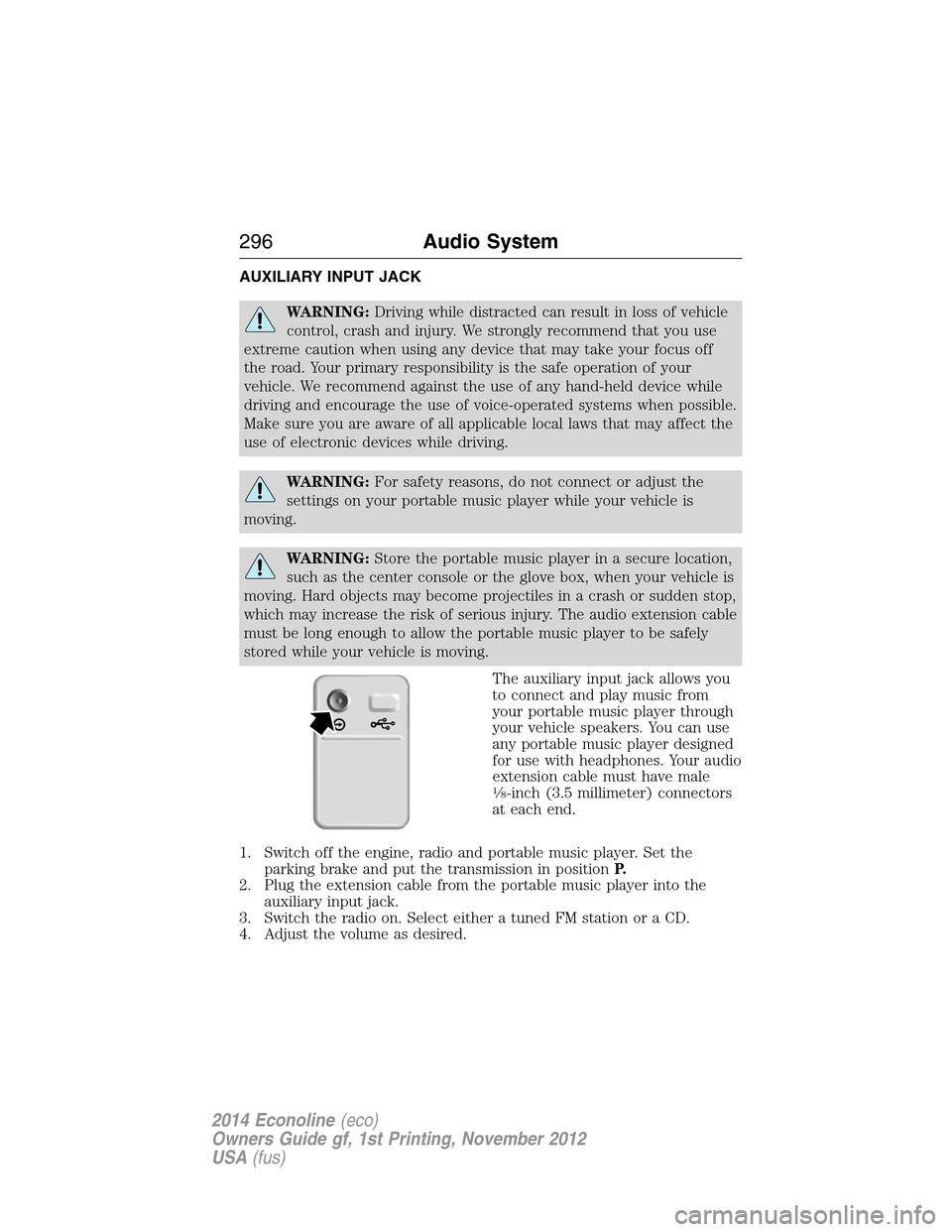
The auxiliary input jack allows you
to connect and play music from
your portable music player through
your vehicle speakers. You can use
any portable music player designed
for use with headphones. Your audio
extension cable must have male
18-inch (3.5 millimeter) connectors
at each end.
1. Switch off the engine, radio and portable music player. Set the
parking brake and put the transmission in positionP.
2. Plug the extension cable from the portable music player into the
auxiliary input jack.
3. Switch the radio on. Select either a tuned FM station or a CD.
4. Adjust the volume as desired.
296Audio System
2014 Econoline(eco)
Owners Guide gf, 1st Printing, November 2012
USA(fus)
Page 298 of 438
5. Switch your portable music player on and adjust its volume to half its
maximum level.
6. PressAUXuntilLINEorLINE INappears in the display. You
should hear music from your device even if it is low.
7. Adjust the volume on your portable music player until it reaches the
volume level of the FM station or CD. Do this by switching back and
forth between the AUX and FM or CD controls.
USB PORT (IF EQUIPPED)
WARNING:Driving while distracted can result in loss of vehicle
control, crash and injury. We strongly recommend that you use
extreme caution when using any device that may take your focus off
the road. Your primary responsibility is the safe operation of your
vehicle. We recommend against the use of any hand-held device while
driving and encourage the use of voice-operated systems when possible.
Make sure you are aware of all applicable local laws that may affect the
use of electronic devices while driving.
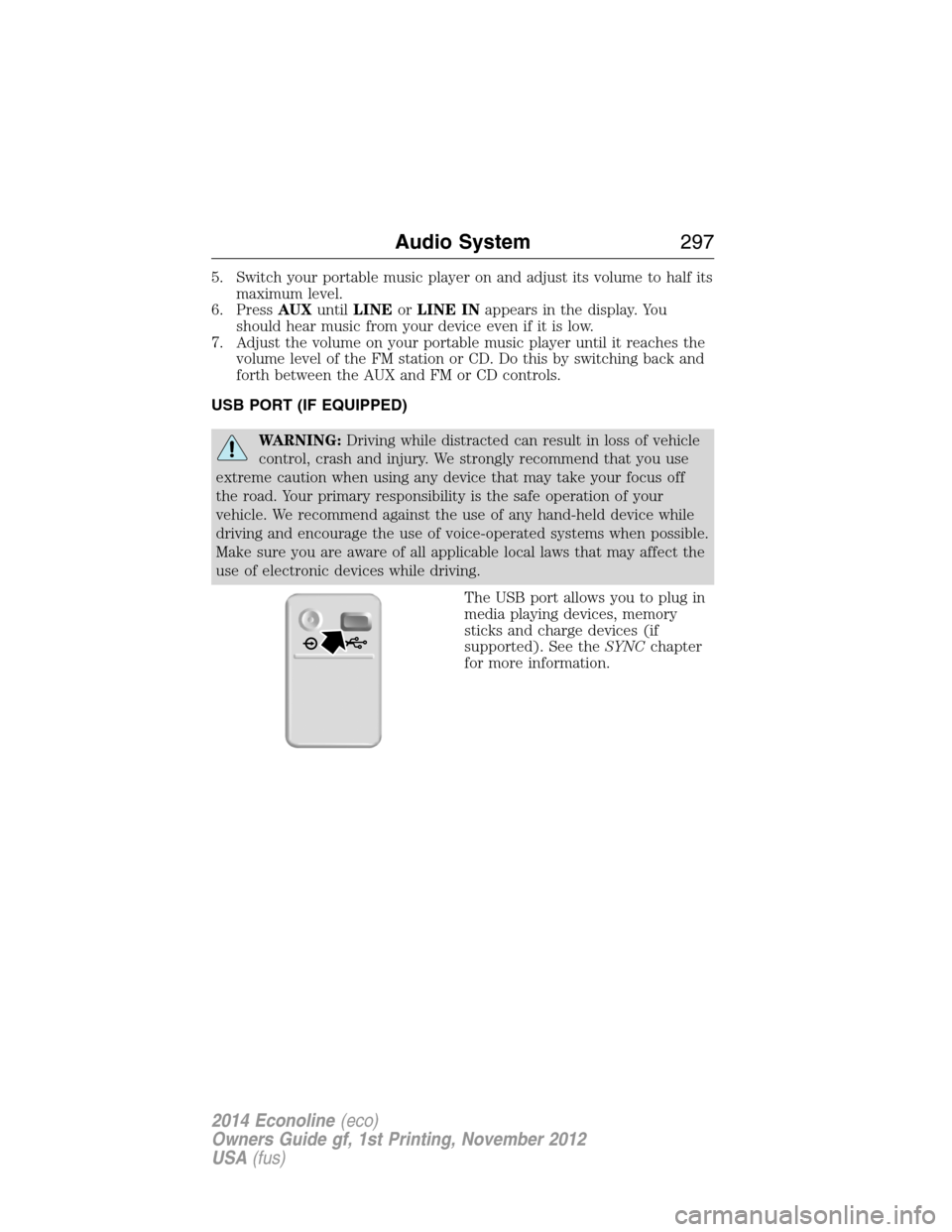
The USB port allows you to plug in
media playing devices, memory
sticks and charge devices (if
supported). See theSYNCchapter
for more information.
Audio System297
2014 Econoline(eco)
Owners Guide gf, 1st Printing, November 2012
USA(fus)
Page 300 of 438
GENERAL INFORMATION
Make sure you review your device’s manual before using it with SYNC.
Support
The SYNC support team is available to help you with any questions you
cannot answer on your own.
Monday-Saturday, 8:30am-9:00pm EST.
Sunday, 10:30am-7:30pm EST.
In the United States, call: 1–800–392–3673.
In Canada, call: 1–800–565–3673.
Times are subject to change due to holidays.
SYNC Owner Account
Why do I need a SYNC owner account?
•Required to activate Vehicle Health Report and to view the reports
online.
•Required to activate the subscription-based SYNC Services and to
personalize your Saved Points and Favorites.
•Essential for keeping up with the latest software downloads available
for SYNC.
•Access to customer support for any questions you may have.
Driving Restrictions
For your safety, certain features are speed-dependent and restricted
when your vehicle is traveling over 3 mph (5 km/h).
Safety Information
WARNING:Driving while distracted can result in loss of vehicle
control, crash and injury. We strongly recommend that you use
extreme caution when using any device that may take your focus off
the road. Your primary responsibility is the safe operation of your
vehicle. We recommend against the use of any handheld device while
driving and encourage the use of voice-operated systems when possible.
Make sure you are aware of all applicable local laws that may affect the
use of electronic devices while driving.
SYNC®299
2014 Econoline(eco)
Owners Guide gf, 1st Printing, November 2012
USA(fus)
Page 302 of 438
USING VOICE RECOGNITION
This system helps you control many features using voice commands. This
allows you to keep your hands on the wheel and focus on what is in
front of you.
Initiating a Voice Session
Push the voice icon; a tone sounds and Listening appears in the
display. Say any of the following:
Say: If you want to:
“Phone” Make calls.
“USB” Access the device connected to your USB
port.
“Bluetooth Audio” Stream audio from your phone.
“Line in” Access the device connected to the auxiliary
input jack.
“Cancel” Cancel the requested action.
“SYNC” Return to the main menu.
“Voice settings” Adjust the level of voice interaction and
feedback.
“Vehicle Health Report” Run a vehicle health report.
*
“Services” Access the SYNC Services portal.*
“Mobile apps” Access mobile applications.*
“Help” Hear a list of voice commands available in the
current mode.
*If equipped, U.S. only.
SYNC®301
2014 Econoline(eco)
Owners Guide gf, 1st Printing, November 2012
USA(fus)
Page 327 of 438
Note:The AppLink feature is not available if your vehicle is equipped
with the MyFord Touch or MyLincoln Touch system.
Depending on your display type, you can access AppLink from the media
menu, the phone menu, or by using voice commands. Once an app is
running through AppLink, you can control main features of the app
through voice commands and steering wheel controls.
To Access Using the Phone Menu
1. Press the Phone button.
2. Browse to Mobile Applications and pressOK.
3. Browse to your desired app and pressOK.
4. Once an app is running through SYNC, you can access an app’s menu
by pressing theMENUbutton to first access the SYNC menu.
5. Scroll until “
Menu), then pressOK.From here, you can access an application’s
features, such as Thumbs up, Thumbs down, etc. For more
information, please visit www.SYNCMyRide.com.
To Access Using the Media Menu
1. Press theAUXbutton to access the SYNC menu.
2. Press the Menu button to access the SYNC Media menu.
3. Browse to Mobile Applications and pressOK.
4. Browse to your desired app and pressOK.
5. Once an app is running through SYNC, you can access an app’s menu
by pressing theMENUbutton to first access the SYNC menu.
6. Scroll until “
Menu), then pressOK.From here, you can access an application’s
features, such as Thumbs up, Thumbs down, etc. For more
information, please visit www.SYNCMyRide.com.
To Access Using the Navigation Screen (If Equipped)
1. Press the Phone button.
2. Press the SYNC Apps tab.
3. Press Mobile Apps.
4. Select the app to start it.
To Access Using Voice Commands
1. Press the voice icon.
2. When prompted, say “Mobile Apps”.
3. Say the name of the application after the tone.
4. The app should start. While an app is running through SYNC, you can
press the voice button and speak commands specific to the app, such
as “Play Station Quickmix”. Say “Help” to discover available voice
commands.
326SYNC®
2014 Econoline(eco)
Owners Guide gf, 1st Printing, November 2012
USA(fus)
Page 339 of 438
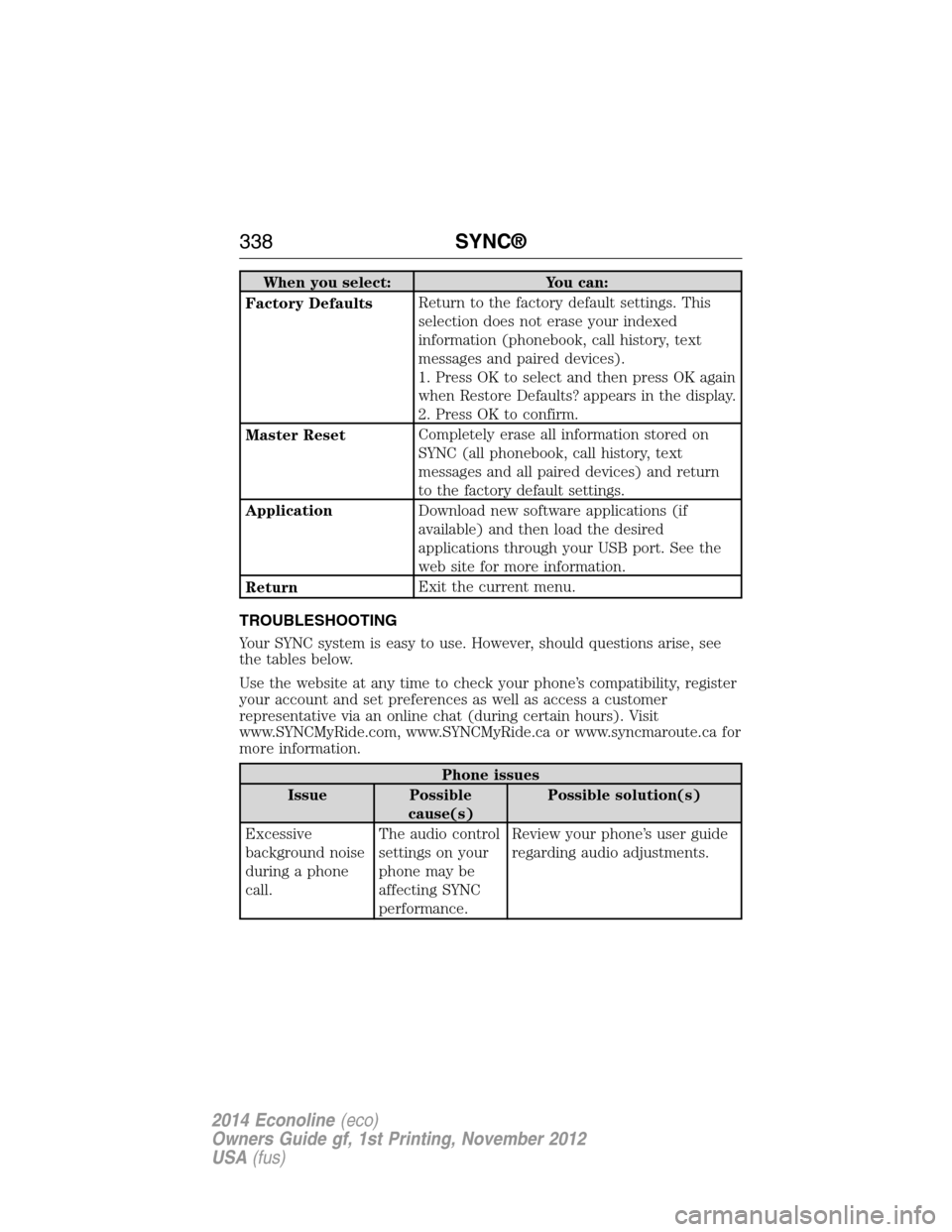
When you select: You can:
Factory DefaultsReturn to the factory default settings. This
selection does not erase your indexed
information (phonebook, call history, text
messages and paired devices).
1. Press OK to select and then press OK again
when Restore Defaults? appears in the display.
2. Press OK to confirm.
Master ResetCompletely erase all information stored on
SYNC (all phonebook, call history, text
messages and all paired devices) and return
to the factory default settings.
ApplicationDownload new software applications (if
available) and then load the desired
applications through your USB port. See the
web site for more information.
ReturnExit the current menu.
TROUBLESHOOTING
Your SYNC system is easy to use. However, should questions arise, see
the tables below.
Use the website at any time to check your phone’s compatibility, register
your account and set preferences as well as access a customer
representative via an online chat (during certain hours). Visit
www.SYNCMyRide.com, www.SYNCMyRide.ca or www.syncmaroute.ca for
more information.
Phone issues
Issue Possible
cause(s)Possible solution(s)
Excessive
background noise
during a phone
call.The audio control
settings on your
phone may be
affecting SYNC
performance.Review your phone’s user guide
regarding audio adjustments.
338SYNC®
2014 Econoline(eco)
Owners Guide gf, 1st Printing, November 2012
USA(fus)
Page 347 of 438
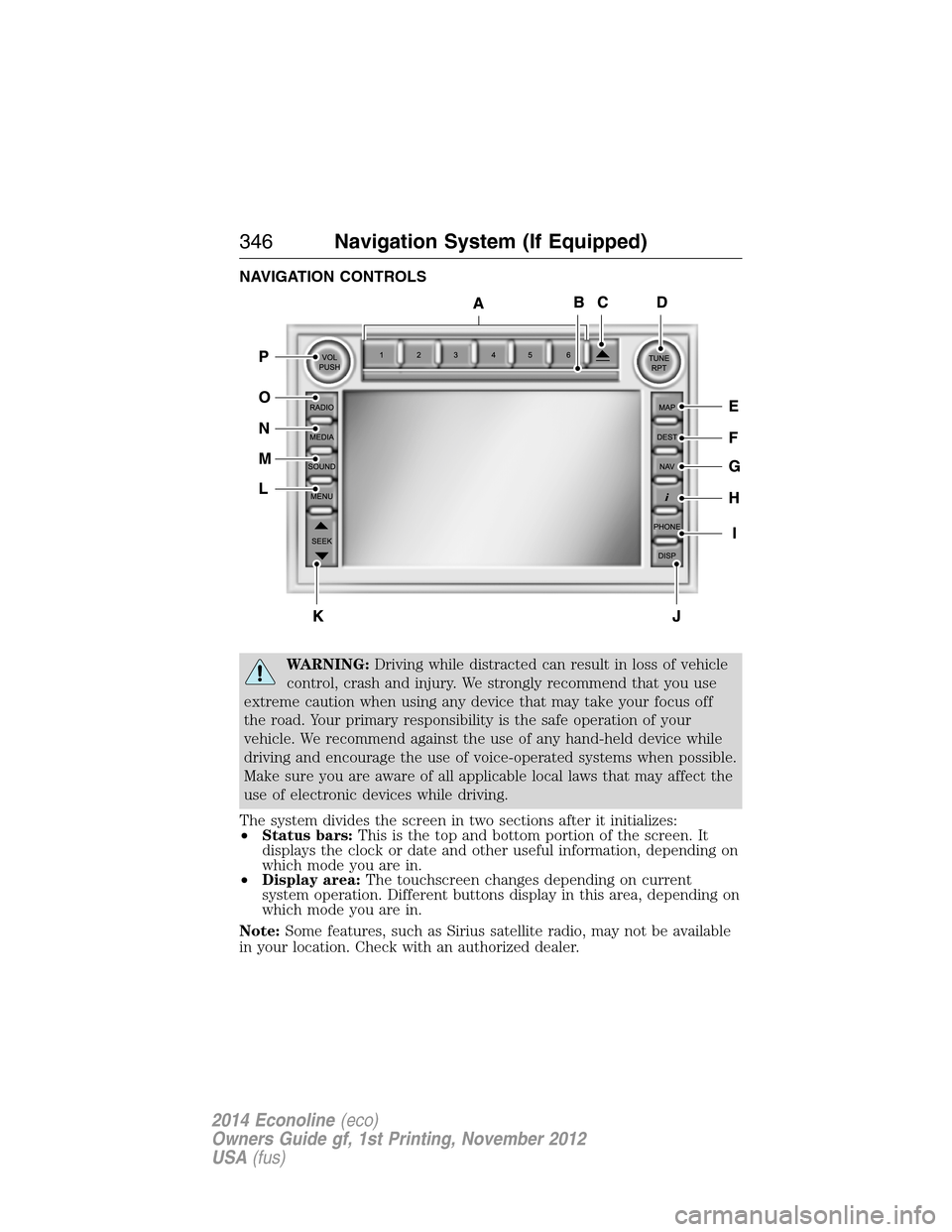
NAVIGATION CONTROLS
WARNING:Driving while distracted can result in loss of vehicle
control, crash and injury. We strongly recommend that you use
extreme caution when using any device that may take your focus off
the road. Your primary responsibility is the safe operation of your
vehicle. We recommend against the use of any hand-held device while
driving and encourage the use of voice-operated systems when possible.
Make sure you are aware of all applicable local laws that may affect the
use of electronic devices while driving.
The system divides the screen in two sections after it initializes:
•Status bars:This is the top and bottom portion of the screen. It
displays the clock or date and other useful information, depending on
which mode you are in.
•Display area:The touchscreen changes depending on current
system operation. Different buttons display in this area, depending on
which mode you are in.
Note:Some features, such as Sirius satellite radio, may not be available
in your location. Check with an authorized dealer.
346Navigation System (If Equipped)
2014 Econoline(eco)
Owners Guide gf, 1st Printing, November 2012
USA(fus)