turn signal FORD E SERIES 2014 4.G User Guide
[x] Cancel search | Manufacturer: FORD, Model Year: 2014, Model line: E SERIES, Model: FORD E SERIES 2014 4.GPages: 438, PDF Size: 5.12 MB
Page 192 of 438
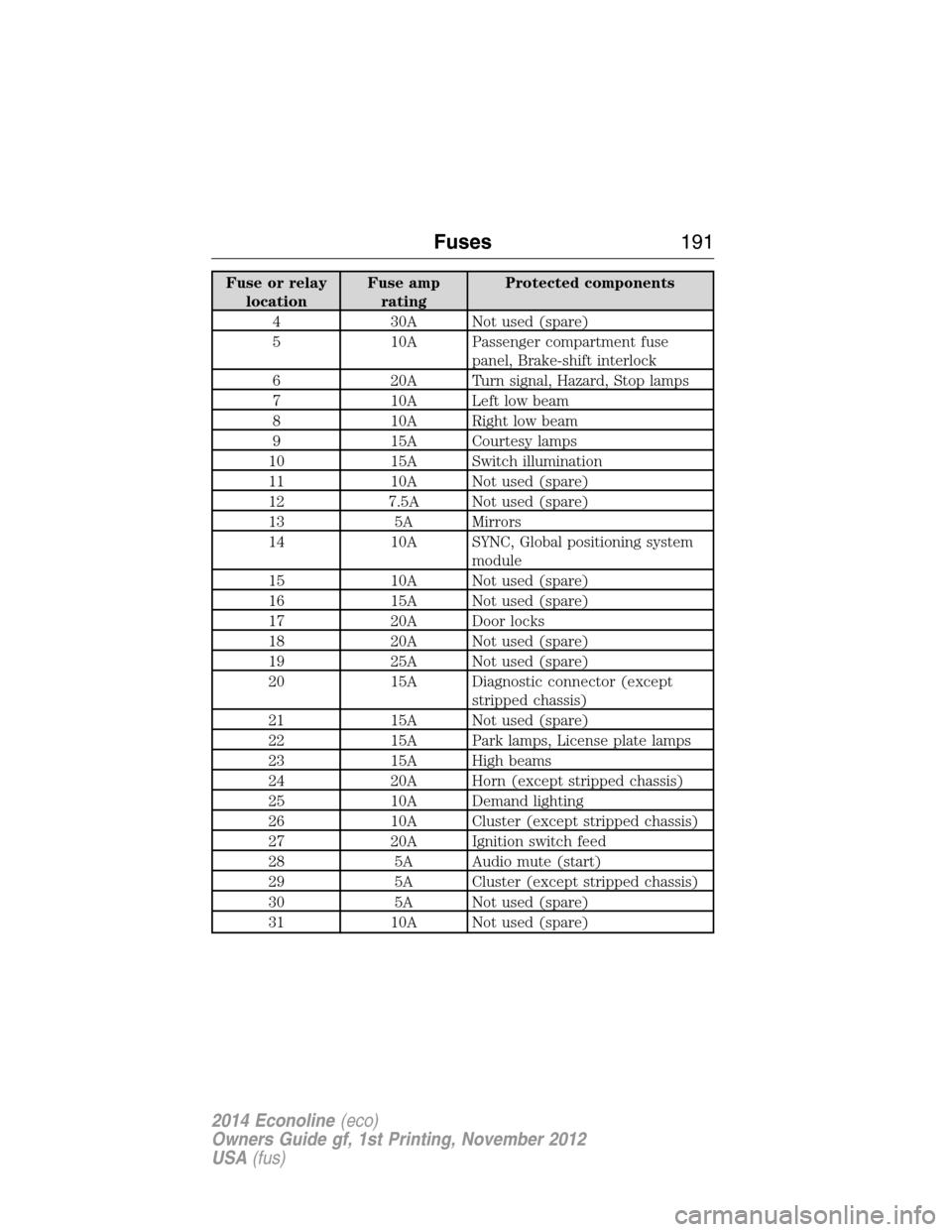
Fuse or relay
locationFuse amp
ratingProtected components
4 30A Not used (spare)
5 10A Passenger compartment fuse
panel, Brake-shift interlock
6 20A Turn signal, Hazard, Stop lamps
7 10A Left low beam
8 10A Right low beam
9 15A Courtesy lamps
10 15A Switch illumination
11 10A Not used (spare)
12 7.5A Not used (spare)
13 5A Mirrors
14 10A SYNC, Global positioning system
module
15 10A Not used (spare)
16 15A Not used (spare)
17 20A Door locks
18 20A Not used (spare)
19 25A Not used (spare)
20 15A Diagnostic connector (except
stripped chassis)
21 15A Not used (spare)
22 15A Park lamps, License plate lamps
23 15A High beams
24 20A Horn (except stripped chassis)
25 10A Demand lighting
26 10A Cluster (except stripped chassis)
27 20A Ignition switch feed
28 5A Audio mute (start)
29 5A Cluster (except stripped chassis)
30 5A Not used (spare)
31 10A Not used (spare)
Fuses191
2014 Econoline(eco)
Owners Guide gf, 1st Printing, November 2012
USA(fus)
Page 220 of 438
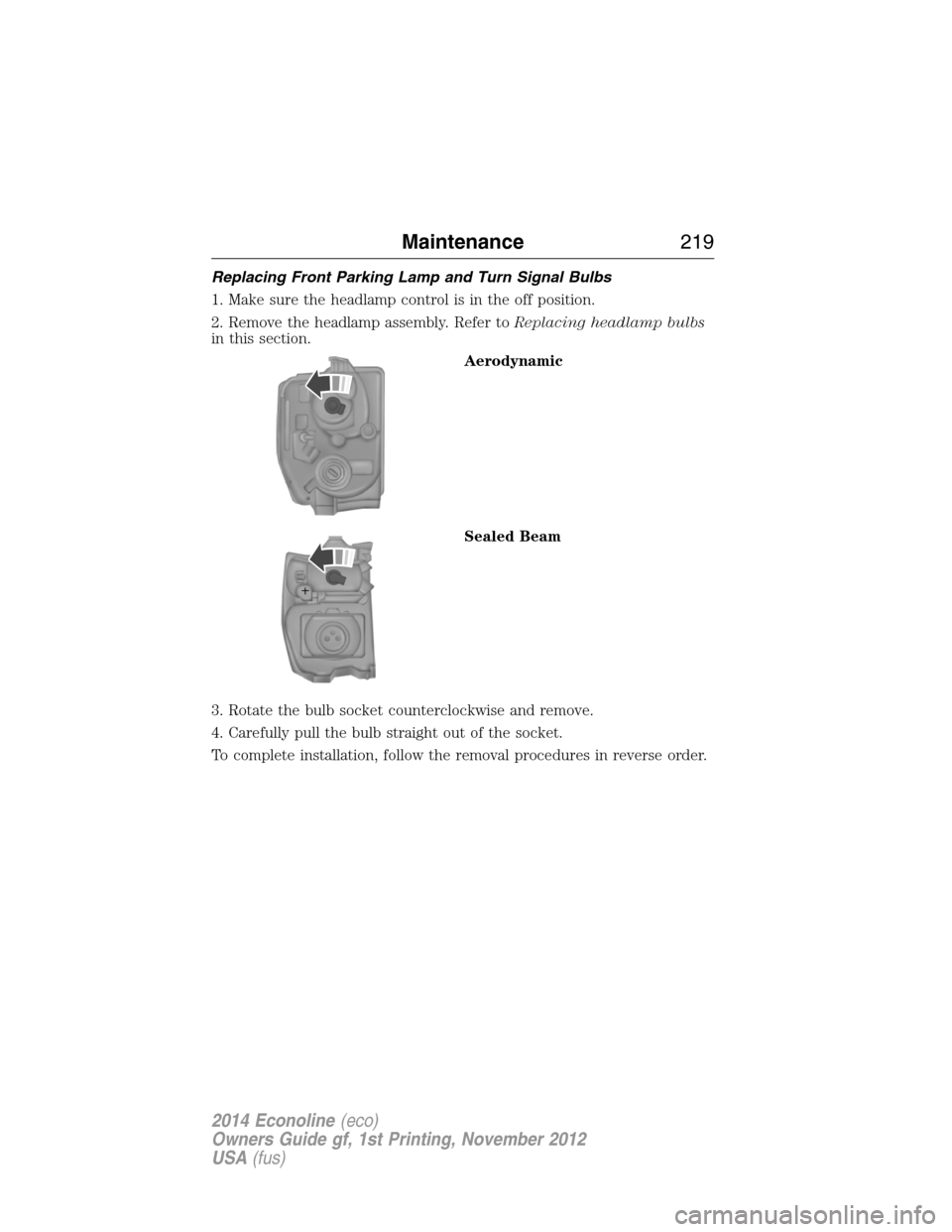
Replacing Front Parking Lamp and Turn Signal Bulbs
1. Make sure the headlamp control is in the off position.
2. Remove the headlamp assembly. Refer toReplacing headlamp bulbs
in this section.
Aerodynamic
Sealed Beam
3. Rotate the bulb socket counterclockwise and remove.
4. Carefully pull the bulb straight out of the socket.
To complete installation, follow the removal procedures in reverse order.
Maintenance219
2014 Econoline(eco)
Owners Guide gf, 1st Printing, November 2012
USA(fus)
Page 296 of 438
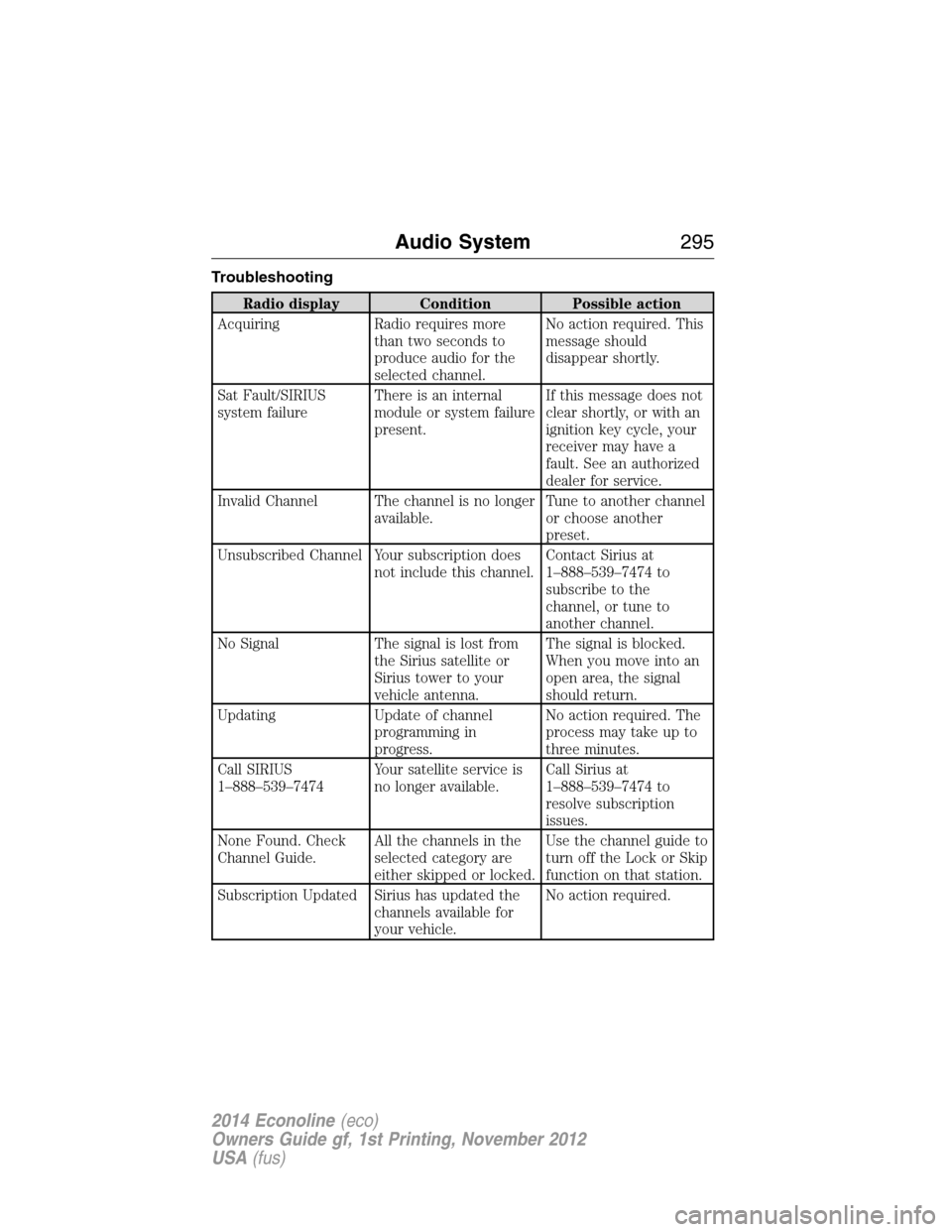
Troubleshooting
Radio display Condition Possible action
Acquiring Radio requires more
than two seconds to
produce audio for the
selected channel.No action required. This
message should
disappear shortly.
Sat Fault/SIRIUS
system failureThere is an internal
module or system failure
present.If this message does not
clear shortly, or with an
ignition key cycle, your
receiver may have a
fault. See an authorized
dealer for service.
Invalid Channel The channel is no longer
available.Tune to another channel
or choose another
preset.
Unsubscribed Channel Your subscription does
not include this channel.Contact Sirius at
1–888–539–7474 to
subscribe to the
channel, or tune to
another channel.
No Signal The signal is lost from
the Sirius satellite or
Sirius tower to your
vehicle antenna.The signal is blocked.
When you move into an
open area, the signal
should return.
Updating Update of channel
programming in
progress.No action required. The
process may take up to
three minutes.
Call SIRIUS
1–888–539–7474Your satellite service is
no longer available.Call Sirius at
1–888–539–7474 to
resolve subscription
issues.
None Found. Check
Channel Guide.All the channels in the
selected category are
either skipped or locked.Use the channel guide to
turn off the Lock or Skip
function on that station.
Subscription Updated Sirius has updated the
channels available for
your vehicle.No action required.
Audio System295
2014 Econoline(eco)
Owners Guide gf, 1st Printing, November 2012
USA(fus)
Page 314 of 438
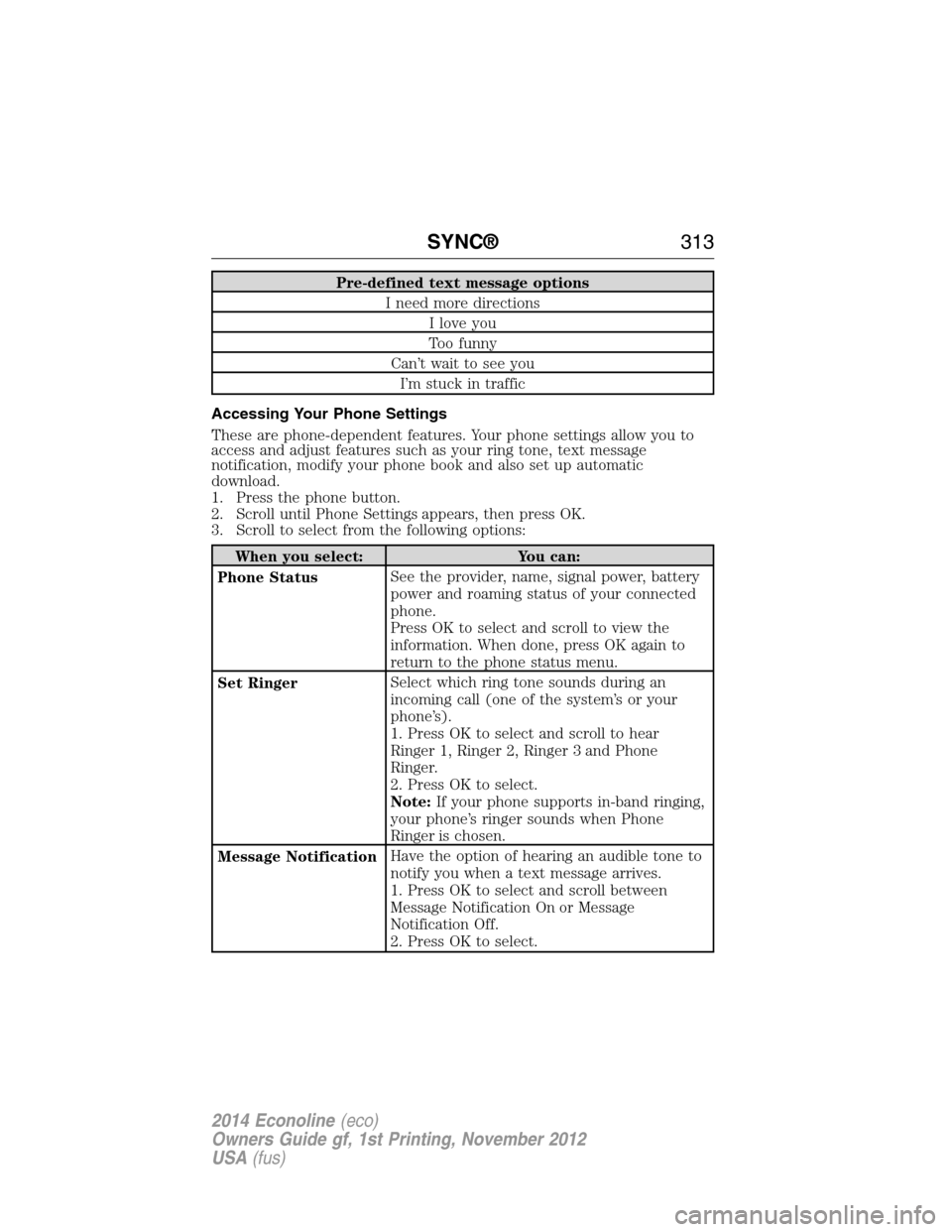
Pre-defined text message options
I need more directions
I love you
Too funny
Can’t wait to see you
I’m stuck in traffic
Accessing Your Phone Settings
These are phone-dependent features. Your phone settings allow you to
access and adjust features such as your ring tone, text message
notification, modify your phone book and also set up automatic
download.
1. Press the phone button.
2. Scroll until Phone Settings appears, then press OK.
3. Scroll to select from the following options:
When you select: You can:
Phone StatusSee the provider, name, signal power, battery
power and roaming status of your connected
phone.
Press OK to select and scroll to view the
information. When done, press OK again to
return to the phone status menu.
Set RingerSelect which ring tone sounds during an
incoming call (one of the system’s or your
phone’s).
1. Press OK to select and scroll to hear
Ringer 1, Ringer 2, Ringer 3 and Phone
Ringer.
2. Press OK to select.
Note:If your phone supports in-band ringing,
your phone’s ringer sounds when Phone
Ringer is chosen.
Message NotificationHave the option of hearing an audible tone to
notify you when a text message arrives.
1. Press OK to select and scroll between
Message Notification On or Message
Notification Off.
2. Press OK to select.
SYNC®313
2014 Econoline(eco)
Owners Guide gf, 1st Printing, November 2012
USA(fus)
Page 343 of 438
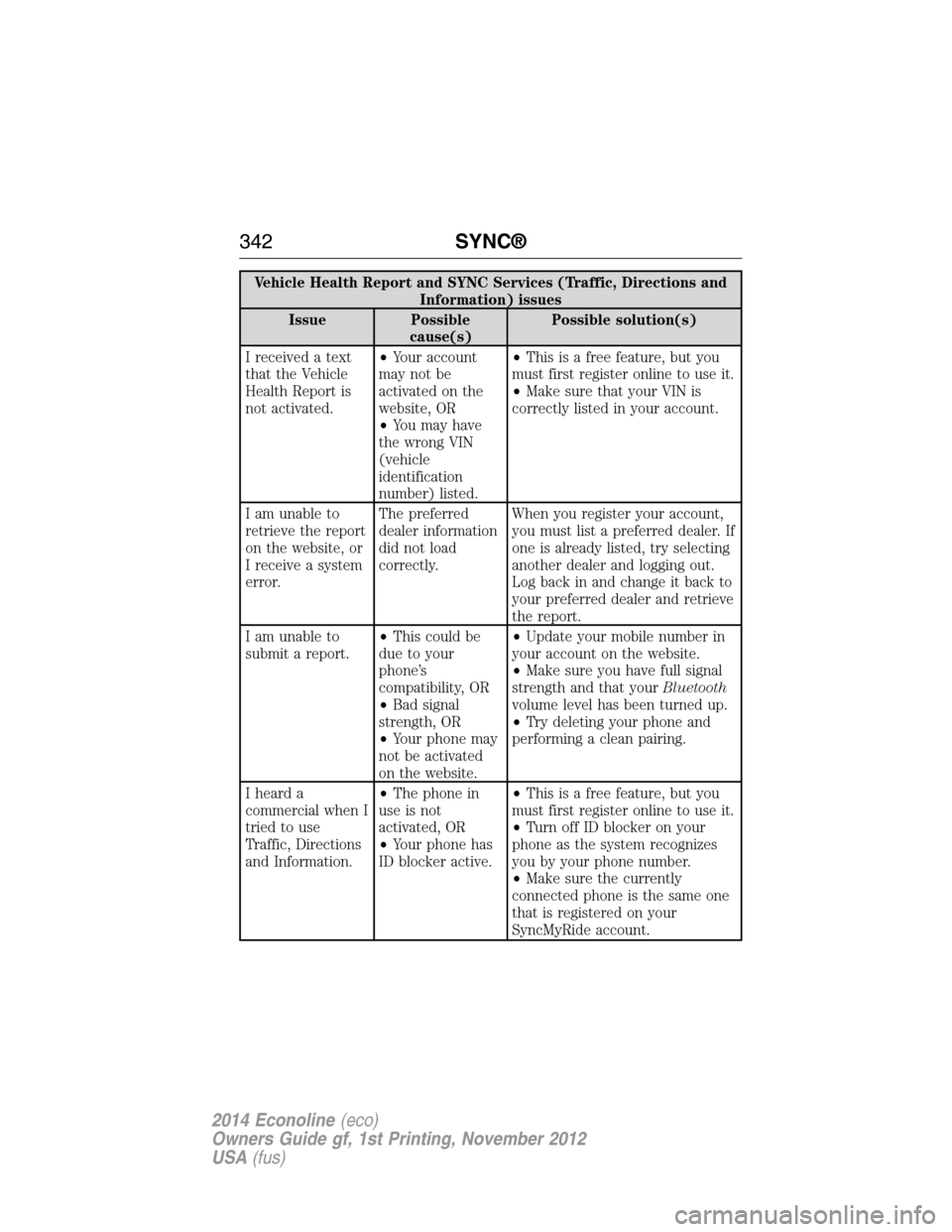
Vehicle Health Report and SYNC Services (Traffic, Directions and
Information) issues
Issue Possible
cause(s)Possible solution(s)
I received a text
that the Vehicle
Health Report is
not activated.•Your account
may not be
activated on the
website, OR
•You may have
the wrong VIN
(vehicle
identification
number) listed.•This is a free feature, but you
must first register online to use it.
•Make sure that your VIN is
correctly listed in your account.
I am unable to
retrieve the report
on the website, or
I receive a system
error.The preferred
dealer information
did not load
correctly.When you register your account,
you must list a preferred dealer. If
one is already listed, try selecting
another dealer and logging out.
Log back in and change it back to
your preferred dealer and retrieve
the report.
I am unable to
submit a report.•This could be
due to your
phone’s
compatibility, OR
•Bad signal
strength, OR
•Your phone may
not be activated
on the website.•Update your mobile number in
your account on the website.
•Make sure you have full signal
strength and that yourBluetooth
volume level has been turned up.
•Try deleting your phone and
performing a clean pairing.
I heard a
commercial when I
tried to use
Traffic, Directions
and Information.•The phone in
use is not
activated, OR
•Your phone has
ID blocker active.•This is a free feature, but you
must first register online to use it.
•Turn off ID blocker on your
phone as the system recognizes
you by your phone number.
•Make sure the currently
connected phone is the same one
that is registered on your
SyncMyRide account.
342SYNC®
2014 Econoline(eco)
Owners Guide gf, 1st Printing, November 2012
USA(fus)
Page 349 of 438
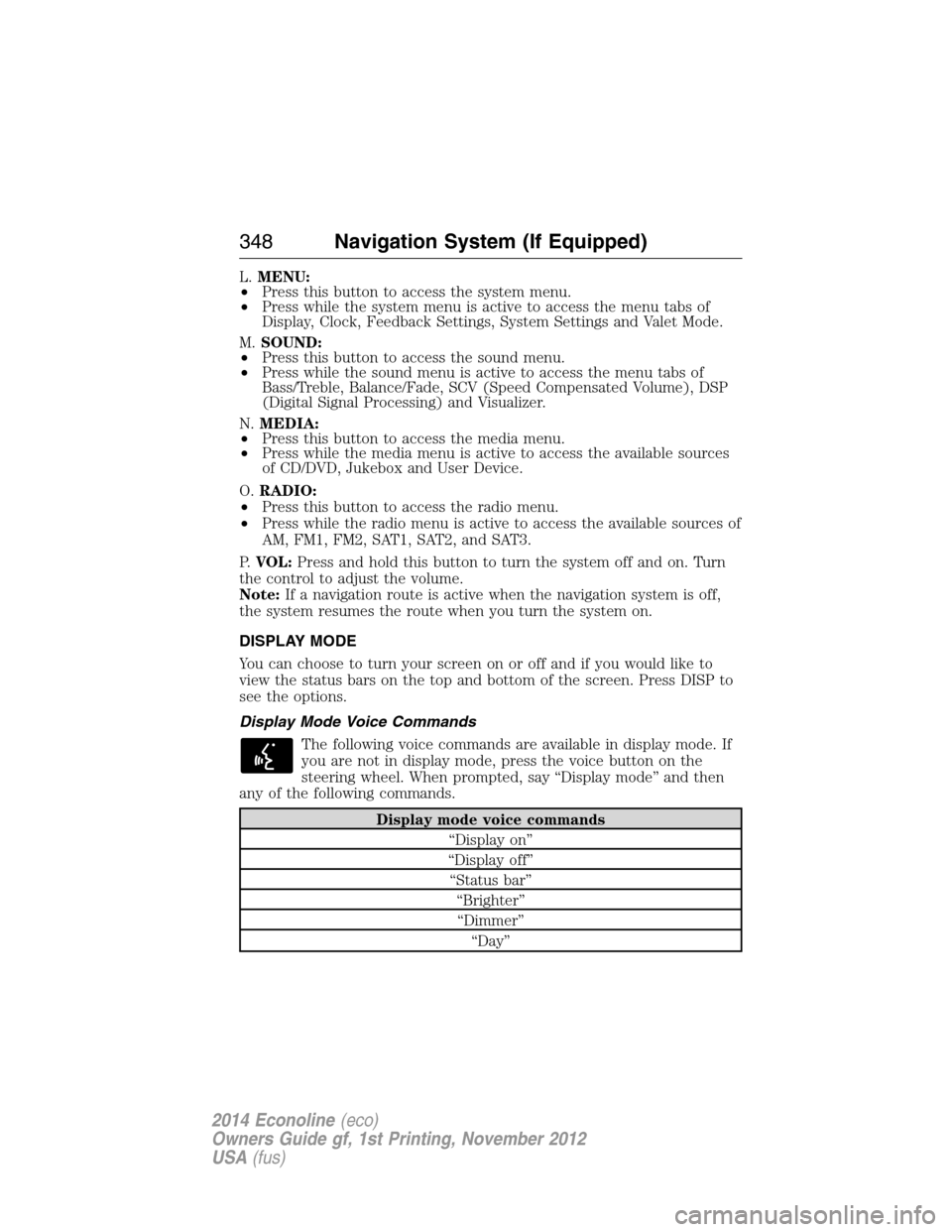
L.MENU:
•Press this button to access the system menu.
•Press while the system menu is active to access the menu tabs of
Display, Clock, Feedback Settings, System Settings and Valet Mode.
M.SOUND:
•Press this button to access the sound menu.
•Press while the sound menu is active to access the menu tabs of
Bass/Treble, Balance/Fade, SCV (Speed Compensated Volume), DSP
(Digital Signal Processing) and Visualizer.
N.MEDIA:
•Press this button to access the media menu.
•Press while the media menu is active to access the available sources
of CD/DVD, Jukebox and User Device.
O.RADIO:
•Press this button to access the radio menu.
•Press while the radio menu is active to access the available sources of
AM, FM1, FM2, SAT1, SAT2, and SAT3.
P.VOL:Press and hold this button to turn the system off and on. Turn
the control to adjust the volume.
Note:If a navigation route is active when the navigation system is off,
the system resumes the route when you turn the system on.
DISPLAY MODE
You can choose to turn your screen on or off and if you would like to
view the status bars on the top and bottom of the screen. Press DISP to
see the options.
Display Mode Voice Commands
The following voice commands are available in display mode. If
you are not in display mode, press the voice button on the
steering wheel. When prompted, say “Display mode” and then
any of the following commands.
Display mode voice commands
“Display on”
“Display off”
“Status bar”
“Brighter”
“Dimmer”
“Day”
348Navigation System (If Equipped)
2014 Econoline(eco)
Owners Guide gf, 1st Printing, November 2012
USA(fus)
Page 361 of 438
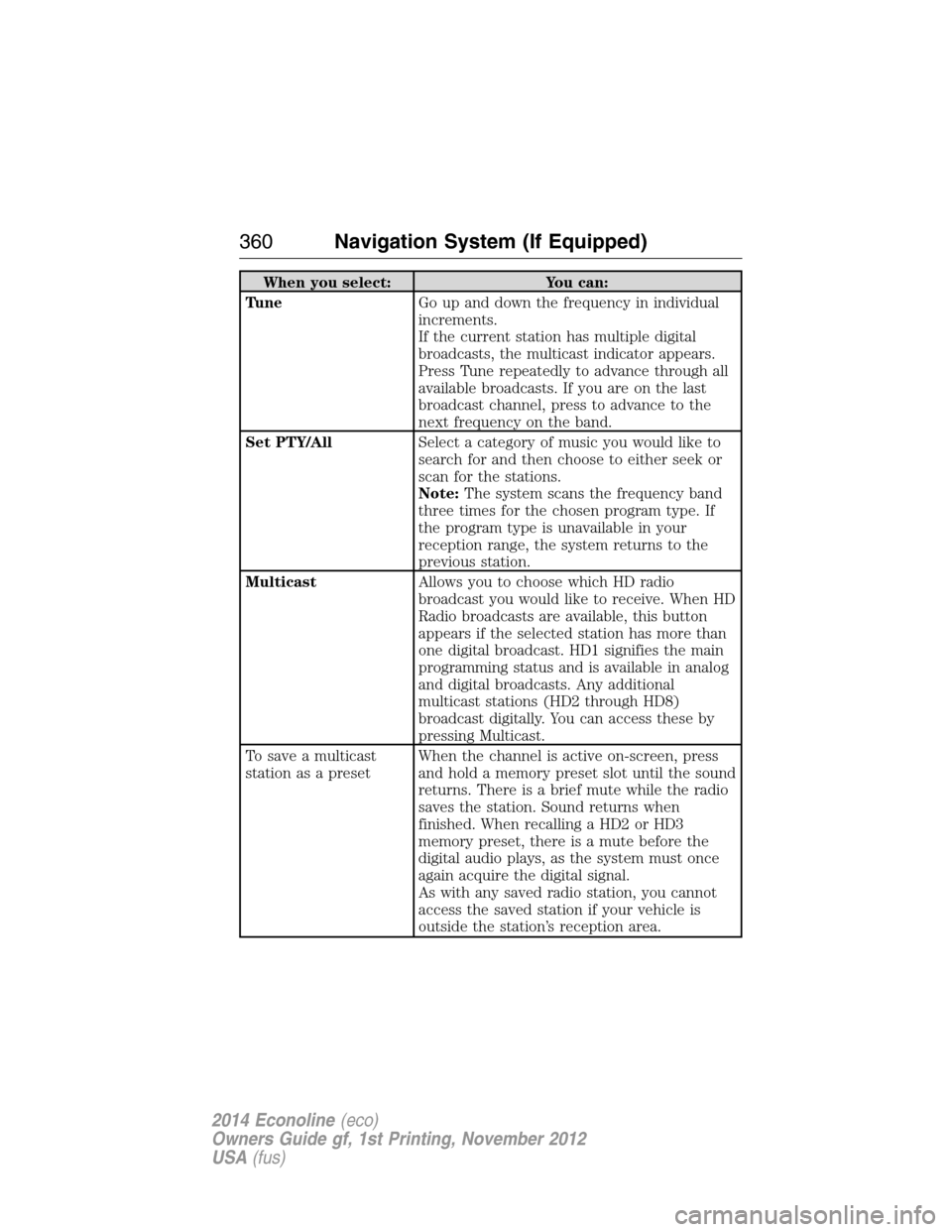
When you select: You can:
TuneGo up and down the frequency in individual
increments.
If the current station has multiple digital
broadcasts, the multicast indicator appears.
Press Tune repeatedly to advance through all
available broadcasts. If you are on the last
broadcast channel, press to advance to the
next frequency on the band.
Set PTY/AllSelect a category of music you would like to
search for and then choose to either seek or
scan for the stations.
Note:The system scans the frequency band
three times for the chosen program type. If
the program type is unavailable in your
reception range, the system returns to the
previous station.
MulticastAllows you to choose which HD radio
broadcast you would like to receive. When HD
Radio broadcasts are available, this button
appears if the selected station has more than
one digital broadcast. HD1 signifies the main
programming status and is available in analog
and digital broadcasts. Any additional
multicast stations (HD2 through HD8)
broadcast digitally. You can access these by
pressing Multicast.
To save a multicast
station as a presetWhen the channel is active on-screen, press
and hold a memory preset slot until the sound
returns. There is a brief mute while the radio
saves the station. Sound returns when
finished. When recalling a HD2 or HD3
memory preset, there is a mute before the
digital audio plays, as the system must once
again acquire the digital signal.
As with any saved radio station, you cannot
access the saved station if your vehicle is
outside the station’s reception area.
360Navigation System (If Equipped)
2014 Econoline(eco)
Owners Guide gf, 1st Printing, November 2012
USA(fus)
Page 369 of 438
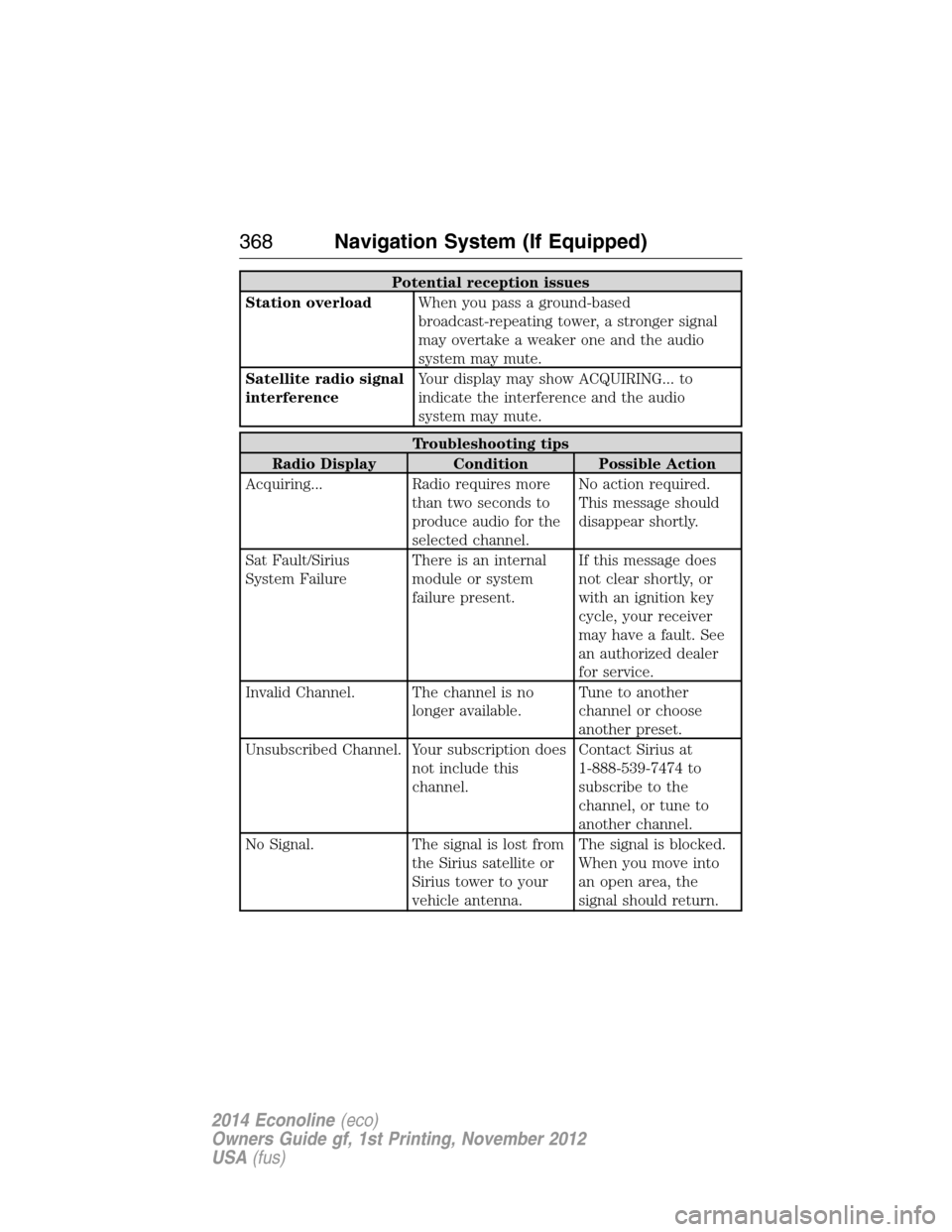
Potential reception issues
Station overloadWhen you pass a ground-based
broadcast-repeating tower, a stronger signal
may overtake a weaker one and the audio
system may mute.
Satellite radio signal
interferenceYour display may show ACQUIRING... to
indicate the interference and the audio
system may mute.
Troubleshooting tips
Radio Display Condition Possible Action
Acquiring... Radio requires more
than two seconds to
produce audio for the
selected channel.No action required.
This message should
disappear shortly.
Sat Fault/Sirius
System FailureThere is an internal
module or system
failure present.If this message does
not clear shortly, or
with an ignition key
cycle, your receiver
may have a fault. See
an authorized dealer
for service.
Invalid Channel. The channel is no
longer available.Tune to another
channel or choose
another preset.
Unsubscribed Channel. Your subscription does
not include this
channel.Contact Sirius at
1-888-539-7474 to
subscribe to the
channel, or tune to
another channel.
No Signal. The signal is lost from
the Sirius satellite or
Sirius tower to your
vehicle antenna.The signal is blocked.
When you move into
an open area, the
signal should return.
368Navigation System (If Equipped)
2014 Econoline(eco)
Owners Guide gf, 1st Printing, November 2012
USA(fus)
Page 397 of 438
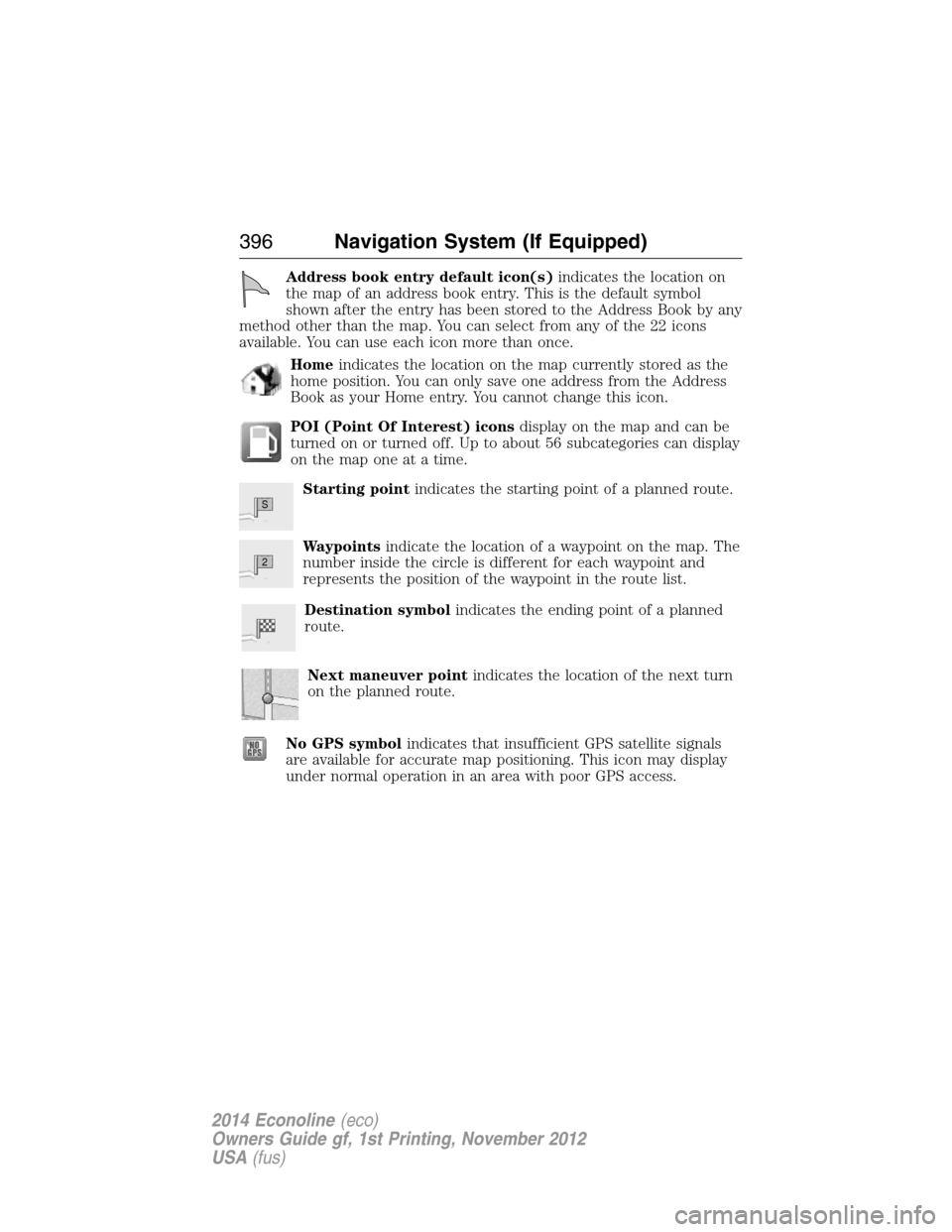
Address book entry default icon(s)indicates the location on
the map of an address book entry. This is the default symbol
shown after the entry has been stored to the Address Book by any
method other than the map. You can select from any of the 22 icons
available. You can use each icon more than once.
Homeindicates the location on the map currently stored as the
home position. You can only save one address from the Address
Book as your Home entry. You cannot change this icon.
POI (Point Of Interest) iconsdisplay on the map and can be
turned on or turned off. Up to about 56 subcategories can display
on the map one at a time.
Starting pointindicates the starting point of a planned route.
Waypointsindicate the location of a waypoint on the map. The
number inside the circle is different for each waypoint and
represents the position of the waypoint in the route list.
Destination symbolindicates the ending point of a planned
route.
Next maneuver pointindicates the location of the next turn
on the planned route.
No GPS symbolindicates that insufficient GPS satellite signals
are available for accurate map positioning. This icon may display
under normal operation in an area with poor GPS access.
S
2
396Navigation System (If Equipped)
2014 Econoline(eco)
Owners Guide gf, 1st Printing, November 2012
USA(fus)
Page 409 of 438
General operation
Voice Command Control
Functions within the Windows Automotive-based system may be
accomplished using only voice commands. Using voice commands while
driving allows you to operate the system without removing your hands
from the wheel.
Prolonged Views of Screen
Do not access any function requiring a prolonged view of the screen
while you are driving. Pull over in a safe and legal manner before
attempting to access a function of the system requiring prolonged
attention. Even occasional short scans to the screen may be hazardous if
your attention has been diverted away from your driving task at a critical
time.
Volume Setting
Do not raise the volume excessively. Keep the volume at a level where
you can still hear outside traffic and emergency signals while driving.
Driving while unable to hear these sounds could cause an accident.
Use of Speech Recognition Functions
Speech recognition software is inherently a statistical process which is
subject to errors. It is your responsibility to monitor any speech
recognition functions included in the system and address any errors.
Navigation Features
Any navigation features included in the system are intended to provide
turn by turn instructions to get you to a desired destination. Please make
certain all persons using this system carefully read and follow
instructions and safety information fully.
Distraction Hazard
Any navigation features may require manual (non-verbal) setup.
Attempting to perform such set-up or insert data while driving can
seriously distract your attention and could cause an accident or other
serious consequences. Stop the vehicle in a safe and legal manner before
attempting these operations.
Let Your Judgment Prevail
Any navigation features are provided only as an aid. Make your driving
decisions based on your observations of local conditions and existing
traffic regulations. Any such feature is not a substitute for your personal
judgment. Any route suggestions made by this system should never
408Appendices
2014 Econoline(eco)
Owners Guide gf, 1st Printing, November 2012
USA(fus)