AUX FORD E SERIES 2017 4.G User Guide
[x] Cancel search | Manufacturer: FORD, Model Year: 2017, Model line: E SERIES, Model: FORD E SERIES 2017 4.GPages: 318, PDF Size: 6.21 MB
Page 196 of 318
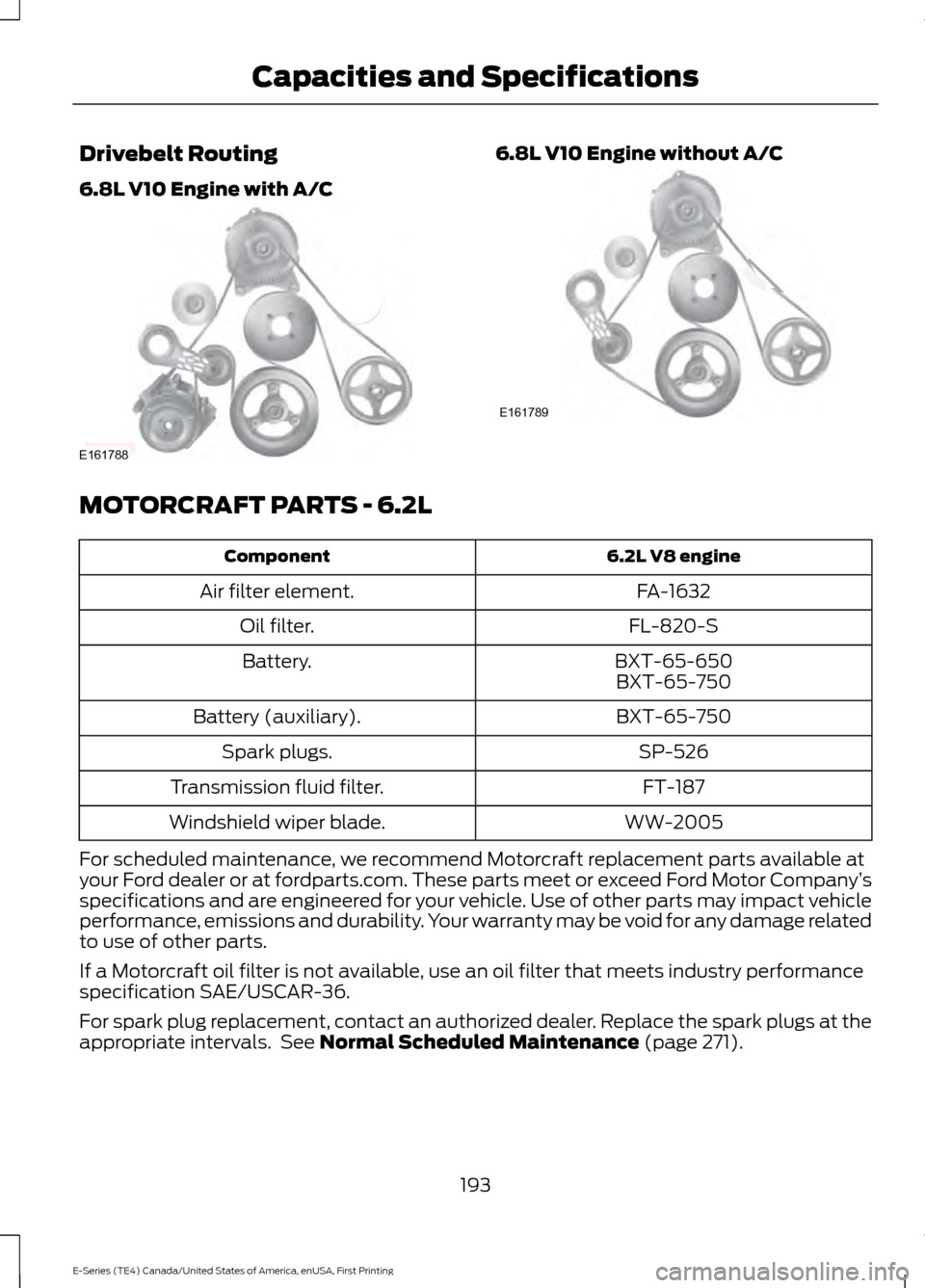
Drivebelt Routing
6.8L V10 Engine with A/C 6.8L V10 Engine without A/C
MOTORCRAFT PARTS - 6.2L
6.2L V8 engine
Component
FA-1632
Air filter element.
FL-820-S
Oil filter.
BXT-65-650
Battery.
BXT-65-750
BXT-65-750
Battery (auxiliary).
SP-526
Spark plugs.
FT-187
Transmission fluid filter.
WW-2005
Windshield wiper blade.
For scheduled maintenance, we recommend Motorcraft replacement parts available at
your Ford dealer or at fordparts.com. These parts meet or exceed Ford Motor Company ’s
specifications and are engineered for your vehicle. Use of other parts may impact vehicle
performance, emissions and durability. Your warranty may be void for any damage related
to use of other parts.
If a Motorcraft oil filter is not available, use an oil filter that meets industry performance
specification SAE/USCAR-36.
For spark plug replacement, contact an authorized dealer. Replace the spark plugs at the
appropriate intervals. See Normal Scheduled Maintenance (page 271).
193
E-Series (TE4) Canada/United States of America, enUSA, First Printing Capacities and SpecificationsE161788 E161789
Page 197 of 318
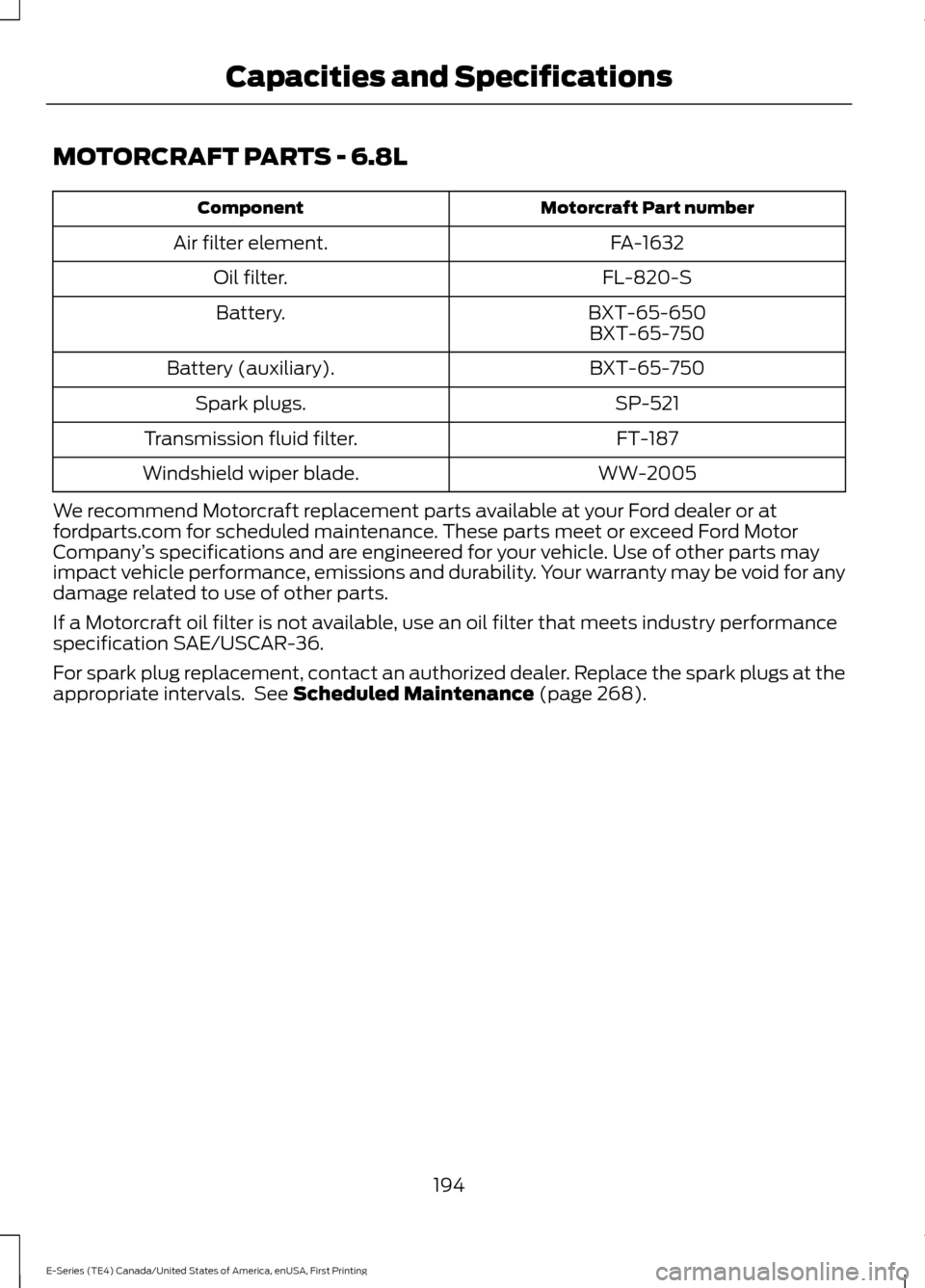
MOTORCRAFT PARTS - 6.8L
Motorcraft Part number
Component
FA-1632
Air filter element.
FL-820-S
Oil filter.
BXT-65-650
Battery.
BXT-65-750
BXT-65-750
Battery (auxiliary).
SP-521
Spark plugs.
FT-187
Transmission fluid filter.
WW-2005
Windshield wiper blade.
We recommend Motorcraft replacement parts available at your Ford dealer or at
fordparts.com for scheduled maintenance. These parts meet or exceed Ford Motor
Company ’s specifications and are engineered for your vehicle. Use of other parts may
impact vehicle performance, emissions and durability. Your warranty may be void for any
damage related to use of other parts.
If a Motorcraft oil filter is not available, use an oil filter that meets industry performance
specification SAE/USCAR-36.
For spark plug replacement, contact an authorized dealer. Replace the spark plugs at the
appropriate intervals. See Scheduled Maintenance (page 268).
194
E-Series (TE4) Canada/United States of America, enUSA, First Printing Capacities and Specifications
Page 200 of 318
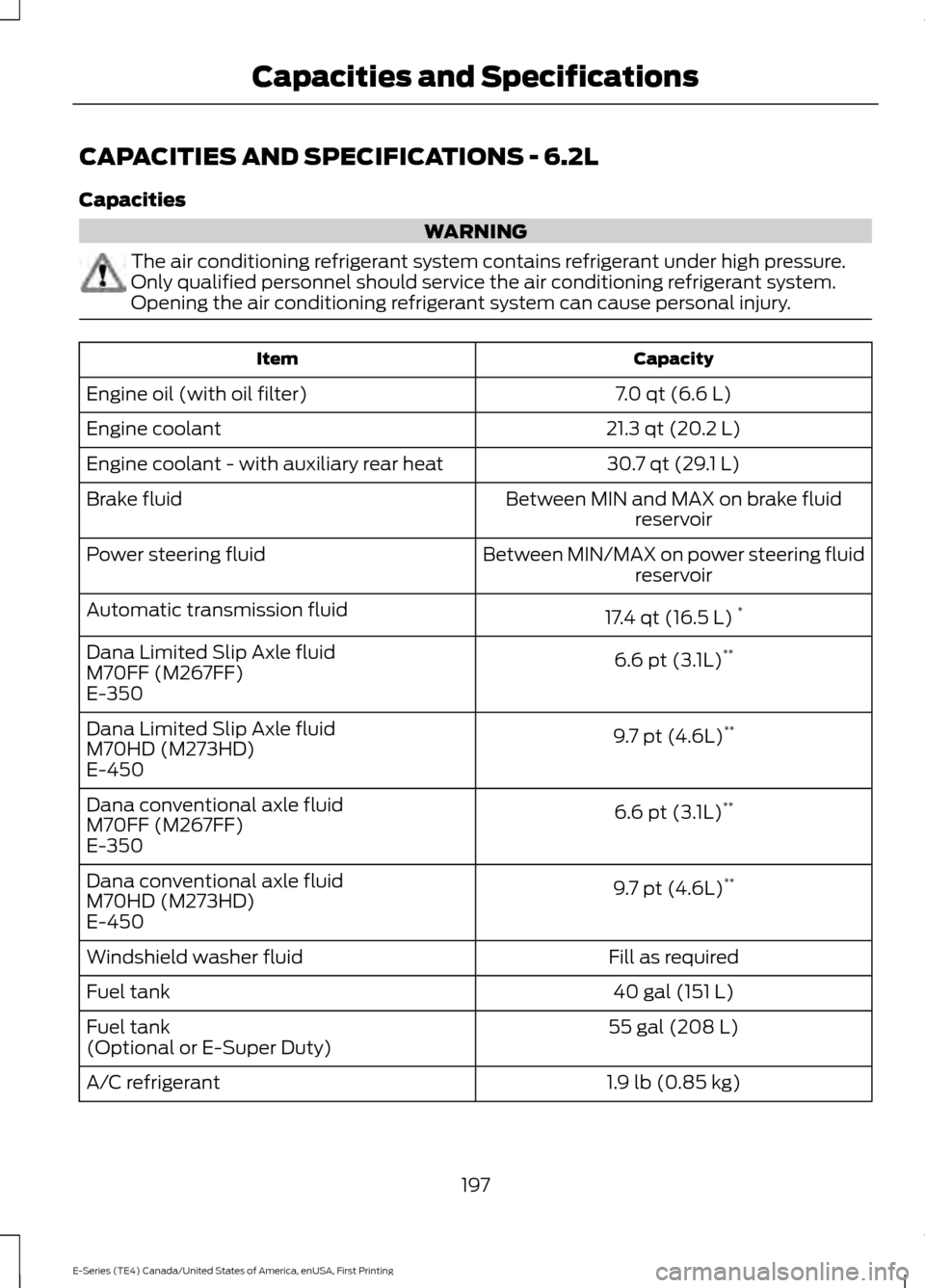
CAPACITIES AND SPECIFICATIONS - 6.2L
Capacities
WARNING
The air conditioning refrigerant system contains refrigerant under high pressure.
Only qualified personnel should service the air conditioning refrigerant system.
Opening the air conditioning refrigerant system can cause personal injury.
Capacity
Item
7.0 qt (6.6 L)
Engine oil (with oil filter)
21.3 qt (20.2 L)
Engine coolant
30.7 qt (29.1 L)
Engine coolant - with auxiliary rear heat
Between MIN and MAX on brake fluidreservoir
Brake fluid
Between MIN/MAX on power steering fluidreservoir
Power steering fluid
17.4 qt (16.5 L)*
Automatic transmission fluid
6.6 pt (3.1L)**
Dana Limited Slip Axle fluid
M70FF (M267FF)
E-350
9.7 pt (4.6L)**
Dana Limited Slip Axle fluid
M70HD (M273HD)
E-450
6.6 pt (3.1L)**
Dana conventional axle fluid
M70FF (M267FF)
E-350
9.7 pt (4.6L)**
Dana conventional axle fluid
M70HD (M273HD)
E-450
Fill as required
Windshield washer fluid
40 gal (151 L)
Fuel tank
55 gal (208 L)
Fuel tank
(Optional or E-Super Duty)
1.9 lb (0.85 kg)
A/C refrigerant
197
E-Series (TE4) Canada/United States of America, enUSA, First Printing Capacities and Specifications
Page 204 of 318
Note:
Ford recommends using DOT 4 Low
Viscosity (LV) High Performance Brake Fluid
or equivalent meeting WSS-M6C65-A2. Use
of any fluid other than the recommended
fluid may cause degraded brake
performance and not meet the Ford
performance standards. Keep brake fluid
clean and dry. Contamination with dirt,
water, petroleum products or other
materials may result in brake system
damage and possible failure. Note:
Automatic transmissions that require
MERCON LV transmission fluid should only
use MERCON LV transmission fluid. The
use of any other fluid may cause
transmission damage.
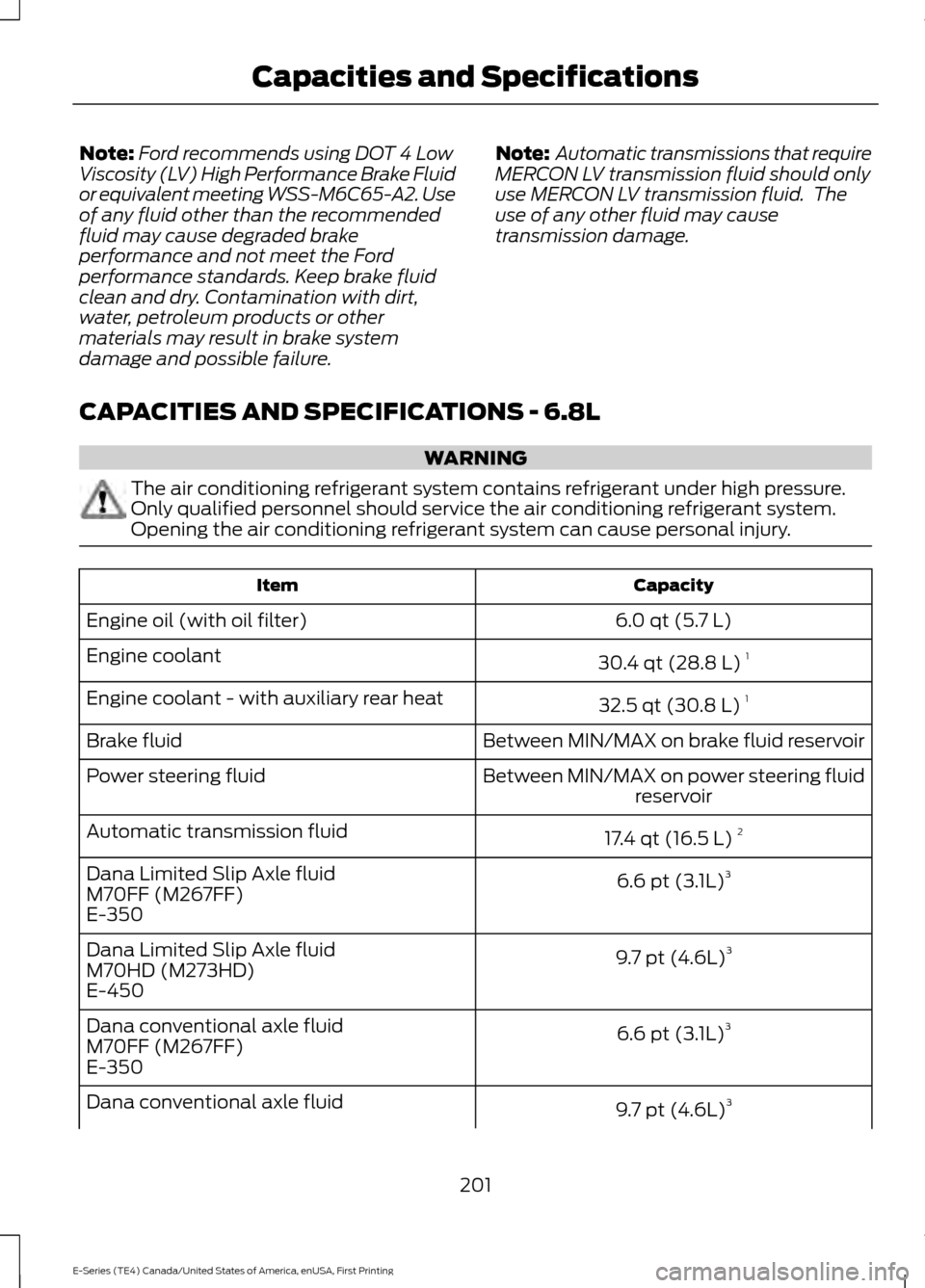
CAPACITIES AND SPECIFICATIONS - 6.8L WARNING
The air conditioning refrigerant system contains refrigerant under high pressure.
Only qualified personnel should service the air conditioning refrigerant system.
Opening the air conditioning refrigerant system can cause personal injury.
Capacity
Item
6.0 qt (5.7 L)
Engine oil (with oil filter)
30.4 qt (28.8 L)1
Engine coolant
32.5 qt (30.8 L)1
Engine coolant - with auxiliary rear heat
Between MIN/MAX on brake fluid reservoir
Brake fluid
Between MIN/MAX on power steering fluidreservoir
Power steering fluid
17.4 qt (16.5 L)2
Automatic transmission fluid
6.6 pt (3.1L)3
Dana Limited Slip Axle fluid
M70FF (M267FF)
E-350
9.7 pt (4.6L)3
Dana Limited Slip Axle fluid
M70HD (M273HD)
E-450
6.6 pt (3.1L)3
Dana conventional axle fluid
M70FF (M267FF)
E-350
9.7 pt (4.6L)3
Dana conventional axle fluid
201
E-Series (TE4) Canada/United States of America, enUSA, First Printing Capacities and Specifications
Page 212 of 318
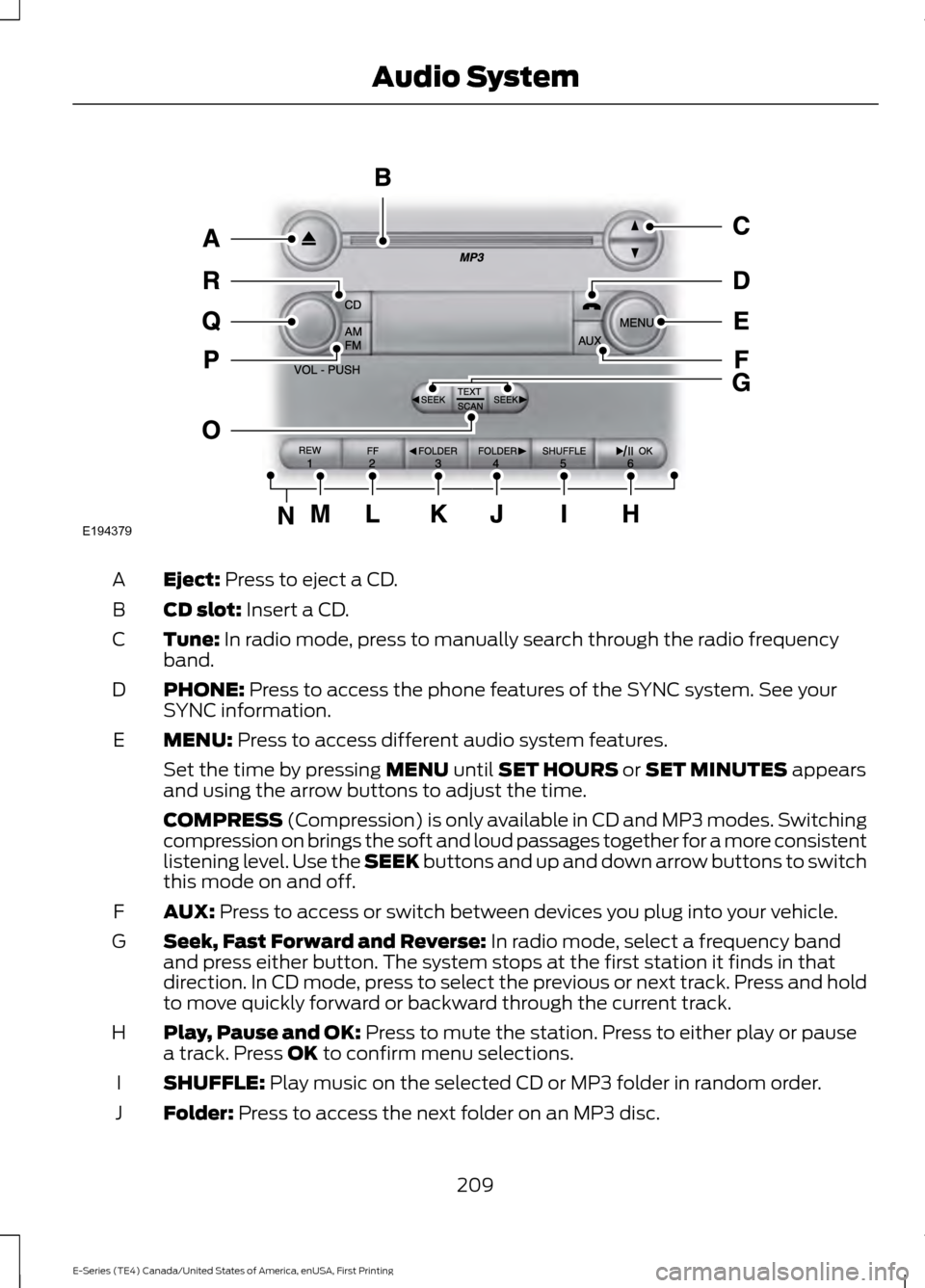
Eject: Press to eject a CD.
A
CD slot:
Insert a CD.
B
Tune:
In radio mode, press to manually search through the radio frequency
band.
C
PHONE:
Press to access the phone features of the SYNC system. See your
SYNC information.
D
MENU:
Press to access different audio system features.
E
Set the time by pressing
MENU until SET HOURS or SET MINUTES appears
and using the arrow buttons to adjust the time.
COMPRESS
(Compression) is only available in CD and MP3 modes. Switching
compression on brings the soft and loud passages together for a more consistent
listening level. Use the SEEK buttons and up and down arrow buttons to switch
this mode on and off.
AUX:
Press to access or switch between devices you plug into your vehicle.
F
Seek, Fast Forward and Reverse:
In radio mode, select a frequency band
and press either button. The system stops at the first station it finds in that
direction. In CD mode, press to select the previous or next track. Press and hold
to move quickly forward or backward through the current track.
G
Play, Pause and OK:
Press to mute the station. Press to either play or pause
a track. Press OK to confirm menu selections.
H
SHUFFLE:
Play music on the selected CD or MP3 folder in random order.
I
Folder:
Press to access the next folder on an MP3 disc.
J
209
E-Series (TE4) Canada/United States of America, enUSA, First Printing Audio SystemE194379
Page 246 of 318
To Access Using the Phone Menu
Press the phone button to access the
SYNC phone menu on-screen. You can
then scroll to:
Menu item
Press OK to access a list
of available applications.
Mobile Apps
Scroll through the list of
available applications and
press OK to select a
particular app. Once an
app is running through
SYNC, you can access an
app’s menu by pressing the
MENU
button to first
access the SYNC menu.
Scroll until the app name followed by
"Menu", is displayed (such as, sticher
Menu), then press
OK. From here, you can
access an application's features, such as
Thumbs up and Thumbs down. For more information, please visit: Website
www.SYNCMyRide.com
To Access Using the Media Menu
Press the
AUX button on the center
console.
Press the Menu button to the SYNC menu and scroll to: Action and description
Menu item
Press the
OK button.
SYNC-Media
Press the
OK button and scroll through the list of available
applications and select your desired app.
Mobile Apps
Scroll until the app name followed by
"Menu", is displayed (such as, Stitcher
Menu), then press
OK. From here, you can
access an application's features, such as
Thumbs up and Thumbs down. For more information, please visit: Website
www.SYNCMyRide.com
243
E-Series (TE4) Canada/United States of America, enUSA, First Printing SYNC™
Page 248 of 318
To Connect Using the System Menu
Plug the device into the USB port. See
USB Port (page 215).
Press the
AUX button, then the Menu
button to enter the Media Menu.
You can then scroll to: Action and Description
Message
Press the
OK button.
SELECT SRC
Press the
OK button.
SYNC USB
Depending on how many digital media files are on your
connected device, the following message may appear in the
radio display.
Indexing…
When indexing is complete, the screen returns to the Play menu. You can then
select one of the following:
PLAY ALL
ARTISTS
ALBUMS
GENRES
PLAYLISTS
TRACKS
EXPLORE USB
SIMILARMUSIC Exit the current menu.
RETURN
What's Playing?
When a track is playing, you can ask the
system to tell you what is currently playing.
245
E-Series (TE4) Canada/United States of America, enUSA, First Printing SYNC™
Page 250 of 318
Voice command
1,2
The system searches for a
specific artist/track/album
from the music indexed
through the USB port.
Search
Track ___
| Search
Song ___
1,2
This allows you to make
your previous command
more specific. By using this
command you can filter
though a previous selec-
tion, such as an artist to
play only specific album.
Refine
album ___
The system compiles a
playlist and then plays similar
music to what is currently
playing from the USB port
using indexed metadata
information.
Similar
Music
Autoplay Off
Turn autoplay on to listen to
music processed during
indexing. Turn autoplay off to
allow the indexing process to
finish before the system plays
any of your music.
Autoplay
[on]
1 ___ is a dynamic listing, meaning that it
could be the name of anything, such as a
group, artist or song. For example you
could say "Play artist The Beatles".
2 This voice command is not available until
indexing is complete.
3 This voice command is only available in
folder mode. Bluetooth Audio Command Guide
Press the voice button and say: Voice command
Bluetooth Audio
You can then say any of the following:
[Phone] Connections | [Media] Connec-
tions | [Bluetooth] Connections
Pause
Play
[Play] Next Track | [Play] Next Song
[Play] Previous Track | [Play] Previous
Song
Media Menu Features
The media menu allows you to select your
media source, how to play your music, for
example by artist, genre, shuffle or repeat,
and to add, connect or delete devices.
Press the AUX button, then the Menu
button to enter the Media Menu.
247
E-Series (TE4) Canada/United States of America, enUSA, First Printing SYNC™
Page 252 of 318
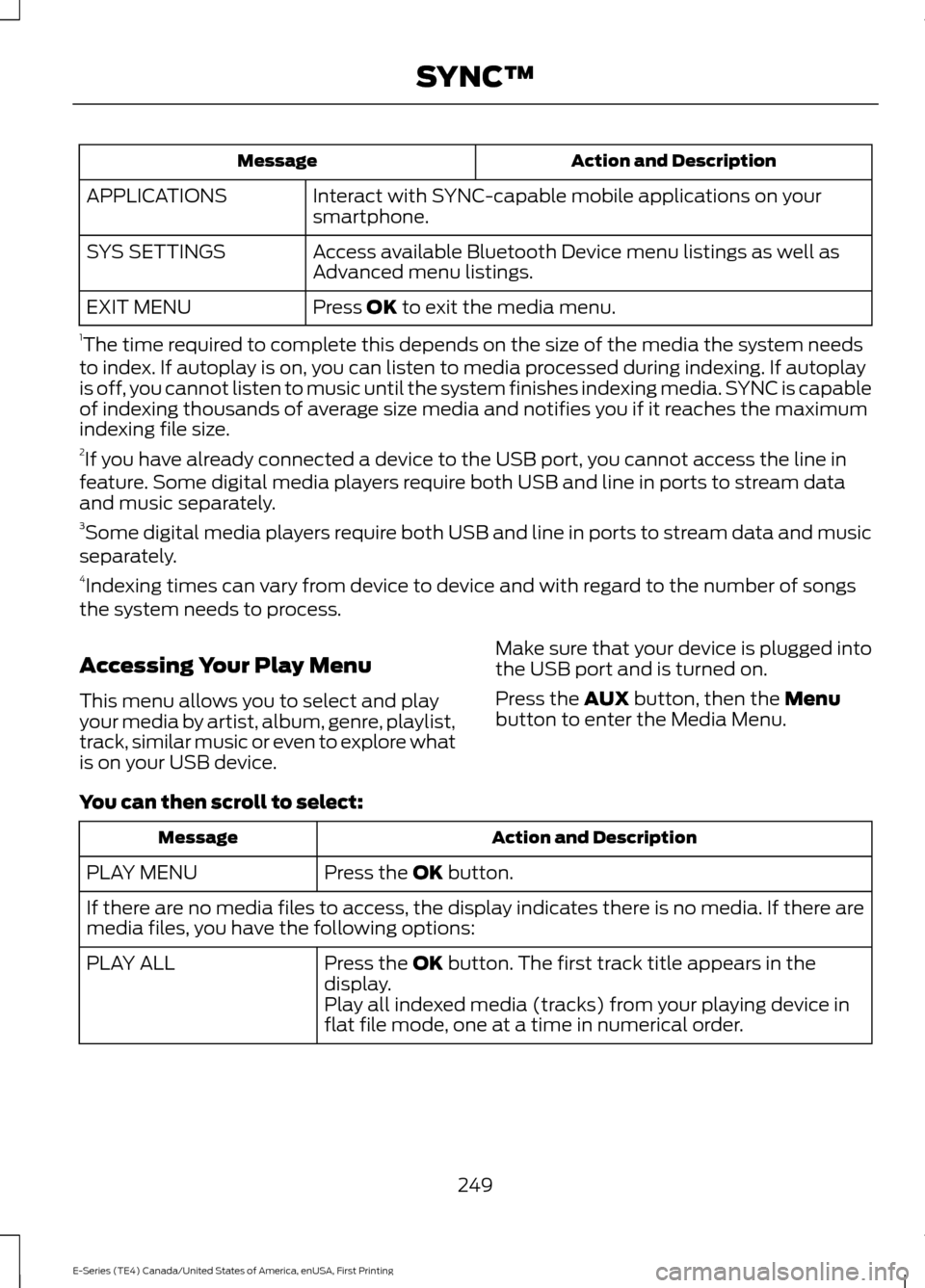
Action and Description
Message
Interact with SYNC-capable mobile applications on your
smartphone.
APPLICATIONS
Access available Bluetooth Device menu listings as well as
Advanced menu listings.
SYS SETTINGS
Press OK to exit the media menu.
EXIT MENU
1 The time required to complete this depends on the size of the media the system needs
to index. If autoplay is on, you can listen to media processed during indexing. If autoplay
is off, you cannot listen to music until the system finishes indexing media. SYNC is capable
of indexing thousands of average size media and notifies you if it reaches the maximum
indexing file size.
2 If you have already connected a device to the USB port, you cannot access the line in
feature. Some digital media players require both USB and line in ports to stream data
and music separately.
3 Some digital media players require both USB and line in ports to stream data and music
separately.
4 Indexing times can vary from device to device and with regard to the number of songs
the system needs to process.
Accessing Your Play Menu
This menu allows you to select and play
your media by artist, album, genre, playlist,
track, similar music or even to explore what
is on your USB device. Make sure that your device is plugged into
the USB port and is turned on.
Press the
AUX button, then the Menu
button to enter the Media Menu.
You can then scroll to select: Action and Description
Message
Press the
OK button.
PLAY MENU
If there are no media files to access, the display indicates there is no media. If there are
media files, you have the following options:
Press the
OK button. The first track title appears in the
display.
PLAY ALL
Play all indexed media (tracks) from your playing device in
flat file mode, one at a time in numerical order.
249
E-Series (TE4) Canada/United States of America, enUSA, First Printing SYNC™
Page 254 of 318
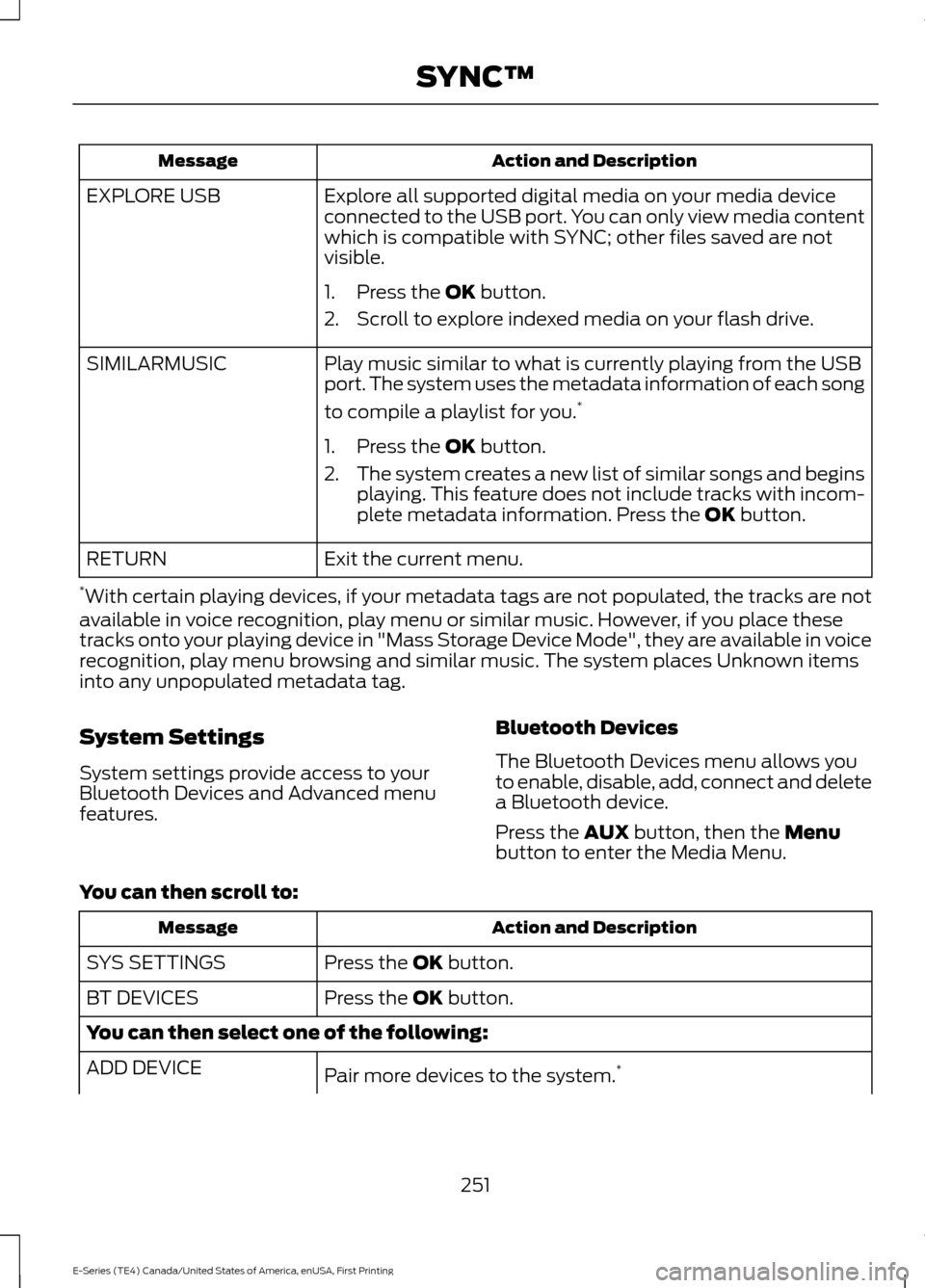
Action and Description
Message
Explore all supported digital media on your media device
connected to the USB port. You can only view media content
which is compatible with SYNC; other files saved are not
visible.
EXPLORE USB
1. Press the OK button.
2. Scroll to explore indexed media on your flash drive.
Play music similar to what is currently playing from the USB
port. The system uses the metadata information of each song
to compile a playlist for you. *
SIMILARMUSIC
1. Press the
OK button.
2. The system creates a new list of similar songs and begins
playing. This feature does not include tracks with incom-
plete metadata information. Press the
OK button.
Exit the current menu.
RETURN
* With certain playing devices, if your metadata tags are not populated, the tracks are not
available in voice recognition, play menu or similar music. However, if you place these
tracks onto your playing device in "Mass Storage Device Mode", they are available in voice
recognition, play menu browsing and similar music. The system places Unknown items
into any unpopulated metadata tag.
System Settings
System settings provide access to your
Bluetooth Devices and Advanced menu
features. Bluetooth Devices
The Bluetooth Devices menu allows you
to enable, disable, add, connect and delete
a Bluetooth device.
Press the
AUX button, then the Menu
button to enter the Media Menu.
You can then scroll to: Action and Description
Message
Press the
OK button.
SYS SETTINGS
Press the
OK button.
BT DEVICES
You can then select one of the following:
Pair more devices to the system. *
ADD DEVICE
251
E-Series (TE4) Canada/United States of America, enUSA, First Printing SYNC™