ECO mode FORD E150 2009 User Guide
[x] Cancel search | Manufacturer: FORD, Model Year: 2009, Model line: E150, Model: FORD E150 2009Pages: 320, PDF Size: 2.24 MB
Page 32 of 320
BAL (Balance):Press MENU to reach the balance setting. Use/
to adjust the audio between the left (L) and right (R) speakers.
FADE:Press MENU to reach the fade setting. Use
/to adjust the
audio between the back (B) and front (F) speakers.
ALL SEATS (Occupancy mode)(Available on Audiophile radios only):
Press MENU repeatedly to access. Press
/to optimize sound for
ALL SEATS, DRIVERS SEAT or REAR SEATS.
Track/Folder Mode:Available only on MP3 discs in CD mode. In Track
Mode, pressing
SEEKwill scroll through all tracks on the disc.
In Folder mode, pressing
SEEKwill scroll only through tracks
within the selected folder.
Press
FOLDER, FOLDERto access the previous/next folder (if
available).
COMPRESS (Compression):Available only in CD/MP3 mode. Press
MENU until COMPRESS ON/OFF appears in the display. Use
/to
toggle ON/OFF. When COMPRESS is ON, the system will bring soft and
loud CD passages together for a more consistent listening level.
4.AUX:Press repeatedly to cycle
through LINE IN (Auxiliary audio),
SAT1, SAT2, SAT3 (Satellite radio
modes, if equipped). To return to radio mode, press AM/FM.
For location and further information on the auxiliary audio mode, refer
toAuxiliary input jacklater in this chapter.
Satellite radio is available only with a valid SIRIUS subscription.
Check with your authorized dealer for availability.
5.Seek: In radio mode,press
/to access the
previous/next strong station.
In CD mode,press
/to
access the previous/next CD track.
In satellite radio mode (if equipped),press
SEEK, SEEKto
seek to the previous/next channel. If a specific category is selected,
(Jazz, Rock, News, etc.), press
SEEK, SEEKto seek to the
previous/next channel in the selected category. Press and hold
SEEK, SEEKto fast seek through the previous /next channels.
2009 Econoline(eco)
Owners Guide, 2nd Printing
USA(fus)
Entertainment Systems
32
Page 33 of 320
In TEXT MODE,pressSEEK, SEEKto view the
previous/additional display text.
In CATEGORY MODE,press
SEEK, SEEKto select a
category.
Satellite radio is available only with a valid SIRIUS radio
subscription. Check with your authorized dealer for availability.
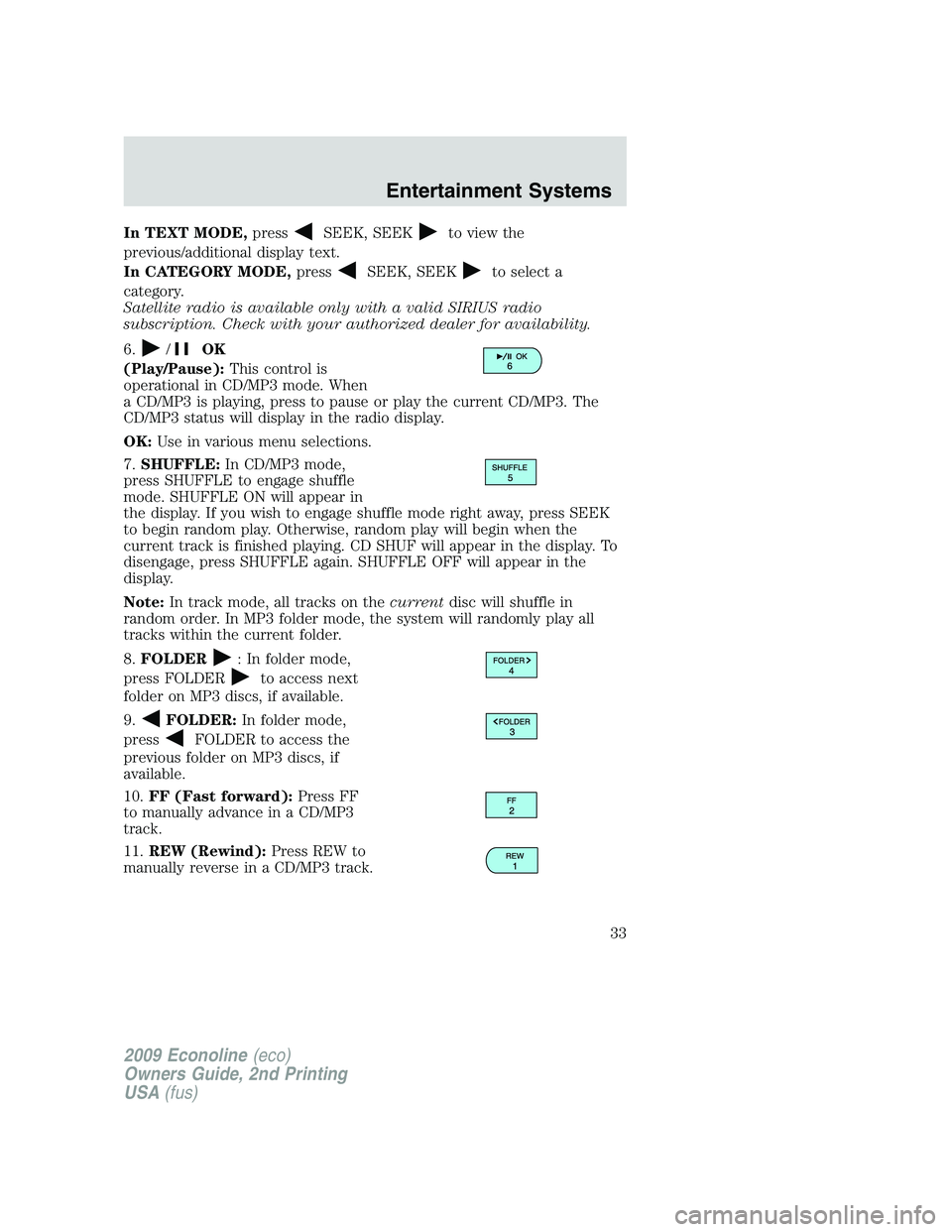
6.
/OK
(Play/Pause):This control is
operational in CD/MP3 mode. When
a CD/MP3 is playing, press to pause or play the current CD/MP3. The
CD/MP3 status will display in the radio display.
OK:Use in various menu selections.
7.SHUFFLE:In CD/MP3 mode,
press SHUFFLE to engage shuffle
mode. SHUFFLE ON will appear in
the display. If you wish to engage shuffle mode right away, press SEEK
to begin random play. Otherwise, random play will begin when the
current track is finished playing. CD SHUF will appear in the display. To
disengage, press SHUFFLE again. SHUFFLE OFF will appear in the
display.
Note:In track mode, all tracks on thecurrentdisc will shuffle in
random order. In MP3 folder mode, the system will randomly play all
tracks within the current folder.
8.FOLDER
: In folder mode,
press FOLDER
to access next
folder on MP3 discs, if available.
9.
FOLDER:In folder mode,
press
FOLDER to access the
previous folder on MP3 discs, if
available.
10.FF (Fast forward):Press FF
to manually advance in a CD/MP3
track.
11.REW (Rewind):Press REW to
manually reverse in a CD/MP3 track.
2009 Econoline(eco)
Owners Guide, 2nd Printing
USA(fus)
Entertainment Systems
33
Page 34 of 320
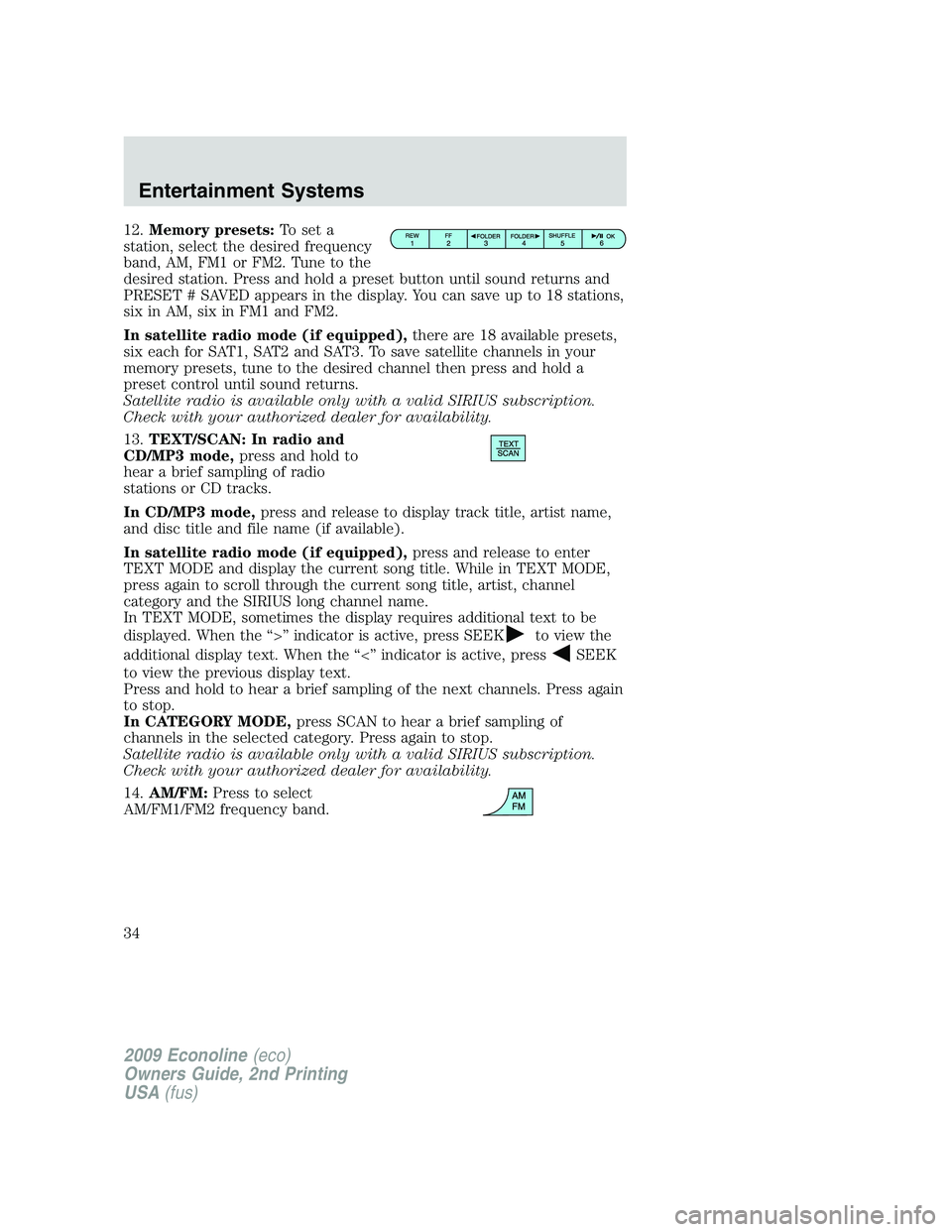
12.Memory presets:To set a
station, select the desired frequency
band, AM, FM1 or FM2. Tune to the
desired station. Press and hold a preset button until sound returns and
PRESET # SAVED appears in the display. You can save up to 18 stations,
six in AM, six in FM1 and FM2.
In satellite radio mode (if equipped),there are 18 available presets,
six each for SAT1, SAT2 and SAT3. To save satellite channels in your
memory presets, tune to the desired channel then press and hold a
preset control until sound returns.
Satellite radio is available only with a valid SIRIUS subscription.
Check with your authorized dealer for availability.
13.TEXT/SCAN: In radio and
CD/MP3 mode,press and hold to
hear a brief sampling of radio
stations or CD tracks.
In CD/MP3 mode,press and release to display track title, artist name,
and disc title and file name (if available).
In satellite radio mode (if equipped),press and release to enter
TEXT MODE and display the current song title. While in TEXT MODE,
press again to scroll through the current song title, artist, channel
category and the SIRIUS long channel name.
In TEXT MODE, sometimes the display requires additional text to be
displayed. When the “>” indicator is active, press SEEK
to view the
additional display text. When the “<” indicator is active, press
SEEK
to view the previous display text.
Press and hold to hear a brief sampling of the next channels. Press again
to stop.
In CATEGORY MODE,press SCAN to hear a brief sampling of
channels in the selected category. Press again to stop.
Satellite radio is available only with a valid SIRIUS subscription.
Check with your authorized dealer for availability.
14.AM/FM:Press to select
AM/FM1/FM2 frequency band.
2009 Econoline(eco)
Owners Guide, 2nd Printing
USA(fus)
Entertainment Systems
34
Page 35 of 320
15.ON/OFF/Volume:Press to turn
ON/OFF. Turn to increase/decrease
volume.
Note:If the volume is set above a
certain level and the ignition is
turned off, the volume will come back on at a “nominal” listening level
when the ignition switch is turned back on.
16.CD:Press to enter CD/MP3
mode. If a CD is already loaded into
the system, CD/MP3 play will begin
where it ended last.
17.LOAD:Toloadadiscintothe
system, press LOAD. Select a slot
number using memory presets 1–6.
When the display reads LOAD CD#,
load the desired disc, label side up.
If you do not choose a slot within five seconds, the system will choose
for you. Once loaded, the first track will begin to play.
To auto load up to six discs,press and hold LOAD until the display
reads AUTOLOAD#. Load the desired disc, label side up. The system will
prompt you to load discs for the remaining available slots. Insert the
discs, one at a time, label side up, when prompted.
Note:An MP3 disc with folders will show F001 (folder #) T001 (track #)
in the display. An MP3 disc without folders will show T001 (track#) in
the display. Refer toMP3 track and folder structurelater in this
chapter for further information.
18.
(CD eject):To eject a disc
from the system, press
. Select
the correct slot number using
memory presets 1–6. When ready, the system will eject the disc and the
display will read REMOVE CD. If the disc is not removed in 15 seconds,
the system will reload the disc.
If there is only one disc present in the system, press
.
To auto eject up to six CDs,press and hold
until the system
begins ejecting all loaded discs. If the discs are not removed, the system
will reload the discs.
19.CD slot:Insert a CD label side
up.
2009 Econoline(eco)
Owners Guide, 2nd Printing
USA(fus)
Entertainment Systems
35
Page 39 of 320
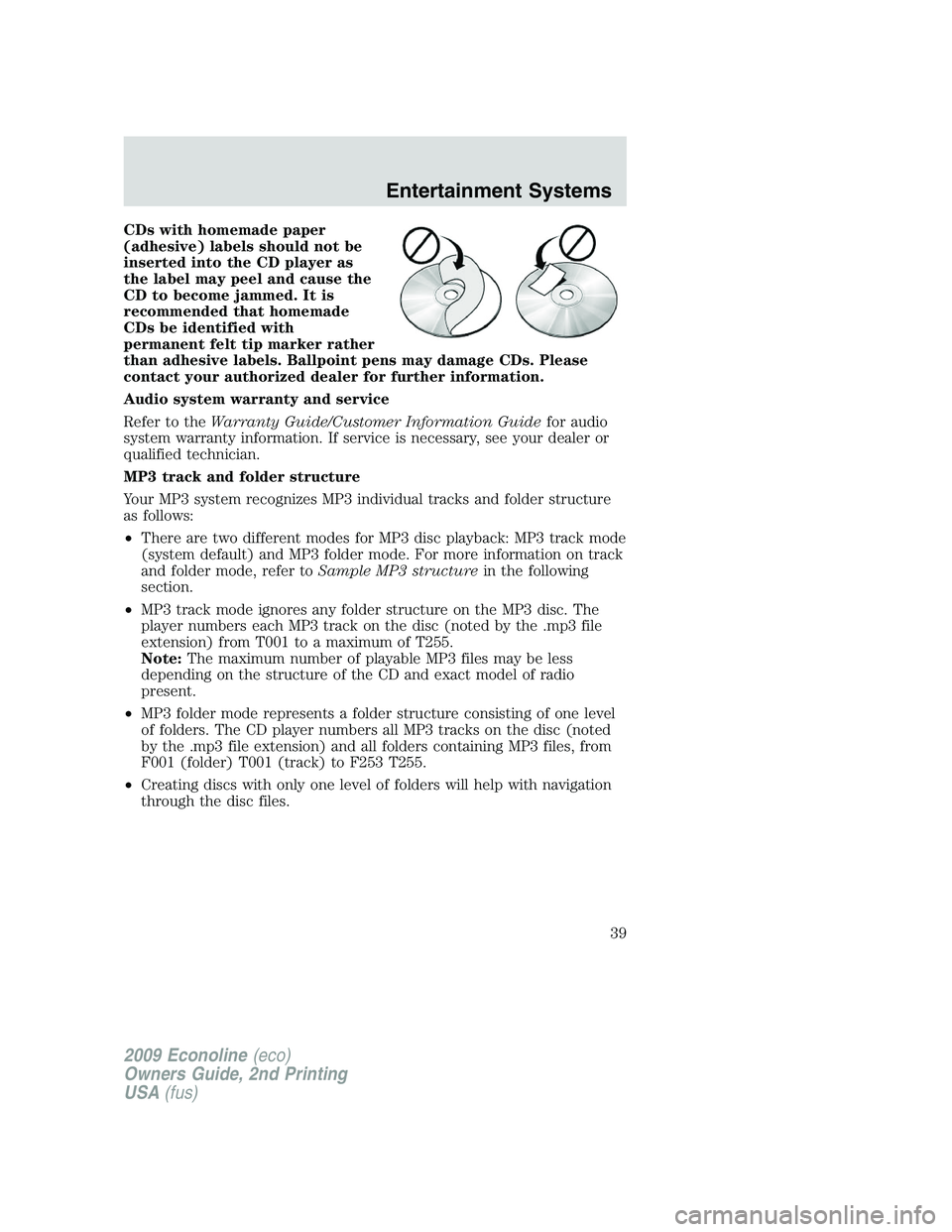
CDs with homemade paper
(adhesive) labels should not be
inserted into the CD player as
the label may peel and cause the
CD to become jammed. It is
recommended that homemade
CDs be identified with
permanent felt tip marker rather
than adhesive labels. Ballpoint pens may damage CDs. Please
contact your authorized dealer for further information.
Audio system warranty and service
Refer to theWarranty Guide/Customer Information Guidefor audio
system warranty information. If service is necessary, see your dealer or
qualified technician.
MP3 track and folder structure
Your MP3 system recognizes MP3 individual tracks and folder structure
as follows:
•There are two different modes for MP3 disc playback: MP3 track mode
(system default) and MP3 folder mode. For more information on track
and folder mode, refer toSample MP3 structurein the following
section.
•MP3 track mode ignores any folder structure on the MP3 disc. The
player numbers each MP3 track on the disc (noted by the .mp3 file
extension) from T001 to a maximum of T255.
Note:The maximum number of playable MP3 files may be less
depending on the structure of the CD and exact model of radio
present.
•MP3 folder mode represents a folder structure consisting of one level
of folders. The CD player numbers all MP3 tracks on the disc (noted
by the .mp3 file extension) and all folders containing MP3 files, from
F001 (folder) T001 (track) to F253 T255.
•Creating discs with only one level of folders will help with navigation
through the disc files.
2009 Econoline(eco)
Owners Guide, 2nd Printing
USA(fus)
Entertainment Systems
39
Page 40 of 320
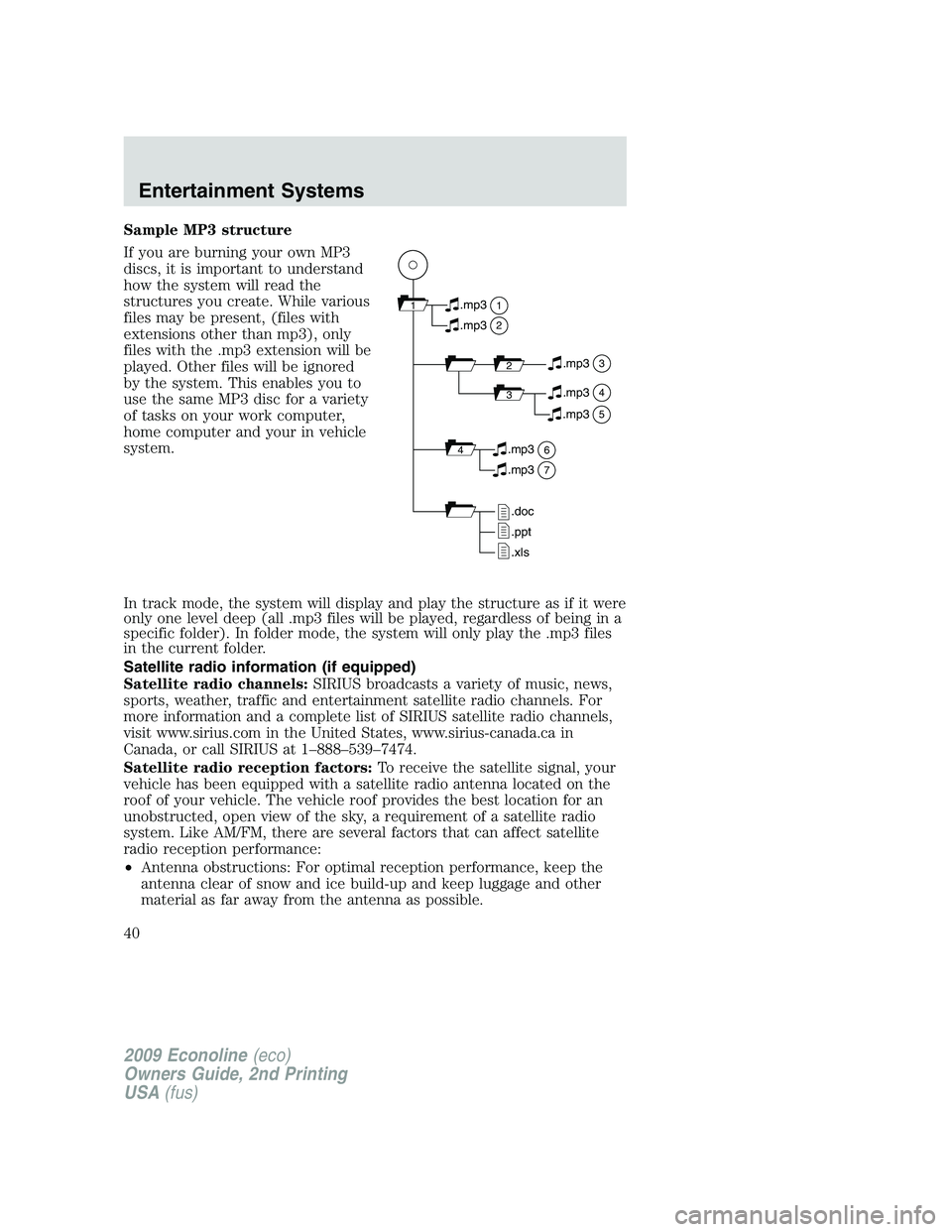
Sample MP3 structure
If you are burning your own MP3
discs, it is important to understand
how the system will read the
structures you create. While various
files may be present, (files with
extensions other than mp3), only
files with the .mp3 extension will be
played. Other files will be ignored
by the system. This enables you to
use the same MP3 disc for a variety
of tasks on your work computer,
home computer and your in vehicle
system.
In track mode, the system will display and play the structure as if it were
only one level deep (all .mp3 files will be played, regardless of being in a
specific folder). In folder mode, the system will only play the .mp3 files
in the current folder.
Satellite radio information (if equipped)
Satellite radio channels:SIRIUS broadcasts a variety of music, news,
sports, weather, traffic and entertainment satellite radio channels. For
more information and a complete list of SIRIUS satellite radio channels,
visit www.sirius.com in the United States, www.sirius-canada.ca in
Canada, or call SIRIUS at 1–888–539–7474.
Satellite radio reception factors:To receive the satellite signal, your
vehicle has been equipped with a satellite radio antenna located on the
roof of your vehicle. The vehicle roof provides the best location for an
unobstructed, open view of the sky, a requirement of a satellite radio
system. Like AM/FM, there are several factors that can affect satellite
radio reception performance:
•Antenna obstructions: For optimal reception performance, keep the
antenna clear of snow and ice build-up and keep luggage and other
material as far away from the antenna as possible.
11
2
.mp3
2.mp3
3.mp3
34.mp3
64.mp3
7.mp3
.doc
.ppt
.xls
5.mp3
2009 Econoline(eco)
Owners Guide, 2nd Printing
USA(fus)
Entertainment Systems
40
Page 41 of 320
•Terrain: Hills, mountains, tall buildings, bridges, tunnels, freeway
overpasses, parking garages, dense tree foliage and thunderstorms can
interfere with your reception.
•Station overload: When you pass a ground based broadcast repeating
tower, a stronger signal may overtake a weaker one and result in an
audio mute.
Unlike AM/FM audible static, you will hear an audio mute when there is
a satellite radio signal interference. Your radio display may display NO
SIGNAL to indicate the interference.
SIRIUS satellite radio service:SIRIUS Satellite Radio is a subscription
based satellite radio service that broadcasts music, sports, news and
entertainment programming. A service fee is required in order to receive
SIRIUS service. Vehicles that are equipped with a factory installed
SIRIUS Satellite Radio system include:
•Hardware and limited subscription term, which begins on the date of
sale or lease of the vehicle.
•Use of online media player providing access to all SIRIUS music
channels over the internet using any computer connected to the
internet (U.S. customers only).
For information on extended subscription terms, contact SIRIUS at
1–888–539–7474.
Note:SIRIUS reserves the unrestricted right to change, rearrange, add
or delete programming including canceling, moving or adding particular
channels, and its prices, at any time, with or without notice to you. Ford
Motor Company shall not be responsible for any such programming
changes.
Satellite Radio Electronic Serial Number (ESN):This 12–digit
Satellite Serial Number is needed to activate, modify or track your
satellite radio account. You will need this number when communicating
with SIRIUS. While in Satellite Radio mode, you can view this number on
the radio display by pressing AUX and Preset 1 control simultaneously.
2009 Econoline(eco)
Owners Guide, 2nd Printing
USA(fus)
Entertainment Systems
41
Page 81 of 320
The autolock feature repeats when:
•any door is opened then closed while the ignition is in the on position
and the vehicle speed is 9 mph (15 km/h) or lower, and
•the vehicle then attains a speed greater than 12 mph (20 km/h) for
greater than two seconds.
Deactivating/activating autolock feature
Your vehicle comes with the autolock feature disabled; there are two
methods to enable/disable this feature:
•Through your authorized dealer, or
•by using a power door unlock/lock procedure, or
•by using the instrument cluster message center (if equipped). Refer to
Message centerin theDriver Controlschapter,or by using the
instrument cluster message center (if equipped).
Power door lock switch autolock enable/disable procedure
Before starting, ensure the ignition is in the off position and all vehicle
doors are closed. You must complete Steps 1–5 within 30 seconds or the
procedure will have to be repeated. If the procedure needs to be
repeated, wait a minimum of 30 seconds before beginning again.
1. Place the key in the ignition and turn the ignition to the on position.
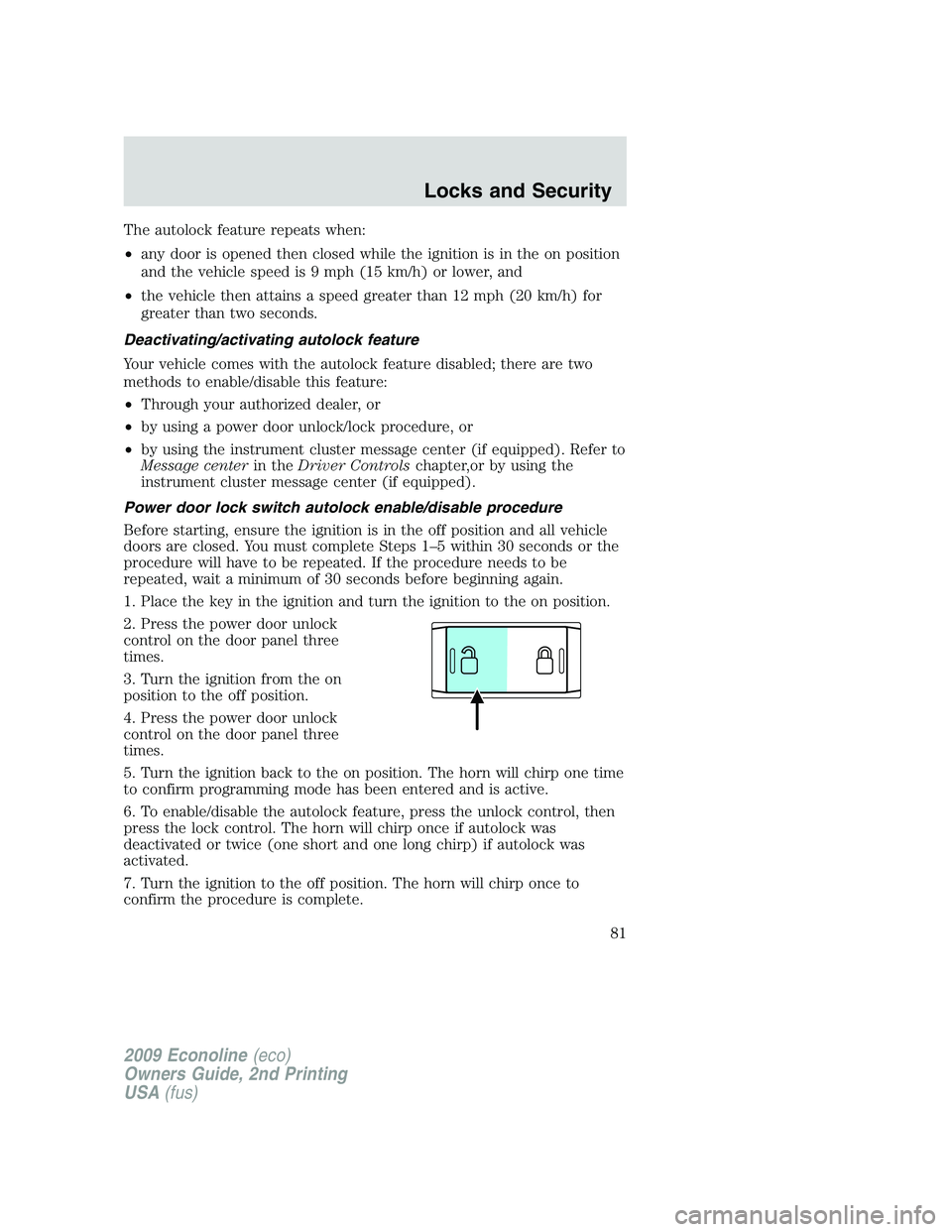
2. Press the power door unlock
control on the door panel three
times.
3. Turn the ignition from the on
position to the off position.
4. Press the power door unlock
control on the door panel three
times.
5. Turn the ignition back to the on position. The horn will chirp one time
to confirm programming mode has been entered and is active.
6. To enable/disable the autolock feature, press the unlock control, then
press the lock control. The horn will chirp once if autolock was
deactivated or twice (one short and one long chirp) if autolock was
activated.
7. Turn the ignition to the off position. The horn will chirp once to
confirm the procedure is complete.
2009 Econoline(eco)
Owners Guide, 2nd Printing
USA(fus)
Locks and Security
81
Page 88 of 320
3. Cycle eight times rapidly (within 10 seconds) between the 3 (off)
position and 4 (on).Note:The eighth turn must end in the 4 (on)
position.
4. The doors will lock, then unlock, to confirm that the programming
mode has been activated.
5. Within 20 seconds press any button on the remote entry transmitter.
Note:If more than 20 seconds have passed you will need to start the
procedure over again.
6. The doors will lock, then unlock, to confirm that this remote entry
transmitter has been programmed.
7. Repeat Steps 4 and 5 to program each additional remote entry
transmitter (up to four transmitters).
8. Turn the ignition to the 3 (off) position after you have finished
programming all of the remote entry transmitters.
9. The doors will lock, then unlock, to confirm that the programming
mode has been exited.
Illuminated entry
The interior lamps illuminate when the remote entry system is used to
unlock the door(s) or sound the personal alarm.
The illuminated entry system will turn off the interior lights if:
•the ignition switch is turned to the on or accessory position, or
•the remote transmitter lock control is pressed, or
•after 25 seconds of illumination.
The dome lamp control (if equipped) mustnotbe set to the off position
for the illuminated entry system to operate.
The inside lights will not turn off if:
•they have been turned on with the dimmer control, or
•any door is open.
SECURILOCK™ PASSIVE ANTI-THEFT SYSTEM (IF EQUIPPED)
SecuriLock™ passive anti-theft system is an engine immobilization
system. This system is designed to help prevent the engine from being
started unless acoded key programmed to your vehicleis used. The
use of the wrong type of coded key may lead to a “no-start” condition.
Your vehicle comes with two coded keys; additional coded keys may be
purchased from your authorized dealer. The authorized dealer can
2009 Econoline(eco)
Owners Guide, 2nd Printing
USA(fus)
Locks and Security
88
Page 102 of 320
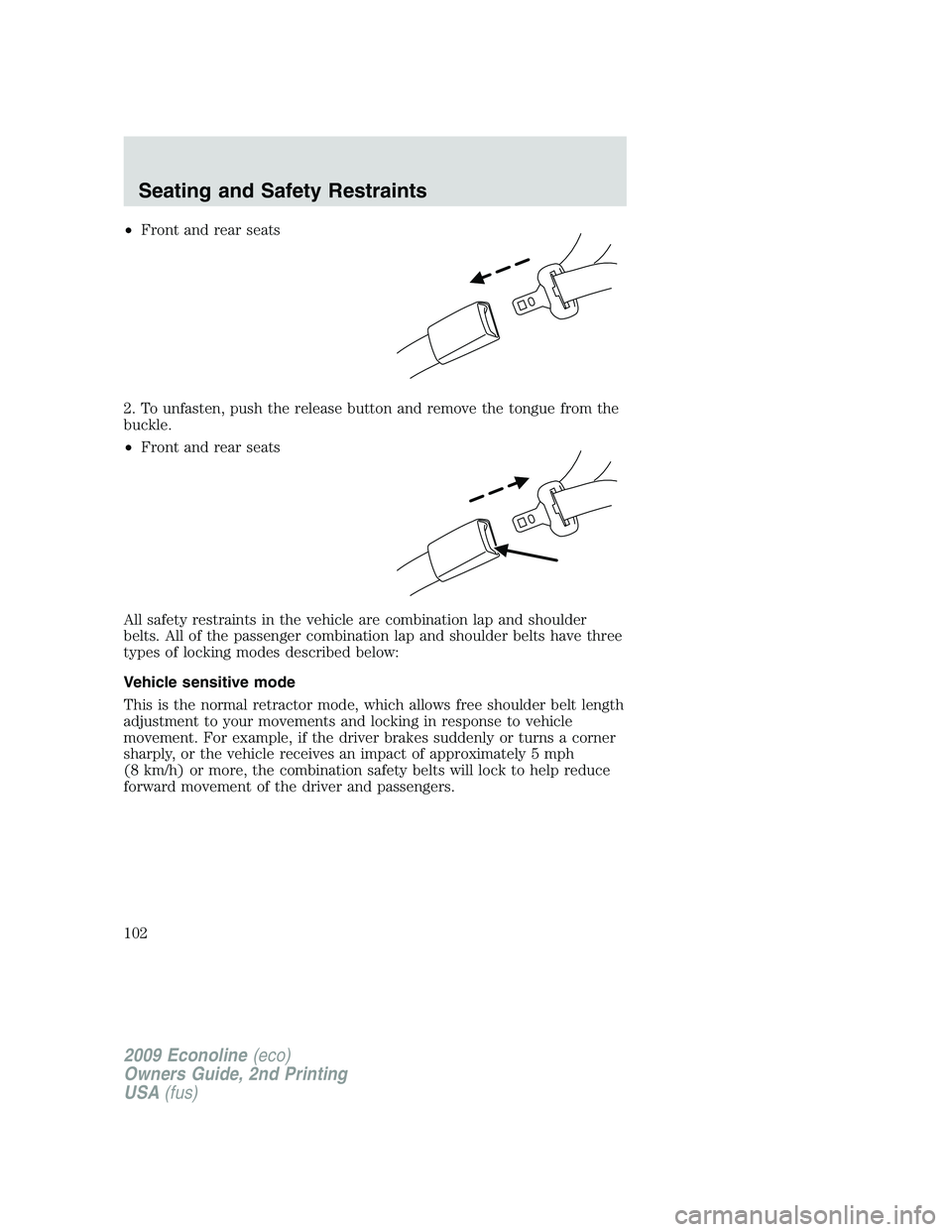
•Front and rear seats
2. To unfasten, push the release button and remove the tongue from the
buckle.
•Front and rear seats
All safety restraints in the vehicle are combination lap and shoulder
belts. All of the passenger combination lap and shoulder belts have three
types of locking modes described below:
Vehicle sensitive mode
This is the normal retractor mode, which allows free shoulder belt length
adjustment to your movements and locking in response to vehicle
movement. For example, if the driver brakes suddenly or turns a corner
sharply, or the vehicle receives an impact of approximately 5 mph
(8 km/h) or more, the combination safety belts will lock to help reduce
forward movement of the driver and passengers.
2009 Econoline(eco)
Owners Guide, 2nd Printing
USA(fus)
Seating and Safety Restraints
102