Language entertainment system FORD EDGE 2008 1.G Owners Manual
[x] Cancel search | Manufacturer: FORD, Model Year: 2008, Model line: EDGE, Model: FORD EDGE 2008 1.GPages: 336, PDF Size: 2.8 MB
Page 53 of 336
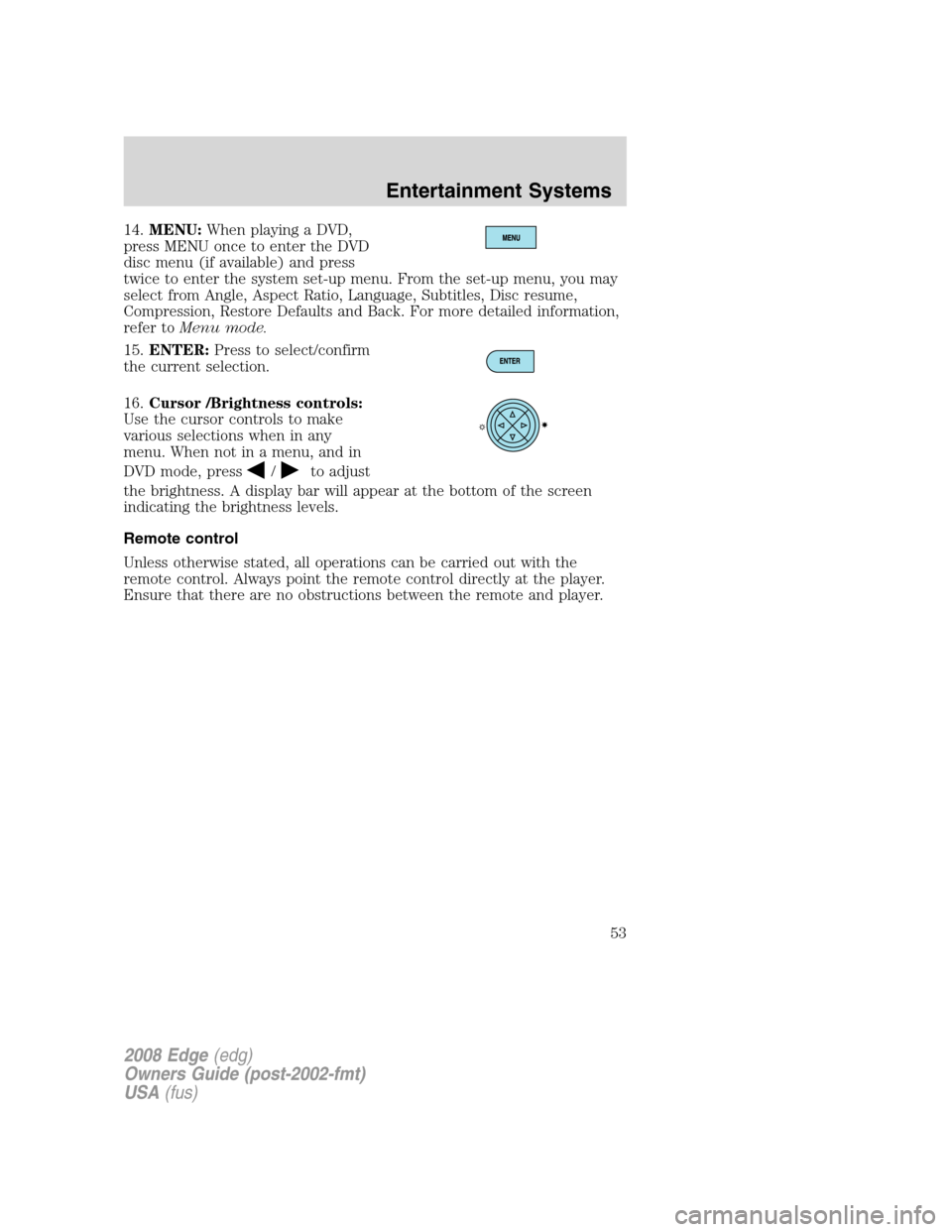
14.MENU:When playing a DVD,
press MENU once to enter the DVD
disc menu (if available) and press
twice to enter the system set-up menu. From the set-up menu, you may
select from Angle, Aspect Ratio, Language, Subtitles, Disc resume,
Compression, Restore Defaults and Back. For more detailed information,
refer toMenu mode.
15.ENTER:Press to select/confirm
the current selection.
16.Cursor /Brightness controls:
Use the cursor controls to make
various selections when in any
menu. When not in a menu, and in
DVD mode, press
/to adjust
the brightness. A display bar will appear at the bottom of the screen
indicating the brightness levels.
Remote control
Unless otherwise stated, all operations can be carried out with the
remote control. Always point the remote control directly at the player.
Ensure that there are no obstructions between the remote and player.
2008 Edge(edg)
Owners Guide (post-2002-fmt)
USA(fus)
Entertainment Systems
53
Page 55 of 336
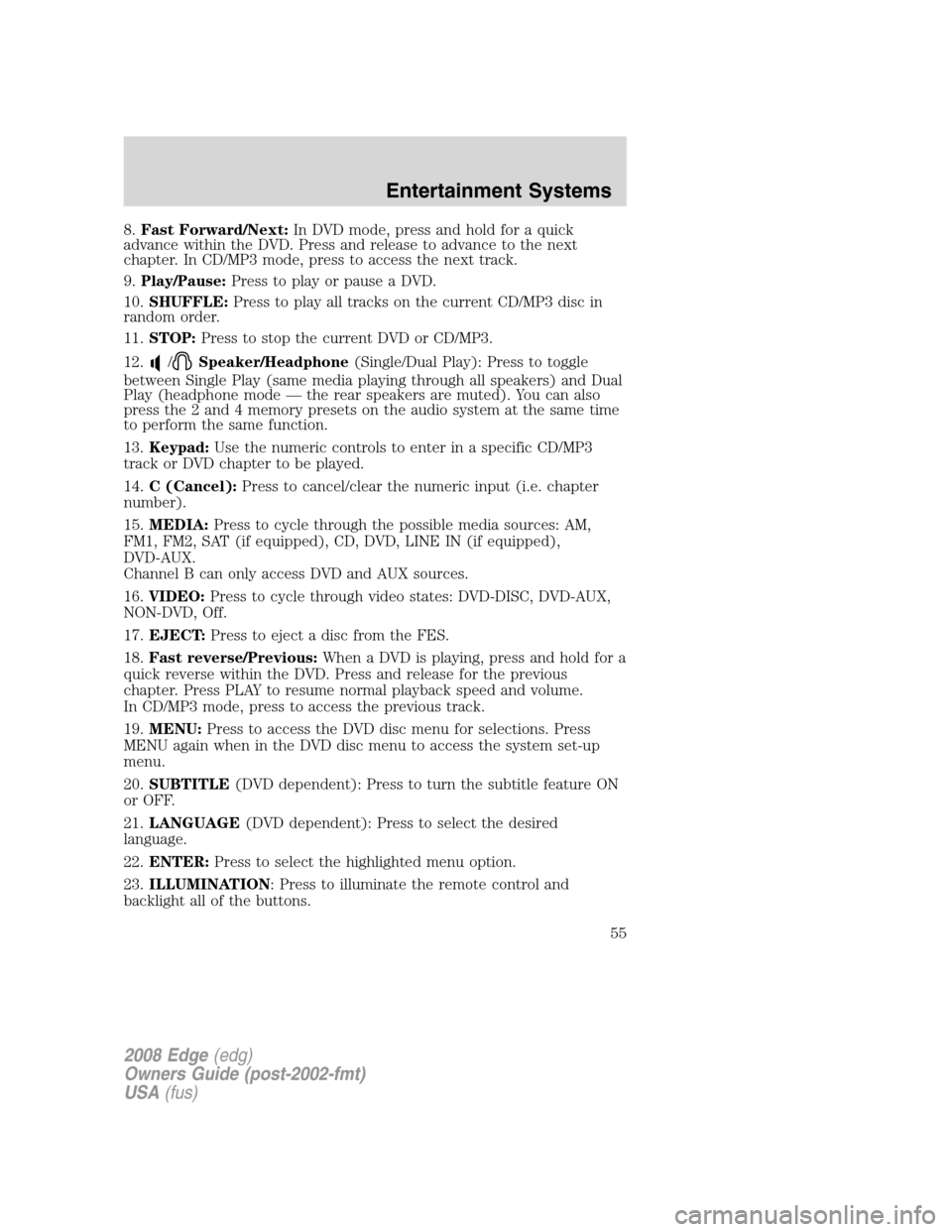
8.Fast Forward/Next:In DVD mode, press and hold for a quick
advance within the DVD. Press and release to advance to the next
chapter. In CD/MP3 mode, press to access the next track.
9.Play/Pause:Press to play or pause a DVD.
10.SHUFFLE:Press to play all tracks on the current CD/MP3 disc in
random order.
11.STOP:Press to stop the current DVD or CD/MP3.
12.
/Speaker/Headphone(Single/Dual Play): Press to toggle
between Single Play (same media playing through all speakers) and Dual
Play (headphone mode — the rear speakers are muted). You can also
press the 2 and 4 memory presets on the audio system at the same time
to perform the same function.
13.Keypad:Use the numeric controls to enter in a specific CD/MP3
track or DVD chapter to be played.
14.C (Cancel):Press to cancel/clear the numeric input (i.e. chapter
number).
15.MEDIA:Press to cycle through the possible media sources: AM,
FM1, FM2, SAT (if equipped), CD, DVD, LINE IN (if equipped),
DVD-AUX.
Channel B can only access DVD and AUX sources.
16.VIDEO:Press to cycle through video states: DVD-DISC, DVD-AUX,
NON-DVD, Off.
17.EJECT:Press to eject a disc from the FES.
18.Fast reverse/Previous:When a DVD is playing, press and hold for a
quick reverse within the DVD. Press and release for the previous
chapter. Press PLAY to resume normal playback speed and volume.
In CD/MP3 mode, press to access the previous track.
19.MENU:Press to access the DVD disc menu for selections. Press
MENU again when in the DVD disc menu to access the system set-up
menu.
20.SUBTITLE(DVD dependent): Press to turn the subtitle feature ON
or OFF.
21.LANGUAGE(DVD dependent): Press to select the desired
language.
22.ENTER:Press to select the highlighted menu option.
23.ILLUMINATION: Press to illuminate the remote control and
backlight all of the buttons.
2008 Edge(edg)
Owners Guide (post-2002-fmt)
USA(fus)
Entertainment Systems
55
Page 62 of 336
Operation with an aftermarket audio system (Headphone only
mode)
When the Family Entertainment System (FES) detects that the original
radio supplied by Ford Motor Company has been removed from the
vehicle, the Family Entertainment System will work in a state referred to
as “Headphone Only Mode”.
While operating in Headphone Only Mode, the system will have limited
functionality.
•The system will only output audio to the headphones. It will not be
capable of providing audio to the speakers.
•The available sources in FES Headphone Only Mode are DVD-DISC
and DVD-AUX, regardless of headphone channel (A or B).
•When a disc is inserted into the FES while in Headphone Only Mode,
both headphone channels (A&B) will be connected to FES-DISC.
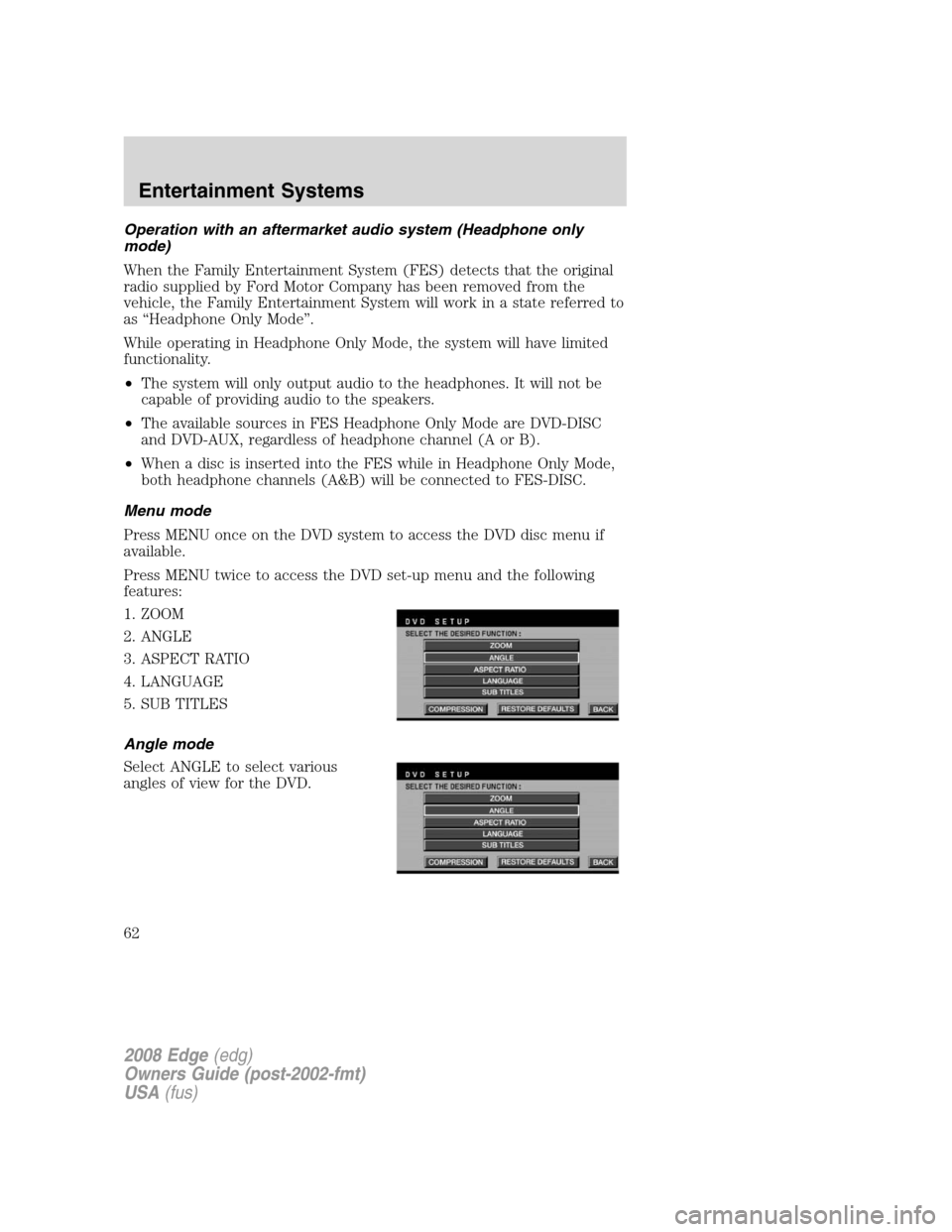
Menu mode
Press MENU once on the DVD system to access the DVD disc menu if
available.
Press MENU twice to access the DVD set-up menu and the following
features:
1. ZOOM
2. ANGLE
3. ASPECT RATIO
4. LANGUAGE
5. SUB TITLES
Angle mode
Select ANGLE to select various
angles of view for the DVD.
2008 Edge(edg)
Owners Guide (post-2002-fmt)
USA(fus)
Entertainment Systems
62
Page 63 of 336
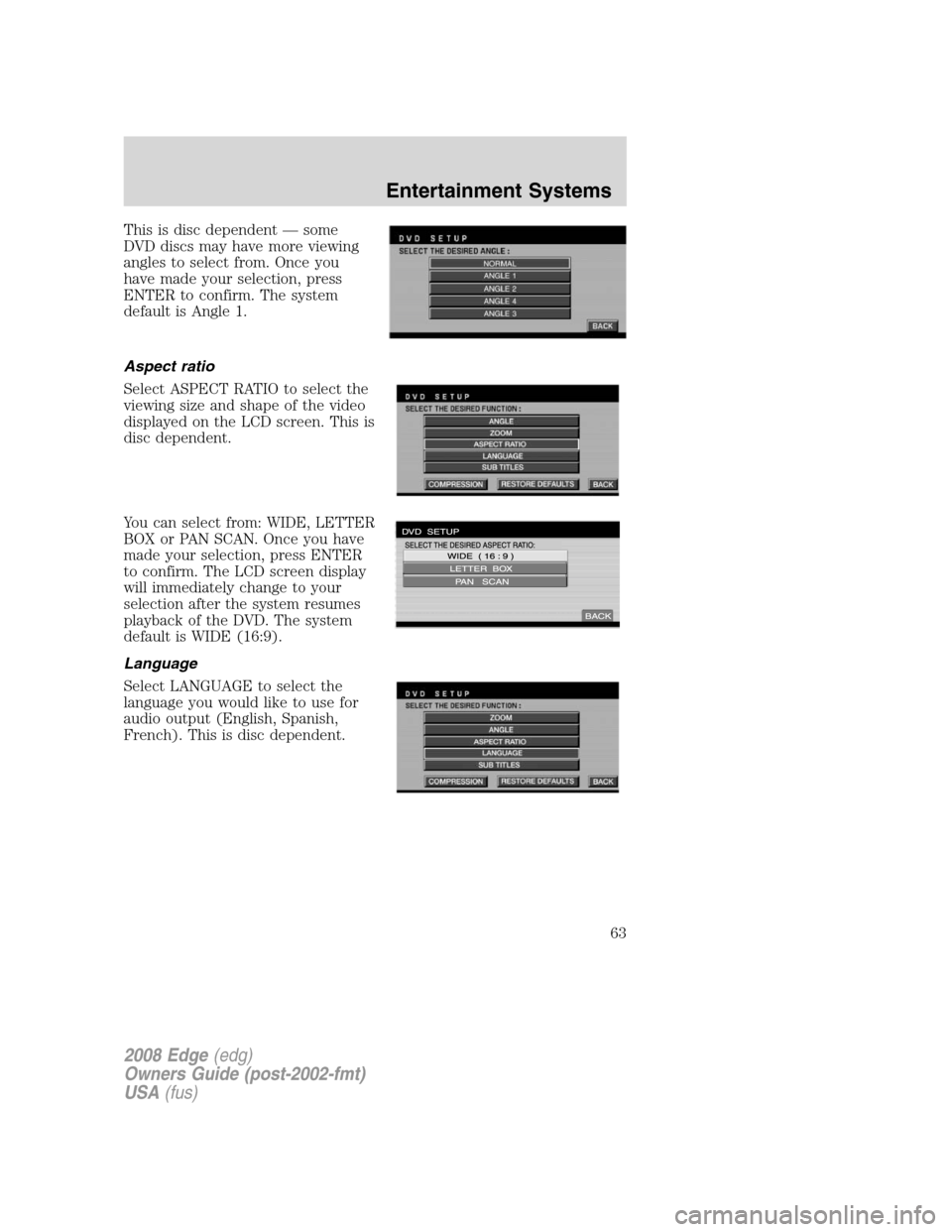
This is disc dependent — some
DVD discs may have more viewing
angles to select from. Once you
have made your selection, press
ENTER to confirm. The system
default is Angle 1.
Aspect ratio
Select ASPECT RATIO to select the
viewing size and shape of the video
displayed on the LCD screen. This is
disc dependent.
You can select from: WIDE, LETTER
BOX or PAN SCAN. Once you have
made your selection, press ENTER
to confirm. The LCD screen display
will immediately change to your
selection after the system resumes
playback of the DVD. The system
default is WIDE (16:9).
Language
Select LANGUAGE to select the
language you would like to use for
audio output (English, Spanish,
French). This is disc dependent.
2008 Edge(edg)
Owners Guide (post-2002-fmt)
USA(fus)
Entertainment Systems
63