wheel FORD EDGE 2016 2.G Owners Manual
[x] Cancel search | Manufacturer: FORD, Model Year: 2016, Model line: EDGE, Model: FORD EDGE 2016 2.GPages: 451, PDF Size: 6.18 MB
Page 362 of 451
System data cannot be accessed without
special equipment and access to the
vehicle's SYNC module. Ford Motor
Company and Ford of Canada will not
access the system data for any purpose
other than as described absent consent, a
court order, or where required by law
enforcement, other government
authorities, or other third parties acting
with lawful authority. Other parties may
seek to access the information
independently of Ford Motor Company and
Ford of Canada. For further privacy
information, see the section on 911 Assist.
See SYNC™ Applications and Services
(page 373). USING VOICE RECOGNITION
This system helps you control many
features using voice commands. This
allows you to keep your hands on the
wheel and focus on what is around you.
Initiating a Voice Session Press the voice button. A list of
available voice commands
appears in the display.
Global Voice Commands
These voice commands are always
available. You can say them at any time. Global voice commands
This command ends the voice session. You
can also cancel a session by holding the
voice button for two or more seconds.
(cancel | exit)
This command provides you with hints,
examples and instructions.
help
This command restarts the voice session
from the initial starting point.
(main menu | start again)
You can say any of the voice commands that appear within open and close brackets that
are separated by |. For example, where; (cancel | exit) appears you say; cancel or exit.
Helpful Hints
• Make sure the interior of your vehicle is
as quiet as possible. Wind noise from
open windows and road vibrations may
prevent the system from correctly
recognizing spoken commands.
• Before giving a voice command, wait
for the system announcement to finish,
followed by a single tone. Any
command spoken before this does not
register with the system. •
Speak naturally, without long pauses
between words.
• You can interrupt the system at any
time while it is speaking by pressing the
voice button. You can cancel a voice
session by pressing and holding the
voice button.
359
Edge/Galaxy/S-MAX (CDQ) Canada/United States of America, enUSA, First Printing SYNC™E142599
Page 367 of 451
![FORD EDGE 2016 2.G Owners Manual Voice Commands
Plus
Pound (#) Star (*)
Note: To exit dial mode, press and hold the
phone button or press any button on the
audio system.
To access text messages say: Voice Command
[text] (messages | m](/img/11/4849/w960_4849-366.png "FORD EDGE 2016 2.G Owners Manual Voice Commands
Plus
Pound (#) Star (*)
Note: To exit dial mode, press and hold the
phone button or press any button on the
audio system.
To access text messages say: Voice Command
[text] (messages | m")
Voice Commands
Plus
Pound (#) Star (*)
Note: To exit dial mode, press and hold the
phone button or press any button on the
audio system.
To access text messages say: Voice Command
[text] (messages | message)
Then say any of the following:
(listen to | read) ([text] message)
forward (text | [text] message)
reply to (text | [text] message)
call [sender]
Phonebook Hints
To hear how the SYNC system speaks a
name browse phonebook, select a contact
and press: Menu Item
Hear it
Changing Devices Using Voice
Commands
Using SYNC, you can easily access multiple
phones, ipods, or USB devices. to switch
devices say: Voice Command
You can state the name of
the desired device, such as“My iPhone ”,“My Galaxy ”
or “My iPod ”. SYNC may
ask you to confirm the type of device (Phone, USB, or Bluetooth Audio).
(connect |
device) ___
Making Calls Press the voice button. When
prompted, say:
Voice Command
call [[a]
name] SYNC prompts you to say
the numbers that you wish
to dial. After you say the
numbers, the system
confirms it. You can then
say:
dial [[a]
number]
When the system has stated the
number, you say any of the following: Voice Command
This initiates the call.
(dial | send)
This erases the spoken
digits.
(delete |
correct)
To end the call, press the end call button
on the steering wheel or select the end call
option in the audio display.
364
Edge/Galaxy/S-MAX (CDQ) Canada/United States of America, enUSA, First Printing SYNC™E142599
Page 368 of 451
Receiving Calls
Accepting calls
When receiving a call, you can answer the
call by pressing the accept call button on
the steering wheel or use the screen.
To use the screen to accept a call
select:
Menu Item
Accept
Rejecting Calls
When receiving a call, you can reject the
call by pressing the reject call button on
the steering wheel or use the screen. To use the screen to reject a call select: Menu Item
Reject
Ignore the call by doing nothing.
Phone Options during an Active
Call
During an active call, you have more menu
features that become available, such as
putting a call on hold or joining calls.
To access this menu, choose one of the
options available at the bottom of the
audio display or select More to choose
from the following options: Description and action
Menu Item
Switch your vehicle's microphone off. To switch the
microphone on, select the option again.
Mic. off
Switch a call from an active hands-free environment to
your cellular phone for a more private conversation. When
selected, the audio display indicates the call is private.
Privacy
Put an active call on hold. When selected, the audio display
indicates the call is on hold.
Hold
Enter numbers using the audio system's numeric keypad
(for example, numbers for passwords).
Dial a number
Join two separate calls. The system supports a maximum
of three callers on a multiparty or conference call.
Join calls
1. Select the
More option.
2. Access the desired contact through the system or use
voice commands to place the second call. Once actively
in the second call, select the
More option.
3. Scroll to the option to join calls and press the OK button.
Access your phonebook contacts.
Phonebook
1. Select the
More option.
2. Scroll to the option for phonebook and press the OK
button.
3. Scroll through your phonebook contacts.
365
Edge/Galaxy/S-MAX (CDQ) Canada/United States of America, enUSA, First Printing SYNC™
Page 377 of 451
Setting 911 Assist On or Off
Press menu then select:
Action and Description
Menu
Item
SYNC-Applications Select desired option, on or
off.
911 Assist
If you choose not to activate this
feature you will have the following
options: Action and Description
Menu
Item
Provides a display and voice
reminder at phone connection
at vehicle start.
Voice
Reminder
ON
Provides a display reminder
only without a voice reminder
at phone connection.
Voice
Reminder
OFF
To make sure that 911 Assist works
properly:
• SYNC must be powered and working
properly at the time of the incident and
throughout feature activation and use.
• The 911 Assist feature must be set on
before the incident.
• You must pair and connect a
Bluetooth-enabled and compatible
cell phone to SYNC.
• A connected Bluetooth-enabled phone
must have the ability to make and
maintain an outgoing call at the time
of the incident. •
A connected Bluetooth-enabled phone
must have adequate network coverage,
battery power and signal strength.
• The vehicle must have battery power
and be located in the U.S., Canada or
in a territory in which 911 is the
emergency number.
In the Event of a Crash
Not all crashes deploy an airbag or activate
the fuel pump shut-off (the triggers for 911
Assist). If a connected cell phone sustains
damage or loses its connection to SYNC
during a crash, SYNC searches for and tries
to connect to a previously paired cell
phone; SYNC then attempts to call the
emergency services.
Before making the call:
• SYNC provides a short window of time
(about 10 seconds) to cancel the call.
If you fail to cancel the call, SYNC
attempts to dial 911.
• SYNC says the following, or a similar
message: "SYNC will attempt to call
911, to cancel the call, press Cancel on
your screen or press and hold the
phone button on your steering wheel".
If you do not cancel the call, and SYNC
makes a successful call, a pre-recorded
message plays for the 911 operator, and
then the occupant(s) in your vehicle is able
to talk with the operator. Be prepared to
provide your name, phone number and
location immediately, because not all 911
systems are capable of receiving this
information electronically.
911 Assist May Not Work If
• Your cellular phone or 911 Assist
hardware sustains damage in a crash.
• The vehicle's battery or the SYNC
system has no power.
• The phone(s) thrown from your vehicle
are the ones paired and connected to
the system.
374
Edge/Galaxy/S-MAX (CDQ) Canada/United States of America, enUSA, First Printing SYNC™
Page 378 of 451
911 Assist Privacy Notice
When you switch on 911 Assist, it may
disclose to emergency services that your
vehicle has been in a crash involving the
deployment of an airbag or activation of
the fuel pump shut-off. Certain versions or
updates to 911 Assist may also be capable
of electronically or verbally disclosing to
911 operators your vehicle location or other
details about your vehicle or crash to assist
911 operators to provide the most
appropriate emergency services. If you do
not want to disclose this information, do
not switch the feature on.
SYNC Mobile Apps
The system enables voice and steering
wheel control of SYNC AppLink enabled
smartphone apps. When an app is running
through AppLink, you can control main
features of the app through voice
commands and steering wheel controls.
Note:
You must pair and connect your
smartphone to SYNC to access AppLink.
Note: iPhone users need to connect the
phone to the USB port.
Note: Android users need to connect the
phone to SYNC using Bluetooth.
Note: For information on available apps,
supported smartphone devices and
troubleshooting tips please visit the Ford
website.
Availability of SYNC AppLink enabled Apps
will vary by region. Note:
Make sure you have an active account
for the app that you have downloaded.
Some apps work automatically with no
setup. Other apps want you to configure
your personal settings and personalize your
experience by creating stations or favorites.
We recommend you do this at home or
outside of your vehicle.
Note: AppLink is not available if your
vehicle is equipped with the MyFordTouch
system.
To Access Using the SYNC Menu
Press the MENU button to access the
menu on-screen. Then select: Action and Description
Menu
Item
SYNC-Apps Scroll through the list of
available applications and
select a particular app or
select:
Mobile
Apps
Find New Apps
Note: If you cannot find a compatible SYNC
AppLink app, make sure the required app is
running on the mobile device.
Accessing an App's Menu
When an app is running through SYNC,
press the right arrow button on the steering
wheel control to access the app menu.
You can access various app features from
here, for example thumbs up and thumbs
down.
Press the left arrow button on the steering
wheel control to exit the app menu.
375
Edge/Galaxy/S-MAX (CDQ) Canada/United States of America, enUSA, First Printing SYNC™
Page 379 of 451
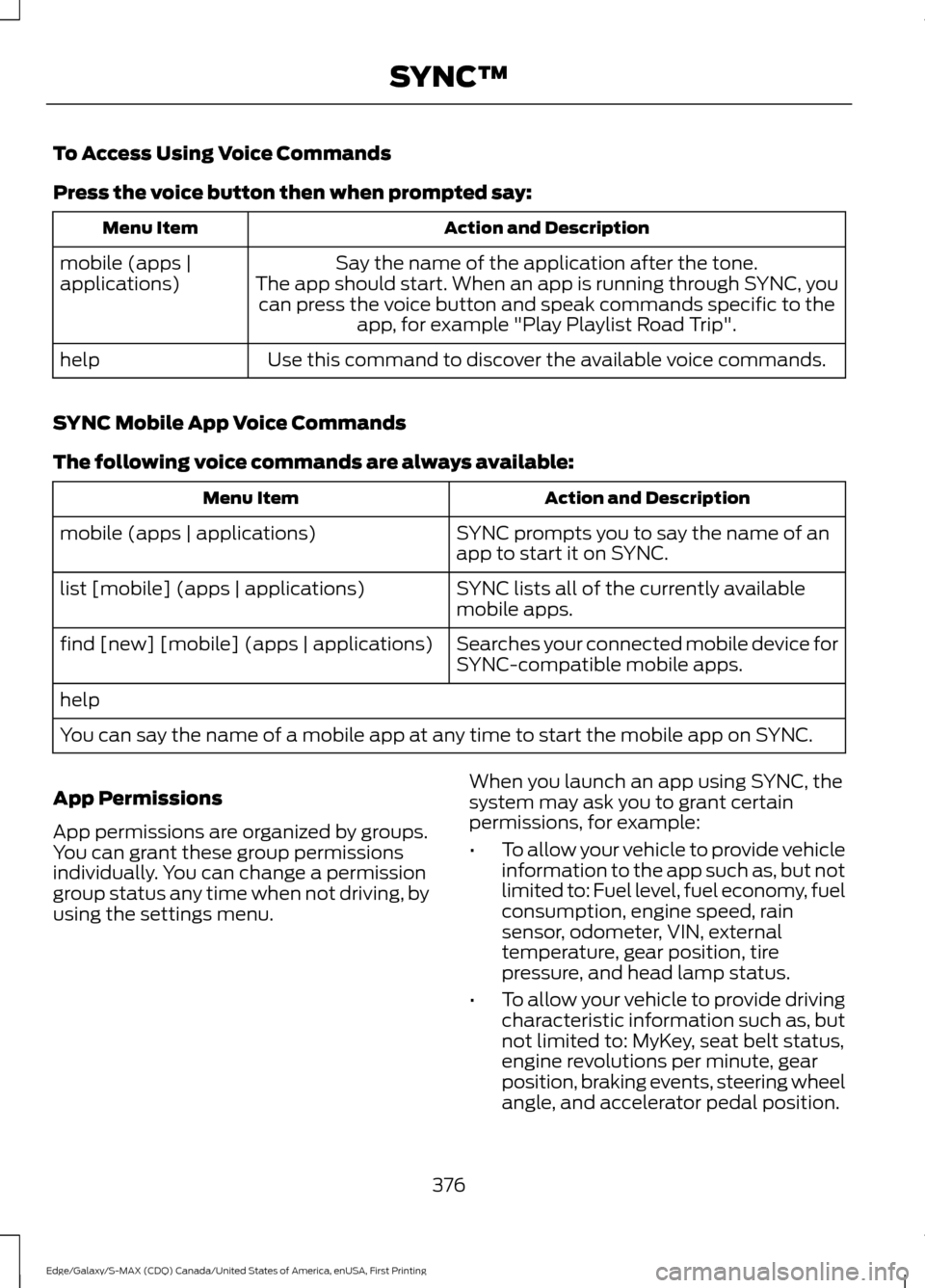
To Access Using Voice Commands
Press the voice button then when prompted say:
Action and Description
Menu Item
Say the name of the application after the tone.
The app should start. When an app is running through SYNC, you can press the voice button and speak commands specific to the app, for example "Play Playlist Road Trip".
mobile (apps |
applications)
Use this command to discover the available voice commands.
help
SYNC Mobile App Voice Commands
The following voice commands are always available: Action and Description
Menu Item
SYNC prompts you to say the name of an
app to start it on SYNC.
mobile (apps | applications)
SYNC lists all of the currently available
mobile apps.
list [mobile] (apps | applications)
Searches your connected mobile device for
SYNC-compatible mobile apps.
find [new] [mobile] (apps | applications)
help
You can say the name of a mobile app at any time to start the mobile app on SYNC.
App Permissions
App permissions are organized by groups.
You can grant these group permissions
individually. You can change a permission
group status any time when not driving, by
using the settings menu. When you launch an app using SYNC, the
system may ask you to grant certain
permissions, for example:
•
To allow your vehicle to provide vehicle
information to the app such as, but not
limited to: Fuel level, fuel economy, fuel
consumption, engine speed, rain
sensor, odometer, VIN, external
temperature, gear position, tire
pressure, and head lamp status.
• To allow your vehicle to provide driving
characteristic information such as, but
not limited to: MyKey, seat belt status,
engine revolutions per minute, gear
position, braking events, steering wheel
angle, and accelerator pedal position.
376
Edge/Galaxy/S-MAX (CDQ) Canada/United States of America, enUSA, First Printing SYNC™
Page 398 of 451
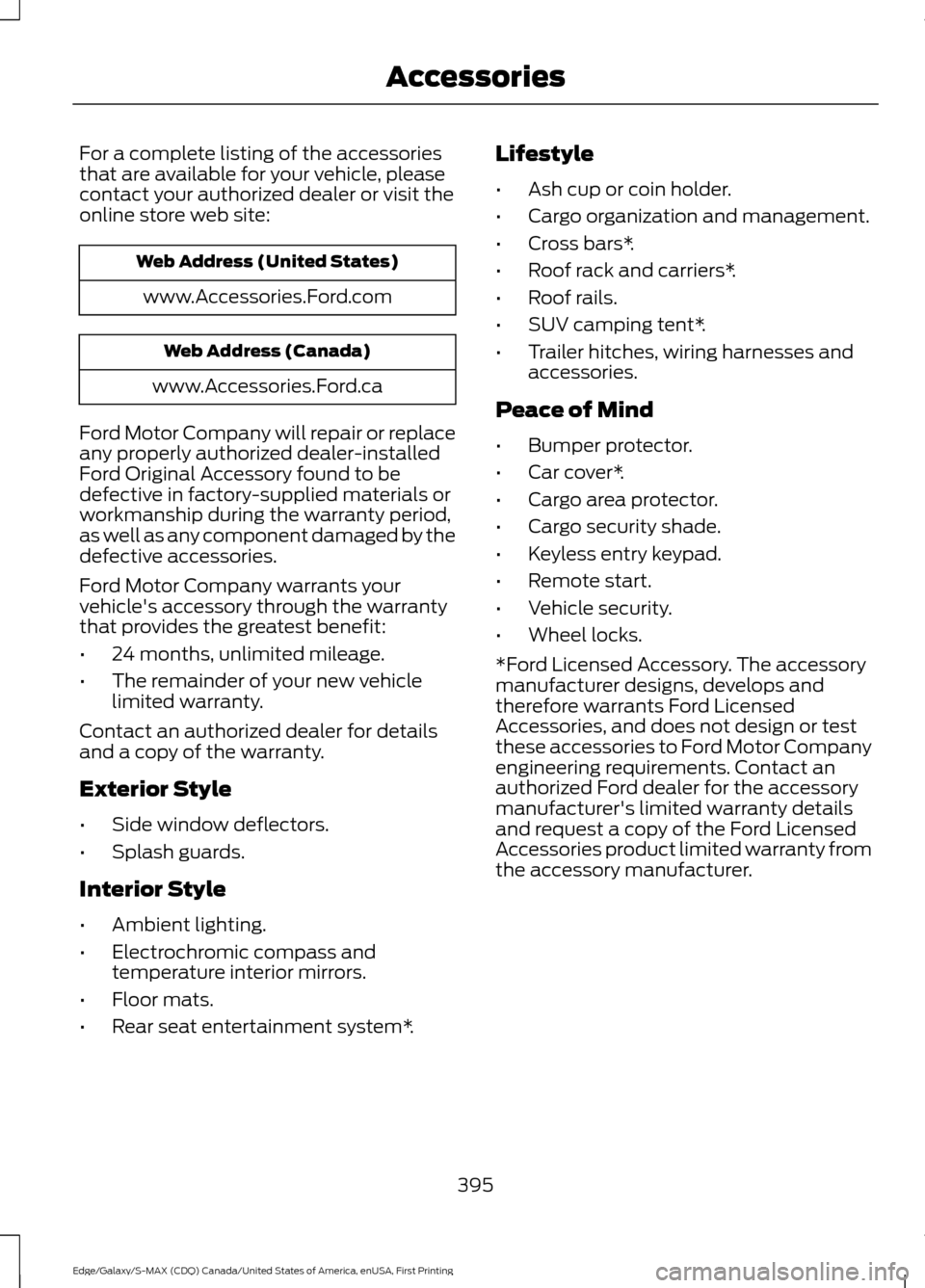
For a complete listing of the accessories
that are available for your vehicle, please
contact your authorized dealer or visit the
online store web site:
Web Address (United States)
www.Accessories.Ford.com Web Address (Canada)
www.Accessories.Ford.ca
Ford Motor Company will repair or replace
any properly authorized dealer-installed
Ford Original Accessory found to be
defective in factory-supplied materials or
workmanship during the warranty period,
as well as any component damaged by the
defective accessories.
Ford Motor Company warrants your
vehicle's accessory through the warranty
that provides the greatest benefit:
• 24 months, unlimited mileage.
• The remainder of your new vehicle
limited warranty.
Contact an authorized dealer for details
and a copy of the warranty.
Exterior Style
• Side window deflectors.
• Splash guards.
Interior Style
• Ambient lighting.
• Electrochromic compass and
temperature interior mirrors.
• Floor mats.
• Rear seat entertainment system*. Lifestyle
•
Ash cup or coin holder.
• Cargo organization and management.
• Cross bars*.
• Roof rack and carriers*.
• Roof rails.
• SUV camping tent*.
• Trailer hitches, wiring harnesses and
accessories.
Peace of Mind
• Bumper protector.
• Car cover*.
• Cargo area protector.
• Cargo security shade.
• Keyless entry keypad.
• Remote start.
• Vehicle security.
• Wheel locks.
*Ford Licensed Accessory. The accessory
manufacturer designs, develops and
therefore warrants Ford Licensed
Accessories, and does not design or test
these accessories to Ford Motor Company
engineering requirements. Contact an
authorized Ford dealer for the accessory
manufacturer's limited warranty details
and request a copy of the Ford Licensed
Accessories product limited warranty from
the accessory manufacturer.
395
Edge/Galaxy/S-MAX (CDQ) Canada/United States of America, enUSA, First Printing Accessories
Page 407 of 451
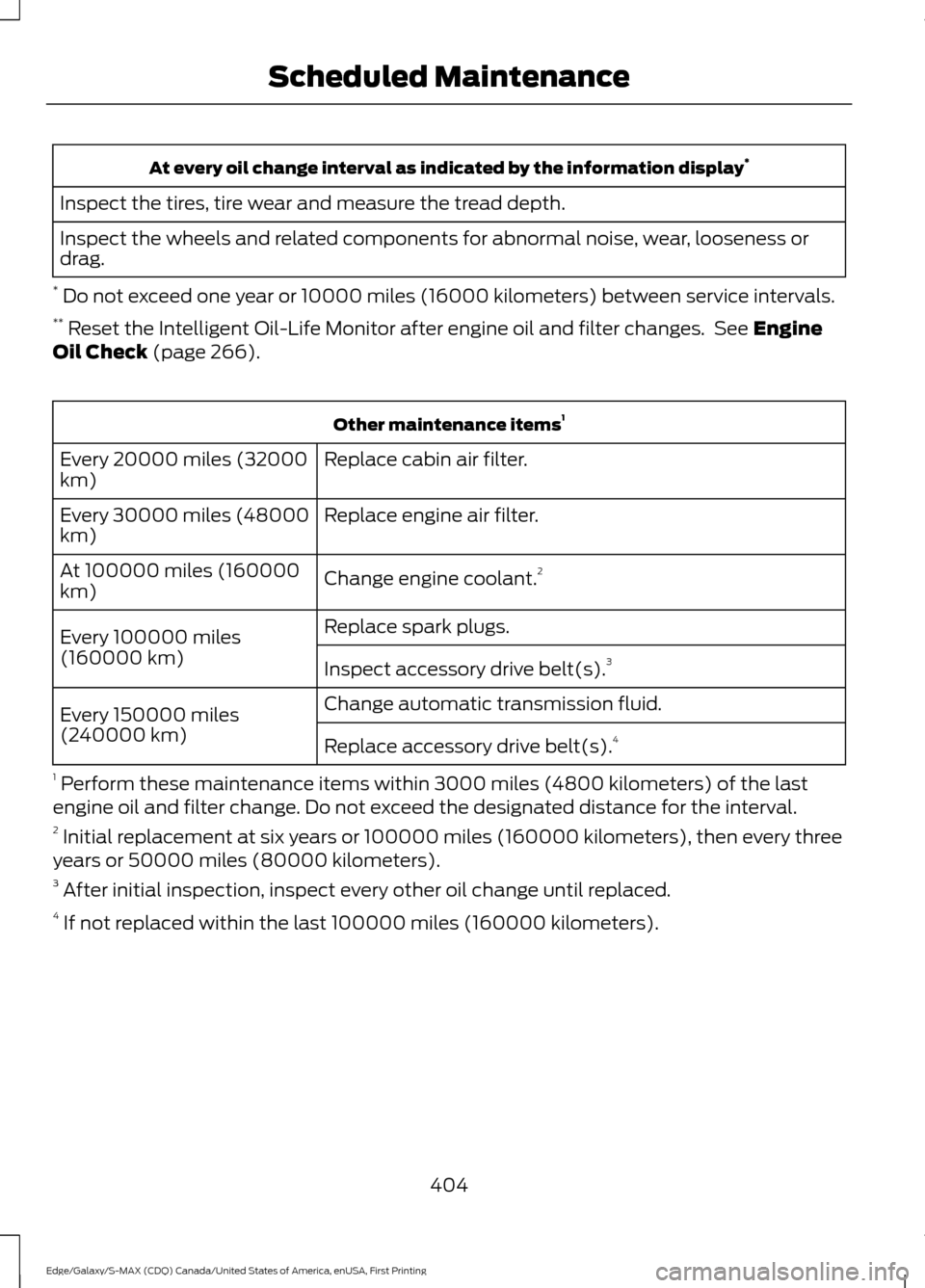
At every oil change interval as indicated by the information display
*
Inspect the tires, tire wear and measure the tread depth.
Inspect the wheels and related components for abnormal noise, wear, looseness or
drag.
* Do not exceed one year or 10000 miles (16000 kilometers) between service intervals.
** Reset the Intelligent Oil-Life Monitor after engine oil and filter changes. See Engine
Oil Check (page 266). Other maintenance items
1
Replace cabin air filter.
Every 20000 miles (32000
km)
Replace engine air filter.
Every 30000 miles (48000
km)
Change engine coolant.2
At 100000 miles (160000
km)
Replace spark plugs.
Every 100000 miles
(160000 km) Inspect accessory drive belt(s). 3
Change automatic transmission fluid.
Every 150000 miles
(240000 km)
Replace accessory drive belt(s). 4
1 Perform these maintenance items within 3000 miles (4800 kilometers) of the last
engine oil and filter change. Do not exceed the designated distance for the interval.
2 Initial replacement at six years or 100000 miles (160000 kilometers), then every three
years or 50000 miles (80000 kilometers).
3 After initial inspection, inspect every other oil change until replaced.
4 If not replaced within the last 100000 miles (160000 kilometers).
404
Edge/Galaxy/S-MAX (CDQ) Canada/United States of America, enUSA, First Printing Scheduled Maintenance
Page 409 of 451
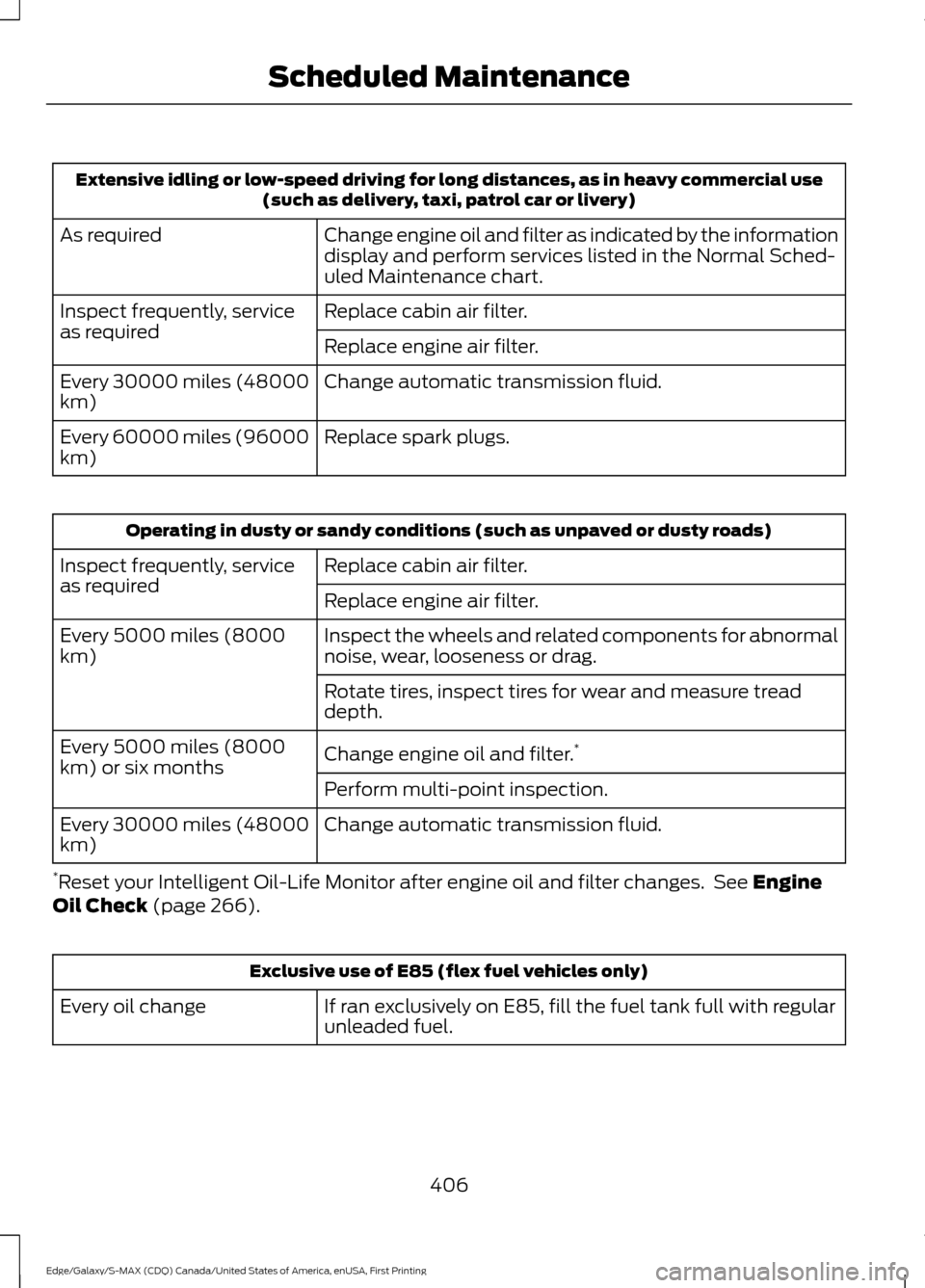
Extensive idling or low-speed driving for long distances, as in heavy commercial use
(such as delivery, taxi, patrol car or livery)
Change engine oil and filter as indicated by the information
display and perform services listed in the Normal Sched-
uled Maintenance chart.
As required
Replace cabin air filter.
Inspect frequently, service
as required
Replace engine air filter.
Change automatic transmission fluid.
Every 30000 miles (48000
km)
Replace spark plugs.
Every 60000 miles (96000
km) Operating in dusty or sandy conditions (such as unpaved or dusty roads)
Replace cabin air filter.
Inspect frequently, service
as required
Replace engine air filter.
Inspect the wheels and related components for abnormal
noise, wear, looseness or drag.
Every 5000 miles (8000
km)
Rotate tires, inspect tires for wear and measure tread
depth.
Change engine oil and filter.*
Every 5000 miles (8000
km) or six months
Perform multi-point inspection.
Change automatic transmission fluid.
Every 30000 miles (48000
km)
* Reset your Intelligent Oil-Life Monitor after engine oil and filter changes. See Engine
Oil Check (page 266). Exclusive use of E85 (flex fuel vehicles only)
If ran exclusively on E85, fill the fuel tank full with regular
unleaded fuel.
Every oil change
406
Edge/Galaxy/S-MAX (CDQ) Canada/United States of America, enUSA, First Printing Scheduled Maintenance
Page 424 of 451
TRADEMARKS: This EULA does not grant
you any rights in connection with any
trademarks or service marks of FORD
MOTOR COMPANY, its affiliates, and third
party software and service providers.
PRODUCT SUPPORT: Please refer to
FORD MOTOR COMPANY instructions
provided in the documentation for the
DEVICES product support, such as the
vehicle owner guide.
Should you have any questions concerning
this EULA, or if you desire to contact FORD
MOTOR COMPANY for any other reason,
please refer to the address provided in the
documentation for the DEVICES.
No Liability for Certain Damages:
EXCEPT AS PROHIBITED BY LAW, FORD
MOTOR COMPANY, ANY THIRD PARTY
SOFTWARE OR SERVICES SUPPLIERS,
AND THEIR AFFILIATES SHALL HAVE NO
LIABILITY FOR ANY INDIRECT, SPECIAL,
CONSEQUENTIAL OR INCIDENTAL
DAMAGES ARISING FROM OR IN
CONNECTION WITH THE USE OR
PERFORMANCE OF THE SOFTWARE. THIS
LIMITATION SHALL APPLY EVEN IF ANY
REMEDY FAILS OF ITS ESSENTIAL
PURPOSE. THERE ARE NO WARRANTIES
OTHER THAN THOSE THAT MAY BE
EXPRESSLY PROVIDED FOR YOUR NEW
VEHICLE.
SYNC® Automotive Important Safety
Information Read and follow
instructions:
• Before using your SYNC® system, read
and follow all instructions and safety
information provided in this end user
manual ("Owner Guide".) Not
following precautions found in the
Owner Guide can lead to an accident
or other serious injuries. General Operation
•
Voice Command Control
: Certain
functions within the SYNC® system
may be accomplished using voice
commands. Using voice commands
while driving helps you to operate the
system without removing your hands
from the wheel or eyes from the road.
• Prolonged Views of Screen:
Do not
access any function requiring a
prolonged view of the screen while you
are driving. Pull over in a safe and legal
manner before attempting to access a
function of the system requiring
prolonged attention.
• Volume Setting:
Do not raise the
volume excessively. Keep the volume
at a level where you can still hear
outside traffic and emergency signals
while driving. Driving while unable to
hear these sounds could cause an
accident.
• Navigation Features:
Any navigation
features included in the system are
intended to provide turn by turn
instructions to get you to a desired
destination. Please make certain all
persons using this system carefully
read and follow instructions and safety
information fully.
• Distraction Hazard:
Any navigation
features may require manual
(non-verbal) setup. Attempting to
perform such set-up or insert data
while driving can distract your attention
and could cause an accident or other
serious injury. Stop the vehicle in a safe
and legal manner before attempting
these operations.
• Let Your Judgment Prevail:
Any
navigation features are provided only
as an aid. Make your driving decisions
based on your observations of local
conditions and existing traffic
regulations. Any such feature is not a
421
Edge/Galaxy/S-MAX (CDQ) Canada/United States of America, enUSA, First Printing Appendices