CD player FORD EDGE 2016 2.G User Guide
[x] Cancel search | Manufacturer: FORD, Model Year: 2016, Model line: EDGE, Model: FORD EDGE 2016 2.GPages: 451, PDF Size: 6.18 MB
Page 386 of 451
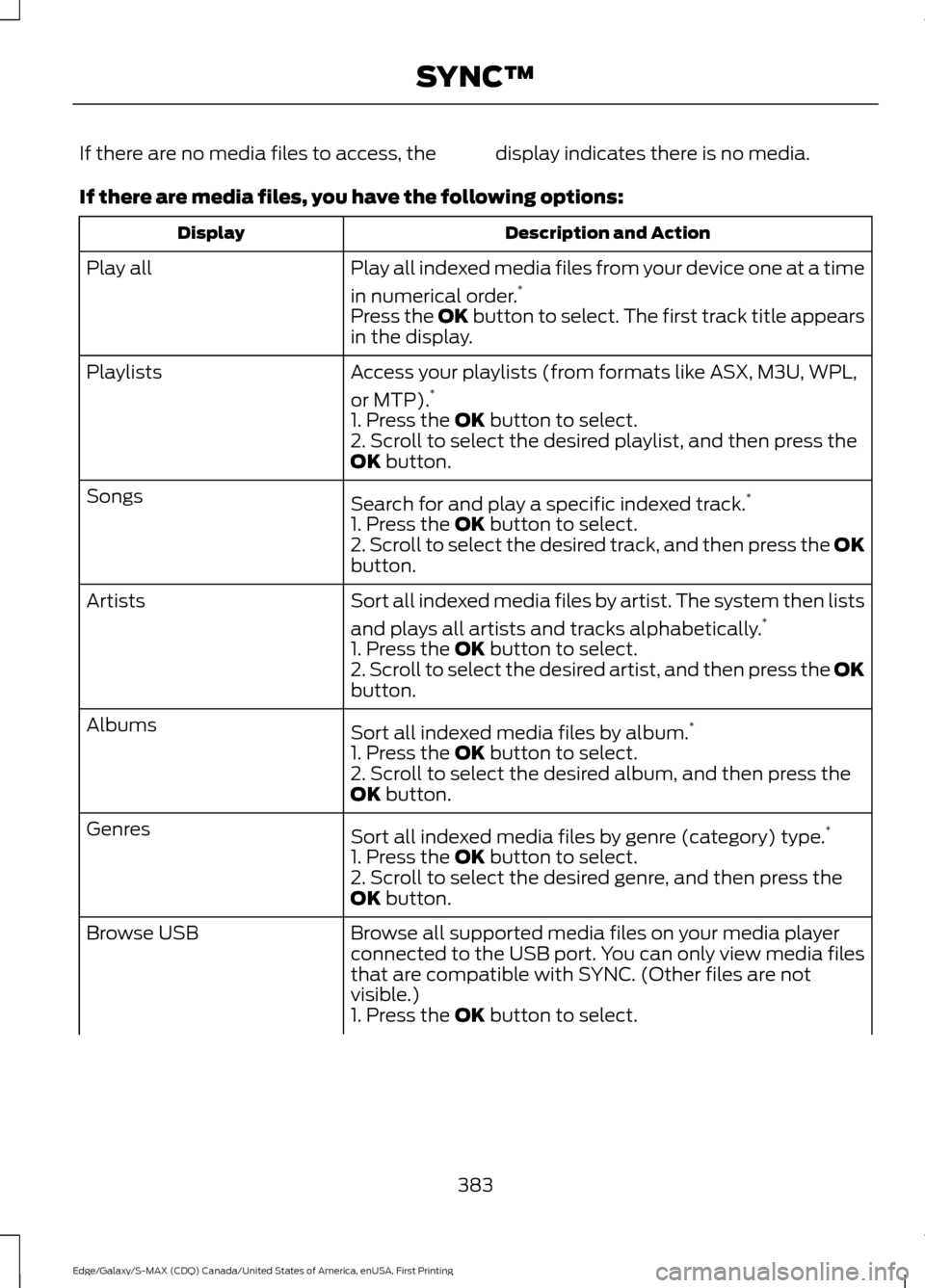
If there are no media files to access, the display indicates there is no media.
If there are media files, you have the following options:
Description and Action
Display
Play all indexed media files from your device one at a time
in numerical order.*
Play all
Press the OK button to select. The first track title appears
in the display.
Access your playlists (from formats like ASX, M3U, WPL,
or MTP).*
Playlists
1. Press the OK button to select.
2. Scroll to select the desired playlist, and then press the
OK
button.
Search for and play a specific indexed track. *
Songs
1. Press the
OK button to select.
2. Scroll to select the desired track, and then press the OK
button.
Sort all indexed media files by artist. The system then lists
and plays all artists and tracks alphabetically. *
Artists
1. Press the
OK button to select.
2. Scroll to select the desired artist, and then press the OK
button.
Sort all indexed media files by album. *
Albums
1. Press the
OK button to select.
2. Scroll to select the desired album, and then press the
OK
button.
Sort all indexed media files by genre (category) type. *
Genres
1. Press the
OK button to select.
2. Scroll to select the desired genre, and then press the
OK
button.
Browse all supported media files on your media player
connected to the USB port. You can only view media files
that are compatible with SYNC. (Other files are not
visible.)
Browse USB
1. Press the
OK button to select.
383
Edge/Galaxy/S-MAX (CDQ) Canada/United States of America, enUSA, First Printing SYNC™
Page 388 of 451
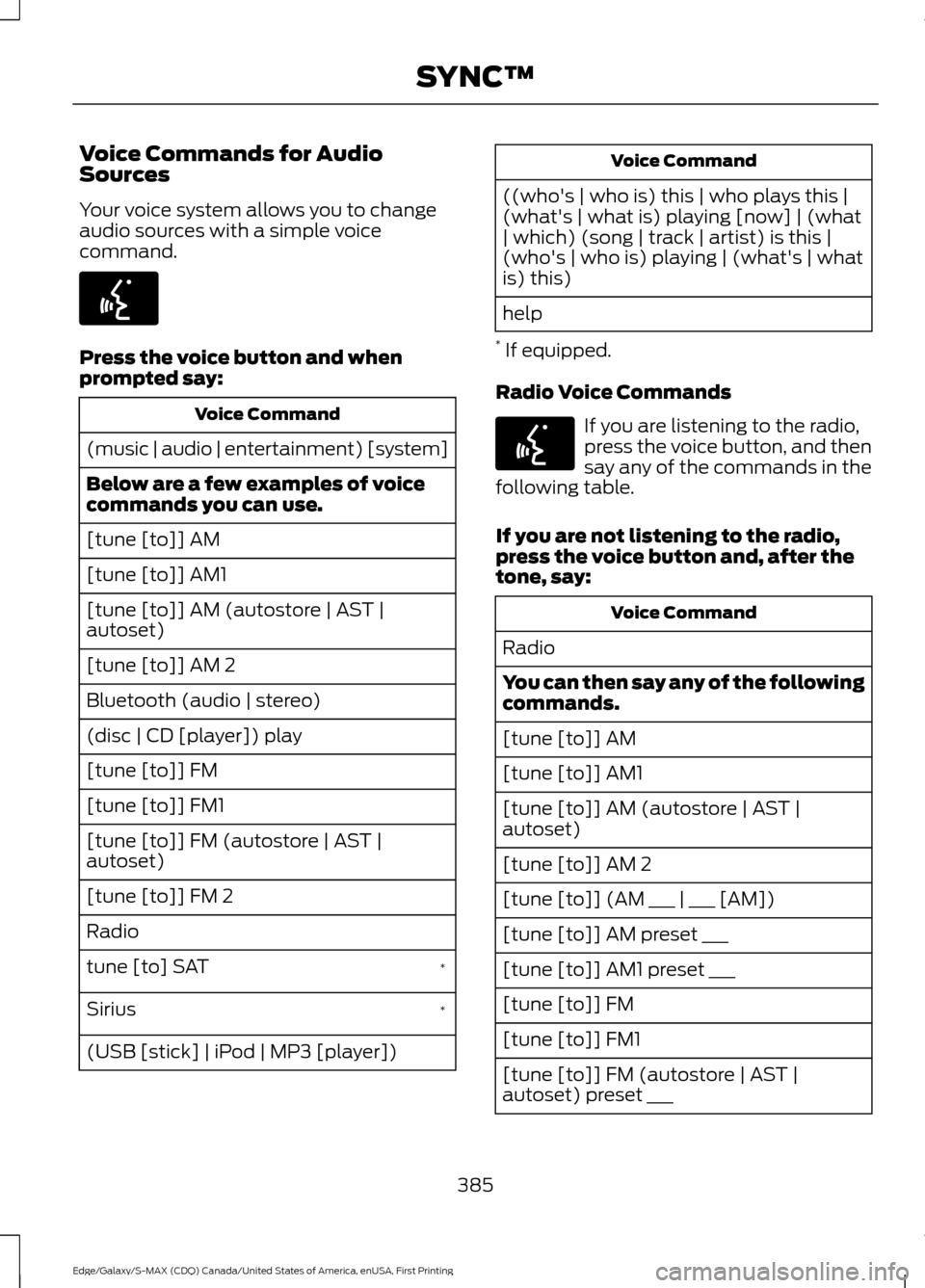
Voice Commands for Audio
Sources
Your voice system allows you to change
audio sources with a simple voice
command.
Press the voice button and when
prompted say:
Voice Command
(music | audio | entertainment) [system]
Below are a few examples of voice
commands you can use.
[tune [to]] AM
[tune [to]] AM1
[tune [to]] AM (autostore | AST |
autoset)
[tune [to]] AM 2
Bluetooth (audio | stereo)
(disc | CD [player]) play
[tune [to]] FM
[tune [to]] FM1
[tune [to]] FM (autostore | AST |
autoset)
[tune [to]] FM 2
Radio *
tune [to] SAT
*
Sirius
(USB [stick] | iPod | MP3 [player]) Voice Command
((who's | who is) this | who plays this |
(what's | what is) playing [now] | (what
| which) (song | track | artist) is this |
(who's | who is) playing | (what's | what
is) this)
help
* If equipped.
Radio Voice Commands If you are listening to the radio,
press the voice button, and then
say any of the commands in the
following table.
If you are not listening to the radio,
press the voice button and, after the
tone, say: Voice Command
Radio
You can then say any of the following
commands.
[tune [to]] AM
[tune [to]] AM1
[tune [to]] AM (autostore | AST |
autoset)
[tune [to]] AM 2
[tune [to]] (AM ___ | ___ [AM])
[tune [to]] AM preset ___
[tune [to]] AM1 preset ___
[tune [to]] FM
[tune [to]] FM1
[tune [to]] FM (autostore | AST |
autoset) preset ___
385
Edge/Galaxy/S-MAX (CDQ) Canada/United States of America, enUSA, First Printing SYNC™E142599 E142599
Page 389 of 451
![FORD EDGE 2016 2.G User Guide Voice Command
[tune [to]] FM 2
[tune [to]] (FM ___ | ___ [FM])
[tune [to]] FM preset ___ *
FM ___ HD ___
[tune [to]] FM 2 preset ___
*
HD ___
[tune [to]] preset ___
Tune
help
* If equipped.
Sirius Sa](/img/11/4849/w960_4849-388.png "FORD EDGE 2016 2.G User Guide Voice Command
[tune [to]] FM 2
[tune [to]] (FM ___ | ___ [FM])
[tune [to]] FM preset ___ *
FM ___ HD ___
[tune [to]] FM 2 preset ___
*
HD ___
[tune [to]] preset ___
Tune
help
* If equipped.
Sirius Sa")
Voice Command
[tune [to]] FM 2
[tune [to]] (FM ___ | ___ [FM])
[tune [to]] FM preset ___ *
FM ___ HD ___
[tune [to]] FM 2 preset ___
*
HD ___
[tune [to]] preset ___
Tune
help
* If equipped.
Sirius Satellite Radio Voice Commands
(If equipped) To listen to Sirius satellite radio,
press the voice button and, after
the tone, say:
Voice Commands
Sirius
When you are listening to Sirius
satellite radio, you can press the voice
button, and say any of the commands
in the following table. Voice Commands
tune [to] SAT
[tune [to]] SAT 1
[tune [to]] SAT 2
[tune [to]] SAT 3
[tune [to]] preset ___
[tune [to]] SAT 1 preset ___ Voice Commands
[tune [to]] SAT 2 preset ___
[tune [to]] SAT 3 preset ___
tune [to] [Sirius]
Help You can say the
channel number (0-
233) to listen to that Sirius station.
[tune [to]] Sirius
[channel] ___
CD Voice Commands If you are listening to a CD, press
the voice button, and then say
any of the commands in the
following table.
If you are not listening to a CD, press
the voice button and, after the tone,
say: Voice Command
(disc | CD [player]) play
You can then say any of the following
commands.
pause
play
[play] next track
[play] previous track
[play | change to] track [number] ___
repeat (track | song) [on]
repeat folder [on]
repeat off
(shuffle | random | mix) [on | (tracks |
songs) [on]]
386
Edge/Galaxy/S-MAX (CDQ) Canada/United States of America, enUSA, First Printing SYNC™E142599 E142599
Page 390 of 451
![FORD EDGE 2016 2.G User Guide Voice Command
(shuffle | random | mix) (CD [player] |
disc) [on]
(shuffle | random | mix) folder [on]
shuffle off
SYNC™ TROUBLESHOOTING
Your SYNC system is easy to use. However,
should questions ari](/img/11/4849/w960_4849-389.png "FORD EDGE 2016 2.G User Guide Voice Command
(shuffle | random | mix) (CD [player] |
disc) [on]
(shuffle | random | mix) folder [on]
shuffle off
SYNC™ TROUBLESHOOTING
Your SYNC system is easy to use. However,
should questions ari")
Voice Command
(shuffle | random | mix) (CD [player] |
disc) [on]
(shuffle | random | mix) folder [on]
shuffle off
SYNC™ TROUBLESHOOTING
Your SYNC system is easy to use. However,
should questions arise, see the tables
below. Use the website at any time to check your
phone's compatibility, register your
account and set preferences as well as
access a customer representative via an
online chat (during certain hours). Visit
www.SYNCMyRide.com,
www.SYNCMyRide.ca or
www.syncmaroute.ca for more
information.Phone issues
Possible solution(s)
Possible cause(s)
Issue
Review your phone's manualabout audio adjustments.
The audio control settings
on your phone may be
affecting SYNC perform- ance.
There is excessive back-
ground noise during a phone call.
Try turning off the device,resetting the device,
removing the device's
battery, then trying again.
This may be a possible
phone malfunction.
During a call, I can hear the
other person but theycannot hear me.
Go to the website to reviewyour phone's compatibility.
This is a phone-dependent feature.
SYNC is not able to down- load my phonebook. Try turning off the device,
resetting the device orremoving the device's
battery, then trying again.
Try pushing your phonebook contacts to SYNC by usingthe Add Contacts feature.
This may be a possible
phone malfunction. Use the SYNCmyphone
feature available on the website.
Try pushing your phonebook contacts to SYNC by usingthe Add Contacts feature.
This may be a limitation on
your phone's capability.
The system says Phonebook
Downloaded but the
phonebook in SYNC is
empty or missing contacts.
387
Edge/Galaxy/S-MAX (CDQ) Canada/United States of America, enUSA, First Printing SYNC™
Page 449 of 451
USB Port.........................................................356
Using Adaptive Cruise Control................198
Automatic Cancellation................................... 201
Blocked Sensor................................................... 202
Canceling the Set Speed............................... 200
Changing the Set Speed.................................. 201
Detection Issues................................................. 201
Following a Vehicle............................................ 199
Hilly Condition Usage........................................ 201
Overriding the System.................................... 200
Resuming the Set Speed................................. 201
Setting the Adaptive Cruise Speed.............199
Setting the Gap Distance............................... 200
Switching Adaptive Cruise Control Off....................................................................... 201
Switching Adaptive Cruise Control On........................................................................\
198
Switching to Normal Cruise Control...........203
System Not Available...................................... 202
Using All-Wheel Drive.................................170 Driving In Special Conditions With
All-Wheel Drive (AWD)............................... 170
Using Cruise Control....................................197
Switching Cruise Control Off......................... 198
Switching Cruise Control On........................... 197
Using MyKey With Remote Start Systems
..........................................................56
Using Snow Chains......................................315
Using Stability Control................................182
Using Summer Tires
....................................315
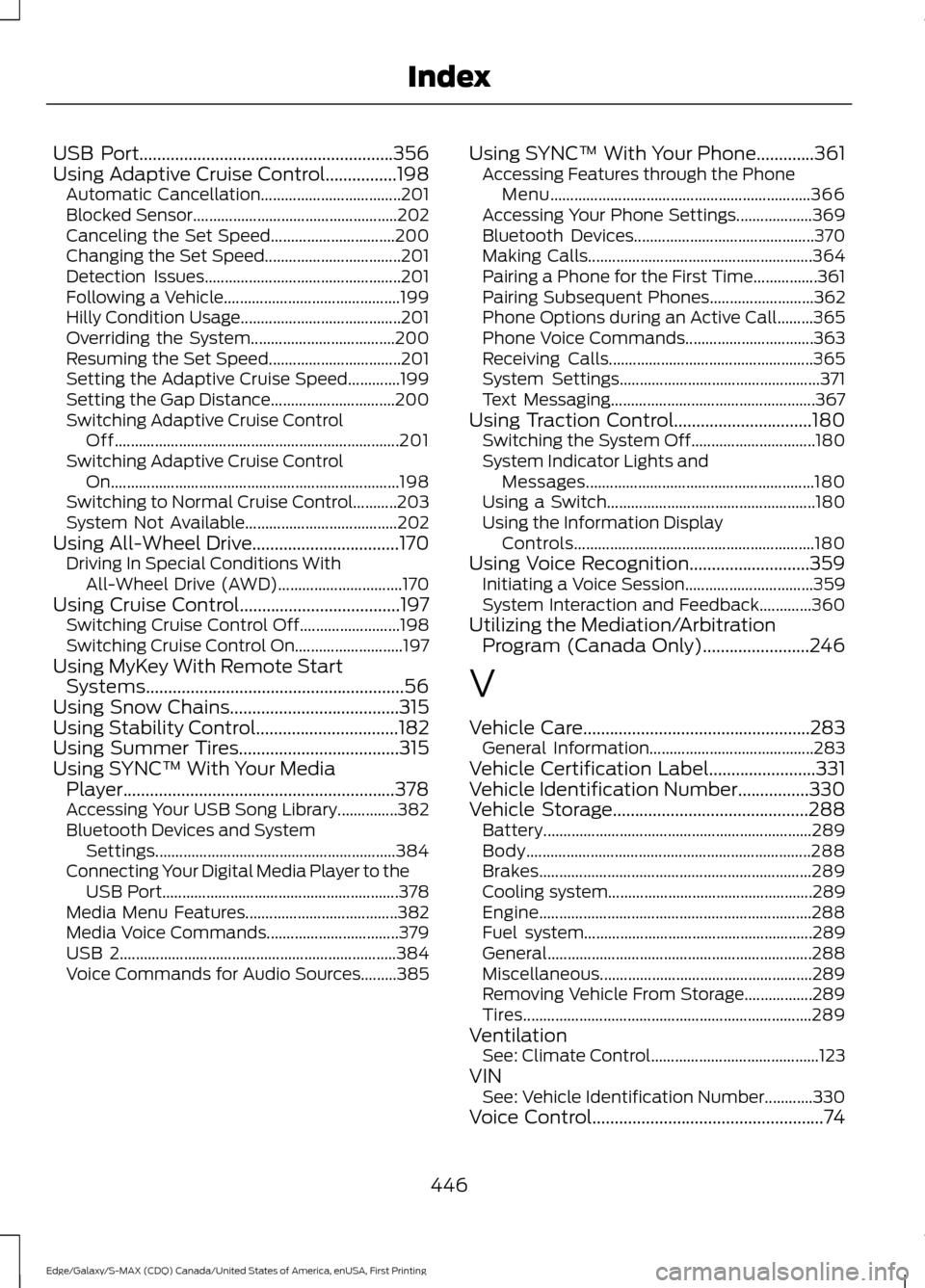
Using SYNC™ With Your Media Player.............................................................378
Accessing Your USB Song Library...............382
Bluetooth Devices and System Settings............................................................ 384
Connecting Your Digital Media Player to the USB Port........................................................... 378
Media Menu Features...................................... 382
Media Voice Commands................................. 379
USB 2..................................................................... 384
Voice Commands for Audio Sources.........385 Using SYNC™ With Your Phone.............361
Accessing Features through the Phone
Menu................................................................. 366
Accessing Your Phone Settings................... 369
Bluetooth Devices............................................. 370
Making Calls........................................................ 364
Pairing a Phone for the First Time................361
Pairing Subsequent Phones.......................... 362
Phone Options during an Active Call.........365
Phone Voice Commands................................ 363
Receiving Calls................................................... 365
System Settings.................................................. 371
Text Messaging................................................... 367
Using Traction Control...............................180 Switching the System Off............................... 180
System Indicator Lights and Messages......................................................... 180
Using a Switch.................................................... 180
Using the Information Display Controls............................................................ 180
Using Voice Recognition...........................359 Initiating a Voice Session................................ 359
System Interaction and Feedback.............360
Utilizing the Mediation/Arbitration Program (Canada Only)
........................246
V
Vehicle Care
...................................................283
General Information......................................... 283
Vehicle Certification Label........................331
Vehicle Identification Number................330
Vehicle Storage
............................................288
Battery................................................................... 289
Body....................................................................... 288
Brakes.................................................................... 289
Cooling system................................................... 289
Engine.................................................................... 288
Fuel system......................................................... 289
General.................................................................. 288
Miscellaneous..................................................... 289
Removing Vehicle From Storage.................289
Tires........................................................................\
289
Ventilation See: Climate Control.......................................... 123
VIN See: Vehicle Identification Number............330
Voice Control
....................................................74
446
Edge/Galaxy/S-MAX (CDQ) Canada/United States of America, enUSA, First Printing Index