fuel pump FORD EDGE 2016 2.G User Guide
[x] Cancel search | Manufacturer: FORD, Model Year: 2016, Model line: EDGE, Model: FORD EDGE 2016 2.GPages: 451, PDF Size: 6.18 MB
Page 258 of 451
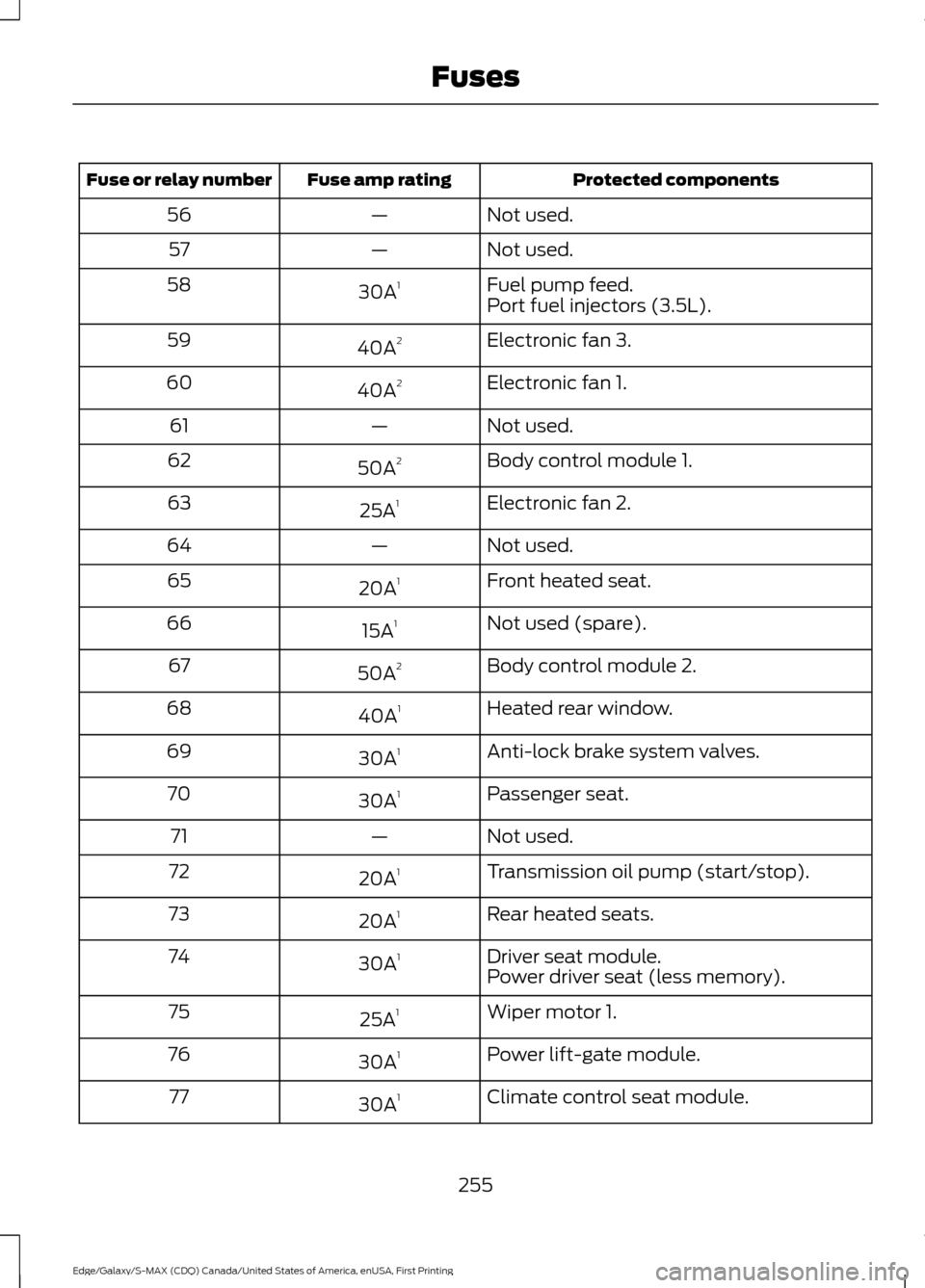
Protected components
Fuse amp rating
Fuse or relay number
Not used.
—
56
Not used.
—
57
Fuel pump feed.
30A 1
58
Port fuel injectors (3.5L).
Electronic fan 3.
40A 2
59
Electronic fan 1.
40A 2
60
Not used.
—
61
Body control module 1.
50A 2
62
Electronic fan 2.
25A 1
63
Not used.
—
64
Front heated seat.
20A 1
65
Not used (spare).
15A 1
66
Body control module 2.
50A 2
67
Heated rear window.
40A 1
68
Anti-lock brake system valves.
30A 1
69
Passenger seat.
30A 1
70
Not used.
—
71
Transmission oil pump (start/stop).
20A 1
72
Rear heated seats.
20A 1
73
Driver seat module.
30A 1
74
Power driver seat (less memory).
Wiper motor 1.
25A 1
75
Power lift-gate module.
30A 1
76
Climate control seat module.
30A 1
77
255
Edge/Galaxy/S-MAX (CDQ) Canada/United States of America, enUSA, First Printing Fuses
Page 292 of 451
•
With your foot on the brake, shift
through all the gears while the engine
is running.
• We recommend that you change the
engine oil before you use your vehicle
again.
Fuel system
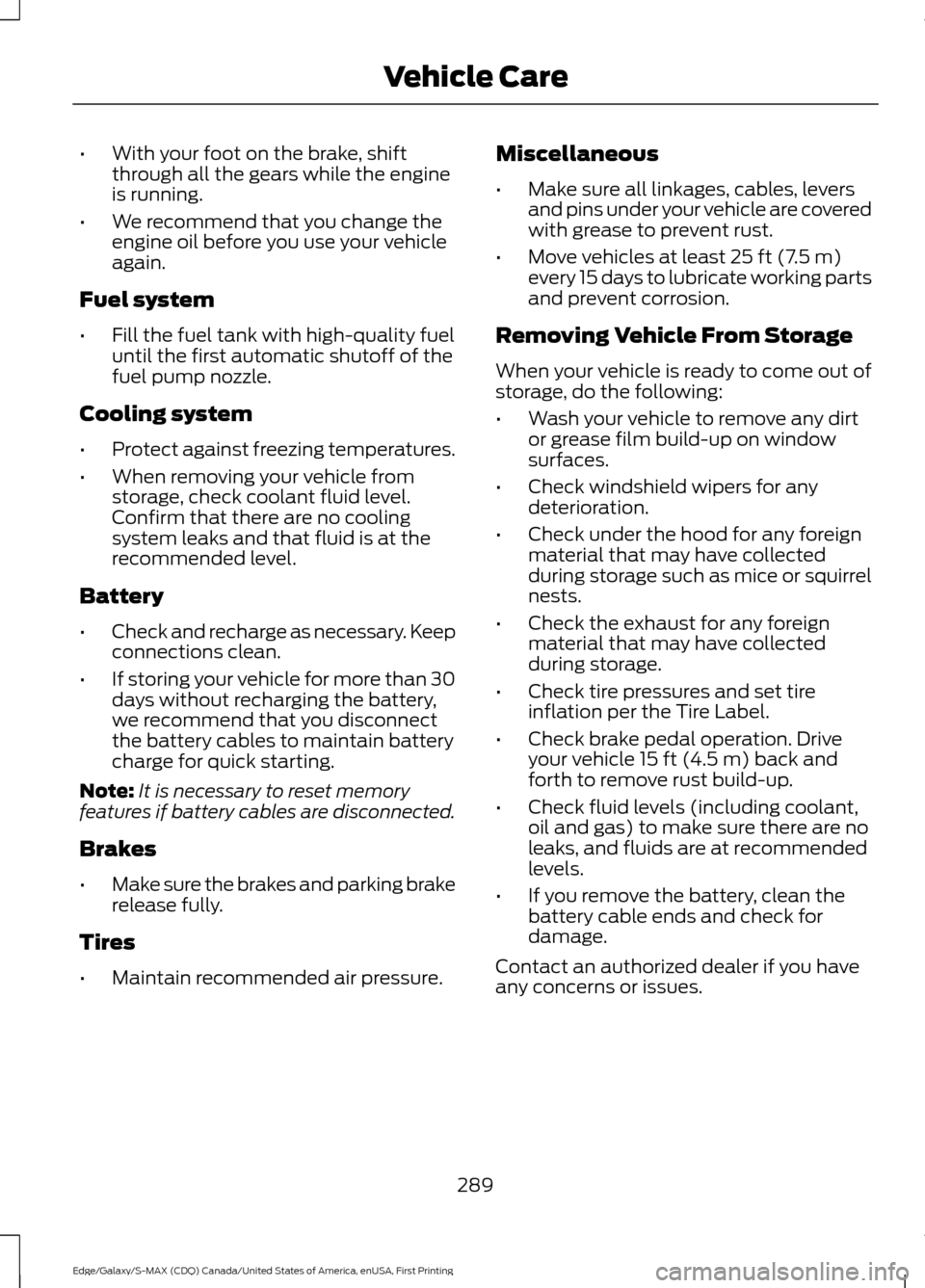
• Fill the fuel tank with high-quality fuel
until the first automatic shutoff of the
fuel pump nozzle.
Cooling system
• Protect against freezing temperatures.
• When removing your vehicle from
storage, check coolant fluid level.
Confirm that there are no cooling
system leaks and that fluid is at the
recommended level.
Battery
• Check and recharge as necessary. Keep
connections clean.
• If storing your vehicle for more than 30
days without recharging the battery,
we recommend that you disconnect
the battery cables to maintain battery
charge for quick starting.
Note: It is necessary to reset memory
features if battery cables are disconnected.
Brakes
• Make sure the brakes and parking brake
release fully.
Tires
• Maintain recommended air pressure. Miscellaneous
•
Make sure all linkages, cables, levers
and pins under your vehicle are covered
with grease to prevent rust.
• Move vehicles at least 25 ft (7.5 m)
every 15 days to lubricate working parts
and prevent corrosion.
Removing Vehicle From Storage
When your vehicle is ready to come out of
storage, do the following:
• Wash your vehicle to remove any dirt
or grease film build-up on window
surfaces.
• Check windshield wipers for any
deterioration.
• Check under the hood for any foreign
material that may have collected
during storage such as mice or squirrel
nests.
• Check the exhaust for any foreign
material that may have collected
during storage.
• Check tire pressures and set tire
inflation per the Tire Label.
• Check brake pedal operation. Drive
your vehicle
15 ft (4.5 m) back and
forth to remove rust build-up.
• Check fluid levels (including coolant,
oil and gas) to make sure there are no
leaks, and fluids are at recommended
levels.
• If you remove the battery, clean the
battery cable ends and check for
damage.
Contact an authorized dealer if you have
any concerns or issues.
289
Edge/Galaxy/S-MAX (CDQ) Canada/United States of America, enUSA, First Printing Vehicle Care
Page 376 of 451
SYNC™ APPLICATIONS AND
SERVICES (If Equipped)
In order for the following features to work,
your cellular phone must be compatible
with SYNC. To check your phone's
compatibility, visit www.SYNCMyRide.com,
www.SYNCMyRide.ca or
www.syncmaroute.ca.
• 911 Assist: Can alert 911 in the event of
an emergency.
• SYNC AppLink: Allows you to connect
to and use certain applications such as
Spotify and Glympse (if your phone is
compatible).
These features may require activation.
Available AppLink enabled apps vary by
market.
911 Assist WARNINGS
Unless the 911 Assist setting is set on
before a crash, the system will not
dial for help which could delay
response time, potentially increasing the
risk of serious injury or death after a crash. Do not wait for 911 Assist to make an
emergency call if you can do it
yourself. Dial emergency services
immediately to avoid delayed response
time which could increase the risk of
serious injury or death after a crash. If you
do not hear 911 Assist within five seconds
of the crash, the system or phone may be
damaged or non-functional. Always place your phone in a secure
location in your vehicle so it does not
become a projectile or get damaged
in a crash. Failure to do so may cause
serious injury to someone or damage the
phone which could prevent 911 Assist from
working properly. Note:
The SYNC 911 Assist feature must be
set on before the incident.
Note: The SYNC 911 Assist feature only
operates in the U.S., Canada or in a territory
in which 911 is the emergency number.
Note: Before setting this feature on, make
sure that you read the 911 Assist Privacy
Notice later in this section for important
information.
Note: If any user switches 911 Assist to on
or off, that setting applies for all paired
phones. If 911 Assist is switched off, either
a voice message plays or a display message
or an icon comes on when your vehicle is
started and after a previously paired phone
connects.
Note: Every phone operates differently.
While SYNC 911 Assist works with most
cellular phones, some may have trouble
using this feature.
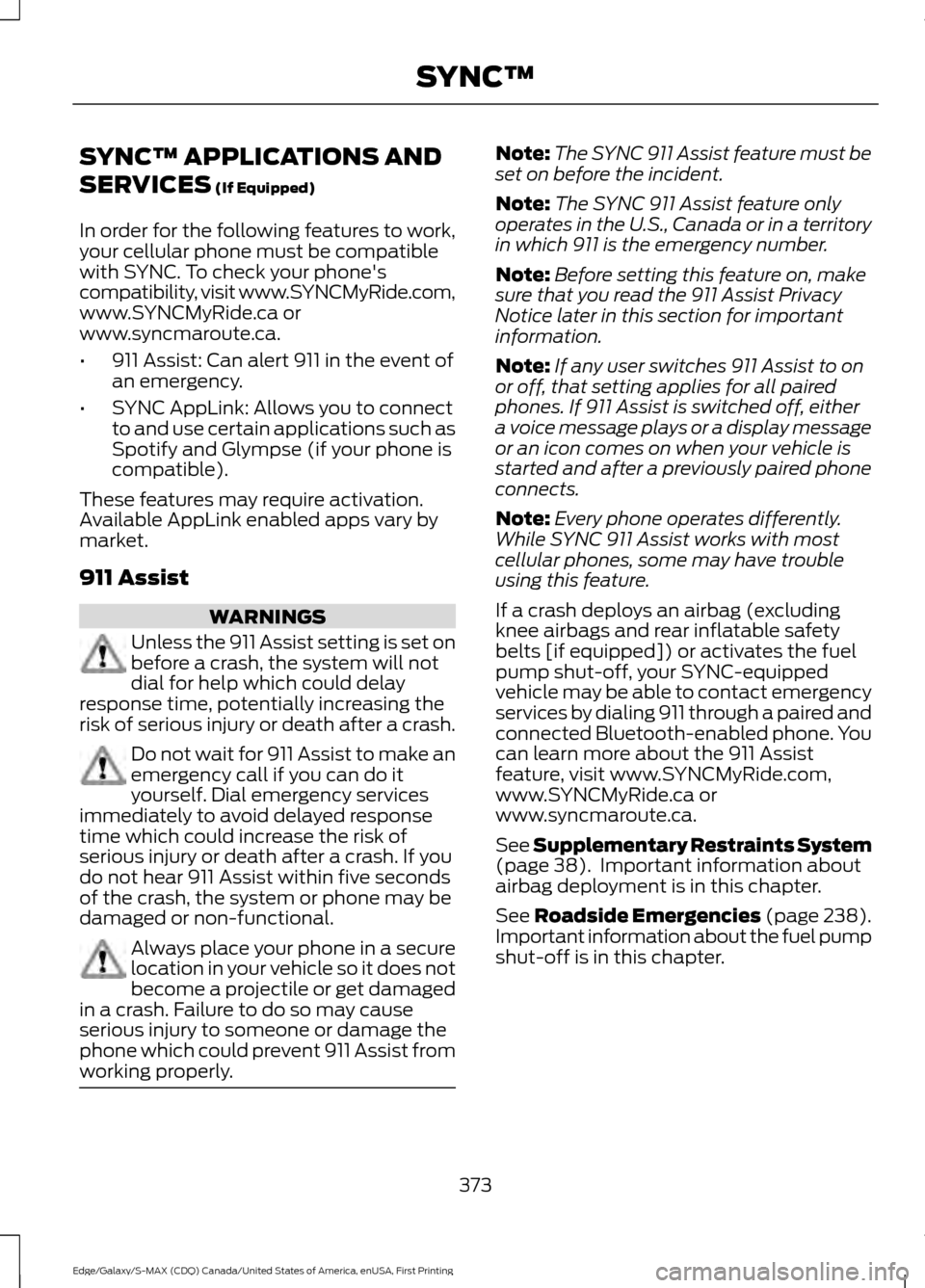
If a crash deploys an airbag (excluding
knee airbags and rear inflatable safety
belts [if equipped]) or activates the fuel
pump shut-off, your SYNC-equipped
vehicle may be able to contact emergency
services by dialing 911 through a paired and
connected Bluetooth-enabled phone. You
can learn more about the 911 Assist
feature, visit www.SYNCMyRide.com,
www.SYNCMyRide.ca or
www.syncmaroute.ca.
See
Supplementary Restraints System
(page 38). Important information about
airbag deployment is in this chapter.
See
Roadside Emergencies (page 238).
Important information about the fuel pump
shut-off is in this chapter.
373
Edge/Galaxy/S-MAX (CDQ) Canada/United States of America, enUSA, First Printing SYNC™
Page 377 of 451
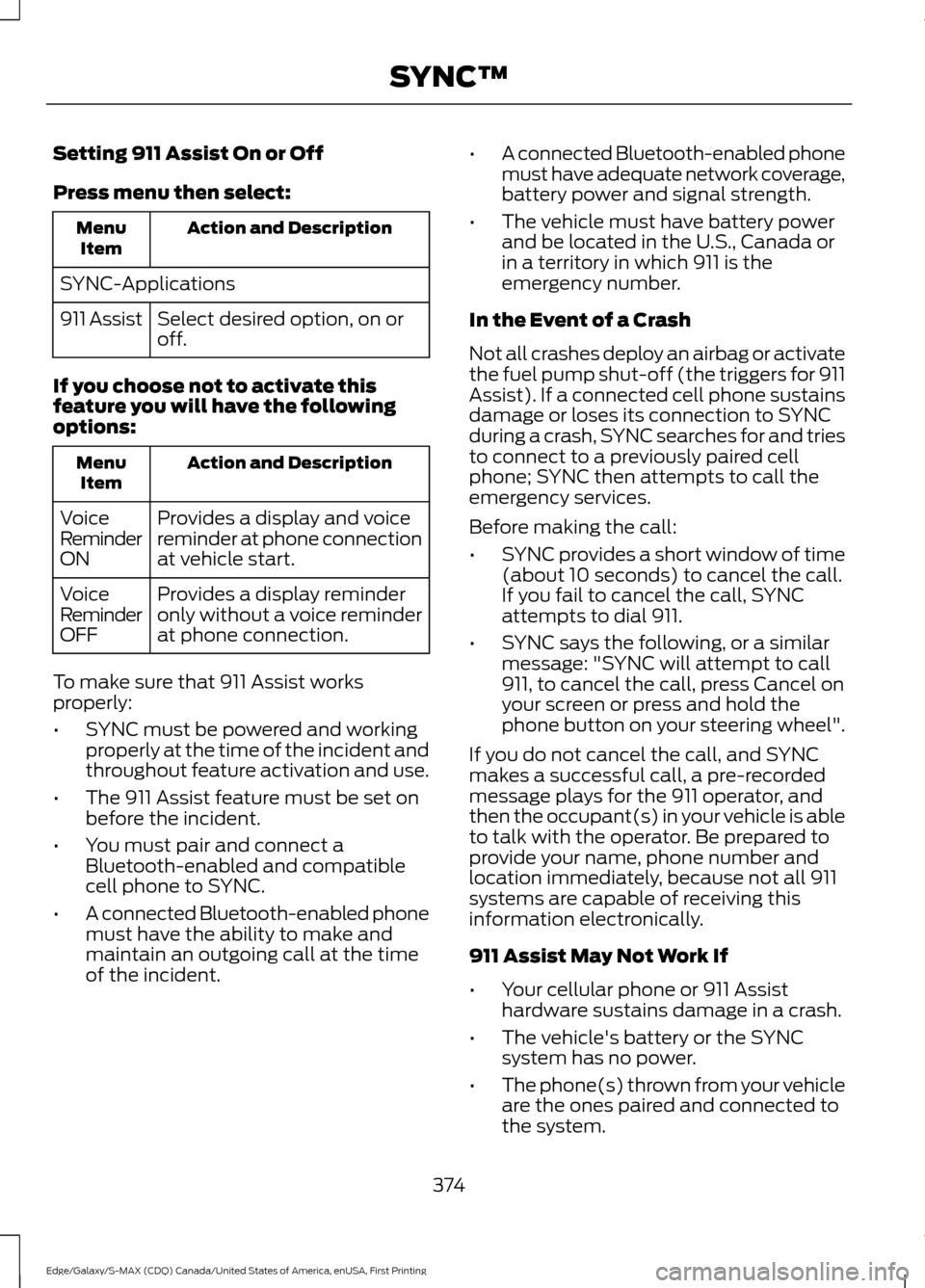
Setting 911 Assist On or Off
Press menu then select:
Action and Description
Menu
Item
SYNC-Applications Select desired option, on or
off.
911 Assist
If you choose not to activate this
feature you will have the following
options: Action and Description
Menu
Item
Provides a display and voice
reminder at phone connection
at vehicle start.
Voice
Reminder
ON
Provides a display reminder
only without a voice reminder
at phone connection.
Voice
Reminder
OFF
To make sure that 911 Assist works
properly:
• SYNC must be powered and working
properly at the time of the incident and
throughout feature activation and use.
• The 911 Assist feature must be set on
before the incident.
• You must pair and connect a
Bluetooth-enabled and compatible
cell phone to SYNC.
• A connected Bluetooth-enabled phone
must have the ability to make and
maintain an outgoing call at the time
of the incident. •
A connected Bluetooth-enabled phone
must have adequate network coverage,
battery power and signal strength.
• The vehicle must have battery power
and be located in the U.S., Canada or
in a territory in which 911 is the
emergency number.
In the Event of a Crash
Not all crashes deploy an airbag or activate
the fuel pump shut-off (the triggers for 911
Assist). If a connected cell phone sustains
damage or loses its connection to SYNC
during a crash, SYNC searches for and tries
to connect to a previously paired cell
phone; SYNC then attempts to call the
emergency services.
Before making the call:
• SYNC provides a short window of time
(about 10 seconds) to cancel the call.
If you fail to cancel the call, SYNC
attempts to dial 911.
• SYNC says the following, or a similar
message: "SYNC will attempt to call
911, to cancel the call, press Cancel on
your screen or press and hold the
phone button on your steering wheel".
If you do not cancel the call, and SYNC
makes a successful call, a pre-recorded
message plays for the 911 operator, and
then the occupant(s) in your vehicle is able
to talk with the operator. Be prepared to
provide your name, phone number and
location immediately, because not all 911
systems are capable of receiving this
information electronically.
911 Assist May Not Work If
• Your cellular phone or 911 Assist
hardware sustains damage in a crash.
• The vehicle's battery or the SYNC
system has no power.
• The phone(s) thrown from your vehicle
are the ones paired and connected to
the system.
374
Edge/Galaxy/S-MAX (CDQ) Canada/United States of America, enUSA, First Printing SYNC™
Page 378 of 451
911 Assist Privacy Notice
When you switch on 911 Assist, it may
disclose to emergency services that your
vehicle has been in a crash involving the
deployment of an airbag or activation of
the fuel pump shut-off. Certain versions or
updates to 911 Assist may also be capable
of electronically or verbally disclosing to
911 operators your vehicle location or other
details about your vehicle or crash to assist
911 operators to provide the most
appropriate emergency services. If you do
not want to disclose this information, do
not switch the feature on.
SYNC Mobile Apps
The system enables voice and steering
wheel control of SYNC AppLink enabled
smartphone apps. When an app is running
through AppLink, you can control main
features of the app through voice
commands and steering wheel controls.
Note:
You must pair and connect your
smartphone to SYNC to access AppLink.
Note: iPhone users need to connect the
phone to the USB port.
Note: Android users need to connect the
phone to SYNC using Bluetooth.
Note: For information on available apps,
supported smartphone devices and
troubleshooting tips please visit the Ford
website.
Availability of SYNC AppLink enabled Apps
will vary by region. Note:
Make sure you have an active account
for the app that you have downloaded.
Some apps work automatically with no
setup. Other apps want you to configure
your personal settings and personalize your
experience by creating stations or favorites.
We recommend you do this at home or
outside of your vehicle.
Note: AppLink is not available if your
vehicle is equipped with the MyFordTouch
system.
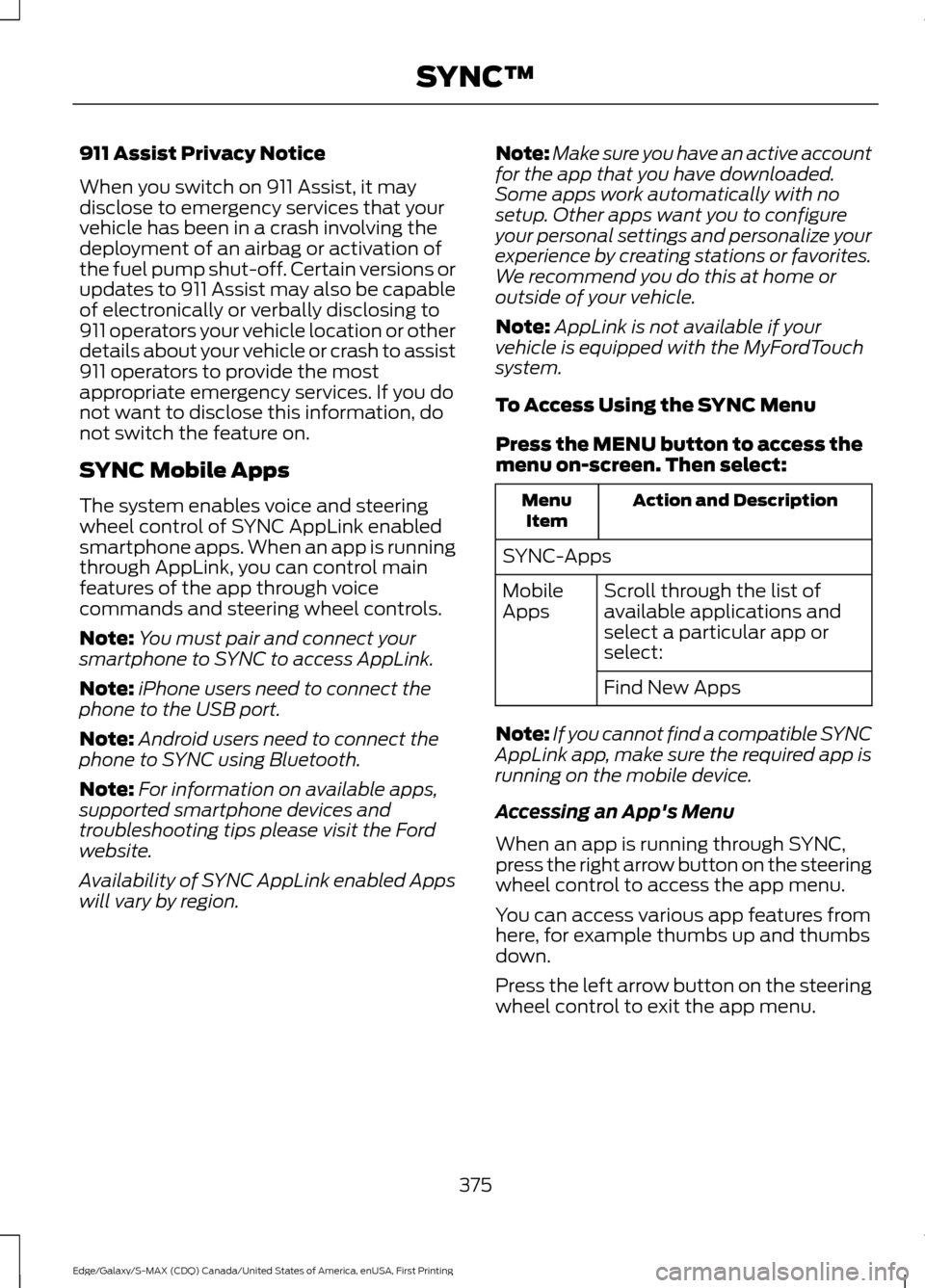
To Access Using the SYNC Menu
Press the MENU button to access the
menu on-screen. Then select: Action and Description
Menu
Item
SYNC-Apps Scroll through the list of
available applications and
select a particular app or
select:
Mobile
Apps
Find New Apps
Note: If you cannot find a compatible SYNC
AppLink app, make sure the required app is
running on the mobile device.
Accessing an App's Menu
When an app is running through SYNC,
press the right arrow button on the steering
wheel control to access the app menu.
You can access various app features from
here, for example thumbs up and thumbs
down.
Press the left arrow button on the steering
wheel control to exit the app menu.
375
Edge/Galaxy/S-MAX (CDQ) Canada/United States of America, enUSA, First Printing SYNC™