radio FORD EDGE 2017 2.G Service Manual
[x] Cancel search | Manufacturer: FORD, Model Year: 2017, Model line: EDGE, Model: FORD EDGE 2017 2.GPages: 544, PDF Size: 25.27 MB
Page 436 of 544
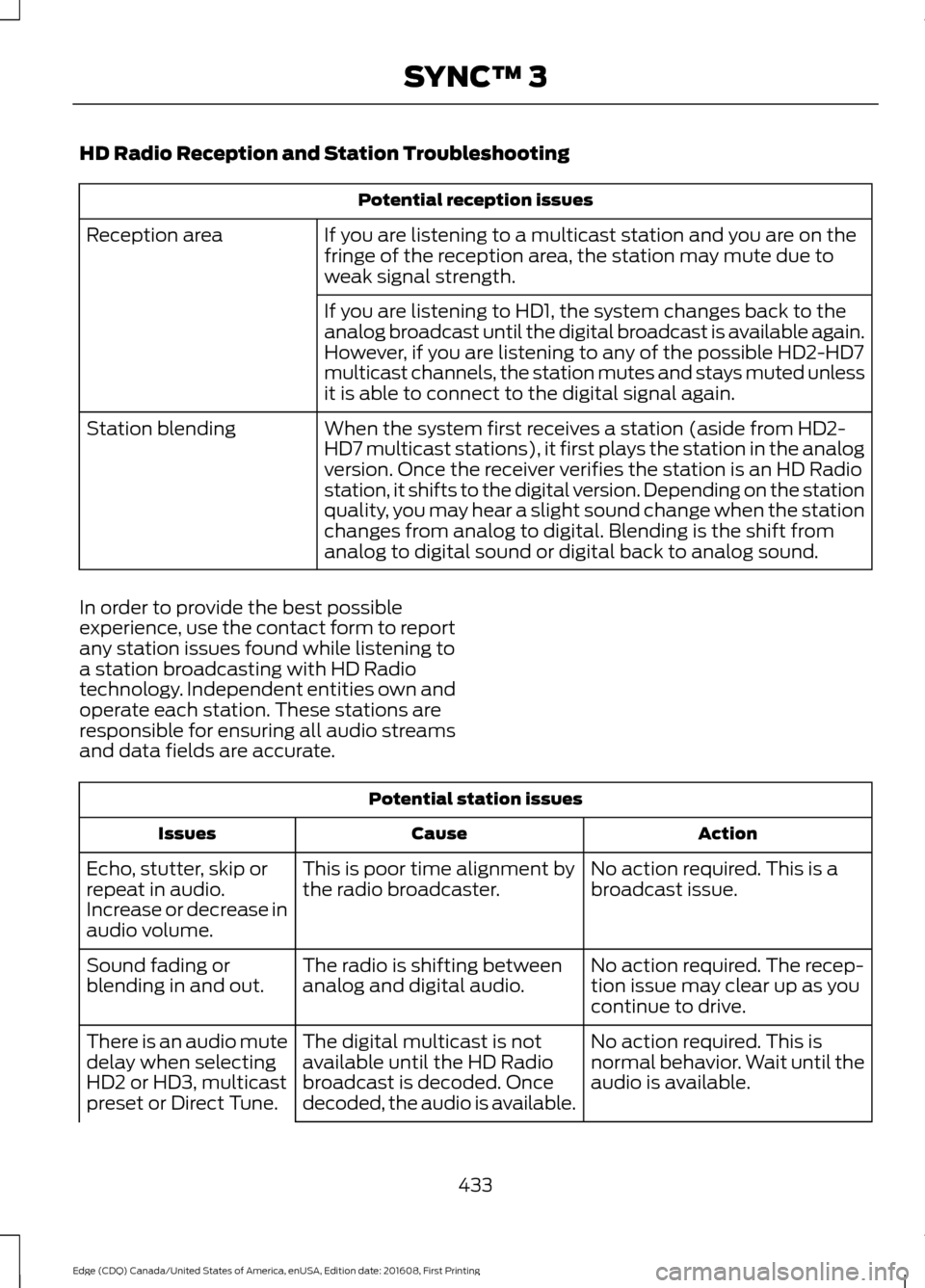
HD Radio Reception and Station Troubleshooting
Potential reception issues
If you are listening to a multicast station and you are on the
fringe of the reception area, the station may mute due to
weak signal strength.
Reception area
If you are listening to HD1, the system changes back to the
analog broadcast until the digital broadcast is available again.
However, if you are listening to any of the possible HD2-HD7
multicast channels, the station mutes and stays muted unless
it is able to connect to the digital signal again.
When the system first receives a station (aside from HD2-
HD7 multicast stations), it first plays the station in the analog
version. Once the receiver verifies the station is an HD Radio
station, it shifts to the digital version. Depending on the station
quality, you may hear a slight sound change when the station
changes from analog to digital. Blending is the shift from
analog to digital sound or digital back to analog sound.
Station blending
In order to provide the best possible
experience, use the contact form to report
any station issues found while listening to
a station broadcasting with HD Radio
technology. Independent entities own and
operate each station. These stations are
responsible for ensuring all audio streams
and data fields are accurate. Potential station issues
Action
Cause
Issues
No action required. This is a
broadcast issue.
This is poor time alignment by
the radio broadcaster.
Echo, stutter, skip or
repeat in audio.
Increase or decrease in
audio volume.
No action required. The recep-
tion issue may clear up as you
continue to drive.
The radio is shifting between
analog and digital audio.
Sound fading or
blending in and out.
No action required. This is
normal behavior. Wait until the
audio is available.
The digital multicast is not
available until the HD Radio
broadcast is decoded. Once
decoded, the audio is available.
There is an audio mute
delay when selecting
HD2 or HD3, multicast
preset or Direct Tune.
433
Edge (CDQ) Canada/United States of America, enUSA, Edition date: 201608, First Printing SYNC™ 3
Page 437 of 544
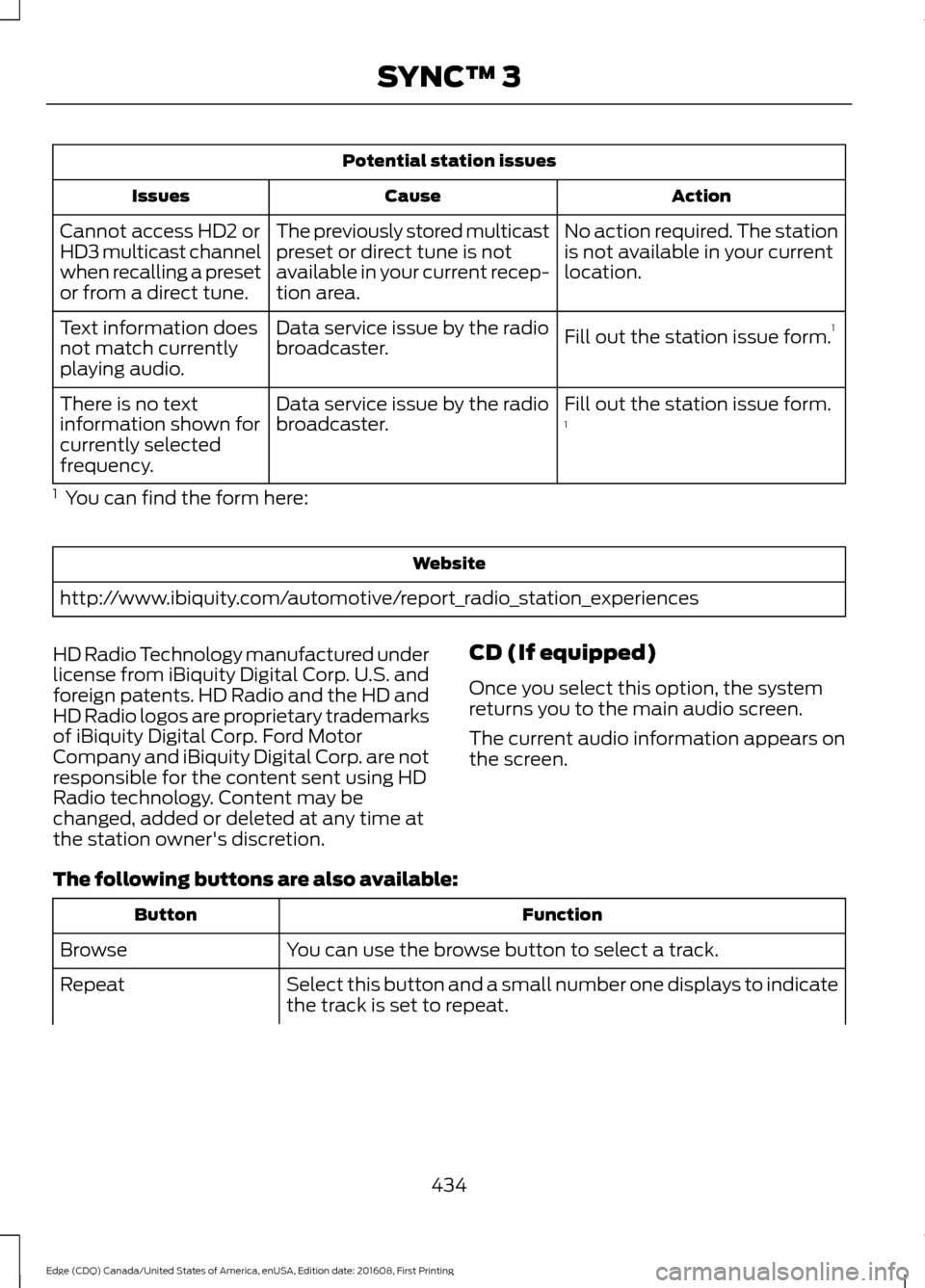
Potential station issues
Action
Cause
Issues
No action required. The station
is not available in your current
location.
The previously stored multicast
preset or direct tune is not
available in your current recep-
tion area.
Cannot access HD2 or
HD3 multicast channel
when recalling a preset
or from a direct tune.
Fill out the station issue form.1
Data service issue by the radio
broadcaster.
Text information does
not match currently
playing audio.
Fill out the station issue form.
1
Data service issue by the radio
broadcaster.
There is no text
information shown for
currently selected
frequency.
1 You can find the form here: Website
http://www.ibiquity.com/automotive/report_radio_station_experiences
HD Radio Technology manufactured under
license from iBiquity Digital Corp. U.S. and
foreign patents. HD Radio and the HD and
HD Radio logos are proprietary trademarks
of iBiquity Digital Corp. Ford Motor
Company and iBiquity Digital Corp. are not
responsible for the content sent using HD
Radio technology. Content may be
changed, added or deleted at any time at
the station owner's discretion. CD (If equipped)
Once you select this option, the system
returns you to the main audio screen.
The current audio information appears on
the screen.
The following buttons are also available: Function
Button
You can use the browse button to select a track.
Browse
Select this button and a small number one displays to indicate
the track is set to repeat.
Repeat
434
Edge (CDQ) Canada/United States of America, enUSA, Edition date: 201608, First Printing SYNC™ 3
Page 439 of 544
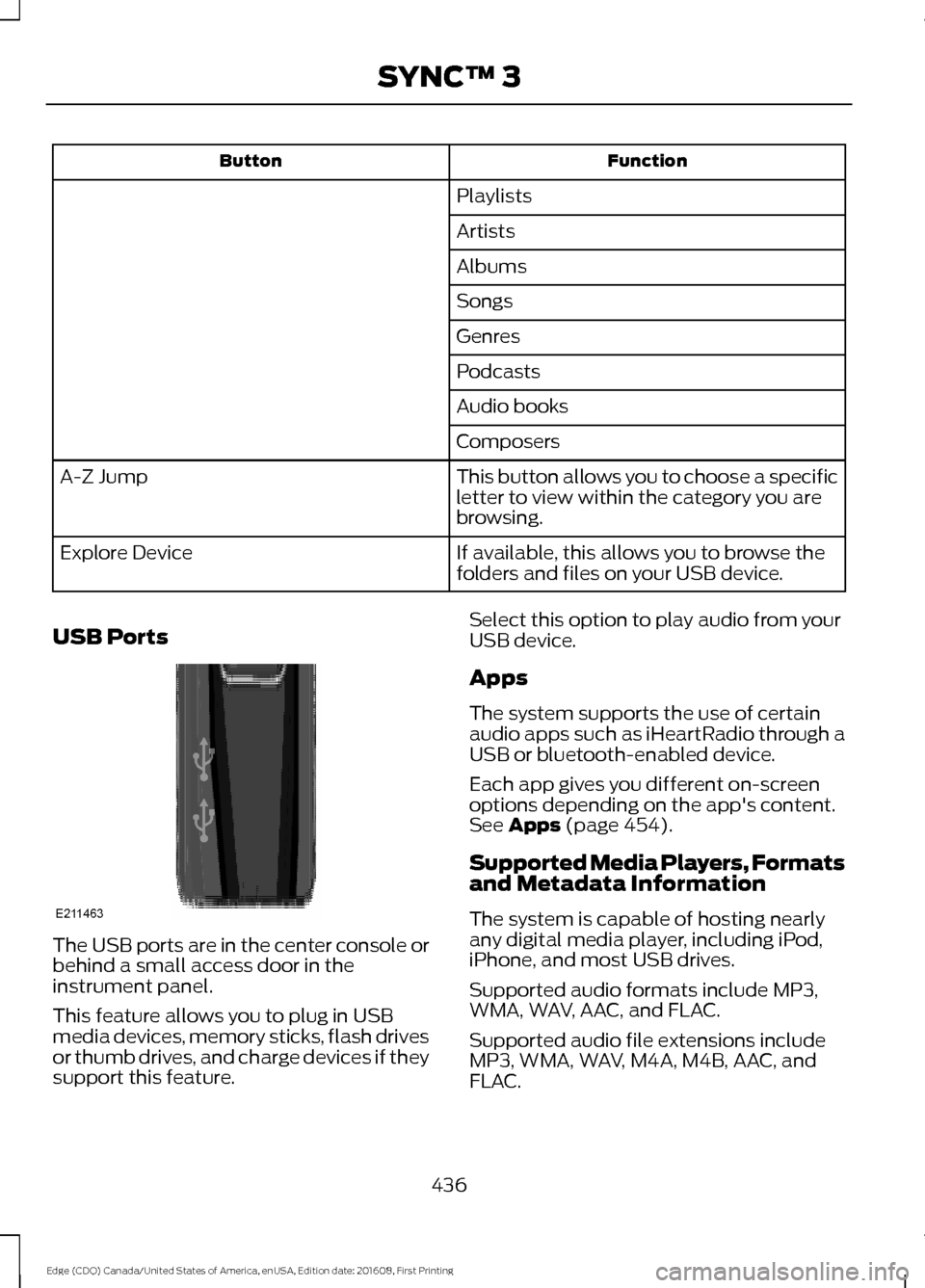
Function
Button
Playlists
Artists
Albums
Songs
Genres
Podcasts
Audio books
Composers
This button allows you to choose a specific
letter to view within the category you are
browsing.
A-Z Jump
If available, this allows you to browse the
folders and files on your USB device.
Explore Device
USB Ports The USB ports are in the center console or
behind a small access door in the
instrument panel.
This feature allows you to plug in USB
media devices, memory sticks, flash drives
or thumb drives, and charge devices if they
support this feature. Select this option to play audio from your
USB device.
Apps
The system supports the use of certain
audio apps such as iHeartRadio through a
USB or bluetooth-enabled device.
Each app gives you different on-screen
options depending on the app's content.
See Apps (page 454).
Supported Media Players, Formats
and Metadata Information
The system is capable of hosting nearly
any digital media player, including iPod,
iPhone, and most USB drives.
Supported audio formats include MP3,
WMA, WAV, AAC, and FLAC.
Supported audio file extensions include
MP3, WMA, WAV, M4A, M4B, AAC, and
FLAC.
436
Edge (CDQ) Canada/United States of America, enUSA, Edition date: 201608, First Printing SYNC™ 3E211463
Page 465 of 544
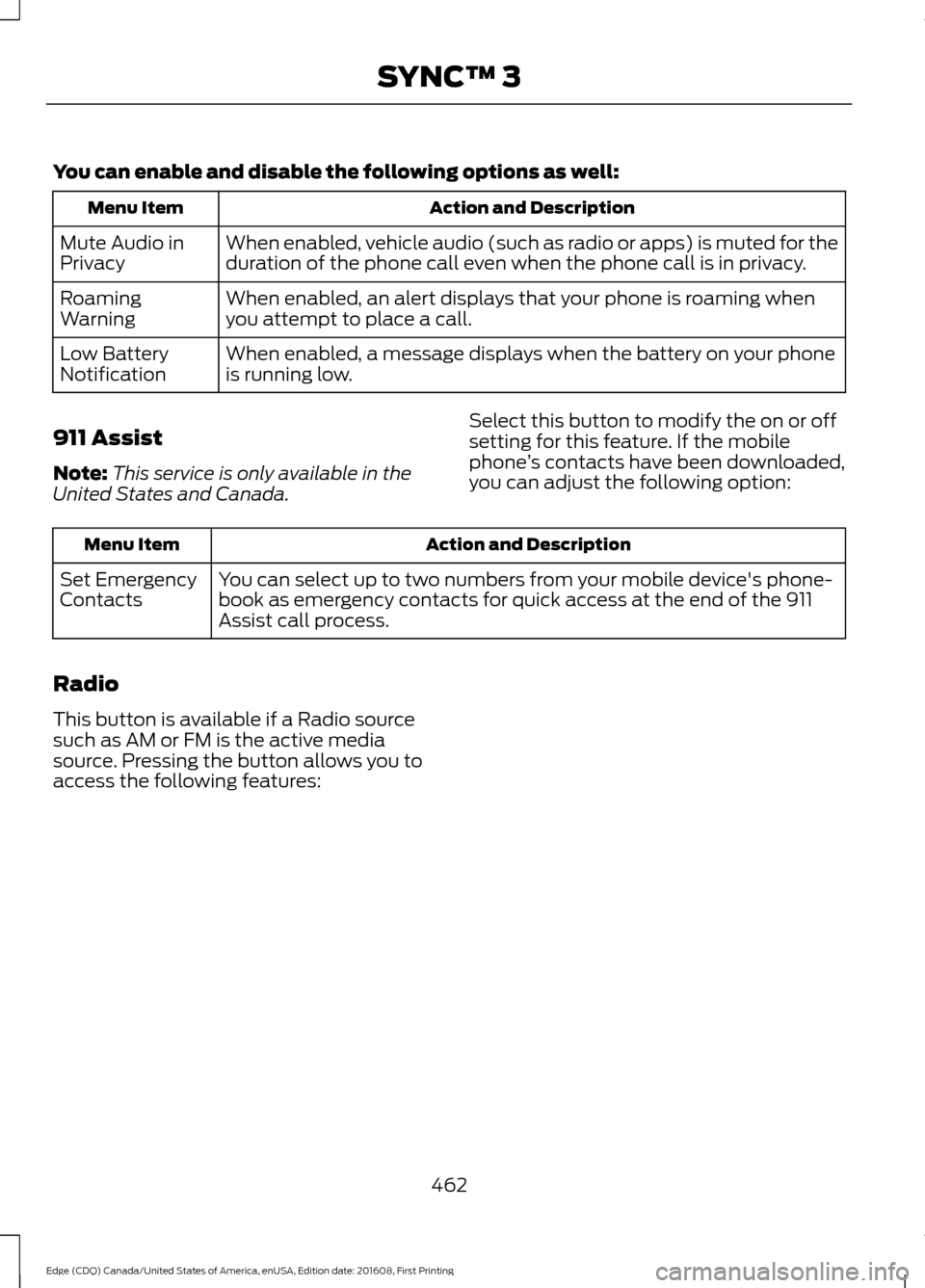
You can enable and disable the following options as well:
Action and Description
Menu Item
When enabled, vehicle audio (such as radio or apps) is muted for the
duration of the phone call even when the phone call is in privacy.
Mute Audio in
Privacy
When enabled, an alert displays that your phone is roaming when
you attempt to place a call.
Roaming
Warning
When enabled, a message displays when the battery on your phone
is running low.
Low Battery
Notification
911 Assist
Note: This service is only available in the
United States and Canada. Select this button to modify the on or off
setting for this feature. If the mobile
phone
’s contacts have been downloaded,
you can adjust the following option: Action and Description
Menu Item
You can select up to two numbers from your mobile device's phone-
book as emergency contacts for quick access at the end of the 911
Assist call process.
Set Emergency
Contacts
Radio
This button is available if a Radio source
such as AM or FM is the active media
source. Pressing the button allows you to
access the following features:
462
Edge (CDQ) Canada/United States of America, enUSA, Edition date: 201608, First Printing SYNC™ 3
Page 466 of 544
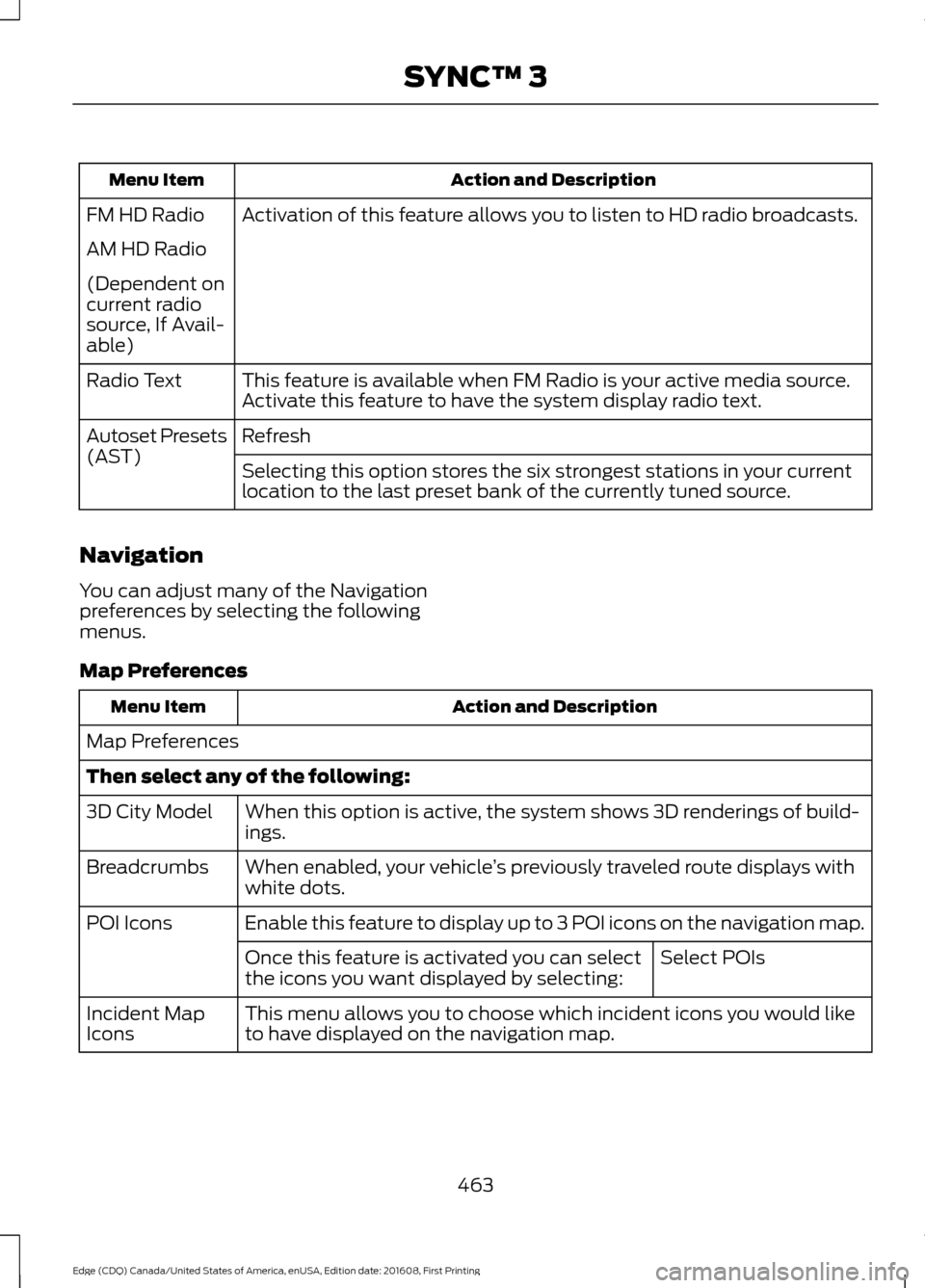
Action and Description
Menu Item
Activation of this feature allows you to listen to HD radio broadcasts.
FM HD Radio
AM HD Radio
(Dependent on
current radio
source, If Avail-
able)
This feature is available when FM Radio is your active media source.
Activate this feature to have the system display radio text.
Radio Text
Refresh
Autoset Presets
(AST)
Selecting this option stores the six strongest stations in your current
location to the last preset bank of the currently tuned source.
Navigation
You can adjust many of the Navigation
preferences by selecting the following
menus.
Map Preferences Action and Description
Menu Item
Map Preferences
Then select any of the following: When this option is active, the system shows 3D renderings of build-
ings.
3D City Model
When enabled, your vehicle ’s previously traveled route displays with
white dots.
Breadcrumbs
Enable this feature to display up to 3 POI icons on the navigation map.
POI Icons
Select POIs
Once this feature is activated you can select
the icons you want displayed by selecting:
This menu allows you to choose which incident icons you would like
to have displayed on the navigation map.
Incident Map
Icons
463
Edge (CDQ) Canada/United States of America, enUSA, Edition date: 201608, First Printing SYNC™ 3
Page 471 of 544
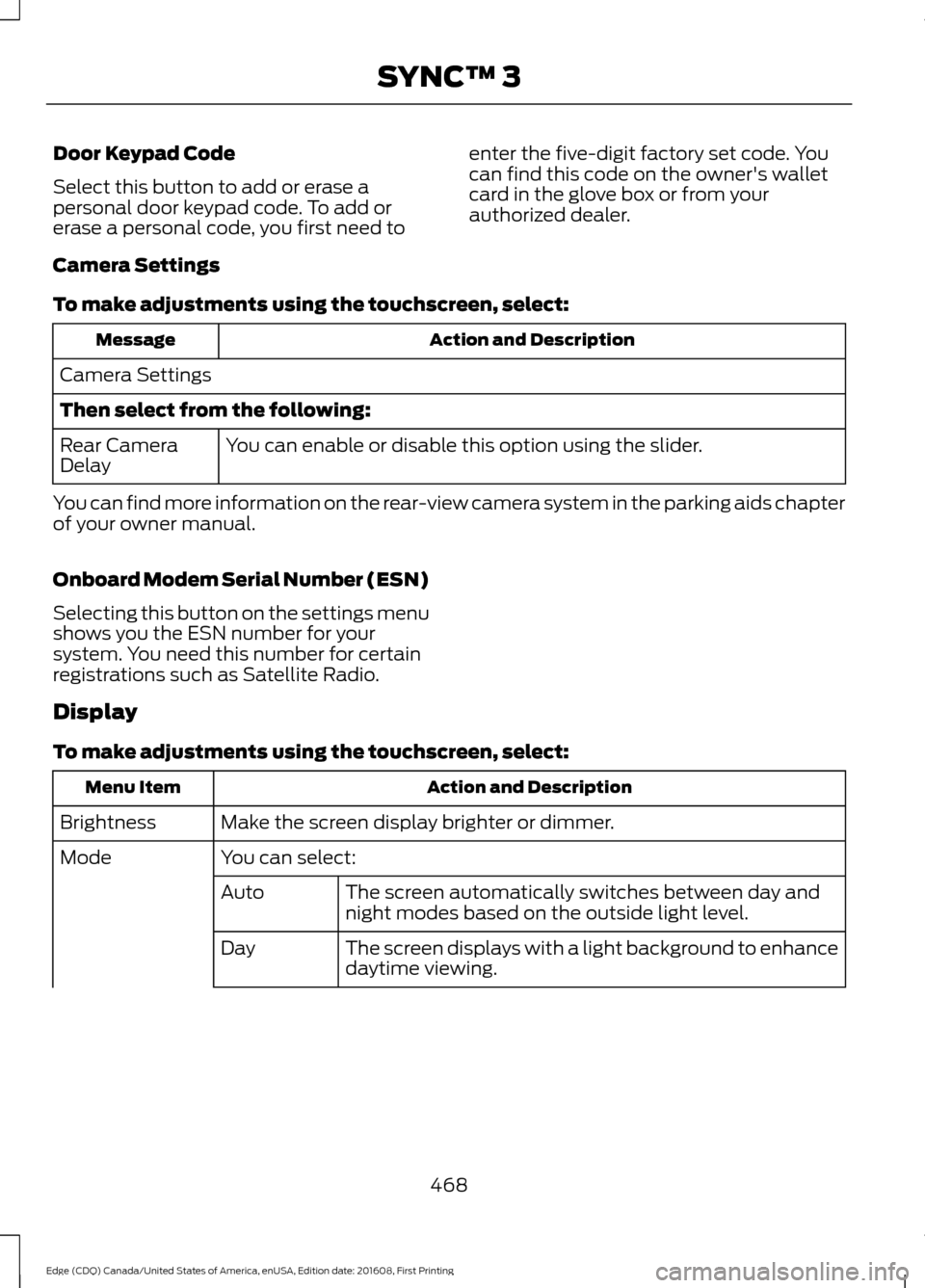
Door Keypad Code
Select this button to add or erase a
personal door keypad code. To add or
erase a personal code, you first need to
enter the five-digit factory set code. You
can find this code on the owner's wallet
card in the glove box or from your
authorized dealer.
Camera Settings
To make adjustments using the touchscreen, select: Action and Description
Message
Camera Settings
Then select from the following: You can enable or disable this option using the slider.
Rear Camera
Delay
You can find more information on the rear-view camera system in the parking aids chapter
of your owner manual.
Onboard Modem Serial Number (ESN)
Selecting this button on the settings menu
shows you the ESN number for your
system. You need this number for certain
registrations such as Satellite Radio.
Display
To make adjustments using the touchscreen, select: Action and Description
Menu Item
Make the screen display brighter or dimmer.
Brightness
You can select:
Mode
The screen automatically switches between day and
night modes based on the outside light level.
Auto
The screen displays with a light background to enhance
daytime viewing.
Day
468
Edge (CDQ) Canada/United States of America, enUSA, Edition date: 201608, First Printing SYNC™ 3
Page 484 of 544
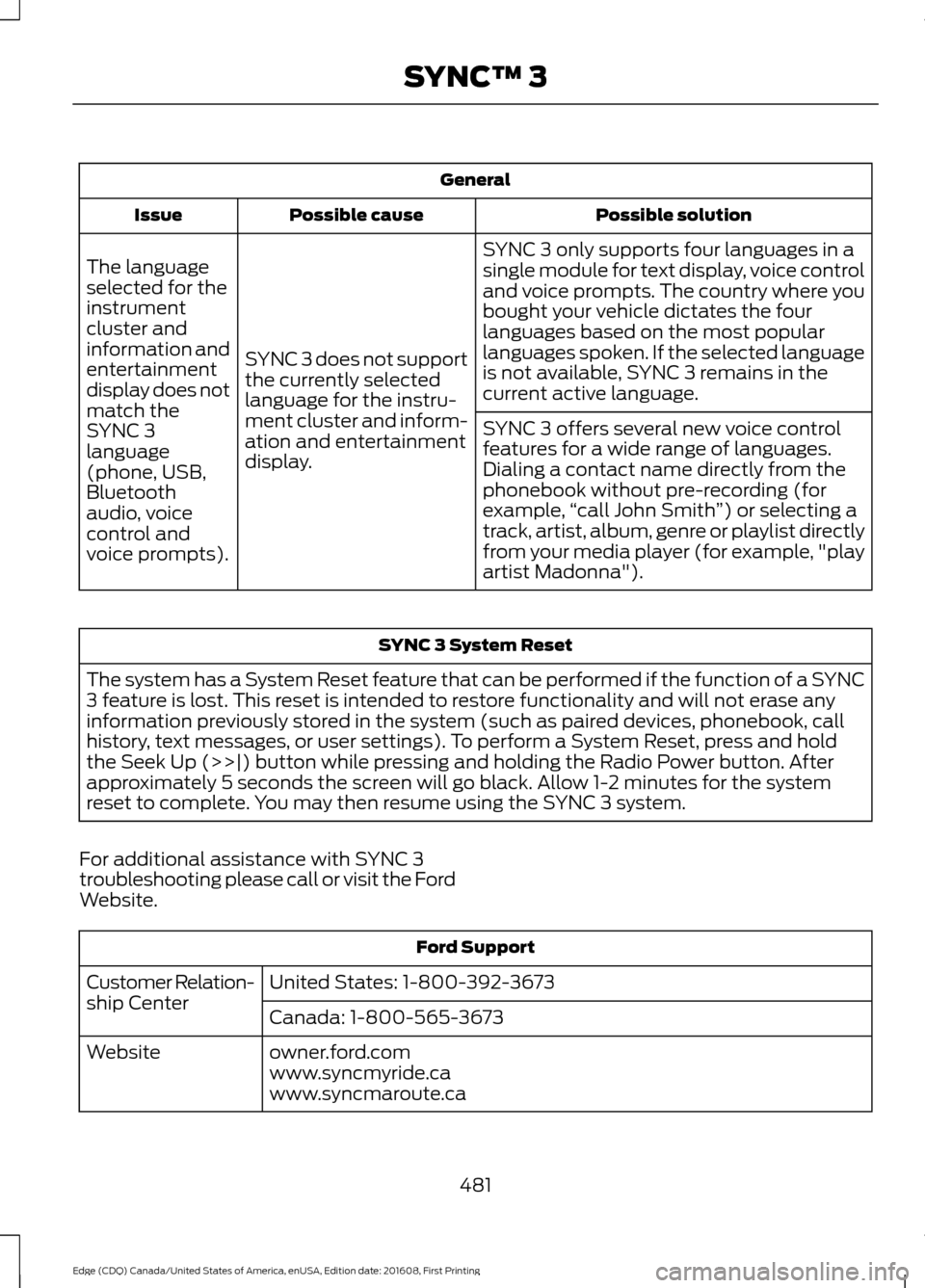
General
Possible solution
Possible cause
Issue
SYNC 3 only supports four languages in a
single module for text display, voice control
and voice prompts. The country where you
bought your vehicle dictates the four
languages based on the most popular
languages spoken. If the selected language
is not available, SYNC 3 remains in the
current active language.
SYNC 3 does not support
the currently selected
language for the instru-
ment cluster and inform-
ation and entertainment
display.
The language
selected for the
instrument
cluster and
information and
entertainment
display does not
match the
SYNC 3
SYNC 3 offers several new voice control
features for a wide range of languages.
Dialing a contact name directly from the
phonebook without pre-recording (for
example,
“call John Smith ”) or selecting a
track, artist, album, genre or playlist directly
from your media player (for example, "play
artist Madonna").
language
(phone, USB,
Bluetooth
audio, voice
control and
voice prompts). SYNC 3 System Reset
The system has a System Reset feature that can be performed if the function of a SYNC
3 feature is lost. This reset is intended to restore functionality and will not erase any
information previously stored in the system (such as paired devices, phonebook, call
history, text messages, or user settings). To perform a System Reset, press and hold
the Seek Up (>>|) button while pressing and holding the Radio Power button. After
approximately 5 seconds the screen will go black. Allow 1-2 minutes for the system
reset to complete. You may then resume using the SYNC 3 system.
For additional assistance with SYNC 3
troubleshooting please call or visit the Ford
Website. Ford Support
United States: 1-800-392-3673
Customer Relation-
ship Center
Canada: 1-800-565-3673
owner.ford.com
Website
www.syncmyride.ca
www.syncmaroute.ca
481
Edge (CDQ) Canada/United States of America, enUSA, Edition date: 201608, First Printing SYNC™ 3
Page 486 of 544
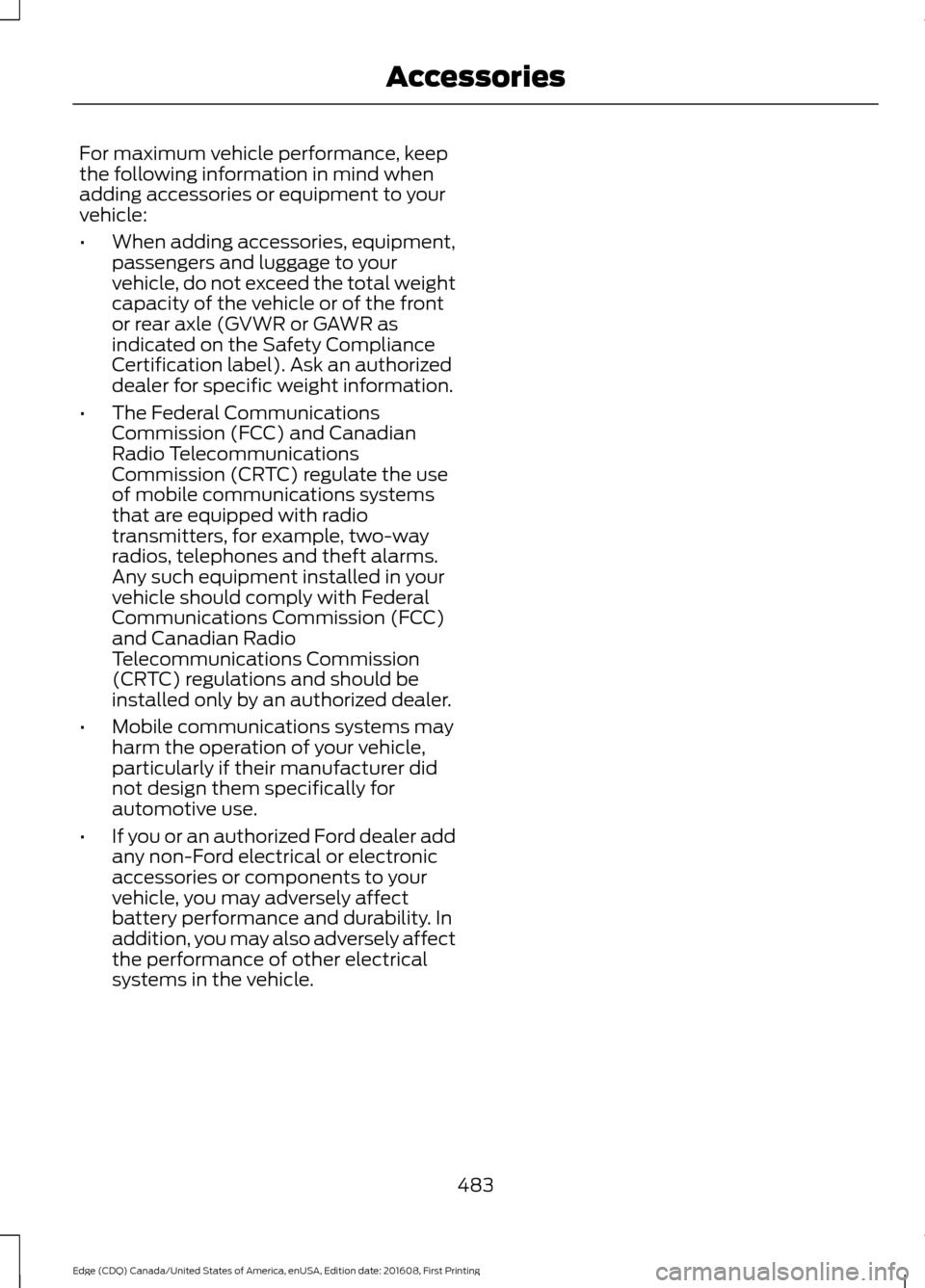
For maximum vehicle performance, keep
the following information in mind when
adding accessories or equipment to your
vehicle:
•
When adding accessories, equipment,
passengers and luggage to your
vehicle, do not exceed the total weight
capacity of the vehicle or of the front
or rear axle (GVWR or GAWR as
indicated on the Safety Compliance
Certification label). Ask an authorized
dealer for specific weight information.
• The Federal Communications
Commission (FCC) and Canadian
Radio Telecommunications
Commission (CRTC) regulate the use
of mobile communications systems
that are equipped with radio
transmitters, for example, two-way
radios, telephones and theft alarms.
Any such equipment installed in your
vehicle should comply with Federal
Communications Commission (FCC)
and Canadian Radio
Telecommunications Commission
(CRTC) regulations and should be
installed only by an authorized dealer.
• Mobile communications systems may
harm the operation of your vehicle,
particularly if their manufacturer did
not design them specifically for
automotive use.
• If you or an authorized Ford dealer add
any non-Ford electrical or electronic
accessories or components to your
vehicle, you may adversely affect
battery performance and durability. In
addition, you may also adversely affect
the performance of other electrical
systems in the vehicle.
483
Edge (CDQ) Canada/United States of America, enUSA, Edition date: 201608, First Printing Accessories
Page 530 of 544
GRACENOTE SERVERS OR GRACENOTE
CONTENT. GRACENOTE COLLECTIVELY
AND SEPARATELY RESERVE THE RIGHT
TO DELETE DATA AND/OR CONTENT
FROM THE COMPANIES' RESPECTIVE
SERVERS OR, IN THE CASE OF
GRACENOTE, CHANGE DATA
CATEGORIES FOR ANY CAUSE THAT
GRACENOTE DEEMS SUFFICIENT. NO
WARRANTY IS MADE THAT EITHER
GRACENOTE CONTENT OR THE
GRACENOTE SOFTWARE OR
GRACENOTE SERVERS ARE ERROR-FREE
OR THAT THE FUNCTIONING OF THE
GRACENOTE SOFTWARE OR
GRACENOTE SERVERS WILL BE
UNINTERRUPTED. GRACENOTE IS NOT
OBLIGATED TO PROVIDE YOU WITH ANY
ENHANCED OR ADDITIONAL DATA TYPES
THAT GRACENOTE MAY CHOOSE TO
PROVIDE IN THE FUTURE AND IS FREE
TO DISCONTINUE ITS ONLINE SERVICES
AT ANY TIME. GRACENOTE DISCLAIM ALL
WARRANTIES EXPRESS OR IMPLIED,
INCLUDING, BUT NOT LIMITED TO,
IMPLIED WARRANTIES OF
MERCHANTABILITY, FITNESS FOR A
PARTICULAR PURPOSE, TITLE, AND
NON-INFRINGEMENT. NEITHER
GRACENOTE WARRANTS THE RESULTS
THAT WILL BE OBTAINED BY YOUR USE
OF THE GRACENOTE SOFTWARE OR ANY
GRACENOTE SERVER. IN NO CASE WILL
GRACENOTE BE LIABLE FOR ANY
CONSEQUENTIAL OR INCIDENTAL
DAMAGES OR FOR ANY LOST PROFITS
OR LOST REVENUES FOR ANY REASON
WHATSOEVER. © Gracenote 2007.
Radio Frequency Statement
FCC ID: ACJ-SYNCG3-L
IC: 216B-SYNCG3-L
This device complies with Part 15 of the
FCC Rules and with RSS-210 of Industry
Canada. Operation is subject to the
following two conditions:
(1) This device may not cause harmful
interference, and
(2)
this device must accept any
interference received, including
interference that may cause undesired
operation.
Note: Changes or modifications not
expressively approved by the party
responsible for compliance could void the
user's authority to operate the equipment.
The antenna used for this transmitter must
not be co-located or operating in
conjunction with any other antenna or
transmitter.
SUNA TRAFFIC CHANNEL – TERMS
AND CONDITIONS
By activating, using and/or accessing the
SUNA Traffic Channel, SUNA Predictive or
other content or material provided by
Intelematics (together, SUNA Products
and/or Services
), you must accept
certain terms and conditions. The following
is a brief summary of the terms and
conditions that apply to you. To view the
full terms and conditions relevant to your
use of the SUNA Products and/or Services,
please consult: Website
www.sunatraffic.com.au/termsandcon- ditions/
1. Acceptance
By using SUNA Products and/or Services,
you will be deemed to have accepted and
agreed to be bound by the terms and
conditions fully detailed at:
527
Edge (CDQ) Canada/United States of America, enUSA, Edition date: 201608, First Printing Appendices
Page 536 of 544
Cleaning Products......................................290
Materials............................................................... 290
Cleaning the Engine....................................292
Cleaning the Exterior.................................290 Exterior Chrome Parts....................................... 291
Exterior Plastic Parts......................................... 291
Stripes or Graphics............................................. 291
Underbody............................................................ 291
Under Hood.......................................................... 291
Cleaning the Instrument Panel and Instrument Cluster Lens.........................293
Cleaning the Interior...................................293
Cleaning the Wheels..................................294
Cleaning the Windows and Wiper Blades...........................................................292
Clearing All MyKeys......................................60
Climate.............................................................437
Climate Control.............................................128
Climate Controlled Seats..........................144
Cooled Seats........................................................ 144
Cold Weather Precautions.......................238
Collision Warning System..........................221 PRINCIPLE OF OPERATION............................ 221
Coolant Check See: Engine Coolant Check............................ 273
Crash Sensors and Airbag Indicator.......49
Creating a MyKey...........................................59 Programming/Changing Configurable
Settings............................................................... 59
Cross Traffic Alert.........................................216 False Alerts........................................................... 219
Switching the System Off and On...............219
System Errors....................................................... 219
System Lights, Messages and Audible Alerts.................................................................. 218
System Limitations............................................ 219
Using the System................................................ 216
Cruise Control
.................................................80
Principle of Operation...................................... 202
Type 1........................................................................\
80
Type 2........................................................................\
81
Cruise control See: Using Cruise Control............................... 202
Customer Assistance
..................................247 D
Data Recording
..................................................9
Event Data Recording.......................................... 10
Service Data Recording........................................ 9
Daytime Running Lamps
.............................87
Type 1 - Conventional
(Non-Configurable)........................................ 87
Type 2 - Configurable.......................................... 87
Digital Radio
..................................................362
HD Radio Reception and Station
Troubleshooting............................................ 363
Direction Indicators
.......................................89
Doors and Locks.............................................64
Drive Control
..................................................223
Adaptive Steering.............................................. 223
Driver Alert
.....................................................209
PRINCIPLE OF OPERATION.......................... 209
USING DRIVER ALERT.................................... 209
Driver and Passenger Airbags....................43 Children and Airbags........................................... 43
Proper Driver and Front Passenger Seating Adjustment........................................................ 43
Driver and Passenger Knee Airbags.........47
Driving Aids
....................................................209
Driving Hints..................................................238
Driving Through Water...............................238
DRL See: Daytime Running Lamps......................... 87
E
Economical Driving.....................................238
Electric Parking Brake
..................................181
Applying the Electric Parking brake..............181
Battery With No Charge................................... 183
Parking On a Hill (Vehicles With a Manual Transmission) ................................................. 181
Releasing the Electric Parking Brake...........182
Emission Control System..........................168 On-Board Diagnostics (OBD-II)...................169
Readiness for Inspection and Maintenance
(I/M) Testing................................................... 169
End User License Agreement
.................505
VEHICLE SOFTWARE END USER LICENSE
AGREEMENT (EULA) ................................ 505
Engine Block Heater....................................158 Using the Engine Block Heater...................... 158
533
Edge (CDQ) Canada/United States of America, enUSA, Edition date: 201608, First Printing Index