VIN FORD EDGE 2019 Owners Manual
[x] Cancel search | Manufacturer: FORD, Model Year: 2019, Model line: EDGE, Model: FORD EDGE 2019Pages: 547, PDF Size: 40.86 MB
Page 402 of 547
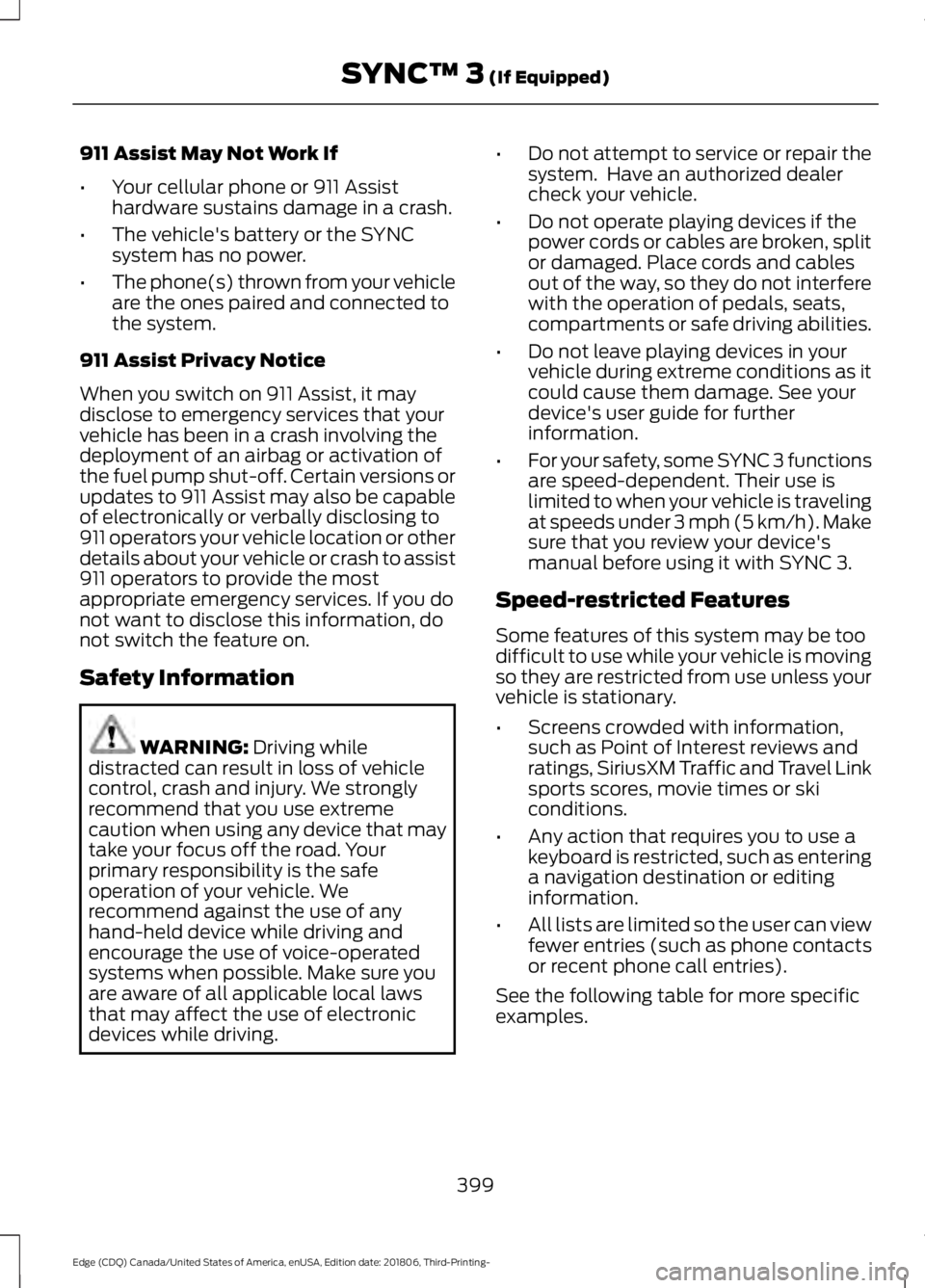
911 Assist May Not Work If
•
Your cellular phone or 911 Assist
hardware sustains damage in a crash.
• The vehicle's battery or the SYNC
system has no power.
• The phone(s) thrown from your vehicle
are the ones paired and connected to
the system.
911 Assist Privacy Notice
When you switch on 911 Assist, it may
disclose to emergency services that your
vehicle has been in a crash involving the
deployment of an airbag or activation of
the fuel pump shut-off. Certain versions or
updates to 911 Assist may also be capable
of electronically or verbally disclosing to
911 operators your vehicle location or other
details about your vehicle or crash to assist
911 operators to provide the most
appropriate emergency services. If you do
not want to disclose this information, do
not switch the feature on.
Safety Information WARNING: Driving while
distracted can result in loss of vehicle
control, crash and injury. We strongly
recommend that you use extreme
caution when using any device that may
take your focus off the road. Your
primary responsibility is the safe
operation of your vehicle. We
recommend against the use of any
hand-held device while driving and
encourage the use of voice-operated
systems when possible. Make sure you
are aware of all applicable local laws
that may affect the use of electronic
devices while driving. •
Do not attempt to service or repair the
system. Have an authorized dealer
check your vehicle.
• Do not operate playing devices if the
power cords or cables are broken, split
or damaged. Place cords and cables
out of the way, so they do not interfere
with the operation of pedals, seats,
compartments or safe driving abilities.
• Do not leave playing devices in your
vehicle during extreme conditions as it
could cause them damage. See your
device's user guide for further
information.
• For your safety, some SYNC 3 functions
are speed-dependent. Their use is
limited to when your vehicle is traveling
at speeds under 3 mph (5 km/h). Make
sure that you review your device's
manual before using it with SYNC 3.
Speed-restricted Features
Some features of this system may be too
difficult to use while your vehicle is moving
so they are restricted from use unless your
vehicle is stationary.
• Screens crowded with information,
such as Point of Interest reviews and
ratings, SiriusXM Traffic and Travel Link
sports scores, movie times or ski
conditions.
• Any action that requires you to use a
keyboard is restricted, such as entering
a navigation destination or editing
information.
• All lists are limited so the user can view
fewer entries (such as phone contacts
or recent phone call entries).
See the following table for more specific
examples.
399
Edge (CDQ) Canada/United States of America, enUSA, Edition date: 201806, Third-Printing- SYNC™ 3
(If Equipped)
Page 411 of 547
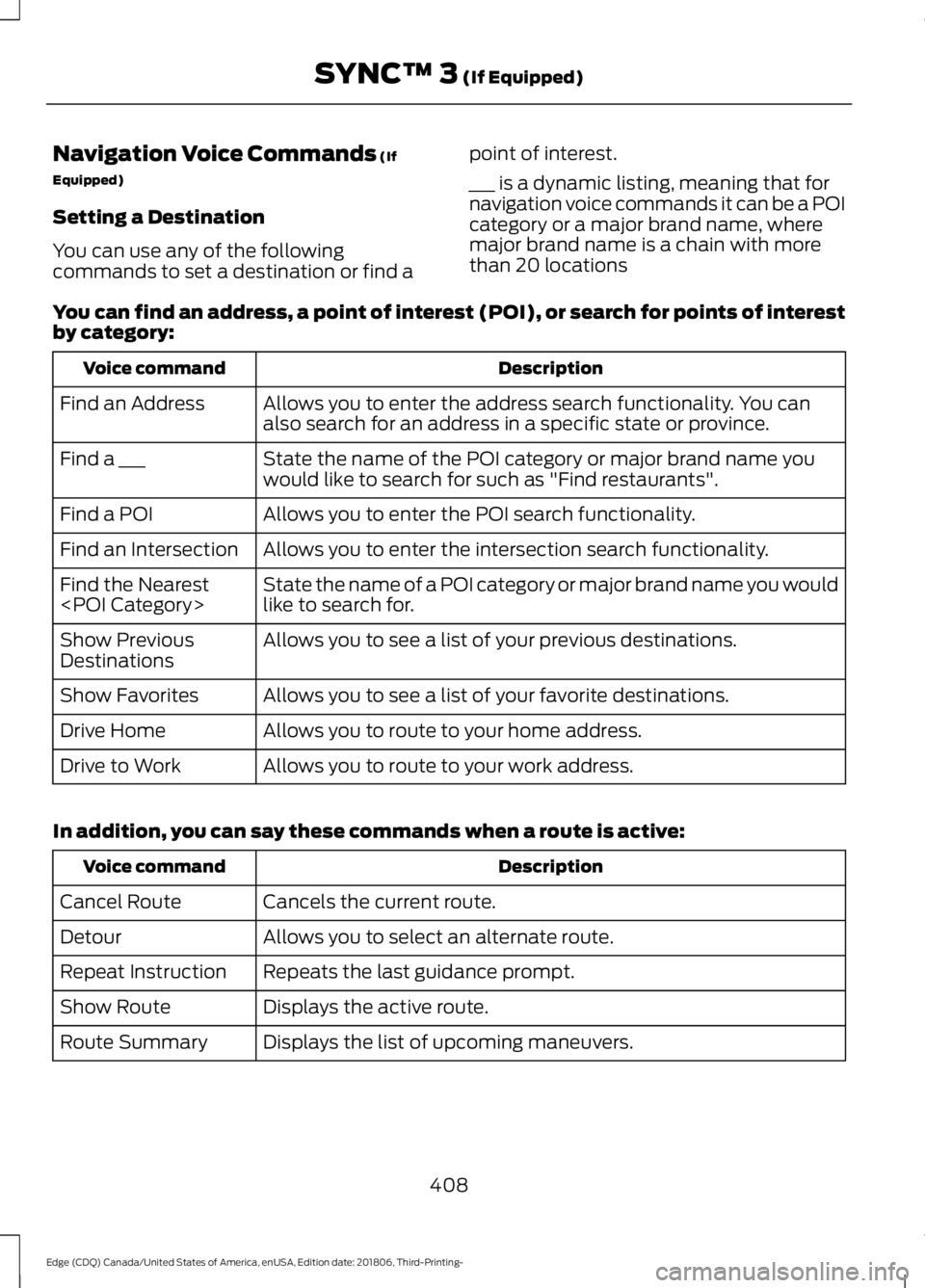
Navigation Voice Commands (If
Equipped)
Setting a Destination
You can use any of the following
commands to set a destination or find a point of interest.
___ is a dynamic listing, meaning that for
navigation voice commands it can be a POI
category or a major brand name, where
major brand name is a chain with more
than 20 locations
You can find an address, a point of interest (POI), or search for points of interest
by category: Description
Voice command
Allows you to enter the address search functionality. You can
also search for an address in a specific state or province.
Find an Address
State the name of the POI category or major brand name you
would like to search for such as "Find restaurants".
Find a ___
Allows you to enter the POI search functionality.
Find a POI
Allows you to enter the intersection search functionality.
Find an Intersection
State the name of a POI category or major brand name you would
like to search for.
Find the Nearest
Allows you to see a list of your previous destinations.
Show Previous
Destinations
Allows you to see a list of your favorite destinations.
Show Favorites
Allows you to route to your home address.
Drive Home
Allows you to route to your work address.
Drive to Work
In addition, you can say these commands when a route is active: Description
Voice command
Cancels the current route.
Cancel Route
Allows you to select an alternate route.
Detour
Repeats the last guidance prompt.
Repeat Instruction
Displays the active route.
Show Route
Displays the list of upcoming maneuvers.
Route Summary
408
Edge (CDQ) Canada/United States of America, enUSA, Edition date: 201806, Third-Printing- SYNC™ 3
(If Equipped)
Page 413 of 547
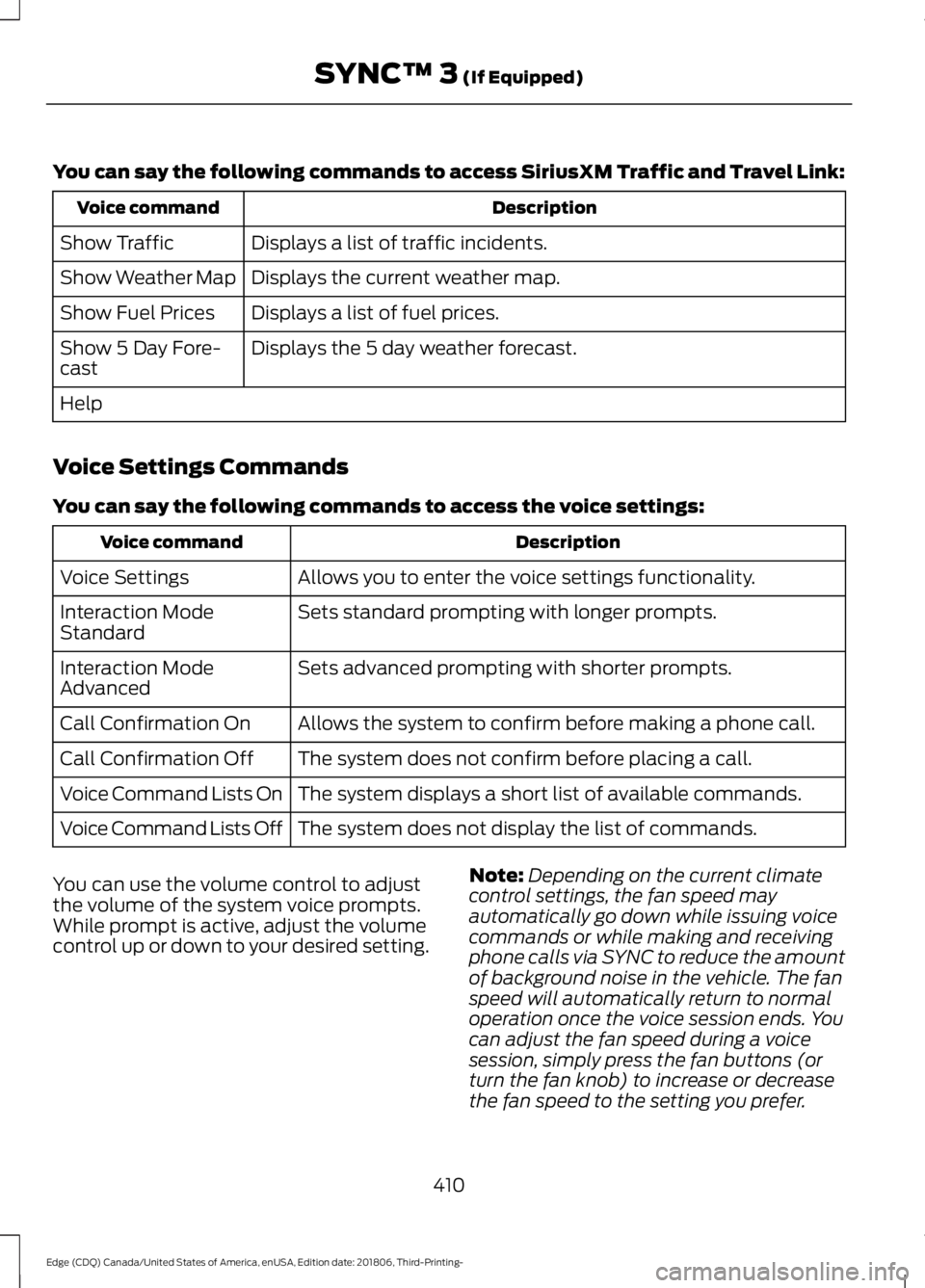
You can say the following commands to access SiriusXM Traffic and Travel Link:
Description
Voice command
Displays a list of traffic incidents.
Show Traffic
Displays the current weather map.
Show Weather Map
Displays a list of fuel prices.
Show Fuel Prices
Displays the 5 day weather forecast.
Show 5 Day Fore-
cast
Help
Voice Settings Commands
You can say the following commands to access the voice settings: Description
Voice command
Allows you to enter the voice settings functionality.
Voice Settings
Sets standard prompting with longer prompts.
Interaction Mode
Standard
Sets advanced prompting with shorter prompts.
Interaction Mode
Advanced
Allows the system to confirm before making a phone call.
Call Confirmation On
The system does not confirm before placing a call.
Call Confirmation Off
The system displays a short list of available commands.
Voice Command Lists On
The system does not display the list of commands.
Voice Command Lists Off
You can use the volume control to adjust
the volume of the system voice prompts.
While prompt is active, adjust the volume
control up or down to your desired setting. Note:
Depending on the current climate
control settings, the fan speed may
automatically go down while issuing voice
commands or while making and receiving
phone calls via SYNC to reduce the amount
of background noise in the vehicle. The fan
speed will automatically return to normal
operation once the voice session ends. You
can adjust the fan speed during a voice
session, simply press the fan buttons (or
turn the fan knob) to increase or decrease
the fan speed to the setting you prefer.
410
Edge (CDQ) Canada/United States of America, enUSA, Edition date: 201806, Third-Printing- SYNC™ 3 (If Equipped)
Page 416 of 547
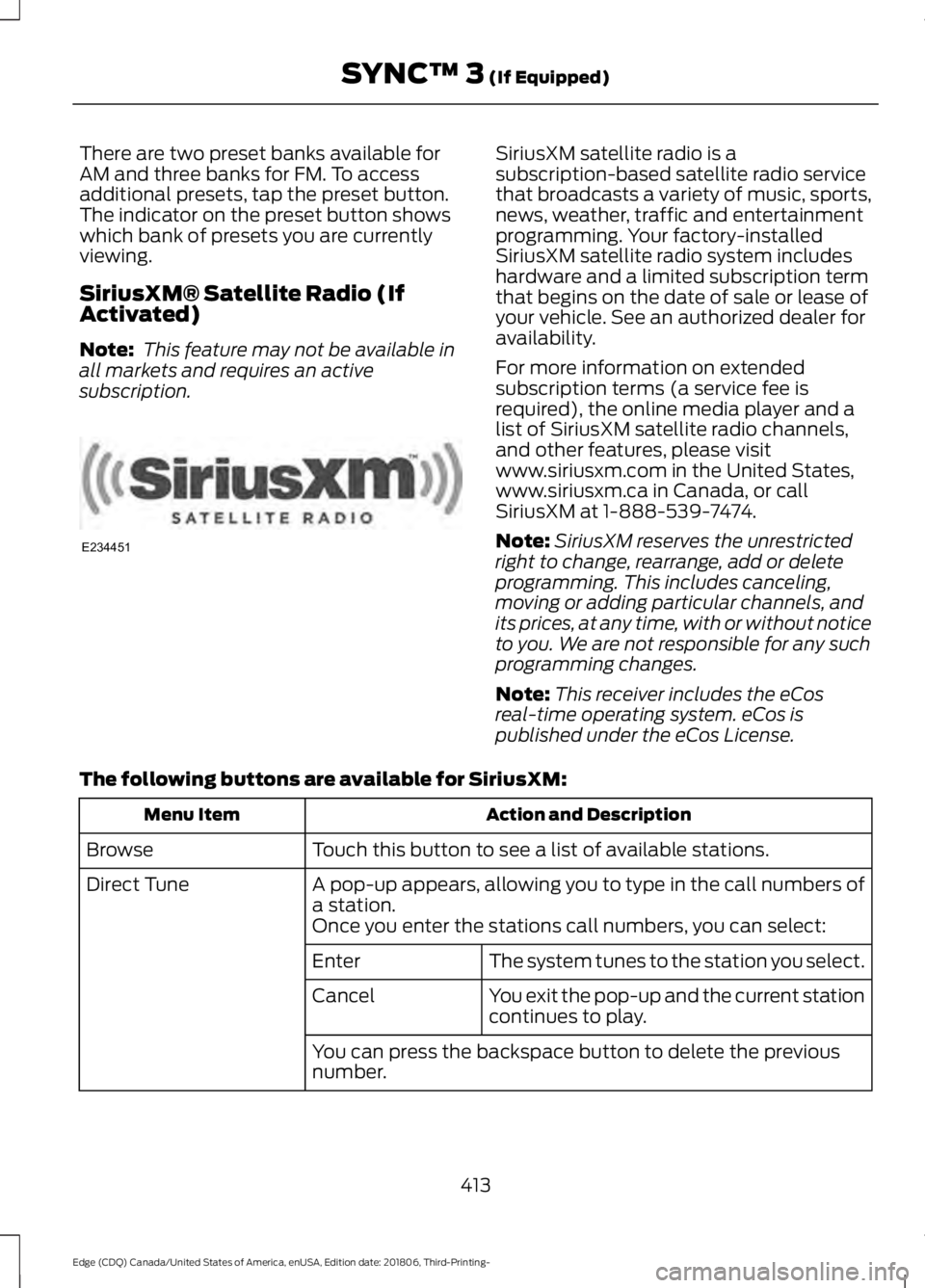
There are two preset banks available for
AM and three banks for FM. To access
additional presets, tap the preset button.
The indicator on the preset button shows
which bank of presets you are currently
viewing.
SiriusXM® Satellite Radio (If
Activated)
Note:
This feature may not be available in
all markets and requires an active
subscription. SiriusXM satellite radio is a
subscription-based satellite radio service
that broadcasts a variety of music, sports,
news, weather, traffic and entertainment
programming. Your factory-installed
SiriusXM satellite radio system includes
hardware and a limited subscription term
that begins on the date of sale or lease of
your vehicle. See an authorized dealer for
availability.
For more information on extended
subscription terms (a service fee is
required), the online media player and a
list of SiriusXM satellite radio channels,
and other features, please visit
www.siriusxm.com in the United States,
www.siriusxm.ca in Canada, or call
SiriusXM at 1-888-539-7474.
Note:
SiriusXM reserves the unrestricted
right to change, rearrange, add or delete
programming. This includes canceling,
moving or adding particular channels, and
its prices, at any time, with or without notice
to you. We are not responsible for any such
programming changes.
Note: This receiver includes the eCos
real-time operating system. eCos is
published under the eCos License.
The following buttons are available for SiriusXM: Action and Description
Menu Item
Touch this button to see a list of available stations.
Browse
A pop-up appears, allowing you to type in the call numbers of
a station.
Direct Tune
Once you enter the stations call numbers, you can select:The system tunes to the station you select.
Enter
You exit the pop-up and the current station
continues to play.
Cancel
You can press the backspace button to delete the previous
number.
413
Edge (CDQ) Canada/United States of America, enUSA, Edition date: 201806, Third-Printing- SYNC™ 3 (If Equipped)E234451
Page 426 of 547
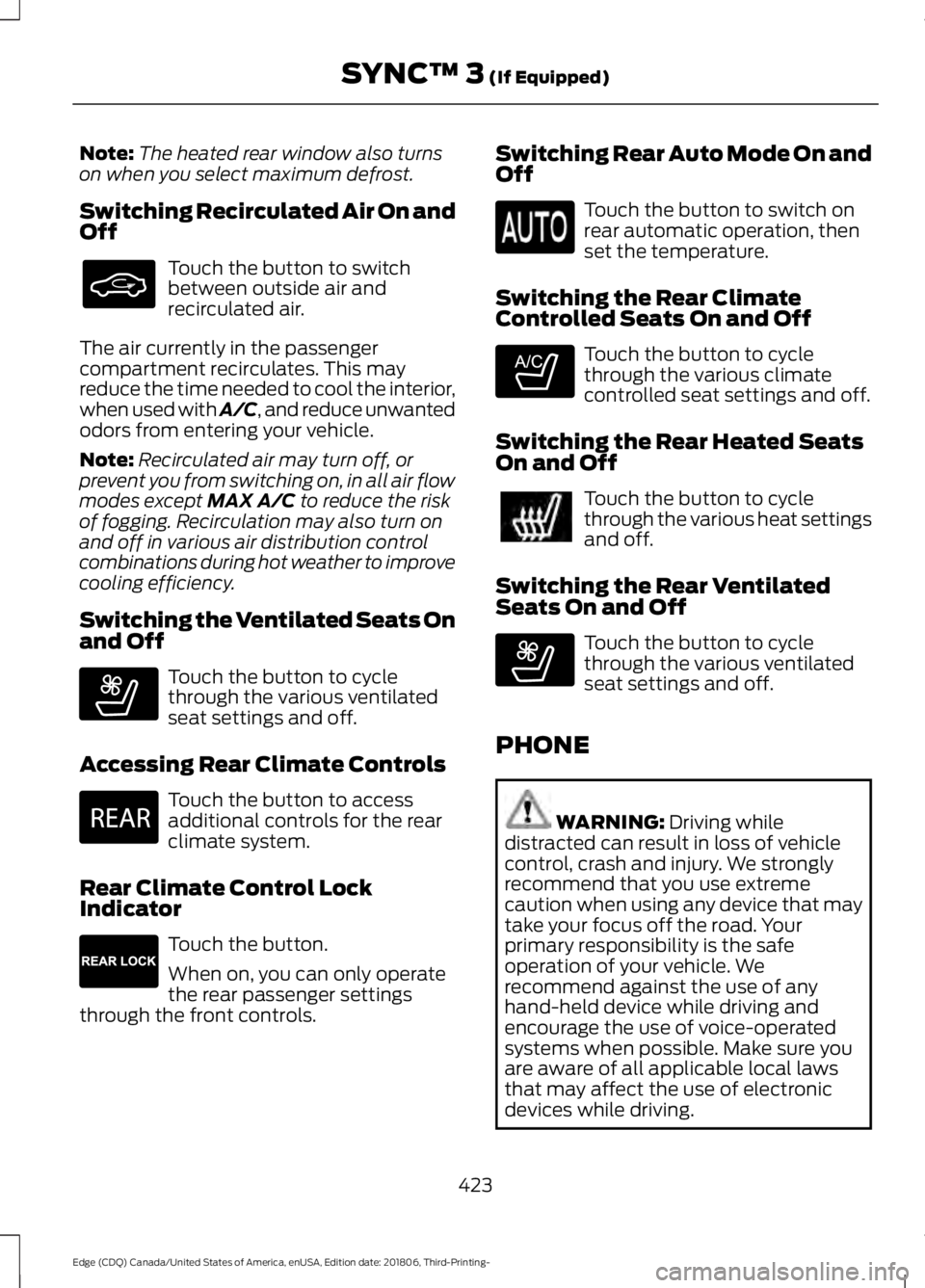
Note:
The heated rear window also turns
on when you select maximum defrost.
Switching Recirculated Air On and
Off Touch the button to switch
between outside air and
recirculated air.
The air currently in the passenger
compartment recirculates. This may
reduce the time needed to cool the interior,
when used with A/C, and reduce unwanted
odors from entering your vehicle.
Note: Recirculated air may turn off, or
prevent you from switching on, in all air flow
modes except MAX A/C to reduce the risk
of fogging. Recirculation may also turn on
and off in various air distribution control
combinations during hot weather to improve
cooling efficiency.
Switching the Ventilated Seats On
and Off Touch the button to cycle
through the various ventilated
seat settings and off.
Accessing Rear Climate Controls Touch the button to access
additional controls for the rear
climate system.
Rear Climate Control Lock
Indicator Touch the button.
When on, you can only operate
the rear passenger settings
through the front controls. Switching Rear Auto Mode On and
Off Touch the button to switch on
rear automatic operation, then
set the temperature.
Switching the Rear Climate
Controlled Seats On and Off Touch the button to cycle
through the various climate
controlled seat settings and off.
Switching the Rear Heated Seats
On and Off Touch the button to cycle
through the various heat settings
and off.
Switching the Rear Ventilated
Seats On and Off Touch the button to cycle
through the various ventilated
seat settings and off.
PHONE WARNING:
Driving while
distracted can result in loss of vehicle
control, crash and injury. We strongly
recommend that you use extreme
caution when using any device that may
take your focus off the road. Your
primary responsibility is the safe
operation of your vehicle. We
recommend against the use of any
hand-held device while driving and
encourage the use of voice-operated
systems when possible. Make sure you
are aware of all applicable local laws
that may affect the use of electronic
devices while driving.
423
Edge (CDQ) Canada/United States of America, enUSA, Edition date: 201806, Third-Printing- SYNC™ 3
(If Equipped) E268558 E270447 E265289 E265282 E268558
Page 429 of 547
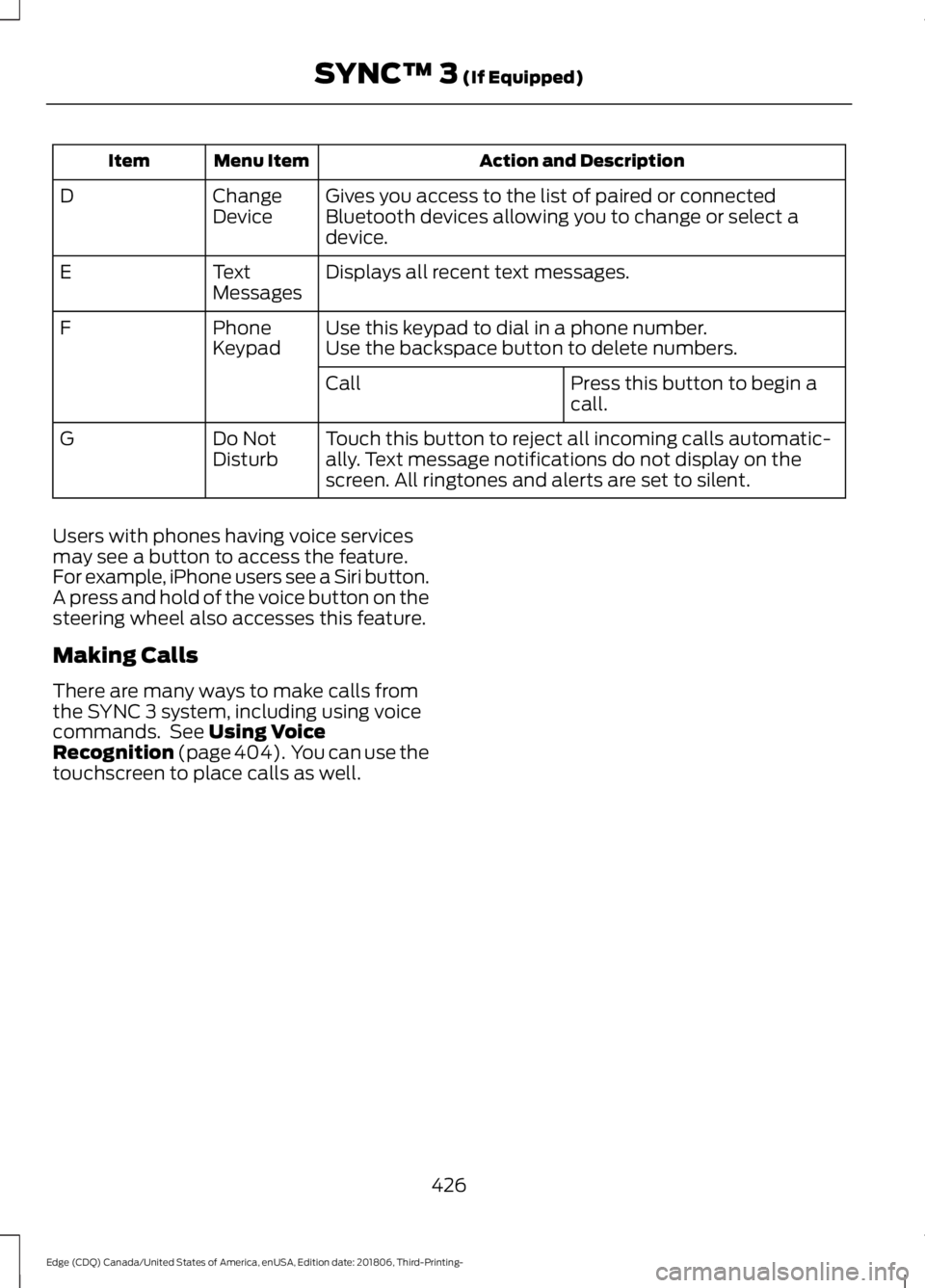
Action and Description
Menu Item
Item
Gives you access to the list of paired or connected
Bluetooth devices allowing you to change or select a
device.
Change
Device
D
Displays all recent text messages.
Text
Messages
E
Use this keypad to dial in a phone number.
Phone
Keypad
F
Use the backspace button to delete numbers.
Press this button to begin a
call.
Call
Touch this button to reject all incoming calls automatic-
ally. Text message notifications do not display on the
screen. All ringtones and alerts are set to silent.
Do Not
Disturb
G
Users with phones having voice services
may see a button to access the feature.
For example, iPhone users see a Siri button.
A press and hold of the voice button on the
steering wheel also accesses this feature.
Making Calls
There are many ways to make calls from
the SYNC 3 system, including using voice
commands. See Using Voice
Recognition (page 404). You can use the
touchscreen to place calls as well.
426
Edge (CDQ) Canada/United States of America, enUSA, Edition date: 201806, Third-Printing- SYNC™ 3
(If Equipped)
Page 430 of 547
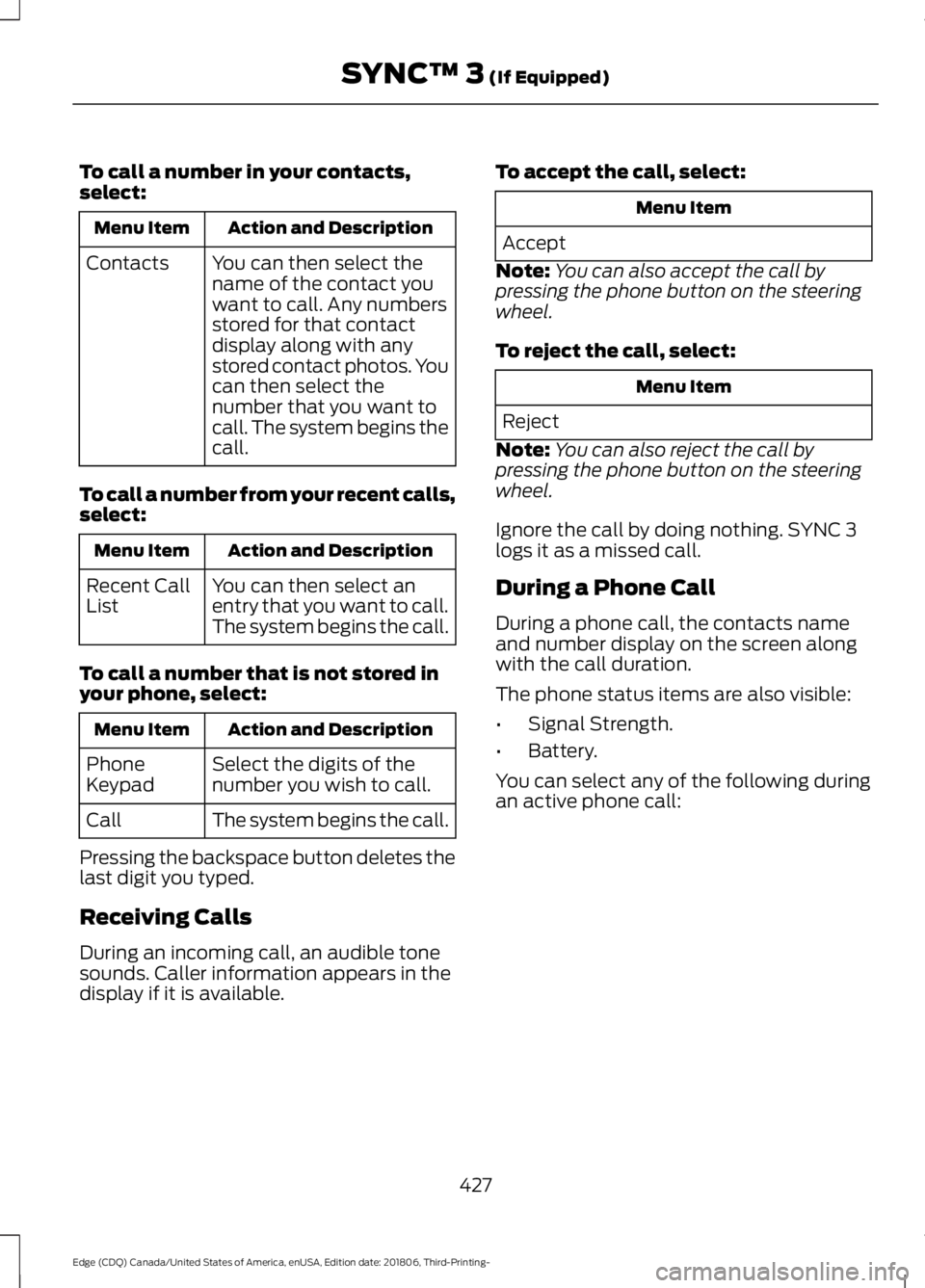
To call a number in your contacts,
select:
Action and Description
Menu Item
You can then select the
name of the contact you
want to call. Any numbers
stored for that contact
display along with any
stored contact photos. You
can then select the
number that you want to
call. The system begins the
call.
Contacts
To call a number from your recent calls,
select: Action and Description
Menu Item
You can then select an
entry that you want to call.
The system begins the call.
Recent Call
List
To call a number that is not stored in
your phone, select: Action and Description
Menu Item
Select the digits of the
number you wish to call.
Phone
Keypad
The system begins the call.
Call
Pressing the backspace button deletes the
last digit you typed.
Receiving Calls
During an incoming call, an audible tone
sounds. Caller information appears in the
display if it is available. To accept the call, select: Menu Item
Accept
Note: You can also accept the call by
pressing the phone button on the steering
wheel.
To reject the call, select: Menu Item
Reject
Note: You can also reject the call by
pressing the phone button on the steering
wheel.
Ignore the call by doing nothing. SYNC 3
logs it as a missed call.
During a Phone Call
During a phone call, the contacts name
and number display on the screen along
with the call duration.
The phone status items are also visible:
• Signal Strength.
• Battery.
You can select any of the following during
an active phone call:
427
Edge (CDQ) Canada/United States of America, enUSA, Edition date: 201806, Third-Printing- SYNC™ 3 (If Equipped)
Page 431 of 547
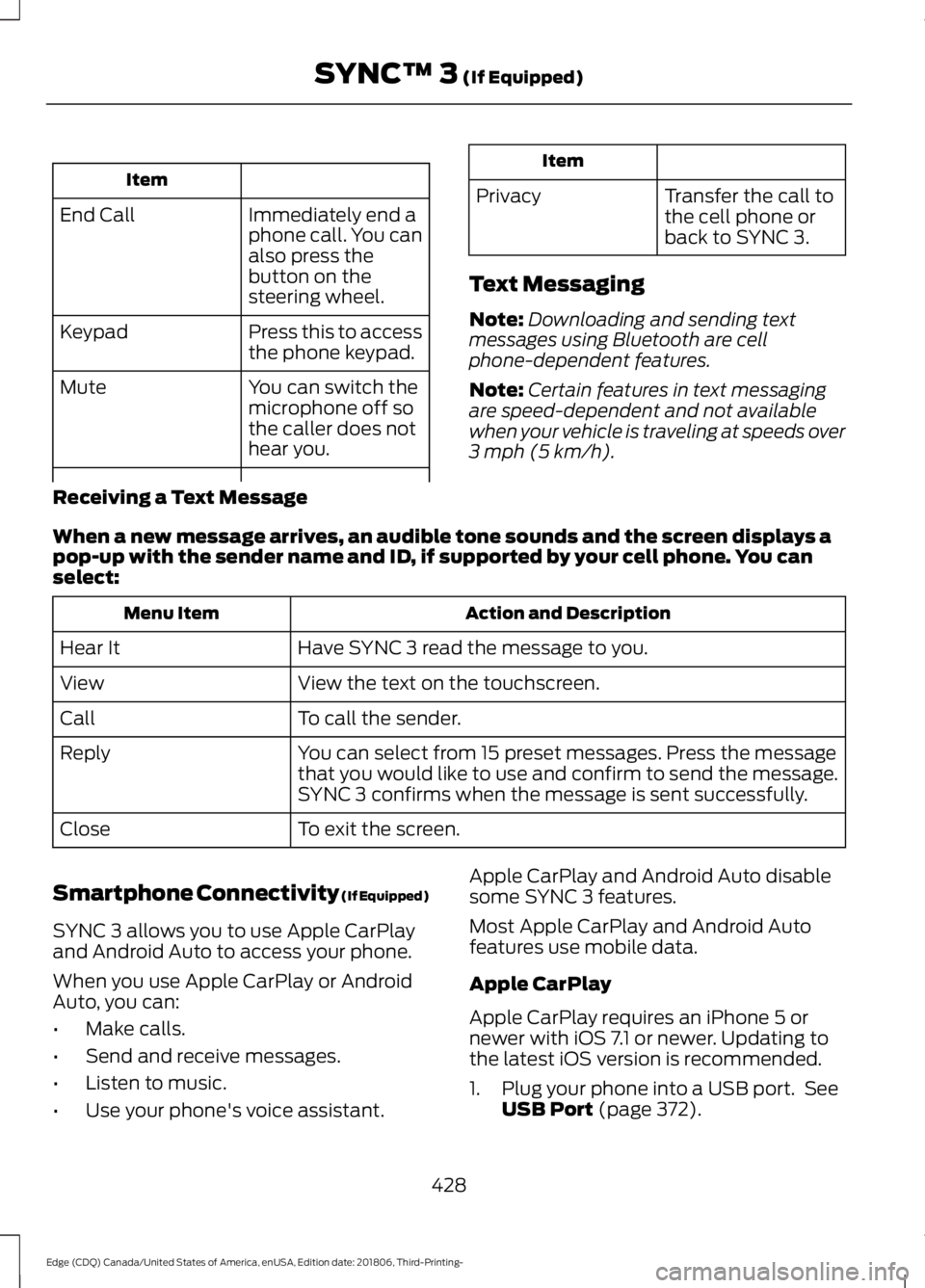
Item
Immediately end a
phone call. You can
also press the
button on the
steering wheel.
End Call
Press this to access
the phone keypad.
Keypad
You can switch the
microphone off so
the caller does not
hear you.
Mute Item
Privacy Transfer the call to
the cell phone or
back to SYNC 3.
Text Messaging
Note: Downloading and sending text
messages using Bluetooth are cell
phone-dependent features.
Note: Certain features in text messaging
are speed-dependent and not available
when your vehicle is traveling at speeds over
3 mph (5 km/h).
Receiving a Text Message
When a new message arrives, an audible tone sounds and the screen displays a
pop-up with the sender name and ID, if supported by your cell phone. You can
select: Action and Description
Menu Item
Have SYNC 3 read the message to you.
Hear It
View the text on the touchscreen.
View
To call the sender.
Call
You can select from 15 preset messages. Press the message
that you would like to use and confirm to send the message.
SYNC 3 confirms when the message is sent successfully.
Reply
To exit the screen.
Close
Smartphone Connectivity (If Equipped)
SYNC 3 allows you to use Apple CarPlay
and Android Auto to access your phone.
When you use Apple CarPlay or Android
Auto, you can:
• Make calls.
• Send and receive messages.
• Listen to music.
• Use your phone's voice assistant. Apple CarPlay and Android Auto disable
some SYNC 3 features.
Most Apple CarPlay and Android Auto
features use mobile data.
Apple CarPlay
Apple CarPlay requires an iPhone 5 or
newer with iOS 7.1 or newer. Updating to
the latest iOS version is recommended.
1. Plug your phone into a USB port. See
USB Port
(page 372).
428
Edge (CDQ) Canada/United States of America, enUSA, Edition date: 201806, Third-Printing- SYNC™ 3
(If Equipped)
Page 436 of 547
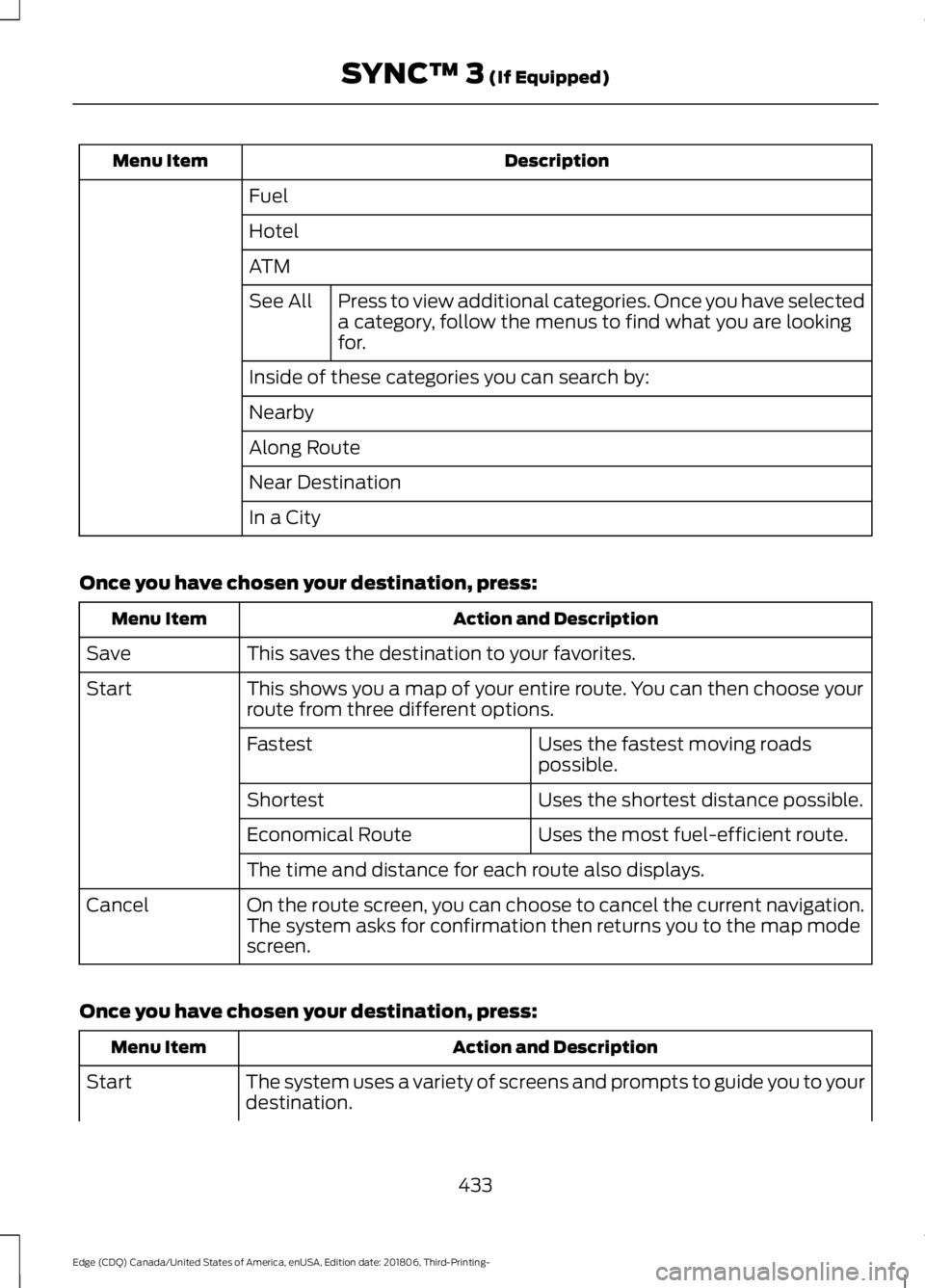
Description
Menu Item
Fuel
Hotel
ATMPress to view additional categories. Once you have selected
a category, follow the menus to find what you are looking
for.
See All
Inside of these categories you can search by:
Nearby
Along Route
Near Destination
In a City
Once you have chosen your destination, press: Action and Description
Menu Item
This saves the destination to your favorites.
Save
This shows you a map of your entire route. You can then choose your
route from three different options.
Start
Uses the fastest moving roads
possible.
Fastest
Uses the shortest distance possible.
Shortest
Uses the most fuel-efficient route.
Economical Route
The time and distance for each route also displays.
On the route screen, you can choose to cancel the current navigation.
The system asks for confirmation then returns you to the map mode
screen.
Cancel
Once you have chosen your destination, press: Action and Description
Menu Item
The system uses a variety of screens and prompts to guide you to your
destination.
Start
433
Edge (CDQ) Canada/United States of America, enUSA, Edition date: 201806, Third-Printing- SYNC™ 3 (If Equipped)
Page 437 of 547
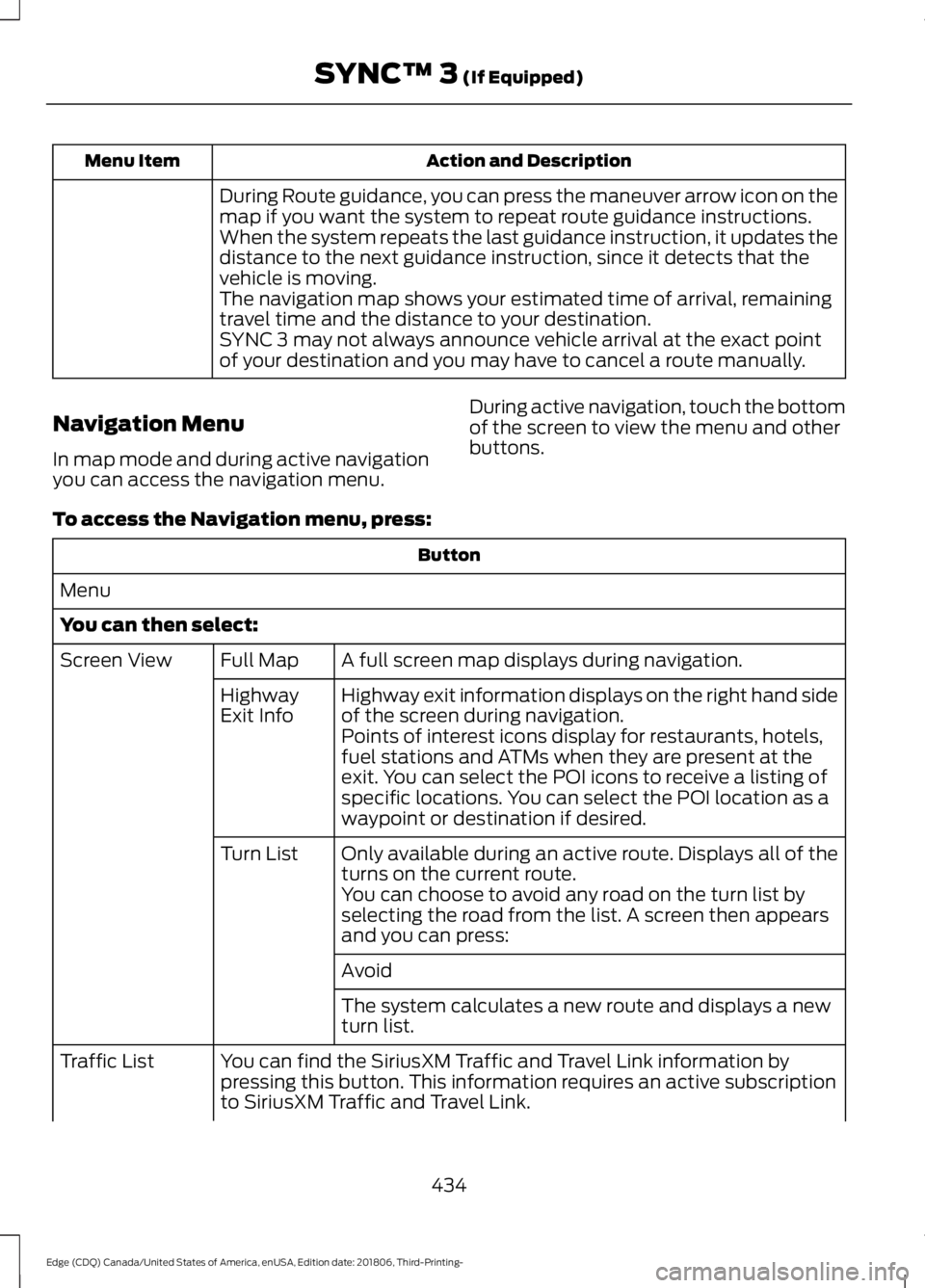
Action and Description
Menu Item
During Route guidance, you can press the maneuver arrow icon on the
map if you want the system to repeat route guidance instructions.
When the system repeats the last guidance instruction, it updates the
distance to the next guidance instruction, since it detects that the
vehicle is moving.
The navigation map shows your estimated time of arrival, remaining
travel time and the distance to your destination.
SYNC 3 may not always announce vehicle arrival at the exact point
of your destination and you may have to cancel a route manually.
Navigation Menu
In map mode and during active navigation
you can access the navigation menu. During active navigation, touch the bottom
of the screen to view the menu and other
buttons.
To access the Navigation menu, press: Button
Menu
You can then select: A full screen map displays during navigation.
Full Map
Screen View
Highway exit information displays on the right hand side
of the screen during navigation.
Highway
Exit Info
Points of interest icons display for restaurants, hotels,
fuel stations and ATMs when they are present at the
exit. You can select the POI icons to receive a listing of
specific locations. You can select the POI location as a
waypoint or destination if desired.
Only available during an active route. Displays all of the
turns on the current route.
Turn List
You can choose to avoid any road on the turn list by
selecting the road from the list. A screen then appears
and you can press:
Avoid
The system calculates a new route and displays a new
turn list.
You can find the SiriusXM Traffic and Travel Link information by
pressing this button. This information requires an active subscription
to SiriusXM Traffic and Travel Link.
Traffic List
434
Edge (CDQ) Canada/United States of America, enUSA, Edition date: 201806, Third-Printing- SYNC™ 3 (If Equipped)