light FORD EDGE 2019 Repair Manual
[x] Cancel search | Manufacturer: FORD, Model Year: 2019, Model line: EDGE, Model: FORD EDGE 2019Pages: 547, PDF Size: 40.86 MB
Page 214 of 547
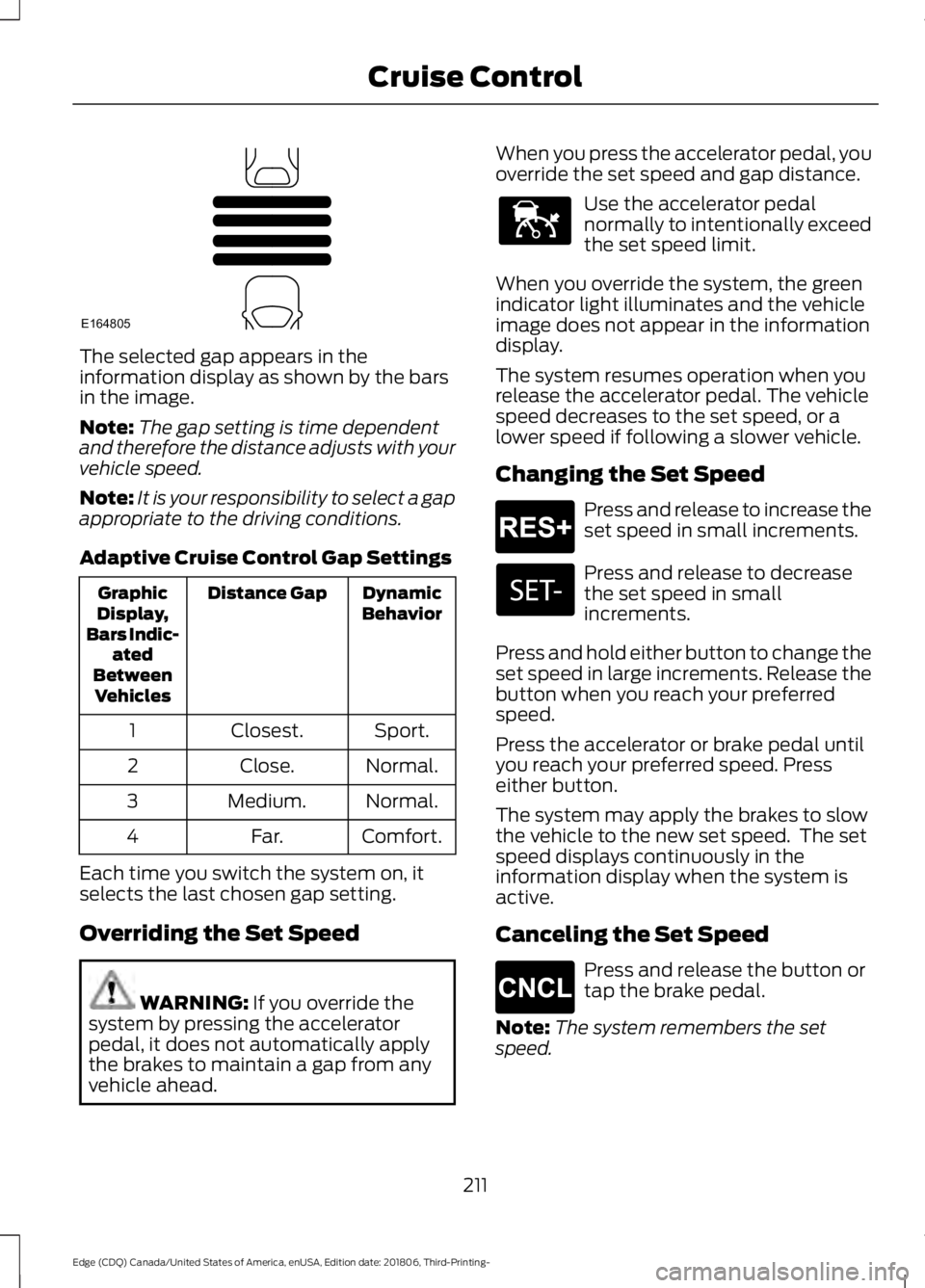
The selected gap appears in the
information display as shown by the bars
in the image.
Note:
The gap setting is time dependent
and therefore the distance adjusts with your
vehicle speed.
Note: It is your responsibility to select a gap
appropriate to the driving conditions.
Adaptive Cruise Control Gap Settings Dynamic
Behavior
Distance Gap
Graphic
Display,
Bars Indic- ated
Between Vehicles
Sport.
Closest.
1
Normal.
Close.
2
Normal.
Medium.
3
Comfort.
Far.
4
Each time you switch the system on, it
selects the last chosen gap setting.
Overriding the Set Speed WARNING: If you override the
system by pressing the accelerator
pedal, it does not automatically apply
the brakes to maintain a gap from any
vehicle ahead. When you press the accelerator pedal, you
override the set speed and gap distance. Use the accelerator pedal
normally to intentionally exceed
the set speed limit.
When you override the system, the green
indicator light illuminates and the vehicle
image does not appear in the information
display.
The system resumes operation when you
release the accelerator pedal. The vehicle
speed decreases to the set speed, or a
lower speed if following a slower vehicle.
Changing the Set Speed Press and release to increase the
set speed in small increments.
Press and release to decrease
the set speed in small
increments.
Press and hold either button to change the
set speed in large increments. Release the
button when you reach your preferred
speed.
Press the accelerator or brake pedal until
you reach your preferred speed. Press
either button.
The system may apply the brakes to slow
the vehicle to the new set speed. The set
speed displays continuously in the
information display when the system is
active.
Canceling the Set Speed Press and release the button or
tap the brake pedal.
Note: The system remembers the set
speed.
211
Edge (CDQ) Canada/United States of America, enUSA, Edition date: 201806, Third-Printing- Cruise ControlE164805 E144529 E265299 E265298
Page 216 of 547
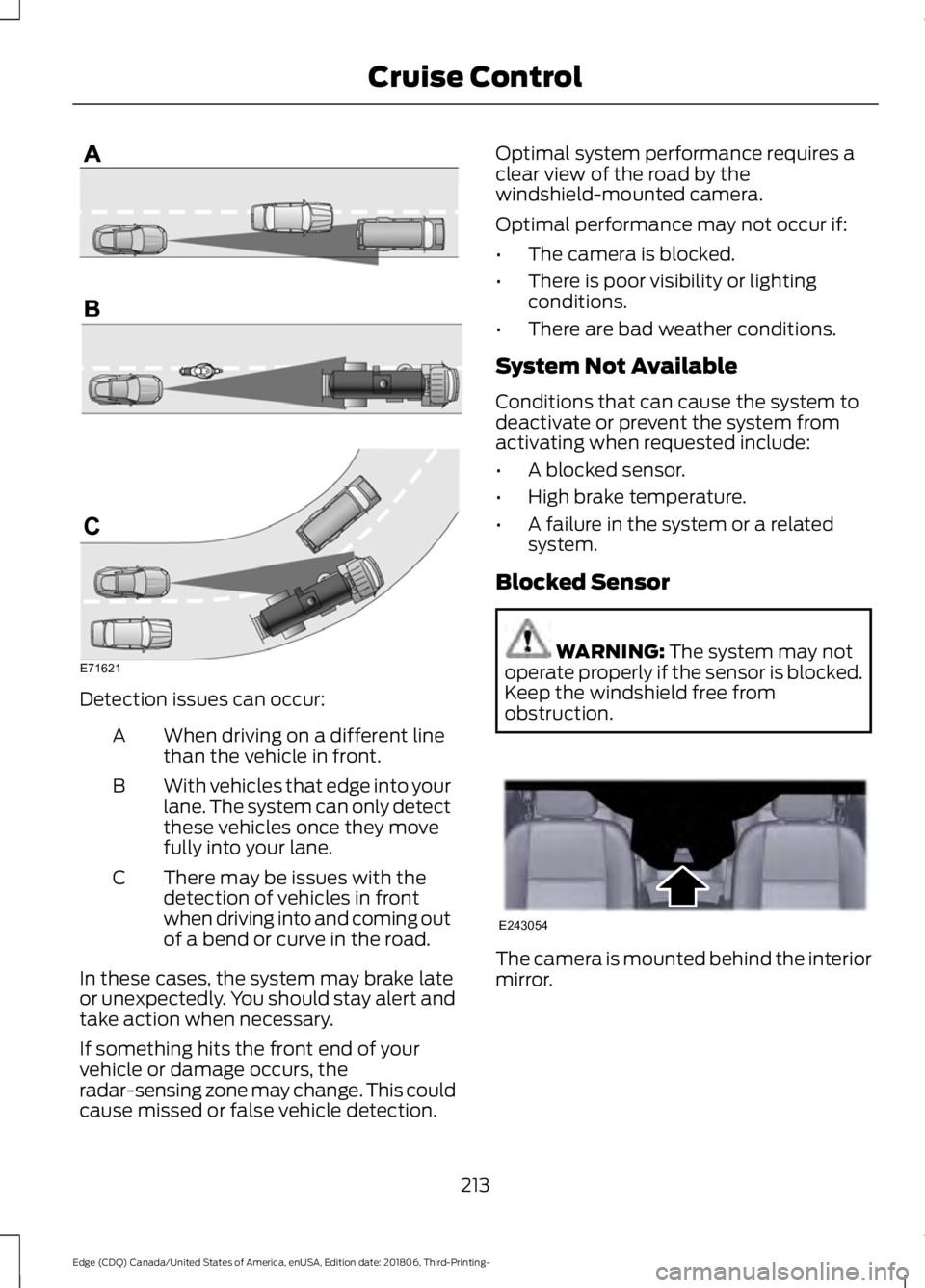
Detection issues can occur:
When driving on a different line
than the vehicle in front.
A
With vehicles that edge into your
lane. The system can only detect
these vehicles once they move
fully into your lane.
B
There may be issues with the
detection of vehicles in front
when driving into and coming out
of a bend or curve in the road.
C
In these cases, the system may brake late
or unexpectedly. You should stay alert and
take action when necessary.
If something hits the front end of your
vehicle or damage occurs, the
radar-sensing zone may change. This could
cause missed or false vehicle detection. Optimal system performance requires a
clear view of the road by the
windshield-mounted camera.
Optimal performance may not occur if:
•
The camera is blocked.
• There is poor visibility or lighting
conditions.
• There are bad weather conditions.
System Not Available
Conditions that can cause the system to
deactivate or prevent the system from
activating when requested include:
• A blocked sensor.
• High brake temperature.
• A failure in the system or a related
system.
Blocked Sensor WARNING: The system may not
operate properly if the sensor is blocked.
Keep the windshield free from
obstruction. The camera is mounted behind the interior
mirror.
213
Edge (CDQ) Canada/United States of America, enUSA, Edition date: 201806, Third-Printing- Cruise ControlE71621 E243054
Page 218 of 547
Keep the front of your vehicle free of dirt,
metal badges or objects. Vehicle front
protectors and aftermarket lights may also
block the sensor.
Due to the nature of radar technology, it is
possible to get a blockage warning with no
actual block. This happens, for example,
when driving in sparse rural or desert
environments. A false blocked condition
either self clears, or clears after you restart
your vehicle.
Switching to Normal Cruise
Control
WARNING: Normal cruise control
will not brake when your vehicle is
approaching slower vehicles. Always be
aware of which mode you have selected
and apply the brakes when necessary. The cruise control indicator light
replaces the adaptive cruise
control indicator light if you
select normal cruise control. The gap
setting does not display, and the system
does not respond to lead vehicles.
Automatic braking remains active to
maintain set speed.
You can change from adaptive cruise
control to normal cruise control through
the information display. USING ADAPTIVE CRUISE
CONTROL - VEHICLES WITH:
ADAPTIVE CRUISE CONTROL
WITH STOP AND GO/LANE
CENTERING WARNING:
Always pay close
attention to changing road conditions
when using the system. It does not
replace attentive driving. Failure to
follow this instruction could result in
personal injury or death. WARNING:
Do not use the system
when entering or leaving a highway, on
roads with intersections or roundabouts
or non-vehicular traffic or roads that are
winding, slippery, unpaved, or steep
slopes. WARNING:
Do not use the system
in poor visibility, for example fog, heavy
rain, spray or snow. WARNING:
Do not use the system
when towing a trailer that has
aftermarket electronic trailer brake
controls. Failure to follow this instruction
could result in the loss of control of your
vehicle, personal injury or death. WARNING:
Do not use tire sizes
other than those recommended because
this can affect the normal operation of
the system. Failure to do so may result
in a loss of vehicle control, which could
result in serious injury. WARNING:
The system may not
detect stationary or slow moving
vehicles below
6 mph (10 km/h).
215
Edge (CDQ) Canada/United States of America, enUSA, Edition date: 201806, Third-Printing- Cruise ControlE71340
Page 219 of 547
WARNING: The system does not
detect pedestrians or objects in the road. WARNING:
The system does not
detect oncoming vehicles in the same
lane. WARNING:
The system is not a
crash warning or avoidance system.
The system adjusts your vehicle speed to
maintain the set gap between you and the
vehicle in front of you in the same lane.
You can select four gap settings.
The system uses a radar sensor that
projects a beam directly in front of your
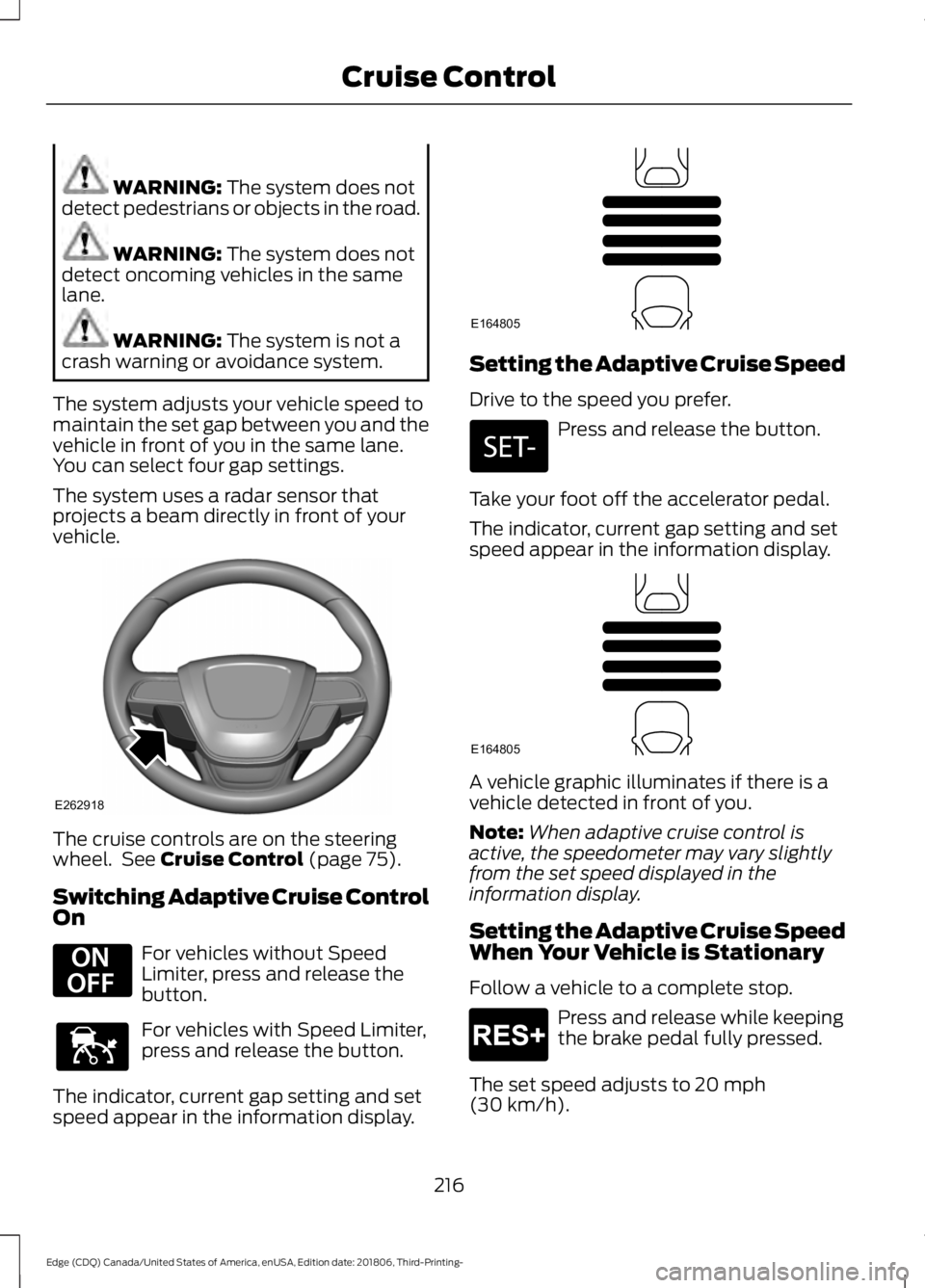
vehicle. The cruise controls are on the steering
wheel. See
Cruise Control (page 75).
Switching Adaptive Cruise Control
On For vehicles without Speed
Limiter, press and release the
button.
For vehicles with Speed Limiter,
press and release the button.
The indicator, current gap setting and set
speed appear in the information display. Setting the Adaptive Cruise Speed
Drive to the speed you prefer.
Press and release the button.
Take your foot off the accelerator pedal.
The indicator, current gap setting and set
speed appear in the information display. A vehicle graphic illuminates if there is a
vehicle detected in front of you.
Note:
When adaptive cruise control is
active, the speedometer may vary slightly
from the set speed displayed in the
information display.
Setting the Adaptive Cruise Speed
When Your Vehicle is Stationary
Follow a vehicle to a complete stop. Press and release while keeping
the brake pedal fully pressed.
The set speed adjusts to
20 mph
(30 km/h).
216
Edge (CDQ) Canada/United States of America, enUSA, Edition date: 201806, Third-Printing- Cruise ControlE262918 E294678 E144529 E164805 E164805 E265299
Page 221 of 547
The selected gap appears in the
information display as shown by the bars
in the image.
Note:
The gap setting is time dependent
and therefore the distance adjusts with your
vehicle speed.
Note: It is your responsibility to select a gap
appropriate to the driving conditions.
Adaptive Cruise Control Gap Settings Dynamic
Behavior
Distance Gap
Graphic
Display,
Bars Indic- ated
Between Vehicles
Sport.
Closest.
1
Normal.
Close.
2
Normal.
Medium.
3
Comfort.
Far.
4
Each time you switch the system on, it
selects the last chosen gap setting.
Overriding the Set Speed WARNING: If you override the
system by pressing the accelerator
pedal, it does not automatically apply
the brakes to maintain a gap from any
vehicle ahead.
When you press the accelerator pedal, you
override the set speed and gap distance. Use the accelerator pedal
normally to intentionally exceed
the set speed limit.
When you override the system, the green
indicator light illuminates and the vehicle
graphic does not appear in the information
display. The system resumes operation when you
release the accelerator pedal. The vehicle
speed decreases to the set speed, or a
lower speed if following a slower vehicle.
Changing the Set Speed
Press and release to increase the
set speed in small increments.
Press and release to decrease
the set speed in small
increments.
Press and hold either button to change the
set speed in large increments. Release the
button when you reach the speed you
prefer.
The system may apply the brakes to slow
the vehicle to the new set speed. The set
speed displays continuously in the
information display when the system is
active.
Canceling the Set Speed Press and release the button or
tap the brake pedal.
Note: The system remembers the set
speed.
Resuming the Set Speed Press and release the button.
Your vehicle speed returns to the
previously set speed and gap setting. The
set speed displays continuously in the
information display when the system is
active.
Note: Only use resume if you are aware of
the set speed and intend to return to it.
218
Edge (CDQ) Canada/United States of America, enUSA, Edition date: 201806, Third-Printing- Cruise ControlE144529 E265299 E265298 E265299
Page 223 of 547
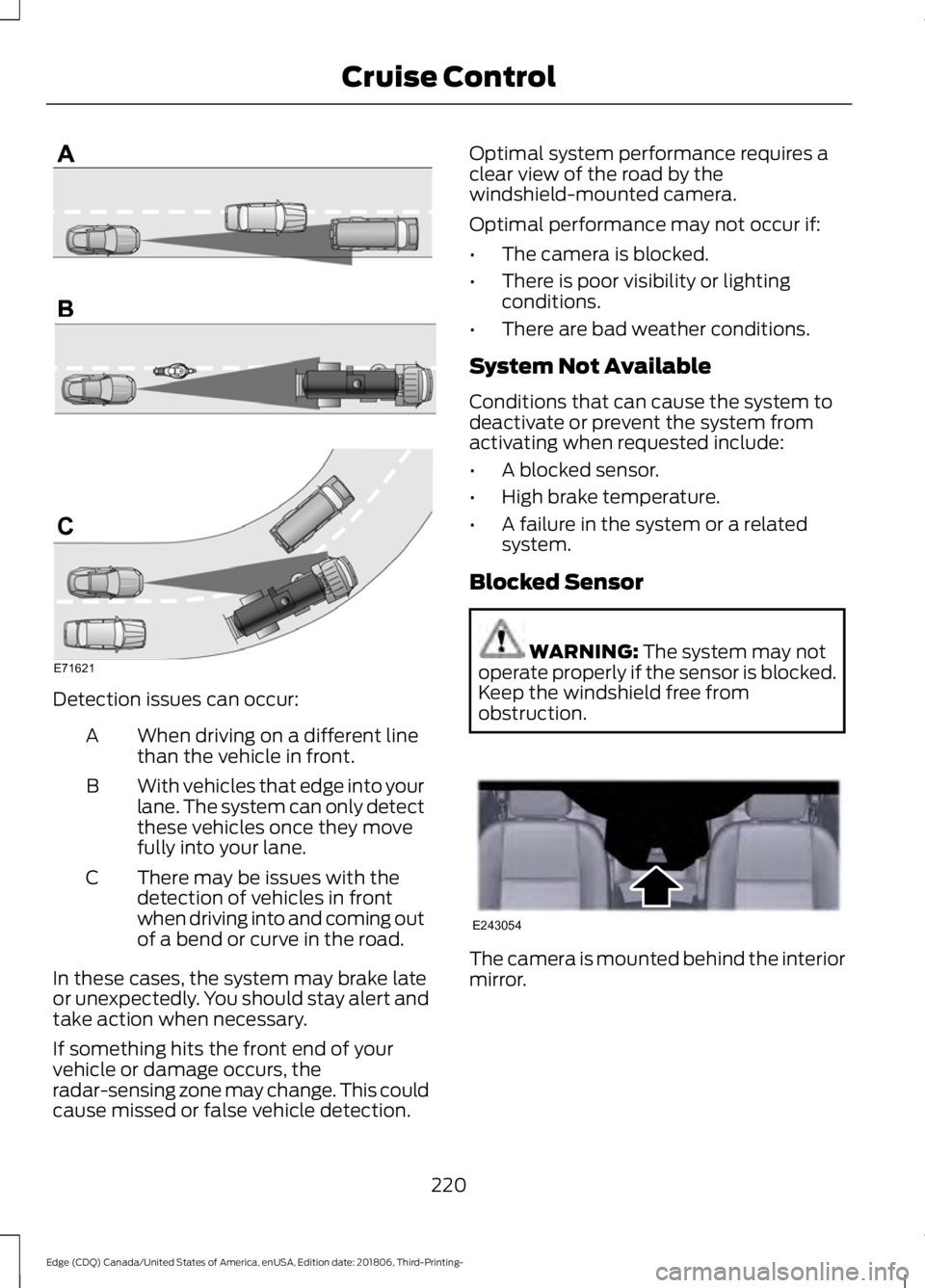
Detection issues can occur:
When driving on a different line
than the vehicle in front.
A
With vehicles that edge into your
lane. The system can only detect
these vehicles once they move
fully into your lane.
B
There may be issues with the
detection of vehicles in front
when driving into and coming out
of a bend or curve in the road.
C
In these cases, the system may brake late
or unexpectedly. You should stay alert and
take action when necessary.
If something hits the front end of your
vehicle or damage occurs, the
radar-sensing zone may change. This could
cause missed or false vehicle detection. Optimal system performance requires a
clear view of the road by the
windshield-mounted camera.
Optimal performance may not occur if:
•
The camera is blocked.
• There is poor visibility or lighting
conditions.
• There are bad weather conditions.
System Not Available
Conditions that can cause the system to
deactivate or prevent the system from
activating when requested include:
• A blocked sensor.
• High brake temperature.
• A failure in the system or a related
system.
Blocked Sensor WARNING: The system may not
operate properly if the sensor is blocked.
Keep the windshield free from
obstruction. The camera is mounted behind the interior
mirror.
220
Edge (CDQ) Canada/United States of America, enUSA, Edition date: 201806, Third-Printing- Cruise ControlE71621 E243054
Page 225 of 547
Keep the front of your vehicle free of dirt,
metal badges or objects. Vehicle front
protectors and aftermarket lights may also
block the sensor.
Due to the nature of radar technology, it is
possible to get a blockage warning with no
actual block. This happens, for example,
when driving in sparse rural or desert
environments. A false blocked condition
either self clears, or clears after you restart
your vehicle.
Switching to Normal Cruise
Control
WARNING: Normal cruise control
will not brake when your vehicle is
approaching slower vehicles. Always be
aware of which mode you have selected
and apply the brakes when necessary.
You can change from adaptive cruise
control to normal cruise control through
the information display. The cruise control indicator light
replaces the adaptive cruise
control indicator light if you
select normal cruise control. The gap
setting does not display, and the system
does not respond to lead vehicles.
Automatic braking remains active to
maintain set speed.
Using Lane Centering WARNING:
You are responsible
for controlling your vehicle at all times.
The system is designed to be an aid and
does not relieve you of your responsibility
to drive with due care and attention.
Failure to follow this instruction could
result in the loss of control of your
vehicle, personal injury or death. WARNING:
Do not use the system
when entering or leaving a highway, on
roads with intersections or roundabouts
or non-vehicular traffic or roads that are
winding, slippery, unpaved, or steep
slopes. WARNING:
Do not use the system
in poor visibility, for example fog, heavy
rain, spray or snow. WARNING:
Large contrasts in
outside lighting can limit sensor
performance. WARNING:
The sensor may
incorrectly track lane markings as other
structures or objects. This can result in
a false or missed warning. WARNING:
Do not use the system
when towing a trailer. Failure to follow
this instruction could result in the loss of
control of your vehicle, personal injury or
death.
The system is designed to help keep your
vehicle in the center of the lane by applying
continuous assistance steering torque
input toward the lane center on highways.
Note: The assistance steering torque is
limited and may not be sufficient for all
driving situations.
Note: In exceptional conditions, the system
may deviate from the center line.
The system only activates when the all of
the following occur:
• You have adaptive cruise control with
stop-and-go on.
• The system detects both lane
markings.
• Your hands are on the steering wheel
at all times.
222
Edge (CDQ) Canada/United States of America, enUSA, Edition date: 201806, Third-Printing- Cruise ControlE71340
Page 226 of 547
Note:
The system may not function if the
front camera or sensor is blocked or not
available.
Switching Lane Centering On and Off Press and release the button.
The indicator appears in the information
display. When the system is on, the color
of the indicator changes to indicate the
system status.
Gray indicates the system is on but
inactive.
Green indicates the system is active and
applying assistance steering torque input
to keep your vehicle in the center of the
lane.
The system activates when it detects valid
lane markings. If it does not detect valid
lane markings, the system stays inactive
until valid markings are available.
The system may not correctly operate in
any of the following conditions:
• Your vehicle is not centered in the lane.
• The lane is too narrow or wide.
• The system does not detect at least
one lane marking or when lanes merge
or split.
• You switch the direction indicator on.
• Limited steering torque input is applied.
• Areas under construction or new
infrastructure.
• When modifications to the steering
system have been made.
• When using a spare tire. When the system is active and detects no
steering activity for a certain period of time,
the system alerts you to put your hands on
the steering wheel. If you do not react to
the warnings the system cancels and slows
your vehicle down to idle speeds while
maintaining steering control.
The system also alerts you if your vehicle
crosses lane markings without detected
steering activity.
Note:
The system may detect a light grip
or touch on the steering wheel as hands-off
driving.
You can override the system at any time
by steering your vehicle.
Automatic Cancellation
When an external condition cancels the
system, for example, no lane markings
available, a tone sounds and a message
appears in the information display. If your vehicle starts to slow
down, you must contribute to
the steering control and press
and release the button to regain full
system performance.
Automatic cancellation can also occur if:
• The lane becomes too wide or too
narrow.
• The system cannot detect valid lane
markings.
• Lane markings are crossed.
Note: The system disables until the next
key cycle if your vehicle slows down due to
driver inactivity twice within a key cycle.
Blocked Sensor WARNING: The system may not
operate properly if the sensor is blocked.
Keep the windshield free from
obstruction.
223
Edge (CDQ) Canada/United States of America, enUSA, Edition date: 201806, Third-Printing- Cruise ControlE262175 E265299
Page 230 of 547
WARNING: Always drive with due
care and attention when using and
operating the controls and features on
your vehicle. WARNING:
In cold and severe
weather conditions the system may not
function. Rain, snow and spray can all
limit sensor performance. WARNING:
The system will not
operate if the sensor cannot track the
road lane markings. WARNING:
The sensor may
incorrectly track lane markings as other
structures or objects. This can result in
a false or missed warning. WARNING:
The system may not
operate properly if the sensor is blocked.
Keep the windshield free from
obstruction. WARNING:
If damage occurs in
the immediate area surrounding the
sensor, have your vehicle checked as
soon as possible. WARNING:
The system may not
correctly operate if your vehicle is fitted
with a suspension kit not approved by
us.
Note: The system works above
40 mph
(65 km/h).
Note: The system works as long as the
camera can detect one lane marking. Note:
When you select aid or alert and aid
mode and the system detects no steering
activity for a short period, the system alerts
you to put your hands on the steering wheel.
The system may detect a light grip or
touch on the steering wheel as hands off
driving.
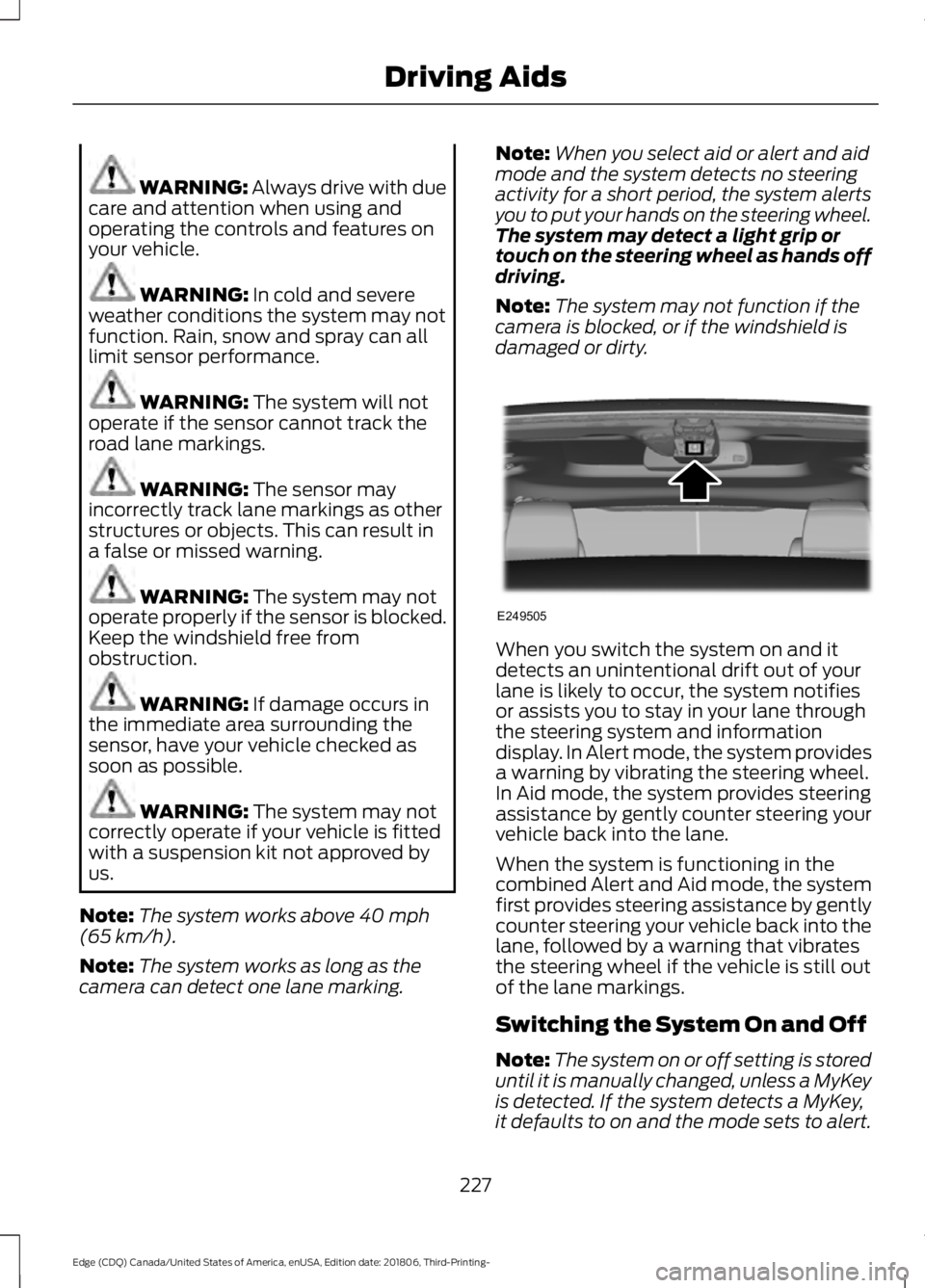
Note: The system may not function if the
camera is blocked, or if the windshield is
damaged or dirty. When you switch the system on and it
detects an unintentional drift out of your
lane is likely to occur, the system notifies
or assists you to stay in your lane through
the steering system and information
display. In Alert mode, the system provides
a warning by vibrating the steering wheel.
In Aid mode, the system provides steering
assistance by gently counter steering your
vehicle back into the lane.
When the system is functioning in the
combined Alert and Aid mode, the system
first provides steering assistance by gently
counter steering your vehicle back into the
lane, followed by a warning that vibrates
the steering wheel if the vehicle is still out
of the lane markings.
Switching the System On and Off
Note:
The system on or off setting is stored
until it is manually changed, unless a MyKey
is detected. If the system detects a MyKey,
it defaults to on and the mode sets to alert.
227
Edge (CDQ) Canada/United States of America, enUSA, Edition date: 201806, Third-Printing- Driving AidsE249505
Page 233 of 547
Troubleshooting
Why is the feature not available (line markings are gray) when I can see the lane markings
on the road?
Your vehicle speed is outside the operational range of the feature.
The sun is shining directly into the camera lens.
A quick intentional lane change has occurred.
Your vehicle stays too close to the lane markings.
Driving at high speeds in curves.
The last alert warning or aid intervention occurred a short time ago.
Ambiguous lane markings, for example in construction zones.
Rapid transition from light to dark, or from dark to light.
Sudden offset in lane markings.
ABS or AdvanceTrac ™ is active.
There is a camera blockage due to dirt, grime, fog, frost or water on the windshield.
You are driving too close to the vehicle in front of you.
Transitioning between no lane markings to lane markings or vice versa.
There is standing water on the road.
Faint lane markings, for example partial yellow lane markings on concrete roads.
Lane width is too narrow or too wide.
The camera has not been calibrated after a windshield replacement.
Driving on tight roads or on uneven roads.
230
Edge (CDQ) Canada/United States of America, enUSA, Edition date: 201806, Third-Printing- Driving Aids