change wheel FORD EDGE 2020 User Guide
[x] Cancel search | Manufacturer: FORD, Model Year: 2020, Model line: EDGE, Model: FORD EDGE 2020Pages: 495, PDF Size: 6.38 MB
Page 211 of 495
The fixed and active guidelines fade in and
out depending on the steering wheel
position. The active guidelines do not
display when the steering wheel position
is straight.
Always use caution while reversing.
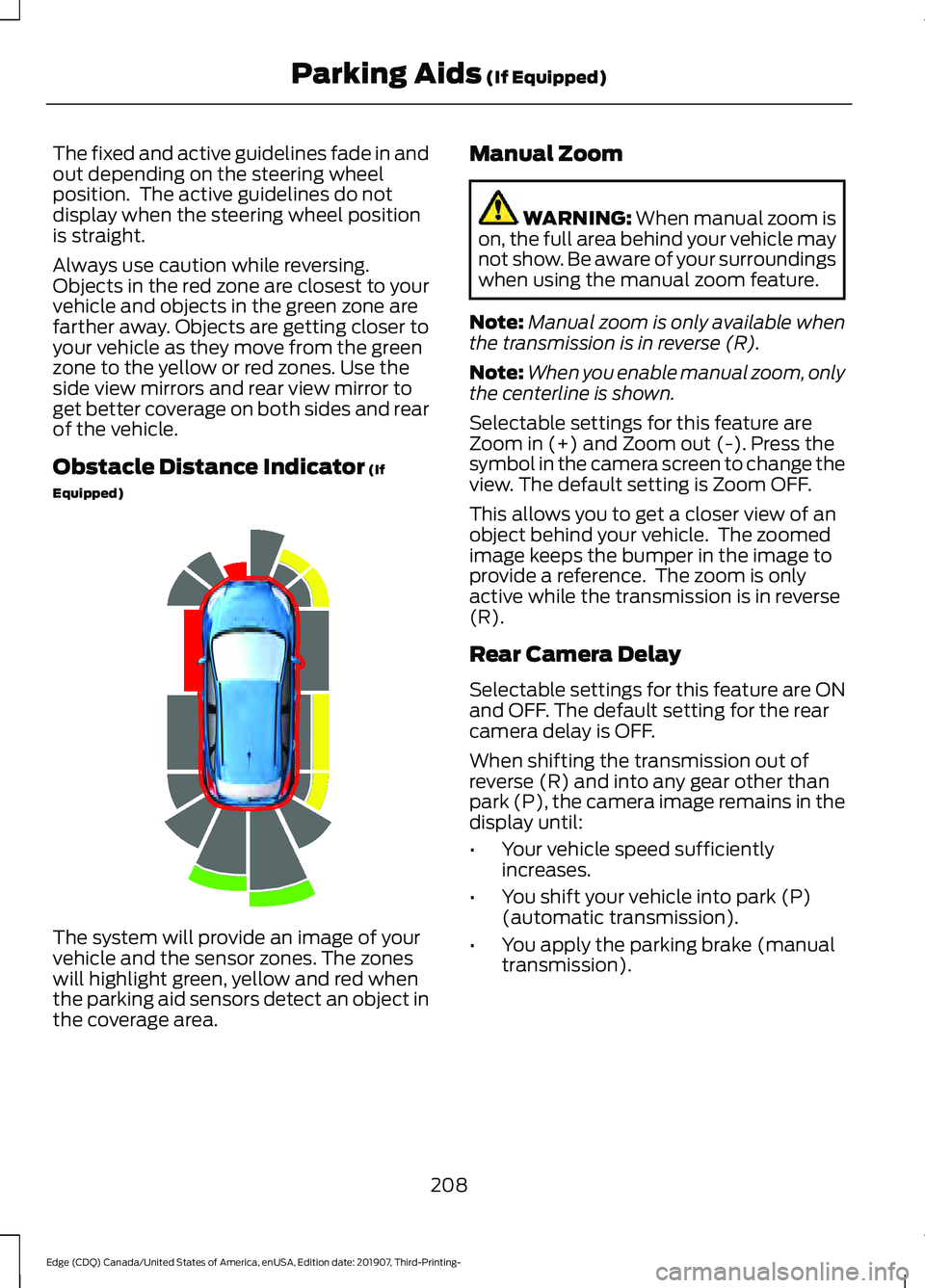
Objects in the red zone are closest to your
vehicle and objects in the green zone are
farther away. Objects are getting closer to
your vehicle as they move from the green
zone to the yellow or red zones. Use the
side view mirrors and rear view mirror to
get better coverage on both sides and rear
of the vehicle.
Obstacle Distance Indicator (If
Equipped) The system will provide an image of your
vehicle and the sensor zones. The zones
will highlight green, yellow and red when
the parking aid sensors detect an object in
the coverage area. Manual Zoom WARNING:
When manual zoom is
on, the full area behind your vehicle may
not show. Be aware of your surroundings
when using the manual zoom feature.
Note: Manual zoom is only available when
the transmission is in reverse (R).
Note: When you enable manual zoom, only
the centerline is shown.
Selectable settings for this feature are
Zoom in (+) and Zoom out (-). Press the
symbol in the camera screen to change the
view. The default setting is Zoom OFF.
This allows you to get a closer view of an
object behind your vehicle. The zoomed
image keeps the bumper in the image to
provide a reference. The zoom is only
active while the transmission is in reverse
(R).
Rear Camera Delay
Selectable settings for this feature are ON
and OFF. The default setting for the rear
camera delay is OFF.
When shifting the transmission out of
reverse (R) and into any gear other than
park (P), the camera image remains in the
display until:
• Your vehicle speed sufficiently
increases.
• You shift your vehicle into park (P)
(automatic transmission).
• You apply the parking brake (manual
transmission).
208
Edge (CDQ) Canada/United States of America, enUSA, Edition date: 201907, Third-Printing- Parking Aids
(If Equipped)E190459
Page 213 of 495
WHAT IS CRUISE CONTROL
Cruise control lets you maintain a set
speed without keeping your foot on the
accelerator pedal.
Requirements
Use cruise control when the vehicle speed
is greater than 20 mph (30 km/h).
SWITCHING CRUISE CONTROL
ON AND OFF WARNING:
Do not use cruise
control on winding roads, in heavy traffic
or when the road surface is slippery. This
could result in loss of vehicle control,
serious injury or death.
The cruise controls are on the steering
wheel. See
Cruise Control (page 80).
Switching Cruise Control On Press the button.
Switching Cruise Control Off Press the button when the
system is in standby mode.
The system also turns off when you switch
the ignition off.
Note: The set speed erases when you
switch the system off. SETTING THE CRUISE
CONTROL SPEED WARNING:
When you are going
downhill, your vehicle speed could
increase above the set speed. The
system does not apply the brakes.
Drive to the speed you prefer. Press either button to set the
current speed.
Take your foot off the accelerator pedal.
Note: The indicator changes color in the
information display.
Changing the Set Speed Press and release the button to
increase the set speed in small
increments.
Press and hold the button to accelerate.
Release the button when you reach your
preferred speed. Press and release the button to
decrease the set speed in small
increments.
Press and hold the button to decelerate.
Release the button when you reach your
preferred speed.
Note: If you accelerate by pressing the
accelerator pedal, the set speed does not
change. When you release the accelerator
pedal, your vehicle returns to the speed that
you previously set.
210
Edge (CDQ) Canada/United States of America, enUSA, Edition date: 201907, Third-Printing- Cruise ControlE265296 E265297
Page 221 of 495
Due to the nature of radar technology, it is
possible to get a blockage warning with no
actual block. This happens, for example,
when driving in sparse rural or desert
environments. A false blocked condition
either self clears, or clears after you restart
your vehicle.
Switching to Normal Cruise
Control
WARNING: Normal cruise control
will not brake when your vehicle is
approaching slower vehicles. Always be
aware of which mode you have selected
and apply the brakes when necessary.
You can change from adaptive cruise
control to normal cruise control through
the information display. The cruise control indicator light
replaces the adaptive cruise
control indicator light if you
select normal cruise control. The gap
setting does not display, and the system
does not respond to lead vehicles.
Automatic braking remains active to
maintain set speed.
Using Lane Centering WARNING: You are responsible for
controlling your vehicle at all times. The
system is designed to be an aid and does
not relieve you of your responsibility to
drive with due care and attention. Failure
to follow this instruction could result in
the loss of control of your vehicle,
personal injury or death. WARNING:
Pay close attention to
changing road conditions such as
entering or leaving a highway, on roads
with intersections or roundabouts, roads
without visible lanes of travel, roads that
are winding, slippery, unpaved, or steep
slopes. WARNING:
Do not use the system
in poor visibility, for example fog, heavy
rain, spray or snow. WARNING:
Large contrasts in
outside lighting can limit sensor
performance. WARNING:
The sensor may
incorrectly track lane markings as other
structures or objects. This can result in
a false or missed warning. WARNING:
Do not use the system
when towing a trailer. Failure to follow
this instruction could result in the loss of
control of your vehicle, personal injury or
death.
The system is designed to help keep your
vehicle in the center of the lane by applying
continuous assistance steering torque
input toward the lane center on highways.
Note: The assistance steering torque is
limited and may not be sufficient for all
driving situations.
Note: In exceptional conditions, the system
may deviate from the center line.
The system only activates when the all of
the following occur:
• You have adaptive cruise control with
stop-and-go on.
• The system detects both lane
markings.
• Your hands are on the steering wheel
at all times.
218
Edge (CDQ) Canada/United States of America, enUSA, Edition date: 201907, Third-Printing- Cruise ControlE71340
Page 222 of 495
Note:
The system may not function if the
front camera or sensor is blocked or not
available.
Switching Lane Centering On and Off Press and release the button.
The indicator appears in the information
display. When the system is on, the color
of the indicator changes to indicate the
system status.
Gray indicates the system is on but
inactive.
Green indicates the system is active and
applying assistance steering torque input
to keep your vehicle in the center of the
lane.
The system activates when it detects valid
lane markings. If it does not detect valid
lane markings, the system stays inactive
until valid markings are available.
The system may not correctly operate in
any of the following conditions:
• Your vehicle is not centered in the lane.
• The lane is too narrow or wide.
• The system does not detect at least
one lane marking or when lanes merge
or split.
• You switch the direction indicator on.
• Limited steering torque input is applied.
• Areas under construction or new
infrastructure.
• When modifications to the steering
system have been made.
• When using a spare tire. When the system is active and detects no
steering activity for a certain period of time,
the system alerts you to put your hands on
the steering wheel. If you do not react to
the warnings the system cancels and slows
your vehicle down to idle speeds while
maintaining steering control.
The system also alerts you if your vehicle
crosses lane markings without detected
steering activity.
Note:
The system may detect a light grip
or touch on the steering wheel as hands-off
driving.
You can override the system at any time
by steering your vehicle.
Automatic Cancellation
When an external condition cancels the
system, for example, no lane markings
available, a tone sounds and a message
appears in the information display. If your vehicle starts to slow
down, you must contribute to
the steering control and press
and release the button to regain full
system performance.
Automatic cancellation can also occur if:
• The lane becomes too wide or too
narrow.
• The system cannot detect valid lane
markings.
• Lane markings are crossed.
Note: The system disables until the next
key cycle if your vehicle slows down due to
driver inactivity twice within a key cycle.
Blocked Sensor WARNING: The system may not
operate properly if the sensor is blocked.
Keep the windshield free from
obstruction.
219
Edge (CDQ) Canada/United States of America, enUSA, Edition date: 201907, Third-Printing- Cruise ControlE262175 E265299
Page 226 of 495
When you switch the system on and it
detects an unintentional drift out of your
lane is likely to occur, the system notifies
or assists you to stay in your lane through
the steering system and information
display. In Alert mode, the system provides
a warning by vibrating the steering wheel.
In Aid mode, the system provides steering
assistance by gently counter steering your
vehicle back into the lane.
When the system is functioning in the
combined Alert and Aid mode, the system
first provides steering assistance by gently
counter steering your vehicle back into the
lane, followed by a warning that vibrates
the steering wheel if the vehicle is still out
of the lane markings.
Switching the System On and Off
Note:
The system on or off setting is stored
until it is manually changed, unless a MyKey
is detected. If the system detects a MyKey,
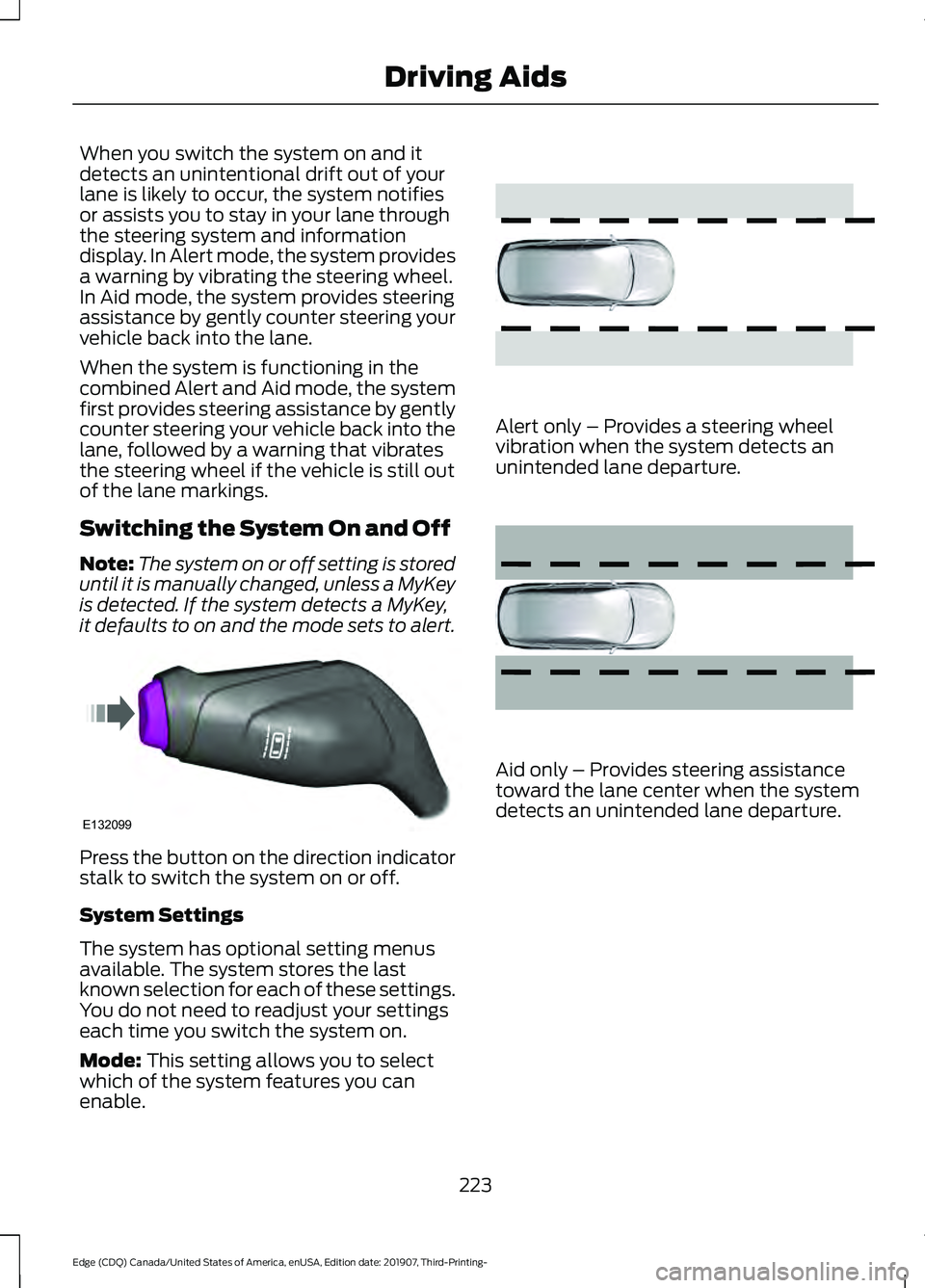
it defaults to on and the mode sets to alert. Press the button on the direction indicator
stalk to switch the system on or off.
System Settings
The system has optional setting menus
available. The system stores the last
known selection for each of these settings.
You do not need to readjust your settings
each time you switch the system on.
Mode: This setting allows you to select
which of the system features you can
enable. Alert only – Provides a steering wheel
vibration when the system detects an
unintended lane departure.
Aid only – Provides steering assistance
toward the lane center when the system
detects an unintended lane departure.
223
Edge (CDQ) Canada/United States of America, enUSA, Edition date: 201907, Third-Printing- Driving AidsE132099 E165515 E165516
Page 227 of 495
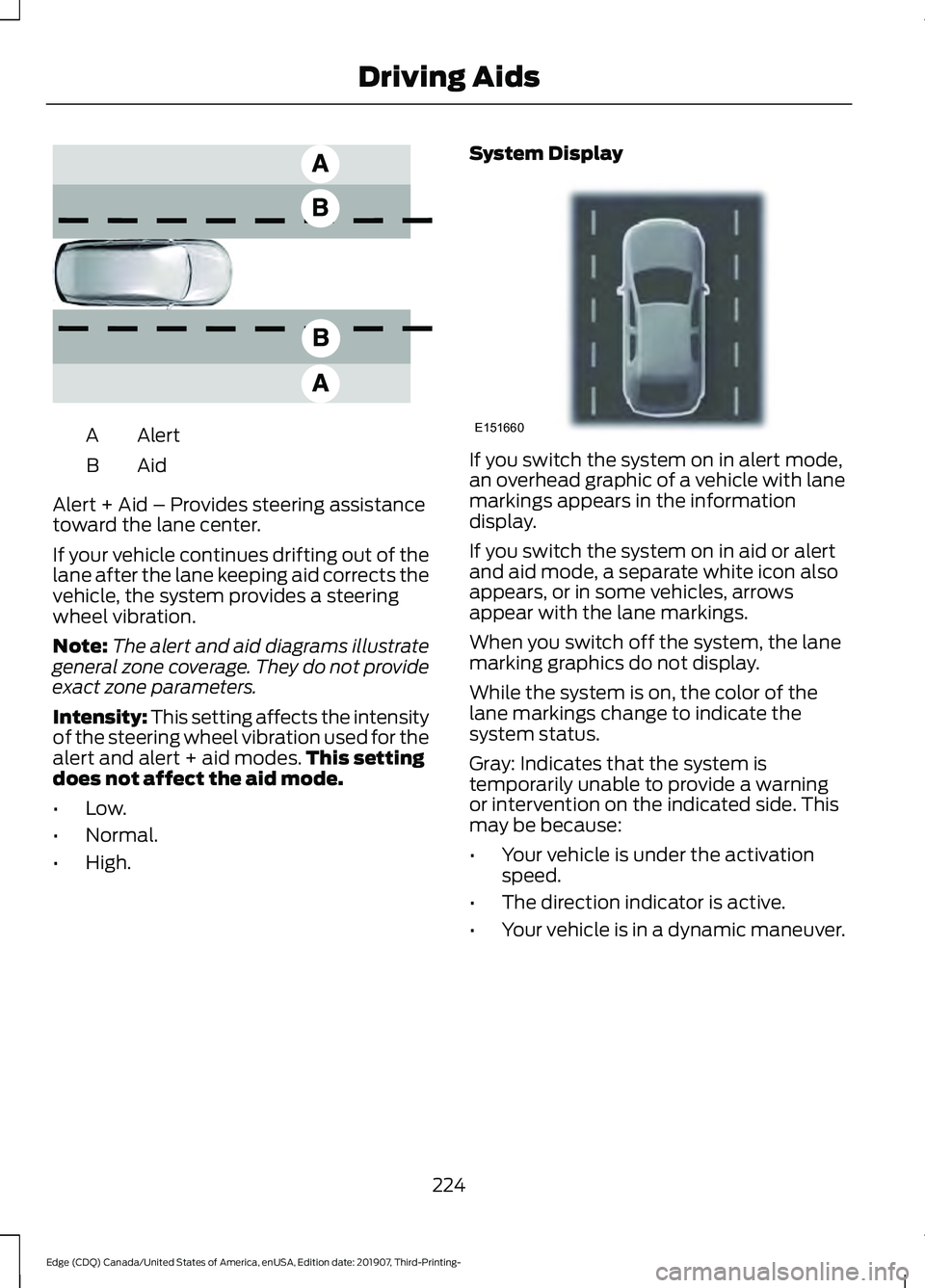
Alert
A
AidB
Alert + Aid – Provides steering assistance
toward the lane center.
If your vehicle continues drifting out of the
lane after the lane keeping aid corrects the
vehicle, the system provides a steering
wheel vibration.
Note: The alert and aid diagrams illustrate
general zone coverage. They do not provide
exact zone parameters.
Intensity: This setting affects the intensity
of the steering wheel vibration used for the
alert and alert + aid modes. This setting
does not affect the aid mode.
• Low.
• Normal.
• High. System Display If you switch the system on in alert mode,
an overhead graphic of a vehicle with lane
markings appears in the information
display.
If you switch the system on in aid or alert
and aid mode, a separate white icon also
appears, or in some vehicles, arrows
appear with the lane markings.
When you switch off the system, the lane
marking graphics do not display.
While the system is on, the color of the
lane markings change to indicate the
system status.
Gray: Indicates that the system is
temporarily unable to provide a warning
or intervention on the indicated side. This
may be because:
•
Your vehicle is under the activation
speed.
• The direction indicator is active.
• Your vehicle is in a dynamic maneuver.
224
Edge (CDQ) Canada/United States of America, enUSA, Edition date: 201907, Third-Printing- Driving AidsE165517 E151660
Page 237 of 495
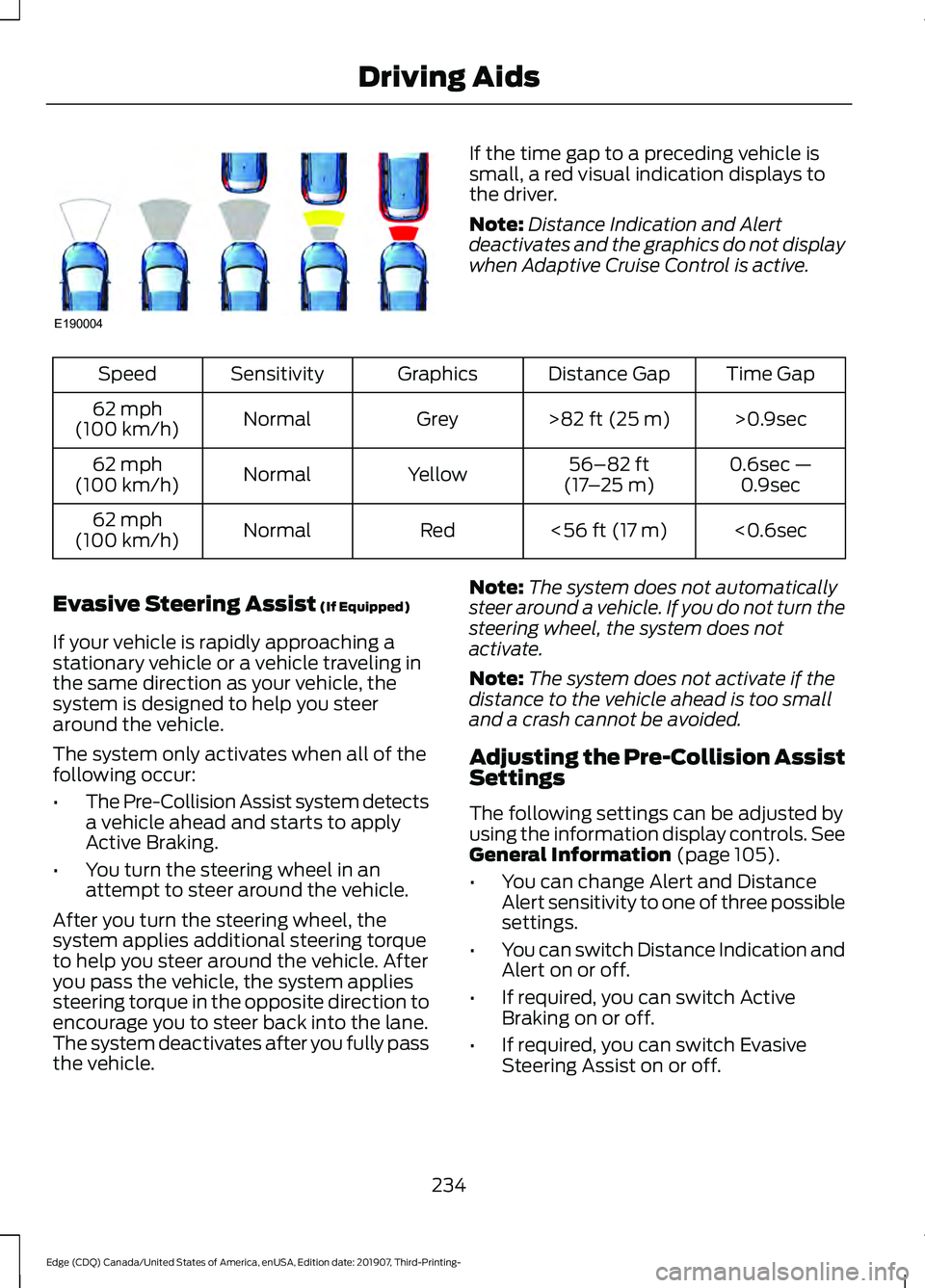
If the time gap to a preceding vehicle is
small, a red visual indication displays to
the driver.
Note:
Distance Indication and Alert
deactivates and the graphics do not display
when Adaptive Cruise Control is active. Time Gap
Distance Gap
Graphics
Sensitivity
Speed
>0.9sec
>82 ft (25 m)
Grey
Normal
62 mph
(100 km/h)
0.6sec —0.9sec
56–82 ft
(17 –25 m)
Yellow
Normal
62 mph
(100 km/h)
<0.6sec
<
56 ft (17 m)
Red
Normal
62 mph
(100 km/h)
Evasive Steering Assist
(If Equipped)
If your vehicle is rapidly approaching a
stationary vehicle or a vehicle traveling in
the same direction as your vehicle, the
system is designed to help you steer
around the vehicle.
The system only activates when all of the
following occur:
• The Pre-Collision Assist system detects
a vehicle ahead and starts to apply
Active Braking.
• You turn the steering wheel in an
attempt to steer around the vehicle.
After you turn the steering wheel, the
system applies additional steering torque
to help you steer around the vehicle. After
you pass the vehicle, the system applies
steering torque in the opposite direction to
encourage you to steer back into the lane.
The system deactivates after you fully pass
the vehicle. Note:
The system does not automatically
steer around a vehicle. If you do not turn the
steering wheel, the system does not
activate.
Note: The system does not activate if the
distance to the vehicle ahead is too small
and a crash cannot be avoided.
Adjusting the Pre-Collision Assist
Settings
The following settings can be adjusted by
using the information display controls.
See
General Information (page 105).
• You can change Alert and Distance
Alert sensitivity to one of three possible
settings.
• You can switch Distance Indication and
Alert on or off.
• If required, you can switch Active
Braking on or off.
• If required, you can switch Evasive
Steering Assist on or off.
234
Edge (CDQ) Canada/United States of America, enUSA, Edition date: 201907, Third-Printing- Driving AidsE190004
Page 239 of 495
Radar Troubleshooting (If Equipped)
Action
Cause
Clean the grille surface in front of the radaror remove the object causing the obstruc- tion.
The surface of the radar in the grille is dirty
or obstructed in some way.
Wait a short time. It may take several
minutes for the radar to detect that there is no obstruction.
The surface of the radar in the grille is clean
but the message remains in the display screen.
The Pre-Collision Assist system is tempor-
arily disabled. Pre-Collision Assist automat-ically reactivates a short time after the weather conditions improve.
Heavy rain, spray, snow or fog is interfering
with the radar signals.
The Pre-Collision Assist system is tempor-
arily disabled. Pre-Collision Assist automat-ically reactivates a short time after the weather conditions improve.
Swirling water or snow or ice on the surface
of the road may interfere with the radar signals.
Contact an authorized dealer to have theradar checked for proper coverage and operation.
Radar is out of alignment due to a front end
impact.
Note: Proper system operation requires a
clear view of the road by the camera. Have
any windshield damage in the area of the
camera's field of view repaired.
Note: If something hits the front end of your
vehicle or damage occurs and your vehicle
is equipped with a radar sensor, the radar
sensing zone may change. This could cause
missed or false detections. Contact an
authorized dealer to have the radar checked
for proper coverage and operation.
DRIVE CONTROL
Adaptive Steering
You can configure which of the modes are
active when your vehicle is in (D) drive or
in (S) sport. The configuration remains
active until modified from the main menu
on the information display. See General
Information (page 105). Modes:
•
Normal – Default factory setting.
• Sport – Slightly higher effort required
for steering with more road force felt
through the steering wheel.
Note: The Drive Control has diagnostic
checks that continuously monitor the
system to ensure proper operation. Certain
types of system errors will gray out the
mode selections within the information
display, preventing you from changing states
when the gear position is changed. Other
types of errors will produce a temporary
message that states a malfunction. If either
condition persists for multiple key cycles,
have your vehicle checked by an authorized
dealer.
236
Edge (CDQ) Canada/United States of America, enUSA, Edition date: 201907, Third-Printing- Driving Aids
Page 254 of 495
ECONOMICAL DRIVING
Fuel economy is affected by several things
such as how you drive, the conditions you
drive under and how you maintain your
vehicle.
There are some things to keep in mind that
may improve your fuel economy:
•
Accelerate and slow down in a smooth,
moderate fashion.
• Drive at steady speeds.
• Anticipate stops; slowing down may
eliminate the need to stop.
• Combine errands and minimize
stop-and-go driving (When running
errands, go to the furthest destination
first and then work your way back
home).
• Close the windows for high-speed
driving.
• Drive at reasonable speeds.
• Keep the tires properly inflated and use
only the recommended size.
• Use the recommended engine oil.
• Perform all regularly scheduled
maintenance.
There are also some things you may want
to avoid doing because they reduce your
fuel economy:
• Avoid sudden or hard accelerations.
• Avoid revving the engine before turning
off the car.
• Avoid long idle periods.
• Do not warm up your vehicle on cold
mornings.
• Reduce the use of air conditioning and
heat.
• Avoid using speed control in hilly
terrain.
• Do not rest your foot on the brake
pedal while driving. •
Avoid carrying unnecessary weight.
• Avoid adding particular accessories to
your vehicle (e.g. bug deflectors,
rollbars/light bars, running boards, ski
racks).
• Avoid driving with the wheels out of
alignment.
COLD WEATHER
PRECAUTIONS
The functional operation of some
components and systems can be affected
at temperatures below approximately
-13°F (-25°C).
BREAKING-IN
You need to break in new tires for
approximately
300 mi (480 km). During
this time, your vehicle may exhibit some
unusual driving characteristics.
Avoid driving too fast during the first
1,000 mi (1,600 km)
. Vary your speed
frequently and change up through the
gears early. Do not labor the engine.
Do not tow during the first
1,000 mi
(1,600 km).
DRIVING THROUGH WATER WARNING:
Do not drive through
flowing or deep water as you may lose
control of your vehicle.
Note: Driving through standing water can
cause vehicle damage.
Note: Engine damage can occur if water
enters the air filter.
251
Edge (CDQ) Canada/United States of America, enUSA, Edition date: 201907, Third-Printing- Driving Hints
Page 285 of 495
Adding Engine Oil
WARNING: Do not remove the filler
cap when the engine is running. WARNING: Do not add engine oil
when the engine is hot. Failure to follow
this instruction could result in personal
injury.
Do not use supplemental engine oil
additives because they are unnecessary
and could lead to engine damage that may
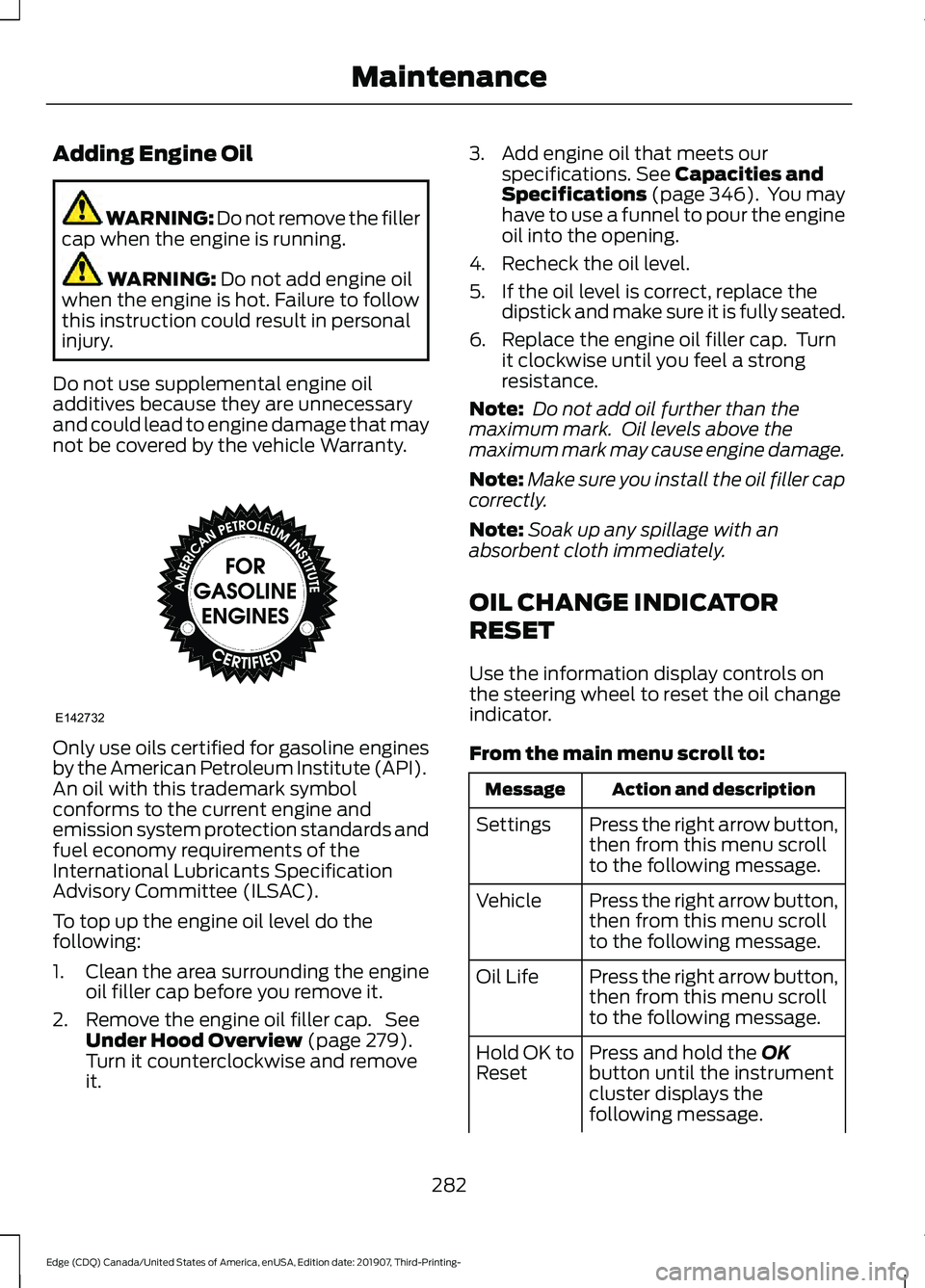
not be covered by the vehicle Warranty. Only use oils certified for gasoline engines
by the American Petroleum Institute (API).
An oil with this trademark symbol
conforms to the current engine and
emission system protection standards and
fuel economy requirements of the
International Lubricants Specification
Advisory Committee (ILSAC).
To top up the engine oil level do the
following:
1. Clean the area surrounding the engine
oil filler cap before you remove it.
2. Remove the engine oil filler cap. See Under Hood Overview
(page 279).
Turn it counterclockwise and remove
it. 3. Add engine oil that meets our
specifications.
See Capacities and
Specifications (page 346). You may
have to use a funnel to pour the engine
oil into the opening.
4. Recheck the oil level.
5. If the oil level is correct, replace the dipstick and make sure it is fully seated.
6. Replace the engine oil filler cap. Turn it clockwise until you feel a strong
resistance.
Note: Do not add oil further than the
maximum mark. Oil levels above the
maximum mark may cause engine damage.
Note: Make sure you install the oil filler cap
correctly.
Note: Soak up any spillage with an
absorbent cloth immediately.
OIL CHANGE INDICATOR
RESET
Use the information display controls on
the steering wheel to reset the oil change
indicator.
From the main menu scroll to: Action and description
Message
Press the right arrow button,
then from this menu scroll
to the following message.
Settings
Press the right arrow button,
then from this menu scroll
to the following message.
Vehicle
Press the right arrow button,
then from this menu scroll
to the following message.
Oil Life
Press and hold the
OK
button until the instrument
cluster displays the
following message.
Hold OK to
Reset
282
Edge (CDQ) Canada/United States of America, enUSA, Edition date: 201907, Third-Printing- MaintenanceE142732