trans FORD EDGE 2020 User Guide
[x] Cancel search | Manufacturer: FORD, Model Year: 2020, Model line: EDGE, Model: FORD EDGE 2020Pages: 495, PDF Size: 6.38 MB
Page 60 of 495
Many states and provinces have
restrictions for the use of remote start.
Check your local and state or provincial
laws for specific requirements regarding
remote start systems.
The remote start system does not work if:
•
The ignition is on.
• The alarm system is triggered.
• You switch off the feature in the
information display. See Information
Displays (page 105).
• The hood is open.
• The transmission is not in park (P).
• The vehicle battery voltage is too low.
• The service engine soon light is on.
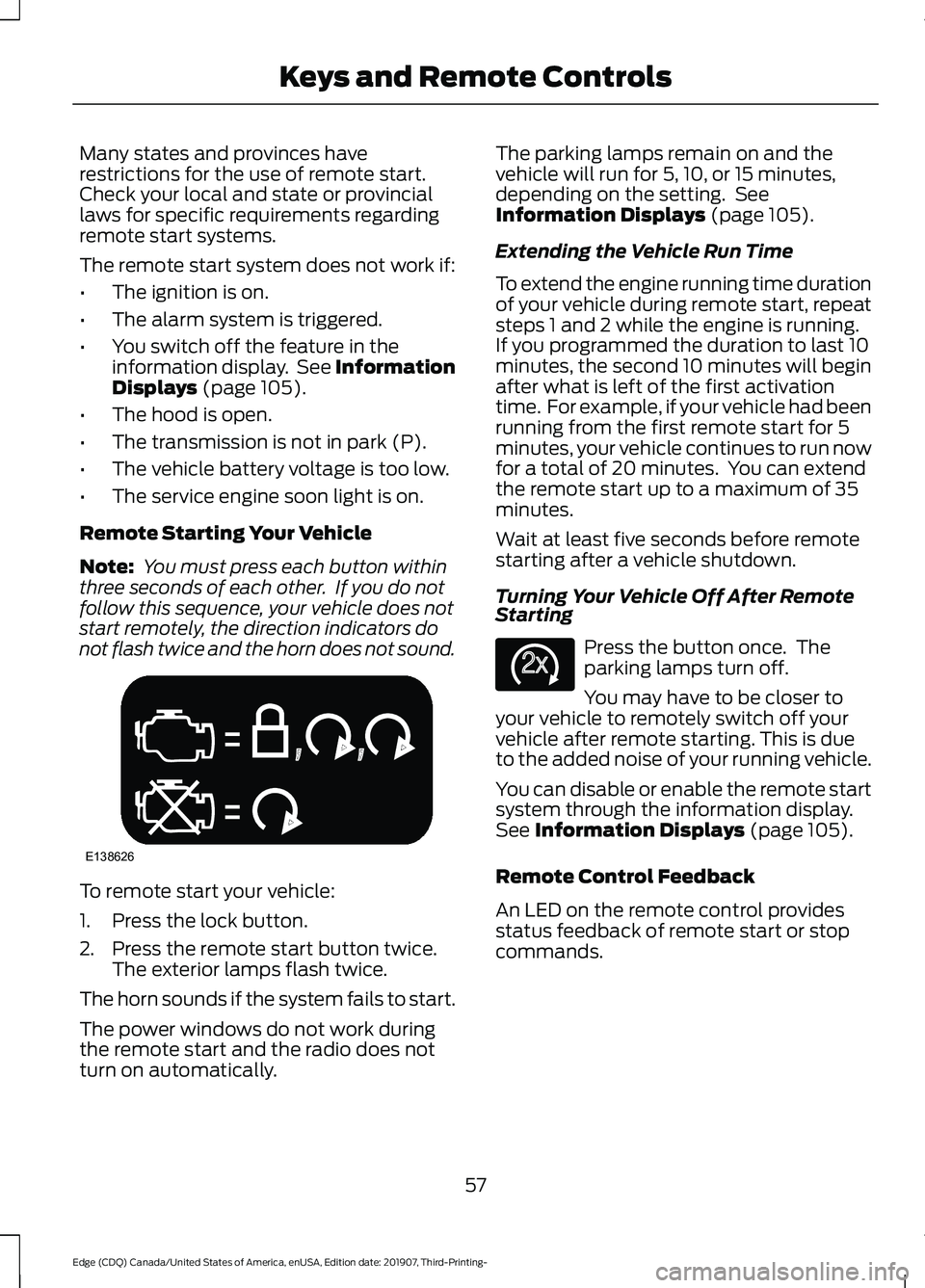
Remote Starting Your Vehicle
Note: You must press each button within
three seconds of each other. If you do not
follow this sequence, your vehicle does not
start remotely, the direction indicators do
not flash twice and the horn does not sound. To remote start your vehicle:
1. Press the lock button.
2. Press the remote start button twice.
The exterior lamps flash twice.
The horn sounds if the system fails to start.
The power windows do not work during
the remote start and the radio does not
turn on automatically. The parking lamps remain on and the
vehicle will run for 5, 10, or 15 minutes,
depending on the setting. See
Information Displays
(page 105).
Extending the Vehicle Run Time
To extend the engine running time duration
of your vehicle during remote start, repeat
steps 1 and 2 while the engine is running.
If you programmed the duration to last 10
minutes, the second 10 minutes will begin
after what is left of the first activation
time. For example, if your vehicle had been
running from the first remote start for 5
minutes, your vehicle continues to run now
for a total of 20 minutes. You can extend
the remote start up to a maximum of 35
minutes.
Wait at least five seconds before remote
starting after a vehicle shutdown.
Turning Your Vehicle Off After Remote
Starting Press the button once. The
parking lamps turn off.
You may have to be closer to
your vehicle to remotely switch off your
vehicle after remote starting. This is due
to the added noise of your running vehicle.
You can disable or enable the remote start
system through the information display.
See
Information Displays (page 105).
Remote Control Feedback
An LED on the remote control provides
status feedback of remote start or stop
commands.
57
Edge (CDQ) Canada/United States of America, enUSA, Edition date: 201907, Third-Printing- Keys and Remote ControlsE138626 E138625
Page 63 of 495
•
A vehicle speed limit can be set.
Warnings will be shown in the display
followed by an audible tone when your
vehicle reaches the set speed. You
cannot override the set speed by fully
depressing the accelerator pedal or by
setting cruise control.
• Various vehicle speed minders can be
set. Once you select a speed, it will be
shown in the display, followed by an
audible tone when the preselected
vehicle speed is exceeded.
• Audio system maximum volume of
45%. A message will be shown in the
display when you attempt to exceed
the limited volume. Also, the
speed-sensitive or compensated
automatic volume control will be
disabled.
• Always on setting. When this is
selected, you will not be able to switch
off AdvanceTrac ™ or traction control,
911 Assist or Emergency Assistance, or
the do not disturb feature, if your
vehicle comes with these features.
CREATING A MYKEY
Use the information display to create a
MyKey:
1. Insert the key you want to program into
the ignition. If your vehicle has a
push-button start, place the remote
control into the backup slot. See
Starting a Gasoline Engine (page
158).
2. Switch the ignition on.
3. Access the main menu in the information display and then scroll
through the menus to change the
settings of your MyKey. From the
MyKey menu select the option Create
MyKey. See
Information Displays
(page 105). 4. Select
Yes if you want to create the
key as MyKey. A confirmation message
appears on the screen.
5. Switch the ignition off.
You successfully created a MyKey. Make
sure you label it so you can distinguish it
from the admin keys.
You can also program configurable
settings for the key(s). See
Programming
and Changing Configurable Settings.
Programming and Changing
Configurable Settings
Use the information display to access your
configurable MyKey settings.
1. Switch the ignition on using an admin key or transmitter you want to program.
2. Access the main menu in the information display and then scroll
through the menus to change the
settings of your MyKey. See
Information Displays
(page 105).
3. Follow the instructions in the display. The programmed restrictions apply
when you switch the vehicle off, open
and close the driver door and restart
your vehicle with the programmed key
or transmitter.
Note: You can clear or change your MyKey
settings at any time during the same key
cycle as you created the MyKey. Once you
have switched the vehicle off, however, you
need an admin key to change or clear your
MyKey settings. When you make any
changes to your MyKey settings, you change
the settings for every MyKey. You cannot
make individual changes to apply to certain
MyKeys.
60
Edge (CDQ) Canada/United States of America, enUSA, Edition date: 201907, Third-Printing- MyKey
™
Page 64 of 495
CLEARING ALL MYKEYS
When you clear your MyKeys, you remove
all restrictions and return all MyKeys to
their original admin key status at once. To
clear all MyKeys of all MyKey settings, use
the information display.
1. Switch the ignition on using an admin
key.
2. Access the main menu in the information display and then scroll
through the menus to begin clearing
your MyKey programming. See
Information Displays (page 105).
3. Follow the instructions in the display.
4. A confirmation message appears in the
display after you finish clearing your
MyKeys.
Note: When you clear your MyKeys, you
remove all restrictions and return all MyKeys
to their original admin key status. You
cannot remove the MyKey restrictions
individually.
CHECKING MYKEY SYSTEM
STATUS
You can find information about your
programmed MyKeys by using the
information display. See
Information
Displays (page 105). MyKey Distance
Tracks the distance when drivers use a
MyKey. The only way to delete the
accumulated distance is by using an admin
key to clear all MyKeys. If the distance does
not accumulate as expected, then the
intended user is not using the MyKey, or an
admin key user recently cleared and then
recreated a MyKey.
Number of MyKeys
Indicates the number of MyKeys
programmed to your vehicle. Use this
feature to detect how many MyKeys you
have for your vehicle and determine when
all MyKeys have been deleted.
Number of Admin Keys
Indicates how many admin keys are
programmed to your vehicle. Use this
feature to determine how many admin
keys you have for your vehicle, and detect
if an additional MyKey has been
programmed.
USING MYKEY WITH REMOTE
START SYSTEMS
MyKey is not compatible with non
Ford-approved, aftermarket remote start
systems. If you choose to install a remote
start system, see an authorized dealer for
a Ford-approved remote start system.
MYKEY – TROUBLESHOOTING Potential causes
Condition
· The key or transmitter used to start the
vehicle does not have admin privileges.
I cannot create a MyKey.
· Vehicles with keyless start: Make sure you
place the transmitter into the backup slot.
See
Passive Anti-Theft System (page
75).
61
Edge (CDQ) Canada/United States of America, enUSA, Edition date: 201907, Third-Printing- MyKey
™
Page 65 of 495
Potential causes
Condition
· The key or transmitter used to start the
vehicle is the only admin key. There always
has to be at least one admin key.
· SecuriLock passive anti-theft system is
disabled or in unlimited mode.
· The key or transmitter used to start the
vehicle does not have admin privileges.
I cannot program the configurable settings.
· There are no MyKeys programmed to the
vehicle. See Creating a MyKey (page 60).
· The key or transmitter used to start the
vehicle does not have admin privileges.
I cannot clear the MyKeys.
· No MyKeys are created. See
Creating a
MyKey (page 60).
· Purchase a new key or transmitter from
your authorized dealer.
I lost the only admin key.
· Program a spare key or transmitter. You
may need to see your authorized dealer.
See
Passive Anti-Theft System (page
75).
I lost a key.
· The MyKey user is not using the MyKey.
MyKey distances do not accumulate.
· An admin key holder cleared the MyKeys
and created new MyKeys.
· The key system has been reset.
62
Edge (CDQ) Canada/United States of America, enUSA, Edition date: 201907, Third-Printing- MyKey
™
Page 69 of 495
When you electronically lock your vehicle
with any door open, transmission in park
(P) and the ignition off, the system
searches for an intelligent access key in
the passenger compartment after you
close the last door. If the system finds a
key, all of the doors immediately unlock
and the horn sounds twice, indicating that
a key is inside.
You can override the smart unlock feature
and intentionally lock the intelligent access
key inside your vehicle. To do this, lock your
vehicle after you have closed all the doors
by:
•
Using the keyless entry keypad.
• Pressing the lock button on another
intelligent access key.
• Touching the locking area on the
handle with another intelligent access
key in your hand.
When you open one of the front doors and
lock your vehicle using the power door lock
control, all doors lock then unlock if:
• The ignition is on.
• The ignition is off and the transmission
is not in park (P).
Auto Relock
If you press the unlock button on the
remote control and do not open a door
within 45 seconds, your vehicle locks and
the alarm arms. You can switch this
feature on or off in the information display.
See General Information (page 105).
Autolock
(If Equipped)
Autolock locks all the doors when:
• All doors are closed.
• The ignition is on.
• You shift into any gear putting your
vehicle in motion.
• Your vehicle reaches a speed greater
than Autolock repeats when:
•
You open then close any door while the
ignition is on and your vehicle speed is
9 mph (15 km/h)
or lower.
• Your vehicle reaches a speed greater
than
Autounlock
Autounlock unlocks all the doors when:
• The ignition is on, all the doors are
closed, and your vehicle has been
moving at a speed greater than 12 mph
(20 km/h)
.
• Your vehicle comes to a stop and you
switch the ignition off or to the
accessory position.
• You open the driver door within 10
minutes of switching the ignition off or
to accessory.
Note: The doors do not autounlock if you
electronically lock your vehicle after you
switch the ignition off and before you open
the driver door.
Enabling or Disabling Autounlock
You can enable or disable the autounlock
feature in the information display or an
authorized dealer can do it for you.
Illuminated Entry
The interior lamps and some exterior
lamps illuminate when you unlock the
doors with the remote control.
The lamps turn off if:
• The ignition is on.
• You press the remote control lock
button.
• 25 seconds have elapsed.
The lamps do not turn off if:
• You turn them on with the lamp
control.
• Any door is open.
66
Edge (CDQ) Canada/United States of America, enUSA, Edition date: 201907, Third-Printing- Doors and Locks
Page 74 of 495
POWER LIFTGATE (IF EQUIPPED)
WARNING:
It is extremely
dangerous to ride in a cargo area, inside
or outside of a vehicle. In a crash, people
riding in these areas are more likely to be
seriously injured or killed. Do not allow
people to ride in any area of your vehicle
that is not equipped with seats and
seatbelts. Make sure everyone in your
vehicle is in a seat and properly using a
seatbelt. Failure to follow this warning
could result in serious personal injury or
death. WARNING:
Make sure that you fully
close the liftgate to prevent exhaust
fumes from entering your vehicle. If you
are unable to fully close the liftgate,
open the air vents or the windows to
allow fresh air to enter your vehicle.
Failure to follow this instruction could
result in personal injury or death. WARNING:
Make sure that you fully
close the liftgate to prevent passengers
and cargo from falling out. Failure to
follow this instruction could result in
personal injury or death. WARNING: Keep keys out of reach
of children. Do not allow children to
operate or play near an open or moving
power liftgate. You should supervise the
operation of the power liftgate at all
times.
Note: Make sure that you close the liftgate
before operating or moving your vehicle,
especially in an enclosure, like a garage or
a parking structure. This could damage the
liftgate and its components.
Note: Do not hang anything, for example
a bike rack, from the glass or liftgate. This
could damage the liftgate and its
components. The liftgate only operates with the
transmission in park (P).
If there is a problem with the open or close
request, a tone sounds for one of the
following reasons:
•
The ignition is on and the transmission
is not in park (P).
• The battery voltage is below the
minimum operating voltage.
• The liftgate is not fully closed and your
vehicle speed is at or above
3 mph
(5 km/h).
If the liftgate starts to close after it has
fully opened, this indicates there may be
excessive weight on the liftgate or a
possible strut failure. A repetitive tone
sounds and the liftgate closes under
control. Remove any excessive weight
from the liftgate. If the liftgate continues
to close after opening, have the system
checked by an authorized dealer.
Opening and Closing the Liftgate WARNING:
Make sure all persons
are clear of the power liftgate area
before using the power liftgate control.
Note: Make sure the area behind your
vehicle is free from obstruction and that
there is enough room for you to operate the
liftgate. Objects too close to your vehicle,
for example a wall, garage door or another
vehicle may come into contact with the
moving liftgate. This could damage the
liftgate and its components.
Note: Be careful when opening or closing
the liftgate in a garage or other enclosed
area to avoid damaging the liftgate.
Note: Do not leave the liftgate open when
you are driving. This could damage the
liftgate and its components.
71
Edge (CDQ) Canada/United States of America, enUSA, Edition date: 201907, Third-Printing- Liftgate
Page 75 of 495
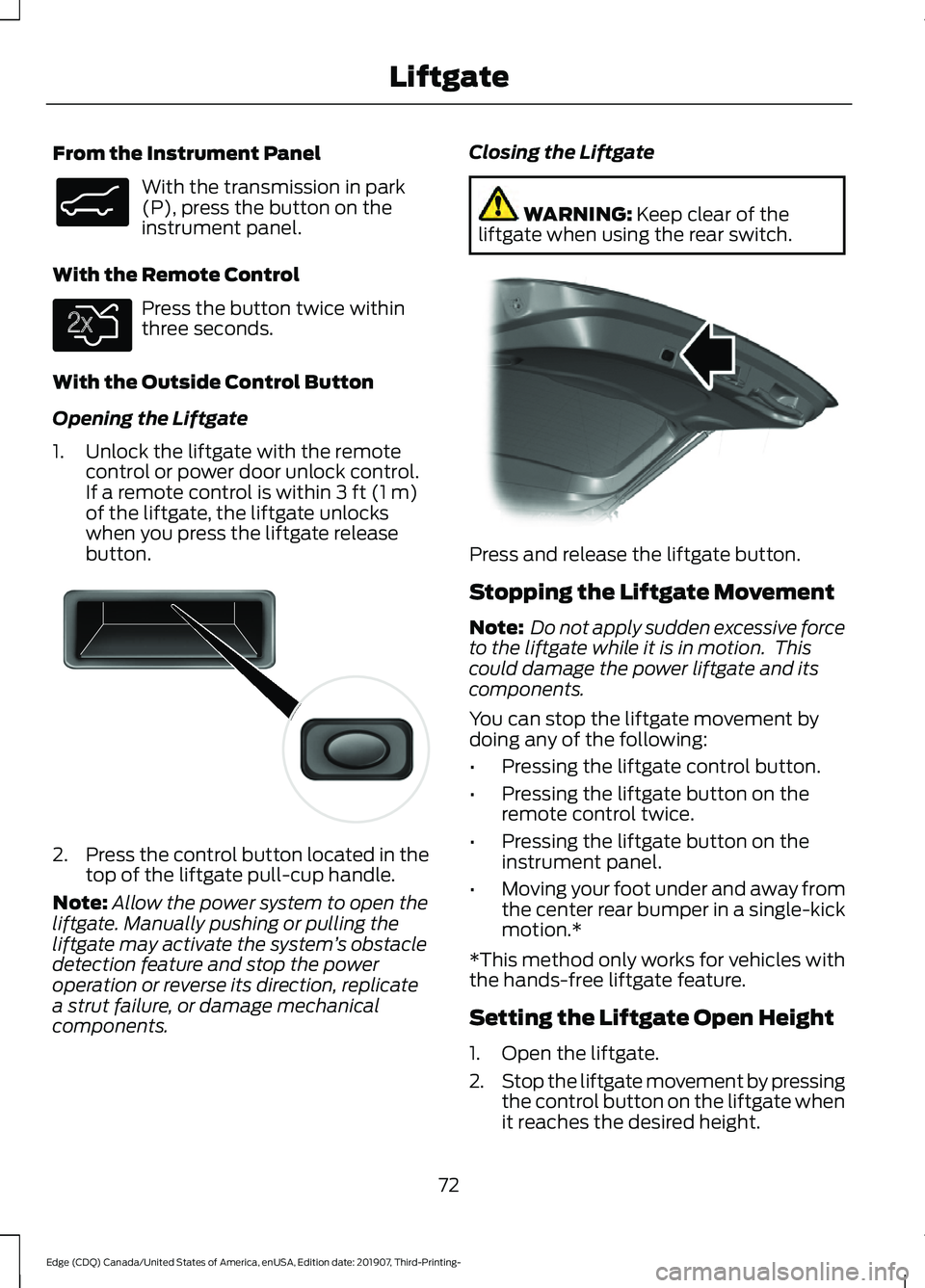
From the Instrument Panel
With the transmission in park
(P), press the button on the
instrument panel.
With the Remote Control Press the button twice within
three seconds.
With the Outside Control Button
Opening the Liftgate
1. Unlock the liftgate with the remote control or power door unlock control.
If a remote control is within 3 ft (1 m)
of the liftgate, the liftgate unlocks
when you press the liftgate release
button. 2.
Press the control button located in the
top of the liftgate pull-cup handle.
Note: Allow the power system to open the
liftgate. Manually pushing or pulling the
liftgate may activate the system ’s obstacle
detection feature and stop the power
operation or reverse its direction, replicate
a strut failure, or damage mechanical
components. Closing the Liftgate WARNING:
Keep clear of the
liftgate when using the rear switch. Press and release the liftgate button.
Stopping the Liftgate Movement
Note:
Do not apply sudden excessive force
to the liftgate while it is in motion. This
could damage the power liftgate and its
components.
You can stop the liftgate movement by
doing any of the following:
• Pressing the liftgate control button.
• Pressing the liftgate button on the
remote control twice.
• Pressing the liftgate button on the
instrument panel.
• Moving your foot under and away from
the center rear bumper in a single-kick
motion.*
*This method only works for vehicles with
the hands-free liftgate feature.
Setting the Liftgate Open Height
1. Open the liftgate.
2. Stop the liftgate movement by pressing
the control button on the liftgate when
it reaches the desired height.
72
Edge (CDQ) Canada/United States of America, enUSA, Edition date: 201907, Third-Printing- LiftgateE138633 E138630 E138632 E138636
Page 78 of 495
PASSIVE ANTI-THEFT
SYSTEM
Note:
The system is not compatible with
non-Ford aftermarket remote start systems.
Use of these systems may result in engine
starting problems and a loss of security
protection.
Note: Metallic objects, electronic devices
or a second coded key on the same key
chain may result in vehicle starting
problems, especially if they are too close to
the key when starting your vehicle. Prevent
these objects from touching the coded key
when starting your vehicle. Switch the
ignition off, move all objects on the key
chain away from the coded key and restart
your vehicle if a problem occurs.
Note: Do not leave a duplicate coded key
in your vehicle. Always take your keys and
lock all doors when leaving your vehicle.
SecuriLock®
The system helps prevent the engine from
starting unless you use a coded key
programmed to your vehicle. Using the
wrong key may prevent your vehicle from
starting. A message may appear in the
information display.
If you are unable to start your vehicle with
a coded key, it is not operating correctly.
A message may appear in the information
display.
Automatic Arming
The system arms when you switch the
ignition off.
Automatic Disarming
The system disarms when you switch the
ignition on with a coded key.
Replacement Keys
Note: Your vehicle comes with two keys. The intelligent access key functions as a
programmed key that operates the driver
door lock and turns on the intelligent
access with push button start system, as
well as a remote control.
If your programmed transmitters are lost
or stolen and you do not have an extra
coded key, you will need to have your
vehicle towed to an authorized dealer. You
need to erase the key codes from your
vehicle and program new coded keys.
Store a spare intelligent access key away
from your vehicle in a safe place. You can
purchase replacement keys or remote
controls from an authorized dealer.
Programming a Spare Intelligent
Access Key
Note:
You can program a maximum of four
keys to your vehicle.
You must have two previously
programmed intelligent access keys inside
your vehicle and the new unprogrammed
intelligent access key readily accessible.
You can purchase replacement keys or
remote controls from an authorized dealer.
Make sure that the ignition is switched off
before beginning this procedure. Make sure
that you close all the doors before
beginning and that they remain closed
throughout the procedure. Carry out all
steps within 30 seconds of starting the
sequence. Stop and wait for at least one
minute before starting again if you carry
out any steps out of sequence.
Read and understand the entire procedure
before you begin.
1. Remove the key blade from the transmitter.
75
Edge (CDQ) Canada/United States of America, enUSA, Edition date: 201907, Third-Printing- Security
Page 90 of 495
DAYTIME RUNNING LAMPS -
VEHICLES WITH:
CONFIGURABLE DAYTIME
RUNNING LAMPS
WARNING: The daytime running
lamps system does not activate the rear
lamps and may not provide adequate
lighting during low visibility driving
conditions. Make sure you switch the
headlamps on, as appropriate, during all
low visibility conditions. Failure to do so
may result in a crash.
Switch the daytime running lamps on or
off using the information display. See
General Information
(page 105).
The daytime running lamps turn on when:
1. The lamps are on in the information display.
2. You switch the ignition on.
3. The transmission is not in park (P) for vehicles with automatic transmissions
or you release the parking brake for
vehicles with manual transmissions.
4. The lighting control is in the autolamps
position.
5. The headlamps are off.
The other lighting control switch positions
do not turn on the daytime running lamps.
If the daytime running lamps are off in the
information display, the lamps stay off in
all switch positions. DAYTIME RUNNING LAMPS -
VEHICLES WITH: DAYTIME
RUNNING LAMPS (DRL) WARNING:
The daytime running
lamps system does not activate the rear
lamps and may not provide adequate
lighting during low visibility driving
conditions. Make sure you switch the
headlamps on, as appropriate, during all
low visibility conditions. Failure to do so
may result in a crash.
The system turns the lamps on in daylight
conditions.
To switch the system on, switch the
lighting control to any position except
headlamps.
FRONT FOG LAMPS
(IF EQUIPPED)
Switching the Front Fog Lamps On
or Off
Only switch the front fog lamps on during
reduced visibility.
You can switch the front fog lamps on if
any of the following occur:
• You set the lighting control to the
parking lamps position.
• You set the lighting control to the
headlamps position.
• You set the lighting control to the
autolamps position and the headlamps
are on.
The front fog lamp button is on the lighting
control. Press the button to switch the
front fog lamps on or off.
87
Edge (CDQ) Canada/United States of America, enUSA, Edition date: 201907, Third-Printing- Lighting
Page 98 of 495
Auto-Folding Mirrors (If Equipped)
The exterior mirrors automatically fold in
toward the glass after you place the
transmission into park (P), turn off the
vehicle, open and close the driver-side door
and lock the vehicle. The exterior mirrors
automatically unfold and return to their
driving position after you unlock the vehicle
and open and close the driver-side door.
You can switch this feature on and off
through the information display.
See
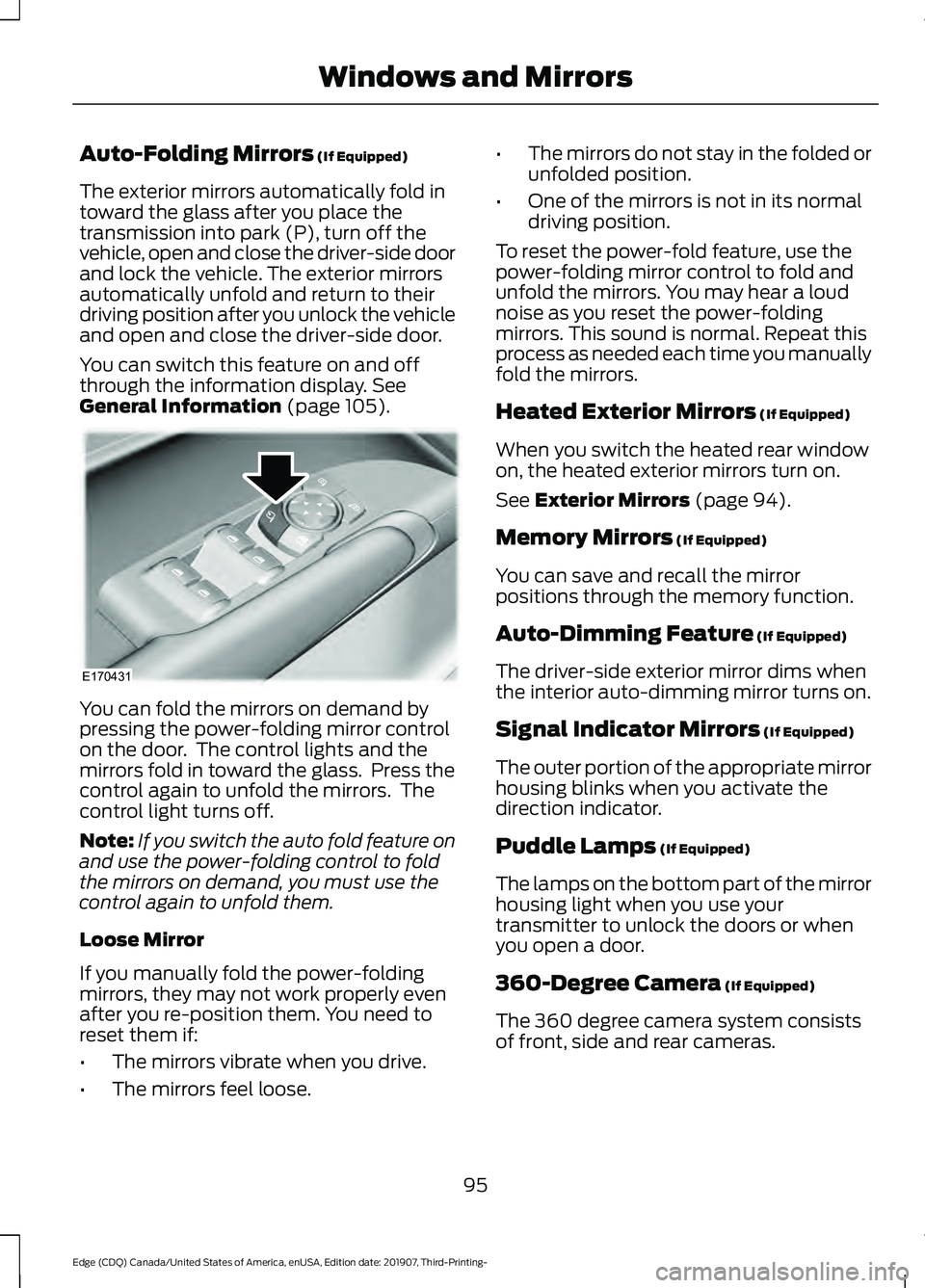
General Information (page 105). You can fold the mirrors on demand by
pressing the power-folding mirror control
on the door. The control lights and the
mirrors fold in toward the glass. Press the
control again to unfold the mirrors. The
control light turns off.
Note:
If you switch the auto fold feature on
and use the power-folding control to fold
the mirrors on demand, you must use the
control again to unfold them.
Loose Mirror
If you manually fold the power-folding
mirrors, they may not work properly even
after you re-position them. You need to
reset them if:
• The mirrors vibrate when you drive.
• The mirrors feel loose. •
The mirrors do not stay in the folded or
unfolded position.
• One of the mirrors is not in its normal
driving position.
To reset the power-fold feature, use the
power-folding mirror control to fold and
unfold the mirrors. You may hear a loud
noise as you reset the power-folding
mirrors. This sound is normal. Repeat this
process as needed each time you manually
fold the mirrors.
Heated Exterior Mirrors (If Equipped)
When you switch the heated rear window
on, the heated exterior mirrors turn on.
See
Exterior Mirrors (page 94).
Memory Mirrors
(If Equipped)
You can save and recall the mirror
positions through the memory function.
Auto-Dimming Feature
(If Equipped)
The driver-side exterior mirror dims when
the interior auto-dimming mirror turns on.
Signal Indicator Mirrors
(If Equipped)
The outer portion of the appropriate mirror
housing blinks when you activate the
direction indicator.
Puddle Lamps
(If Equipped)
The lamps on the bottom part of the mirror
housing light when you use your
transmitter to unlock the doors or when
you open a door.
360-Degree Camera
(If Equipped)
The 360 degree camera system consists
of front, side and rear cameras.
95
Edge (CDQ) Canada/United States of America, enUSA, Edition date: 201907, Third-Printing- Windows and MirrorsE170431