ECU FORD EDGE 2021 Owner's Guide
[x] Cancel search | Manufacturer: FORD, Model Year: 2021, Model line: EDGE, Model: FORD EDGE 2021Pages: 500, PDF Size: 8.52 MB
Page 349 of 500
16. Replace the flat tire with the spare
tire, making sure the valve stem is
facing outward. Reinstall the lug nuts
until the wheel is snug against the
hub. Do not fully tighten the lug nuts
until the wheel has been lowered.
17. Lower the wheel by turning the jack handle counterclockwise.
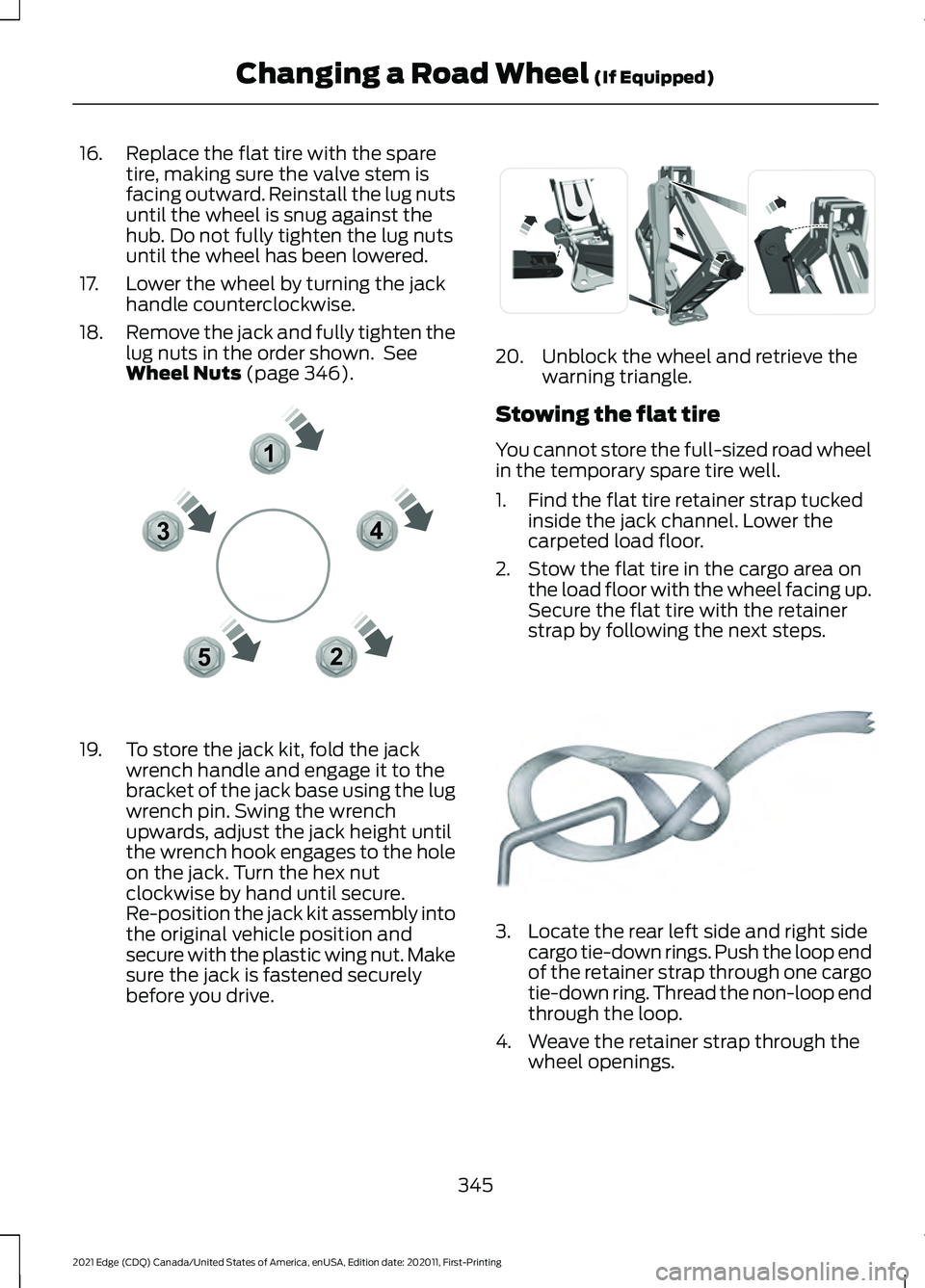
18. Remove the jack and fully tighten the
lug nuts in the order shown. See
Wheel Nuts (page 346). 19. To store the jack kit, fold the jack
wrench handle and engage it to the
bracket of the jack base using the lug
wrench pin. Swing the wrench
upwards, adjust the jack height until
the wrench hook engages to the hole
on the jack. Turn the hex nut
clockwise by hand until secure.
Re-position the jack kit assembly into
the original vehicle position and
secure with the plastic wing nut. Make
sure the jack is fastened securely
before you drive. 20. Unblock the wheel and retrieve the
warning triangle.
Stowing the flat tire
You cannot store the full-sized road wheel
in the temporary spare tire well.
1. Find the flat tire retainer strap tucked inside the jack channel. Lower the
carpeted load floor.
2. Stow the flat tire in the cargo area on the load floor with the wheel facing up.
Secure the flat tire with the retainer
strap by following the next steps. 3. Locate the rear left side and right side
cargo tie-down rings. Push the loop end
of the retainer strap through one cargo
tie-down ring. Thread the non-loop end
through the loop.
4. Weave the retainer strap through the wheel openings.
345
2021 Edge (CDQ) Canada/United States of America, enUSA, Edition date: 202011, First-Printing Changing a Road Wheel
(If Equipped)12
3
4
5E306781 E294121 E142906
Page 350 of 500
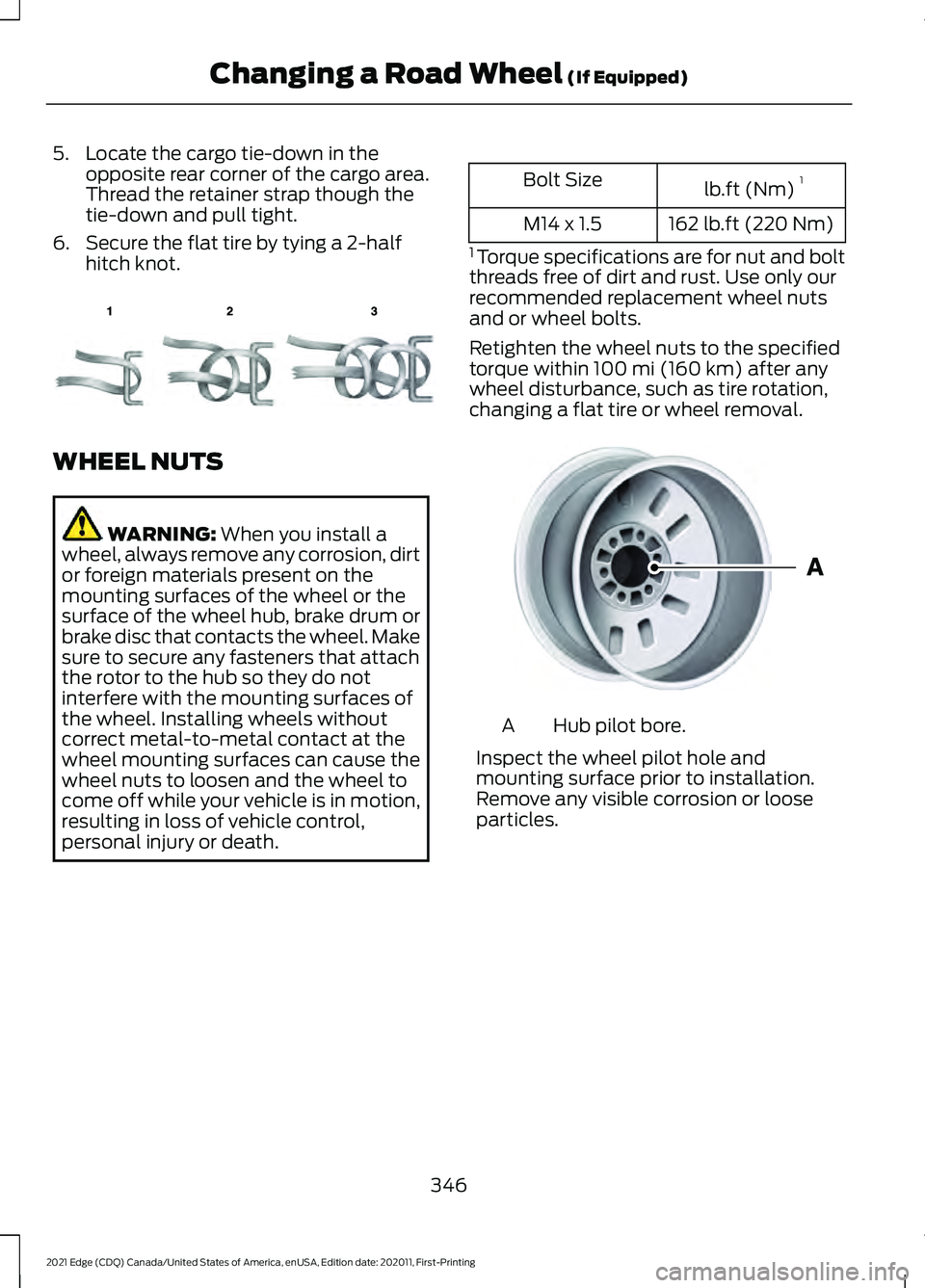
5. Locate the cargo tie-down in the
opposite rear corner of the cargo area.
Thread the retainer strap though the
tie-down and pull tight.
6. Secure the flat tire by tying a 2-half hitch knot. WHEEL NUTS
WARNING: When you install a
wheel, always remove any corrosion, dirt
or foreign materials present on the
mounting surfaces of the wheel or the
surface of the wheel hub, brake drum or
brake disc that contacts the wheel. Make
sure to secure any fasteners that attach
the rotor to the hub so they do not
interfere with the mounting surfaces of
the wheel. Installing wheels without
correct metal-to-metal contact at the
wheel mounting surfaces can cause the
wheel nuts to loosen and the wheel to
come off while your vehicle is in motion,
resulting in loss of vehicle control,
personal injury or death. lb.ft (Nm)
1
Bolt Size
162 lb.ft (220 Nm)
M14 x 1.5
1 Torque specifications are for nut and bolt
threads free of dirt and rust. Use only our
recommended replacement wheel nuts
and or wheel bolts.
Retighten the wheel nuts to the specified
torque within
100 mi (160 km) after any
wheel disturbance, such as tire rotation,
changing a flat tire or wheel removal. Hub pilot bore.
A
Inspect the wheel pilot hole and
mounting surface prior to installation.
Remove any visible corrosion or loose
particles.
346
2021 Edge (CDQ) Canada/United States of America, enUSA, Edition date: 202011, First-Printing Changing a Road Wheel
(If Equipped)E143746 E145950
Page 365 of 500
1. Press Settings.
2. Press
Connectivity.
3. Press
Manage Wi-Fi Networks.
4. Switch
System Wi-Fi on. 5. Press
View Available Networks.
6. Select an available Wi-Fi network.
Note: Enter the network password to
connect to a secure network.
CONNECTED VEHICLE – TROUBLESHOOTING
Connected Vehicle – Frequently Asked Questions - Vehicles With: Modem Possible Cause and Resolution
Symptom
I cannot confirm the
connection of my FordPass
account to the modem. –
Modem is not enabled.
•Switch vehicle connectivity on.
– Weak network signal.
•Move your vehicle closer to a place where the
network signal is not obstructed.
361
2021 Edge (CDQ) Canada/United States of America, enUSA, Edition date: 202011, First-Printing Connected Vehicle
Page 366 of 500
Connected Vehicle – Frequently Asked Questions - Vehicles With: SYNC
4
Possible Cause and Resolution
Symptom
I cannot connect to a Wi-Fi
network. –
Password error.
•Enter the correct network password.
– Weak network signal.
•Move your vehicle closer to the Wi-Fi router or to
a place where the network signal is not obstructed.
– Multiple access points in range with the same network
name.
•Use a unique name for your network name. Do not
use the default name unless it contains a unique
identifier, for example as part of the MAC address.
The Wi-Fi connection
disconnects after successful
connection. –
Weak network signal.
•Move your vehicle closer to the Wi-Fi router or to
a place where the network signal is not obstructed.
I am close to a Wi-Fi router
but the network signal
strength is weak. –
Obstructed network signal.
•If your vehicle has a heated windshield, position
your vehicle so that the windshield is not facing the
Wi-Fi router.
• If your vehicle has metallic tinting on the windows
but not on the windshield, position your vehicle so
that the windshield is facing the Wi-Fi router or
open the windows that are facing the router.
• If your vehicle has metallic tinting on the windows
and the windshield, open the windows that are
facing the router.
• If your vehicle is in a garage and you have the
garage door closed, open the garage door as it may
block the signal.
– Hidden network.
•Make the network visible and try again, or use the
Add Network Manually option in Wi-Fi settings
menu.
– Unsupported security type.
•Some network security types are not supported,
for example WEP.
I cannot see a network in the
list of available networks
that I expect to see.
362
2021 Edge (CDQ) Canada/United States of America, enUSA, Edition date: 202011, First-Printing Connected Vehicle
Page 368 of 500
CREATING A VEHICLE WI-FI
HOTSPOT
You can create a Wi-Fi hotspot in your
vehicle and allow devices to connect to it
for access to the Internet.
Tap the vehicle drawer on the top left of
the screen.
1. Press Settings.
2. Press
Vehicle Hotspot.
Note: The vehicle hotspot default setting
is on.
3. Press Settings under the Vehicle Hotspot menu.
4. Press
Edit.
5. Switch the Wi-Fi Visibility option on or off.
Note: The Wi-Fi visibility default setting is
on.
Finding the Wi-Fi Hotspot Name
and Password
Tap the vehicle drawer on the top left of
the screen.
1. Press
Settings.
2. Press
Vehicle Hotspot.
3. Press Settings under the Vehicle Hotspot menu.
Note: The network name is the hotspot
name.
4. Switch the Show Password option on or off.
Connecting a Device to the Wi-Fi
Hotspot
1. On your device, switch Wi-Fi on and select the hotspot from the list of
available Wi-Fi networks.
2. When prompted, enter the password. Purchasing a Data Plan
1. Connect a device to the hotspot.
Note:
The vehicle network carrier ’s portal
opens on your device.
2. If the portal does not open on your device, open a website and it redirects
to the vehicle network carrier ’s portal.
Note: Secure websites do not redirect.
3. Follow the instructions on the carrier portal to purchase a plan.
Note: If you have an active plan, the system
does not redirect to the vehicle network
carrier ’s portal when you connect a device.
Visit the vehicle network carrier ’s website
to purchase more data.
Note: If data usage information is available
in the vehicle hotspot menu, it is
approximate.
Note: If you carry out a master reset, the
system does not remove your vehicle from
your vehicle network carrier ’s account. To
remove your vehicle from the account,
contact your vehicle network carrier.
Note: The vehicle network carrier provides
Vehicle Hotspot services, subject to your
vehicle network carrier agreement, coverage
and availability.
CHANGING THE VEHICLE WI-
FI HOTSPOT NAME OR
PASSWORD
Tap the vehicle drawer on the top left of
the screen.
1. Press
Settings.
2. Press
Vehicle Hotspot.
3. Press Settings under the Vehicle Hotspot menu.
4. Press
Edit.
5. Press
Change Network Name.
364
2021 Edge (CDQ) Canada/United States of America, enUSA, Edition date: 202011, First-Printing Vehicle Wi-Fi Hotspot
Page 390 of 500
UPDATING THE VEHICLE
SYSTEMS WIRELESSLY
Over the air system updates
allow you to update your vehicle
system software wirelessly. To
make sure you receive all updates, set a
recurring schedule and connect to Wi-Fi.
Updates may take longer if not connected
to Wi-Fi, or may not download at all. See
Connected Vehicle (page 360).
Note: Additional over the air update icons
may appear in the status bar. See
Status
Bar (page 373).
Over the Air System Update
Requirements
Before updating, reference this list to make
sure your vehicle is ready be updated. If
these requirements are not met during a
scheduled update, the update will be
canceled and you can reschedule.
• Your vehicle is not running.
• Your vehicle is stopped.
• Your vehicle is parked.
• The hazard indicators are switched off.
• The alarm is not sounding.
• The doors are closed.
• The parking lights are switched off.
• You are not pressing the brake pedal.
• An emergency call is not in progress.
• Your vehicle is not in limp mode.
Scheduling an Over the Air System
Update
Make sure Vehicle Connectivity and
Automatic Updates are switched on.
Using the Settings Menu
1. Open the application drawer.
2. Press the
System Updates button. 3. Press
Schedule Update.
4. Use the controls to set the time and day of the update.
5. Save the schedule.
Note: You can set the updates to occur
every seven days.
Using the Status Bar Icon When an update is available, tap
the notification icon and follow
the prompts on the screen.
Applying an Over the Air System
Update
You can schedule a convenient time for
the update to complete. During scheduled
updates you may not be able to use your
vehicle.
Note: Updates may take up to 30 minutes
to complete.
You can see the progress of the update on
the touchscreen. An update cannot be
canceled once it has been started.
During an update you will not be able to
drive your vehicle, start the vehicle, use
remote controls to lock and unlock the
vehicle. The alarm, central locks, and door
tones are disabled. The electronic door
lock will not function during an update. You
can open the doors using the mechanical
latch if child locks are not on. Pull the
handle until it stops to use the mechanical
latch.
Note: Double locking is switched off and
central locking is switched on during and
after an update.
Note: If your vehicle is plugged in, charging
will stop during an update and resume when
the update is complete.
386
2021 Edge (CDQ) Canada/United States of America, enUSA, Edition date: 202011, First-Printing Vehicle System UpdatesE327789 E327785
Page 394 of 500
Less Cost to Properly Maintain Your
Vehicle
The Ford Protect extended service plan
also offers a Premium Maintenance Plan
that covers all scheduled maintenance,
and selected wear items. The coverage is
prepaid, so you never have to worry about
the cost of your vehicle
’s maintenance.
Covered maintenance includes:
• Windshield wiper blades.
• Spark plugs.
• The clutch disc (if equipped).
• Brake pads and linings.
• Shock absorbers.
• Struts.
• Engine belts.
• Engine coolant hoses, clamps and
o-rings.
• Diesel exhaust fluid replenishment (if
equipped).
• Cabin air filter replacement every
20,000 mi (32,000 km) for electric
vehicles only.
Interest Free Finance Options
Just a 5% down payment provides you
with an affordable, no interest, no fee
payment program allowing you all the
security and benefits Ford Protect
extended service plan has to offer while
paying over time. You are pre-approved
with no credit check or hassles. To learn
more, call our Ford Protect extended
service plan specialists at 800-367-3377.
Ford Protect Extended Service Plan
P.O. Box 321067
Detroit, MI 48232 Ford Protect Extended Service
Plan (Canada Only)
You can get more protection for your
vehicle by purchasing a Ford Protect
extended service plan. Ford Protect
extended service plan is the only service
contract backed by Ford Motor Company
of Canada, Limited. Depending on the plan
you purchase, Ford Protect extended
service plan provides benefits such as:
•
Rental reimbursement.
• Coverage for certain maintenance and
wear items.
• Protection against repair costs after
your New Vehicle Limited Warranty
Coverage expires.
• Roadside Assistance benefits.
There are several Ford Protect extended
service plans available in various time,
distance and deductible combinations.
Each plan is tailored to fit your own driving
needs, including reimbursement for towing
and rental. When you purchase Ford
Protect extended service plan, you receive
added peace-of-mind protection
throughout Canada, the United States and
Mexico, provided by a network of
participating authorized Ford Motor
Company dealers.
Note: Repairs performed outside of Canada
and the United States are not eligible for
Ford Protect extended service plan
coverage.
This information is subject to change. Visit
your local Ford of Canada dealer or
www.ford.ca to find the Ford Protect
extended service plan that is right for you.
390
2021 Edge (CDQ) Canada/United States of America, enUSA, Edition date: 202011, First-Printing Ford Protect
Page 446 of 500
The Ford Warranty may not cover damage
caused to your vehicle as a result of failed
non-Ford parts.
For additional information, refer to the
terms and conditions of the Ford Warranty.
MOBILE COMMUNICATIONS
EQUIPMENT
WARNING: Driving while distracted
can result in loss of vehicle control, crash
and injury. We strongly recommend that
you use extreme caution when using any
device that may take your focus off the
road. Your primary responsibility is the
safe operation of your vehicle. We
recommend against the use of any
hand-held device while driving and
encourage the use of voice-operated
systems when possible. Make sure you
are aware of all applicable local laws
that may affect the use of electronic
devices while driving.
Using mobile communications equipment
is becoming increasingly important in the
conduct of business and personal affairs.
However, you must not compromise your
own or others’ safety when using such
equipment. Mobile communications can
enhance personal safety and security when
appropriately used, particularly in
emergency situations. Safety must be
paramount when using mobile
communications equipment to avoid
negating these benefits. Mobile
communication equipment includes, but
is not limited to, cellular phones, pagers,
portable email devices, text messaging
devices and portable two-way radios. END USER LICENSE
AGREEMENT
VEHICLE SOFTWARE END USER
LICENSE AGREEMENT (EULA)
•
You (“You” or “Your ” as applicable)
have acquired a vehicle having several
devices, including SYNC ® and various
control modules, ("DEVICES") that
include software licensed or owned by
Ford Motor Company and its affiliates
("FORD MOTOR COMPANY"). Those
software products of FORD MOTOR
COMPANY origin, as well as associated
media, printed materials, and "online"
or electronic documentation
("SOFTWARE") are protected by
international intellectual property laws
and treaties. The SOFTWARE is
licensed, not sold. All rights reserved.
• The SOFTWARE may interface with
and/or communicate with, or may be
later upgraded to interface with and/or
communicate with additional software
and/or systems provided by FORD
MOTOR COMPANY.
IF YOU DO NOT AGREE TO THIS END
USER LICENSE AGREEMENT ("EULA")
DO NOT USE THE DEVICES OR COPY
THE SOFTWARE. ANY USE OF THE
SOFTWARE, INCLUDING BUT NOT
LIMITED TO USE ON THE DEVICES,
WILL CONSTITUTE YOUR AGREEMENT
TO THIS EULA (OR RATIFICATION OF
ANY PREVIOUS CONSENT).
GRANT OF SOFTWARE LICENSE: This
EULA grants you the following license:
• You may use the SOFTWARE as
installed on the DEVICES and as
otherwise interfacing with systems
and/or services provide by or through
FORD MOTOR COMPANY or its third
party software and service providers.
442
2021 Edge (CDQ) Canada/United States of America, enUSA, Edition date: 202011, First-Printing Customer Information
Page 454 of 500
filing, AAA, and arbitrator
’s fees and
expenses. It will not seek its attorney ’s
fees or expenses from you in any
arbitration. Fees and expenses are not
counted in determining how much a
dispute involves.
(h) Claims or disputes must be filed
within one year. To the extent permitted
by law, any claim or dispute under this
EULA to which this Section applies must
be filed within one year in small claims
court (Section c) or in arbitration (Section
d). The one-year period begins when the
claim or dispute first could be filed. If such
a claim or dispute is not filed within one
year, it is permanently barred.
(I) Severability. If the class action waiver
(Section e) is found to be illegal or
unenforceable as to all or some parts of a
dispute, then that portion of Section e will
not apply to those parts. Instead, those
parts will be severed and proceed in a court
of law, with the remaining parts proceeding
in arbitration. If any other provision of that
portion Section e is found to be illegal or
unenforceable, that provision will be
severed with the remainder of Section e
remaining in full force and effect.
Telenav Software End User License
Agreement
Please read these terms and conditions
carefully before you use the TeleNav
Software. Your use of the TeleNav
Software indicates that you accept these
terms and conditions. If you do not accept
these terms and conditions, do not break
the seal of the package, launch, or
otherwise use the TeleNav Software.
TeleNav may revise this Agreement and
the privacy policy at any time, with or
without notice to you. You agree to visit
http://www.telenav.com from time to time
to review the then current version of this
Agreement and of the privacy policy. 1. Safe and Lawful Use
You acknowledge that devoting attention
to the TeleNav Software may pose a risk
of injury or death to you and others in
situations that otherwise require your
undivided attention, and you therefore
agree to comply with the following when
using the TeleNav Software:
(a) observe all traffic laws and otherwise
drive safely;
(b) use your own personal judgment while
driving. If you feel that a route suggested
by the TeleNav Software instructs you to
perform an unsafe or illegal maneuver,
places you in an unsafe situation, or directs
you into an area that you consider to be
unsafe, do not follow such instructions;
(c) do not input destinations, or otherwise
manipulate the TeleNav Software, unless
your vehicle is stationary and parked;
(d) do not use the TeleNav Software for
any illegal, unauthorized, unintended,
unsafe, hazardous, or unlawful purposes,
or in any manner inconsistent with this
Agreement;
(e) arrange all GPS and wireless devices
and cables necessary for use of the
TeleNav Software in a secure manner in
your vehicle so that they will not interfere
with your driving and will not prevent the
operation of any safety device (such as an
airbag).
You agree to indemnify and hold TeleNav
harmless against all claims resulting from
any dangerous or otherwise inappropriate
use of the TeleNav Software in any moving
vehicle, including as a result of your failure
to comply with the directions above.
450
2021 Edge (CDQ) Canada/United States of America, enUSA, Edition date: 202011, First-Printing Customer Information
Page 459 of 500
Restrictions. Except where you have been
specifically licensed to do so by Telenav,
and without limiting the preceding
paragraph, you may not use this Data (a)
with any products, systems, or applications
installed or otherwise connected to or in
communication with vehicles, capable of
vehicle navigation, positioning, dispatch,
real time route guidance, fleet
management or similar applications; or (b)
with or in communication with any
positioning devices or any mobile or
wireless-connected electronic or computer
devices, including without limitation
cellular phones, palmtop and handheld
computers, pagers, and personal digital
assistants or PDAs.
Warning. The Data may contain
inaccurate or incomplete information due
to the passage of time, changing
circumstances, sources used and the
nature of collecting comprehensive
geographic data, any of which may lead to
incorrect results.
No Warranty.
This Data is provided to you
“ as is, ” and you agree to use it at your own
risk. Telenav and its licensors (and their
licensors and suppliers) make no
guarantees, representations or warranties
of any kind, express or implied, arising by
law or otherwise, including but not limited
to, content, quality, accuracy,
completeness, effectiveness, reliability,
fitness for a particular purpose, usefulness,
use or results to be obtained from this
Data, or that the Data or server will be
uninterrupted or error-free.
Disclaimer of Warranty:
TELENAV AND
ITS LICENSORS (INCLUDING THEIR
LICENSORS AND SUPPLIERS) DISCLAIM
ANY WARRANTIES, EXPRESS OR IMPLIED,
OF QUALITY, PERFORMANCE,
MERCHANTABILITY, FITNESS FOR A PARTICULAR PURPOSE OR
NON-INFRINGEMENT. Some States,
Territories and Countries do not allow
certain warranty exclusions, so to that
extent the above exclusion may not apply
to you.
Disclaimer of Liability:
TELENAV AND
ITS LICENSORS (INCLUDING THEIR
LICENSORS AND SUPPLIERS) SHALL NOT
BE LIABLE TO YOU: IN RESPECT OF ANY
CLAIM, DEMAND OR ACTION,
IRRESPECTIVE OF THE NATURE OF THE
CAUSE OF THE CLAIM, DEMAND OR
ACTION ALLEGING ANY LOSS, INJURY OR
DAMAGES, DIRECT OR INDIRECT, WHICH
MAY RESULT FROM THE USE OR
POSSESSION OF THE INFORMATION; OR
FOR ANY LOSS OF PROFIT, REVENUE,
CONTRACTS OR SAVINGS, OR ANY
OTHER DIRECT, INDIRECT, INCIDENTAL,
SPECIAL OR CONSEQUENTIAL DAMAGES
ARISING OUT OF YOUR USE OF OR
INABILITY TO USE THIS INFORMATION,
ANY DEFECT IN THE INFORMATION, OR
THE BREACH OF THESE TERMS OR
CONDITIONS, WHETHER IN AN ACTION
IN CONTRACT OR TORT OR BASED ON A
WARRANTY, EVEN IF TELENAV OR ITS
LICENSORS HAVE BEEN ADVISED OF THE
POSSIBILITY OF SUCH DAMAGES. Some
States, Territories and Countries do not
allow certain liability exclusions or
damages limitations, so to that extent the
above may not apply to you.
Export Control.
You shall not export from
anywhere any part of the Data or any direct
product thereof except in compliance with,
and with all licenses and approvals
required under, applicable export laws,
rules and regulations, including but not
limited to the laws, rules and regulations
administered by the Office of Foreign
Assets Control of the U.S. Department of
Commerce and the Bureau of Industry and
Security of the U.S. Department of
Commerce. To the extent that any such
455
2021 Edge (CDQ) Canada/United States of America, enUSA, Edition date: 202011, First-Printing Customer Information