buttons FORD ESCAPE 2014 3.G User Guide
[x] Cancel search | Manufacturer: FORD, Model Year: 2014, Model line: ESCAPE, Model: FORD ESCAPE 2014 3.GPages: 428, PDF Size: 16.6 MB
Page 120 of 428
3. Using both hands, simultaneously,
press and hold the desired HomeLink
button and the hand-held transmitter
button. DO NOT release either one until
the HomeLink indicator light flashes
slowly and then rapidly. When the
indicator light flashes rapidly, both
buttons may be released. The rapid
flashing indicates successful training.
4. Press and hold the HomeLink button
you programmed for five seconds, then
release. You may need to do this twice
to activate the door. If your garage door
does not operate, watch the HomeLink
indicator light.
If the indicator light stays on, the
programming is complete. See
Programming your garage door motor
later in this section.
If the indicator light flashes rapidly for 2
seconds and then turns to a constant light,
the HomeLink button is not programmed
yet. Do the following:
Press and hold the HomeLink button while
you press and release the hand-held
transmitter button every 2 seconds. The
HomeLink indicator light will flash slowly
and then rapidly once the HomeLink
function button recognizes and accepts
the hand-held transmitter’s radio
frequency signal.
After programming the HomeLink button,
begin programming your garage door
opener motor.
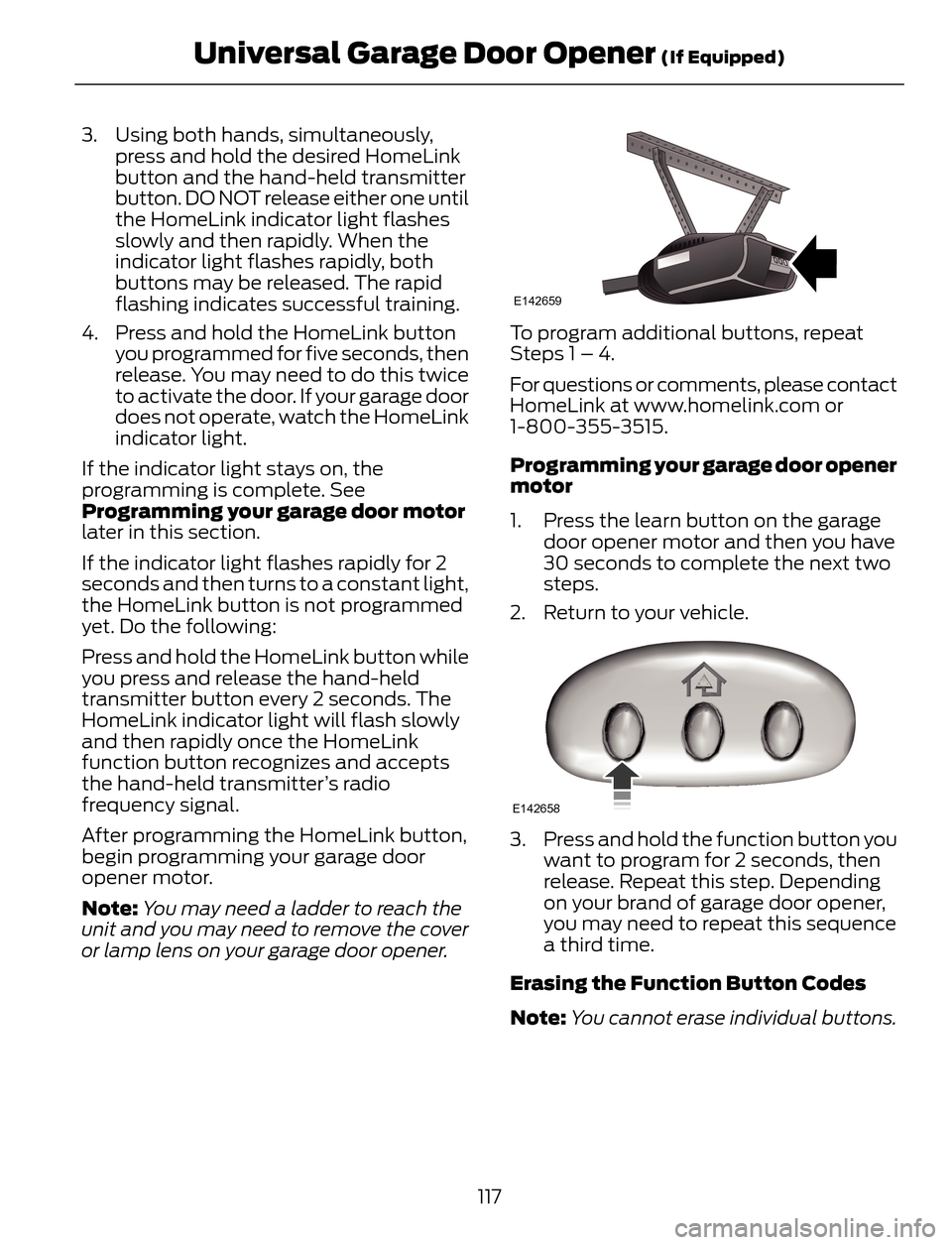
Note:You may need a ladder to reach the
unit and you may need to remove the cover
or lamp lens on your garage door opener.
E142659
To program additional buttons, repeat
Steps 1 – 4.
For questions or comments, please contact
HomeLink at www.homelink.com or
1-800-355-3515.
Programming your garage door opener
motor
1. Press the learn button on the garage
door opener motor and then you have
30 seconds to complete the next two
steps.
2. Return to your vehicle.
E142658
3. Press and hold the function button you
want to program for 2 seconds, then
release. Repeat this step. Depending
on your brand of garage door opener,
you may need to repeat this sequence
a third time.
Erasing the Function Button Codes
Note:You cannot erase individual buttons.
117
Universal Garage Door Opener (If Equipped)
Page 121 of 428
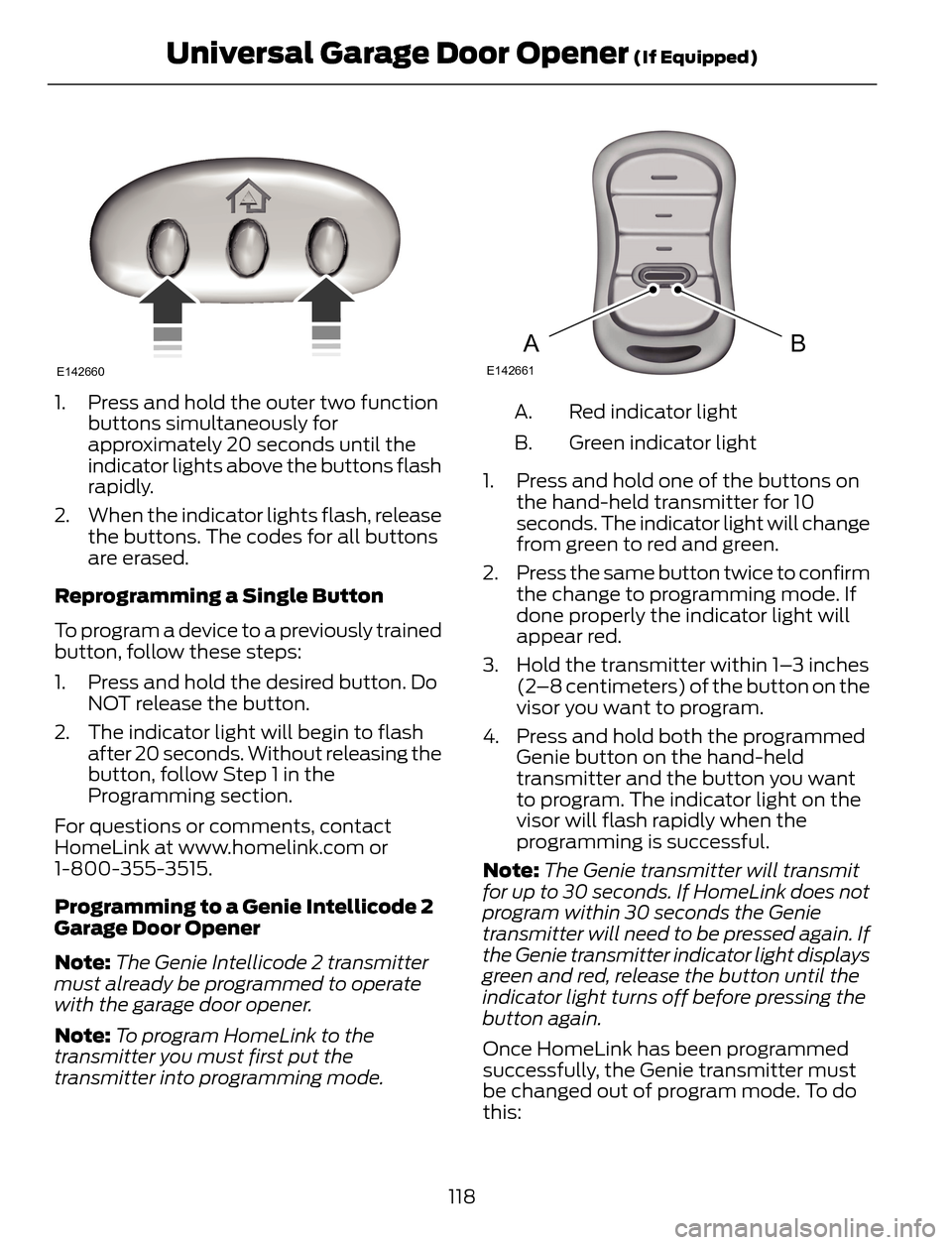
E142660
1. Press and hold the outer two function
buttons simultaneously for
approximately 20 seconds until the
indicator lights above the buttons flash
rapidly.
2. When the indicator lights flash, release
the buttons. The codes for all buttons
are erased.
Reprogramming a Single Button
To program a device to a previously trained
button, follow these steps:
1. Press and hold the desired button. Do
NOT release the button.
2. The indicator light will begin to flash
after 20 seconds. Without releasing the
button, follow Step 1 in the
Programming section.
For questions or comments, contact
HomeLink at www.homelink.com or
1-800-355-3515.
Programming to a Genie Intellicode 2
Garage Door Opener
Note:The Genie Intellicode 2 transmitter
must already be programmed to operate
with the garage door opener.
Note:To program HomeLink to the
transmitter you must first put the
transmitter into programming mode.
BAE142661
Red indicator light A.
Green indicator light B.
1. Press and hold one of the buttons on
the hand-held transmitter for 10
seconds. The indicator light will change
from green to red and green.
2. Press the same button twice to confirm
the change to programming mode. If
done properly the indicator light will
appear red.
3. Hold the transmitter within 1–3 inches
(2–8 centimeters) of the button on the
visor you want to program.
4. Press and hold both the programmed
Genie button on the hand-held
transmitter and the button you want
to program. The indicator light on the
visor will flash rapidly when the
programming is successful.
Note:The Genie transmitter will transmit
for up to 30 seconds. If HomeLink does not
program within 30 seconds the Genie
transmitter will need to be pressed again. If
the Genie transmitter indicator light displays
green and red, release the button until the
indicator light turns off before pressing the
button again.
Once HomeLink has been programmed
successfully, the Genie transmitter must
be changed out of program mode. To do
this:
118
Universal Garage Door Opener (If Equipped)
Page 122 of 428
1. Press and hold the previously
programmed Genie button on the
hand-held transmitter for 10 seconds.
The indicator light will change from red
to red and green.
2. Press the same button twice to confirm
the change. If done correctly the
indicator light will turn green.
Programming HomeLink to the Genie
Intellicode Garage Door Opener Motor
Note:You may need a ladder to access the
garage door opener motor.
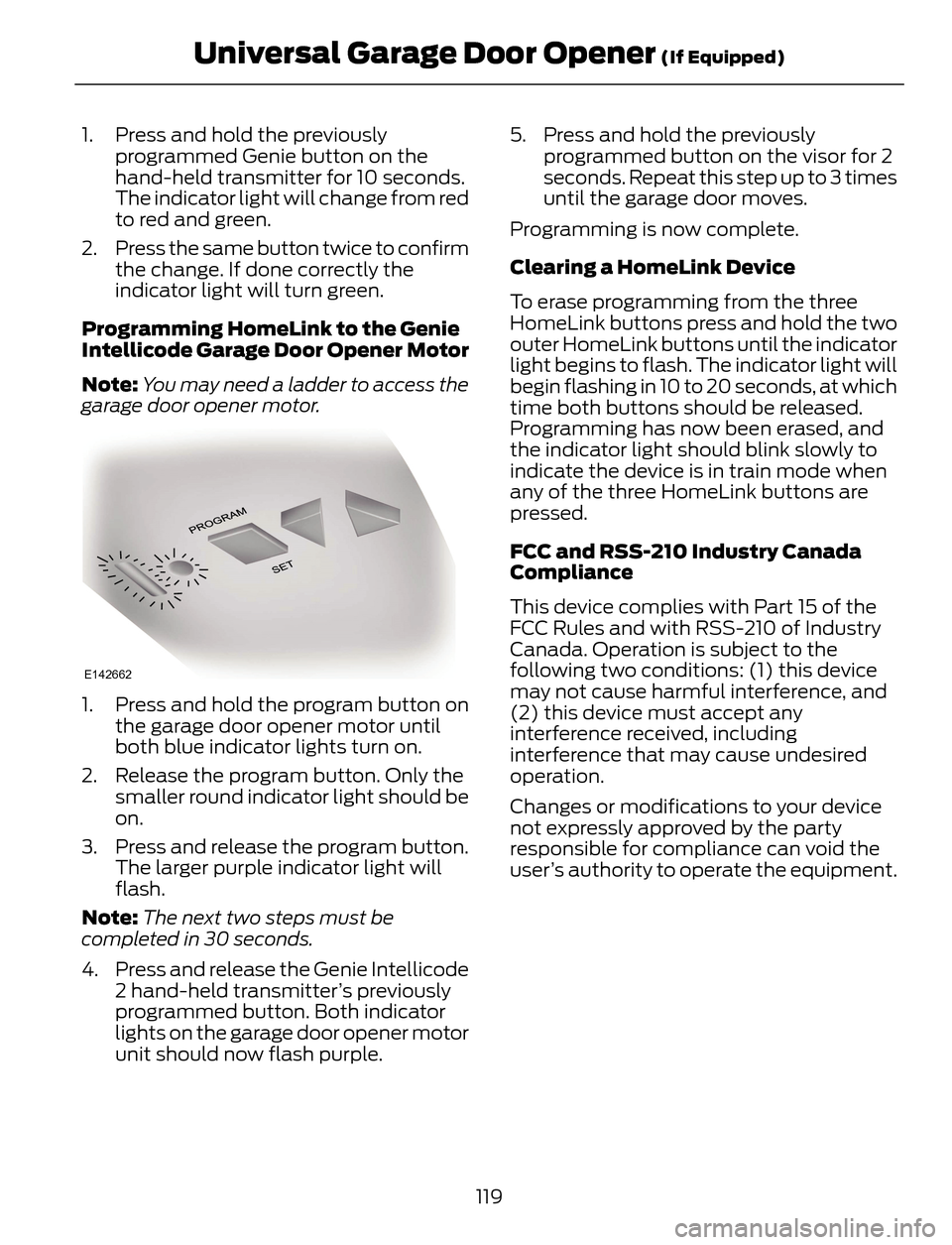
E142662
1. Press and hold the program button on
the garage door opener motor until
both blue indicator lights turn on.
2. Release the program button. Only the
smaller round indicator light should be
on.
3. Press and release the program button.
The larger purple indicator light will
flash.
Note:The next two steps must be
completed in 30 seconds.
4. Press and release the Genie Intellicode
2 hand-held transmitter’s previously
programmed button. Both indicator
lights on the garage door opener motor
unit should now flash purple.5. Press and hold the previously
programmed button on the visor for 2
seconds. Repeat this step up to 3 times
until the garage door moves.
Programming is now complete.
Clearing a HomeLink Device
To erase programming from the three
HomeLink buttons press and hold the two
outer HomeLink buttons until the indicator
light begins to flash. The indicator light will
begin flashing in 10 to 20 seconds, at which
time both buttons should be released.
Programming has now been erased, and
the indicator light should blink slowly to
indicate the device is in train mode when
any of the three HomeLink buttons are
pressed.
FCC and RSS-210 Industry Canada
Compliance
This device complies with Part 15 of the
FCC Rules and with RSS-210 of Industry
Canada. Operation is subject to the
following two conditions: (1) this device
may not cause harmful interference, and
(2) this device must accept any
interference received, including
interference that may cause undesired
operation.
Changes or modifications to your device
not expressly approved by the party
responsible for compliance can void the
user’s authority to operate the equipment.
119
Universal Garage Door Opener (If Equipped)
Page 140 of 428
To use SelectShift, move the gearshift
lever into S (Sport). Use the +/- buttons
on the side of your gearshift lever to
manually change gears.
• Press the (+) button to upshift.
• Press the (-) button to downshift.
Note:After you have assumed manual
control with SelectShift your vehicle will
remain in this mode until you return the
gearshift lever from (S) Sport, back to (D)
Drive.
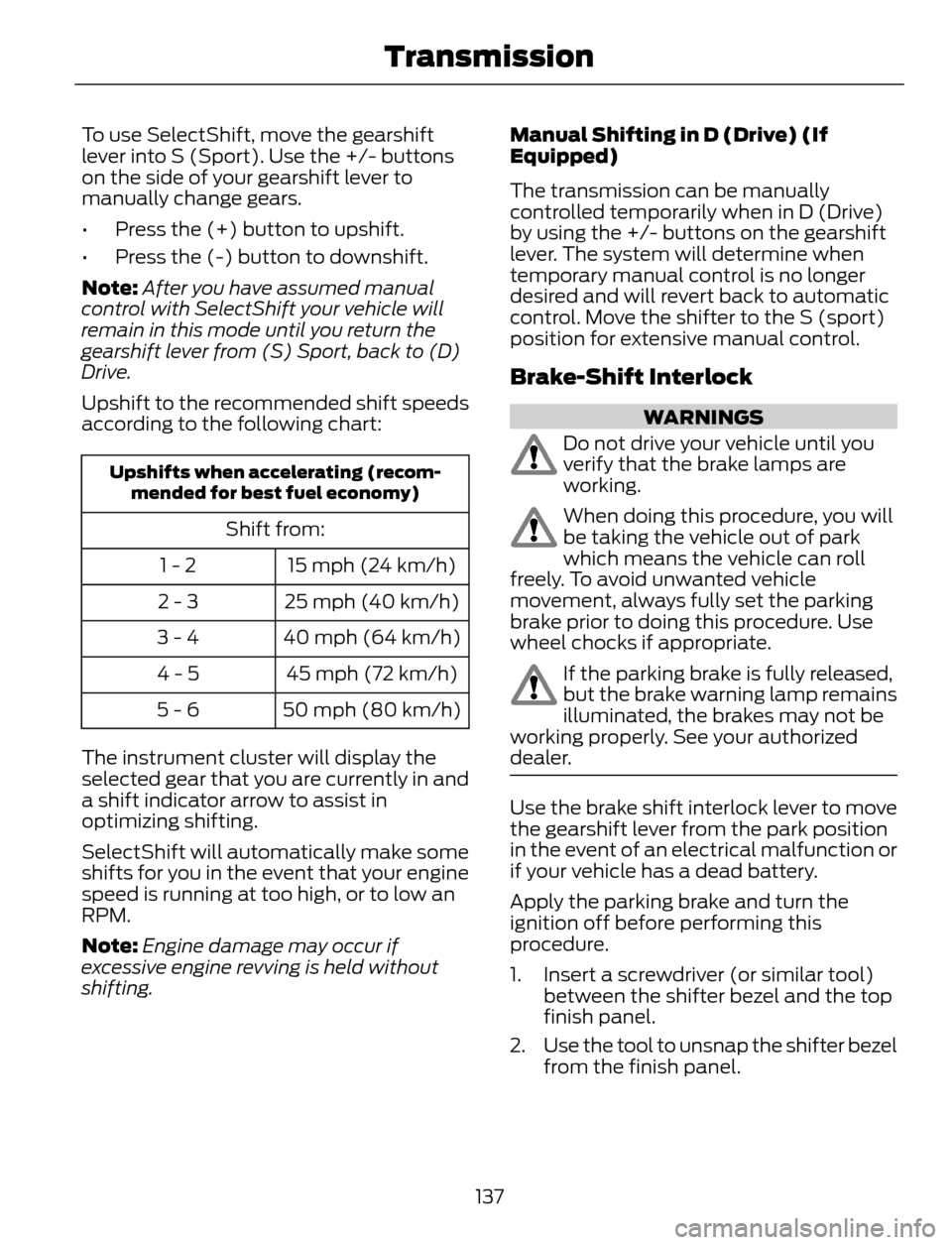
Upshift to the recommended shift speeds
according to the following chart:
Upshifts when accelerating (recom-
mended for best fuel economy)
Shift from:
15 mph (24 km/h) 1 - 2
25 mph (40 km/h) 2 - 3
40 mph (64 km/h) 3 - 4
45 mph (72 km/h) 4 - 5
50 mph (80 km/h) 5 - 6
The instrument cluster will display the
selected gear that you are currently in and
a shift indicator arrow to assist in
optimizing shifting.
SelectShift will automatically make some
shifts for you in the event that your engine
speed is running at too high, or to low an
RPM.
Note:Engine damage may occur if
excessive engine revving is held without
shifting.Manual Shifting in D (Drive) (If
Equipped)
The transmission can be manually
controlled temporarily when in D (Drive)
by using the +/- buttons on the gearshift
lever. The system will determine when
temporary manual control is no longer
desired and will revert back to automatic
control. Move the shifter to the S (sport)
position for extensive manual control.
Brake-Shift Interlock
WARNINGS
Do not drive your vehicle until you
verify that the brake lamps are
working.
When doing this procedure, you will
be taking the vehicle out of park
which means the vehicle can roll
freely. To avoid unwanted vehicle
movement, always fully set the parking
brake prior to doing this procedure. Use
wheel chocks if appropriate.
If the parking brake is fully released,
but the brake warning lamp remains
illuminated, the brakes may not be
working properly. See your authorized
dealer.
Use the brake shift interlock lever to move
the gearshift lever from the park position
in the event of an electrical malfunction or
if your vehicle has a dead battery.
Apply the parking brake and turn the
ignition off before performing this
procedure.
1. Insert a screwdriver (or similar tool)
between the shifter bezel and the top
finish panel.
2. Use the tool to unsnap the shifter bezel
from the finish panel.
137
Transmission
Page 161 of 428
Always use caution while reversing.
Objects in the red zone are closest to your
vehicle and objects in the green zone are
farther away. Objects are getting closer to
your vehicle as they move from the green
zone to the yellow or red zones. Use the
side view mirrors and rear view mirror to
get better coverage on both sides and rear
of the vehicle.
Selectable settings for this feature are
ACTIVE + FIXED, FIXED and OFF.
Visual Park Aid Alert
Note:Visual park alert is only available
when the transmission is in R (Reverse).
Note:The reverse sensing system is not
effective at speeds above 3 mph (5 km/h)
and may not detect certain angular or
moving objects.
The system uses red, yellow and green
highlights which appear on top of the video
image when an object is detected by the
reverse sensing system. The alert highlights
the closest object detected. The reverse
sensing alert can be disabled and if visual
park aid alert is enabled, highlighted areas
are still displayed.
Selectable settings for this feature are ON
and OFF.
Manual Zoom
WARNING
When manual zoom is on, the full
area behind the vehicle is not shown.
Be aware of your surroundings when
using the manual zoom feature.
Note:Manual zoom is only available when
the transmission is in R (Reverse).
Note:When manual zoom is enabled, only
the centerline is shown.This allows you to get a closer view of an
object behind the vehicle. The zoomed
image keeps the bumper in the image to
provide a reference. The zoom is only
active while the transmission is in R
(Reverse). When the transmission is
shifted out of R (Reverse), the feature
automatically turns off and must be reset
when it is used again.
Selectable settings for this feature are OFF,
Level 1, Level 2 or Level 3. Press the up and
down arrows to change the view. The
selection level appears between the
buttons (for example, Level 1). The default
setting for the manual zoom is OFF.
Rear Camera Delay
When shifting the transmission out of R
(Reverse) and into any gear other than P
(Park), the camera image remains in the
display until the vehicle speed reaches 5
mph (8 km/h). This occurs when the rear
camera delay feature is on, or until a radio
button is selected.
Selectable settings for this feature are ON
and OFF. The default setting for the rear
camera delay is OFF.
158
Parking Aids
Page 221 of 428
Note:Always dispose of automotive
batteries in a responsible manner. Follow
your local authorized standards for disposal.
Call your local authorized recycling center
to find out more about recycling automotive
batteries.
Note:It is recommended that the negative
battery cable terminal be disconnected from
the battery if you plan to store your vehicle
for an extended period of time.
CHECKING THE WIPER
BLADES
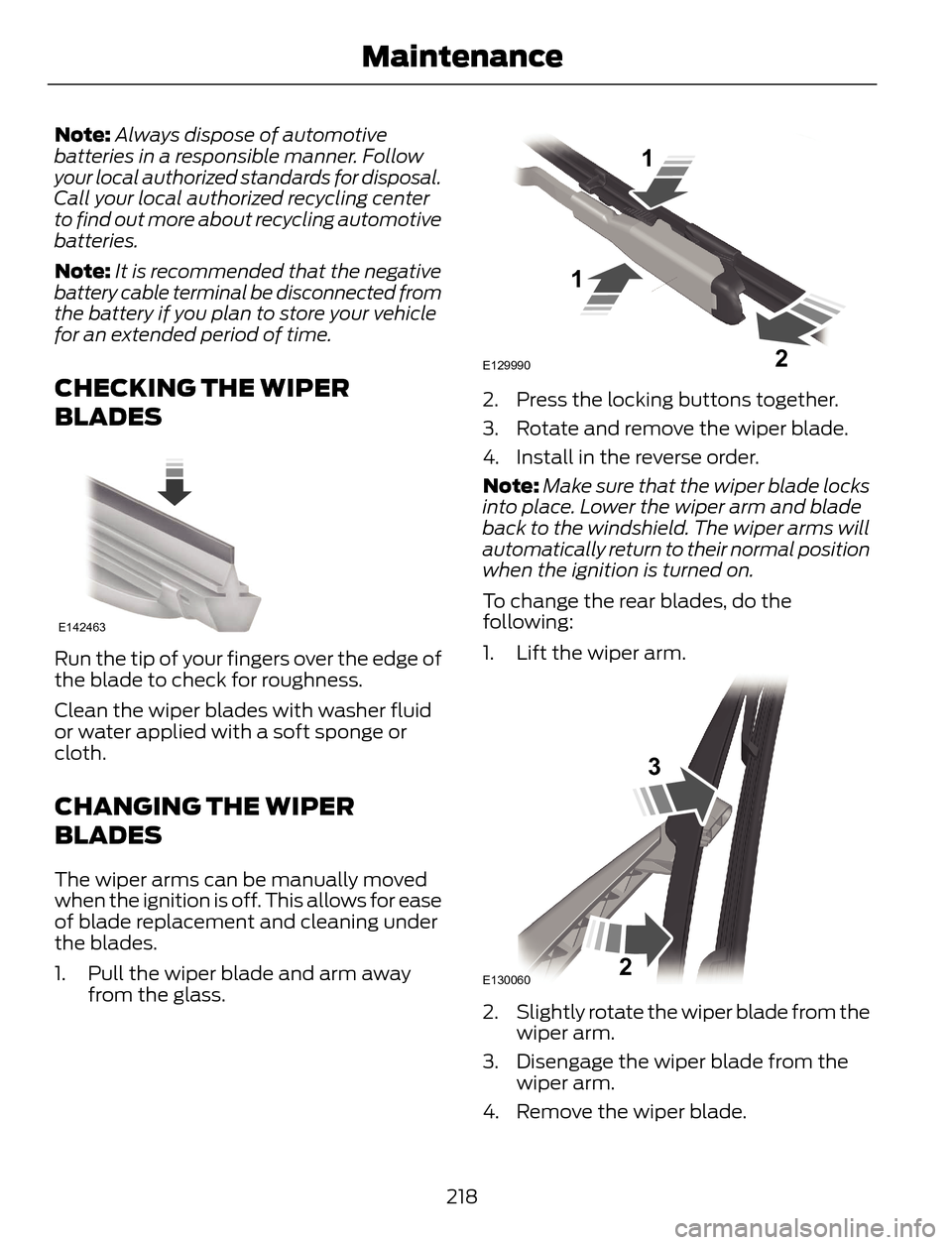
E142463
Run the tip of your fingers over the edge of
the blade to check for roughness.
Clean the wiper blades with washer fluid
or water applied with a soft sponge or
cloth.
CHANGING THE WIPER
BLADES
The wiper arms can be manually moved
when the ignition is off. This allows for ease
of blade replacement and cleaning under
the blades.
1. Pull the wiper blade and arm away
from the glass.
E129990
1
1
2
2. Press the locking buttons together.
3. Rotate and remove the wiper blade.
4. Install in the reverse order.
Note:Make sure that the wiper blade locks
into place. Lower the wiper arm and blade
back to the windshield. The wiper arms will
automatically return to their normal position
when the ignition is turned on.
To change the rear blades, do the
following:
1. Lift the wiper arm.
E130060
3
2
2. Slightly rotate the wiper blade from the
wiper arm.
3. Disengage the wiper blade from the
wiper arm.
4. Remove the wiper blade.
218
Maintenance
Page 272 of 428
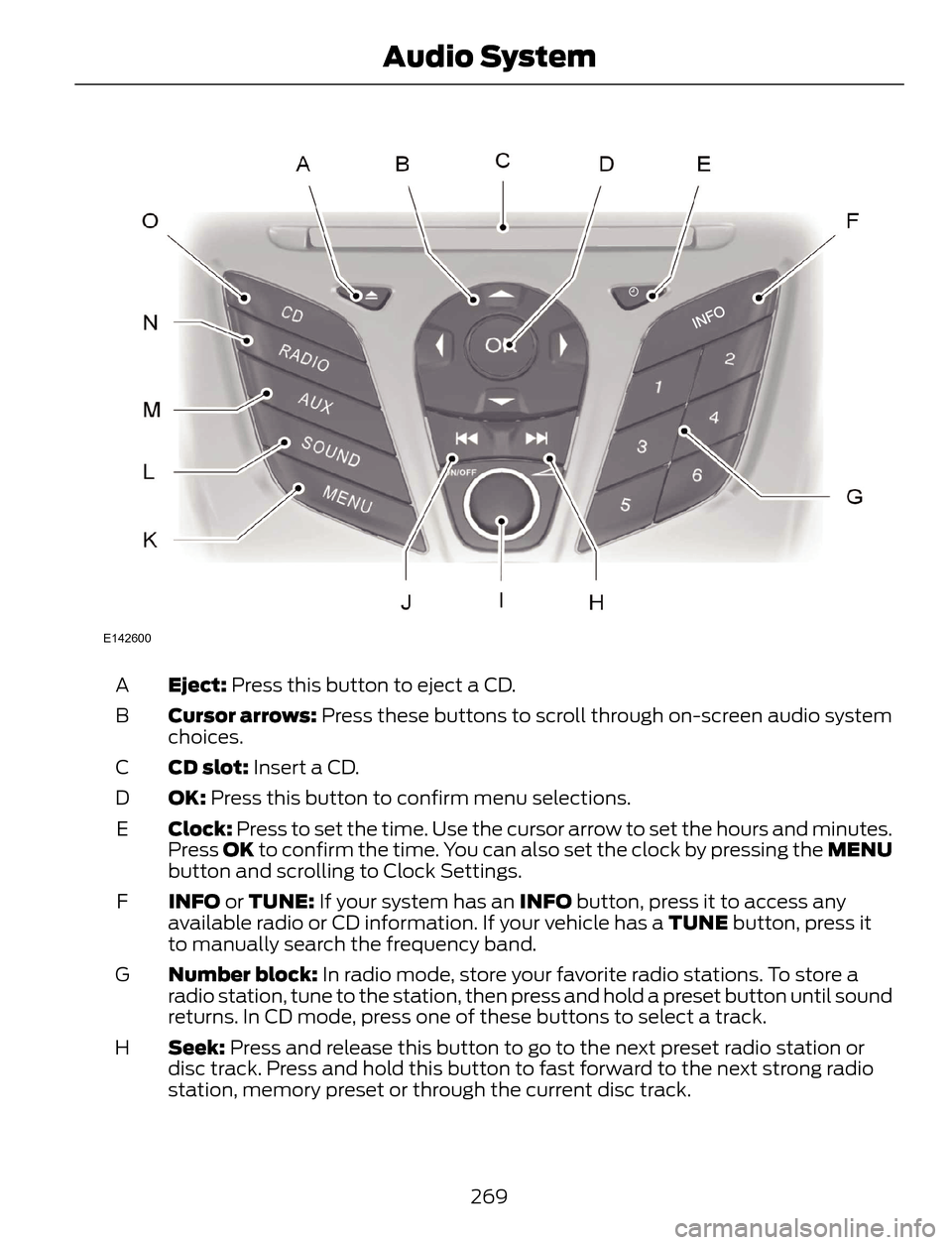
E142600
Eject: Press this button to eject a CD. A
Cursor arrows: Press these buttons to scroll through on-screen audio system
choices. B
CD slot: Insert a CD. C
OK: Press this button to confirm menu selections. D
Clock: Press to set the time. Use the cursor arrow to set the hours and minutes.
Press OK to confirm the time. You can also set the clock by pressing the MENU
button and scrolling to Clock Settings. E
INFO or TUNE: If your system has an INFO button, press it to access any
available radio or CD information. If your vehicle has a TUNE button, press it
to manually search the frequency band. F
Number block: In radio mode, store your favorite radio stations. To store a
radio station, tune to the station, then press and hold a preset button until sound
returns. In CD mode, press one of these buttons to select a track. G
Seek: Press and release this button to go to the next preset radio station or
disc track. Press and hold this button to fast forward to the next strong radio
station, memory preset or through the current disc track. H
269
Audio System
Page 273 of 428
ON/OFF: Press this button to turn the system off and on. Turn to adjust the
volume. I
Seek: Press and release this button to go to the previous preset radio station
or disc track. Press and hold this button to reverse to the previous strong radio
station, memory preset or through the current disc track. J
MENU: Press this button to access different audio system features. See Menu
Structure later in this section. K
SOUND: Press this button to access settings for Treble, Middle, Bass, Fade
and Balance. Use the up and down arrow buttons to select the various settings.
When you make your selection, press the left and right arrow buttons to change
the settings. Press OK to set or press MENU to exit. Sound settings can be set
for each audio source independently. L
AUX: Press this button to access your auxiliary input jack or switch between
devices you plug into the input jack or USB port. M
RADIO: Press this button to listen to the radio or change radio frequencies.
Press the function buttons below the radio screen to select different radio
functions. N
CD: Press this button to listen to a CD. Press the function buttons below the
radio screen to select on-screen options of Repeat or Shuffle. O
AUDIO UNIT - VEHICLES WITH:
AM/FM/CD/SYNC
WARNING
Driving while distracted can result in
loss of vehicle control, crash and
injury. We strongly recommend that
you use extreme caution when using any
device that may take your focus off the
road. Your primary responsibility is the safe
operation of your vehicle. We recommend
against the use of any hand-held device
while driving and encourage the use of
voice-operated systems when possible.
Make sure you are aware of all applicable
local laws that may affect the use of
electronic devices while driving.
Note:You can operate your audio system
for up to one hour after you switch off the
ignition. Press the ON/OFF control to
operate the system with the ignition turned
off. The system automatically turns off after
one hour.
270
Audio System
Page 274 of 428
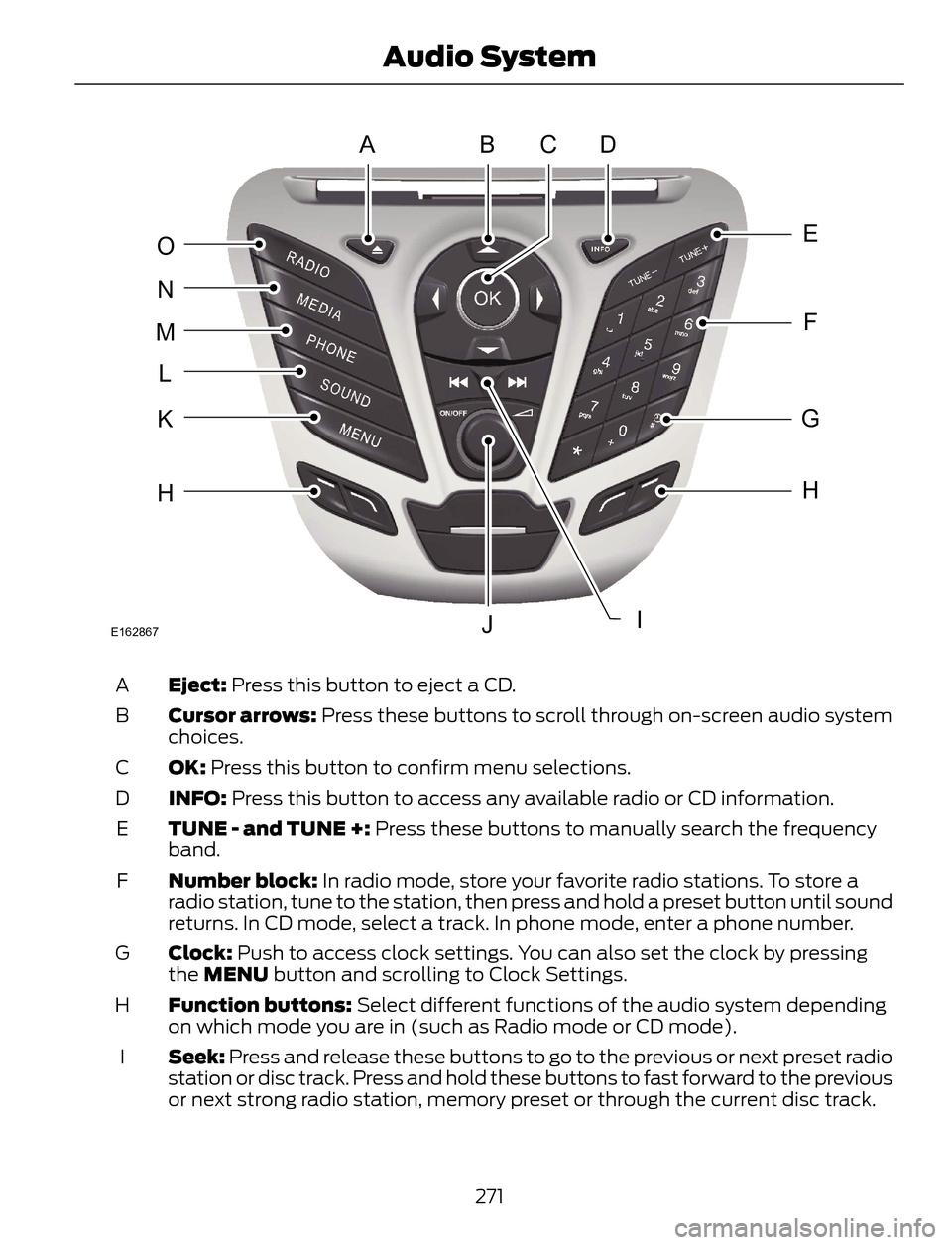
ABDC
E
F
G
H
IJ
H
K
L
M
N
O
E162867
Eject: Press this button to eject a CD. A
Cursor arrows: Press these buttons to scroll through on-screen audio system
choices. B
OK: Press this button to confirm menu selections. C
INFO: Press this button to access any available radio or CD information. D
TUNE - and TUNE +: Press these buttons to manually search the frequency
band. E
Number block: In radio mode, store your favorite radio stations. To store a
radio station, tune to the station, then press and hold a preset button until sound
returns. In CD mode, select a track. In phone mode, enter a phone number. F
Clock: Push to access clock settings. You can also set the clock by pressing
the MENU button and scrolling to Clock Settings. G
Function buttons: Select different functions of the audio system depending
on which mode you are in (such as Radio mode or CD mode). H
Seek: Press and release these buttons to go to the previous or next preset radio
station or disc track. Press and hold these buttons to fast forward to the previous
or next strong radio station, memory preset or through the current disc track. I
271
Audio System
Page 275 of 428
ON/OFF: Press this button to switch the system off and on. Turn to adjust the
volume. J
MENU: Press this button to access different audio system features. See Menu
Structure later in this section. K
SOUND: Press this button to access settings for Treble, Middle, Bass, Fade
and Balance. Use the up and down arrow buttons to select the various settings.
When you make your selection, press the left and right arrow buttons to change
the settings. Press OK to set or press MENU to exit. Sound settings can be set
for each audio source independently. L
PHONE: Press this button to access the phone features of the SYNC system.
See SYNC™ (page 286). M
MEDIA: Press this button to switch between listening to a CD and the
SYNC-Media menu. To change the SYNC-Media device (such as switching from
a device plugged into the USB port to a Bluetooth audio device), press MENU
and scroll to Select Source. N
RADIO: Press this button to listen to the radio or change radio frequencies.
Press the function buttons below the radio screen to select different radio
functions. O
AUDIO UNIT - VEHICLES WITH:
AM/FM/CD/SYNC/SATELLITE
RADIO
WARNING
Driving while distracted can result in
loss of vehicle control, crash and
injury. We strongly recommend that
you use extreme caution when using any
device that may take your focus off the
road. Your primary responsibility is the safe
operation of your vehicle. We recommend
against the use of any hand-held device
while driving and encourage the use of
voice-operated systems when possible.
Make sure you are aware of all applicable
local laws that may affect the use of
electronic devices while driving.
Note:You can operate your audio system
for up to one hour after you switch off the
ignition. Press the ON/OFF control to
operate the system with the ignition turned
off. The system automatically turns off after
one hour.
Note:Some features, such as SIRIUS
satellite radio, may not be available in your
location. Check with an authorized dealer.
272
Audio System