ad blue FORD ESCAPE 2014 3.G Owner's Manual
[x] Cancel search | Manufacturer: FORD, Model Year: 2014, Model line: ESCAPE, Model: FORD ESCAPE 2014 3.GPages: 428, PDF Size: 16.6 MB
Page 312 of 428
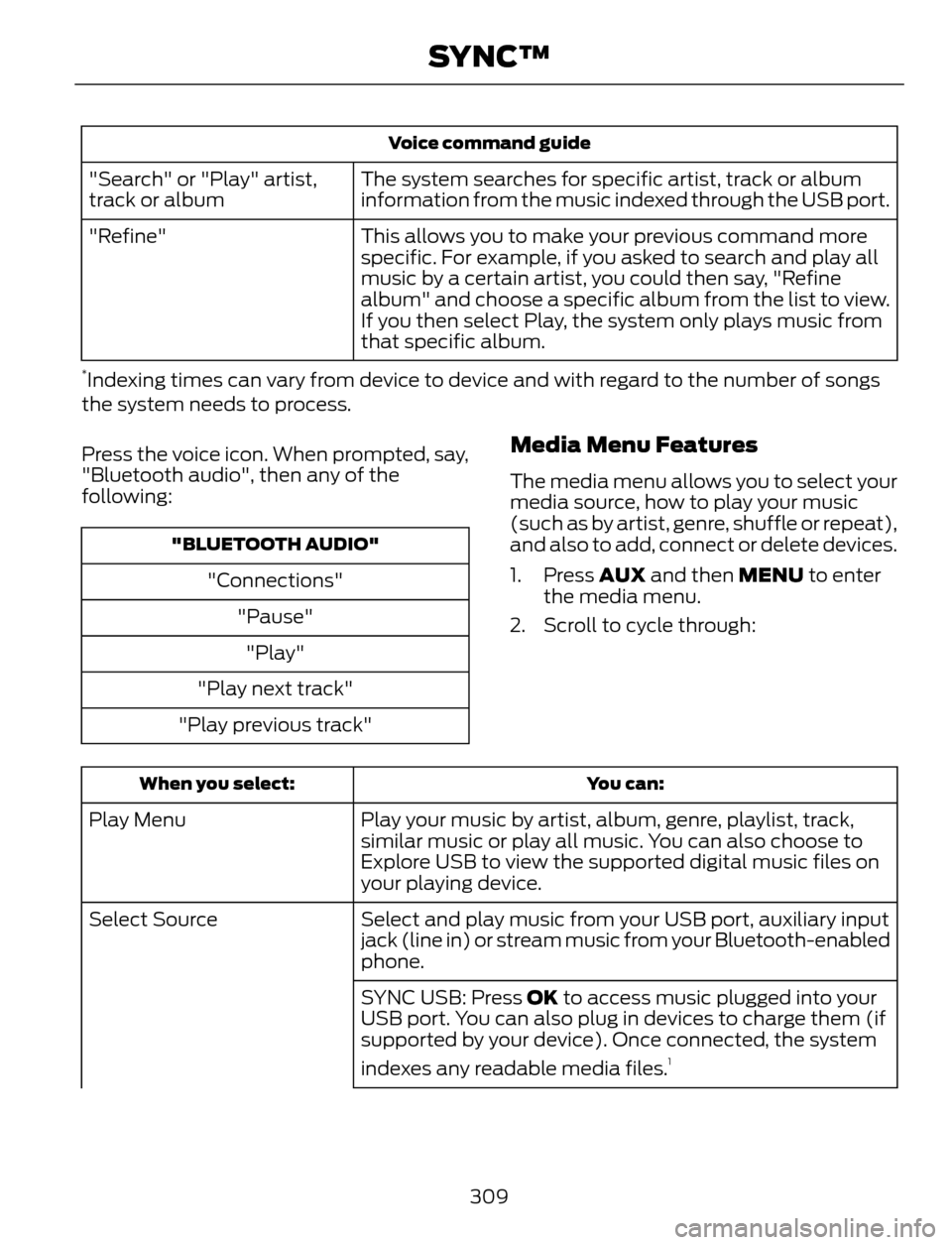
Voice command guide
The system searches for specific artist, track or album
information from the music indexed through the USB port. "Search" or "Play" artist,
track or album
This allows you to make your previous command more
specific. For example, if you asked to search and play all
music by a certain artist, you could then say, "Refine
album" and choose a specific album from the list to view.
If you then select Play, the system only plays music from
that specific album. "Refine"
*Indexing times can vary from device to device and with regard to the number of songs
the system needs to process.
Press the voice icon. When prompted, say,
"Bluetooth audio", then any of the
following:
"BLUETOOTH AUDIO"
"Connections"
"Pause"
"Play"
"Play next track"
"Play previous track"
Media Menu Features
The media menu allows you to select your
media source, how to play your music
(such as by artist, genre, shuffle or repeat),
and also to add, connect or delete devices.
1. Press AUX and then MENU to enter
the media menu.
2. Scroll to cycle through:
You can: When you select:
Play your music by artist, album, genre, playlist, track,
similar music or play all music. You can also choose to
Explore USB to view the supported digital music files on
your playing device. Play Menu
Select and play music from your USB port, auxiliary input
jack (line in) or stream music from your Bluetooth-enabled
phone. Select Source
SYNC USB: Press OK to access music plugged into your
USB port. You can also plug in devices to charge them (if
supported by your device). Once connected, the system
indexes any readable media files.
1
309
SYNC™
Page 313 of 428
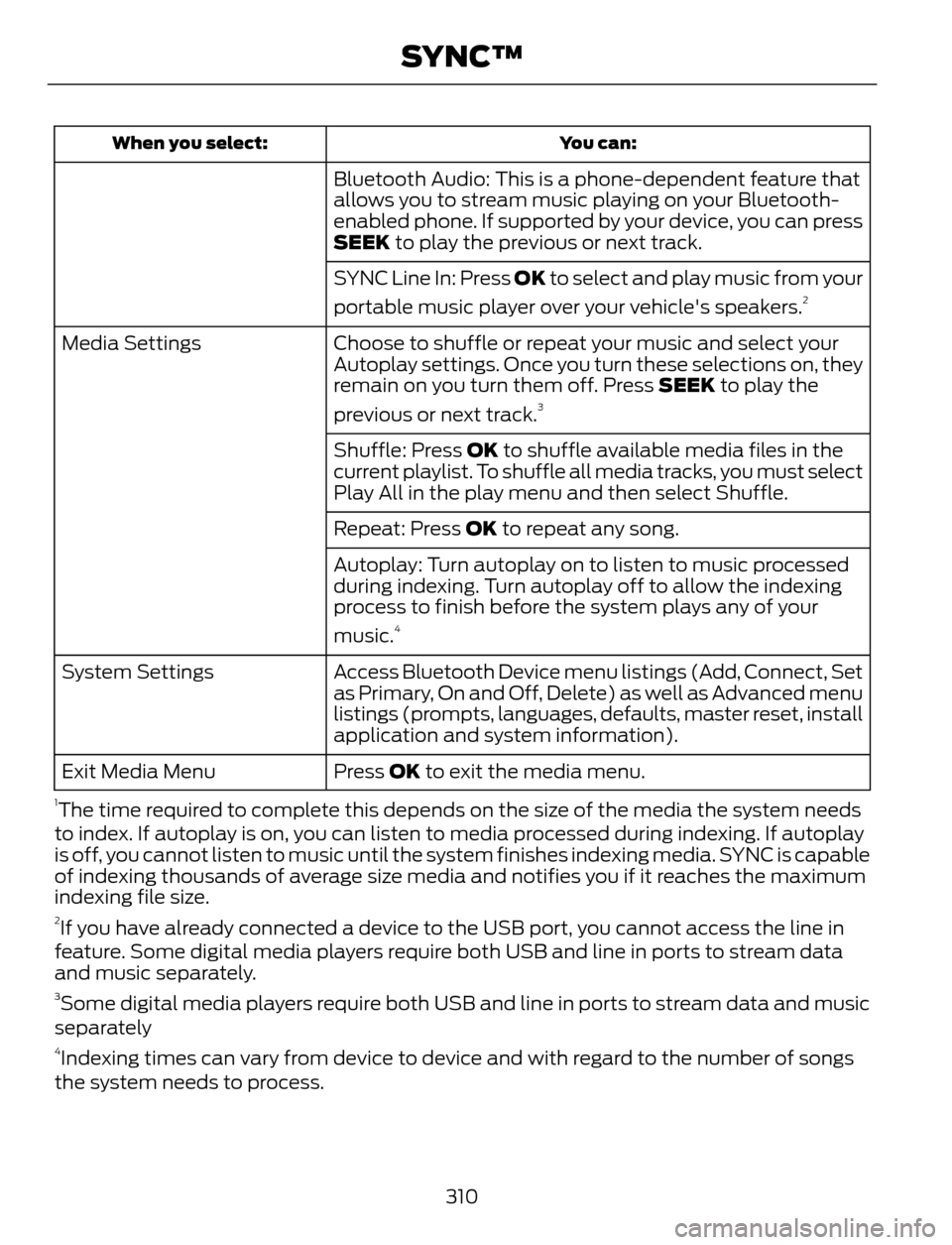
You can: When you select:
Bluetooth Audio: This is a phone-dependent feature that
allows you to stream music playing on your Bluetooth-
enabled phone. If supported by your device, you can press
SEEK to play the previous or next track.
SYNC Line In: Press OK to select and play music from your
portable music player over your vehicle's speakers.
2
Choose to shuffle or repeat your music and select your
Autoplay settings. Once you turn these selections on, they
remain on you turn them off. Press SEEK to play the
previous or next track.
3
Media Settings
Shuffle: Press OK to shuffle available media files in the
current playlist. To shuffle all media tracks, you must select
Play All in the play menu and then select Shuffle.
Repeat: Press OK to repeat any song.
Autoplay: Turn autoplay on to listen to music processed
during indexing. Turn autoplay off to allow the indexing
process to finish before the system plays any of your
music.
4
Access Bluetooth Device menu listings (Add, Connect, Set
as Primary, On and Off, Delete) as well as Advanced menu
listings (prompts, languages, defaults, master reset, install
application and system information). System Settings
Press OK to exit the media menu. Exit Media Menu
1The time required to complete this depends on the size of the media the system needs
to index. If autoplay is on, you can listen to media processed during indexing. If autoplay
is off, you cannot listen to music until the system finishes indexing media. SYNC is capable
of indexing thousands of average size media and notifies you if it reaches the maximum
indexing file size.
2If you have already connected a device to the USB port, you cannot access the line in
feature. Some digital media players require both USB and line in ports to stream data
and music separately.
3Some digital media players require both USB and line in ports to stream data and music
separately
4Indexing times can vary from device to device and with regard to the number of songs
the system needs to process.
310
SYNC™
Page 315 of 428
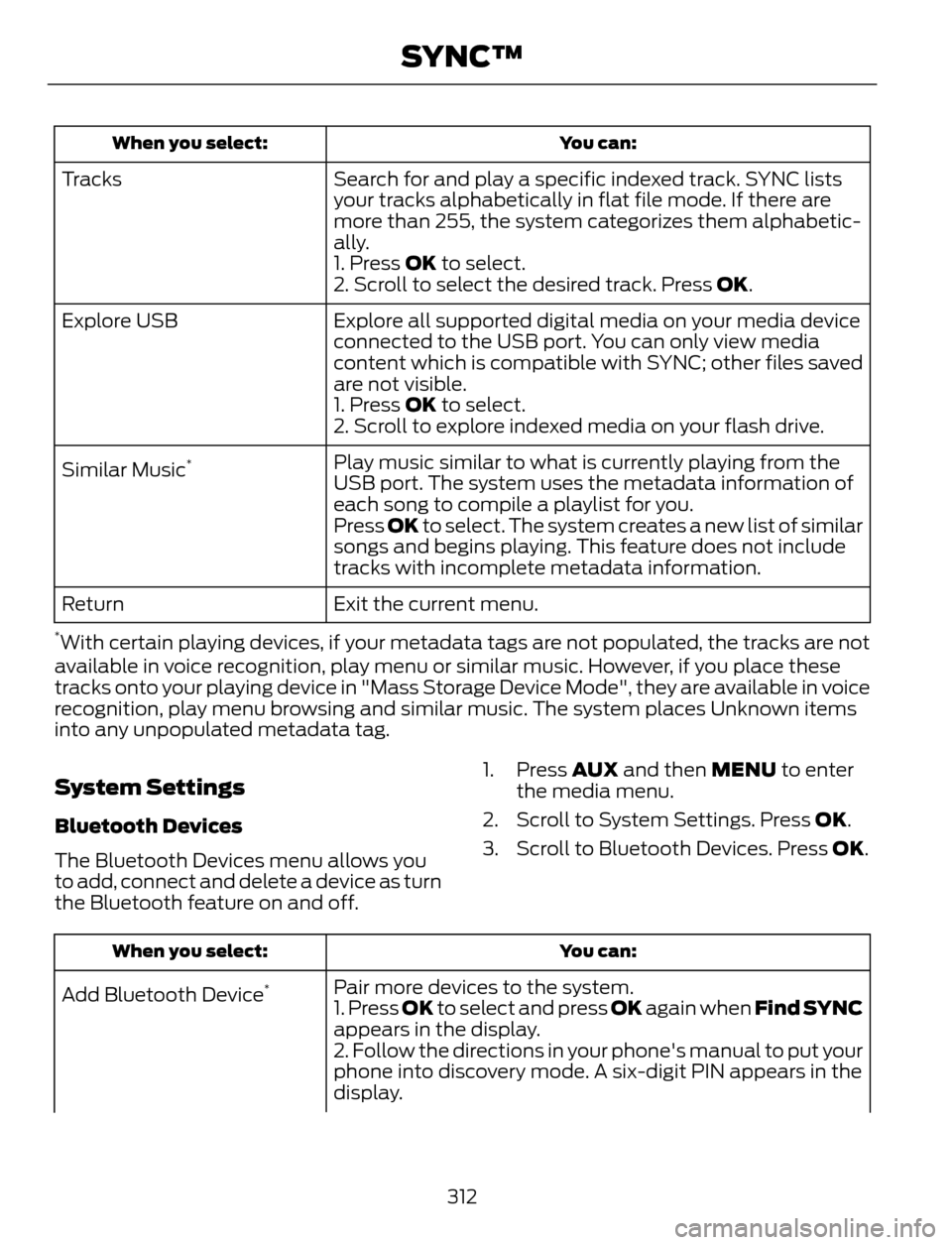
You can: When you select:
Search for and play a specific indexed track. SYNC lists
your tracks alphabetically in flat file mode. If there are
more than 255, the system categorizes them alphabetic-
ally. Tr a c k s
1. Press OK to select.
2. Scroll to select the desired track. Press OK.
Explore all supported digital media on your media device
connected to the USB port. You can only view media
content which is compatible with SYNC; other files saved
are not visible. Explore USB
1. Press OK to select.
2. Scroll to explore indexed media on your flash drive.
Play music similar to what is currently playing from the
USB port. The system uses the metadata information of
each song to compile a playlist for you. Similar Music
*
Press OK to select. The system creates a new list of similar
songs and begins playing. This feature does not include
tracks with incomplete metadata information.
Exit the current menu. Return
*With certain playing devices, if your metadata tags are not populated, the tracks are not
available in voice recognition, play menu or similar music. However, if you place these
tracks onto your playing device in "Mass Storage Device Mode", they are available in voice
recognition, play menu browsing and similar music. The system places Unknown items
into any unpopulated metadata tag.
System Settings
Bluetooth Devices
The Bluetooth Devices menu allows you
to add, connect and delete a device as turn
the Bluetooth feature on and off.1. Press AUX and then MENU to enter
the media menu.
2. Scroll to System Settings. Press OK.
3. Scroll to Bluetooth Devices. Press OK.
You can: When you select:
Pair more devices to the system.
Add Bluetooth Device*1. Press OK to select and press OK again when Find SYNC
appears in the display.
2. Follow the directions in your phone's manual to put your
phone into discovery mode. A six-digit PIN appears in the
display.
312
SYNC™
Page 316 of 428
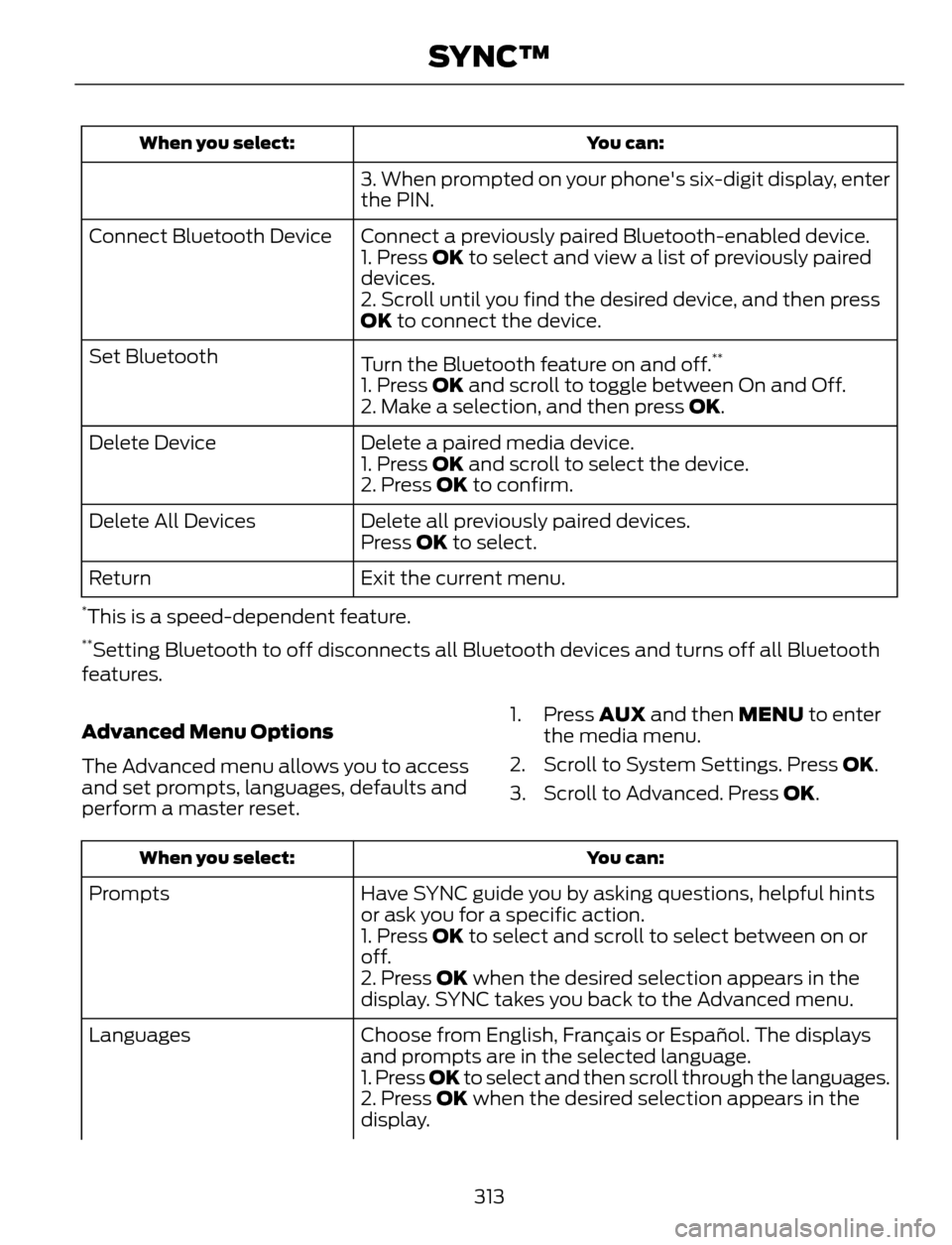
You can: When you select:
3. When prompted on your phone's six-digit display, enter
the PIN.
Connect a previously paired Bluetooth-enabled device. Connect Bluetooth Device
1. Press OK to select and view a list of previously paired
devices.
2. Scroll until you find the desired device, and then press
OK to connect the device.
Turn the Bluetooth feature on and off.
**Set Bluetooth
1. Press OK and scroll to toggle between On and Off.
2. Make a selection, and then press OK.
Delete a paired media device. Delete Device
1. Press OK and scroll to select the device.
2. Press OK to confirm.
Delete all previously paired devices. Delete All Devices
Press OK to select.
Exit the current menu. Return
*This is a speed-dependent feature.**Setting Bluetooth to off disconnects all Bluetooth devices and turns off all Bluetooth
features.
Advanced Menu Options
The Advanced menu allows you to access
and set prompts, languages, defaults and
perform a master reset.1. Press AUX and then MENU to enter
the media menu.
2. Scroll to System Settings. Press OK.
3. Scroll to Advanced. Press OK.
You can: When you select:
Have SYNC guide you by asking questions, helpful hints
or ask you for a specific action. Prompts
1. Press OK to select and scroll to select between on or
off.
2. Press OK when the desired selection appears in the
display. SYNC takes you back to the Advanced menu.
Choose from English, Français or Español. The displays
and prompts are in the selected language. Languages
1. Press OK to select and then scroll through the languages.
2. Press OK when the desired selection appears in the
display.
313
SYNC™
Page 318 of 428
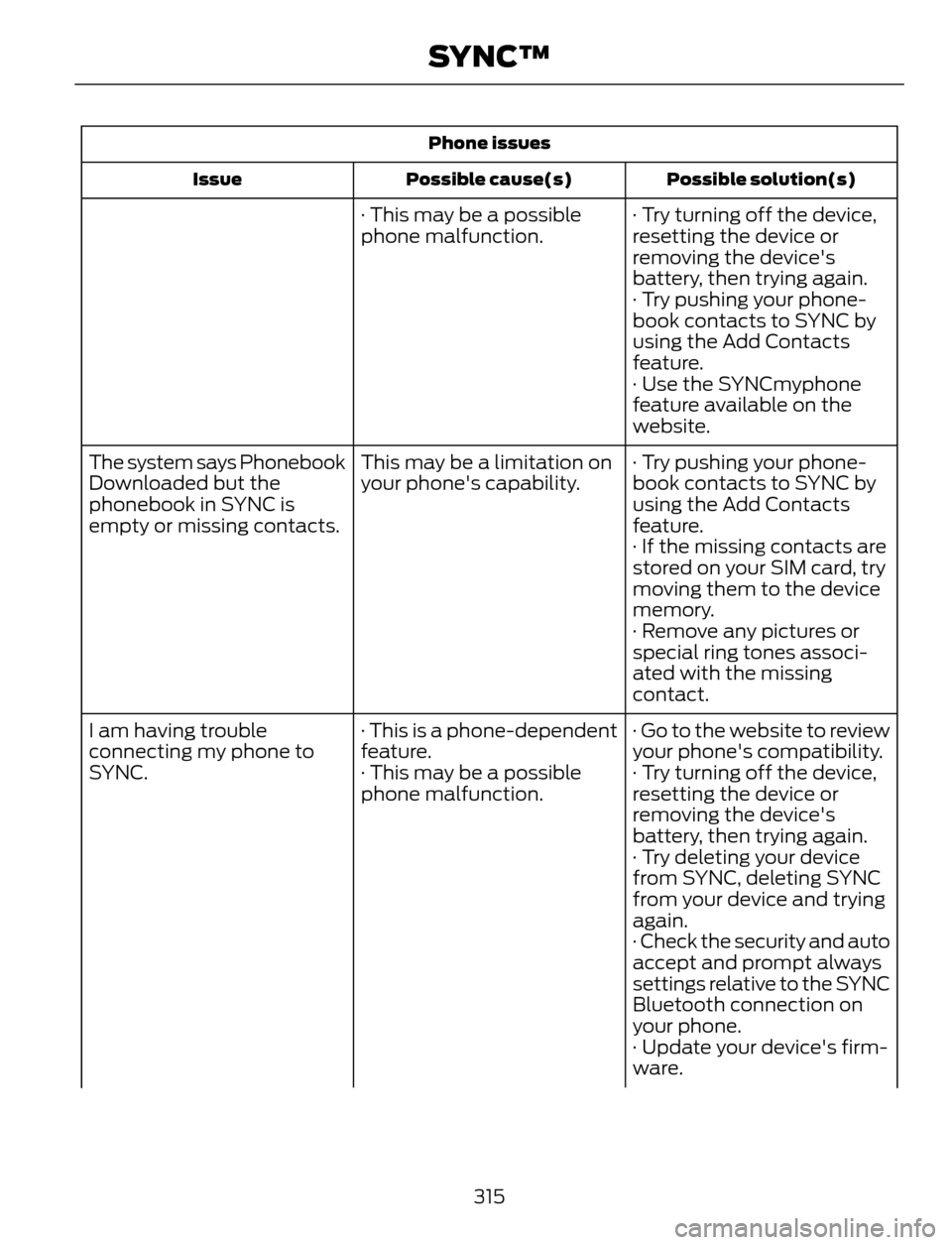
Phone issues
Possible solution(s) Possible cause(s) Issue
· Try turning off the device,
resetting the device or
removing the device's
battery, then trying again. · This may be a possible
phone malfunction.
· Try pushing your phone-
book contacts to SYNC by
using the Add Contacts
feature.
· Use the SYNCmyphone
feature available on the
website.
· Try pushing your phone-
book contacts to SYNC by
using the Add Contacts
feature. This may be a limitation on
your phone's capability. The system says Phonebook
Downloaded but the
phonebook in SYNC is
empty or missing contacts.
· If the missing contacts are
stored on your SIM card, try
moving them to the device
memory.
· Remove any pictures or
special ring tones associ-
ated with the missing
contact.
· Go to the website to review
your phone's compatibility. · This is a phone-dependent
feature. I am having trouble
connecting my phone to
SYNC. · Try turning off the device,
resetting the device or
removing the device's
battery, then trying again. · This may be a possible
phone malfunction.
· Try deleting your device
from SYNC, deleting SYNC
from your device and trying
again.
· Check the security and auto
accept and prompt always
settings relative to the SYNC
Bluetooth connection on
your phone.
· Update your device's firm-
ware.
315
SYNC™
Page 319 of 428
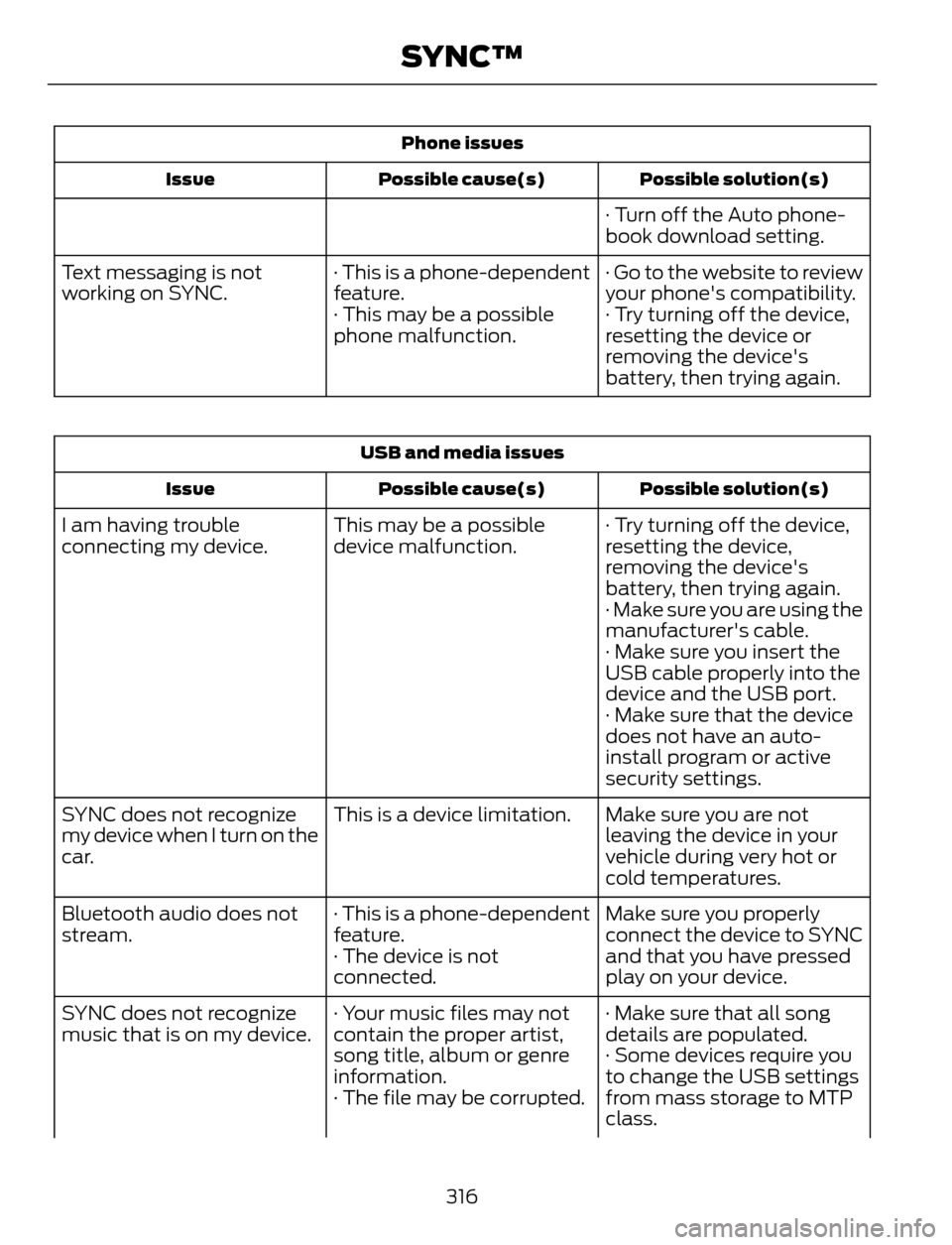
Phone issues
Possible solution(s) Possible cause(s) Issue
· Turn off the Auto phone-
book download setting.
· Go to the website to review
your phone's compatibility. · This is a phone-dependent
feature. Text messaging is not
working on SYNC.
· Try turning off the device,
resetting the device or
removing the device's
battery, then trying again. · This may be a possible
phone malfunction.
USB and media issues
Possible solution(s) Possible cause(s) Issue
· Try turning off the device,
resetting the device,
removing the device's
battery, then trying again. This may be a possible
device malfunction. I am having trouble
connecting my device.
· Make sure you are using the
manufacturer's cable.
· Make sure you insert the
USB cable properly into the
device and the USB port.
· Make sure that the device
does not have an auto-
install program or active
security settings.
Make sure you are not
leaving the device in your
vehicle during very hot or
cold temperatures. This is a device limitation. SYNC does not recognize
my device when I turn on the
car.
Make sure you properly
connect the device to SYNC
and that you have pressed
play on your device. · This is a phone-dependent
feature.
· The device is not
connected. Bluetooth audio does not
stream.
· Make sure that all song
details are populated. · Your music files may not
contain the proper artist,
song title, album or genre
information. SYNC does not recognize
music that is on my device.
· Some devices require you
to change the USB settings
from mass storage to MTP
class. · The file may be corrupted.
316
SYNC™
Page 320 of 428
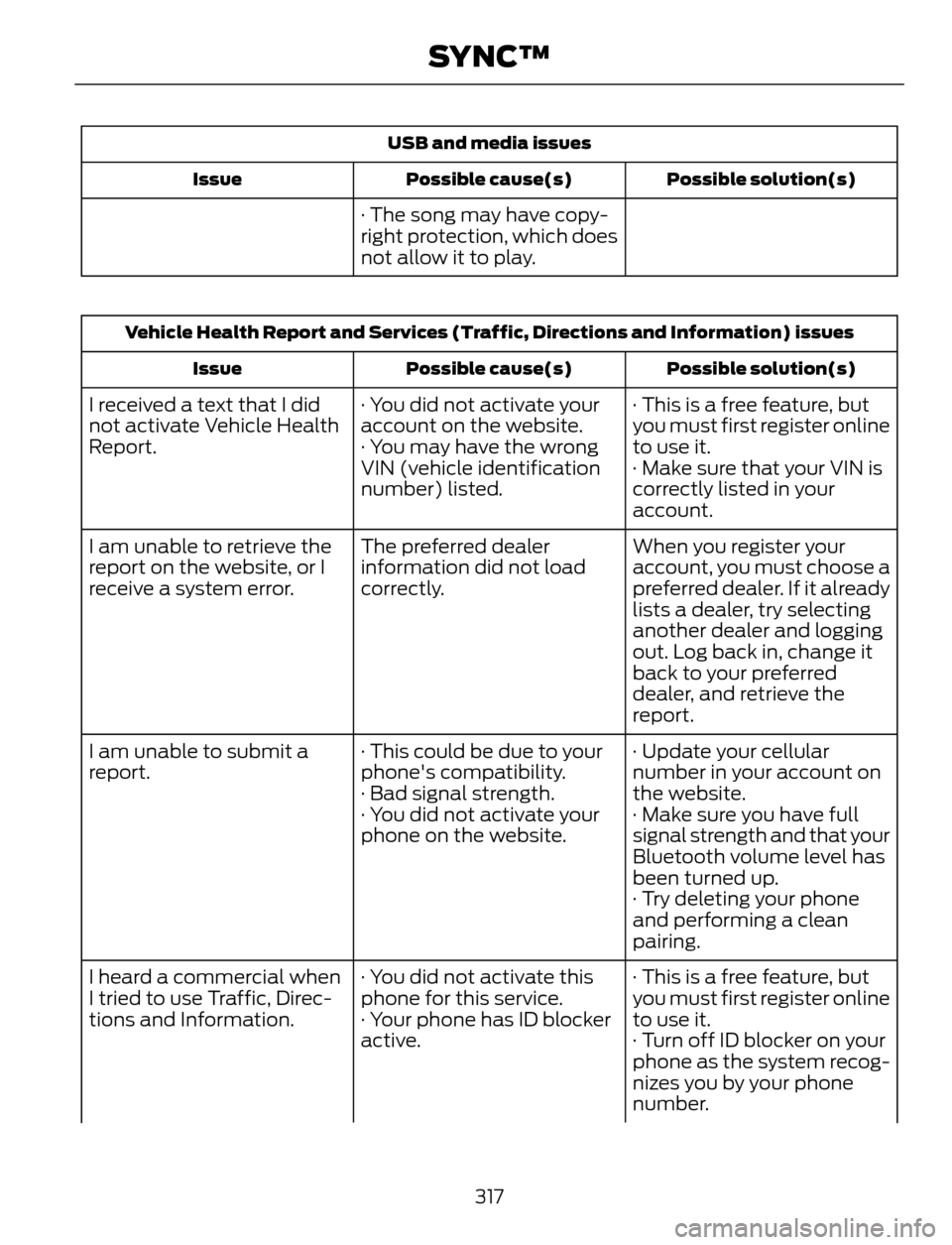
USB and media issues
Possible solution(s) Possible cause(s) Issue
· The song may have copy-
right protection, which does
not allow it to play.
Vehicle Health Report and Services (Traffic, Directions and Information) issues
Possible solution(s) Possible cause(s) Issue
· This is a free feature, but
you must first register online
to use it. · You did not activate your
account on the website.
· You may have the wrong
VIN (vehicle identification
number) listed. I received a text that I did
not activate Vehicle Health
Report.
· Make sure that your VIN is
correctly listed in your
account.
When you register your
account, you must choose a
preferred dealer. If it already
lists a dealer, try selecting
another dealer and logging
out. Log back in, change it
back to your preferred
dealer, and retrieve the
report. The preferred dealer
information did not load
correctly. I am unable to retrieve the
report on the website, or I
receive a system error.
· Update your cellular
number in your account on
the website. · This could be due to your
phone's compatibility.
· Bad signal strength. I am unable to submit a
report.
· Make sure you have full
signal strength and that your
Bluetooth volume level has
been turned up. · You did not activate your
phone on the website.
· Try deleting your phone
and performing a clean
pairing.
· This is a free feature, but
you must first register online
to use it. · You did not activate this
phone for this service.
· Your phone has ID blocker
active. I heard a commercial when
I tried to use Traffic, Direc-
tions and Information.
· Turn off ID blocker on your
phone as the system recog-
nizes you by your phone
number.
317
SYNC™
Page 326 of 428
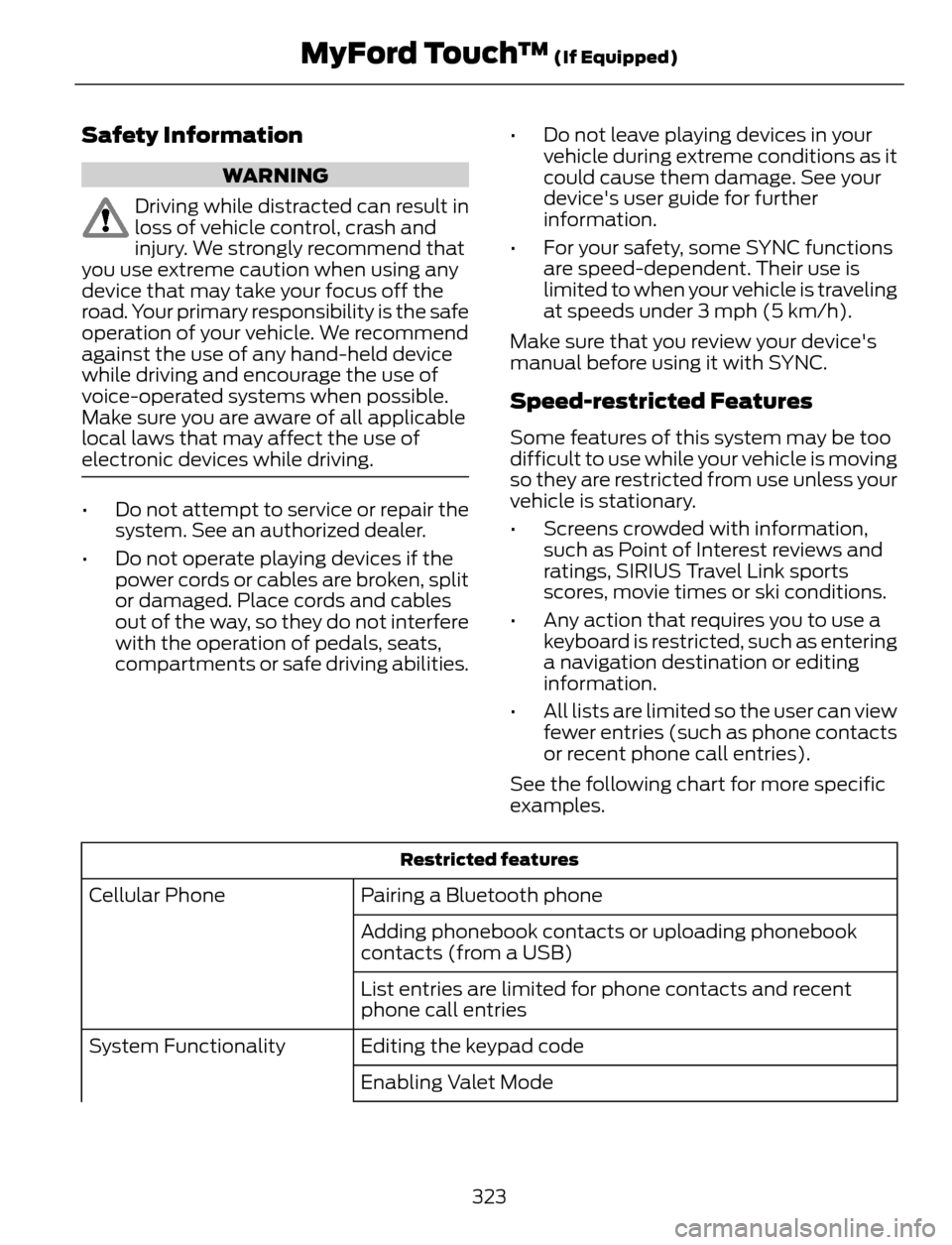
Safety Information
WARNING
Driving while distracted can result in
loss of vehicle control, crash and
injury. We strongly recommend that
you use extreme caution when using any
device that may take your focus off the
road. Your primary responsibility is the safe
operation of your vehicle. We recommend
against the use of any hand-held device
while driving and encourage the use of
voice-operated systems when possible.
Make sure you are aware of all applicable
local laws that may affect the use of
electronic devices while driving.
• Do not attempt to service or repair the
system. See an authorized dealer.
• Do not operate playing devices if the
power cords or cables are broken, split
or damaged. Place cords and cables
out of the way, so they do not interfere
with the operation of pedals, seats,
compartments or safe driving abilities.• Do not leave playing devices in your
vehicle during extreme conditions as it
could cause them damage. See your
device's user guide for further
information.
• For your safety, some SYNC functions
are speed-dependent. Their use is
limited to when your vehicle is traveling
at speeds under 3 mph (5 km/h).
Make sure that you review your device's
manual before using it with SYNC.
Speed-restricted Features
Some features of this system may be too
difficult to use while your vehicle is moving
so they are restricted from use unless your
vehicle is stationary.
• Screens crowded with information,
such as Point of Interest reviews and
ratings, SIRIUS Travel Link sports
scores, movie times or ski conditions.
• Any action that requires you to use a
keyboard is restricted, such as entering
a navigation destination or editing
information.
• All lists are limited so the user can view
fewer entries (such as phone contacts
or recent phone call entries).
See the following chart for more specific
examples.
Restricted features
Pairing a Bluetooth phone Cellular Phone
Adding phonebook contacts or uploading phonebook
contacts (from a USB)
List entries are limited for phone contacts and recent
phone call entries
Editing the keypad code System Functionality
Enabling Valet Mode
323
MyFord Touch™ (If Equipped)
Page 329 of 428
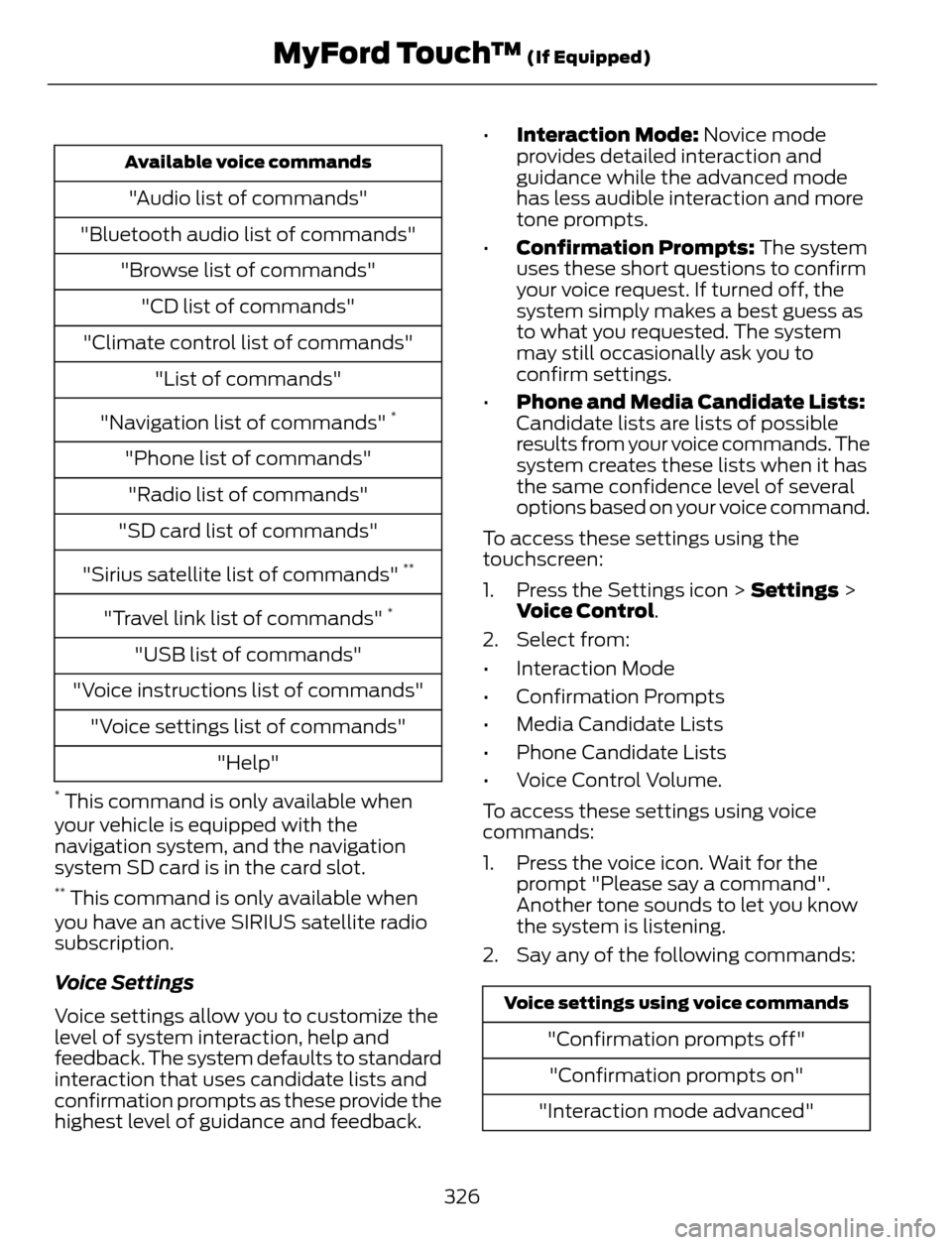
Available voice commands
"Audio list of commands"
"Bluetooth audio list of commands"
"Browse list of commands"
"CD list of commands"
"Climate control list of commands"
"List of commands"
"Navigation list of commands"
*
"Phone list of commands"
"Radio list of commands"
"SD card list of commands"
"Sirius satellite list of commands"
**
"Travel link list of commands" *
"USB list of commands"
"Voice instructions list of commands"
"Voice settings list of commands"
"Help"
* This command is only available when
your vehicle is equipped with the
navigation system, and the navigation
system SD card is in the card slot.
** This command is only available when
you have an active SIRIUS satellite radio
subscription.
Voice Settings
Voice settings allow you to customize the
level of system interaction, help and
feedback. The system defaults to standard
interaction that uses candidate lists and
confirmation prompts as these provide the
highest level of guidance and feedback.•Interaction Mode: Novice mode
provides detailed interaction and
guidance while the advanced mode
has less audible interaction and more
tone prompts.
•Confirmation Prompts: The system
uses these short questions to confirm
your voice request. If turned off, the
system simply makes a best guess as
to what you requested. The system
may still occasionally ask you to
confirm settings.
•Phone and Media Candidate Lists:
Candidate lists are lists of possible
results from your voice commands. The
system creates these lists when it has
the same confidence level of several
options based on your voice command.
To access these settings using the
touchscreen:
1. Press the Settings icon > Settings >
Voice Control.
2. Select from:
• Interaction Mode
• Confirmation Prompts
• Media Candidate Lists
• Phone Candidate Lists
• Voice Control Volume.
To access these settings using voice
commands:
1. Press the voice icon. Wait for the
prompt "Please say a command".
Another tone sounds to let you know
the system is listening.
2. Say any of the following commands:
Voice settings using voice commands
"Confirmation prompts off"
"Confirmation prompts on"
"Interaction mode advanced"
326
MyFord Touch™ (If Equipped)
Page 334 of 428
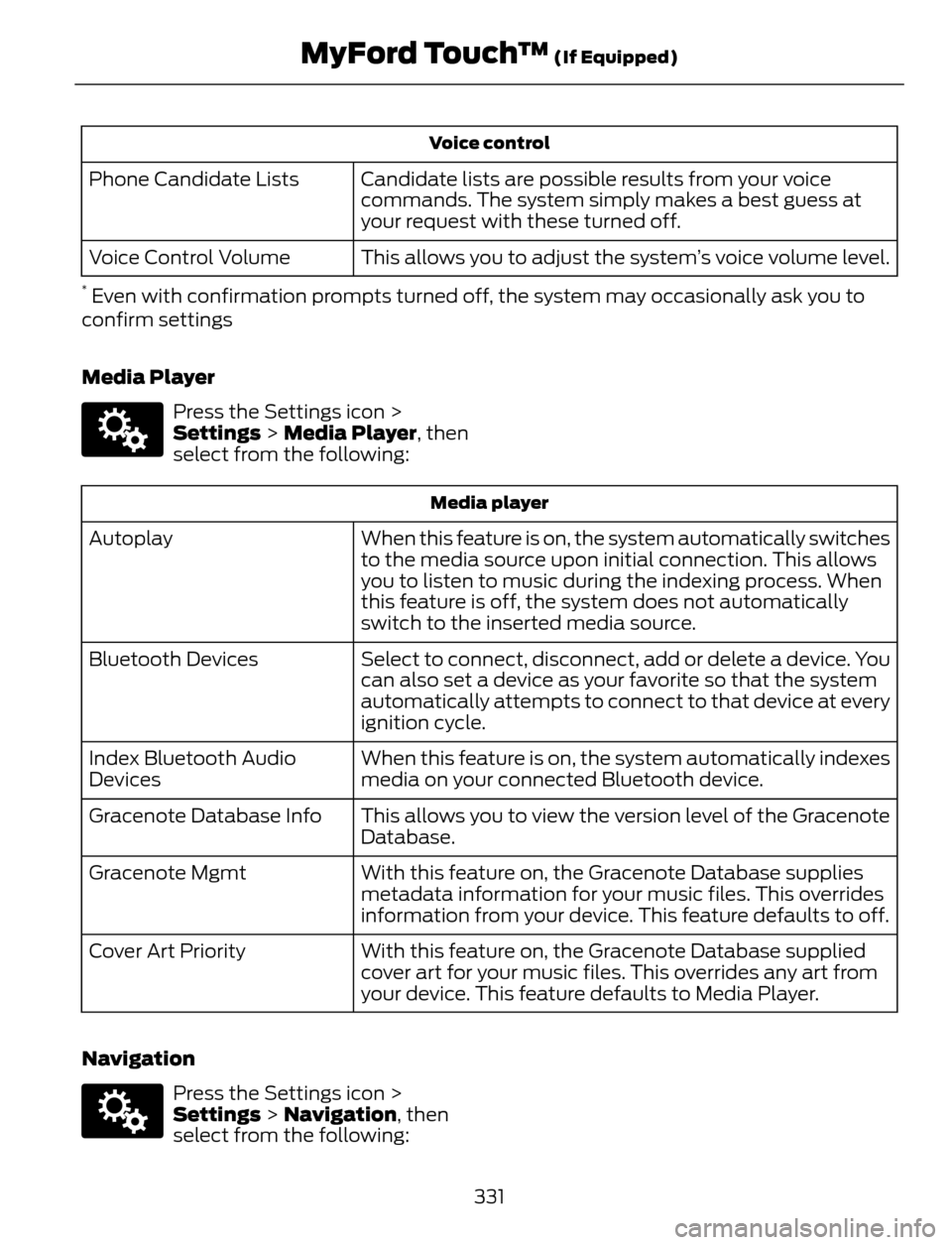
Voice control
Candidate lists are possible results from your voice
commands. The system simply makes a best guess at
your request with these turned off. Phone Candidate Lists
This allows you to adjust the system’s voice volume level. Voice Control Volume
* Even with confirmation prompts turned off, the system may occasionally ask you to
confirm settings
Media Player
E142607
Press the Settings icon >
Settings > Media Player, then
select from the following:
Media player
When this feature is on, the system automatically switches
to the media source upon initial connection. This allows
you to listen to music during the indexing process. When
this feature is off, the system does not automatically
switch to the inserted media source. Autoplay
Select to connect, disconnect, add or delete a device. You
can also set a device as your favorite so that the system
automatically attempts to connect to that device at every
ignition cycle. Bluetooth Devices
When this feature is on, the system automatically indexes
media on your connected Bluetooth device. Index Bluetooth Audio
Devices
This allows you to view the version level of the Gracenote
Database. Gracenote Database Info
With this feature on, the Gracenote Database supplies
metadata information for your music files. This overrides
information from your device. This feature defaults to off. Gracenote Mgmt
With this feature on, the Gracenote Database supplied
cover art for your music files. This overrides any art from
your device. This feature defaults to Media Player. Cover Art Priority
Navigation
E142607
Press the Settings icon >
Settings > Navigation, then
select from the following:
331
MyFord Touch™ (If Equipped)