ignition FORD ESCAPE 2014 3.G Repair Manual
[x] Cancel search | Manufacturer: FORD, Model Year: 2014, Model line: ESCAPE, Model: FORD ESCAPE 2014 3.GPages: 428, PDF Size: 16.6 MB
Page 221 of 428
Note:Always dispose of automotive
batteries in a responsible manner. Follow
your local authorized standards for disposal.
Call your local authorized recycling center
to find out more about recycling automotive
batteries.
Note:It is recommended that the negative
battery cable terminal be disconnected from
the battery if you plan to store your vehicle
for an extended period of time.
CHECKING THE WIPER
BLADES
E142463
Run the tip of your fingers over the edge of
the blade to check for roughness.
Clean the wiper blades with washer fluid
or water applied with a soft sponge or
cloth.
CHANGING THE WIPER
BLADES
The wiper arms can be manually moved
when the ignition is off. This allows for ease
of blade replacement and cleaning under
the blades.
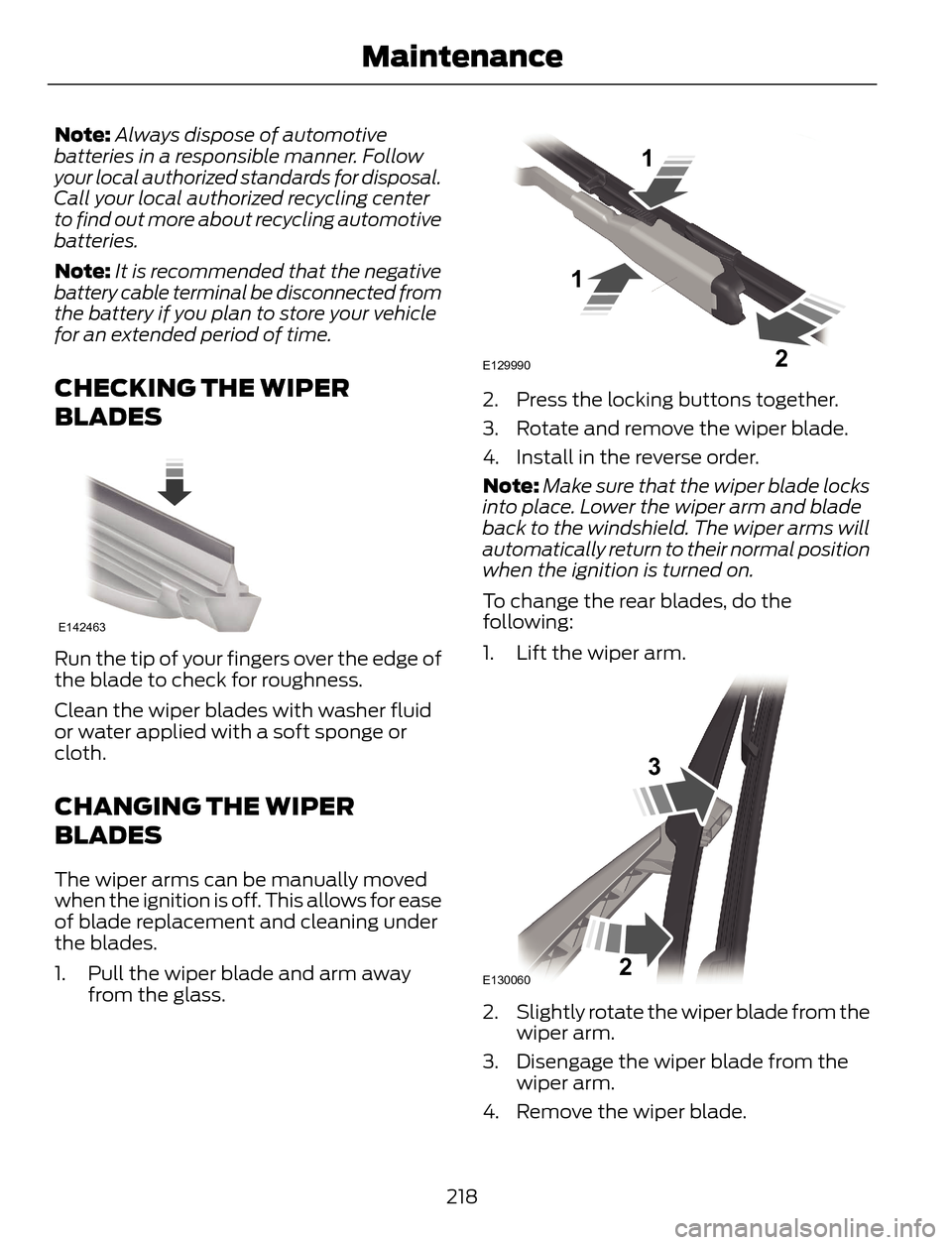
1. Pull the wiper blade and arm away
from the glass.
E129990
1
1
2
2. Press the locking buttons together.
3. Rotate and remove the wiper blade.
4. Install in the reverse order.
Note:Make sure that the wiper blade locks
into place. Lower the wiper arm and blade
back to the windshield. The wiper arms will
automatically return to their normal position
when the ignition is turned on.
To change the rear blades, do the
following:
1. Lift the wiper arm.
E130060
3
2
2. Slightly rotate the wiper blade from the
wiper arm.
3. Disengage the wiper blade from the
wiper arm.
4. Remove the wiper blade.
218
Maintenance
Page 232 of 428
CLEANING THE ENGINE
Engines are more efficient when they are
clean because grease and dirt buildup keep
the engine warmer than normal.
When washing:
• Take care when using a power washer
to clean the engine. The high-pressure
fluid could penetrate the sealed parts
and cause damage.
• Do not spray a hot engine with cold
water to avoid cracking the engine
block or other engine components.
• Spray Motorcraft® Engine Shampoo
and Degreaser on all parts that require
cleaning and pressure rinse clean. In
Canada, use Motorcraft® Engine
Shampoo.
• Never wash or rinse the engine while it
is hot or running; water in the running
engine may cause internal damage.
• Never wash or rinse any ignition coil,
spark plug wire or spark plug well, or
the area in and around these locations.
• Cover the battery, power distribution
box, and air filter assembly to prevent
water damage when cleaning the
engine.
CLEANING THE WINDOWS AND
WIPER BLADES
Clean your windows and wiper blades
regularly. If the wipers do not wipe
properly, substances on the vehicle’s glass
or the wiper blades may cause squeaking
or chatter noise from the blades, and
streaking and smearing of the windshield.To clean these items, follow these tips:
• You can clean the windows with a
non-abrasive cleaner such as
Motorcraft Ultra-Clear Spray Glass
Cleaner.
• You can clean the wiper blades with
isopropyl rubbing-alcohol or Motorcraft
Premium Windshield Wash
Concentrate with Bitterant in the U.S.,
or Premium Quality Windshield Washer
Fluid in Canada. Be sure to replace
wiper blades when they appear worn
or do not function properly.
• Do not use abrasives, as they may
cause scratches.
• Do not use fuel, kerosene, or paint
thinner to clean any parts.
If you cannot remove those streaks after
cleaning with the glass cleaner or if the
wipers chatter and move in a jerky motion,
clean the outer surface of the windshield
and the wiper blades using a sponge or
soft cloth with a neutral detergent or
mild-abrasive cleaning solution. After
cleaning, rinse the windshield and wiper
blades with clean water. The windshield
is clean if beads do not form when you
rinse the windshield with water.
Note:Do not use sharp objects, such as a
razorblade, to clean the inside of the rear
window or to remove decals, as this may
cause damage to the rear window
defroster’s heated grid lines.
CLEANING THE INTERIOR
WARNINGS
Do not use cleaning solvents, bleach
or dye on the vehicle’s safety belts,
as these actions may weaken the
belt webbing.
229
Vehicle Care
Page 273 of 428
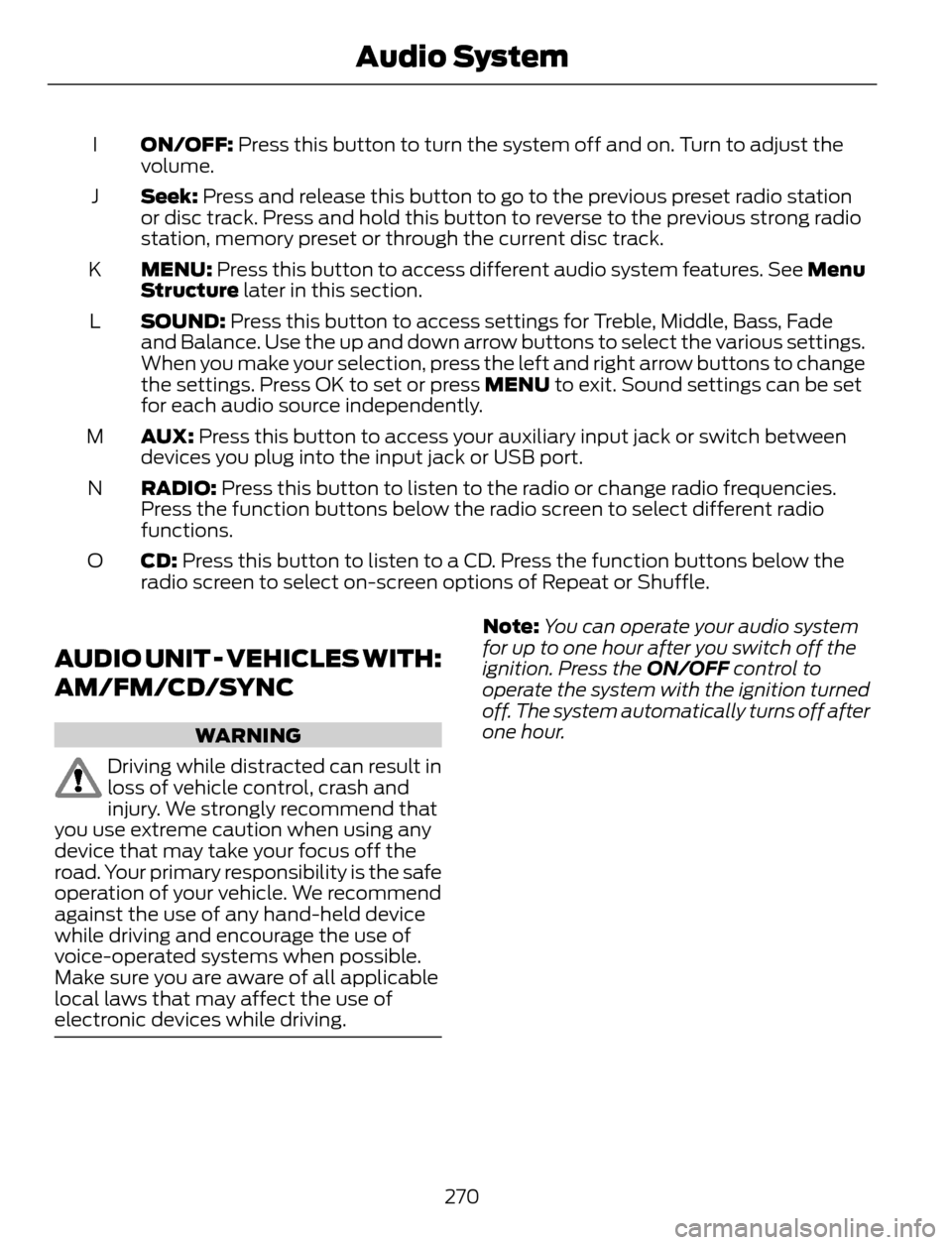
ON/OFF: Press this button to turn the system off and on. Turn to adjust the
volume. I
Seek: Press and release this button to go to the previous preset radio station
or disc track. Press and hold this button to reverse to the previous strong radio
station, memory preset or through the current disc track. J
MENU: Press this button to access different audio system features. See Menu
Structure later in this section. K
SOUND: Press this button to access settings for Treble, Middle, Bass, Fade
and Balance. Use the up and down arrow buttons to select the various settings.
When you make your selection, press the left and right arrow buttons to change
the settings. Press OK to set or press MENU to exit. Sound settings can be set
for each audio source independently. L
AUX: Press this button to access your auxiliary input jack or switch between
devices you plug into the input jack or USB port. M
RADIO: Press this button to listen to the radio or change radio frequencies.
Press the function buttons below the radio screen to select different radio
functions. N
CD: Press this button to listen to a CD. Press the function buttons below the
radio screen to select on-screen options of Repeat or Shuffle. O
AUDIO UNIT - VEHICLES WITH:
AM/FM/CD/SYNC
WARNING
Driving while distracted can result in
loss of vehicle control, crash and
injury. We strongly recommend that
you use extreme caution when using any
device that may take your focus off the
road. Your primary responsibility is the safe
operation of your vehicle. We recommend
against the use of any hand-held device
while driving and encourage the use of
voice-operated systems when possible.
Make sure you are aware of all applicable
local laws that may affect the use of
electronic devices while driving.
Note:You can operate your audio system
for up to one hour after you switch off the
ignition. Press the ON/OFF control to
operate the system with the ignition turned
off. The system automatically turns off after
one hour.
270
Audio System
Page 275 of 428
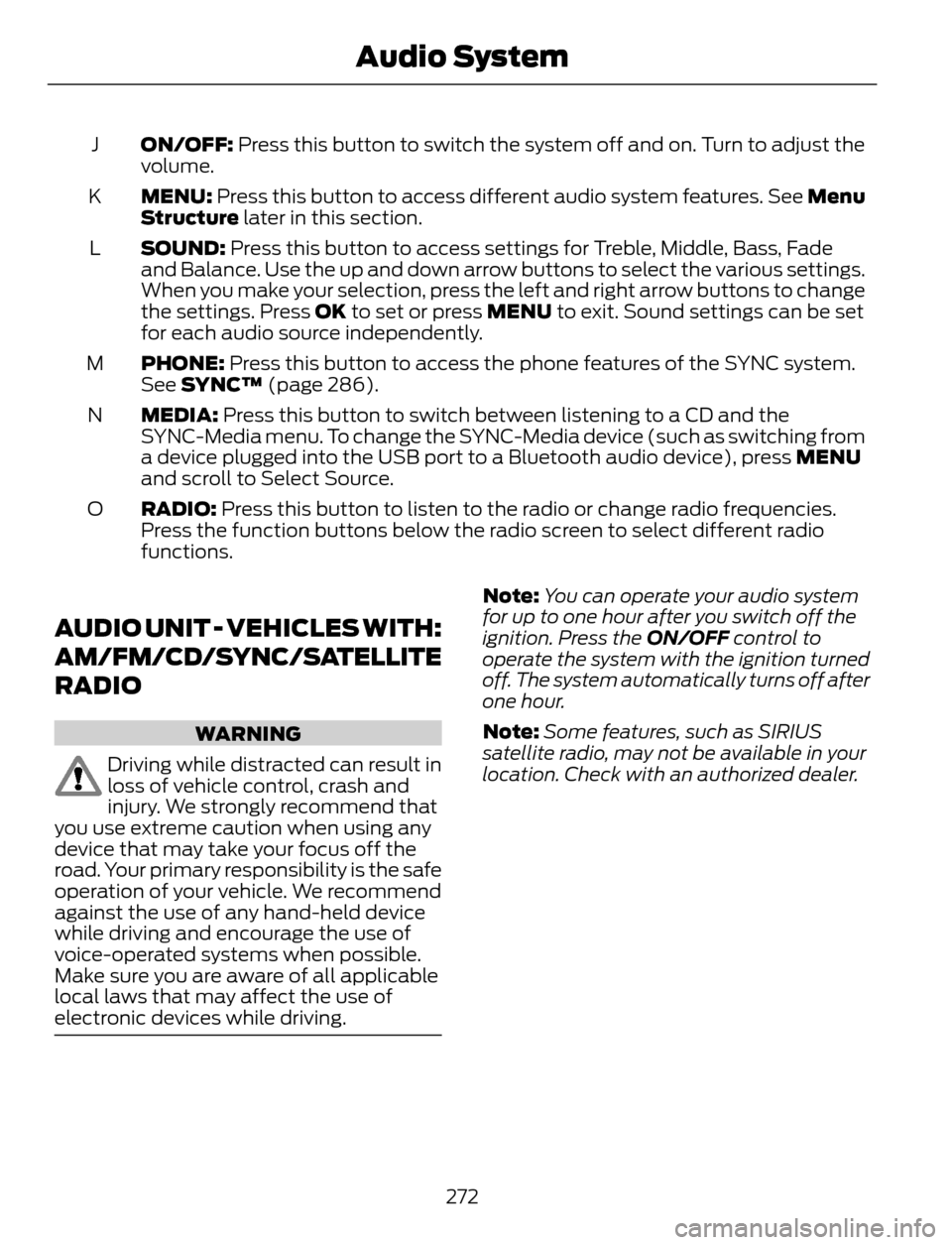
ON/OFF: Press this button to switch the system off and on. Turn to adjust the
volume. J
MENU: Press this button to access different audio system features. See Menu
Structure later in this section. K
SOUND: Press this button to access settings for Treble, Middle, Bass, Fade
and Balance. Use the up and down arrow buttons to select the various settings.
When you make your selection, press the left and right arrow buttons to change
the settings. Press OK to set or press MENU to exit. Sound settings can be set
for each audio source independently. L
PHONE: Press this button to access the phone features of the SYNC system.
See SYNC™ (page 286). M
MEDIA: Press this button to switch between listening to a CD and the
SYNC-Media menu. To change the SYNC-Media device (such as switching from
a device plugged into the USB port to a Bluetooth audio device), press MENU
and scroll to Select Source. N
RADIO: Press this button to listen to the radio or change radio frequencies.
Press the function buttons below the radio screen to select different radio
functions. O
AUDIO UNIT - VEHICLES WITH:
AM/FM/CD/SYNC/SATELLITE
RADIO
WARNING
Driving while distracted can result in
loss of vehicle control, crash and
injury. We strongly recommend that
you use extreme caution when using any
device that may take your focus off the
road. Your primary responsibility is the safe
operation of your vehicle. We recommend
against the use of any hand-held device
while driving and encourage the use of
voice-operated systems when possible.
Make sure you are aware of all applicable
local laws that may affect the use of
electronic devices while driving.
Note:You can operate your audio system
for up to one hour after you switch off the
ignition. Press the ON/OFF control to
operate the system with the ignition turned
off. The system automatically turns off after
one hour.
Note:Some features, such as SIRIUS
satellite radio, may not be available in your
location. Check with an authorized dealer.
272
Audio System
Page 294 of 428
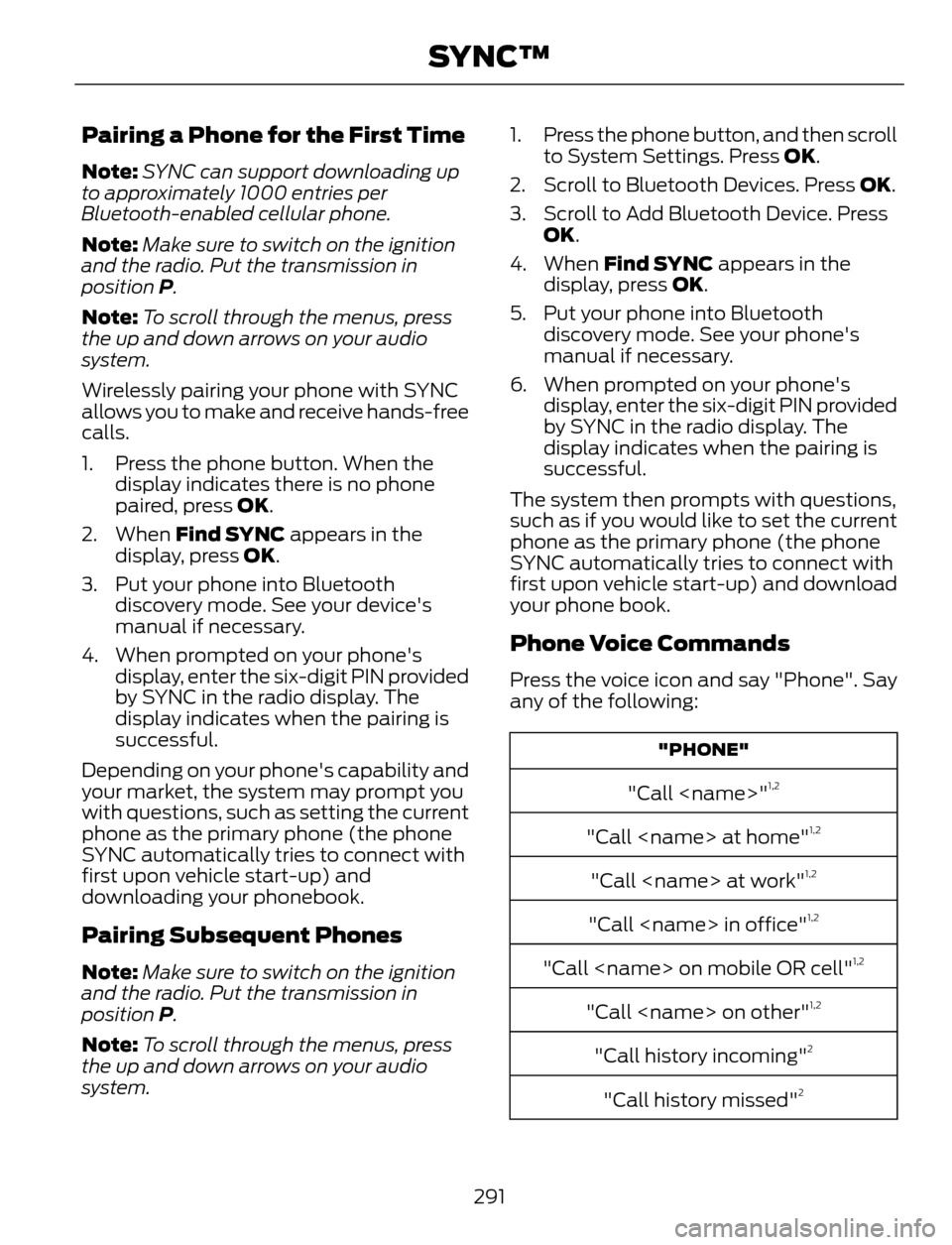
Pairing a Phone for the First Time
Note:SYNC can support downloading up
to approximately 1000 entries per
Bluetooth-enabled cellular phone.
Note:Make sure to switch on the ignition
and the radio. Put the transmission in
position P.
Note:To scroll through the menus, press
the up and down arrows on your audio
system.
Wirelessly pairing your phone with SYNC
allows you to make and receive hands-free
calls.
1. Press the phone button. When the
display indicates there is no phone
paired, press OK.
2. When Find SYNC appears in the
display, press OK.
3. Put your phone into Bluetooth
discovery mode. See your device's
manual if necessary.
4. When prompted on your phone's
display, enter the six-digit PIN provided
by SYNC in the radio display. The
display indicates when the pairing is
successful.
Depending on your phone's capability and
your market, the system may prompt you
with questions, such as setting the current
phone as the primary phone (the phone
SYNC automatically tries to connect with
first upon vehicle start-up) and
downloading your phonebook.
Pairing Subsequent Phones
Note:Make sure to switch on the ignition
and the radio. Put the transmission in
position P.
Note:To scroll through the menus, press
the up and down arrows on your audio
system.1. Press the phone button, and then scroll
to System Settings. Press OK.
2. Scroll to Bluetooth Devices. Press OK.
3. Scroll to Add Bluetooth Device. Press
OK.
4. When Find SYNC appears in the
display, press OK.
5. Put your phone into Bluetooth
discovery mode. See your phone's
manual if necessary.
6. When prompted on your phone's
display, enter the six-digit PIN provided
by SYNC in the radio display. The
display indicates when the pairing is
successful.
The system then prompts with questions,
such as if you would like to set the current
phone as the primary phone (the phone
SYNC automatically tries to connect with
first upon vehicle start-up) and download
your phone book.
Phone Voice Commands
Press the voice icon and say "Phone". Say
any of the following:
"PHONE"
"Call
"Call
"Call
"Call
"Call
"Call
"Call history incoming"2
"Call history missed"2
291
SYNC™
Page 302 of 428
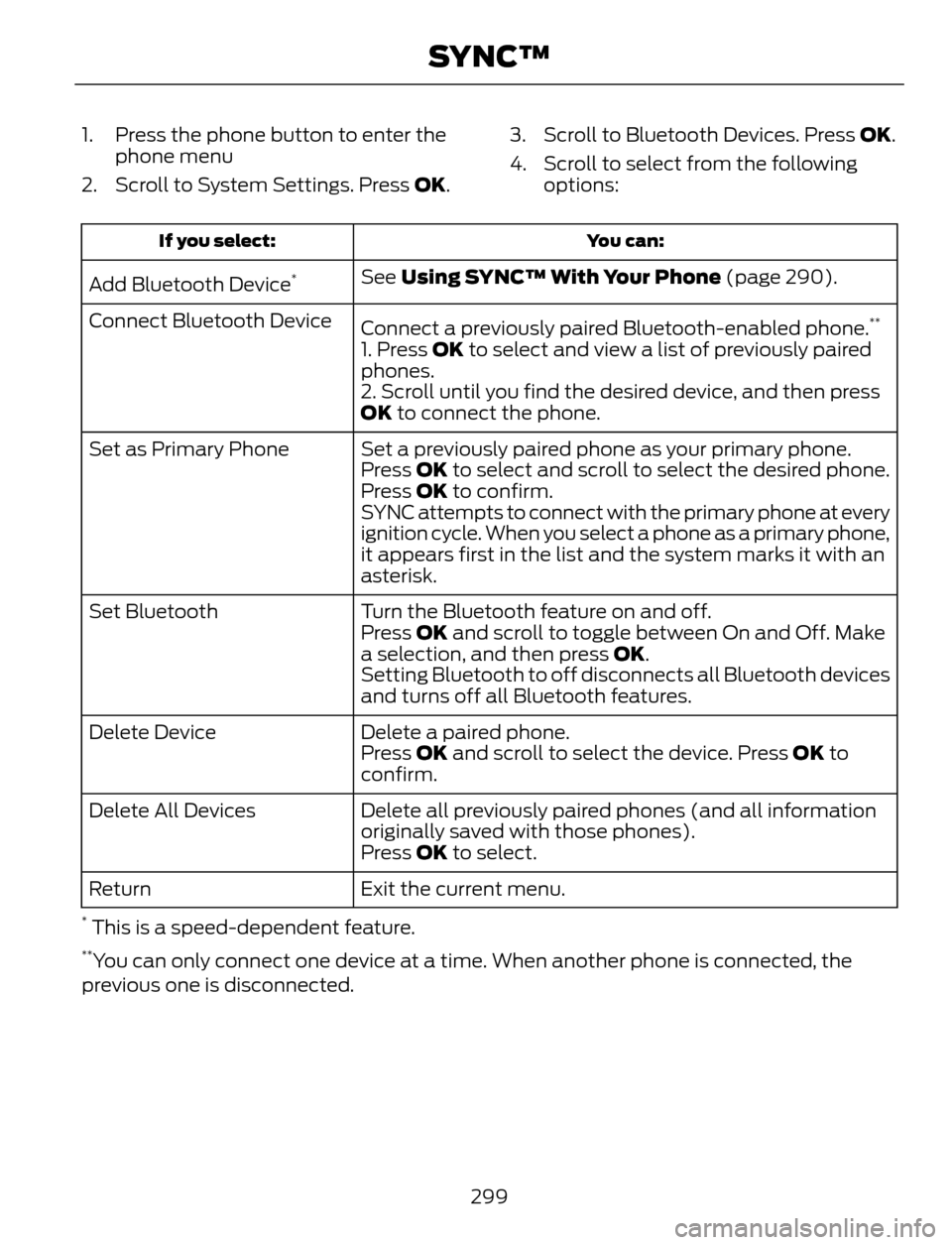
1. Press the phone button to enter the
phone menu
2. Scroll to System Settings. Press OK.3. Scroll to Bluetooth Devices. Press OK.
4. Scroll to select from the following
options:
You can: If you select:
See Using SYNC™ With Your Phone (page 290).
Add Bluetooth Device*
Connect a previously paired Bluetooth-enabled phone.**Connect Bluetooth Device
1. Press OK to select and view a list of previously paired
phones.
2. Scroll until you find the desired device, and then press
OK to connect the phone.
Set a previously paired phone as your primary phone. Set as Primary Phone
Press OK to select and scroll to select the desired phone.
Press OK to confirm.
SYNC attempts to connect with the primary phone at every
ignition cycle. When you select a phone as a primary phone,
it appears first in the list and the system marks it with an
asterisk.
Turn the Bluetooth feature on and off. Set Bluetooth
Press OK and scroll to toggle between On and Off. Make
a selection, and then press OK.
Setting Bluetooth to off disconnects all Bluetooth devices
and turns off all Bluetooth features.
Delete a paired phone. Delete Device
Press OK and scroll to select the device. Press OK to
confirm.
Delete all previously paired phones (and all information
originally saved with those phones). Delete All Devices
Press OK to select.
Exit the current menu. Return
* This is a speed-dependent feature.**You can only connect one device at a time. When another phone is connected, the
previous one is disconnected.
299
SYNC™
Page 324 of 428
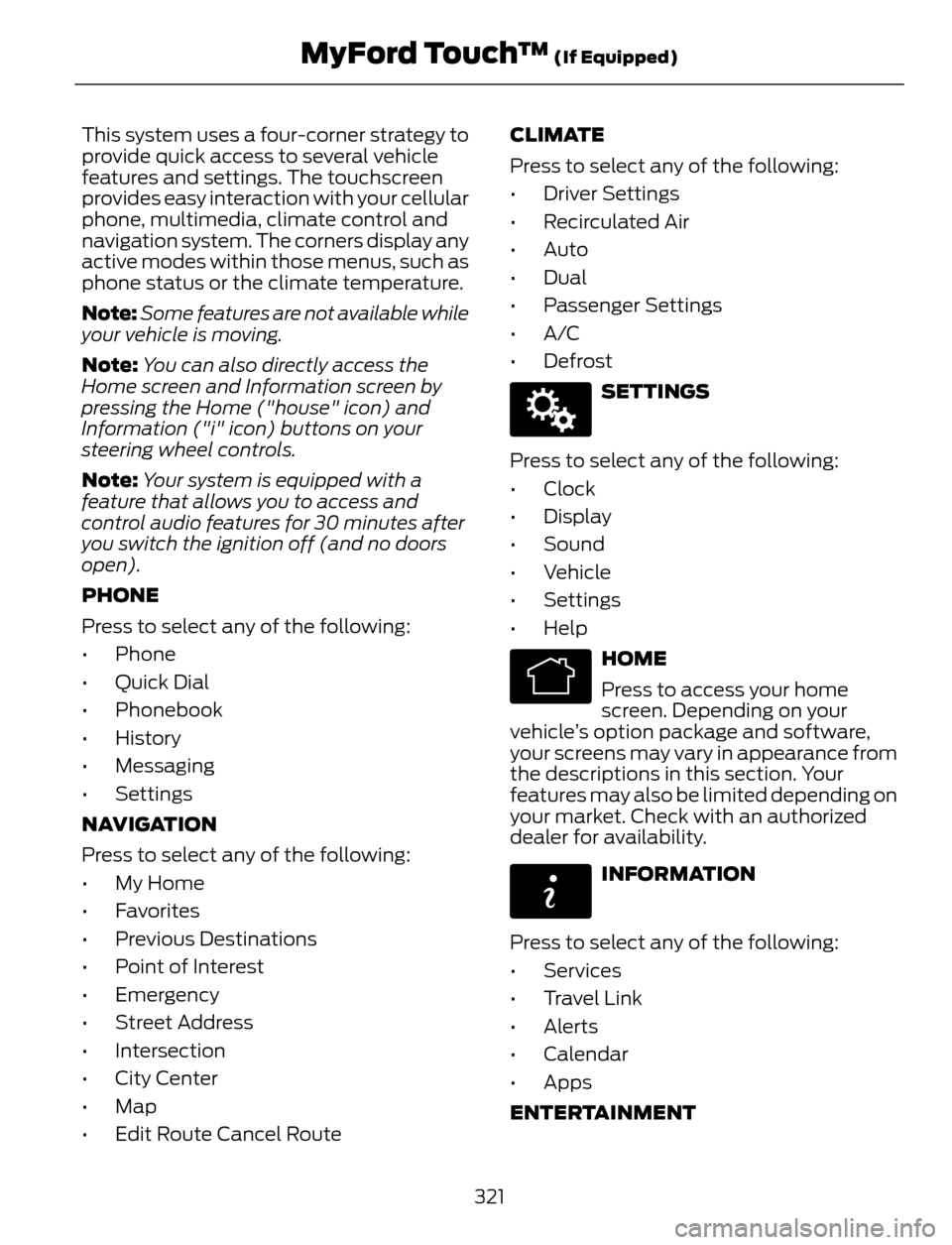
This system uses a four-corner strategy to
provide quick access to several vehicle
features and settings. The touchscreen
provides easy interaction with your cellular
phone, multimedia, climate control and
navigation system. The corners display any
active modes within those menus, such as
phone status or the climate temperature.
Note:Some features are not available while
your vehicle is moving.
Note:You can also directly access the
Home screen and Information screen by
pressing the Home ("house" icon) and
Information ("i" icon) buttons on your
steering wheel controls.
Note:Your system is equipped with a
feature that allows you to access and
control audio features for 30 minutes after
you switch the ignition off (and no doors
open).
PHONE
Press to select any of the following:
• Phone
• Quick Dial
• Phonebook
• History
• Messaging
• Settings
NAVIGATION
Press to select any of the following:
• My Home
• Favorites
• Previous Destinations
• Point of Interest
• Emergency
• Street Address
• Intersection
• City Center
• Map
• Edit Route Cancel RouteCLIMATE
Press to select any of the following:
• Driver Settings
• Recirculated Air
• Auto
•Dual
• Passenger Settings
•A/C
•Defrost
E142607
SETTINGS
Press to select any of the following:
• Clock
• Display
• Sound
• Vehicle
• Settings
• Help
E142613
HOME
Press to access your home
screen. Depending on your
vehicle’s option package and software,
your screens may vary in appearance from
the descriptions in this section. Your
features may also be limited depending on
your market. Check with an authorized
dealer for availability.
E142608
INFORMATION
Press to select any of the following:
• Services
• Travel Link
• Alerts
• Calendar
• Apps
ENTERTAINMENT
321
MyFord Touch™ (If Equipped)
Page 334 of 428
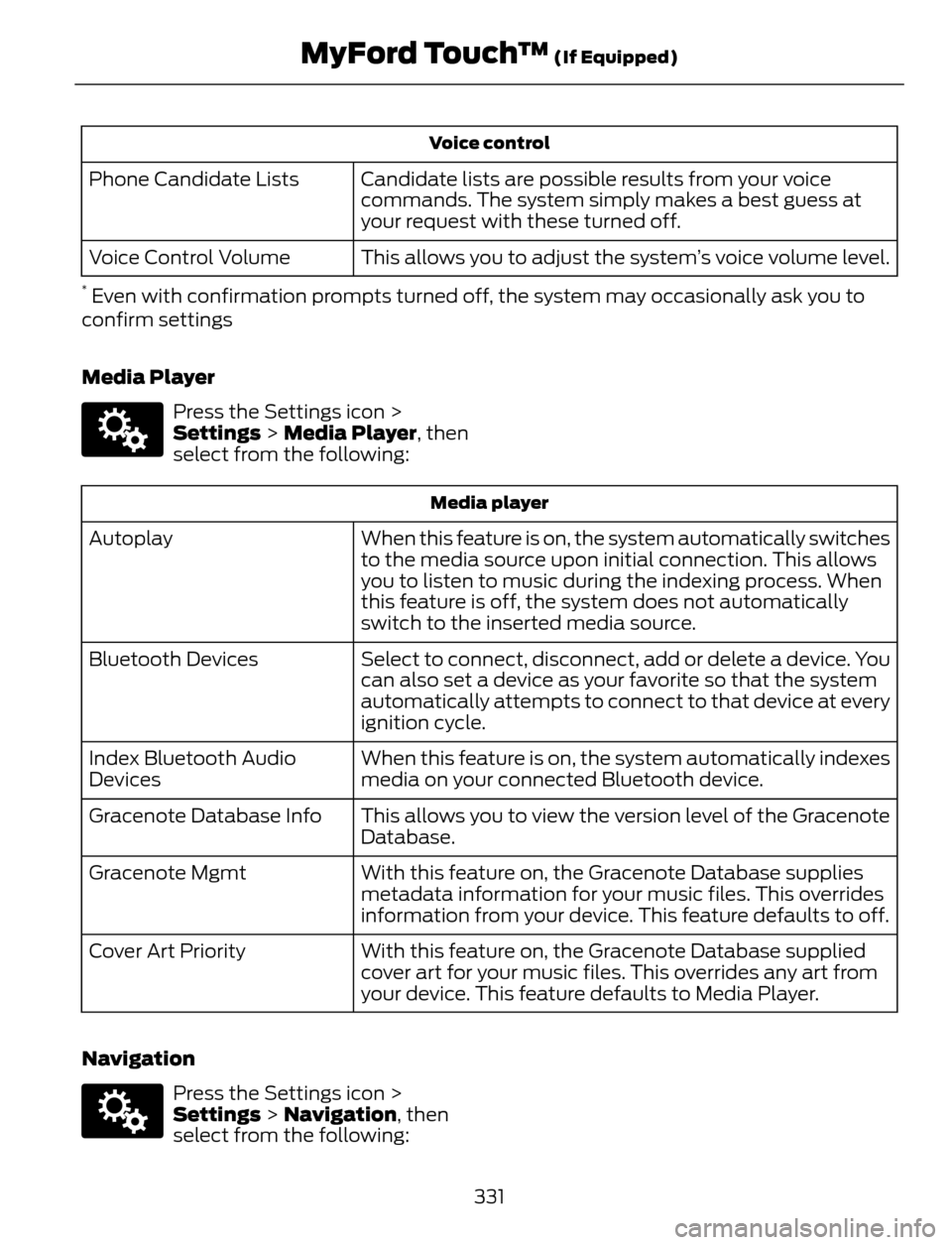
Voice control
Candidate lists are possible results from your voice
commands. The system simply makes a best guess at
your request with these turned off. Phone Candidate Lists
This allows you to adjust the system’s voice volume level. Voice Control Volume
* Even with confirmation prompts turned off, the system may occasionally ask you to
confirm settings
Media Player
E142607
Press the Settings icon >
Settings > Media Player, then
select from the following:
Media player
When this feature is on, the system automatically switches
to the media source upon initial connection. This allows
you to listen to music during the indexing process. When
this feature is off, the system does not automatically
switch to the inserted media source. Autoplay
Select to connect, disconnect, add or delete a device. You
can also set a device as your favorite so that the system
automatically attempts to connect to that device at every
ignition cycle. Bluetooth Devices
When this feature is on, the system automatically indexes
media on your connected Bluetooth device. Index Bluetooth Audio
Devices
This allows you to view the version level of the Gracenote
Database. Gracenote Database Info
With this feature on, the Gracenote Database supplies
metadata information for your music files. This overrides
information from your device. This feature defaults to off. Gracenote Mgmt
With this feature on, the Gracenote Database supplied
cover art for your music files. This overrides any art from
your device. This feature defaults to Media Player. Cover Art Priority
Navigation
E142607
Press the Settings icon >
Settings > Navigation, then
select from the following:
331
MyFord Touch™ (If Equipped)
Page 352 of 428
This feature allows you to plug in media
playing devices, memory sticks, flash drives
or thumb drives, and charge devices if they
support this feature.
In order to playback video from your iPod
or iPhone, you must have a special
combination USB/RCA composite video
cable (which you can buy from Apple).
When you connect the cable to your iPod
or iPhone, plug the other end into both the
RCA jacks and the USB port.
Playing Music from Your Device
E142611
Insert your device and select the
SD Card or USB tab once the
system recognizes it. You can
then select from the following options:
Repeat
This feature replays the currently playing
song or album.
Shuffle
Touch this button to play music on the
selected album or folder in random order.
Similar Music
This feature allows you to choose music
similar to what is currently playing.
More Info
Touch this button to see disc information
such as current track, artist name, album
and genre.
Options
Touch this button to view and adjust
various media settings.
Sound Settings allows you to adjust
settings for:
•Bass
• Midrange
• Treble• Balance and Fade
• DSP (Digital Signal processing)
• Occupancy Mode
• Speed Compensated Volume.
Note:Your vehicle may not have all these
sound settings.
Media Player Settings allows you to
select more settings, which is under Media
Player. See Settings (page 327).
Device Information displays software
and firmware information about the
currently connected media device.
Update Media Index indexes your device
when you connect it for the first time and
each time the content changes (such as
adding or removing tracks) to make sure
you have the latest voice commands
available for all media on the device.
Browse
This feature allows you to view the
contents of the device. It also allows you
to search by categories, such as genre,
artist or album.
If you want to view song information such
as Title, Artist, File, Folder, Album, and
Genre, touch the on-screen album art.
You can also touch What’s Playing to
hear how the system pronounces the
current band and song. This can be helpful
when using voice commands to make sure
the system correctly plays your request.
Playing Video from Your Device
To access and play video from your device,
your vehicle's transmission must be in
position P with the ignition in accessory
mode. See Starting and Stopping the
Engine (page 123).
349
MyFord Touch™ (If Equipped)
Page 357 of 428
Phone A
Quick Dial B
Phonebook C
History D
Messaging E
Settings F
Hands-free calling is one of the main
features of SYNC. Once you pair your
phone, you can access many options using
the touchscreen or voice commands. While
the system supports a variety of features,
many are dependent on your cellular
phone’s functionality.
At a minimum, most cellular phones with
Bluetooth wireless technology support the
following functions:
• Answering an incoming call
• Ending a call
• Using privacy mode
• Dialing a number
• Redialing
• Call waiting notification
• Caller ID.
Other features, such as text messaging
using Bluetooth and automatic phonebook
download, are phone-dependent features.
To check your phone’s compatibility, see
your phone’s user manual and visit
www.SYNCMyRide.com,
www.SYNCMyRide.ca or
www.syncmaroute.ca.
Pairing Your Phone for the First
Time
WARNING
Driving while distracted can result in
loss of vehicle control, crash and
injury. We strongly recommend that
you use extreme caution when using any
device that may take your focus off the
road. Your primary responsibility is the safe
operation of your vehicle. We recommend
against the use of any handheld device
while driving and encourage the use of
voice-operated systems when possible.
Make sure you are aware of all applicable
local laws that may affect the use of
electronic devices while driving.
The first thing you must do to use the
phone features of SYNC is to pair your
Bluetooth-enabled cellular phone with
SYNC. This allows you to use your phone
in a hands-free manner.
Note:Put the transmission in position P.
Turn on your vehicle ignition and the radio.
1. Touch Add Phone in the upper left
corner of the touchscreen.Find SYNC
appears on the screen, and instructs
you to begin the pairing process from
your device.
2. Make sure that Bluetooth is set to On
and that your cellular phone is in the
proper mode. See your phone’s manual
if necessary.
354
MyFord Touch™ (If Equipped)