change time FORD ESCAPE 2014 3.G Owners Manual
[x] Cancel search | Manufacturer: FORD, Model Year: 2014, Model line: ESCAPE, Model: FORD ESCAPE 2014 3.GPages: 428, PDF Size: 16.6 MB
Page 2 of 428

The information contained in this publication was correct at the time of going to print. In the interest of
continuous development, we reserve the right to change specifications, design or equipment at any time
without notice or obligation. No part of this publication may be reproduced, transmitted, stored in a
retrieval system or translated into any language in any form by any means without our written permission.
Errors and omissions excepted.
© Ford Motor Company 2013
All rights reserved.
Part Number: 20130410194118
Page 52 of 428
PRINCIPLE OF OPERATION
MyKey allows you to program keys with
restricted driving modes to promote good
driving habits. All but one of the keys
programmed to the vehicle can be
activated with these restricted modes.
Any keys that have not been programmed
are referred to as administrator keys or
admin keys. These can be used to:
• create a MyKey
• program configurable MyKey settings
• clear all MyKey features.
When you have programmed a MyKey, you
can access the following information using
the information display:
• How many admin keys and MyKeys are
programmed to your vehicle.
• The total distance your vehicle has
traveled using a MyKey.
Note:All MyKeys are programmed to the
same settings. You cannot program them
individually.
Note:For vehicles with intelligent access
with push-button start, when both a MyKey
and an admin intelligent access key fob are
present, the admin fob will be recognized
by the vehicle while switching the ignition
on to start the vehicle.
Non-configurable Settings
The following settings cannot be changed
by an admin key user:• Belt-Minder. You cannot disable this
feature. The audio system will mute
when the front seat occupants’ safety
belts are not fastened.
• Early low fuel. The low-fuel warning
activates earlier, giving the MyKey user
more time to refuel.
• Driver assist features, if equipped on
your vehicle, are forced on: parking aid,
blind spot information system (BLIS)
with cross traffic alert, lane departure
warning and forward collision warning
system.
Configurable Settings
With an admin key, you can configure
certain MyKey settings when you first
create a MyKey and before you recycle the
key or restart the vehicle. You can also
change the settings afterward with an
admin key.
• A vehicle speed limit can be set.
Warnings will be shown in the display
followed by an audible tone when your
vehicle reaches the set speed. You
cannot override the set speed by fully
depressing the accelerator pedal or by
setting cruise control.
• Vehicle speed minders of 45, 55 or 65
mph (75, 90 or 105 km/h). Once you
select a speed, it will be shown in the
display, followed by an audible tone
when the preselected vehicle speed is
exceeded.
• Audio system maximum volume of
45%. A message will be shown in the
display when you attempt to exceed
the limited volume. Also, the
speed-sensitive or compensated
automatic volume control will be
disabled.
• Always on setting. When this is
selected, you will not be able to turn
off Advance Trac (if your vehicle is
equipped with this feature).
49
MyKey™
Page 53 of 428
CREATING A MYKEY
Use the information display to create a
MyKey:
1. Insert the key you want to program into
the ignition. If your vehicle is equipped with
a push-button start, hold the intelligent
access key next to the steering column.
Details on the correct fob placement and
position is in another chapter. See
Starting and Stopping the Engine (page
123).
2. Switch the ignition on.
3. Access the main menu on the
information display controls, and select
Settings and then MyKey by pressing OK
or the > button.
4. Press OK or the > button to select
Create MyKey.
5. When prompted, hold the OK button
until you see a message informing you to
label this key as a MyKey. The key will be
restricted at your vehicle's next start.
MyKey is successfully created. Make sure
you label it so you can distinguish it from
the admin keys.
You can also program configurable
settings for the key(s). Refer to
Programming/Changing Configurable
Settings.
Programming/Changing
Configurable Settings
Use the information display to access your
configurable MyKey settings:
1. Switch the ignition on using an admin
key or fob.
2. Access the main menu on the
information display controls, and select
Settings, then MyKey by pressing OK
or the > button.
3. Use the arrow buttons to get to a
configurable feature.4. Press OK or > to make a selection.
Note:You can clear or change your MyKey
settings at any time during the same key
cycle as you created the MyKey. Once you
have switched the engine off, however, you
will need an admin key to change or clear
your MyKey settings.
CLEARING ALL MYKEYS
You can clear all MyKeys within the same
key cycle as you created the MyKey. If you
switch your ignition off, however, you will
need to use an admin key to clear your
MyKeys.
Note:When you clear your MyKeys, you
remove all restrictions and return all MyKeys
to their original admin key status at once.
To clear all MyKeys of all MyKey settings,
use the information display to do the
following:
1. Access the main menu and select
Settings, then MyKey.
2. Scroll to Clear MyKey and press the
OK button.
3. Hold the OK button until ALL
MYKEYS CLEARED displays.
CHECKING MYKEY SYSTEM
STATUS
You can find information about your
programmed MyKeys by using the
information display.
MYKEY DISTANCE
Tracks the distance when drivers use a
MyKey. The only way to delete the
accumulated distance is by using an admin
key to clear your MyKey. If the distance
does not accumulate as expected, then
the intended user is not using the MyKey,
or an admin key user recently cleared and
then recreated a MyKey.
50
MyKey™
Page 75 of 428
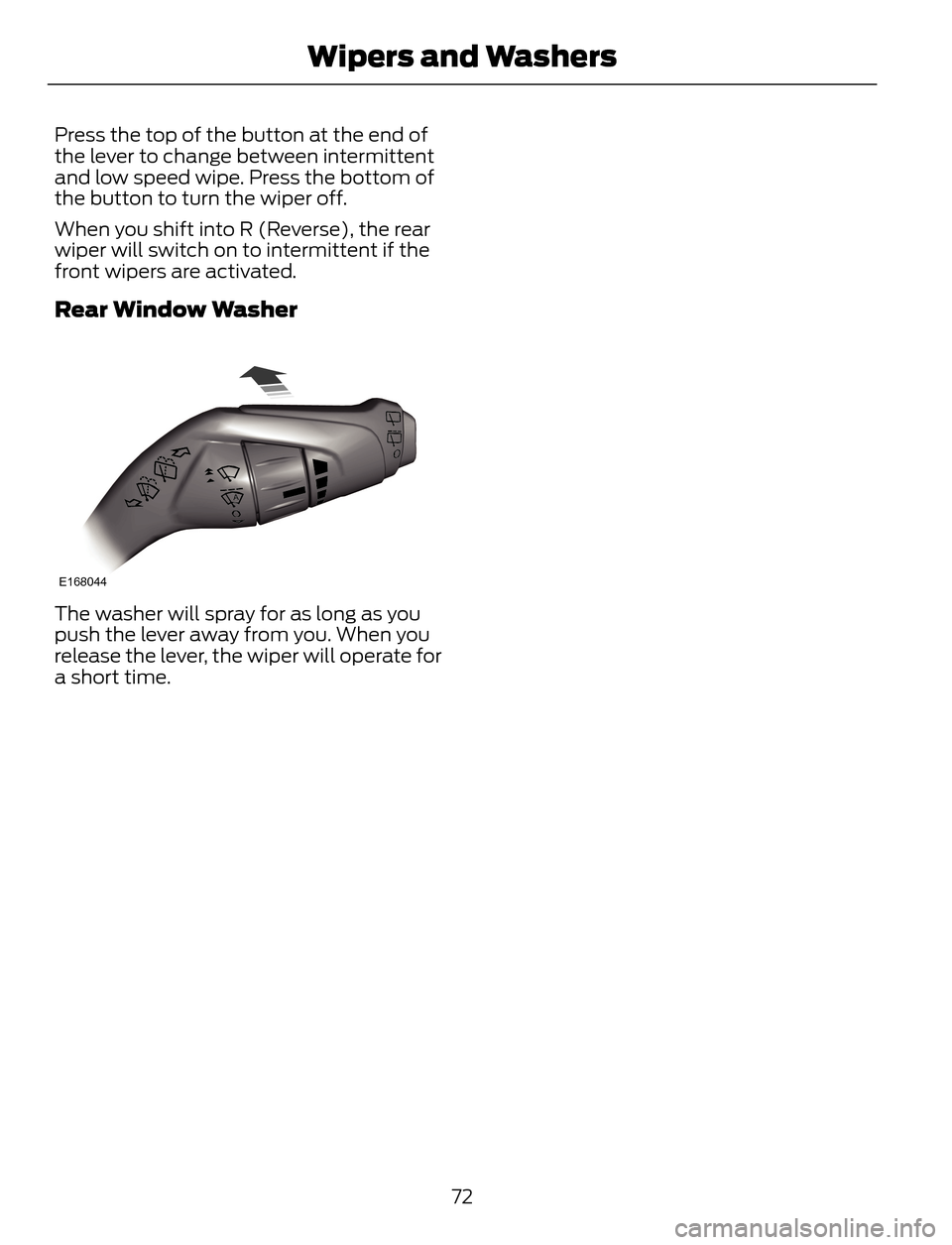
Press the top of the button at the end of
the lever to change between intermittent
and low speed wipe. Press the bottom of
the button to turn the wiper off.
When you shift into R (Reverse), the rear
wiper will switch on to intermittent if the
front wipers are activated.
Rear Window Washer
E168044
The washer will spray for as long as you
push the lever away from you. When you
release the lever, the wiper will operate for
a short time.
72
Wipers and Washers
Page 78 of 428
DAYTIME RUNNING LAMPS (IF
EQUIPPED)
WARNING
Always remember to switch your
headlamps on in low light situations
or during inclement weather. The
Daytime Running Lamp system does not
activate the tail lamps and may not
provide adequate lighting during these
conditions. Failure to activate your
headlamps under these conditions may
result in a collision.
To switch the Daytime Running Lamp
system on:
1. Turn the ignition to the on position.
2. Switch the lighting control to the off,
autolamp or parking lamp position.
Vehicles With Halogen Headlamps
The Daytime Running Lamp system
switches the low beam headlamps on at
a reduced intensity in day light conditions.
Vehicle With High Intensity
Discharge Headlamps
The Daytime Running Lamp system
switches the fog lamps on in day light
conditions (Not available in all markets).
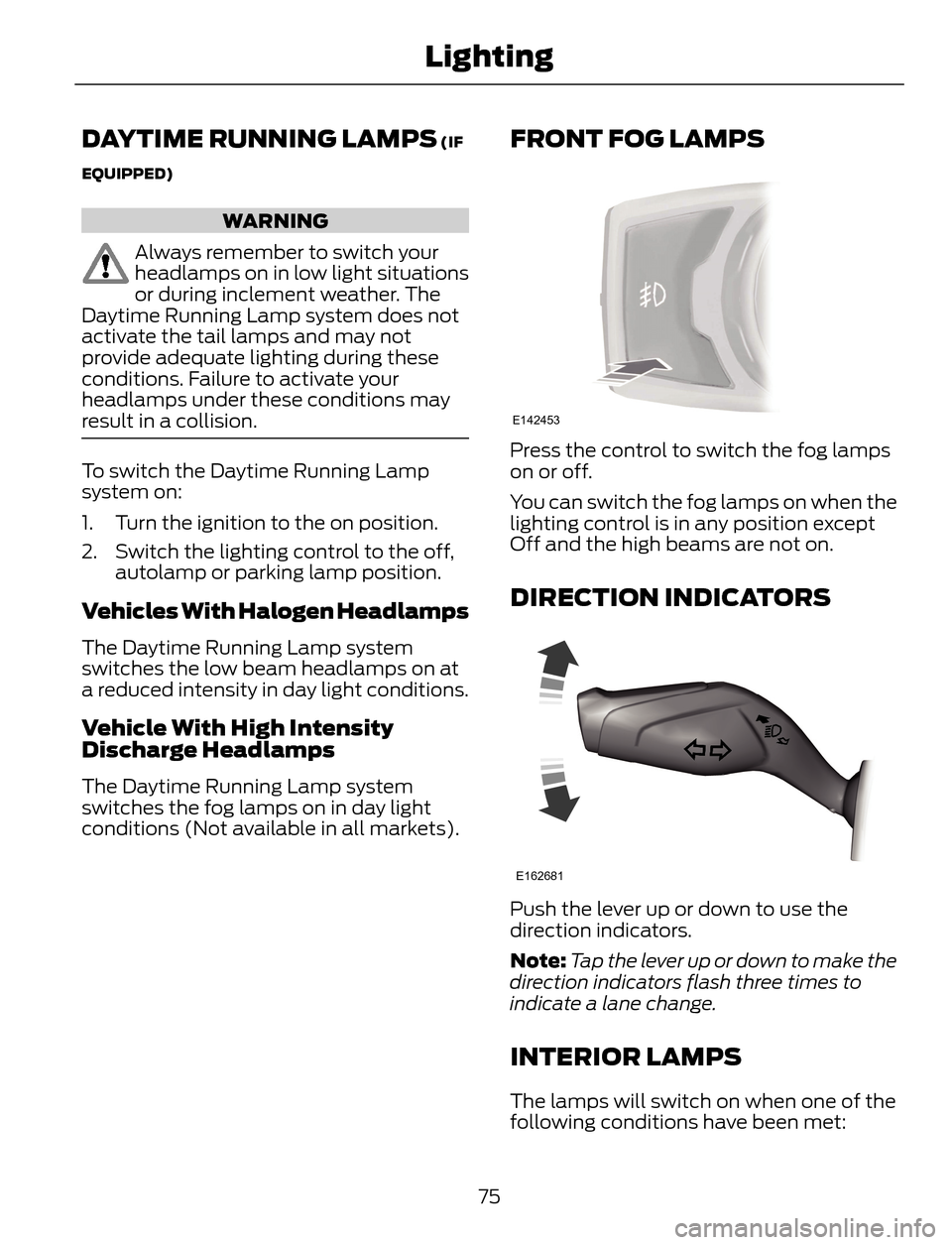
FRONT FOG LAMPS
E142453
Press the control to switch the fog lamps
on or off.
You can switch the fog lamps on when the
lighting control is in any position except
Off and the high beams are not on.
DIRECTION INDICATORS
E162681
Push the lever up or down to use the
direction indicators.
Note:Tap the lever up or down to make the
direction indicators flash three times to
indicate a lane change.
INTERIOR LAMPS
The lamps will switch on when one of the
following conditions have been met:
75
Lighting
Page 94 of 428
Distance to E
Indicates the approximate distance the
vehicle will travel on the fuel remaining in
the tank. Changes in driving pattern may
cause the value to vary.
Trip Odometer
Registers the distance traveled of
individual journeys.
Trip Timer
Registers the time of individual journeys.
Average Fuel
Indicates the average fuel consumption
since the function was last reset.
All Value
Indicates all the respective remaining fuel,
distance, time and average fuel
information.
INFORMATION MESSAGES
Note:Depending on the vehicle options
equipped with your vehicle, not all of the
messages will display or be available.
Certain messages may be abbreviated or
shortened depending upon which cluster
type you have.
E130248
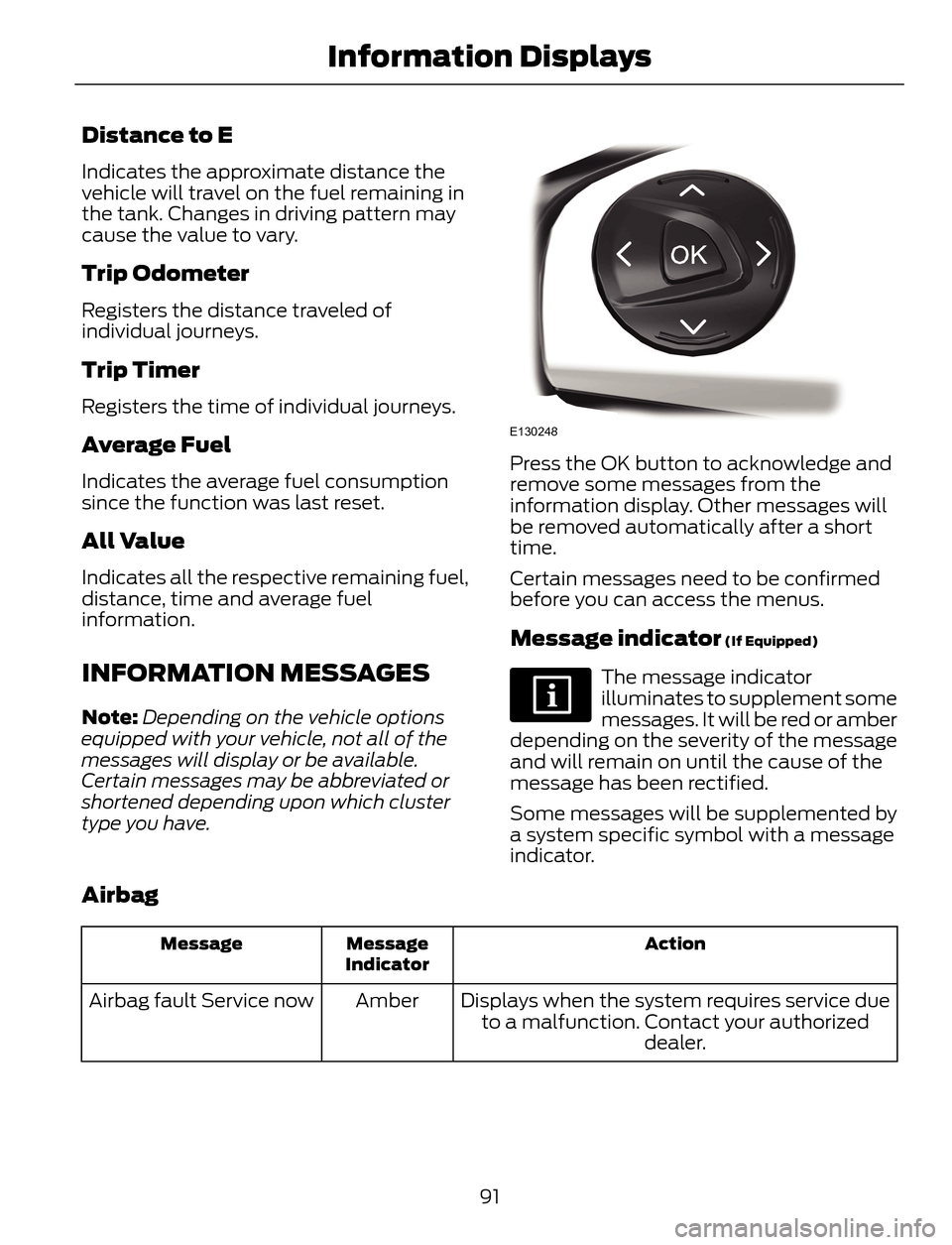
Press the OK button to acknowledge and
remove some messages from the
information display. Other messages will
be removed automatically after a short
time.
Certain messages need to be confirmed
before you can access the menus.
Message indicator (If Equipped)
The message indicator
illuminates to supplement some
messages. It will be red or amber
depending on the severity of the message
and will remain on until the cause of the
message has been rectified.
Some messages will be supplemented by
a system specific symbol with a message
indicator.
Airbag
Action Message
Indicator Message
Displays when the system requires service due
to a malfunction. Contact your authorized
dealer. Amber Airbag fault Service now
91
Information Displays
Page 106 of 428
Recirculated air: Press to turn air recirculation in cabin on or off. Recirculated
air may reduce the amount of time to cool down the interior of the vehicle and
may help reduce undesired odors from reaching the interior of the vehicle.
Recirculated air engages automatically when you select MAX A/C, or manually
in any airflow mode except defrost. Recirculated air may turn off automatically
in all airflow modes except MAX A/C to reduce fog potential. F
Defrost: Distributes air through the windshield defroster vents and demister
vents. The system automatically provides outside air to reduce window fogging.
Press again to turn off defrost mode. G
Instrument panel: Press to distribute air through the instrument panel vents.
Press again to turn off panel mode. H
Floor: Distributes air through the demister vents and front and rear seat floor
vents. Press again to turn off floor mode. I
A/C: Press to turn air conditioning on or off. Use with recirculated air to improve
cooling performance and efficiency. Air conditioning also engages automatically
in some modes. J
Temperature Control
E133115
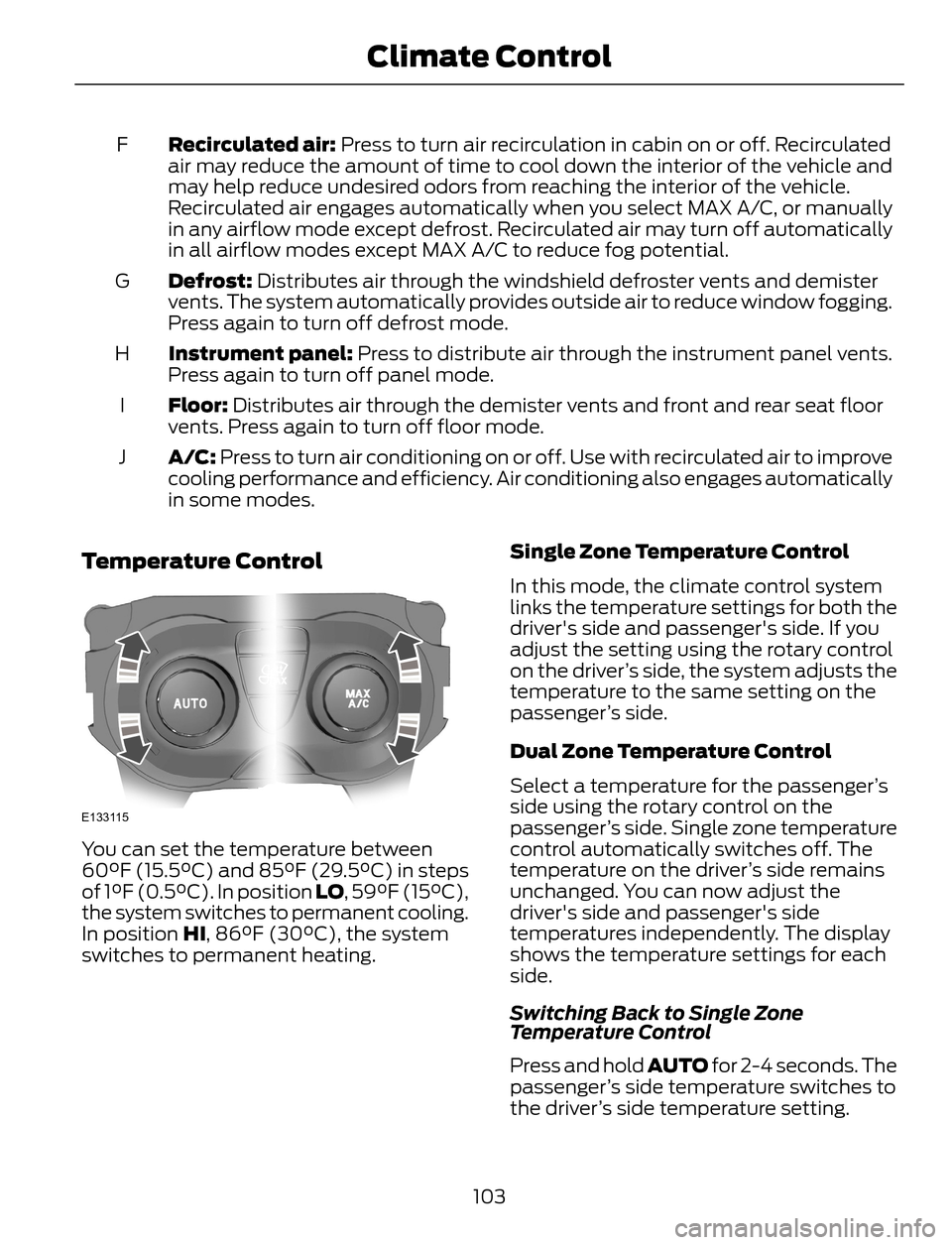
You can set the temperature between
60°F (15.5°C) and 85°F (29.5°C) in steps
of 1°F (0.5°C). In position LO, 59°F (15°C),
the system switches to permanent cooling.
In position HI, 86°F (30°C), the system
switches to permanent heating.Single Zone Temperature Control
In this mode, the climate control system
links the temperature settings for both the
driver's side and passenger's side. If you
adjust the setting using the rotary control
on the driver’s side, the system adjusts the
temperature to the same setting on the
passenger’s side.
Dual Zone Temperature Control
Select a temperature for the passenger’s
side using the rotary control on the
passenger’s side. Single zone temperature
control automatically switches off. The
temperature on the driver’s side remains
unchanged. You can now adjust the
driver's side and passenger's side
temperatures independently. The display
shows the temperature settings for each
side.
Switching Back to Single Zone
Temperature Control
Press and hold AUTO for 2-4 seconds. The
passenger’s side temperature switches to
the driver’s side temperature setting.
103
Climate Control
Page 119 of 428
HomeLink Wireless Control
System (If Equipped)
WARNING
Do not use the system with any
garage door opener that does not
have the safety stop and reverse
feature as required by U.S. Federal Safety
Standards (this includes any garage door
opener manufactured before April 1, 1982).
A garage door opener which cannot detect
an object, signaling the door to stop and
reverse, does not meet current federal
safety standards. Using a garage door
opener without these features increases
the risk of serious injury or death.
Note:Make sure that the garage door and
security device are free from obstruction
when you are programming. Do not program
the system with the vehicle in the garage.
Note:Make sure you keep the original
remote control transmitter for use in other
vehicles as well as for future system
programming.
Note:We recommend that upon the sale
or lease termination of your vehicle, you
erase the programmed function buttons for
security reasons. See Erasing the function
button codes later in this section.
Note:You can program a maximum of
three devices. To change or replace any of
the three devices after it has been initially
programmed, you must first erase the
current settings. See Erasing the function
button codes later in this section.
E142657
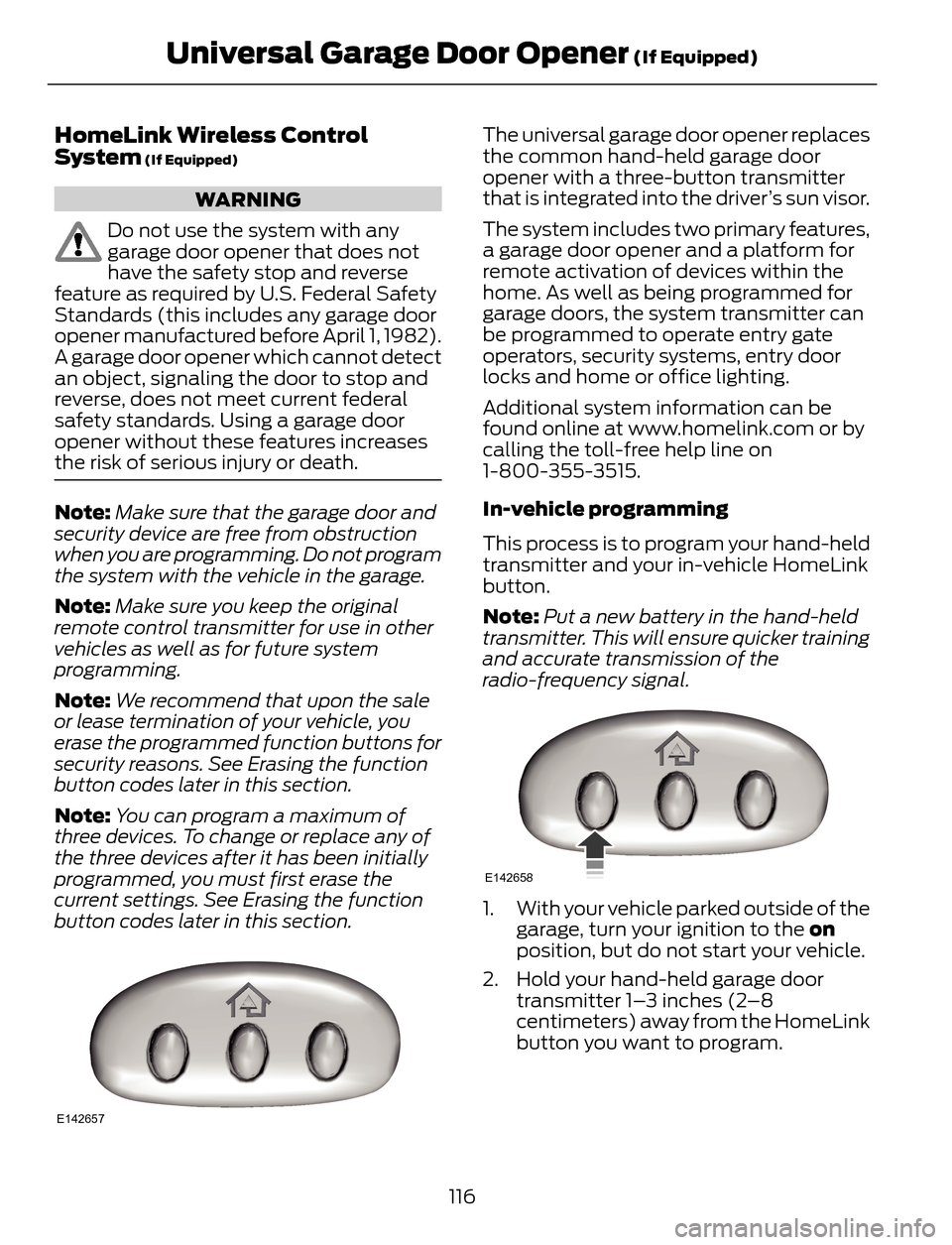
The universal garage door opener replaces
the common hand-held garage door
opener with a three-button transmitter
that is integrated into the driver’s sun visor.
The system includes two primary features,
a garage door opener and a platform for
remote activation of devices within the
home. As well as being programmed for
garage doors, the system transmitter can
be programmed to operate entry gate
operators, security systems, entry door
locks and home or office lighting.
Additional system information can be
found online at www.homelink.com or by
calling the toll-free help line on
1-800-355-3515.
In-vehicle programming
This process is to program your hand-held
transmitter and your in-vehicle HomeLink
button.
Note:Put a new battery in the hand-held
transmitter. This will ensure quicker training
and accurate transmission of the
radio-frequency signal.
E142658
1. With your vehicle parked outside of the
garage, turn your ignition to the on
position, but do not start your vehicle.
2. Hold your hand-held garage door
transmitter 1–3 inches (2–8
centimeters) away from the HomeLink
button you want to program.
116
Universal Garage Door Opener (If Equipped)
Page 121 of 428
E142660
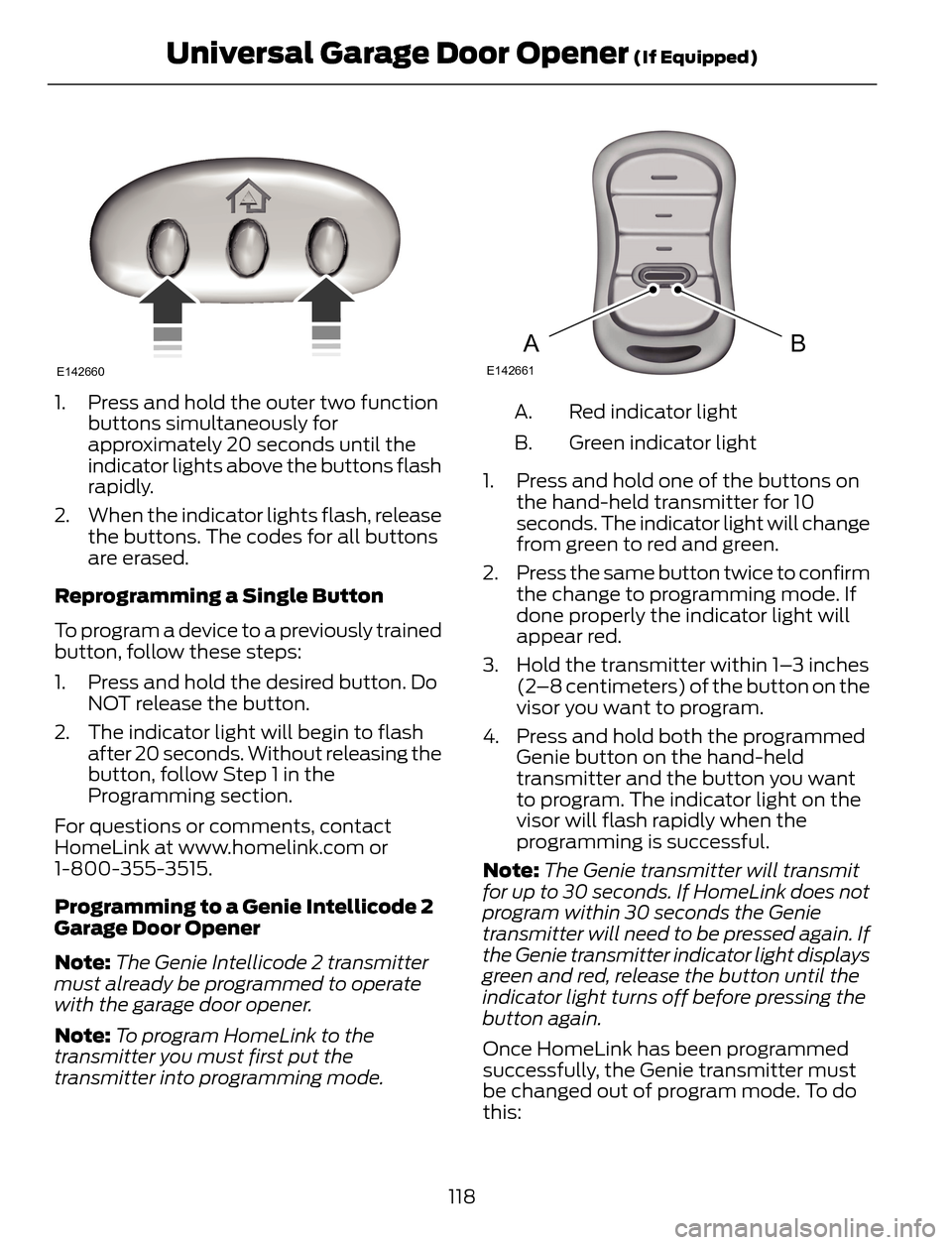
1. Press and hold the outer two function
buttons simultaneously for
approximately 20 seconds until the
indicator lights above the buttons flash
rapidly.
2. When the indicator lights flash, release
the buttons. The codes for all buttons
are erased.
Reprogramming a Single Button
To program a device to a previously trained
button, follow these steps:
1. Press and hold the desired button. Do
NOT release the button.
2. The indicator light will begin to flash
after 20 seconds. Without releasing the
button, follow Step 1 in the
Programming section.
For questions or comments, contact
HomeLink at www.homelink.com or
1-800-355-3515.
Programming to a Genie Intellicode 2
Garage Door Opener
Note:The Genie Intellicode 2 transmitter
must already be programmed to operate
with the garage door opener.
Note:To program HomeLink to the
transmitter you must first put the
transmitter into programming mode.
BAE142661
Red indicator light A.
Green indicator light B.
1. Press and hold one of the buttons on
the hand-held transmitter for 10
seconds. The indicator light will change
from green to red and green.
2. Press the same button twice to confirm
the change to programming mode. If
done properly the indicator light will
appear red.
3. Hold the transmitter within 1–3 inches
(2–8 centimeters) of the button on the
visor you want to program.
4. Press and hold both the programmed
Genie button on the hand-held
transmitter and the button you want
to program. The indicator light on the
visor will flash rapidly when the
programming is successful.
Note:The Genie transmitter will transmit
for up to 30 seconds. If HomeLink does not
program within 30 seconds the Genie
transmitter will need to be pressed again. If
the Genie transmitter indicator light displays
green and red, release the button until the
indicator light turns off before pressing the
button again.
Once HomeLink has been programmed
successfully, the Genie transmitter must
be changed out of program mode. To do
this:
118
Universal Garage Door Opener (If Equipped)
Page 122 of 428
1. Press and hold the previously
programmed Genie button on the
hand-held transmitter for 10 seconds.
The indicator light will change from red
to red and green.
2. Press the same button twice to confirm
the change. If done correctly the
indicator light will turn green.
Programming HomeLink to the Genie
Intellicode Garage Door Opener Motor
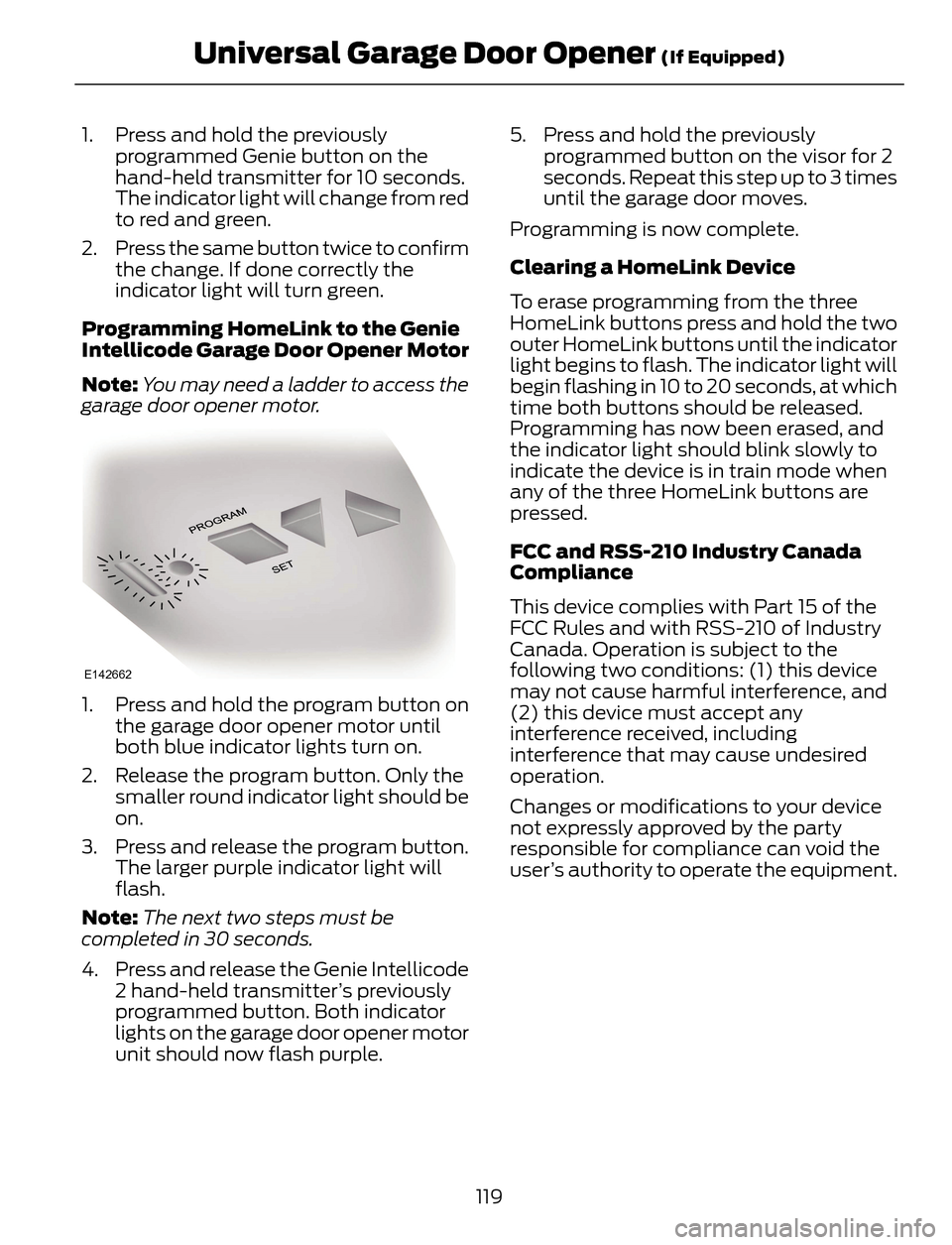
Note:You may need a ladder to access the
garage door opener motor.
E142662
1. Press and hold the program button on
the garage door opener motor until
both blue indicator lights turn on.
2. Release the program button. Only the
smaller round indicator light should be
on.
3. Press and release the program button.
The larger purple indicator light will
flash.
Note:The next two steps must be
completed in 30 seconds.
4. Press and release the Genie Intellicode
2 hand-held transmitter’s previously
programmed button. Both indicator
lights on the garage door opener motor
unit should now flash purple.5. Press and hold the previously
programmed button on the visor for 2
seconds. Repeat this step up to 3 times
until the garage door moves.
Programming is now complete.
Clearing a HomeLink Device
To erase programming from the three
HomeLink buttons press and hold the two
outer HomeLink buttons until the indicator
light begins to flash. The indicator light will
begin flashing in 10 to 20 seconds, at which
time both buttons should be released.
Programming has now been erased, and
the indicator light should blink slowly to
indicate the device is in train mode when
any of the three HomeLink buttons are
pressed.
FCC and RSS-210 Industry Canada
Compliance
This device complies with Part 15 of the
FCC Rules and with RSS-210 of Industry
Canada. Operation is subject to the
following two conditions: (1) this device
may not cause harmful interference, and
(2) this device must accept any
interference received, including
interference that may cause undesired
operation.
Changes or modifications to your device
not expressly approved by the party
responsible for compliance can void the
user’s authority to operate the equipment.
119
Universal Garage Door Opener (If Equipped)